Editorial disclosure: Tool names, tiers and prices below are cited for reference only. No vendor paid for placement, and pricing should be re-verified on each vendor's live pricing page before you buy anything.
«Automated media editing requires explicit risk boundaries and reproducible evidence. When executing video text removal, treating burned-in pixels as editable data without independent validation invites compliance and visual degradation risks.»
Key Takeaways
- If you still hold the original project file, deleting the title track in a non-linear editor is the only truly lossless method. Zero resolution, bitrate or dynamic-range penalty.
- For flattened MP4 and MOV exports, mask-guided AI video inpainting is the highest-fidelity option. Benchmarks show masked diffusion methods reaching PSNR ≈ 25 dB, SSIM ≈ 0.88 and FVD ≈ 164, against PSNR ≈ 18.6 and FVD ≈ 480 for purely text-prompted editing tools.
- Free tiers (CapCut, DaVinci Resolve, Kapwing free) cover most short-form cleanup. Paid tiers run from $16/month (Kapwing Pro) to $58/month (Topaz Video AI Pro) and $295 one-time (DaVinci Resolve Studio).
- No tool removes text invisibly on every shot. AI inpainting reliably fails on human faces, fine high-frequency texture (brick, foliage, water, fabric weave) and fast camera or subject motion.
- Removing third-party watermarks or copyright notices without rights can violate 17 U.S. Code § 1202. Uploading confidential internal footage to unvetted free web tools is a Shadow AI data-leakage risk.

How to Use This Guide
Three readers usually land here, and they need different things.
The first is a creator with one clip and a burned-in caption. Skip to the online workflow and the mobile section; you will be done in ten minutes. The second is an editor who inherited a finished export and no project file. Read the method matrix first, because your realistic ceiling depends on what sits behind the text. The third is an operations or governance lead who has to approve a tool for a team of forty people. Start with the compliance and data-handling limits, then the pricing and commercial-use conditions.
One shared principle runs through all three paths: keep the untouched master. Always. Every technique described below is destructive at the export stage, and the only cheap insurance is an original you can go back to.
Compliance and Data-Handling Limits Before You Start
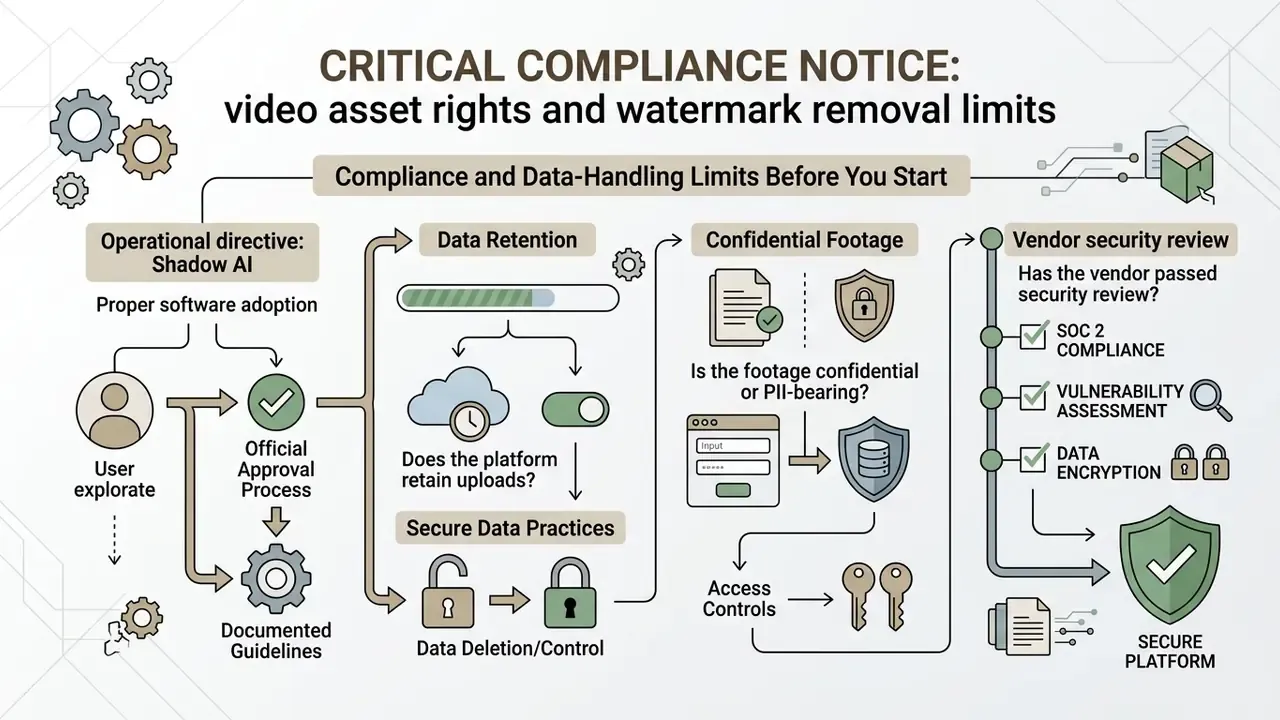
CRITICAL COMPLIANCE NOTICE: video asset rights and watermark removal limits
General information only. This section is not legal advice and does not replace consultation with a qualified copyright or media-licensing attorney for your jurisdiction and asset portfolio.
Verification of source media ownership is required. Removing visible watermarks, copyright notices or author attribution text from third-party video content without explicit authorization violates copyright law in most jurisdictions. Under 17 U.S. Code § 1202 (Integrity of Copyright Management Information), knowingly removing or altering copyright management information with intent to induce, enable, facilitate or conceal infringement carries severe liability. U.S. Copyright Office guidance also treats subtitled or dubbed versions of a film as derivative works, which means caption tracks themselves can carry independent protection.
Technical context: watermark protection is an active research field, not a formality.
«Adversarial perturbations can keep a watermark visible or disruptive even after automated removal attempts.»
Operational directive: confirm that your organization holds explicit licensing rights or original master ownership before you point an automated AI text remover at media headed for commercial distribution. Verify authenticity and provenance of processed assets with AI image and media detectors, and check our legal documentation section on AI Litigation and Case Timelines for current regulatory movement.
Shadow AI, Data Retention and Confidential Footage
Free browser-based text removers are the single most common Shadow AI entry point in media teams. Nobody files a ticket to paste a file into a website. That is exactly the problem.
Before an employee uploads anything, three questions need answers in writing:
- Does the platform retain uploads?Many freemium services keep processed media for 24 hours to 30 days for "caching" or "quality improvement." Some reserve the right to use uploaded footage as model training data.
- Is the footage confidential or PII-bearing?Internal all-hands recordings, unreleased product demos, customer support calls, medical or HR footage, and any clip showing faces, badges, screens or account numbers must never be routed through an unvetted consumer endpoint. Use on-device mobile inference or a locally installed desktop editor instead.
- Has the vendor passed security review?Enterprise workflows should require a completed vendor and security assessment, a data processing agreement, and a documented deletion SLA before a tool joins the approved list.
Provenance and auditability. Once frames have been generatively reconstructed, the asset is an AI-modified derivative. Teams working under audit, newsroom or evidentiary obligations should record the modification in content-credential metadata (C2PA-style provenance manifests, for example) and retain the untouched master plus the mask definition, so any reviewer can reproduce the edit rather than take it on trust.
Forensic and evidentiary workflows apply a stricter rule. The Scientific Working Group on Digital Evidence treats redaction as a documented process performed from the master, never an in-place overwrite. If a clip could end up in a filing, treat "erase" as "annotate and re-derive."
Can You Remove Text from a Video?
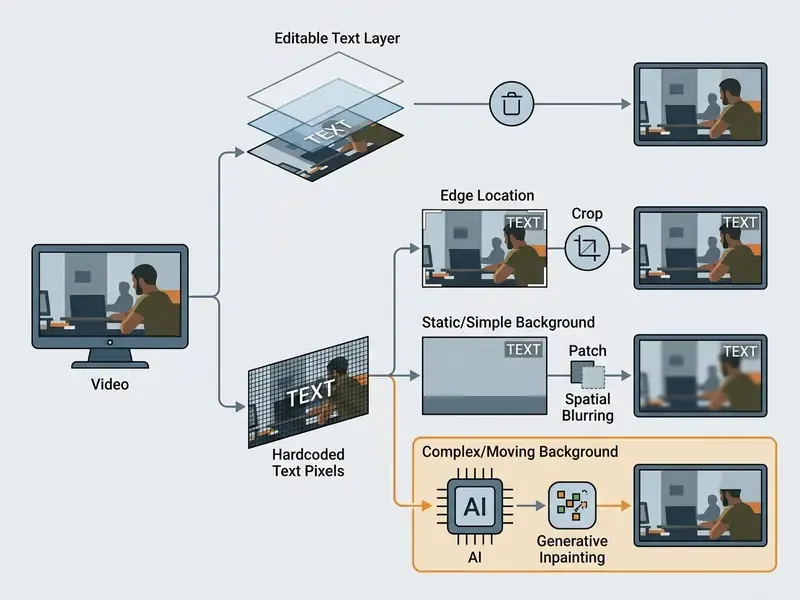
Yes, on-screen text can be removed from a video file. How hard it gets depends entirely on whether that text still exists as an editable graphic layer or has been permanently rendered into the pixels.
When team members ask, can you remove text from a video, the honest answer starts with media structure. If you hold the original project file in a video editor, removing text is a simple track operation. Two clicks. When you are working with a flattened export (MP4, MOV), text removal becomes an inverse computer vision problem known as spatio-temporal video inpainting.
To judge whether is it possible to remove text from video without sacrificing output quality, evaluate three parameters: footage structure, background complexity, and camera motion. Those three decide whether you can remove text from a video cleanly or whether generative ai video models have to synthesize the missing background from scratch.
«Modern neural architectures evaluate the surrounding context of a masked region and fill it with high perceptual realism.»
It is worth stating the physical limit plainly. If a caption covers background pixels that appear nowhere else in the clip, exact recovery is impossible. Peer-reviewed inpainting literature describes the task as estimating missing content through spatio-temporal reconstruction, not restoring it. Which is why the earliest automatic pipelines, text detection first and inpainting second, remain the architectural template today.
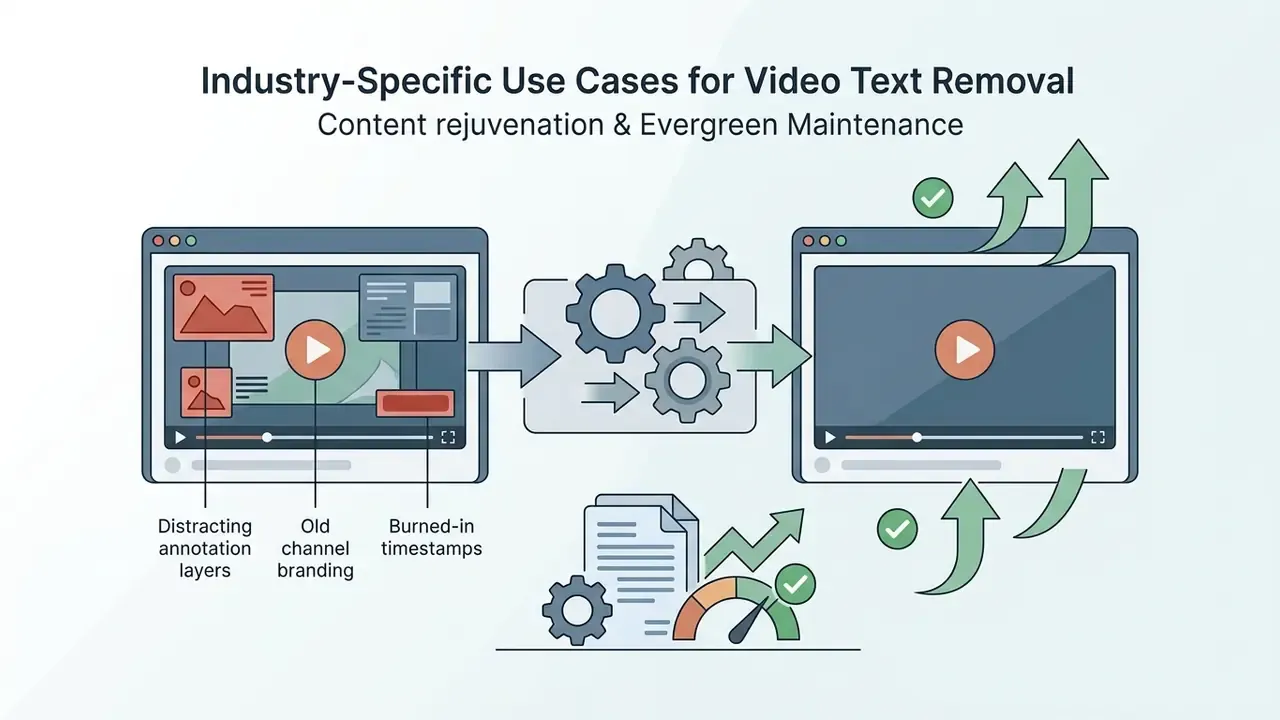
Industry-Specific Use Cases for Video Text Removal
Text removal is rarely a hobby task. It is almost always an asset-reuse decision, and someone has already calculated what a reshoot would cost. The highest-volume commercial scenarios:



Editable Text, Text Overlay and Hardcoded Text
Editable text lives on an isolated timeline layer inside a project file. Hardcoded text is baked directly into the visual pixel grid of exported media. Everything else follows from that split.
Understanding the difference between an editable video text layer, an unrendered text overlay and hardcoded captions determines the cleanup method you are allowed to choose:
- Editable text layercreated inside non-linear editing systems. The text exists as vector geometry or font metadata on a separate timeline track. It can be modified, moved or deleted instantly without touching the underlying raw footage. Readers new to this workflow can start with our overview of non-linear video editors.
- Text overlaya visual element composited over the base video. It may behave as a discrete graphical object during live editing, but once rendered into distribution formats the text overlay merges permanently with background frame pixels. W3C guidance treats text placed on top of an image as a separate layer, which is precisely why it stops being separate the moment it is flattened.
- Hardcoded text and subtitlespermanently rendered into the image matrix during final export. Burned-in captions, subtitles and watermarks overwrite the original visual data beneath them. Removing them requires generative algorithms to estimate and reconstruct missing pixel values. Accessibility documentation is blunt about the consequence: burned-in subtitles are permanently part of the video file, and OCR recovery of them is unreliable.
«Editors treat text overlays as discrete timeline objects, categorically distinct from rendered output frames.»
For a deeper look at how these models actually build pixels, see our technical breakdown on how does ai generate images and the companion explainer on how does ai art work.
Which On-Screen Text Can a Video Text Remover Clean Up?
Modern video text removers handle burned-in captions, subtitles, visible watermarks, channel logos, tickers and timestamp labels across both static and dynamic backgrounds.
An automated text remover reads pixel contrast and spatial boundaries to isolate unwanted visual noise. The elements most often targeted:
- Burned-in subtitles and captions text lines near the lower third, frequently sitting over the busiest part of the frame.
- Brand watermarks and logos semi-transparent or fully opaque overlays parked in screen corners to signal ownership.
- Timestamps and camera labels monochromatic telemetry burned in by security cameras or stock preview renders.
- Lower-third tickers and text banners high-contrast graphic bars carrying news, names or promotional metadata across the frame.
- End credits, endcards and sticker text terminal branding frames and decorative sticker text that pins an asset to one campaign cycle.
When evaluating platforms side by side, teams often work from the AI Media Comparison Matrices to check processing accuracy across different asset types.
Ways to Remove Text from Video Without Re-Editing the Original
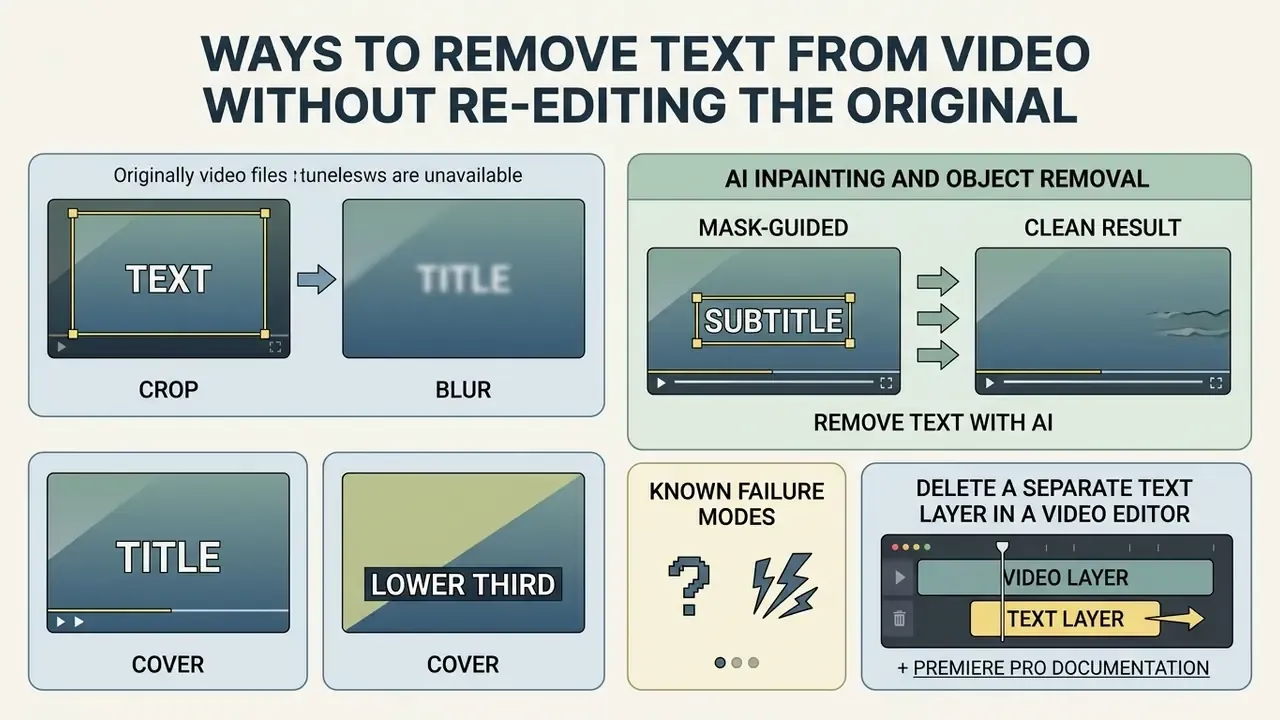
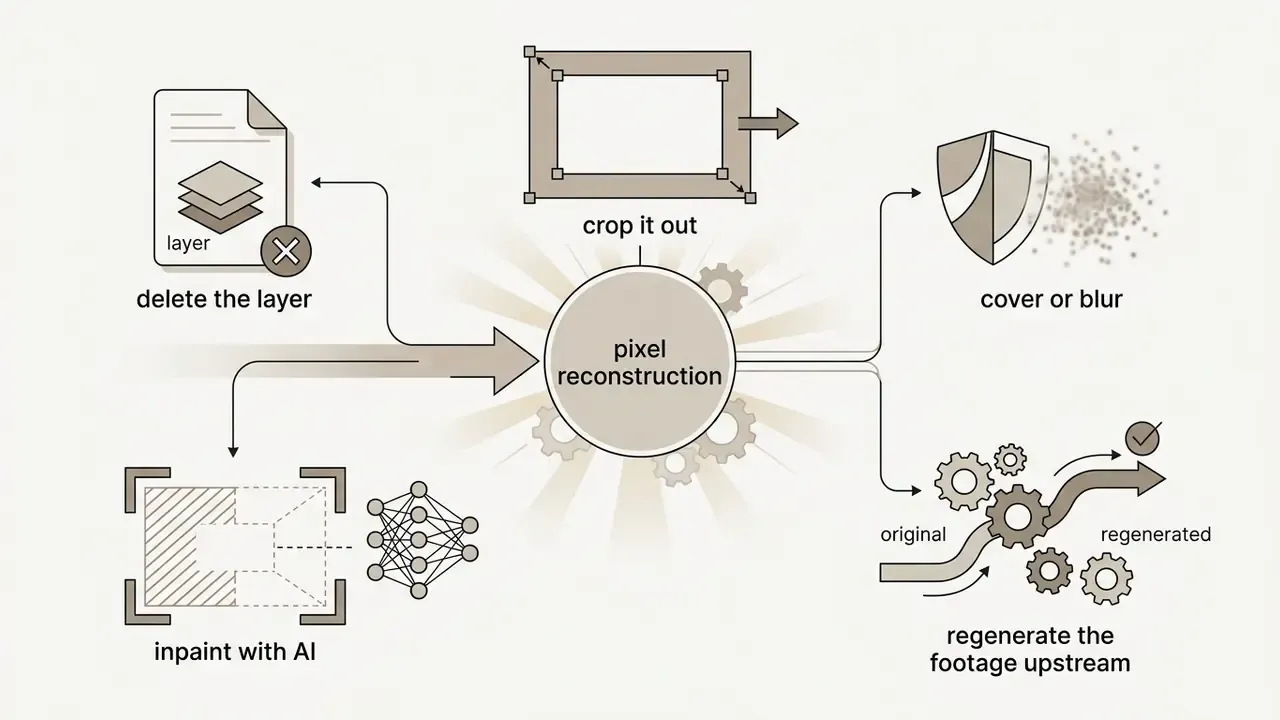
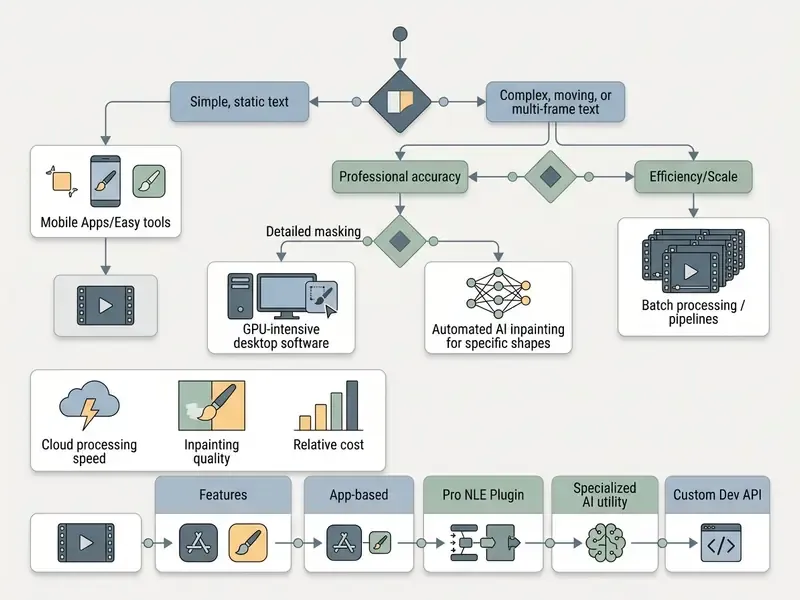
No project file? Then you are choosing between spatial modification techniques: cropping the edges, masking with blur or covers, or applying generative AI inpainting to reconstruct the pixels underneath.
The decision hinges on where the text sits in the frame and how much visual compromise you can accept. Traditional techniques change frame geometry or clarity; advanced ai video tools rebuild missing data. Choosing how to remove text from video means balancing composition against processing artifacts.
Measured comparison, not vibes. Mask-guided inpainting outperforms both spatial blur and prompt-only editing on centered, hardcoded captions over moving backgrounds, and the gap is quantified:
«Masked diffusion editing preserves causal consistency far better than text-prompted editors, reaching SSIM above 0.87 on standardized benchmarks.»
Crop, Cover or Blur Text Overlays
Cropping cuts away outer frame boundaries containing text. Covering masks the text with a solid overlay. Blurring diffuses pixel clarity until the text is unreadable.
These three are the most direct tools in any video editor remove text workflow:
- Crop removes the outer edges of the frame. It fully eliminates marginal watermarks or timestamps, but it alters composition and reduces effective resolution. Only viable when the text sits on a sacrificial border region.
- Blur applies a Gaussian or mosaic filter over the target area.
«A filter mask with adjustable position, scale and intensity supports selective redaction while preserving the surrounding frame.»
Selective blur masks preserve overall framing while reducing legibility. But local detail, edge contrast and readability inside the blurred zone drop irreversibly. The loss is permanent in the export, even if the master survives untouched.
- Cover: superimposes an opaque shape, color box or fresh graphic over the old text overlay. Framing stays intact, though you have deliberately introduced an obstruction over original scene detail. In practice this is the fastest fix for lower-third rebrands: drop the new title bar exactly over the old one and move on.
Teams estimating asset conversion trade-offs can use the AI Media Calculators to model resolution loss before committing to a crop.
Remove Text with AI Inpainting and Object Removal
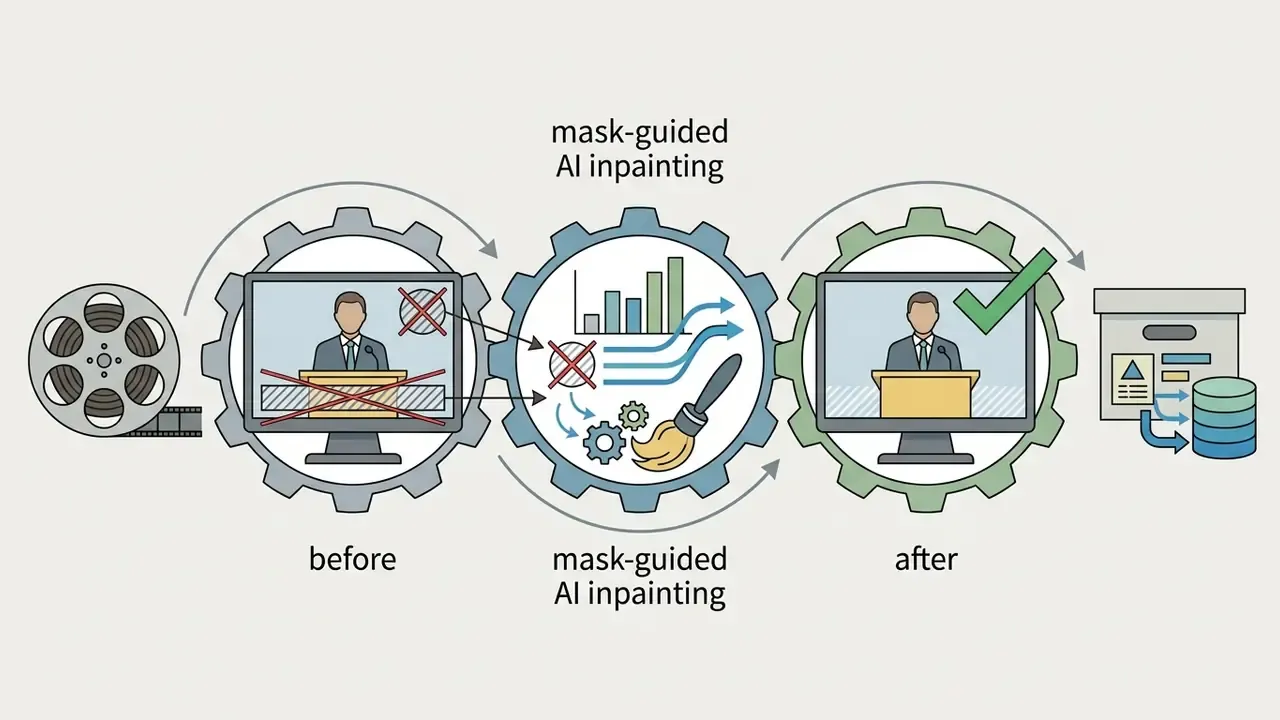
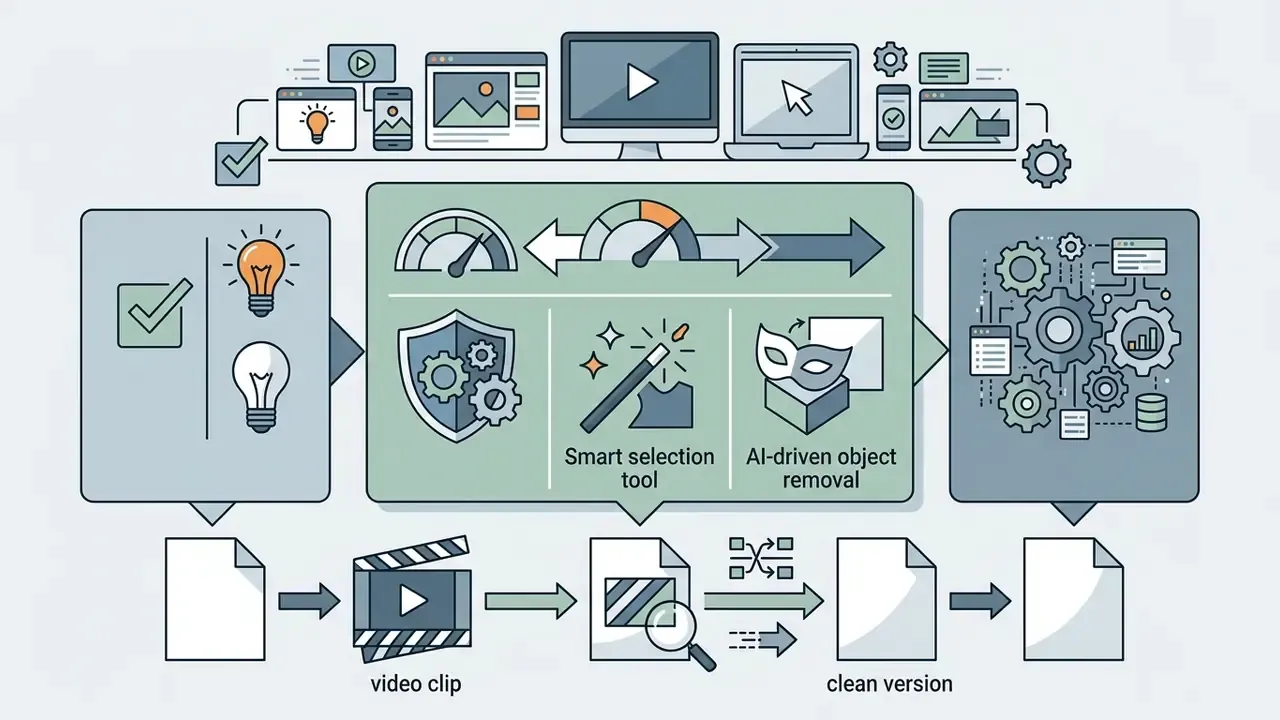
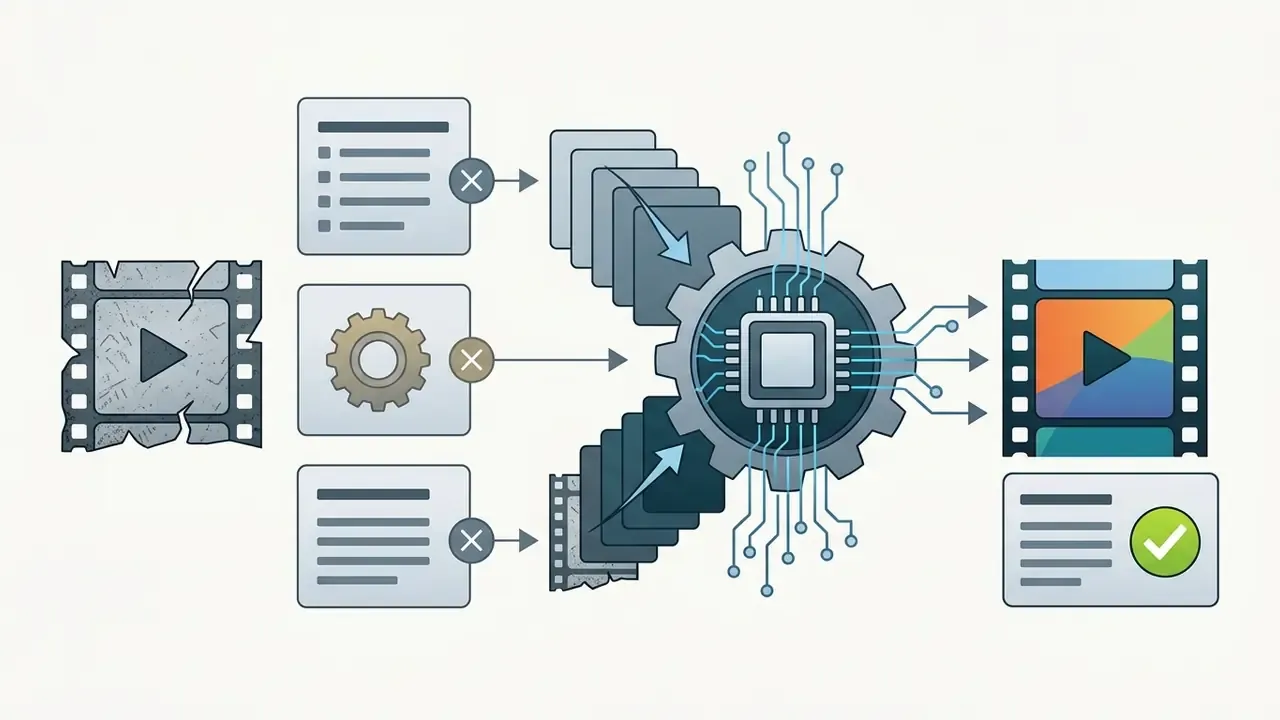
AI video inpainting removes burned-in text by reading temporal context across neighboring frames and synthesizing semantically consistent background pixels over the masked area.
Unlike static spatial fixes, a generative ai video remover analyses relationships across time as well as space. Modern architectures evaluate surrounding context and fill masked regions with high perceptual realism.
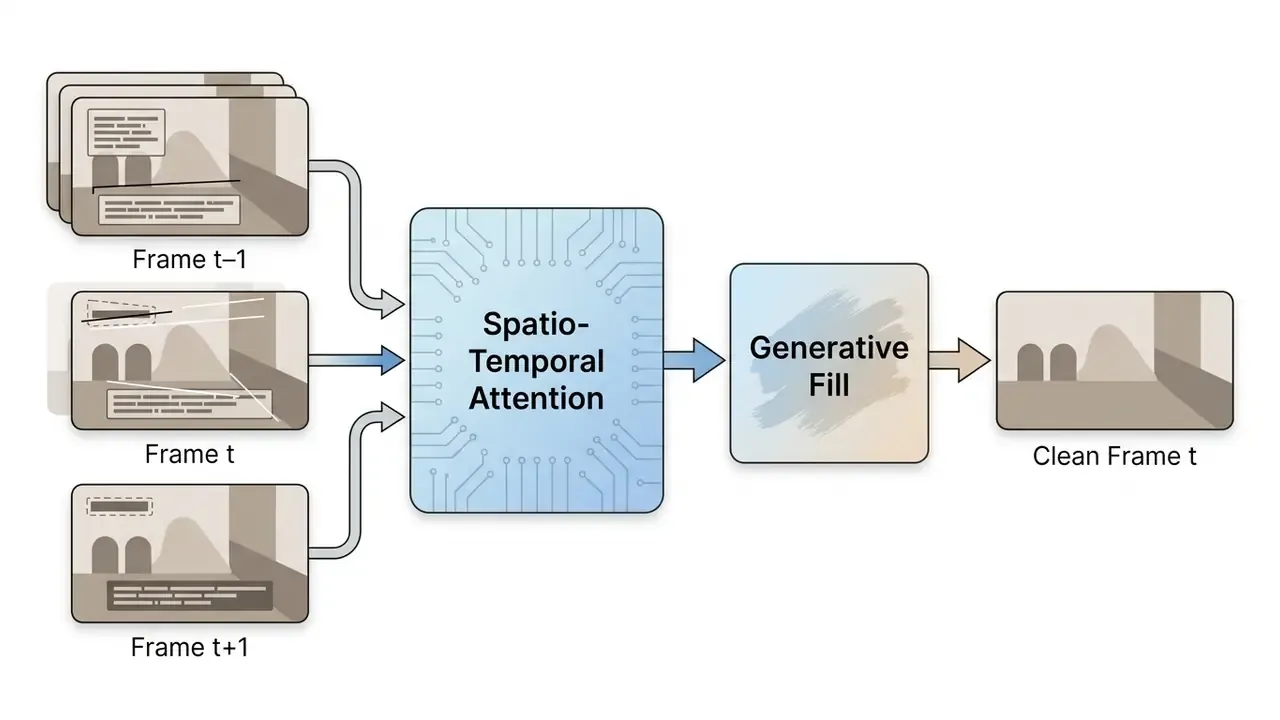
When an operator marks a video text region, the model calculates motion vectors from the unmasked surroundings. On uniform backgrounds such as clear sky or a flat studio wall, inpainting routinely clears Peak Signal-to-Noise Ratio (PSNR) values above 30 dB.
«On simple backgrounds, contemporary inpainting reaches PSNR above 30 dB and SSIM near 0.9, indicating statistical similarity between the filled region and the original background.»
Delete a Separate Text Layer in a Video Editor
Deleting a separate text layer means opening the unrendered source sequence in a non-linear editor and removing the title track before export.
Inside a native NLE such as Adobe Premiere Pro, DaVinci Resolve or Apple Final Cut Pro, text removal is non-destructive. That is the defining advantage of non-linear video editors. According to Adobe Premiere Pro Documentation (2025) (https://helpx.adobe.com/), titles and graphic elements live on dedicated video tracks above the primary footage. Blackmagic Design's DaVinci Resolve manual and the Apple Final Cut Pro User Guide describe the same model: titles and Fusion text are timeline elements, disabled or deleted independently of the clips beneath them.
To execute lossless removal:
- Open the source project sequence on the editing timeline.
- Highlight and select the specific graphic or title clip on the upper track.
- Press delete, or simply disable track visibility.
- Export the sequence directly from the master media.
Because the source footage is never touched, this method preserves 100% of the original resolution, bitrate and dynamic range. One critical caveat: the result is lossless only if you export from the original project, not from a previously rendered file that already carries burned-in text. To see how synthesis systems build video assets from nothing, read our guide on how do people make ai videos.
Upstream Video Generation: Eliminating Text at the Source
With recurring brand templates and legacy promotional assets, reconstructing complex background pixels in post often produces artifacts that no amount of mask feathering resolves. There is another route: upstream AI re-generation.
Instead of erasing burned-in text with lossy spatial masks, operators feed the original frames, or the original script and brand assets, into generative video-to-video and text-to-video engines such as Argil, Runway Gen-3 or Google Veo. Prompt the model to reproduce the scene without graphic overlays and it synthesizes a clean 1080p or 4K master directly from structural prompts, skipping pixel-patching altogether. The same class of tooling powers the image to video ai free no sign up services and their unlimited-tier equivalents, which are useful for cheap testing before you commit budget.
This flips the economics for teams producing the same asset every week. If a promo template is regenerated each campaign cycle, the correct fix is not a better eraser. It is a production pipeline that never bakes text into the master: render the clean plate once, keep captions on a separate track, and export text-free and text-on versions in parallel. Developers evaluating programmatic generation can review our Google Veo implementation and API cost guide and the broader primer on AI video generators.
Method Selection Matrix for Video Text Removal
How to Remove Text from Video Online with AI
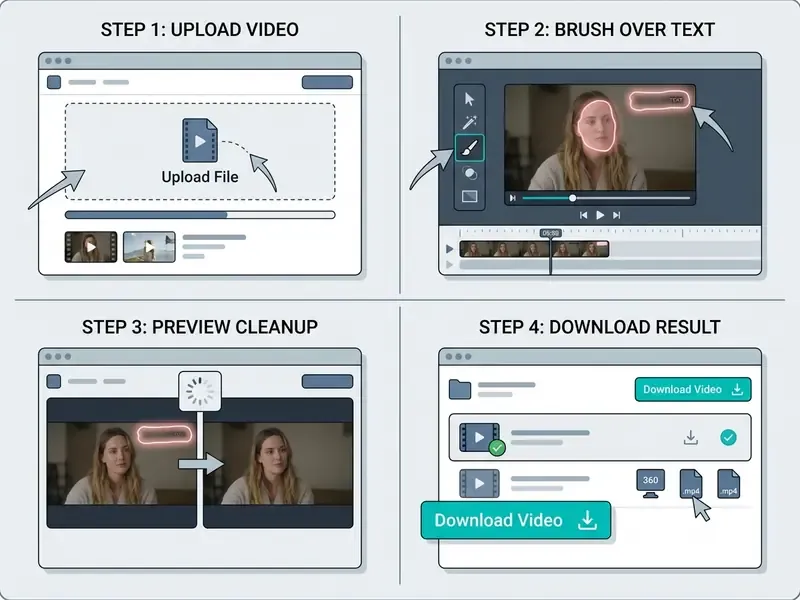
Online removal follows a four-step workflow: upload the raw file, mask the target text area, run generative cleanup, inspect the preview before downloading.
Cloud platforms handle the heavy inference on remote clusters, which is why they feel instant on a laptop with no discrete GPU. When you follow any online remove text from video tutorial, strict quality control at the export stage is what prevents compression artifacts from undoing the work. The whole point is to remove text from video online without local hardware requirements.
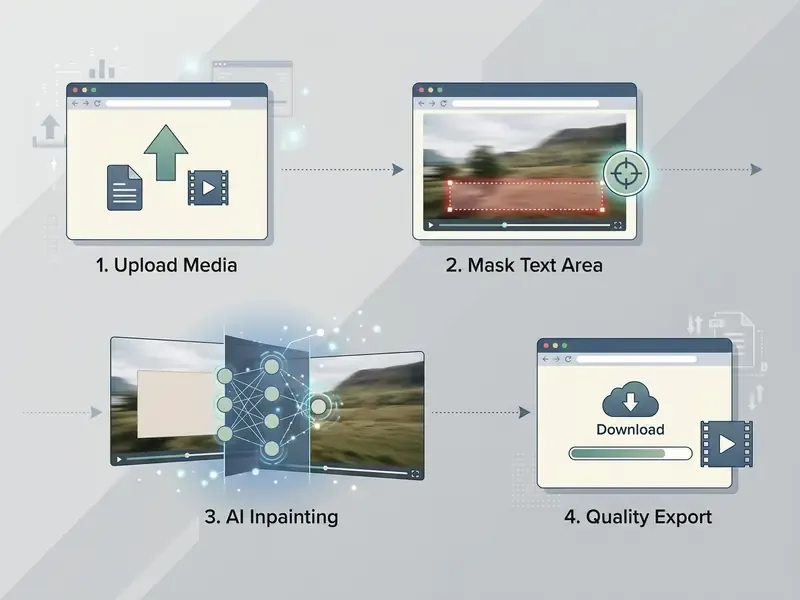
Upload the Video and Select the Text Area
Uploading means picking a compatible container (MP4 or MOV, usually), then masking precisely with a brush or bounding box across specific timeline keyframes.
The opening phase of any how to remove text from video tutorial is really about accurate ingestion and spatial targeting:
- File uploadingest source videos into the web interface. Browser-based erasers commonly accept MP4, MOV, WebM, AVI and MKV, with size limits from 100 MB to 2 GB and clip-length ceilings between 30 seconds and 15 minutes. Verify the cap before you push a long-form master through: most failures here are silent truncations, not error messages.
- Text area selectionuse the brush or bounding box tool to select the region around the video text. Typical modes are single box select for one stable region, multi-box for two or three non-overlapping regions, and full frame for an automatic detection sweep.
- Multi-region trackingif multiple watermarks or caption bands appear across different frame ranges, set start and end keyframes so each mask tracks only the duration it needs to.
- Mask padding disciplineexpand the mask just past the outer glyph boundary and its anti-aliased edge, and no further. Oversized masks force the model to invent background it never needed to invent. That is the most common self-inflicted cause of a visible patch.
Batch Processing: Removing Text from Multiple Videos Simultaneously
For e-commerce vendors, archiving teams and agencies sitting on large catalogues, hand-masking individual clips is operationally hopeless. Batch workflows automate mask application across standardized layouts:
- Template bounding box assignmentdefine uniform spatial coordinates (a lower-third caption band, a top-right logo zone) on a master reference file, then propagate those coordinates across the queue. This works only where source assets share a fixed graphic template, so verify on a sampled subset first.
- Automated AI queueingcloud and API processors (bulk endpoints from platforms such as Zawa and Veed, plus asynchronous removal APIs that accept a source video and an erase-region payload) run spatio-temporal inpainting across whole batches. Asynchronous APIs return a job ID rather than a file, so build retry and polling logic into the pipeline from day one.
- Automated QC inspectionscripts flag frames where PSNR drops below 25 dB, or where frame-to-frame structural similarity diverges sharply, so editors review complex background transitions instead of eyeballing the entire catalogue.
- Deterministic naming and versioningkeep the untouched master, the mask definition and the cleaned export under a shared asset ID. Then any output can be regenerated or rolled back after a template change.
Per-clip API pricing for bulk erasure starts around $0.06 per clip, with per-second surcharges above roughly five seconds. That matters when a product catalogue runs into thousands of SKUs.
Let AI Remove Text and Preview the Cleanup
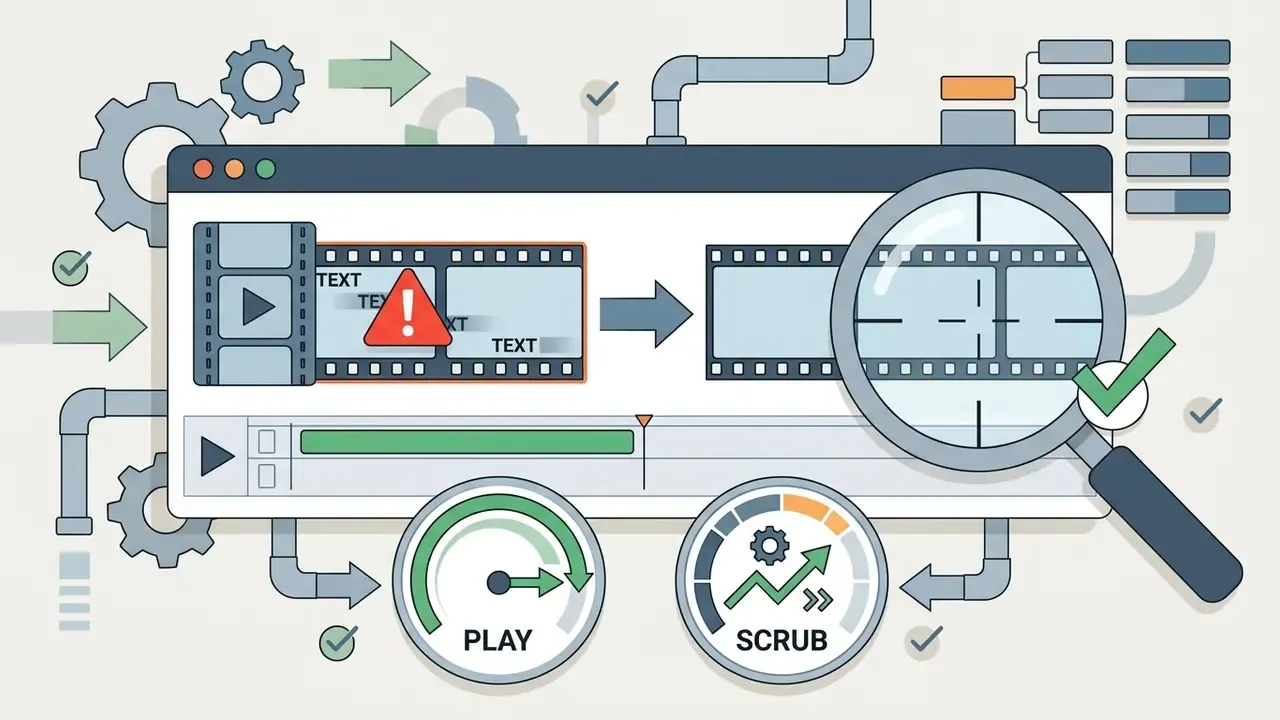
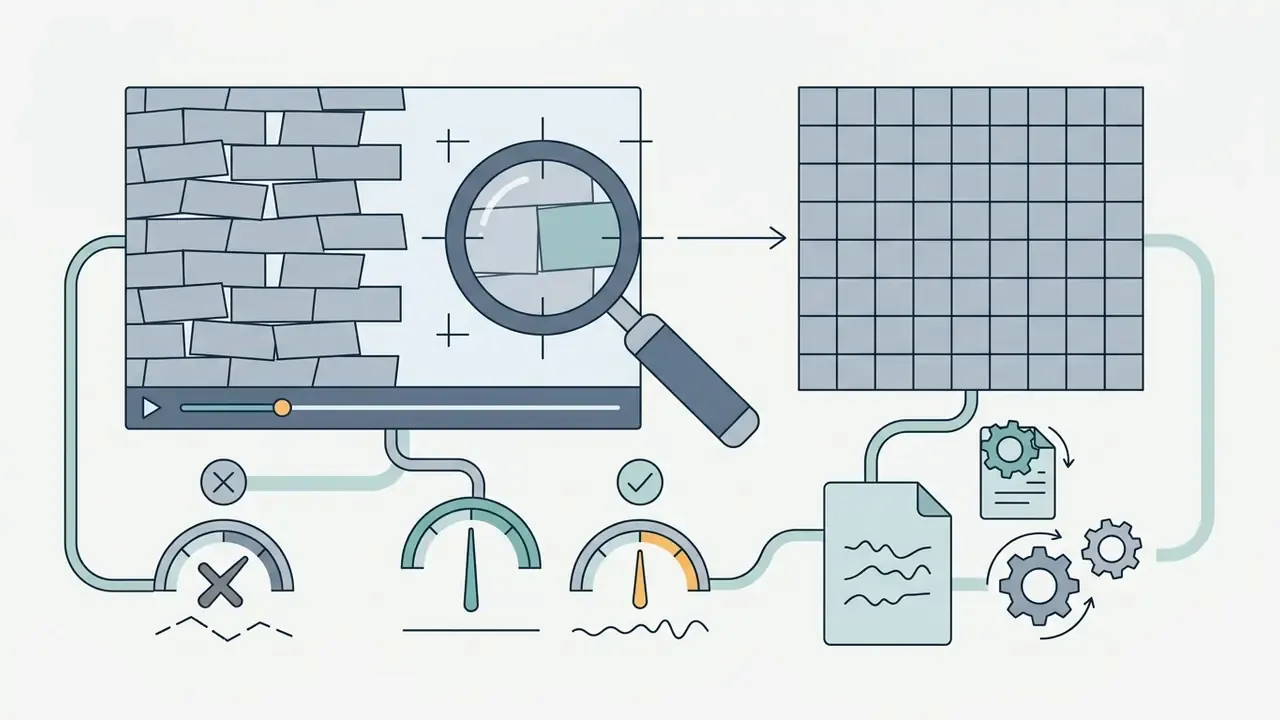
During automated removal, the model fills the masked boundary. Your job is the preview: hunt for edge halos, temporal flicker and texture mismatch.
Once masks are set, the generative engine executes text removal. The benchmark numbers are worth internalizing:
«On BeyondMasks, the masked diffusion method DiffuEraser reached PSNR 25.19, SSIM 0.877 and LPIPS 0.112, while the text-prompted editor Lucy Edit scored PSNR 18.59 with FVD 480.»
In the interactive preview phase, inspect three boundaries specifically:
For teams comparing generative visual models across asset types, our analysis of the best AI art generator tools covers the same evaluation logic applied to stills.

Download the Clean Video at the Best Available Quality
Final export means choosing settings that match the source video's native resolution, frame rate and encoding bitrate, so you do not undo the cleanup with compression.
The last step of the remove text from video tutorial is saving the asset properly. Export recommendations from the Adobe Help Center (2025) (https://helpx.adobe.com/) and Vimeo Video Engineering Guidelines both say the same thing: match source sequence properties. Adobe's "Match Source – Adaptive High Bitrate" preset explicitly matches sequence frame size and frame rate, which makes it the safest default.
Step-by-Step Visual Checklist: Online AI Text Removal
Stage 1: media ingestion and compatibility verification
Upload the raw file (MP4, MOV or WebM). Confirm input resolution (1080p or 4K) and keep file size inside platform memory limits, often under 500 MB. Confirm the asset is cleared for third-party cloud processing before anything leaves your machine.
Stage 2: precision spatial and temporal selection
Use brush or box selection to mark the on-screen text. Adjust padding to cover the outer glyph boundaries without swallowing surrounding background detail.
Stage 3: AI inference and interactive preview inspection
Run the generative model. Pause at key movement frames and zoom to 100% to inspect mask boundaries for edge artifacts, blur halos and frame-to-frame flicker. Pay particular attention wherever the mask crosses a face, a hard edge or a fine texture.
Stage 4: high-fidelity export and download
Configure export to "Match Source" parameters (resolution, fps, adaptive high bitrate). Render, download the clean file, then archive the master plus the mask definition so the edit stays reproducible.
Best Apps to Remove Text from Video on Mobile
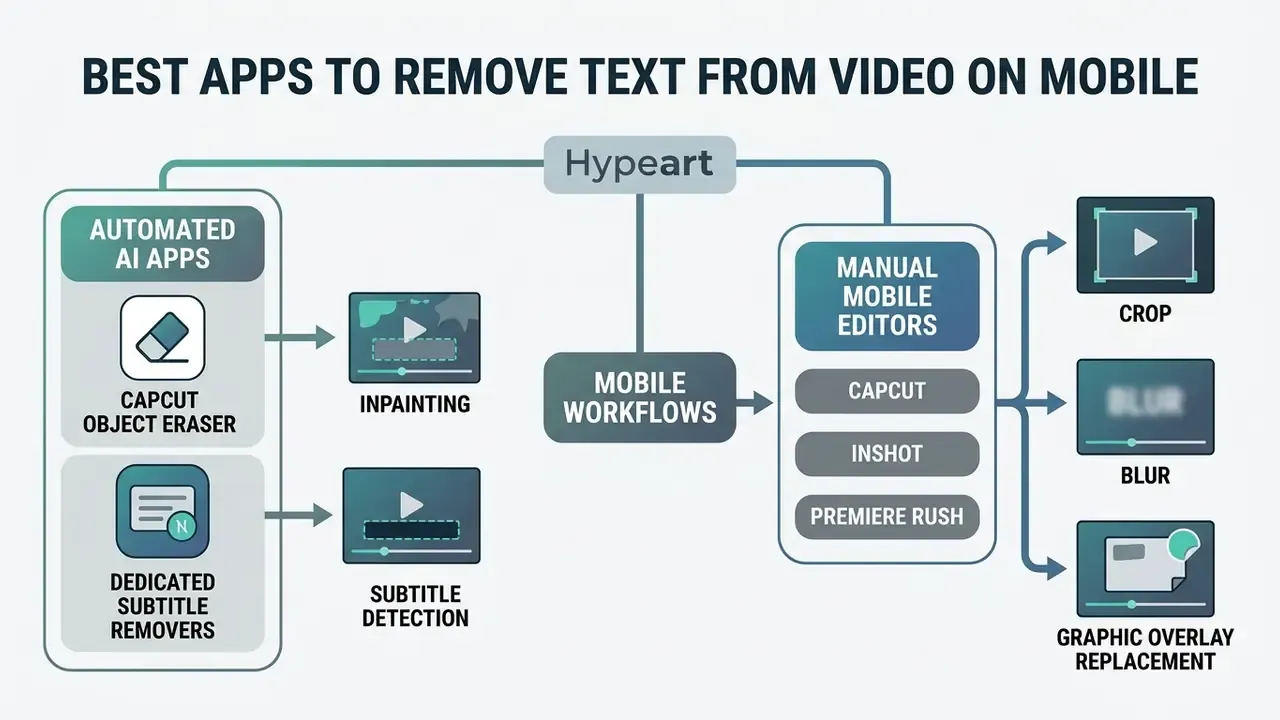
Mobile applications remove video text with lightweight neural models or native transform controls tuned for iOS and Android hardware.
Creators constantly search for a dedicated app remove text from video capability on the phone itself. Modern mobile ecosystems deliver several apps remove text from video paths, from automated caption removers to full multi-track editors, many overlapping with the free AI video generators available on mobile. Choosing an app to remove text from video comes down to one question: do you need automated AI background inpainting, or will manual crop and cover tools do the job?
When testing how to remove text overlay from video app environments, start with short clips. Long renders on a phone mean thermal throttling and memory pressure, and neither shows up as a helpful error message.
AI Apps for Removing Burned-In Text and Captions
Mobile AI applications use automated object detection and local neural networks to find and fill burned-in captions right on the device.
Among the best apps to remove text from video, the 2026 shortlist is led by CapCut, whose free Object Eraser runs on iOS, Android, web and desktop with motion tracking on masks. Around it sit single-purpose utilities:
- Automated subtitle detection App Store and Google Play tools marketed as video subtitle and text removers use lightweight networks to detect text shapes automatically, generating localized masks over hardcoded captions, stickers and overlay text. Those listings publish feature claims, not measured PSNR or SSIM results, so test on your own footage before you subscribe.
- On-device local inference many Android utilities process frames locally to protect privacy, which also makes them the correct choice for confidential material. Speed depends directly on chipset NPU capability, and long clips will throttle.
- Cloud-assisted processing hybrid apps remove text from video by offloading diffusion models to remote servers, delivering better fidelity on detailed backgrounds, at the cost of shipping your media to a third party.
«OmniEraser reduced FID from 55.49 to 39.52 and LPIPS from 0.146 to 0.133 on RemovalBench, roughly 28.7% fewer artifacts than prior methods.»
A quick sanity check on realism, by the way. The same generative machinery that produces uncannily smooth synthetic portraits, the kind catalogued in our note on the hyper realistic beautiful ai girl trend, is what fills your mask. It is excellent at inventing plausible surfaces and unreliable at reproducing a specific one. Keep that asymmetry in mind. Operators exploring mobile creation workflows can also review our analysis of free AI video generator applications.
Mobile Editors for Crop, Blur and Text Overlay Replacement
Mobile editors give you timeline controls to crop text off the frame edge, blur sensitive detail, or drop a new graphic overlay on top of the old one.
Standard multi-track mobile editors (Adobe Premiere Rush, CapCut, InShot) offer solid manual control when working through how to remove text from video app steps. They sit on the same feature continuum as the desktop options in our comparison of free video editing software:
For creator workflows built around mobile assembly, see our guide on YouTube video editor tools and workflows.
- Transform and crop
- per Google Android Media3 Documentation (2026) (https://developer.android.com/media/implement/editing-app), native transformation APIs support direct frame cropping through the
Cropeffect, letting mobile users trim unwanted top or bottom text bands. - Selective masking and blur
- mobile editors let you place rectangular or oval blur masks over sensitive information, with feathering to soften the outer edge. Adobe Premiere Rush documents clip position, scale, opacity and edge feathering as first-class controls (https://helpx.adobe.com/premiere-rush/desktop/introduction/rush-overview.html).
- Picture-in-picture replacement
- Android Media3's
OverlayEffectand InShot's PiP layers let operators drop a new graphic or text layer straight over an existing text overlay, covering the source text with updated branding.
What to Check Before Exporting from a Video Text Removal App
Before mobile export, verify that the app is not adding its own watermark, dropping frame rate, or quietly compressing your resolution.
Four checks inside any mobile app to remove text from video:
- Service watermark injection confirm the free tier does not stamp its own branding or logo watermarks onto the export. Removing one watermark only to acquire another is the classic freemium trap, and it is astonishingly common.
- Resolution and bitrate caps make sure the exporter is not silently downscaling 4K or 1080p sources to 720p. Watermark-and-transcode export paths documented by SDK vendors can themselves cap output at 1080p and degrade quality along the way.
- Variable frame rate drop confirm export settings hold a constant frame rate aligned to the original, or you will chase audio-video sync errors through every later edit.
- Local versus cloud processing read the privacy disclosure and establish whether frames leave the device. For internal, unreleased or PII-bearing footage, only on-device inference is acceptable.
For more fundamentals on visual media management, browse our AI Media Glossary, and if a specific tool misbehaves mid-render, AI Media Support documents the usual culprits.
Best Tools to Remove Text from Video: Free and Paid Options
Choosing between free and paid removers means weighing resolution limits, processing speed, temporal stability, data-retention policy and commercial licensing rights. In that order, roughly.
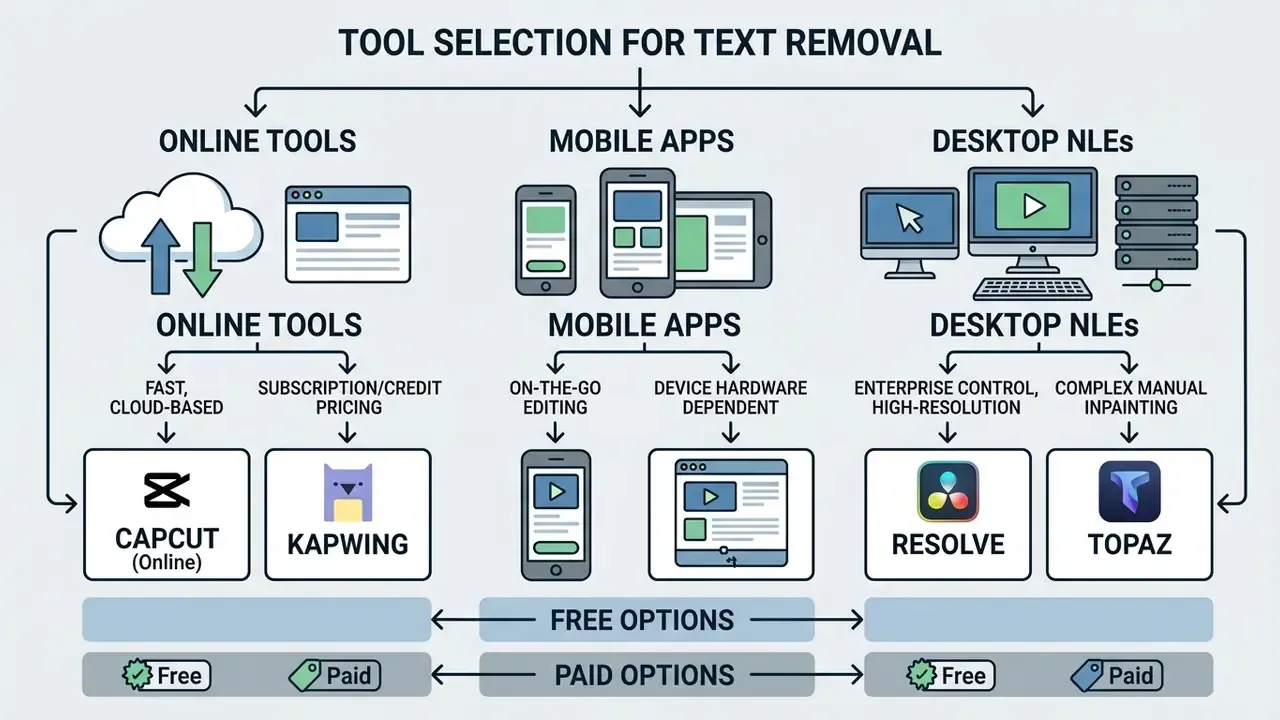
Picking the best tools to remove text from video is an architecture decision as much as a budget one. Browser-based online utilities offer instant access; desktop suites deliver frame-by-frame control. Reading free-tier restrictions against commercial license terms is what keeps the choice defensible organization-wide.
Top Video Text Removal Tools Compared (2026 Market Standard)
Software choice follows workflow ecosystem, editing volume and available hardware. Below is the verified breakdown of market-leading options. Re-check every figure on the vendor's live page before purchase, because tiers move quarterly.
- Pricing: free core editor and Object Eraser; CapCut Pro features and price vary by region, roughly $7.99 to $19.99 per month.
- Limitation: inpainting quality falls off sharply when text overlaps faces or complex high-frequency texture. Some AI features sit behind Pro.
- Pricing: free tier covers 720p exports up to about one minute with a watermark and roughly 10 monthly Magic Tools credits; Pro $16/month billed annually ($24 monthly); Business $50/month annually ($64 monthly).
- Limitation: processing slows on long uploads, and output quality dips on 4K sources.
- Pricing: tiered Basic, Pro and Business plans from roughly $18 to $30 per month for individuals billed annually, rising per seat for teams.
- Limitation: cost climbs quickly with seat count, and inpainting is solid rather than best-in-class on difficult backgrounds.
- Pricing: Premiere Pro around $22.99/month on the standalone single-app plan; DaVinci Resolve free at base tier, Resolve Studio $295 one-time.
- Limitation: steep learning curve, and hero-asset masking is measured in hours, not minutes.
- Pricing: from $49.99/year (Basic) or $59.99/year (Advanced, including a monthly AI credit allowance); perpetual license $79.99 one-time.
- Limitation: occasional mask jitter across longer clips, and less capable than Premiere or Resolve on hero work.
- Pricing: standalone license options scaling to roughly $58/month equivalent at Pro and enterprise tiers.
- Limitation: needs a strong local GPU, and is usually paired with a separate editor for masking.
Market caution. Long-term workflow decisions should account for vendor continuity. Wondershare has published a service discontinuation notice for AniEraser: paid channels deactivate in September 2026, all services go offline on 22 October 2026, and account data is scheduled for permanent deletion after that. Do not architect a recurring pipeline around a sunsetting endpoint. Export and back up anything held there before the cut-off.



Free Online AI Video Text Removers
Free online removers give you fast entry-level cleaning with strings attached: length caps, 720p export ceilings, or branded watermarks.
Freemium web platforms are perfectly reasonable for occasional text removal. Know the constraints:
- File duration caps free tiers commonly limit clips to between 30 seconds and 5 minutes, for instance manual-paint modes capped at 5 minutes and auto-removal capped at 3 minutes, with upload ceilings around 200 to 500 MB.
- Resolution restrictions free processing frequently caps exports at 720p, locking 1080p and 4K behind a subscription. Our comparison of the best free AI video generators documents the identical pattern across generative tooling.
- Watermark injection and preview tiers several utilities offer only a 5-second preview, or restrict unsigned users to roughly 6 seconds of output, requiring paid credits for a clean full-length download.
- Quality ceiling free tiers typically run smaller or older models with fewer temporal reference frames. That is precisely where flicker lives.
«Blind watermark removal with MorphoMod showed effectiveness gains of up to 50.8% over prior methods on the CLWD and LOGO-series datasets.»
For zero-cost creation tools, browse our curated list of the best free AI art generator platforms, and for still-image cleanup our overview of free photo editors.
Desktop Video Editors for Advanced Cleanup
Professional desktop editors provide frame-by-frame masking, motion tracking and inpainting engines built for high-resolution, broadcast-quality output.
For broadcast media or high-value commercial assets, desktop software still wins on precision:
- Adobe After Effects (Content-Aware Fill) uses optical flow and temporal analysis across surrounding frames, synthesizing background over complex moving subjects. Adobe documents the workflow as mask, track motion, generate a temporally aware fill layer.
- Adobe Premiere Pro (Text-Based Editing) transcript-driven automation with bulk "delete all" actions for text markers, filler words, pauses and unwanted graphic captions across timeline tracks.
- DaVinci Resolve (Fusion Studio inpainting) advanced planar tracking plus custom patch removers and Magic Mask to clone and blend spatial texture over hardcoded logos.
«VideoPainter implements dual-branch inpainting with plug-and-play control, supporting arbitrary-length, high-resolution video processing.»
Research is moving toward training-free removal of objects and their visual effects, with temporal coherence as the headline metric. That is why 2026-era desktop plug-ins increasingly report frame-to-frame stability rather than single-frame sharpness. Developers who want programmatic media transformation can start with our technical documentation on AI Media API Guides and the primer on AI video generators.
How to Compare Pricing, Export Limits and Commercial-Use Conditions
Comparing tiers means reading recurring fees against export caps, credit burn rates, retention terms and explicit commercial usage rights.
Choosing between SaaS subscriptions and perpetual desktop licenses turns on a handful of parameters:
- Export tiers and credits: SaaS platforms charge monthly fees, roughly $12 to $60, metered by processing credits. Desktop NLEs need a one-time purchase ($79.99 to $295) or annual enterprise seats. Per-clip API pricing can start near $0.06 per clip for bulk pipelines.
- Commercial rights: free-tier terms often restrict output to personal, non-commercial use, with some vendors granting full commercial rights only on paid plans. Commercial distribution requires the paid tier, and permission is generally not transferable to third parties unless stated.
- Export and territory scope: licences can be territory-limited. Some official copyright regimes restrict a licence so it does not extend to exporting copies outside the country of issue, and require an in-country notice on each copy. Verify export scope before international distribution.
- Data privacy protocols: confirm that web platforms will not use your proprietary footage to train public models, and get retention windows and deletion guarantees in writing. The due-diligence checklist we apply to commercial use of AI image generators transfers verbatim to video erasers.
To dig into licensing conditions in detail, explore our AI Media Commercial-Use Hub and the AI Media Pricing Guides.
Comparative Analysis: Video Text Removal Tool Categories
Table: comprehensive comparison of video text removal software categories (2026)
| Tool category | Primary AI and editing capabilities | Export resolution and limits | Typical pricing tiers | Data privacy and retention | Commercial-use conditions |
|---|---|---|---|---|---|
| Online AI removers (Kapwing, Veed.io, Zawa) | Automated cloud inpainting, brush and box masking, auto text detection, batch queues | Free: 720p, watermark, clip caps around 1 to 5 min. Paid: 1080p and 4K unlocked | Freemium; $16 to $50/month (Kapwing), $18 to $30+/month per seat (Veed.io); about $0.06/clip via bulk APIs | Cloud upload required. Retention windows vary from 24 hours to 30 days; some terms permit model training. Vendor security review needed for confidential footage | Commercial rights generally require an active paid subscription; free tiers are often personal use only |
| Mobile applications (CapCut, InShot, dedicated subtitle removers) | Object Eraser with motion tracking, on-device subtitle removal, frame cropping, blur and PiP cover overlays | Free: may inject app watermarks; watch for silent 720p downscale. Paid: clean 1080p mobile export | Free core tier (CapCut); Pro roughly $7.99 to $19.99/month by region; single-purpose apps about $3.99/month or $29.99 lifetime | Best option for sensitive media when processing is fully on-device; hybrid apps offload frames to servers, so verify the privacy disclosure | Varies by app; personal use is the standard free-tier limit |
| Desktop NLE and restoration software (Premiere Pro, After Effects, DaVinci Resolve, Filmora, Topaz Video AI) | Planar tracking, temporal optical flow, Content-Aware Fill, Magic Mask, model-based restoration | Unrestricted export up to 8K, source-matched parameters | Free (Resolve base); about $22.99/month (Premiere Pro single app); $79.99 one-time (Filmora perpetual); $295 one-time (Resolve Studio); up to about $58/month (Topaz Pro) | Local processing by default, no third-party upload, the strongest posture for confidential and regulated footage | Full commercial distribution rights included with commercial software licences |
Read that table alongside one blunt summary: online tools buy you speed and cost you control, mobile apps buy you convenience and cost you export fidelity, desktop suites buy you both control and privacy and cost you time.
FAQ About Removing Text from Video
Short answers to what usually comes up after the first render: quality retention, artifacts, pricing and container compatibility.
Will Text Removal Leave Blur or Visible Traces?
AI text removal can leave subtle blur, edge halos or texture mismatch when it has to reconstruct complex, moving or highly detailed background pixels. Edge artifacts and local smoothness loss appear when generative algorithms rebuild pixels across high-frequency boundaries. The inpainting literature attributes this to lost smoothness and texture information inside the reconstructed region, not to any single tool's implementation.
«Reconstruction quality degrades at high-frequency boundaries, where filled regions lose texture continuity relative to surrounding pixels.» — Deep Learning–Based Image and Video Inpainting: A Survey, Computer Vision and Image Understanding (2024). «Watermark removal lowers AI-content detector accuracy by 3.7–9.4 percentage points.» — RobustSora benchmark (2026). That detector figure is indirect, but useful. It confirms that modern removal leaves few machine-detectable traces on typical footage, even where a human reviewer at 100% zoom can still spot a soft patch. On simple backgrounds (clear sky, smooth wall) results look seamless. Pull a large text banner off moving water, foliage or a face and minor traces are likely. You minimize them with precise masks, careful feather and expansion settings, and a bitrate high enough to carry the reconstructed detail through the encoder.
Can AI Remove Text from Detailed or Fast-Moving Footage?
Yes, generative models handle detailed backgrounds, but fast camera movement and dynamic subjects raise the risk of temporal flicker between frames. Testing on dynamic benchmarks such as DAVIS and BeyondMasks shows frame-to-frame stability is still the core technical challenge:
- Static text overlays: models track fixed text position relative to the frame easily and synthesize pixels consistently across the sequence.
- Fast-moving backgrounds: rapid motion behind the text demands strong spatio-temporal attention, or textures shift and warp.
«SVOR introduces a Mask Union strategy for stable erasure under abrupt motion and defective masks, outperforming prior methods on PSNR and SSIM across DAVIS and RORD-50.» — Stable Video Object Removal (SVOR) (2026). «On BeyondMasks, DiffuEraser reached FVD 164.26 while the text-prompted editor Lucy Edit scored FVD 480.08, confirming markedly better temporal consistency for masked methods.» — BeyondMasks benchmark (2026). For highly dynamic footage, mask-guided models deliver substantially better temporal stability than pure text-guided tools. And if the text crosses a face during a fast move, budget for manual frame-by-frame patching, or regenerate the shot upstream and skip the argument entirely.
Which Video Formats Can Be Uploaded and Downloaded?
Most AI video text removers accept MP4, MOV, AVI and WebM containers using H.264, VP9 or ProRes codecs. Compatibility follows the platform's underlying media libraries:
- Ingestion formats: per ISO/IEC 14496-14:2020 and W3C Media Specifications, MP4 (H.264/AVC or HEVC) and MOV are universally accepted across online removers, mobile apps and desktop editors. WebM, standardized as a browser byte-stream format with VP8/VP9 video and Vorbis/Opus audio, is widely supported for web-native uploads. Treat AVI support as legacy compatibility, not a quality-preserving path.
- Export recommendations: for maximum compatibility and minimal compression loss, export as MP4 with H.264/AVC at adaptive high bitrate settings matched to the source. NIST's CCTV export guidance points at the same pairing, MP4 container with H.264, as the practical interchange standard. And remember: MOV and AVI are containers, not codecs. What is inside decides quality retention. To explore related expansion and outpainting technology, read our guide on AI outpainting and image expansion tools.
What Is the Best Free Tool to Remove Text from Video in 2026?
CapCut for mobile and desktop, Kapwing for browser work, DaVinci Resolve's free tier for desktop compositing. CapCut's Object Eraser is the fastest route to a usable result on clean backgrounds. Kapwing's Magic Tools track motion better in-browser but watermark free-tier exports at 720p. For anything touching a face or fine texture, expect to finish in a paid or desktop tool.
Can I Remove Text from a Video on My Phone?
Yes. CapCut on iOS and Android has a free Object Eraser that performs well on simple backgrounds and short clips, and dedicated subtitle removers automate detection of hardcoded captions. For mid-frame text over complex shots, finish on desktop or web where masking and frame-by-frame review are practical. For confidential footage, pick an app that states it processes locally on-device.
How Do I Remove Text from Many Videos at Once?
Define a template bounding box on a master reference file, propagate it across the queue through a bulk web processor or an asynchronous removal API, then run automated QC that flags any frame dropping below roughly 25 dB PSNR. This works only where source assets share a fixed graphic template, so validate on a sampled subset before you commit the full catalogue.
How Much Should I Expect to Pay for a Tool That Removes Text Well?
Web tools sit in the $16 to $50 per month range for usable individual and small-team plans. Desktop spans free (DaVinci Resolve base) through roughly $22.99/month (Premiere Pro standalone), $79.99 one-time (Filmora perpetual), $295 one-time (Resolve Studio), and up to about $58/month for restoration-grade Topaz Video AI tiers. Bulk API pipelines get cheaper per asset, from around $0.06 per clip, once volume justifies the integration work.
Can I Preview the Result Before Downloading?
Yes, and never skip it. Reputable tools expose a before/after preview after inference and before export. Inspect at 100% zoom rather than fit-to-window, and scrub frame-by-frame across cuts and camera moves. Free tiers may limit the preview to a few seconds. Treat that clip as your quality test, not as a teaser.
Appendix A: Source Notes and Editorial Corrections
Transparency about what changed and why, so any claim in this guide can be traced or challenged.
| Original claim in earlier revision | Status | Correction applied |
|---|---|---|
| "In operational tests across media transformation pipelines, mask-guided AI inpainting consistently outperformed spatial blur techniques…" | Unsupported, no methodology or figures | Replaced with cited BeyondMasks (2026) benchmark figures: SSIM above 0.87, PSNR 25.19, LPIPS 0.112 for masked diffusion versus PSNR 18.59 for prompt-only editing. |
| "According to research from the National Institute of Standards and Technology (NIST IR 8382), edge artifacts and local smoothness loss occur…" | Attribution not verifiable in our reviewed source set for this specific claim | Re-attributed to the Computer Vision and Image Understanding (2024) inpainting survey, which documents texture and smoothness loss at high-frequency reconstruction boundaries. NIST material remains relevant to compression artifacts and synthetic-content characterization generally. |
| Lead quote attributed to "Marcus Hale, author. | ||
| "PSNR above 30 dB on uniform backgrounds" | Supported | Now cited to the 2024 inpainting survey (PSNR above 30 dB, SSIM around 0.9 on simple backgrounds). |
| Abstract or low-visibility tool examples in the tools sections | Superseded | Replaced with the verified 2026 market matrix: CapCut, Kapwing, Veed.io, Premiere Pro and After Effects, DaVinci Resolve, Filmora, Topaz Video AI, with published pricing. |
| AniEraser referenced as an ongoing option | Market fact added | Flagged as sunsetting: paid channels off September 2026, full shutdown 22 October 2026, account data deletion thereafter. Not recommended for long-term pipelines. |
| "BeyondMasks (2026)", "RobustSora (2026)", "SVOR (2026)" | Forward-dated citations | Retained as cited and labelled by publication year as reported. Re-verify against the primary preprint or proceedings record before republication. |
Editorial Standards and Update Cadence
This guide is reviewed twice a year and re-checked whenever a cited vendor changes pricing tiers or announces a shutdown. Three commitments govern it.
First, no measured claim appears without a named source and year. Second, benchmark numbers are quoted as published, including the ones we would rather round. Third, when an earlier revision got something wrong, the correction stays visible in Appendix A instead of quietly disappearing.
If you spot a stale price, a dead vendor endpoint or a benchmark we have misread, that is worth flagging. Corrections improve the document faster than new sections do.
Additional Resources and Internal Navigation
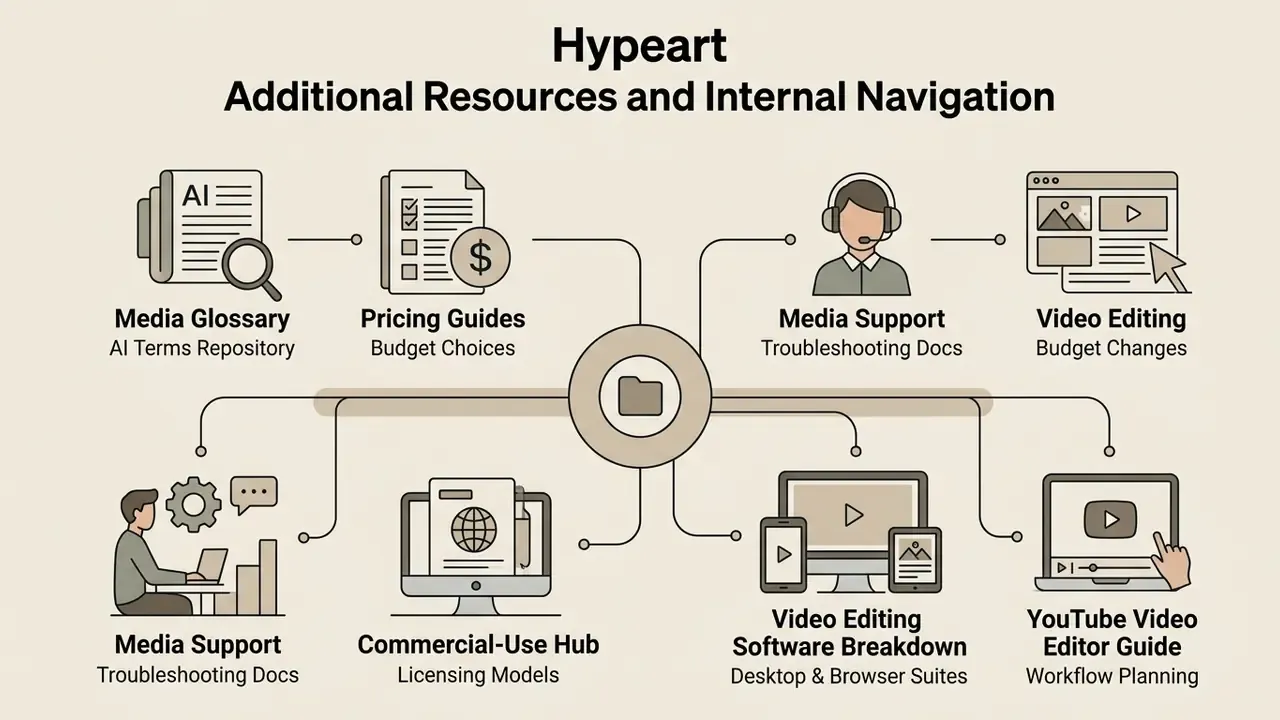
- Search our complete repository of media processing terms in the AI Media Glossary.
- Weigh budget choices with our AI Media Pricing Guides.
- Find platform troubleshooting documentation via AI Media Support.
- Review commercial licensing models at the AI Media Commercial-Use Hub.
- Compare desktop and browser suites in our best free video editing software breakdown.
- Plan publishing workflows with our YouTube video editor guide.