What Makes the Best Free Video Editing App?
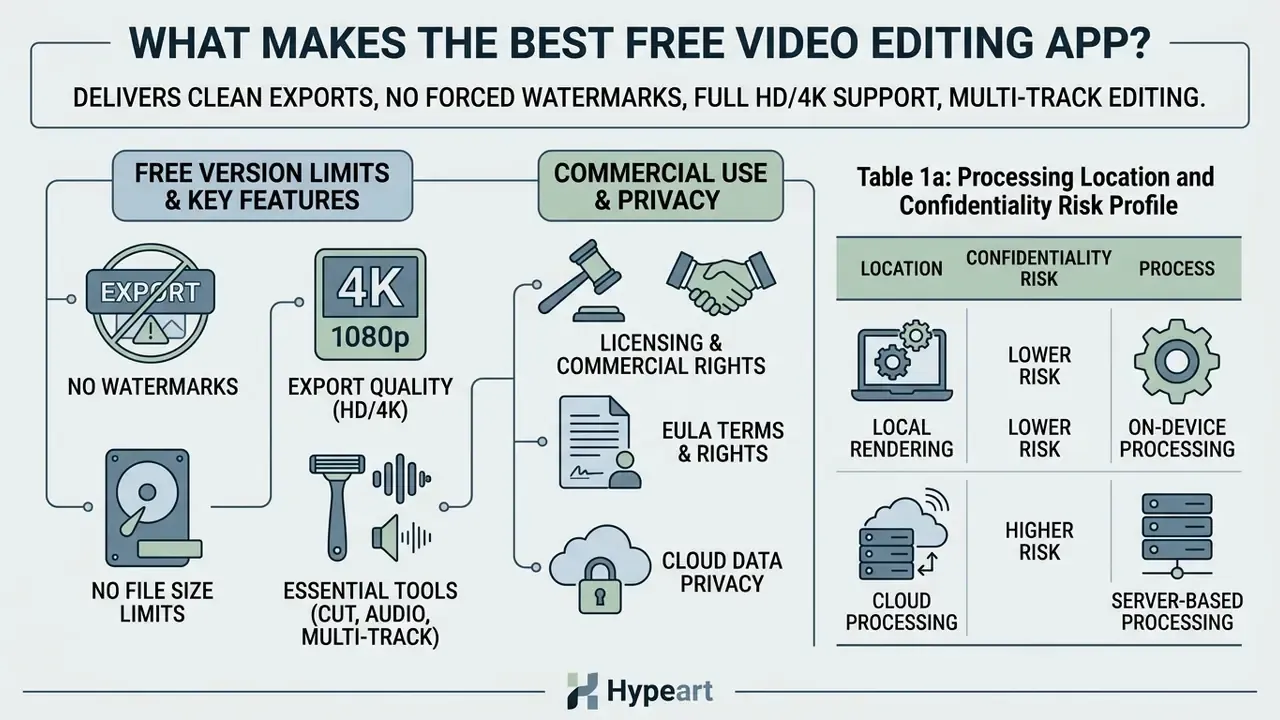
Six checks. That is the whole audit, and most people skip four of them.
Free Version Limits: Watermarks, Export Quality, and File Sizes
Free plan limitations usually cluster around four levers: export resolution caps, visible watermarks, project duration ceilings, and paywalled stock assets. According to an industry market report by IndustryResearch.biz (2024), over 640 million active users relied on mobile and desktop video editing software, with free options accounting for 44% of total downloads in price-sensitive segments.
«Around 36% of users name subscription cost as the main adoption barrier, and video editing subscriptions run roughly 25% higher than graphic design tools.»
That pricing gap explains something counterintuitive. Watermark policy, not feature depth, decides most free-tool selections. Watermarks are the main monetization driver for entry-level tools, and vendors know exactly how much friction a logo creates.
Browser-based platforms such as Kapwing and VEED insert visible brand logos on free exports. VEED's own feature comparison documents a watermark on free renders, a 720p quality ceiling, and a 10-minute cap on a single export, while Kapwing applies a watermark on free exports and reserves 4K output for paid tiers (Kapwing Feature Terms, 2026; VEED Feature Comparison, 2026). Desktop applications behave differently. OpenShot and Microsoft Clipchamp produce clean, watermark free exports at 1080p resolution. OpenShot states plainly that it ships with "no subscriptions, watermarks, or project limits," and Clipchamp confirms watermark-free rendering as long as no paid stock media or paid-plan feature sits on the timeline (OpenShot Documentation, 2026; Microsoft Clipchamp Product Terms, 2026). Readers weighing several products side by side can review our broader free video editing software comparison for a per-product breakdown of watermark and export rules.
Export quality ranges from 1080p Full HD to 4K Ultra HD. The free version of DaVinci Resolve permits exports up to Ultra HD 3840×2160 at 60 fps, covering virtually all 8-bit formats, while resolutions and frame rates beyond that ceiling are Studio-only (Blackmagic Design Documentation, 2026). Hardware constraints then decide whether the render actually finishes. The IndustryResearch.biz (2024) study indicated that 28% of creators hit storage or processing bottlenecks when editing high-resolution files on mid-range devices.
«Only 54% of mobile video editing apps are fully compatible with mid-range devices, and 22% of users in slow-connectivity regions report performance problems.»
File size matters here too. A ten-minute 4K clip at 60 Mbps is roughly 4.5 GB, which is enough to stall a cheap phone and blow past most browser upload caps.
Essential Editing Tools for Beginners and Advanced Creators
Core editing features have to serve two very different users. Novices want intuitive clip trimming, drag-and-drop transitions, and pre-formatted text overlays so they can trim, add captions, and publish. Experienced editors depend on multi-track video sequencing, color grading curves, multi-channel audio mixing, chroma keying with a proper green screen workflow, slow motion ramps, and motion graphics.
Research into language-augmented editing tools, such as the LAVE Framework Study (2024), suggests AI assistance reduces operational friction for beginners working through multi-step sequence edits. The mechanism is worth quoting, because "AI helps" explains nothing on its own:
«LAVE interprets a user's free-form language instructions and translates them into timeline operations, lowering cognitive load on complex editing tasks.»
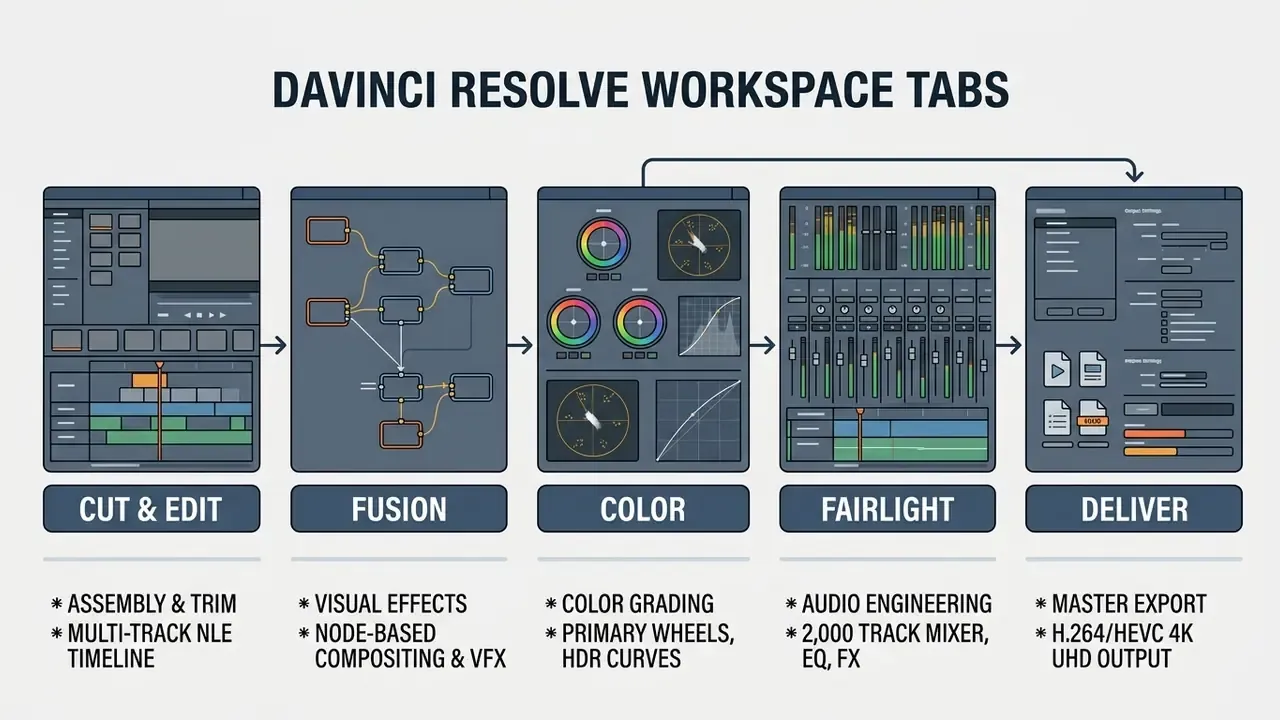
Advanced workflows also need workspace separation. Professional post-production software splits timeline assembly, color management, visual effects, and audio engineering into discrete pages (Blackmagic Design DaVinci Resolve Manual, 2026). Apple documents the same separation of concerns differently. Final Cut Pro defines green-screen keying as removing a selected color or lightness value to composite a foreground over a background, and exposes color controls inside an inspector-driven workflow rather than a dedicated grading page (Apple Support, 2026). Neither approach is wrong; they simply assume different habits.
Commercial Use Rights, EULA Terms, and Cloud Data Privacy
| Tool Class | Examples | Where Media Is Processed | Suitability for Confidential or Pre-Release Footage |
|---|---|---|---|
| Local desktop NLE | DaVinci Resolve, iMovie, Shotcut, Kdenlive, OpenShot | On-device CPU/GPU; no upload required | Suitable. Files never leave the workstation unless cloud collaboration is enabled |
| Local mobile app | VN Video Editor, InShot, KineMaster (offline features) | On-device hardware encoder | Generally suitable, but cloud AI features (captions, background removal) may upload clips |
| Browser / cloud editor | CapCut Web, VEED, Kapwing, Adobe Express, Clipchamp (web) | Remote servers; media uploaded for transcode and AI inference | Requires review. Treat as third-party data processing and shadow IT exposure |
Practical rule for teams: unreleased product footage, customer recordings, internal training sessions, and anything covered by an NDA belong in a locally rendering editor. If a cloud tool is mandatory, restrict it to already-public material, switch off optional cloud AI features, and confirm retention and deletion terms in the vendor's privacy documentation before ingest. One more step that costs nothing: log who approved the tool. A named owner turns an ad-hoc upload into a reviewable decision.
Disclaimer: this section summarizes publicly available vendor terms for editorial comparison and does not constitute legal advice. License grants, privacy terms, and commercial-use permissions change without notice, so verify current terms with the vendor and your own counsel before deploying any tool on commercial or confidential projects.
Checklist0 / 10
Best Free Video Editing Apps at a Glance
| Application | Supported Platforms | Free Tier Watermark | Max Free Resolution | AI Capabilities | Multi-Track Support | Primary Use Case |
|---|---|---|---|---|---|---|
| CapCut | iOS, Android, Windows, macOS, Web | Removable (delete ending clip; Pro assets force watermark) | Mobile: 4K UHD (60 fps); Desktop (Windows Mac): up to 8K and Apple ProRes 422 export | Auto captions, AI background removal, smart templates, text-based editing | Yes | Short-form vertical videos (TikTok, Reels, Shorts) |
| VN Video Editor | iOS, Android, macOS | No watermark | 4K UHD (up to 60 fps) | Speed curve presets, auto beat sync | Yes | Mobile and desktop multi-track precision editing |
| DaVinci Resolve | Windows, macOS, Linux | No watermark | 3840×2160 UHD (up to 60 fps, 8-bit) | Basic scene cut detection (Neural Engine, Magic Mask and text-based editing in Studio) | Yes | Professional editing, color grading, audio and post-production |
| Shotcut / Kdenlive | Windows, macOS, Linux | No watermark (fully open-source) | 4K UHD (60 fps) | None (traditional NLE) | Yes | Cross-platform open-source editing without hardware or account locks |
| iMovie | macOS, iOS, iPadOS | No watermark | 4K UHD (30 fps) or 1080p (60 fps) | Magic Movie and auto-trailer assembly | Yes (limited tracks) | Beginner friendly native editing on Apple hardware |
| Microsoft Clipchamp | Windows, Web (Edge/Chrome) | No watermark (paid stock assets block export) | 1080p Full HD | AI text-to-speech, auto subtitles (80+ languages), silence removal | Yes | Quick web and desktop corporate or educational edits |
| Adobe Express | Web, iOS, Android | No watermark (free templates only) | 1080p Full HD | AI text effects, auto captioning, quick resize, noise removal | Limited layering | Template-based social media content and marketing clips |
| ScreenPal | Windows, macOS, iOS, Android, ChromeOS, Web | No video watermark | 1080p Full HD (4K on paid tiers) | Speech-to-text captions (paid), background removal | Layer-based overlays | Screen recording plus editing for tutorials, demos, EdTech |
| Alight Motion | iOS, Android | Watermark on free tier | 1080p to 4K (project dependent) | Keyframe interpolation curves, vector masking | Yes (layer-based) | Motion graphics, velocity edits, AMV-style mobile animation |
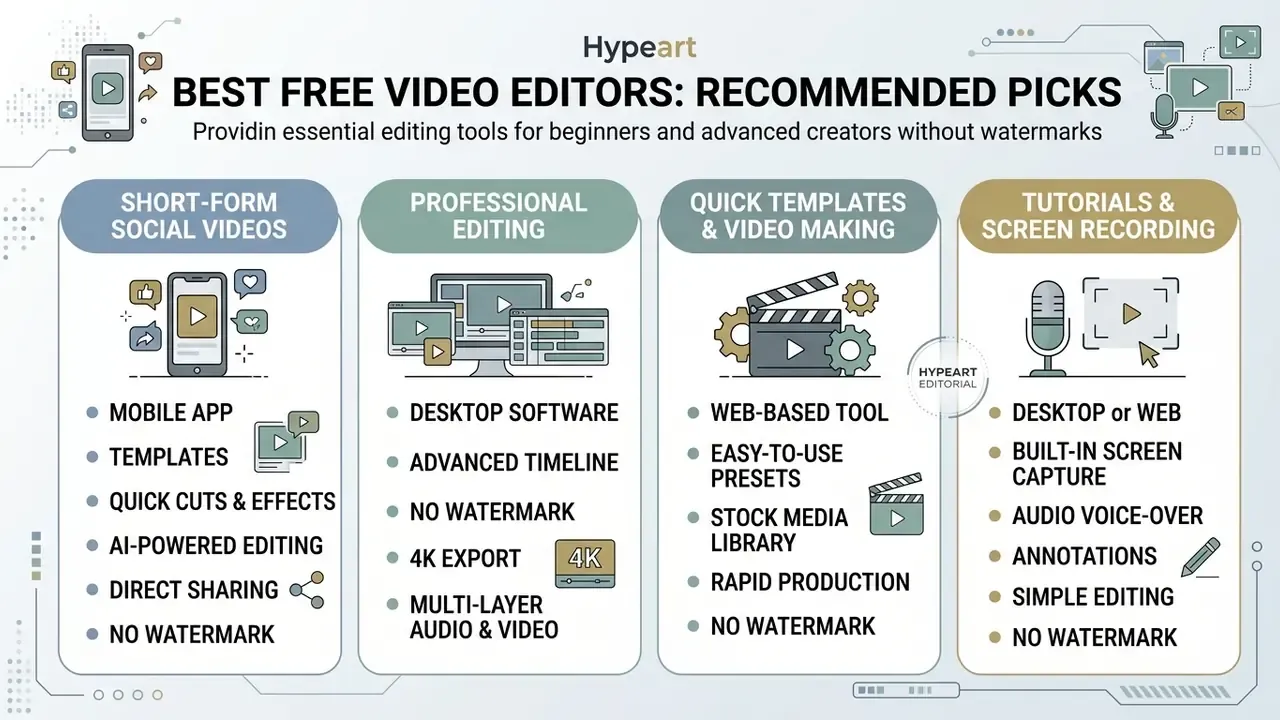
Best Free Video Editor for Professional Editing
DaVinci Resolve provides professional editing capabilities without a subscription. That is still unusual enough to be worth stating twice.
«Adobe Premiere Pro is used by 47% of intermediate and 58% of advanced creators, underlining paid-tool dominance in professional pipelines.»
Against that backdrop, the free Resolve edition is an outlier: multi-track editing on the Edit page, node-based primary and secondary color correction on the Color page, multi-channel audio editing through Fairlight, and node-based visual effects inside Fusion (Blackmagic Design DaVinci Resolve 21 Manual, 2026).
The free tier processes 8-bit video files up to 3840×2160 UHD resolution at 60 fps, which satisfies broadcast and digital cinema delivery specs without adding a brand watermark anywhere in the master.
Best Free Video Maker App for Quick Template-Based Videos
Microsoft Clipchamp and Adobe Express let you create videos fast through pre-designed templates and stock asset libraries. Adobe Express provides rights-cleared royalty free audio tracks, graphic templates, and quick video resizing inside its free tier (Adobe Express Feature Specification, 2026). It is the shortest path from blank canvas to a presentable social clip.
Microsoft Clipchamp offers unlimited 1080p exports with no watermark, provided the timeline holds no premium stock media (Microsoft Clipchamp Terms, 2026). Its content library advertises more than one million royalty-free stock videos, images, backgrounds, and music beds, which removes the need for a separate asset subscription on simple corporate or classroom projects. For a marketing team that needs eight versions of the same 30-second clip, that library alone justifies the choice.
Best Free Editor for Tutorials and Screen Recording
Creators building online courses or software demos need integrated screen recording and webcam capture, not a pure timeline editor. ScreenPal (free tier capping recordings at 15 minutes and hosting at 10 videos) and Camtasia (aimed at EdTech and corporate training) streamline tutorial assembly with simultaneous screen and webcam capture, automated callouts, cursor highlighting, zoom emphasis, and audio noise suppression in one workspace. ScreenPal's free plan exports without a video watermark and includes trimming, cropping, overlays, and manual caption files, while automated speech-to-text captioning sits on paid tiers (ScreenPal Feature Documentation, 2026).
Best Free Mobile Editor for Motion Graphics and Velocity Edits
For anime music videos (AMV), complex keyframe motion graphics, and velocity transitions on a phone, Alight Motion offers layer-based editing, vector graphics support, effect blending, and custom interpolation curves that go well past what InShot can reproduce. Free use is possible with a watermark, and the app is widely adopted by short-form creators producing beat-synced velocity cuts that a linear trim-and-transition editor simply cannot match.
Best Free Video Editing Apps for Mobile
Mobile video editors let creators shoot, cut, enhance, and publish straight from a smartphone or tablet. No desktop transfer, no cable, no waiting.
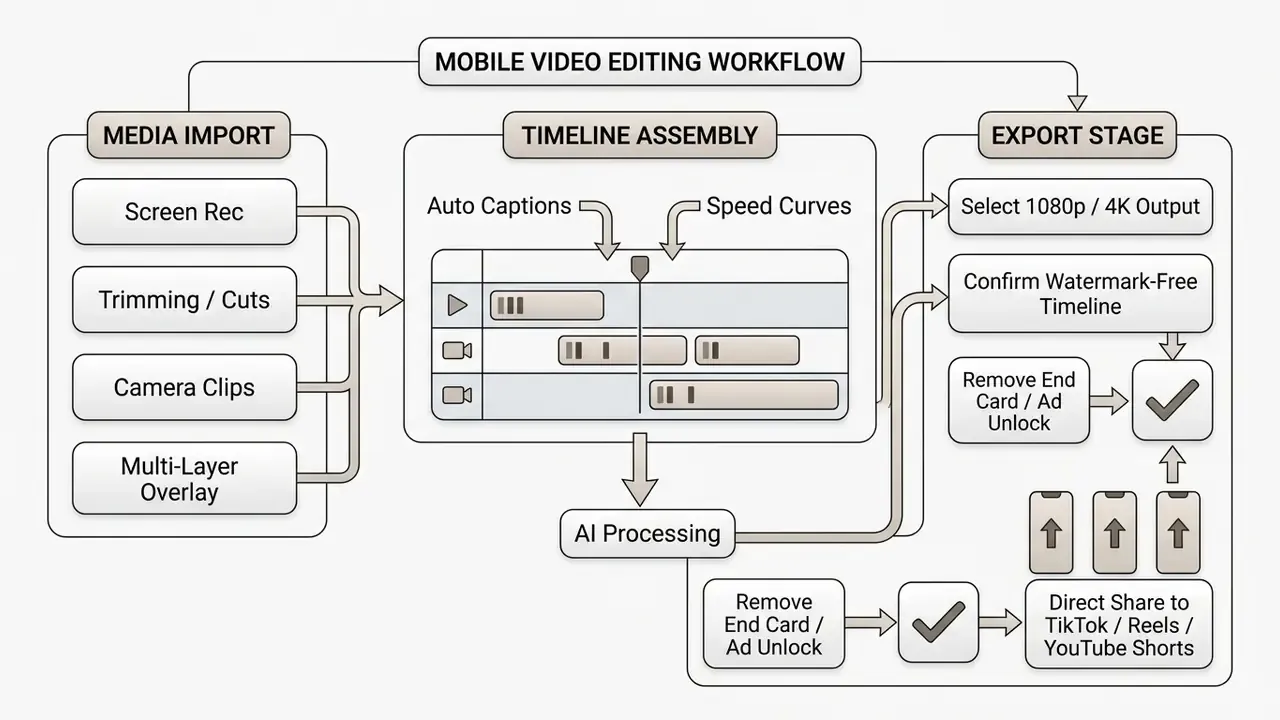
InShot and KineMaster for Simple Mobile Video Projects
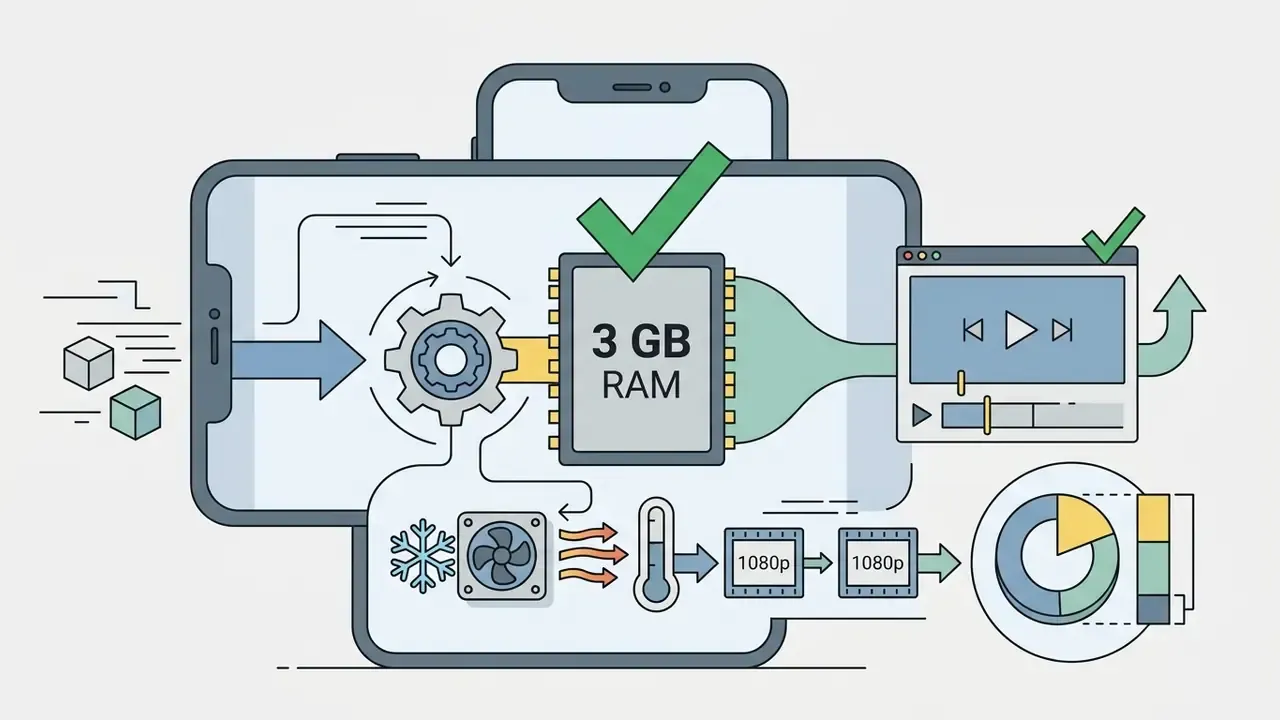
InShot and KineMaster cover entry-level editing for simple mobile projects. InShot handles video trimming, canvas aspect-ratio cropping, background blurring, filters, AI auto-captions, and royalty free music insertion (InShot Product Overview, 2026). The free tier adds an InShot watermark, but you can clear the branding from an individual project by watching an in-app advertisement. InShot is also the lightest tool in this comparison: it processes 1080p timelines efficiently on budget handsets with roughly 3 GB of RAM, at the cost of shallow multi-track depth.
KineMaster runs a multi-layer timeline for video, audio, image, and text overlays, with up to nine simultaneously visible tracks, keyframe animation, picture-in-picture compositing, mobile green screen, and a large downloadable asset store. The catch is the branding: KineMaster's free version stamps a visible watermark in the top corner of every exported file (KineMaster Documentation, 2026). Removing it requires KineMaster Premium. Unlike InShot, there is no ad-for-removal path, so plan accordingly if you publish daily.
Alight Motion for Layer-Based Mobile Animation
Where InShot and KineMaster stop at overlays and transitions, Alight Motion behaves like a mobile motion-design tool. It supports vector shape drawing, per-layer masking, blend modes, borrow-and-reuse effect graphs, and manually shaped interpolation curves, which is the technical basis for velocity edits, beat-matched zoom pulses, and AMV-style transitions. Free export carries a watermark, so creators who publish every day usually treat Alight Motion as the graphics and animation stage, then finish and render the composite in VN or CapCut for a clean master file.
Best Free Desktop Video Editing Software
Desktop video editing software offers finer timeline control, handles complex codecs, uses hardware GPU acceleration, and manages multi-channel audio tracks that a phone cannot keep responsive.
DaVinci Resolve for Color Grading and Multi-Track Editing
DaVinci Resolve is a full non-linear desktop editor (NLE) that combines editing, advanced color grading, Fairlight audio processing, and Fusion visual effects in one application. It is arguably the most powerful free video editor available on any platform.
iMovie for Easy Video Editing on Mac
iMovie provides a native, zero-cost environment for easy video editing on macOS, iOS, and iPadOS. It supports 4K UHD editing at 30 fps and Full HD editing at 60 fps (Apple Support Documentation, 2026).
«iMovie shares 4K projects at 3840 × 2160 at 30 fps; 60 fps projects export at 1080p (1920 × 1080) on compatible devices.»
Apple documents 4K editing support on Mac computers from 2011 or later with at least 4 GB of memory, and a 4K clip can be exported at native resolution through the project's Share > Export File path. iMovie features drag-and-drop clip arrangement, split-screen picture-in-picture, audio ducking, basic green screen keying, and pre-formatted cinematic trailer templates. It exports high quality files with no watermark and no subscription, though it is limited to a 16:9 project aspect ratio and a shallow track count next to Resolve.
Shotcut and Kdenlive for Open-Source and Linux Editing
For creators on Linux, or anyone who objects to freemium upgrade prompts and mandatory cloud sign-in, open-source NLEs like Shotcut and Kdenlive offer unrestricted multi-track editing. They support native GPU acceleration (experimental on select builds), customizable keyboard mapping, proxy editing for heavy 4K source files, and deep transition and filter stacks without hidden paywalls or account requirements. OpenShot belongs in the same bracket: unlimited tracks, snapping, waveform display, frame-by-frame stepping, chroma key, blur, brightness and contrast controls, film grain, stabilization, keyframe animation, and more than 70 export profiles, with no subscriptions, watermarks, or project limits.
Two practical caveats. First, none of these editors ships an AI feature set, so automated captioning and background removal need an external tool. Second, GPU rendering behavior varies by build and driver stack, so test a short 4K export before you commit a deadline project. For pure trimming and joining without re-encoding, LosslessCut (Windows, macOS, Linux) cuts and merges audio and video without a quality-destroying re-render.
ScreenPal and Camtasia for Tutorials and Course Content
Tutorial production works under different constraints than social editing: capture and edit must live in one workspace, and speech clarity outweighs visual polish. ScreenPal's free desktop and Chromebook builds record screen plus webcam, then hand the capture straight to a compressed timeline with color-coded edits, autosave, overlays, animations, zoom in and out, virtual backgrounds, and background removal. Free-tier constraints are explicit: 15 minutes per recording, 10 hosted videos, and manual caption files only. Camtasia targets the same workflow for paid EdTech and corporate-training pipelines, with callouts, cursor emphasis, and quizzing. Either tool removes the capture, export, reimport round trip that makes general-purpose NLEs slow for course production.
How to Choose Between a Mobile App, Desktop Editor, and Web Tool
Choosing the right editor depends on device hardware, project complexity, timeline requirements, publishing targets, and data sensitivity. Start with the device, then narrow by project type.
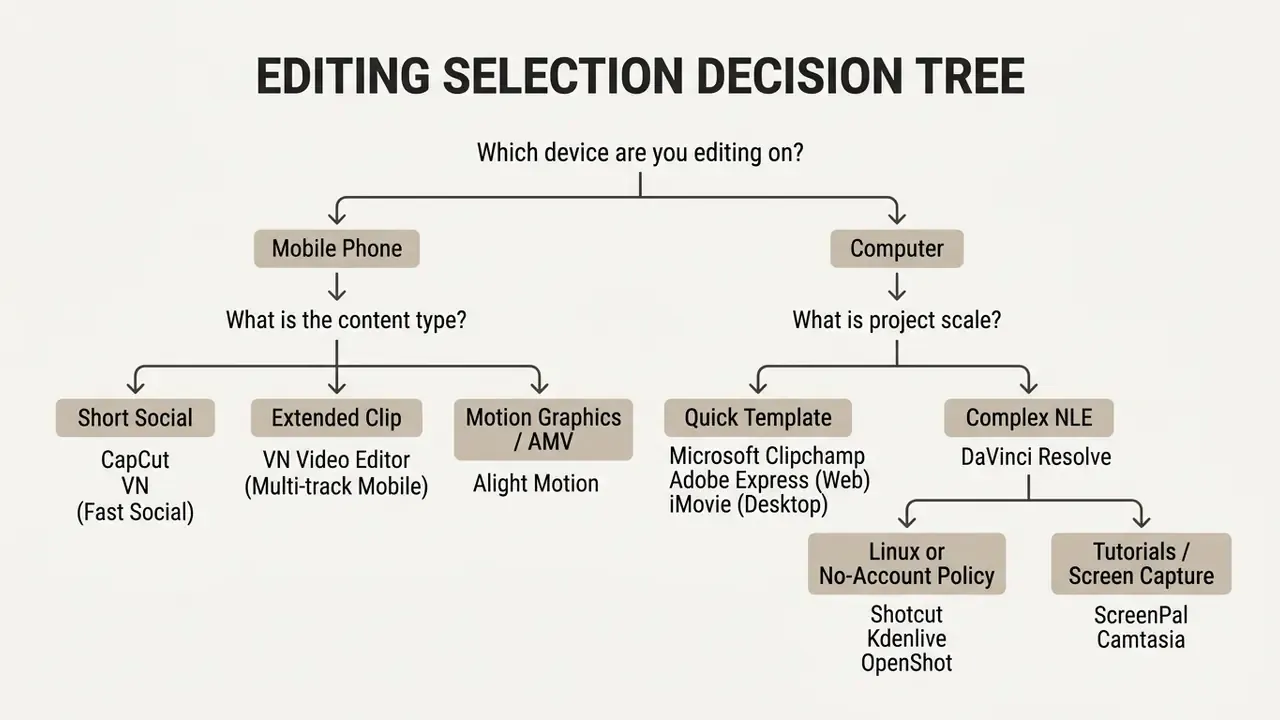
Linear version of the tree, for anyone reading without the diagram: editing on a phone and publishing short social clips points to CapCut or VN; longer mobile clips with layers point to VN; motion graphics and AMV work point to Alight Motion; on a computer, quick template jobs point to Clipchamp or Adobe Express, complex multi-track projects point to DaVinci Resolve or iMovie, Linux or no-account policies point to Shotcut, Kdenlive, or OpenShot, and tutorial capture points to ScreenPal or Camtasia. If the terminology here is unfamiliar, our reference entry on video editing tools defines timeline, proxy, codec, and container concepts in plain language.
Hardware and RAM Requirements for Smooth Playback
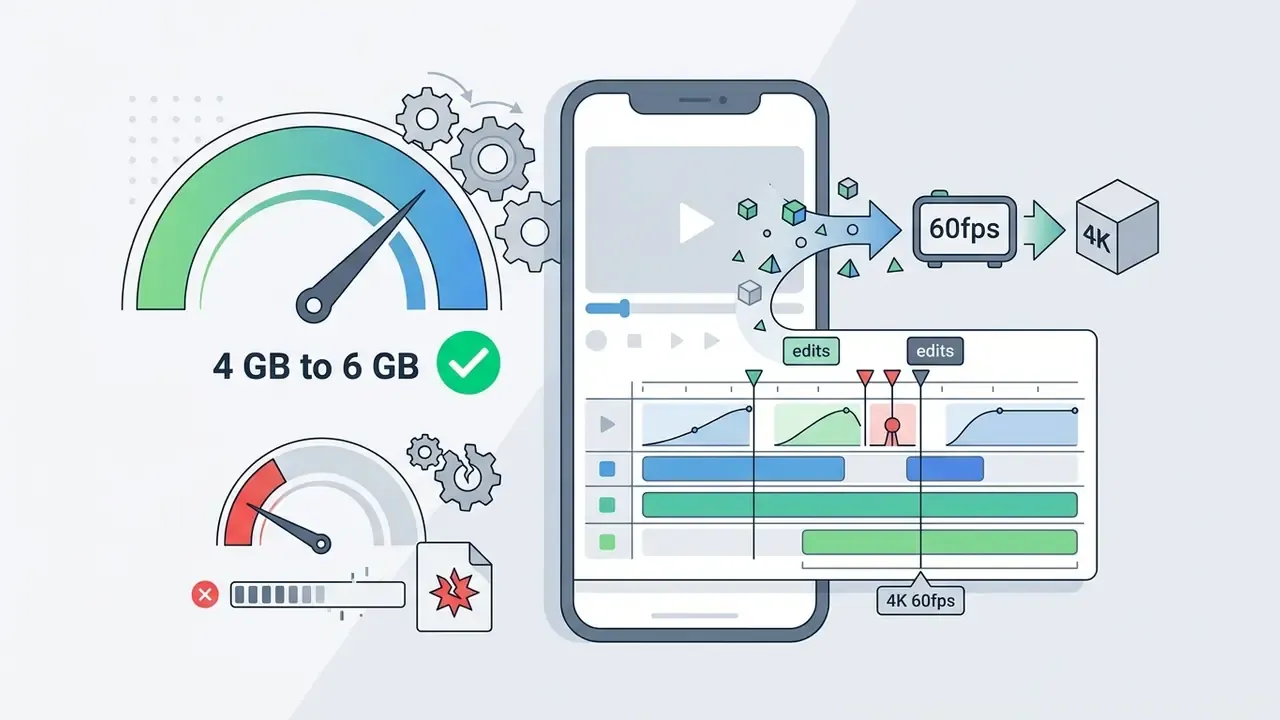
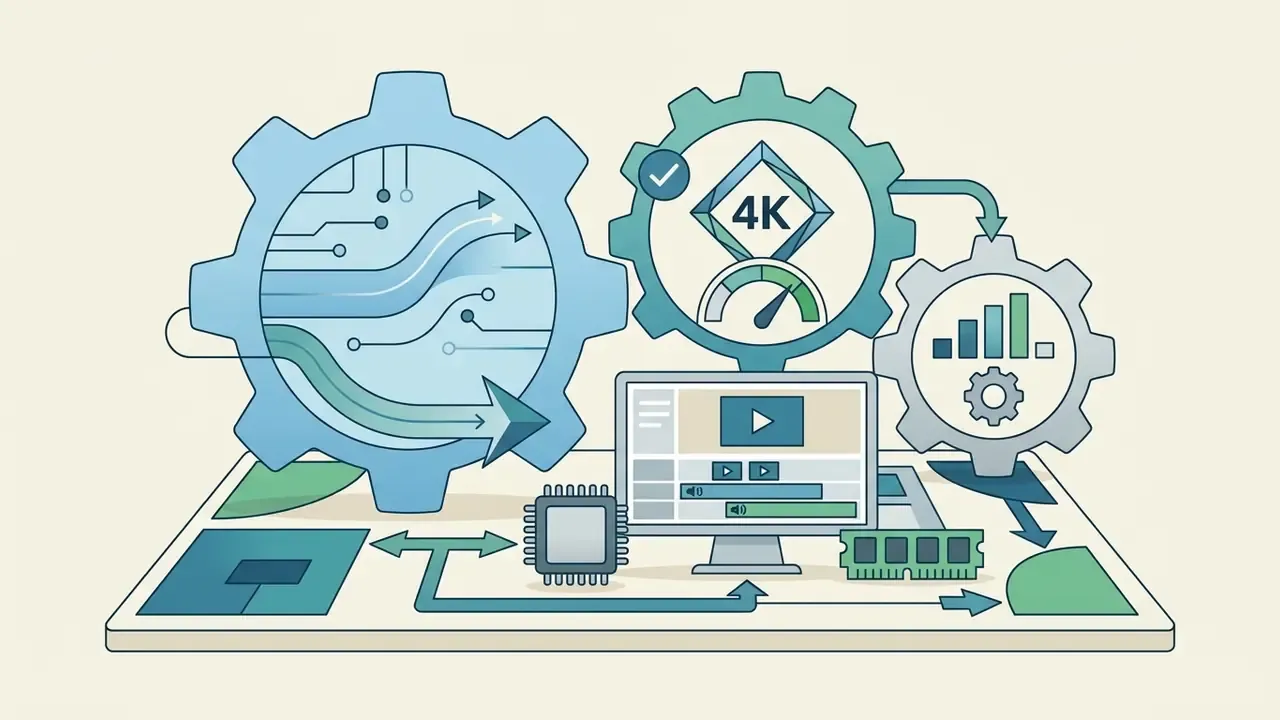
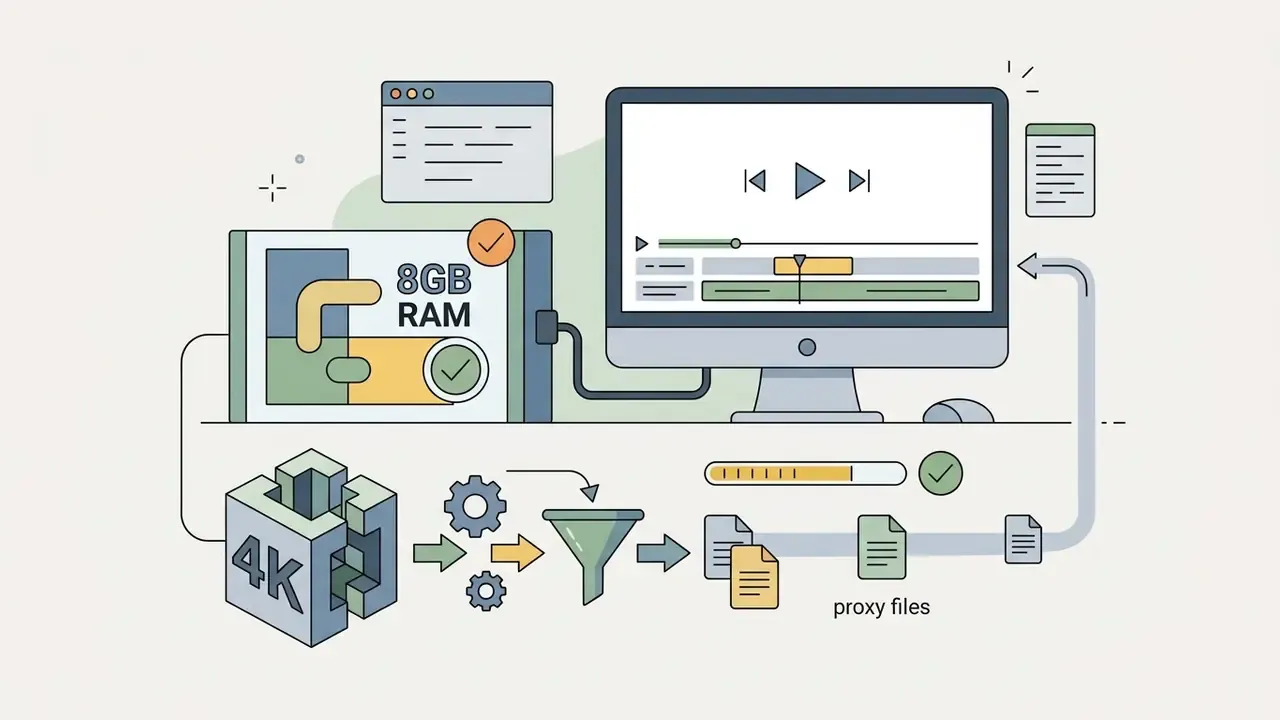
Free software is only free if your hardware can render it. Treat these thresholds as minimums, not targets:
Need to estimate storage or bitrate before you shoot? Our media utilities cover file size math; see the overview for the relevant tools.
Web Editor Input Limits and Supported Formats
Web-based editors (Adobe Express, Clipchamp, Kapwing, CapCut Web, VEED) operate inside strict browser memory allocations. Most cloud editors impose an intake cap of roughly 1 GB per uploaded file and natively restrict input to MP4, MOV, and M4V. Large raw files, including Apple ProRes masters, 10-bit MKV containers, camera-native MXF, and long-GOP HEVC clips, have to be transcoded locally before web ingest. Free web tiers stack further ceilings on top: VEED caps a single free export at 10 minutes and 720p with a watermark, and Clipchamp restricts free output to 1080p. Plan the ingest step before starting a browser project, not after. Teams automating that conversion step can check whether the vendor exposes an api for batch transcoding.
Choose a Mobile App for On-the-Go Editing
A free video editing app for phone use suits short form content where speed and direct platform publishing matter more than precision. Modern smartphones handle screen recording clips, vertical 9:16 safe-zone framing, automated speech-to-text captioning, and instant export to social media.
«Integrated mobile captioning and local hardware rendering let creators finish short video assets in under ten minutes without moving files to a computer.»
The trade-offs are real. Frame-level precision is harder on a touch timeline, auto-caption accuracy drops with strong accents and background noise, and vertical framing can clip critical UI or text at the edges. CapCut's own tutorials warn editors to keep titles and captions inside the safe area, which tells you how often it happens.
Choose Desktop Software for Complex Video Projects
Desktop video editing software is necessary for long-form content, multi-camera shoots, high-bitrate 4K footage, and intricate multi-track audio arrangements. Desktop NLEs lean on GPU acceleration and dedicated proxy workflows to stay responsive.
«Lightweight proxy files (ProRes LT, DNxHR LB) keep multi-track 4K timelines responsive before the final master render.»
Desktop suites also separate audio into dedicated stages, covering track management, dialogue cleanup, music, sound design, and final mix. Try that on a phone timeline and you will lose an afternoon.
Video Editing Features to Prioritize in a Free App
Evaluating a free video editor means auditing three groups of capability: timeline editing tools, audio editing, and automated AI features.
Core Tools: Trim, Transitions, Multi-Track, and Speed Controls
Essential controls include frame-accurate blade trimming, ripple edits, rolling cuts, multi-layer video tracks, speed ramping for slow motion, and clip transitions. These are the video editing tools that let you easily edit videos without fighting the interface.
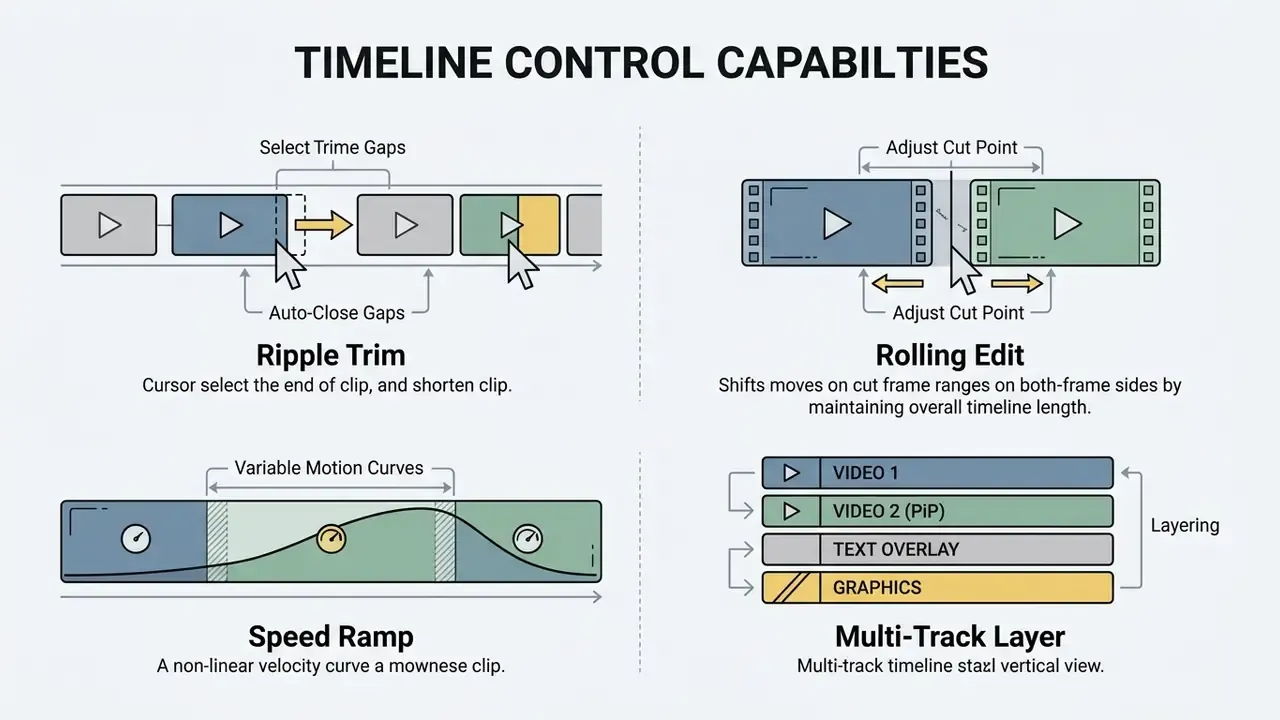
Vendor documentation lines up on these definitions. Resolve's retime controls apply multiple speed changes inside one clip without splitting it, the operation Blackmagic calls a speed ramp. Final Cut Pro automatically inserts transitions between newly created speed segments. Premiere Pro defines a rolling edit as moving the cut point between two clips without altering total sequence duration (Blackmagic Design, 2025; Apple Support, 2026; Adobe Help Center, 2026).
Audio, Captions, and Royalty-Free Assets
Audio decides perceived production quality more than grading does. Essential audio editing features include multi-channel volume leveling, background noise reduction, audio ducking (lowering music under speech), and sound effects insertion. Browser-based editors have closed much of this gap: Clipchamp documents noise and silence removal alongside AI captions in 80+ languages, Adobe Express offers background-noise removal plus hundreds of royalty free Adobe Stock soundtracks, and ScreenPal ships free stock music and sound effects.
One correction to an earlier version of this guide: the claim that wide.video applies DeepFilterNet noise reduction directly in the browser comes from the product's own release notes rather than independent testing. Treat browser-side neural denoising as vendor-stated until you verify it on your own footage (wide.video Release Notes, 2026).
Access to royalty free audio libraries, built-in sound effects, and auto captions generators speeds up production noticeably. Clipchamp and CapCut both generate automated speech-to-text captions across dozens of languages (Microsoft Clipchamp Feature Documentation, 2026; CapCut Help Center, 2026).
«CapCut generates captions in one click, supports bilingual mode, and translates English subtitles into Spanish, French, and Chinese.»
For voiceover-heavy formats, a dedicated synthesis tool often beats an editor's built-in text-to-speech. Our guide to AI voice generators covers voice quality, language coverage, and commercial licensing terms.
AI Features That Can Edit Videos for You
Some apps that edit videos for you now automate the repetitive parts of post-production outright. Core AI features in modern free editors include:
Readers researching generative rather than assistive AI video can review how synthesis models differ from timeline automation in our overview of AI video generation. Tool swaps and substitutes are catalogued separately, so open the hub if your current editor no longer fits.
Which AI Features Trigger a Paywall
The critical question for free users is not which AI features exist. It is which ones quietly convert your project into a paid export. Audit before you build.
Table 1b: AI Feature Availability vs. Export Paywall Triggers on Free Tiers
| Feature | Typical Free Status | Export Impact |
|---|---|---|
| Auto captions and subtitles (CapCut, Clipchamp) | Free | No watermark, no export block |
| Background removal without green screen (CapCut, Clipchamp images) | Free (usage-limited) | Usually clean; heavy use may consume credits |
| Auto-reframe and silence removal (Clipchamp) | Free | Clean 1080p export |
| Pro templates, premium transitions, premium fonts (CapCut) | Paid | Forces watermark or blocks clean export |
| AI avatars, voice cloning, text-to-video, token-based generative effects (CapCut) | Paid or credit-gated | Export gated behind subscription or token purchase |
| Premium stock media (Clipchamp, Adobe Express) | Paid | Export blocked until upgrade or asset removal |
| Neural Engine tools, Magic Mask, noise reduction (DaVinci Resolve) | Studio only | Unavailable in the free build rather than paywalled at export |
How to Edit Videos for Free: From Import to Export
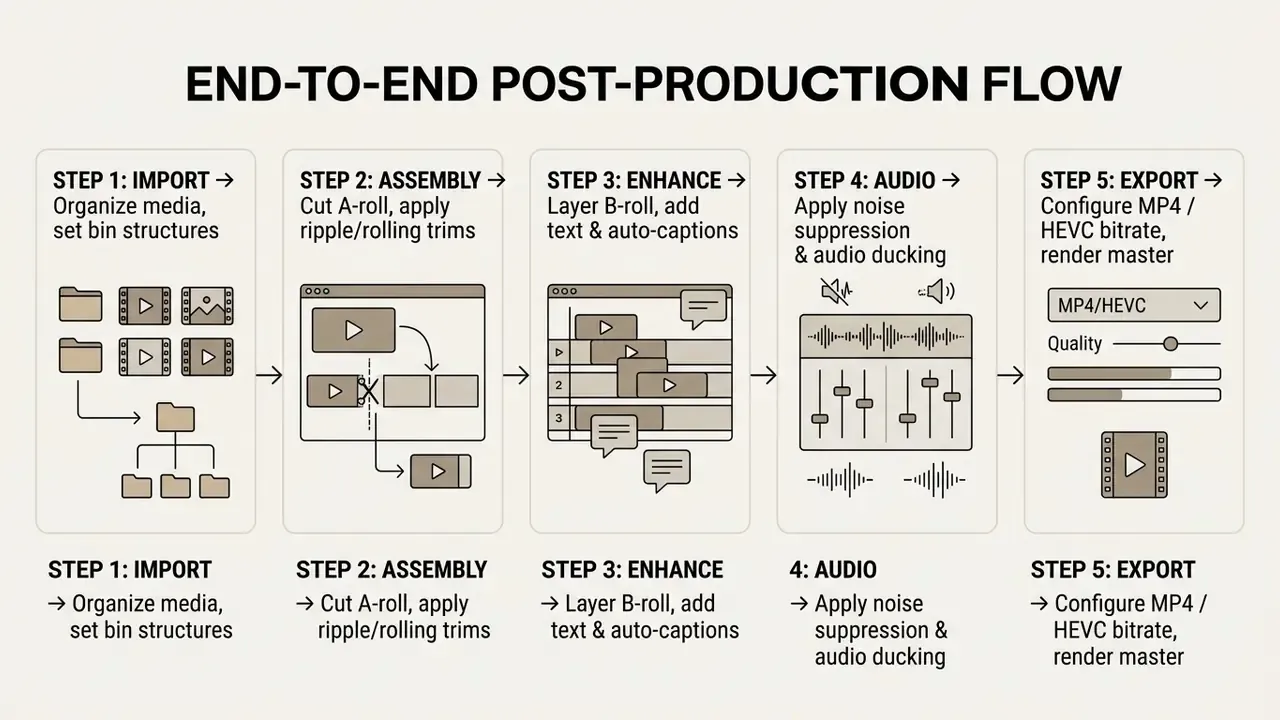
Running a project efficiently means following a structured sequence from media ingest to master export. Skip a step and you pay for it at render time.
Import Media and Build a Simple Timeline
- Project setup
- launch your chosen editing software and set the project frame rate (24 fps, 30 fps, or 60 fps).
- Media ingest
- upload media, including source clips, screen recordings, audio tracks, and graphic overlays, into the project bin (Adobe Premiere Pro Import Guide, 2026). On web editors, confirm each file sits under the roughly 1 GB intake cap and uses an MP4, MOV, or M4V container.
- Organization
- create named bins or folders for A-roll, B-roll, audio, and graphics. Media is referenced rather than copied, so keep source files in a stable directory for the life of the project.
- Rough cut assembly
- drag primary clips (A-roll) onto Track 1. Use the split or blade tool to trim, add the keepers, and assemble the core narrative.
- Overlay layering
- place supplementary footage (B-roll), title cards, logos, and lower-third graphics on the upper video tracks (Track 2 and Track 3).
- Proxy generation (4K projects)
- render ProRes LT or DNxHR LB proxies before editing if playback stutters, then relink to the originals at export.
Common Export Mistakes to Avoid
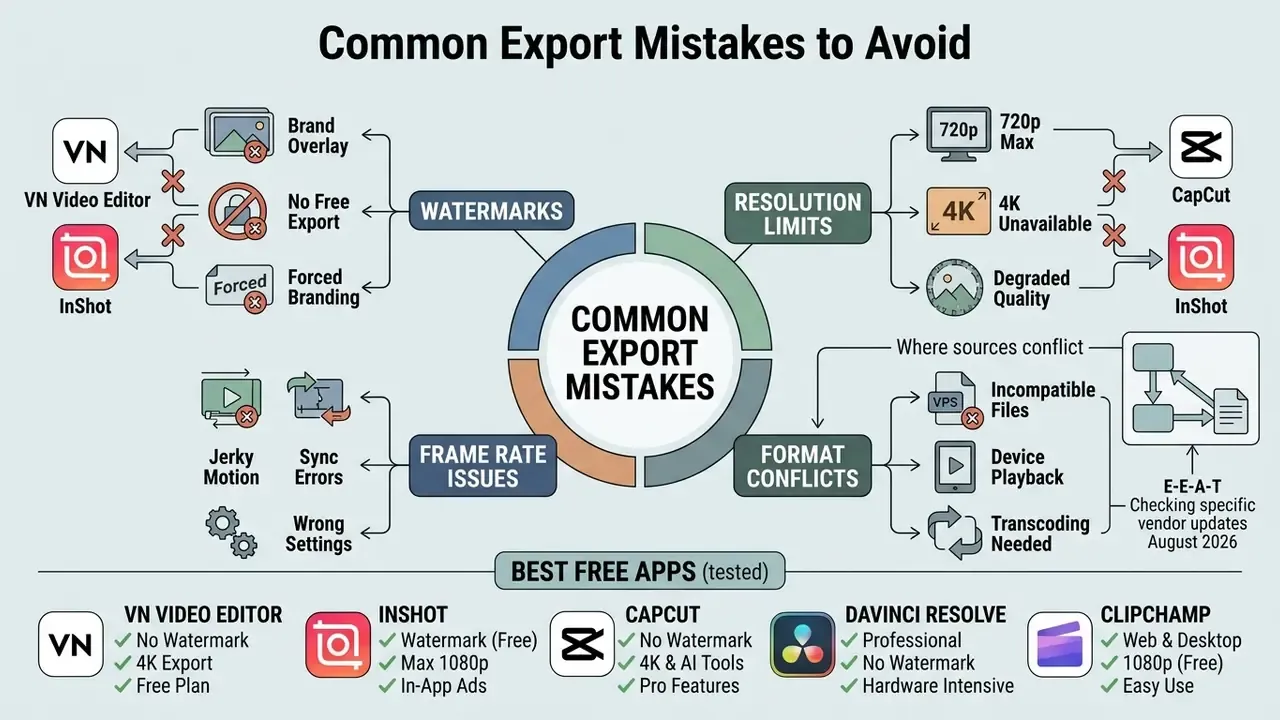
Most watermark complaints and rejected uploads trace back to the same handful of errors:
- Leaving CapCut's trailing logo clip on the timeline.It is a deletable clip, not a rendered overlay. Select it and remove it before export.
- Using premium stock, fonts, or transitions in Clipchamp or Adobe Express.A single paid asset blocks the free export entirely. Swap it for a free equivalent rather than upgrading mid-deadline.
- Exporting KineMaster or Alight Motion free projects as finals.Both watermark free renders, so finish composites in a watermark free editor instead.
- Mismatching project and source frame rate.A 60 fps clip in a 30 fps timeline produces judder that no bitrate increase will fix.
- Rendering 4K on under-specified hardware.Below 4 GB of mobile RAM or 4 GB of desktop VRAM, renders often fail at 80 to 90% completion.
- Uploading ProRes or 10-bit MKV masters to a web editor.Transcode locally to MP4/H.264 first, or the ingest gets rejected.
- Skipping the final-frame and audio-peak check.Confirm there is no black frame at the tail and that dialogue peaks below 0 dBFS after music ducking.
Methodology, Feature Verification and E-E-A-T Summary
- VN Video Editor official Google Play and Apple App Store listings confirm watermark free export up to 4K 60 fps in the base application (VN Official Listing, 2026).
- InShot watermarks are present by default but can be removed on a per-export basis by viewing a short promotional ad; App Store listings note watermark and advertisement removal within the app (InShot App Store Terms, 2026).
- CapCut core timeline exports remain unwatermarked, but opting into CapCut Pro templates, premium transitions, or cloud AI features triggers an export paywall (ByteDance CapCut Documentation, 2026).
«CapCut documentation confirms the trailing logo clip can be deleted manually on the free tier, while Pro templates and hidden-watermark removal require a subscription.»
- DaVinci Resolve
- Blackmagic Design documentation confirms free export up to Ultra HD 3840×2160 at 60 fps in 8-bit formats, with higher resolutions, 10-bit workflows, and the Neural Engine reserved for Studio.
- Clipchamp
- Microsoft product terms confirm unlimited watermark free 1080p exports, with export blocked when premium stock or paid-plan features remain in the project.
- Where sources conflict
- vendor pages and third-party 2025 to 2026 roundups sometimes disagree on 4K availability for the same product, usually because a promotional page is describing the paid tier. In every conflict above, the vendor's documentation or store listing was treated as controlling, and dated release notes were preferred over undated marketing pages.
Limitations and Open Questions
A few things this guide cannot settle, and it would be dishonest to pretend otherwise.
- Free-tier terms move faster than any published comparison. MIDiA Research documented CapCut shifting professional features behind a paid plan after adoption grew, and the same pattern could repeat with any tool listed here.
- Watermark behavior can differ by region and by app store build, so an export that is clean on iOS is not guaranteed clean on the equivalent Android release.
- AI caption accuracy was assessed on clear studio audio. Accented speech, overlapping dialogue, and noisy field recordings will degrade results, and no vendor publishes a word error rate you can audit.
- Cloud processing disclosures vary in specificity. Several browser editors describe retention in general terms without stating a deletion window, which leaves a real gap for anyone handling regulated or pre-release footage.
Verify current terms on the vendor's own page before a production commitment. Treat everything above as a snapshot, not a standing guarantee.
FAQ About Free Video Editing Apps
Can I edit videos for free without any prior editing experience?
Yes. Beginner friendly apps such as iMovie, Microsoft Clipchamp, and VN Video Editor use drag-and-drop timelines, automated trailer templates, and simple clip trimming built for first-time creators (Apple Support, 2026; Microsoft Clipchamp Documentation, 2026). Expect a weekend, not a semester.
How do I export videos from a free editor without a watermark?
Pick applications that run permanently unwatermarked free tiers: VN Video Editor, iMovie, Microsoft Clipchamp (using free media only), DaVinci Resolve, Shotcut, Kdenlive, or OpenShot. In CapCut, manually select and delete the default trailing logo clip at the end of the timeline before rendering (CapCut Watermark Removal Guide, 2026). CapCut's documentation adds an important limit: if the project uses Pro templates or Pro features, full watermark removal requires a CapCut Pro subscription. In InShot, a single watermark free export can be unlocked by watching an in-app ad, while KineMaster and Alight Motion need a paid plan for clean output.
Is 4K resolution export available in free video editing software?
Yes. DaVinci Resolve (free version up to 3840×2160 UHD at 60 fps), VN Video Editor (up to 4K 60 fps), iMovie (up to 4K 30 fps), Shotcut and Kdenlive (4K 60 fps), and CapCut's desktop client (up to 8K, including Apple ProRes 422) all support native high-resolution exports without a paid subscription (Blackmagic Design, 2026; Apple Support, 2026; VN Listing, 2026; CapCut Desktop Documentation, 2026). Most browser-based editors, including the Clipchamp and Adobe Express free tiers, cap output at 1080p.
What is the primary difference between a free video editing app and a paid editor?
Free plans usually limit advanced AI features, premium stock libraries, cloud storage, 10-bit color formats, and high-framerate noise reduction. Paid subscriptions such as DaVinci Resolve Studio or CapCut Pro unlock neural engines, complex effect plugins, unlimited cloud collaboration, and multi-GPU acceleration (MIDiA Research Survey, 2024; Blackmagic Design, 2026). MIDiA Research (Q2 2024) also flags a monetization pattern worth planning around: CapCut initially offered professional-grade features for free, then moved many of them behind a paid tier priced at roughly £13.99 per month.
Should I choose a mobile editing app or desktop editing software?
Mobile applications such as CapCut or VN excel at rapid on-the-go editing, automated social media captions, and vertical publishing. Desktop software such as DaVinci Resolve or iMovie suits complex multi-track timelines, large 4K media files, precise color correction, and extended audio engineering (IndustryResearch.biz Report, 2024). Hardware decides the edge cases: below 4 GB of mobile RAM, choose the lightest possible app or move the project to a computer.
Is it safe to upload confidential or internal company footage to a free cloud video editor?
Treat it as third-party data processing. Browser-based editors such as CapCut Web, VEED, Kapwing, and Adobe Express upload media to remote servers for transcoding and AI inference, which creates shadow IT and data-leakage exposure for pre-release, customer, or NDA-covered footage. For confidential material, use locally rendering software (DaVinci Resolve, iMovie, Shotcut, Kdenlive, or OpenShot) and switch off optional cloud AI features in mobile apps. If a cloud tool is unavoidable, restrict it to already-public assets and confirm the vendor's retention and deletion terms before ingest. This is general guidance, not legal or compliance advice; check current terms and your organization's policy.
Can I use a free video editor for commercial and client work?
Usually yes for your own footage, but bundled assets are governed separately. Open-source editors such as Shotcut, Kdenlive, and OpenShot impose no commercial restrictions on your output. Clipchamp and Adobe Express permit commercial use of free-tier output but block export when premium stock sits on the timeline. Some free builds, VSDC among them, are positioned for personal and educational use, which is a narrower grant. Always verify font, music, template, LUT, and AI-asset licenses independently of the editor's own EULA.
Which AI features silently block a free export?
Auto captions, background removal, auto-reframe, and silence removal are generally free. Pro templates, premium transitions, premium fonts, token-based generative effects, AI avatars, voice cloning, and premium stock media are the usual triggers that force a watermark or block export outright. Audit the timeline for paid badges before you start the final render, not after.
Is there a good free video editor for Linux?
Yes. DaVinci Resolve runs natively on Linux, and Shotcut, Kdenlive, and OpenShot are fully open-source with Linux builds, multi-track timelines, watermark free export up to 4K, and no account requirement. GPU rendering support varies by build and driver, so validate a short 4K render before committing to a deadline.
What are the file size and format limits on browser-based editors?
Most cloud editors cap uploads at roughly 1 GB per file and accept MP4, MOV, and M4V natively. Convert ProRes masters, 10-bit MKV containers, and camera-native formats locally before upload. Free tiers add further limits, including VEED's 10-minute, 720p watermarked export and Clipchamp's 1080p ceiling.