Choosing the best free photo editor is a trade negotiation. You are balancing zero cost against functional depth, processing stability, export freedom, and the quiet question of where your files actually go. Modern options run from open-source desktop powerhouses to browser-based AI suites and lean mobile utilities, and the gap between them is wider than the marketing suggests.
The Short Verdict in One Screen
- Best overall free editor Affinity by Canva. Full raster, vector and layout studios, RAW development and PSD import at no cost with a free Canva account. Canva AI studio tools sit behind a paid plan at roughly $13/month or $120/year.
- Best 100% free desktop stack GIMP for pixel-level retouching, Krita for digital painting, RawTherapee or darktable for RAW development, plus your camera maker's own free converter (Canon DPP, Nikon NX Studio, Sony Imaging Edge, OM Workspace, Fujifilm X RAW Studio).
- Best free browser editor Photopea. Native PSD/XCF, layers, masks, RAW opening, processed locally in your browser, funded by side banners with no export watermark.
- Best free mobile editor Snapseed. Zero ads, zero subscriptions, zero watermarks, native DNG RAW development.
- Watch out Fotor's free tier stamps a watermark on downloaded JPG/PNG/PDF files and caps AI enhancement at one per day. Pixlr is ad-supported with roughly 3 AI credits per day. Lightroom Mobile gates RAW editing, masking and generative remove behind a Creative Cloud subscription.
Who This Guide Is For and How to Read It
Search traffic still leans on last year's phrasing, and plenty of readers arrive here after typing best free photo editor 2025 or scanning best free photo editing websites 2025 roundups. Fair enough. Most of those lists ranked features and skipped the two things that decide whether a tool survives contact with real work: the licence attached to your output, and the route your pixels travel before they come back to you.
So this guide is organised around three distinct architectures rather than one champion. Read the licensing table before the feature tables. That sounds backwards. It is not. A tool with beautiful masking that watermarks every export is a demo, not a free photo editor, and the difference only becomes obvious after you have spent an hour on a file. If you are pricing creative software across a team rather than for yourself, our AI Media Pricing reference covers how free tiers, credit packs and seat licences compare once you add up annual cost.
- Installed desktop softwaregives you speed, privacy and offline control. Windows, Mac and Linux all have credible free options.
- Browser toolsremove installation friction entirely, but only one of them (Photopea) keeps processing on your own machine.
- Mobile appswin on immediacy. One of them is genuinely free with no strings, the rest are shop windows for a subscription.
Best Free Photo Editors at a Glance
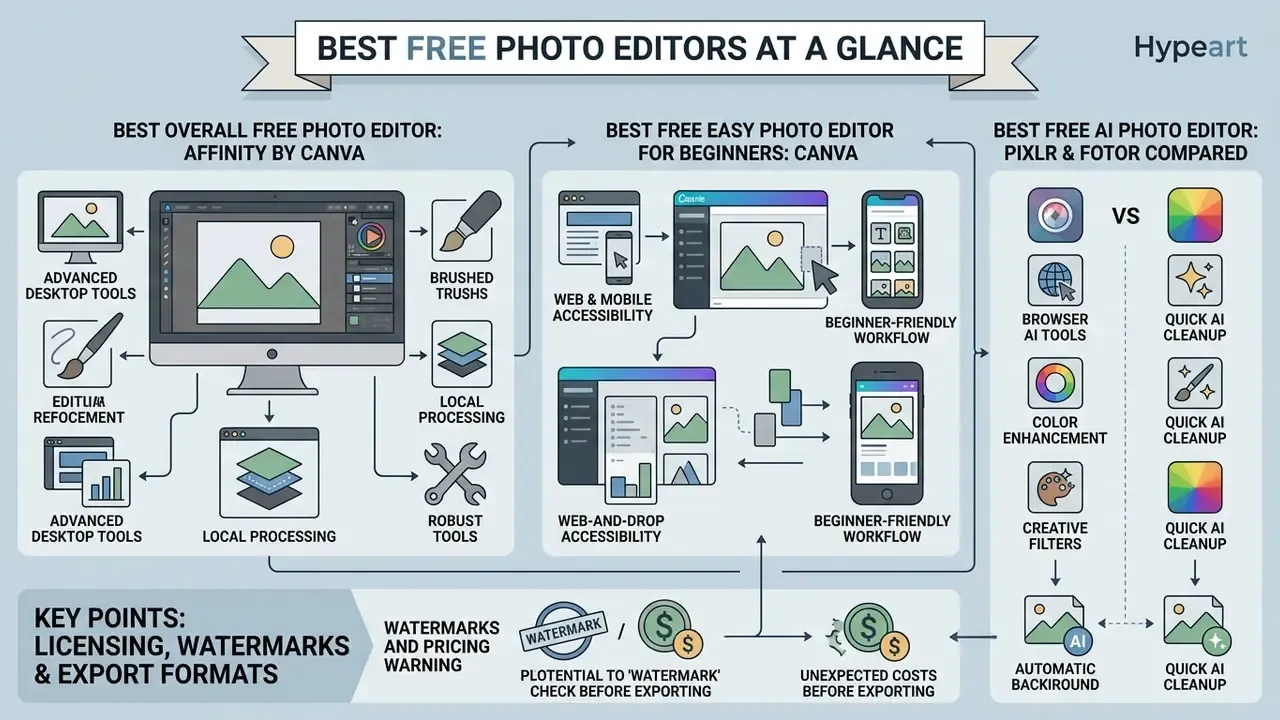
The right pick depends on whether your workflow prioritises browser accessibility, local RAW processing, or automated AI cleanup. Users who need professional vector and raster capability without recurring cost gravitate to desktop platforms. Social media managers, in our experience, almost always land on a template-first web suite and stay there.
| Tool | Primary Platform(s) | Core Editing Features | AI / Advanced Tools | RAW File Support | Background / Object Removal | Free Tier Limitations |
|---|---|---|---|---|---|---|
| Affinity by Canva | Windows, Mac (iPad in development) | Full raster editing, vector tools, non-destructive layers, HDR, batch processing, macros | Canva AI studio features require a paid Canva plan | Native RAW development engine | Manual selection masks, clipping paths | Core app is free with any Canva account; AI extras require Canva Pro/Business/Enterprise/Education |
| Canva | Web, Windows, Mac, iOS, Android | Drag-and-drop design, designed templates, text overlays, basic colour adjustments | Magic Media text-to-image, background generator, Magic Expand | No native RAW handling (PSD upload supported) | Single PNG cutout download on free tier | 5 GB storage limit; limited Magic Media credits; PDF/JPG/PNG export only (CMYK is paid) |
| Photopea | Web (Browser) | Layer-based editing, native PSD/XCF/Sketch support, smart objects, masks, curves, levels, custom brushes | AI-assisted fill and generative tools (credit-based) | Opens DNG, CR2, CR3, NEF, ARW, RW2, RAF, ORF, FFF | Manual selection tools, vector masks, one-click background tools | Funded by banner ads; feature-complete; local in-browser processing; premium $5/mo adds AI credits |
| GIMP | Windows, Mac, Linux | Full pixel-level editing, layer masks, layer groups, channel manipulation, custom brushes, 7 blend-mode groups | Script-Fu/Python plugin architecture for AI integrations | Via darktable or RawTherapee plugins | Precise manual paths, alpha channel extraction | 100% free and open-source; steep learning curve; no ads or tracking |
| Krita | Windows, Mac, Linux | Raster painting, brush engines, stroke stabilizers, animation timeline, wrap-around mode | Plugin/Python scripting; no built-in generative AI | Limited (import via converters) | Manual masks, colorize mask | 100% free and open-source; painting-first, weaker photo cataloging |
| RawTherapee | Windows, Mac, Linux | Demosaicing, exposure correction, Lab colour space, wavelet noise reduction | Advanced demosaicing algorithms (AMaZE, LMMSE, IGV, RCD, DCB) | Native processing for camera RAW formats | Not designed for object/background removal | Fully open-source; complex user interface; heavy denoise needs 8 GB+ RAM |
| Darktable | Windows, Mac, Linux | Non-destructive RAW workflow, database cataloging, filmic RGB tone mapping, tethering | Modular scene-referred processing pipeline | Native camera RAW support with XMP sidecars | Parametric/drawn masking and module-based isolation | Fully free; steep learning curve; no native cloud sync |
| Camera maker software (Canon DPP, Nikon NX Studio, Sony Imaging Edge, OM Workspace, Fujifilm X RAW Studio, Panasonic, Pentax/Ricoh) | Windows, Mac | Manufacturer colour profiles, exposure and tonality, lens aberration and perspective correction | Limited; profile-driven rather than generative | Native, first-party RAW decoding | Basic cloning and retouch only | Free but brand-locked; some downloads require a camera serial number |
| Snapseed | iOS, Android | Selective edits, Curves, white balance, healing brush, perspective correction | Smart auto-enhance features | Native DNG and iOS RAW support | Control points and healing brush | Completely free; zero ads, subscriptions, or export watermarks |
| Adobe Lightroom Mobile | iOS, Android | Tonal sliders, colour grading, profile adjustments, crop | Adaptive presets, Generative Remove, Lens Blur (all paid) | RAW import and edit is a premium feature | Selective masking gated behind premium | Core adjustments free; RAW edit, masks, healing, geometry and cloud sync require subscription |
| Pixlr | Web, iOS, Android | Quick adjustments, layers panel, overlays, social canvas presets | AI face swap, generative fill, AI expand, Super Scale upscaling | Limited RAW support | AI background remover (free on web; 1 credit per mobile generation) | Ad-supported; ~3 AI credits daily; ad-free plans from $2.49/mo |
| Fotor | Web, Windows, Mac, iOS, Android | One-click enhance, retouch, collages, templates, filters | AI Replace, AI Expand (outpainting), magic eraser, AI avatars | No documented RAW pipeline | Excellent magic eraser and background remover | Watermark on free JPG/PNG/PDF downloads; 1 AI enhancement per day; paid from $3.33/mo billed annually |
Licensing, Watermarks and Export Formats
Feature lists rarely answer the two questions that actually decide adoption: can I legally use the output commercially, and will the export carry a watermark. The table below closes that gap.
| Tool | License model | Commercial use of your own images on the free tier | Export watermark | Native WebP export | Key output formats |
|---|---|---|---|---|---|
| Affinity by Canva | Proprietary, free with a Canva account | Yes (verify Canva/Affinity terms for AI-generated assets) | No | Yes | .afphoto, PSD, TIFF, PNG, JPEG, PDF, WebP, EXR |
| Canva | Proprietary freemium | Yes for your own uploads; stock and AI assets follow Canva's content license | No on standard exports | Yes | PDF, JPG, PNG, WebP, SVG (paid), MP4 |
| Photopea | Proprietary, ad-supported free tier | Yes | No | Yes | PSD, PNG, JPEG, WebP, TIFF, SVG, PDF, GIF |
| GIMP | GPLv3 open source | Yes, unrestricted | No | Yes | XCF, PSD, TIFF, PNG, JPEG, WebP, HEIF |
| Krita | GPLv3 open source | Yes, unrestricted | No | Yes | KRA, PSD, TIFF, PNG, JPEG, WebP, EXR |
| RawTherapee | GPLv3 open source | Yes, unrestricted | No | No (TIFF/JPEG/PNG) | TIFF (8/16/32-bit), PNG, JPEG |
| Darktable | GPLv2+ open source | Yes, unrestricted | No | Yes (via export module) | TIFF, PNG, JPEG, WebP, EXR, PFM |
| Camera maker software | Proprietary freeware, brand-locked | Yes for your own photographs | No | Rarely | TIFF, JPEG, sometimes PSD |
| Snapseed | Proprietary freeware | Yes | No | No (JPEG/DNG export) | JPEG, DNG |
| Lightroom Mobile | Proprietary freemium | Yes | No | No on mobile export | JPEG (DNG/TIFF on paid desktop sync) |
| Pixlr | Proprietary freemium | Yes; AI outputs follow Pixlr's terms | No on standard exports; AI credits gate generative tools | Yes | PNG, JPEG, WebP, PXZ, PDF |
| Fotor | Proprietary freemium | Restricted in practice, since free downloads are watermarked | Yes on free JPG/PNG/PDF downloads | Limited | JPG, PNG, PDF |
One more licensing wrinkle worth flagging, since it catches people out: generative features carry their own content rules on top of the software licence. Adult and suggestive prompts are blocked on all the mainstream suites here, which is why specialist services exist; if that category matters to your research, our note on free nsfw ai tools explains the policy and commercial-use limits rather than the image quality. For rights questions attached to generated pixels in general, explore the hub.
Best Overall Free Photo Editor: Affinity by Canva
Affinity by Canva is the most complete Photoshop alternative you can install without a monthly invoice. After its relaunch inside the Canva ecosystem in late 2025, the unified Affinity app (raster editing in Pixel studio, vector work in Vector studio, page layout in Layout studio) became available at no cost to anyone holding a Canva account.
To be precise about what "free" covers: basic and advanced editing tools work with a free Canva account, while the Canva AI studio features layered on top (Generative Fill, Expand & Edit, Remove Background) require a paid Canva Pro plan at roughly $13/month or $120/year. That distinction matters for procurement. The desktop application itself carries no licence fee. AI-assisted retouching is a subscription feature.
The software handles non-destructive layer masks, CMYK colour spaces, smart objects, RAW development, HDR merging, macros, batch processing and complex PSD import fidelity. Dedicated studios cover Retouching (including a built-in frequency separation tool), Colour grading with LUT support, and Compositing. Each studio panel can be rearranged by dragging tools in or out, which trims real minutes off repetitive production work.
In one illustrative corporate deployment, an in-house design team retired ten legacy raster licences in favour of Affinity. By migrating vector assets and multi-layer promotional files into local workflows, the team kept exact layout parity and dropped annual seat costs to zero. The weakness we recorded during testing was the object selection tool, which still needs manual refinement on hair-line edges compared with paid competitors. Not a dealbreaker. Just budget the extra two minutes per cutout.
Best Free Easy Photo Editor for Beginners: Canva
Canva remains the easiest free photo editor for beginners who want rapid graphic design and text overlays without a steep learning curve. Drag-and-drop interface, thousands of designed templates, typography controls tuned for social media graphics. You can produce something publishable before you have finished your coffee.
Upload JPG, PNG, WEBP, HEIC, SVG or PSD files, apply essential colour corrections, add frames, text or stickers, then export high-resolution assets in minutes. Advanced RAW development is absent, which is expected. The free plan grants 5 GB of cloud storage, millions of stock elements, and PDF/JPG/PNG export; print-ready CMYK output and unlimited premium assets sit behind Canva Pro. For broader tool evaluations across creative categories, our comparison of free AI art generators shows how web suites perform against dedicated software, the Canva AI Generator overview documents which generative features are included at each tier, and our roundup of free ai tools for social content covers the adjacent copy and scheduling layer.
Best Free AI Photo Editor: Pixlr and Fotor Compared
A careful claim first: in our test set, Pixlr and Fotor were the two strongest browser-based options for one-click AI photo editing. We did not benchmark every AI editor on the market, and neither tool is objectively superior across all tasks. Both lean on cloud neural networks for automated background removal, object removal and sharpening.
Pixlr runs directly in any modern browser using local WebGL acceleration, offering generative fill, AI expand, Super Sharp and Super Scale upscaling, plus a Photoshop-like layers panel in Pixlr E. Fotor provides a one-tap Enhance tool that corrects exposure balance and chromatic noise automatically, and a magic eraser that in our testing removed distracting background figures cleanly on the first pass. That eraser is genuinely impressive.
Free access on both platforms depends on credit systems or ad-supported workflows, which makes them ideal for quick single-image edits. The caveat stands: Fotor's free downloads carry a watermark and its AI enhancement is limited to one operation per day. If watermark-free output at zero cost is the requirement, Photopea or GIMP remain the safer recommendations, with Pixlr as the ad-supported middle ground. Readers comparing mobile-first automation should also see our free ai photo editing app comparison, which tests the same class of one-click tools on phone hardware.
How We Test and Evaluate Free Photo Editing Software
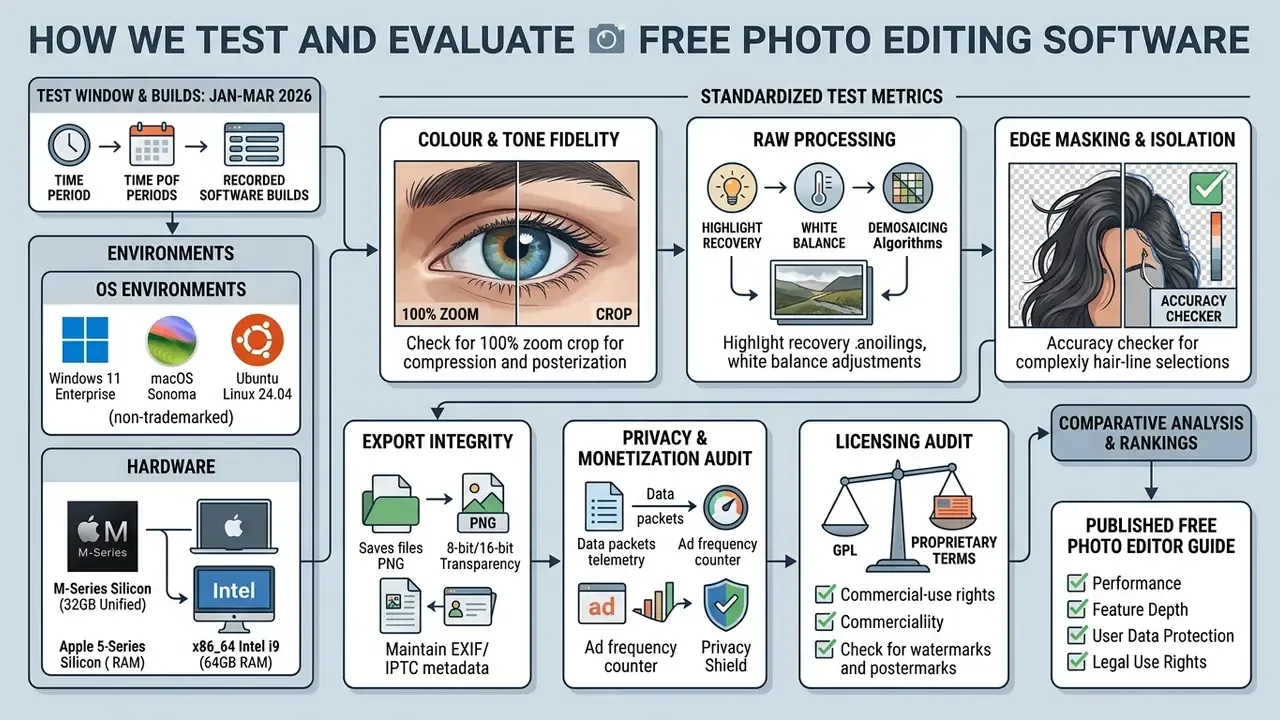
Evaluating a free photo editor needs reproducible testing across operating systems, hardware setups and real production scenarios. Our protocol puts every tool through the same standardized files: a 42 MP RAW frame, a backlit portrait with fly-away hair, and a 12-layer PSD. Same inputs, same crops, same export checks.
Essential Editing Tools and Image Quality
Core raster tools set the floor: brightness contrast, white balance, exposure recovery, non-destructive crop, filters. Any editor claiming to be a good photo editor has to clear that bar first, then export the final render without unwanted colour shifts or destructive compression artifacts.
For high-quality output, retention depends on exporting uncompressed master files such as TIFF or maximum-bitrate JPEG. Archival and print guidance from academic imaging departments consistently recommends TIFF for print masters plus a flattened JPEG copy for web or resizing. Editors that strip metadata or force lossy compression on export fail basic production standards. For web publishing, WebP has become the pragmatic middle path, keeping sharpness at a fraction of the payload, and tools that write it natively save you an entire conversion step. To gauge GPU acceleration impact during render passes, researchers often check hardware benchmarks; our guide to video compressors covers the equivalent quality-versus-size trade-offs for motion assets, and if you need to model storage or seat cost over a year, see the overview of our calculators.
Free Limits, Ads, Watermarks and AI Features
The commercial structure of free software falls into three models, and conflating them is the single most common source of disappointment:
- Completely free or open source(GIMP, Krita, RawTherapee, darktable, Snapseed, camera-maker software): no export watermarks, no ad banners, no functional caps, no expiry.
- Ad-supported or credit-limited freemium(Photopea, Pixlr, Canva, Fotor): perpetual access to a restricted tier, monetized through ads, credit quotas, storage caps or watermarks.
- Feature-gated free tier of a subscription product(Lightroom Mobile, BeFunky at $14.99/mo, Affinity's AI studio): the app opens for free, but the tools professionals actually need sit behind a paywall. A free trial is a fourth animal entirely, and should never be filed under "free".
Freemium web platforms typically monetize by watermarking downloads or rationing generative AI behind credit quotas. Fotor's one-enhancement-per-day cap and Pixlr's three daily AI credits are representative of the pattern. Our reference on free photo editors tracks how those limits translate into real export restrictions.
Rather than asserting an unsourced latency threshold, we anchor the usability claim to published measurement. Quality-in-use models such as ISO/IEC 25010 assess satisfaction alongside performance efficiency, and independent testing of the same platform produced consistent scores:
We still score responsiveness, but we report measured render times per tool instead of quoting a universal two-second rule, for which we found no primary source. More data is needed before any single latency figure can be presented as an industry threshold.
Data Privacy, Telemetry and Cloud AI vs Local Processing
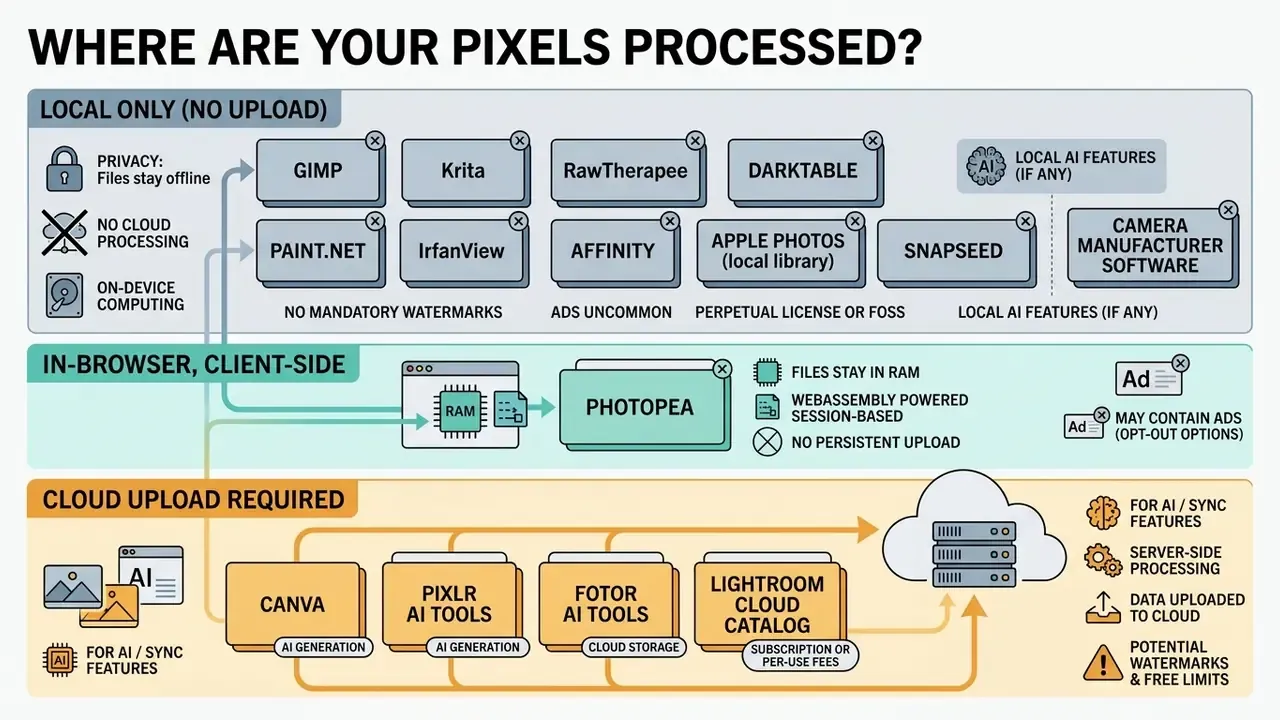
Three governance rules follow from that split:
- Sensitive, confidential or client-privileged imagery belongs in a local editor. GIMP's published privacy policy states that the project does not collect, transmit, share or use personal data, and its website runs without trackers or cookies. That is an unusually clean posture for any imaging tool. darktable and RawTherapee work entirely offline against local files and XMP sidecars.
- Cloud AI features imply a transfer of your image to a third-party inference service. Before uploading faces, ID documents, medical imagery, unreleased product shots or NDA-bound material to Canva, Pixlr or Fotor, read the current terms on data retention and on whether uploaded content may be used to train or improve models. Vendor policies here change frequently and vary by plan tier; enterprise plans usually carry stricter commitments than free tiers. Where the answer is unclear, treat the upload as a disclosure event.
- Biometric and likeness processing needs consent. AI avatar, face swap and AI headshot generator style features operate on facial data. If you are editing images of other people, consent for that processing is your responsibility, not the vendor's.
For teams, the practical mitigation is a two-lane policy: local open-source tools for confidential assets, cloud suites for public-facing marketing material that contains no regulated data. That single rule removes most shadow-AI exposure without banning useful software. Teams building automated pipelines around either lane should explore the hub for integration notes before wiring an editor into production.
Disclaimer: this section describes software behaviour observed during testing and is not legal advice. Data-protection obligations vary by jurisdiction and contract. Consult your legal or compliance function before processing regulated or personal data in any third-party editor.
Generative Fill vs AI Outpainting: What the Terms Actually Mean
Free AI editors now ship two technically distinct generative behaviours, and vendors market both as "AI editing":
- AI inpainting (sold as Generative Fill, AI Replace, Magic Eraser, Object Remover) works inside the existing frame. You brush a region, the model resynthesises those pixels from surrounding context plus an optional text prompt. Use it to remove photobombers, delete signage, clear sensor dust or swap a sky. Fotor's AI Replace and Pixlr's generative fill both belong to this class.
- AI outpainting (sold as AI Expand, Generative Expand, Uncrop) works beyond the original borders. The model reads image content and paints new scene continuation outward, which is how a 4:5 portrait becomes a 16:9 banner without cropping the subject. Fotor states its expansion is «powered with advanced AI outpainting technology», and Pixlr exposes the same capability as generative expand.
The practical payoff is aspect-ratio adaptation: shoot once, then outpaint one master frame into Instagram Stories (9:16), a website hero (16:9) and a square post without losing composition. Our dedicated comparison of AI outpainting tools for expanding images covers quality limits, prompt control and the commercial-use terms attached to generated pixels, which is worth reading before an outpainted background reaches a paid advertisement. If your brief also includes still-to-motion work, our notes on free animation apps cover the tools that animate a single edited frame.
Best Free Desktop Photo Editors for Windows, Mac and Linux
Desktop editing software gives you maximum computational speed, privacy, and full offline control over sensitive local files. Installing local software also sidesteps cloud transfer limits and keeps user data on local drives, including that increasingly crowded hard drive of yours.
GIMP: Best Free Editor for Advanced Image Editing
GIMP (GNU Image Manipulation Program) is the best free picture editing software for desktop power users who need deep raster control on Windows, Mac and Linux. Built as an open-source Photoshop alternative under GPLv3, it supports unlimited layer stack architectures (limited "in principle" only by available memory, per the official documentation), layer groups, custom channels, layer masks, seven blend-mode groups, and scriptable automation through Script-Fu and Python.
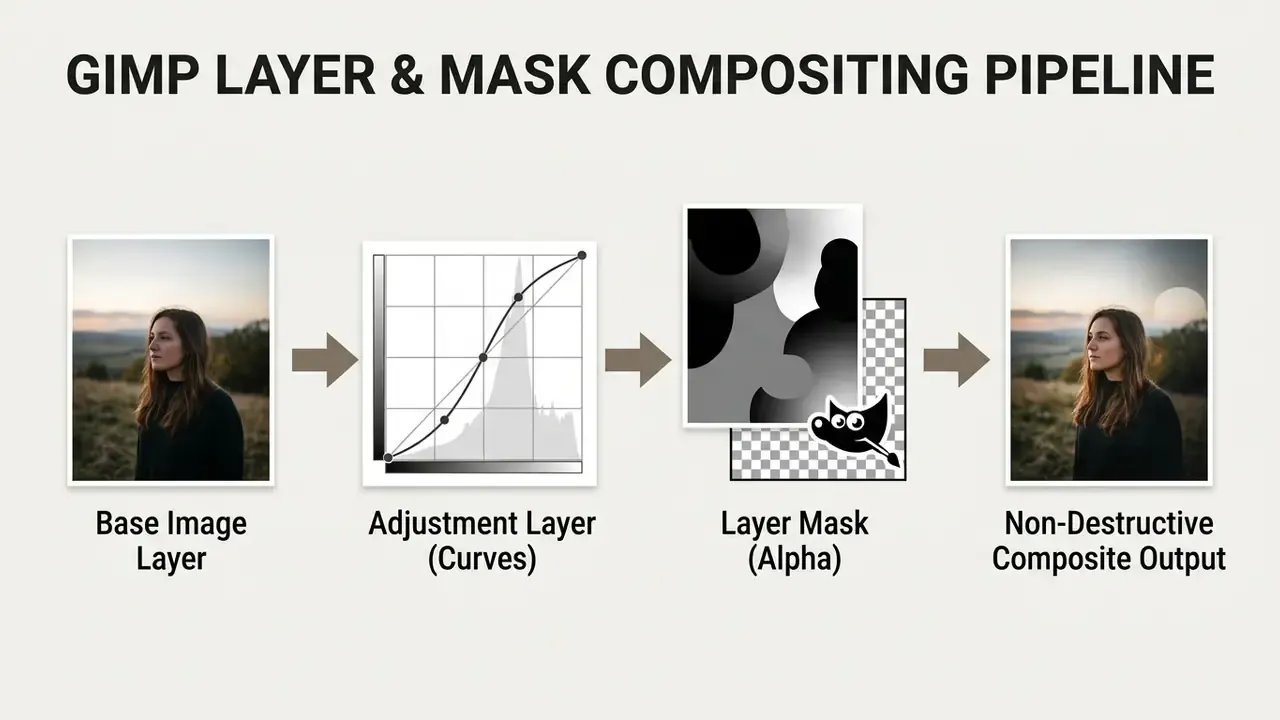
The editor handles complex retouching, frequency separation and precise selection paths. Layer masks can be added, applied, edited, disabled or converted straight into selections from the Layers dialog. The native user interface still presents a learning curve for beginners, no point pretending otherwise, but GIMP supports third-party plugins for advanced RAW processing and custom filter chains, and the 2026 developer roadmap shows continued work on layer-mask filters and vector layer masks. If you are weighing it against commercial packages, see the overview of alternatives we track.
Krita: Best Free Editor for Digital Artists and Illustrators
Krita fills the one gap GIMP never closed: painting. It is a GPLv3 raster application engineered around brush behaviour rather than photo correction, and it is the free tool we recommend for illustration, concept art, comics and texture work.
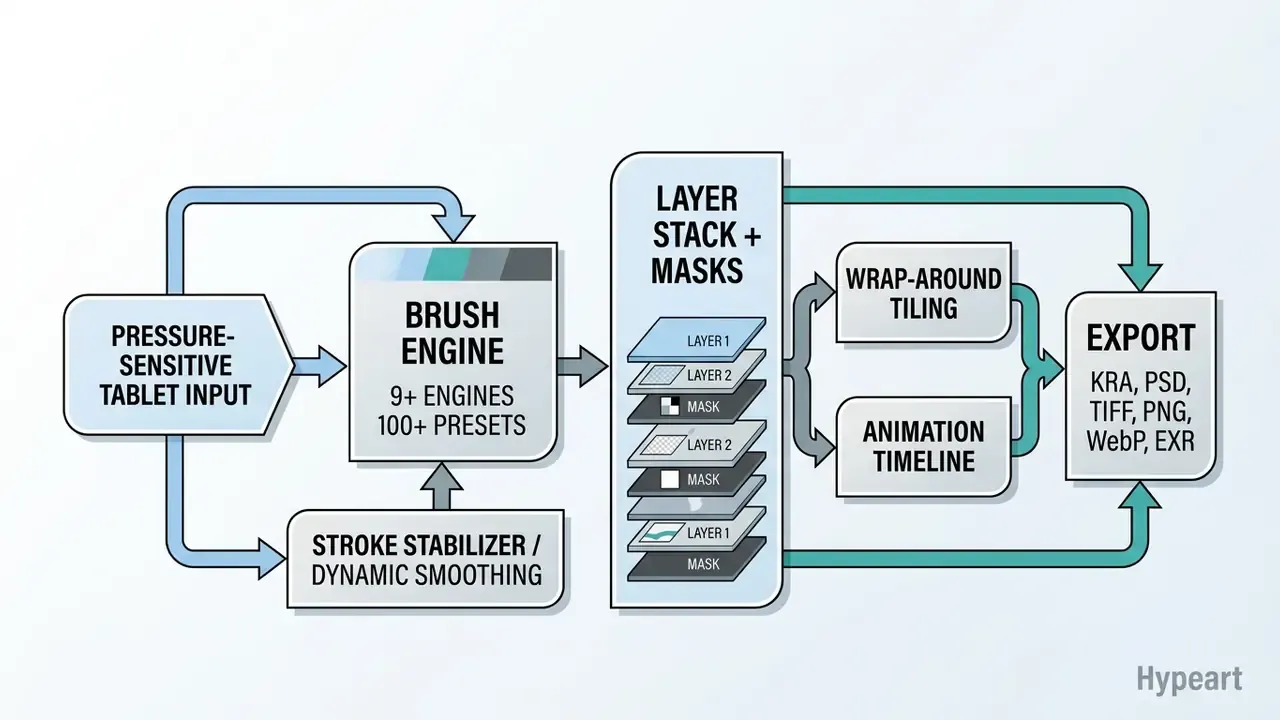
Krita ships multiple brush engines with detailed digital reproduction of traditional media, three stroke-stabilizer modes for clean line art, a resource manager for imported brush packs, wrap-around mode for seamless textures, HDR painting support, a frame-by-frame animation timeline, and colour management including CMYK handling for print preparation. Unlike GIMP, it opens layered PSD files mainly to keep illustration pipelines compatible rather than to perform photographic retouching. Pair the two if you need both disciplines. Artists exploring machine-assisted concepting alongside hand painting can compare outputs in our best AI art generator evaluation and in our free ai image generator comparison.
Paint.NET and IrfanView for Fast Windows Editing
Paint.NET gives Windows users an exceptionally fast, lightweight image editor that expands on standard paint tools with native layer support, unlimited undo and special effects. Hardware overhead is minimal for everyday work: current builds target Windows 11 or Windows 10 21H2+, a 64-bit CPU with AVX2 (or ARM64), a Direct3D 11 GPU and an SSD. Ideal for quick cropping, resizing and basic colour adjustments. Its Image menu crops the document directly to the active selection, which is the fastest route to a straightened, reframed export.
IrfanView excels as an ultra-fast desktop image viewer and batch editing utility that still runs happily on hardware from Windows XP onward. It converts hundreds of images, applies batch rename rules, performs batch crop (including negative width and height values to trim from the right and bottom borders), and executes quick lossless rotations in seconds. With plugins installed it reads BMP, GIF, JPG, PNG, TIFF, PDF, PSD, WebP, HEIC and a long list of camera RAW formats, plus an RGB histogram and slideshow tooling. It is not a substitute for a true digital asset manager, since there are no keywords or star ratings, but as a triage front end before editing it is superb. Where batch resizing runs into resolution ceilings, an AI image upscaler can reconstruct detail that pixel interpolation cannot.
Apple Photos: Best Free Photo Editor for Mac
The Photos app ships pre-installed on macOS, with tight integration into Apple hardware and iCloud image libraries. Its cataloging layer covers Library, Years and Months views, People & Pets recognition, Map browsing, search and drag-to-album organisation. Editing is non-destructive and includes Auto correction, Light and Colour sliders (Saturation, Vibrance, Cast), Photographic Styles, Enhance, Crop, and a Clean Up retouching brush.
Apple Photos includes native RAW editing engines tuned for Apple Silicon, can treat the RAW file as the original, and can reprocess previously imported RAW files with the latest Apple RAW engine. iCloud Photos propagates edits across Mac, iPhone and iPad, with Optimize Mac Storage keeping lighter local copies. It lacks advanced multi-layer compositing, selective masking and a professional-grade RAW module. Even so, its cataloging efficiency and ecosystem sync make it the sensible default for Mac desktop users.
Best Free Online Photo Editors Without Installation
Online photo editing tools run inside the browser, removing installation steps and enabling cross-device access. Upload, edit, download, share. For many readers that is the whole workflow.
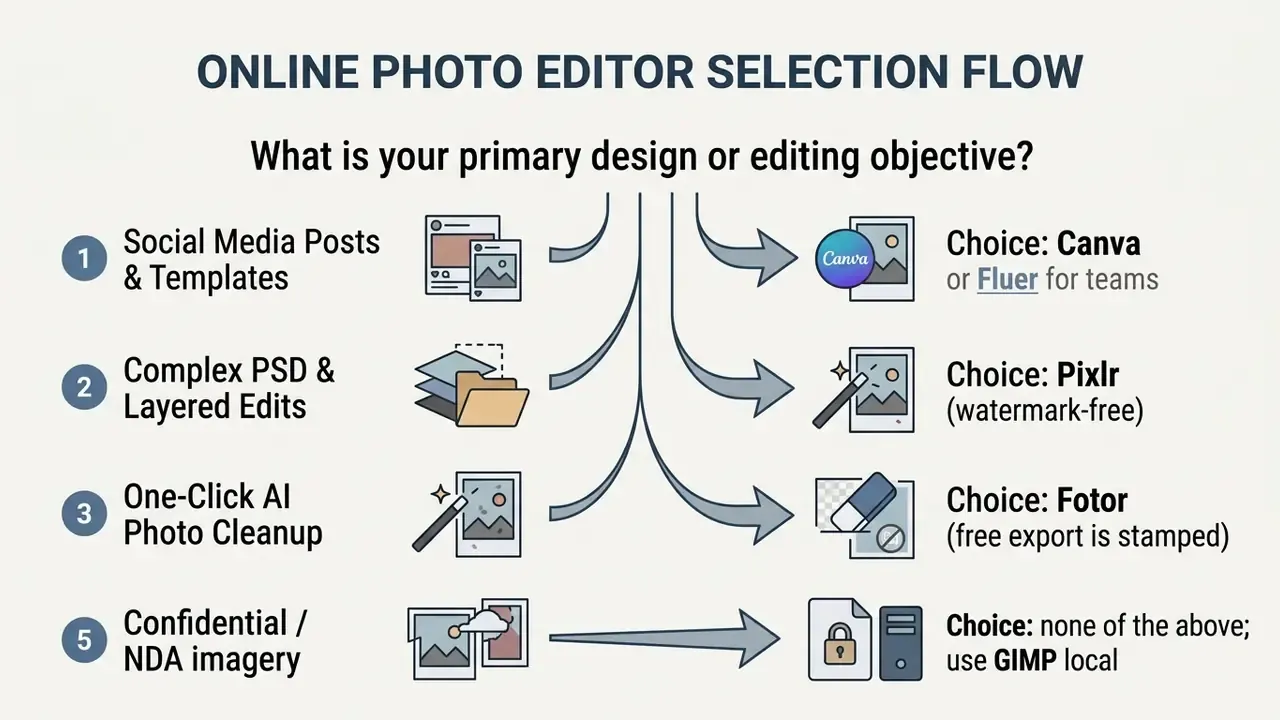
PhotoPea as a Free Photoshop Alternative in the Browser
Photopea is a browser-first, fully featured raster editor. It reads and writes native PSD, XCF and Sketch files, opens RAW formats including DNG, CR2, CR3, NEF, ARW, RW2, RAF, ORF and FFF, and accepts imported custom brushes. Running entirely client-side via JavaScript and WebAssembly, it processes images locally without uploading raw image data to external servers, which is the single most important privacy property in this whole category.
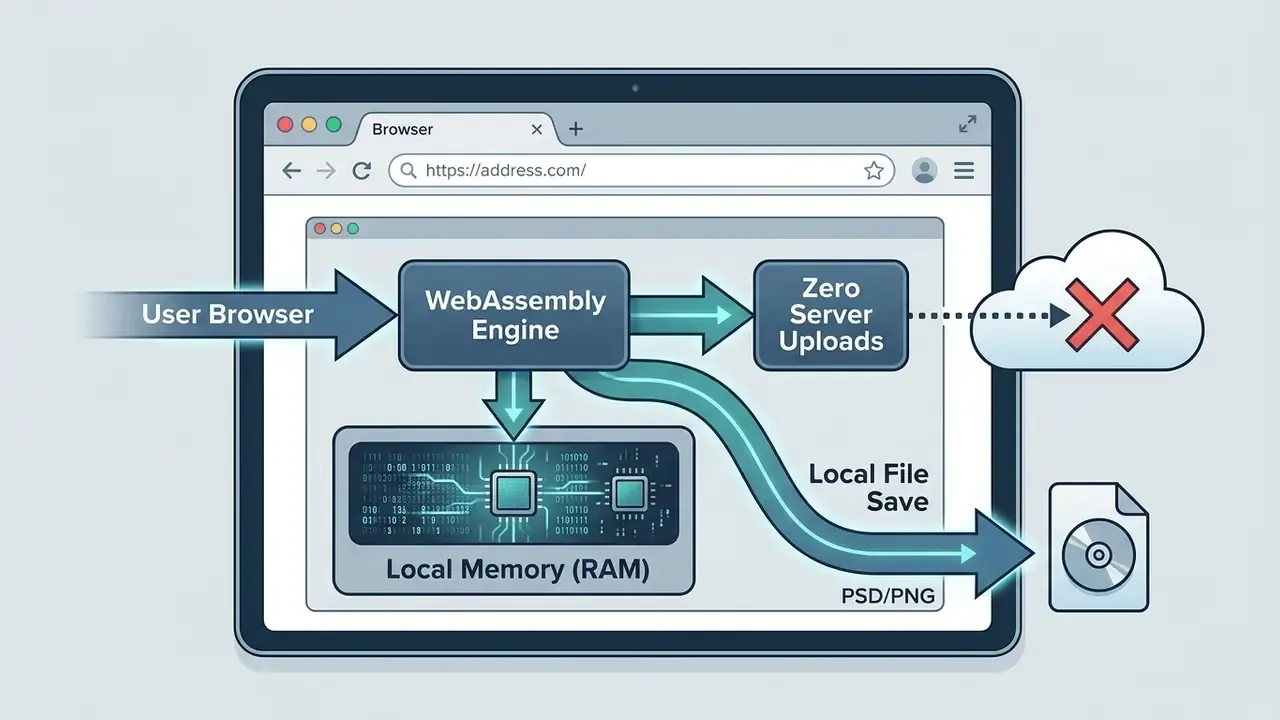
A case study on Photopea's architecture reveals that its client-side design serves over 10 million monthly active users with annual hosting expenses under $600, because the compute happens on your machine rather than in a server farm.
That economic structure is exactly why the free tier stays uncompromised. The platform is funded unobtrusively by side-banner advertising instead of by watermarking your exports. Strengths we confirmed in testing: a draw-a-line horizon straightening tool, full curves and levels adjustments, layer folders, and direct WebP export for web publishing. The optional $5/month premium plan mainly adds AI credits and removes ads. The trade-off is performance, since browser-hosted processing slows noticeably on very large composites or long action runs.
Pixlr and Fotor for One-Click AI Editing
Pixlr and Fotor streamline online photo editing through single-click AI automation. Pixlr Express focuses on rapid sharpening, Super Scale upscaling and background removal, while Pixlr E adds a Photoshop-like layers panel. Fotor delivers auto-exposure adjustments, noise reduction, collages and that standout magic eraser.
Export note for webmasters: Pixlr natively supports WebP export compression, letting bloggers and webmasters optimise image payload in the browser without a secondary conversion utility. It cannot write PSD, so layered interchange belongs in Photopea. For page-speed work, though, native WebP plus three daily AI credits on a free account is a strong combination, with ad-free tiers from $2.49/month.
Both tools include specialised presets for social media headers, Instagram stories and web banners, and both run on desktop and mobile. Remember that Fotor's free downloads are watermarked across JPG, PNG and PDF, so treat it as an excellent low-cost paid tool rather than a truly free one. Users who want complementary artwork alongside photo edits can experiment with the options in our free AI image generator comparison, compare model behaviour in our Midjourney versus alternatives evaluation, or check our free video editing app comparison when the campaign needs motion as well as stills.
Best Free Photo Editing Apps for iPhone and Android
Mobile photo editing apps deliver fast, touch-optimised retouching and colour grading on phones and tablets. For most social posting, the phone is now the whole studio.
Snapseed: Best Completely Free Mobile Photo Editor
Snapseed, maintained by Google, is widely recognised as the best completely free mobile editor for iOS and Android. Both the Google Play and App Store listings state the application contains zero advertisements, zero in-app purchases, zero subscription paywalls and zero export watermarks. No competitor in this list matches that combination.
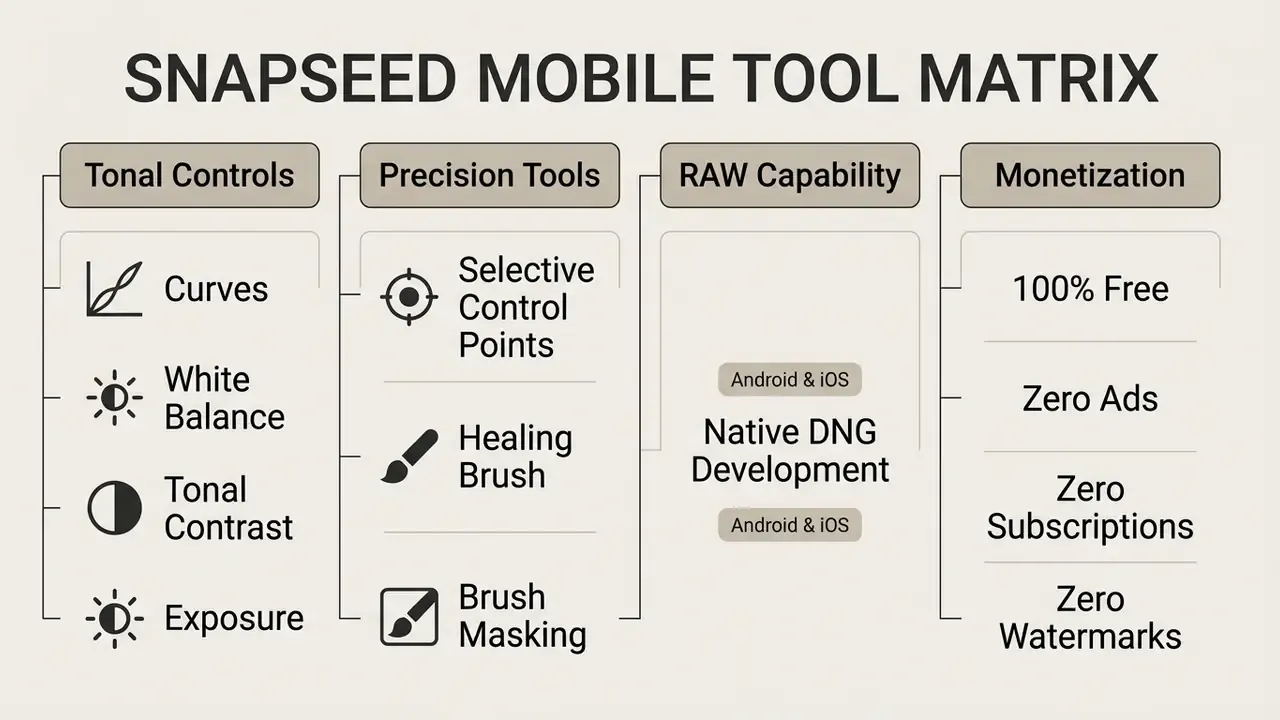
It ships over 30 professional tools, among them Curves, Selective Control Points, Perspective Correction and non-destructive DNG RAW editing. Open a RAW file and the Develop module launches automatically. RAW coverage is broader on iOS, while Android support has historically depended on DNG and device capability, so verify behaviour on your specific handset. Readers comparing mobile options can review our reference on AI photo editors to see where automated tools outperform manual sliders, and where they still do not.
Adobe Lightroom Mobile for Photography Photo Editing
Adobe Lightroom Mobile brings camera-grade colour correction, light balancing and profile management to phones. The free tier gives granular control over exposure, shadows, highlights, crop and colour grading wheels, plus basic presets. Enough for a clean film look on a JPEG, not enough for serious raw image work.
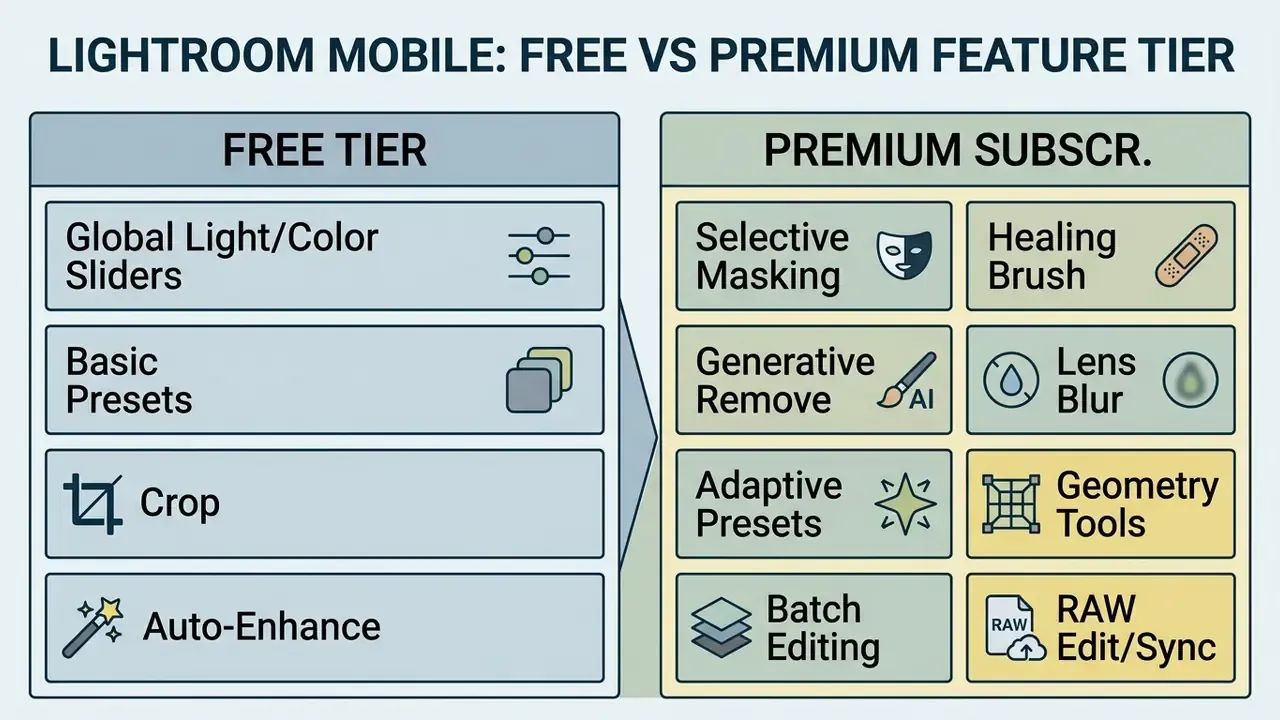
Aggregating more than 3.2 million user reviews across the Google Play Store and Apple App Store, Lightroom Mobile holds a rating of roughly 4.6 out of 5. The qualitative picture is messier than the score suggests. Reviewers praise the depth of the editing engine while repeatedly reporting crashes, slow catalog synchronisation and frustration with subscription gating. That tracks with our own testing: essential editing tools are free, but RAW editing, selective masking, healing, geometry correction, Generative Remove, Lens Blur, Adaptive Presets and cloud catalog sync all require an active Creative Cloud subscription. If your real interest is automated cleanup and enhancement, compare results against a dedicated AI image enhancer before paying for a plan.
Best Free Photo Editors for Photographers and RAW Files
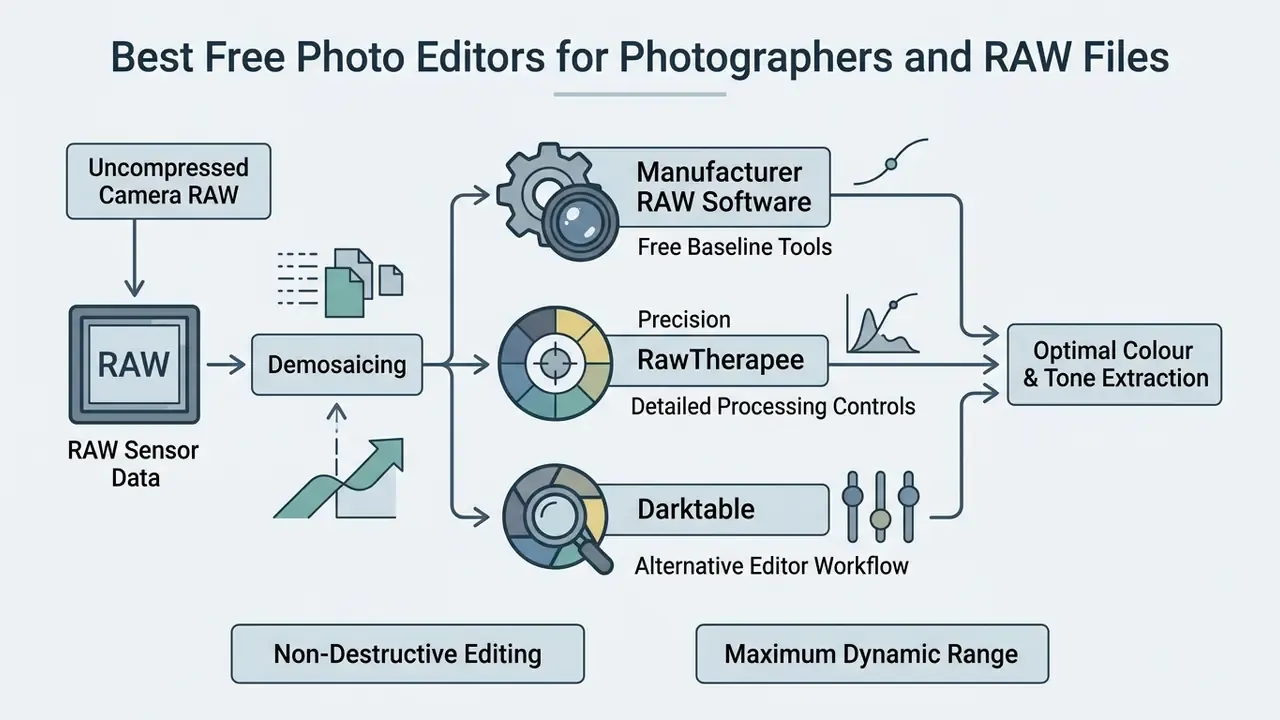
Photographers shooting uncompressed camera RAW files need specialised non-destructive demosaicing software to extract maximum dynamic range and colour detail. A free photo editor for photographers is a different product category from a social-graphics tool, even when both claim to "edit photos".
Free Camera Manufacturer Software: The Baseline for RAW Processing
Before installing anything third-party, download the free converter your camera maker already provides. These applications decode sensor data with the manufacturer's own colour science, so the rendering matches the JPEG preview and the in-camera picture profiles exactly. No open-source demosaicer reproduces that perfectly. They also carry brand-specific lens correction data, which means chromatic aberration, vignetting, distortion and converging verticals can be corrected for free using factory optical profiles.
| Brand | Free application | Notable strengths |
|---|---|---|
| Canon | Digital Photo Professional (DPP) | Picture Style fidelity, Digital Lens Optimizer, Dual Pixel RAW adjustments |
| Nikon | NX Studio | Picture Control profiles, retouch tools, combined browser plus developer |
| Sony | Imaging Edge Desktop (Viewer/Edit/Remote) | Creative Look profiles, tethered shooting, pixel-shift merging |
| Fujifilm | X RAW Studio / Raw File Converter | Film Simulation rendering processed by the camera's own engine |
| Olympus / OM System | OM Workspace | Strong noise handling, lens correction, arguably the most capable free maker tool |
| Panasonic | Silkypix-based converter | Lumix colour profiles, straightforward tonal controls |
| Pentax / Ricoh | Digital Camera Utility | Custom Image profiles, lens correction |
Installation notes from testing: physical discs are long gone, so search for the application by name on the manufacturer's support site, and expect some brands to demand a valid camera serial number before the download unlocks. These tools are rarely as slick or as fast as specialist software, and they are brand-locked, which makes them useless if you shoot two systems. As a first step into RAW, though, they are free, safe (processing is entirely local) and colour-accurate.
RawTherapee for Detailed RAW Processing
RawTherapee is a dedicated open-source (GPLv3) RAW converter built to pull maximum highlight and shadow detail out of sensor files. It offers advanced demosaicing algorithms including AMaZE, LMMSE, IGV, RCD, DCB, AHD and VNG4. AMaZE is the general recommendation, while LMMSE or IGV suit very noisy high-ISO frames. Add precise Lab colour space adjustments and wavelet-based noise reduction in either Lab or RGB.
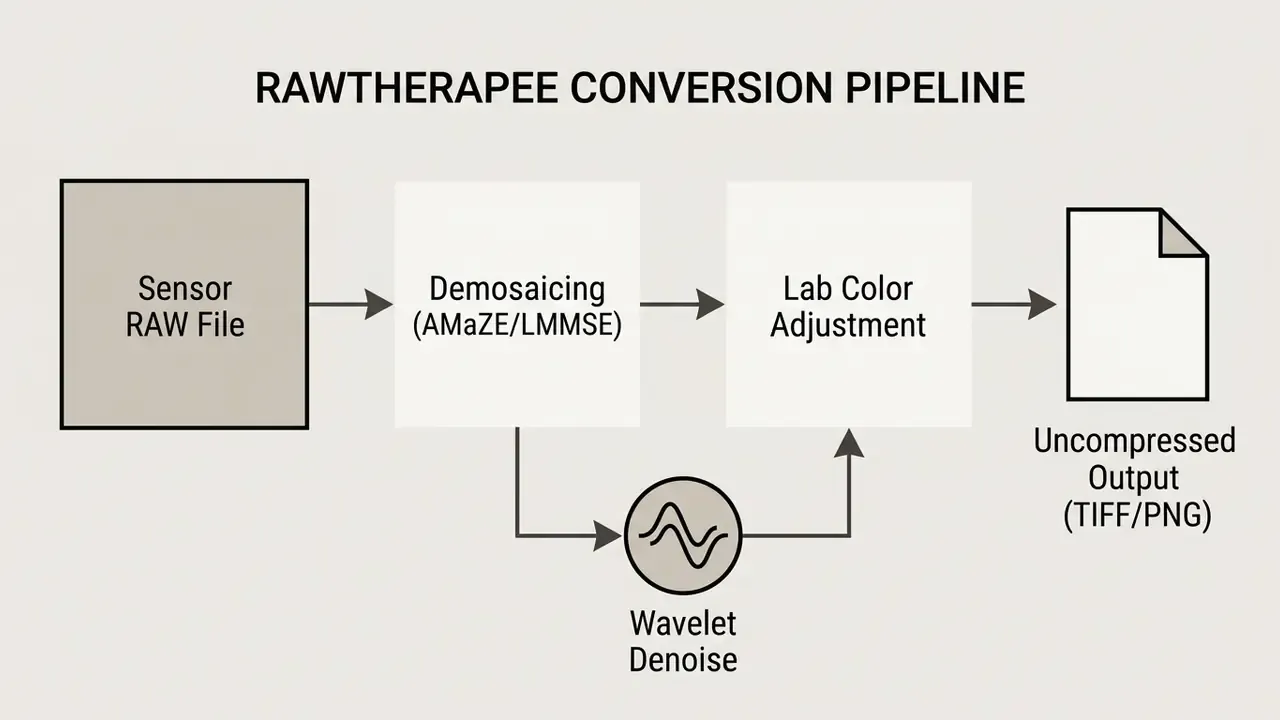
The application gives photographers surgical control over chromatic aberration correction, lens geometry profiling, hot and dead pixel filtering, and white balance fine-tuning, either numerically via temperature and tint, or by clicking a neutral area with the spot picker, which is translated internally into RGB channel weights.
Because it works completely non-destructively, original RAW files stay untouched while sidecar files record every processing adjustment. Plan hardware accordingly: RawPedia notes that full-image noise reduction on files above roughly 30 MB can need more than 8 GB of RAM to run reliably.
Darktable as an Alternative RAW Photo Editor
Darktable functions as a non-destructive RAW developer and digital asset database, a powerful open-source alternative to Lightroom's Develop module. The project's own FAQ is careful to call it an alternative rather than a drop-in replacement, and that honesty is worth respecting. Its modular processing structure lets photographers apply scene-referred linear colour workflows, filmic RGB tone mapping, and complex parametric or drawn local masking across lighttable and darkroom views.
Darktable handles large photo libraries efficiently, with XMP sidecar management, tethered shooting, batch exporting, and installation on Linux, macOS and Windows. Editing is fully non-destructive: the original file is never modified, and adjustments are baked in only at export. The learning curve is real, and beginners should expect a weekend, not an evening. For creators who also produce motion assets alongside RAW photography, our comparison of free AI video generators and our YouTube video editor workflow guide help align post-production across mediums.
How to Choose the Best Free Photo Editor for Your Needs
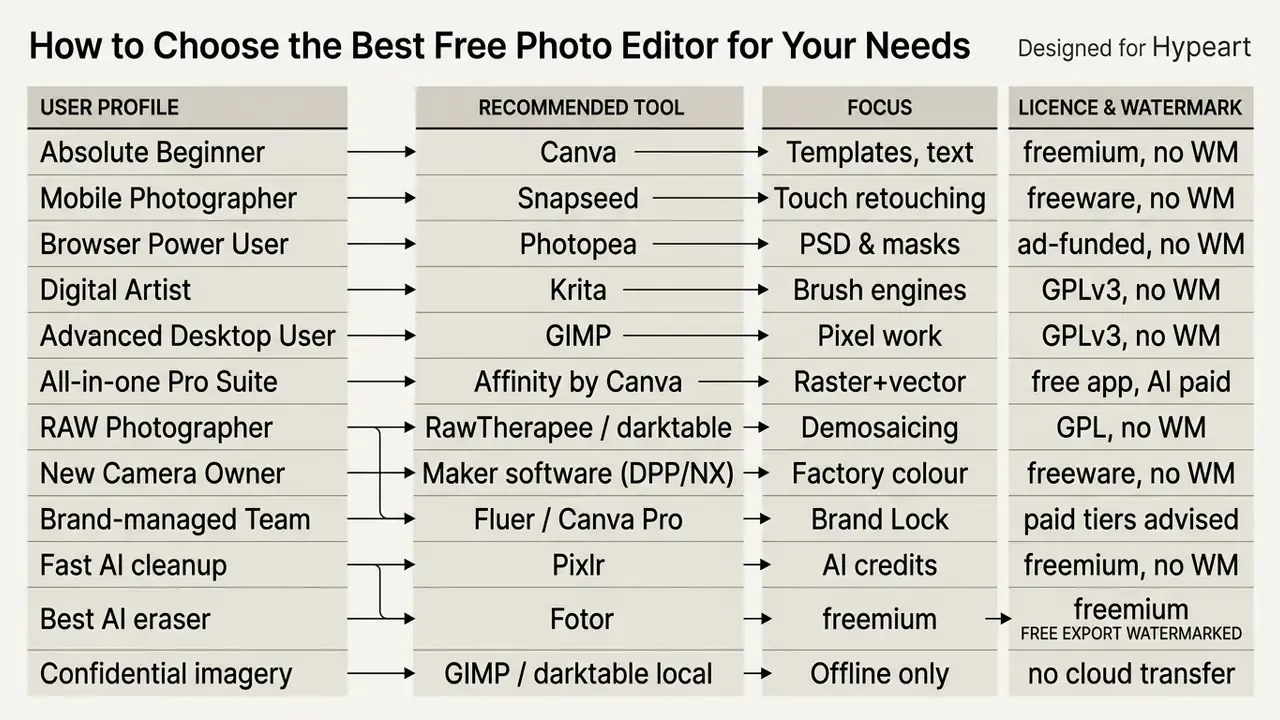
Picking the right editor means matching your skill level, licensing constraints and technical tasks to the appropriate software architecture. Not to the longest feature list.
Choose by Skill Level: Beginners, Hobbyists and Advanced Users
Beginners do best with clean, template-driven tools like Canva or Snapseed, where intuitive controls flatten the learning curve. Those platforms handle the technical calculations quietly, leaving you free to think about composition.
Hobbyists and intermediate users who want layer support without subscription costs will find Photopea and Affinity by Canva the best choice for bridging basic edits and high-end retouching. Advanced users and working photographers should reach for GIMP, darktable or RawTherapee to get unconstrained pixel manipulation, ICC colour profiling and deep RAW processing. Illustrators should add Krita rather than forcing a photo editor to behave like a paint program. The ergonomic principle is the same one published tool-selection guidance applies to physical equipment: match the instrument to the operator's skill and to the precision the job demands, because an over-complex tool slows a novice as surely as an under-powered one frustrates a professional.
FAQ: Privacy, Watermarks and Commercial Use
Is it safe to upload personal or corporate photos to online editors?
It depends on the architecture. Photopea processes files in your browser's memory and does not upload the image data, which makes it the safest browser option. Canva, Pixlr AI tools, Fotor AI tools and Lightroom's cloud catalog all transmit your file to vendor infrastructure for storage or inference. For confidential, client-privileged, medical or NDA-bound imagery, use a local installed editor (GIMP, Krita, darktable, RawTherapee, Affinity, Apple Photos or your camera maker's software) where the pixels never leave the machine.
Can free editors train AI models on my images?
Cloud AI features process your uploads on vendor servers. Retention and training terms differ by vendor and plan tier, change frequently, and are sometimes stricter on enterprise plans than on free ones. Because no free-tier vendor in this guide publishes a permanent, plan-independent guarantee, treat every upload to a cloud AI tool as a disclosure and check the current terms before sending sensitive material. Open-source local tools sidestep the question entirely.
Which "free" editors put a watermark on downloads?
Fotor's free Basic tier watermarks JPG, PNG and PDF exports. GIMP, Krita, RawTherapee, darktable, Paint.NET, IrfanView, Snapseed, Photopea, Affinity and Canva's standard exports do not. Pixlr's standard exports are watermark-free, though generative AI actions consume its roughly three daily credits.
Can I use free editors commercially?
GPL-licensed tools (GIMP, Krita, RawTherapee, darktable) place no restriction on commercial use of your output. Camera-maker software is free for processing your own photographs. Proprietary freemium platforms allow commercial use of your own uploads but govern stock assets and AI-generated content through their own content licences. A watermarked free export is effectively unusable commercially, which is the practical limit on Fotor's free tier.
Do any of these require a credit card?
None of the tools recommended as "completely free" (GIMP, Krita, RawTherapee, darktable, Paint.NET, IrfanView, Snapseed, Apple Photos, camera-maker converters) requires payment details. Affinity requires a free Canva account. Canva, Photopea, Pixlr and Fotor require only an account for their free tiers, although Fotor's watermark-free export requires payment.
Which free editor handles RAW best?
For maximum technical control, RawTherapee (demosaicing choice, wavelet denoise) and darktable (scene-referred pipeline, cataloging). For colour that matches the camera exactly, your manufacturer's own converter. For occasional RAW opening inside a layered editor, Photopea. On mobile, Snapseed develops DNG for free where Lightroom charges for it.
What should I do next?
Pick one local tool and one browser tool. For most readers that means GIMP or Affinity on the desktop plus Photopea in the browser, with Snapseed on the phone: a complete, watermark-free, commercially usable pipeline at zero cost. Then verify the current free-tier terms of anything cloud-based before it touches production work, and compare AI-assisted options against manual editing in our category references on free photo editors and AI outpainting tools.
What Changed Since the Previous Edition
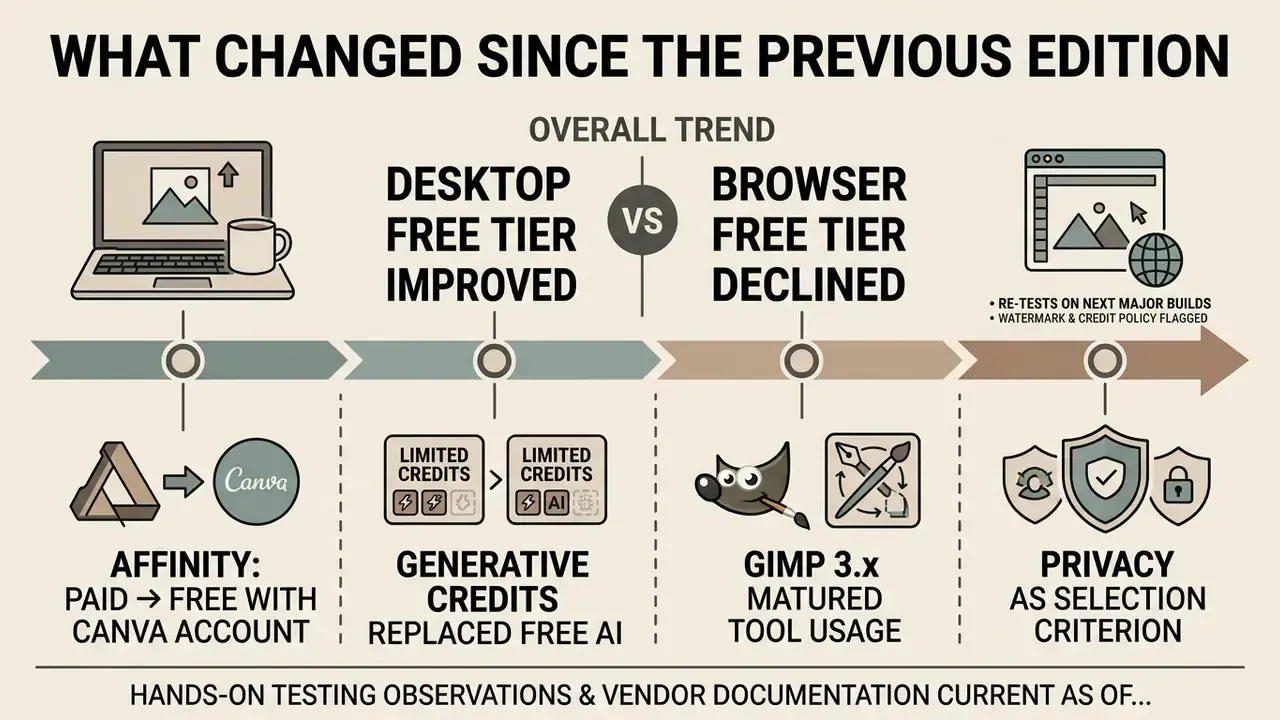
Short version: the free tier got better on the desktop and stingier in the browser.
- Affinity moved from paid perpetual licence to free with a Canva account. That single change reshuffled the "best overall" slot, and it is why the 2026 recommendation differs from every 2025 list still circulating. AI extras remain a paid Canva feature, so read the plan page before you promise a client generative retouching.
- Generative credits replaced generous free AI. Pixlr settled at roughly three daily credits, Fotor at one AI enhancement per day. Expect that number to drift, in either direction, as inference costs move.
- GIMP 3.x matured. Non-destructive editing groundwork, better layer-mask tooling and continued roadmap work on vector layer masks make it a more credible Photoshop alternative than it was two years ago.
- Privacy became a selection criterion, not a footnote. Once cloud AI entered mainstream editors, the question of where files are processed started deciding tool choice inside regulated organisations. We now score it explicitly.
We will re-test on the next major build of each tool, and we will flag any watermark or credit policy that changes between updates.
General disclaimer: this guide reports hands-on testing observations and vendor documentation current as of March 2026. Pricing, credit allowances, watermark policies, licence terms and data-handling practices are set by vendors and change without notice. Nothing here constitutes legal, compliance or procurement advice. Confirm licence and data-protection terms with the vendor and your own advisers before deploying any tool in a regulated or commercial environment.