Automated video background processing has moved out of specialist post-production suites and into the browser tab. Organizations and independent creators now lean on AI to isolate subjects, swap backdrops, and export transparent video files without frame-by-frame rotoscoping. That convenience carries a governance cost that most teams discover late.
Executive Summary
- What the technology does: An online video background remover runs per-frame semantic segmentation to build a temporal alpha mask, isolating a subject without a physical green screen. Outputs fall into three buckets: transparent alpha export, solid color fill, or full background replacement.
- The "free" caveat: Nearly every web tool is freemium. Free tiers commonly cap exports at 480p to 720p, apply watermarks, restrict clip length, and, critically, strip the audio track during browser-side rendering.
- The audio trap: Free offline or browser processing performed through WebGL or Canvas APIs discards the container's audio multiplexer. Plan on re-muxing the original sound track in an NLE or via FFmpeg.
- Format reality: H.264 MP4 cannot store an alpha channel. Transparency requires MOV (ProRes 4444, HEVC with alpha) or WebM (VP8/VP9 with alpha). Legacy containers (MKV, AVI) and animated GIF should be re-encoded before upload.
- Quality drivers: Subject-to-background contrast, lighting stability, frame rate, bitrate, motion blur, and fine detail (hair, glasses, lace) determine mask cleanliness. Manual erase and restore brushes remain necessary when AI inference fails.
- Governance and legal: Removing a background does not create ownership of the source footage. Statutory damages for willful infringement reach up to $150,000 per work in the United States, and free cloud tools may retain uploads for model training. For NDA-bound enterprise footage, that is a hard blocker.
One more framing note before the detail. Search demand splits across near-identical phrasings: background remover for video free, bg remover free video, bg video remover free, background remover from video free. The underlying tool set is largely the same, so the real decision is not which phrase you typed, it is which limits you can live with.
What a Free Video Background Remover Can Do
An online video background remover automatically isolates human or object foreground subjects from video footage without requiring physical green screens or manual rotoscoping. By executing per-frame semantic segmentation, the underlying software generates a temporal alpha mask that separates the subject from its environment.
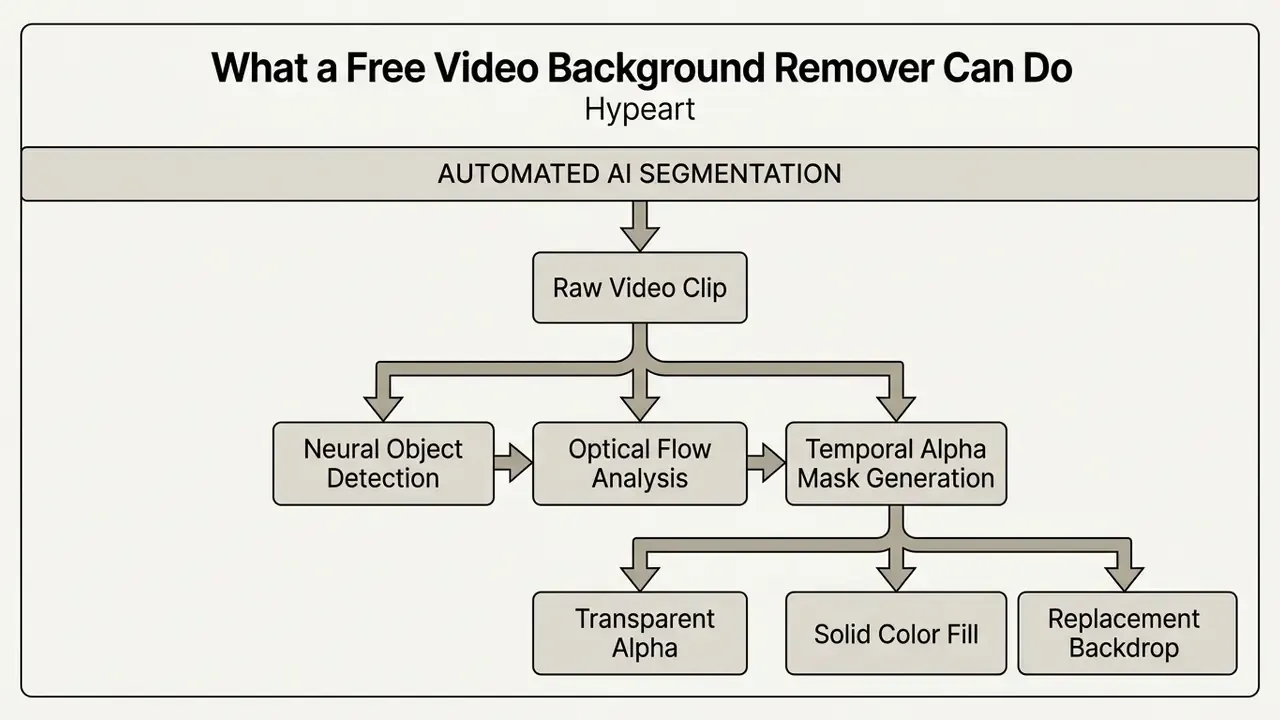
Users can remove background elements from a video clip to produce a clean backdrop, insert solid color overlays, or integrate a new video background asset. The practical gain is editing overhead: what used to be an afternoon of masking becomes a two-minute render, with visual clarity preserved across social, web, and internal channels.
AI Background Removal Without a Green Screen
Modern AI models remove video backgrounds without a green screen by running frame-by-frame object detection and optical flow analysis to generate a temporal alpha mask. Traditional chroma-keying needs a uniform green or blue wall. Deep neural networks instead analyze visual contrast, spatial boundaries, and motion patterns to separate subjects from dynamic environments.
Research on global information background subtraction shows that Vision Transformer architectures capture spatiotemporal dependencies across sequential frames.
That capability lets algorithms hold subject boundaries even with complex weather or moving background elements. Frameworks using saliency-aware disentanglement go further and resolve ambiguity between the primary foreground subject and background context.
Motion cues matter as much as appearance cues. Self-supervised video object segmentation research evaluated on DAVIS2016, SegTrackv2 and FBMS59 shows that temporal motion is a primary signal for mask generation, and contrastive motion clustering methods group regions that share a coherent optical-flow pattern. Worth noting: classic motion-segmentation algorithms can isolate moving objects even in low-texture, low-contrast scenes, provided the motion vectors stay reliable. In practice, automatic removal performs best when the subject shows distinct visual contrast, coherent motion, and stable lighting relative to the backdrop.
Remove, Replace or Change the Video Background
Video background tools offer three distinct post-processing outputs: removing the backdrop to leave a solid fill, exporting a transparent alpha channel, or replacing the background with new media. Mathematically, background replacement composites the foreground subject over a target layer using the standard alpha compositing formula:
where represents pixel opacity ranging from 0 (fully transparent) to 1 (fully opaque). Alpha-channel documentation from Adobe and Apple describes the same convention visually: white is opaque, gray is semi-transparent, black is fully transparent.
The three outputs are technically different, not interchangeable:
- Transparent alpha exporttransparency is stored in a fourth channel, preserving semi-transparent hair and motion-blurred edges.
- Solid color fillthe removed region is filled with one uniform, fully opaque color. This is not transparency; the file stays opaque.
- Background replacementthe foreground is composited over another image or video layer using the equation above.
When users change video background elements online, they can insert a flat background color, upload a custom image, or composite stock footage. Alternatively, generating a transparent video background lets editors import the subject straight into desktop non-linear editors (NLEs) for downstream compositing. Same mask, three very different deliverables.
Is a Free Video Background Remover Really Free?
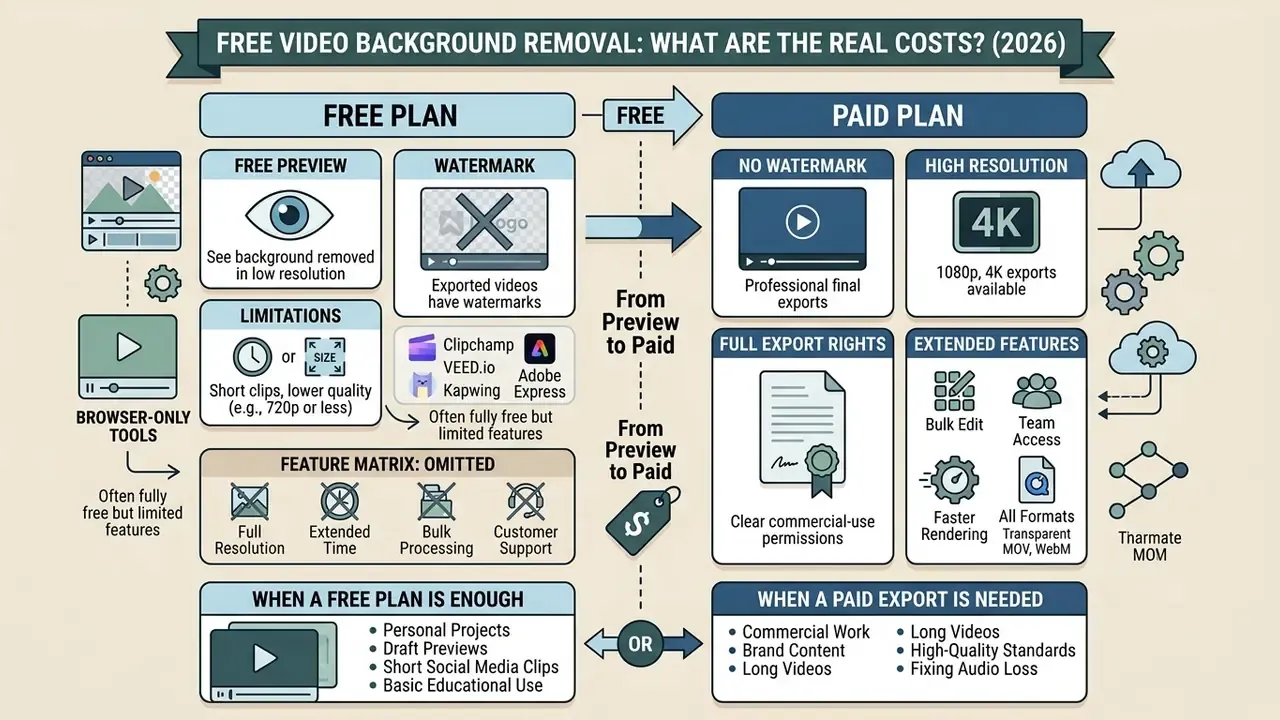
Most free video background removal tools run on a freemium model. You get free browser previews, while full-resolution downloads, unwatermarked exports, audio retention, and commercial rights sit behind paid tiers. Web tools advertise instant access, yet pushing video through AI segmentation models consumes real GPU compute and memory bandwidth.
Systems-oriented research indicates that background-aware video analytics carries high computational cost, which vendors offset through usage limits or export restrictions.
Those bandwidth and compute economics explain why vendors meter output rather than input. The expensive part is not the upload, it is the per-frame inference and the encode. So anyone searching for a free video background remover should check one thing first: does the free tier allow unwatermarked downloads, keep audio, and avoid a hard resolution cap?
Free Preview, Watermark and Export Limitations
Free tiers usually let you test AI segmentation through low-resolution previews, then enforce 720p or 480p caps and stamp a brand watermark on the final export. Before uploading media, confirm whether the tool offers a genuine background remover video free no watermark path, or whether unwatermarked rendering requires an upgraded account.
Platform policies vary across web editors and across free video editing software more broadly:
- Clipchamp
- Offers free exports without watermarks for personal accounts; vendor documentation reports free export at 480p, with 720p and 1080p watermark-free output unlocked on premium. Specific premium filters stay locked.
- VEED.io
- Provides a background remover free video workflow with low-resolution previews, but adds watermarks and limits free exports to 720p resolution (VEED Documentation, 2026). 4K and watermark-free delivery require a premium plan.
- Kapwing
- Restricts free exports with video length caps and platform branding unless you upgrade to Pro (Kapwing Terms, 2026). Pro raises export quality up to 4K.
- Adobe Express
- Documents one-click browser-based video background removal, with the feature gated behind a Premium plan and uploads capped at roughly two minutes of footage.
- Browser-only "100% free" tools
- Some services process entirely on-device with no watermark and no resolution cap, but restrict output to WebM only, limit bitrate, permit personal use only, and remove the audio track.
Reviewing export rules before processing prevents an ugly bottleneck at deadline. Rendering speed is rarely quantified by vendors; several document that exports render in-browser using GPU hardware acceleration, which means free-tier throughput depends on your own device rather than a server queue. Shortlists of the best video background editors tend to converge on the same handful of web apps, so the differentiator ends up being export policy, not model quality.
Extended Feature Matrix: What Free Tools Omit
Beyond watermarks, the practical gap between tiers sits in ecosystem features. The matrix below maps typical capability availability across product classes.
| Feature Capability | Basic Web Remover (Free) | Advanced Studio / Desktop Plan | Enterprise / Cloud API |
|---|---|---|---|
| Live Webcam Background Removal | No | Yes (real-time WebGL / desktop app) | Yes (hardware-accelerated) |
| Direct Social Auto-Resizing | No | Yes (16:9 to 9:16 templates) | Yes (batch auto-crop) |
| Video Import by URL (paste a link) | No | Yes (YouTube / TikTok / Reels links) | Yes (API ingestion) |
| Audio Multiplexing | Stripped from export | Included | Included (lossless pass-through) |
| Export Formats | WebM only (browser limitation) | MP4, MOV, WebM, GIF | MP4, MOV, WebM, ProRes |
| Maximum Resolution | Device-dependent, bitrate-limited | Up to 4K | Up to 4K with priority processing |
| Commercial License | Personal use only | Included per plan terms | Full commercial rights |
| Batch / API Processing | No | Limited | Yes |
When a Free Plan Is Enough and When a Paid Export Is Needed
A free plan is fine for quick internal tests, low-resolution web drafts, and informal social clips. Paid Studio or Premium subscriptions become necessary for 4K exports, batch processing, audio retention, and commercial licensing. Individual creators handling quick edits can rely on basic web tools and on the wider category of free AI video generators, while commercial teams almost always need unwatermarked HD or 4K assets.
| Feature / Plan Tier | Free Tier | Studio Plan | Premium / Enterprise |
|---|---|---|---|
| Preview Access | Real-time low-res preview | Full-resolution preview | Real-time 4K preview |
| Watermark Policy | Brand watermark applied (select exceptions) | No watermark | No watermark |
| Max Export Resolution | 480p to 720p | 1080p Full HD | 4K UHD (3840x2160) |
| Supported Formats | Standard MP4 or WebM only | MP4, MOV (with Alpha), WebM | MP4, MOV, WebM, ProRes |
| Audio in Export | Frequently stripped | Retained | Retained (lossless) |
| Commercial Rights | Personal / Educational use only | Commercial license included | Enterprise commercial rights |
Teams scaling up their video production pipelines can review structured asset workflows in the AI Media Pricing Guides, model per-clip render costs with the AI Media Calculators, and compare platform capabilities via AI Media Comparison.
How to Remove Video Background Online for Free
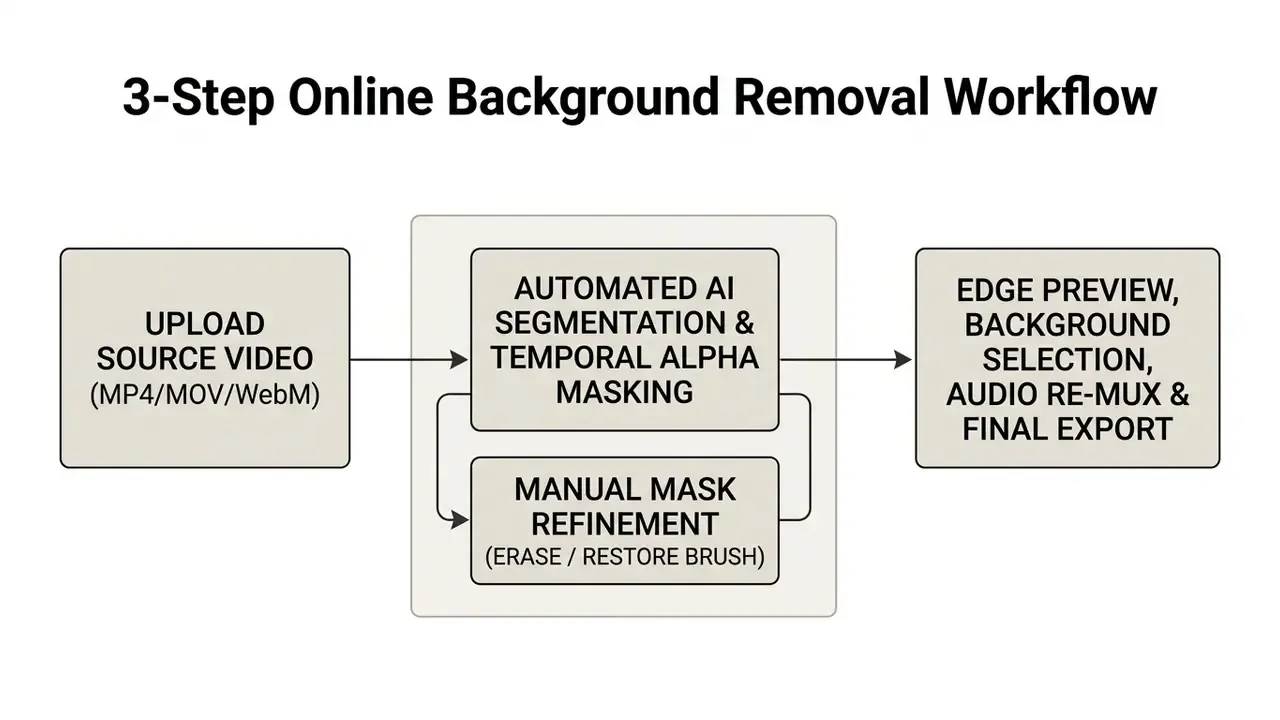
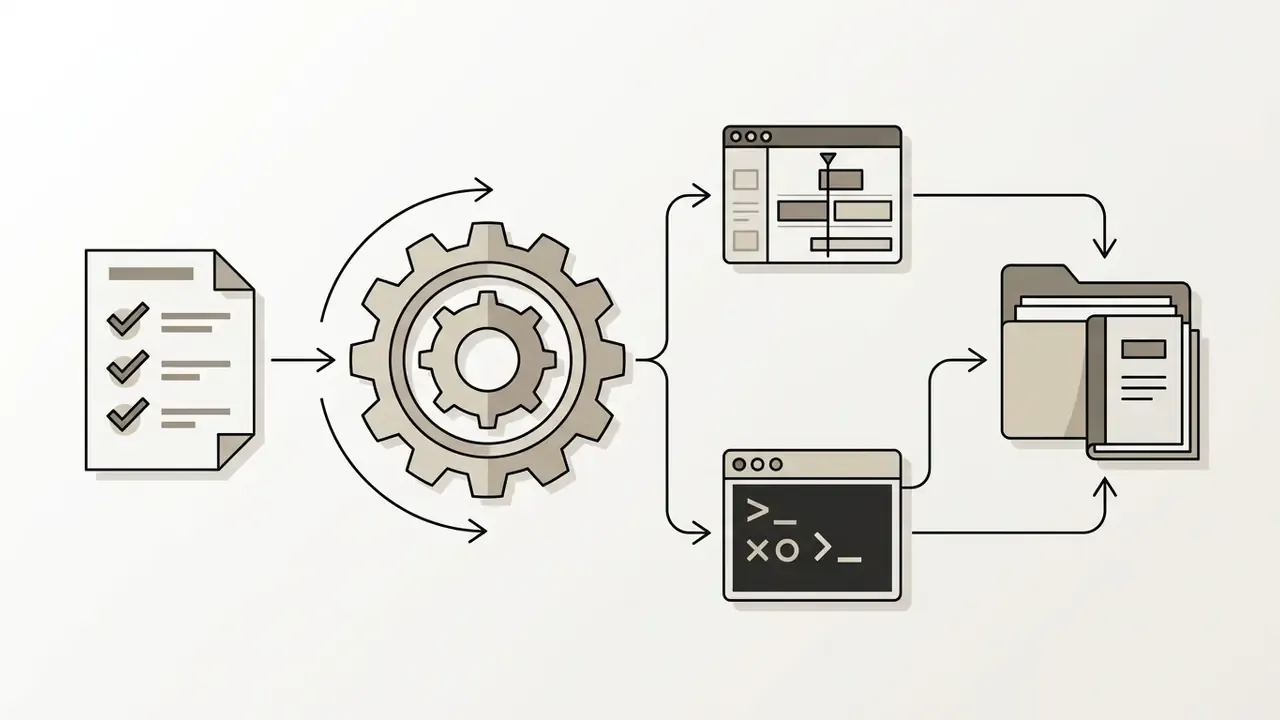
Removing a video background online comes down to a three-step web workflow: upload a clip, run automated AI segmentation, download the edited result. Browser-based video editor platforms remove the need to install heavy desktop software or configure chroma-key plugins.
Step 1: Upload a Video Clip
To start, select and upload a supported video file directly into the browser tool. Most background remover online video platforms accept MP4, MOV, and WebM containers; broader tools additionally parse AVI, MKV, and animated GIF.
Before uploading, verify that the source file meets recommended preparation standards:
- Resolution and aspect ratioShoot in native 1080p or 720p landscape or portrait modes, without letterboxing or windowboxing.
- File size limitsConfirm the platform's single-file limit, which typically ranges from 200 MB on basic web tools to 3.9 GB on enterprise cloud editors (Adobe Stock Guidance).
- Frame rateStandard frame rates (23.98, 24, 25, 29.97, 30, 50, 59.94 or 60 fps) support cleaner optical flow tracking during segmentation.
- Clip lengthFree browser tools frequently cap clips at 60 seconds; premium editors extend this to two minutes or more.
Handling legacy containers (MKV, AVI, GIF)
MP4 and MOV are native for web upload. Legacy containers such as MKV or AVI often wrap high-bitrate raw or exotic tracks that browser WebGL pipelines fail to demux. Re-encode MKV and AVI sources to H.264 MP4 before processing; this prevents frame drops during optical flow analysis and avoids mid-render decoder errors. For animated GIFs, convert to WebM first. That preserves smooth 8-bit alpha gradients instead of collapsing edges into 1-bit binary clipping, and it restores full 24-bit color instead of the GIF 256-color palette.
Practitioner note on bitrate and frame rate. In a documented media-operations review of an online video background removal deployment, an editorial team saw severe boundary tearing on 24 fps, low-bitrate uploads. After re-encoding the same source footage to 60 fps at a substantially higher bitrate before ingestion, the model produced clean subject masks with no manual rotoscoping. Treat this as a reproducible, condition-dependent observation, not a universal benchmark. The variable that changed was temporal sampling density plus available per-frame detail, not the segmentation model itself.
Step 2: Let AI Remove the Background Automatically
Once uploaded, the background video remover free algorithm segments the main subject from the backdrop using neural network inference. The software identifies facial features, body contours, or object outlines, generating a frame-by-frame isolation mask without manual intervention.
Computer vision benchmarks show that specialized contour-based segmentation models predict boundary vertices in roughly 0.13 seconds per frame.
Contour-based instance segmentation predicts a sequence of boundary vertices instead of classifying every pixel, which is exactly why browser-side previews can render in near real time. That speed is what lets web platforms show a live mask preview inside the tab.
Step 2b: Manual Mask Refinement (Erase and Restore Brush)
When automated AI segmentation meets low-contrast edges, reflective surfaces, or cluttered background textures, manual correction is required. Most mature editors expose two complementary brushes:
- Erase brush Paint over residual background pixels (halos, shadow fringes, stray backdrop fragments) that the inference engine misread as foreground.
- Restore brush Un-mask foreground detail the model deleted by mistake: thin eyeglass frames, microphone stands, jewelry, dark clothing against dark walls, or loose hair strands.
- Feathering Apply light edge feathering (typically 0.5 to 2 px at 1080p) after brushwork, so the corrected boundary blends instead of reading as a cut-out.
Vendor refinement guidance recommends inspecting hairlines, glasses, fingers, jewelry, and semi-transparent edges at 100% to 200% zoom, then correcting with add and subtract brushes before any export. Fix the frames where motion or contrast is worst first, then scrub adjacent frames to confirm the correction propagates without flicker.
Step 3: Edit, Preview and Download the Result
Inspect edge quality in a live preview window, choose a solid color or replacement scene, then export the finished file. Scrubbing the timeline is the fastest way to catch temporal artifacts or edge blurring on fast motion.
After verifying boundary cleanliness, select an export configuration:
- Solid background: Export as a lightweight MP4 with a black, white, or custom background color.
- Transparent video: Export as WebM or MOV containing an alpha channel for downstream editing.
- Replacement scene: Composite the subject over stock footage or an uploaded image backdrop before rendering.
Warning: audio loss in free browser renderers
How to Change Video Background Online
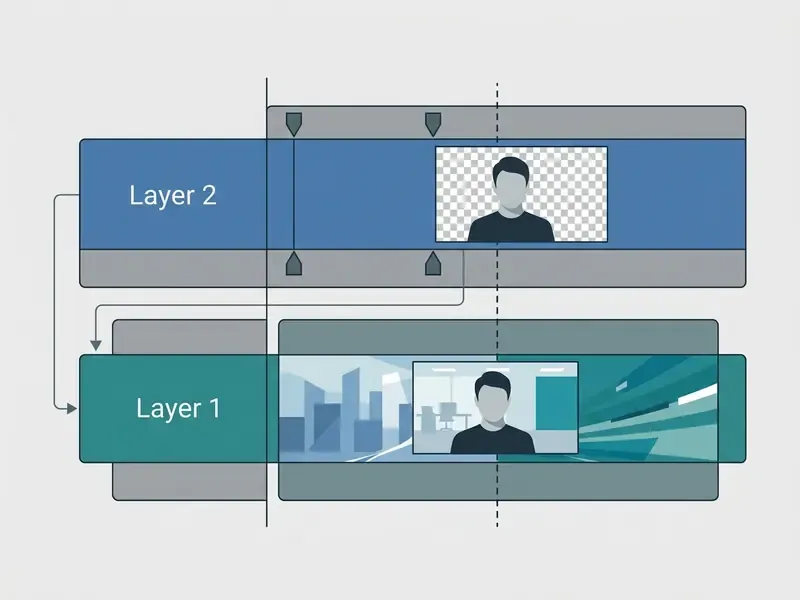
Changing a video background online means compositing the isolated foreground subject over a custom color fill, static image, stock video clip, or branded template. Modern web editors and AI video generators provide multi-layer timelines, so you can manipulate background elements independently of the isolated subject.
Add a Color, Image or Video as a New Background
After AI background removal, insert a new background layer directly beneath the isolated subject in the background video editor. The software locks the foreground subject on the upper layer while leaving full editing control over the underlying backdrop. In Final Cut Pro the equivalent step is connecting the background clip below the keyed foreground; in Descript, Canva and VEED it is dropping an image, video or GIF behind the transparent subject layer.
Three main replacement types cover almost every request to change background of video online:
- Solid color fillApplies a uniform color, such as studio grey, key blue, or a brand-specific hex code.
- Static custom imagePlaces a high-resolution JPG or PNG photograph behind the subject. Conferencing platforms publish concrete specs; Zoom, for example, accepts 24-bit PNG or JPG/JPEG images up to 15 MB.
- Motion video backdropComposites the subject over a dynamic MP4 or MOV stock clip, adding depth to virtual interview setups. Zoom accepts MP4 or MOV video backgrounds from 480x360 up to 1920x1080 (Zoom & Desktop Studio Guidelines).
Efficiency of object-level representation is an active research area, which matters for teams building reusable background libraries at scale.
Practical Workflows by Industry and Content Type
Background removal is not one use case. The configuration that yields a broadcast-quality corporate webinar differs sharply from the one that yields a fast meme cutout.
- Gaming and livestreaming Isolate a webcam overlay without buying a collapsible physical green screen or repainting a room. Export a transparent WebM and drop it into OBS Studio, Streamlabs, or vMix as a source layer above gameplay capture. Keep the subject bust-framed and lit from the front so hair edges survive compression at streaming bitrates.
- E-commerce product showcases Strip cluttered studio backgrounds from product demonstration clips to create clean 360-degree transparent assets for Amazon, Shopify, or marketplace listings. Transparent product loops can be re-composited over seasonal campaign backdrops without reshooting. Related image-side workflows are covered in our guide to online photo editors.
- Corporate Zoom, Teams and webinars Replace distracting home environments with standardized corporate backdrops or branded lower-third graphics. Conferencing vendors note that virtual-background quality improves substantially when a solid-color wall sits behind the speaker, even without a formal green screen.
- Educators and course creators Record slide walkthroughs in any room, remove the background, and composite the presenter over screencast footage or presentation decks. That yields a repeatable "picture-in-slide" format with no studio booking.
- Fitness and workout content Isolate a full-body subject during motion-heavy sequences and place them over neutral or branded gym environments. Motion blur is the dominant risk here, so shoot at 50 to 60 fps with a fast shutter to keep limb edges resolvable.
- Viral social memes and stickers Extract moving subjects or trending characters from source clips and layer them over custom scenes for TikTok, Reels, and Shorts. Transparent WebM also feeds animated-sticker pipelines; see our overview of animation makers and the ai sticker generator guide for downstream options.
Create Branded Scenes with Custom and Stock Media
Creators and enterprise marketing teams combine AI subject isolation with approved stock media and corporate visual assets to hold brand identity across channels. Standardized video backdrops keep remote interviews, product tutorials, and corporate announcements visually consistent. Storyboarding those scenes in advance helps too, which is where an ai story generator or an ai story generator with unlimited drafting can shorten pre-production, alongside an ai sprite generator for reusable motion elements.
When creating branded video content, organizations tend to follow established visual guidelines:
For additional context on visual content creation, teams can review options in the Canva AI Generator Guide and explore production strategies in YouTube Video Editor Workflows.
- Lower thirds and branding
- Place logos, speaker names, and titles inside platform-safe zones, so mobile UI overlays do not cover text. Institutional brand guides specify that lower thirds should identify a person on first appearance and stay on screen long enough to be read twice (University Brand Guidelines, 2025-2026).
- Proportion rules
- Published motion-brand guides define branding scale explicitly, for example branding elements sized to 40% of frame height across 16:9, 1:1, 4:5, and 9:16 deliverables.
- Color matching
- Align background color accents with official corporate brand books, including exact brand-red or brand-blue values in title cards, lower thirds, and end logos.
- End stings and captions
- Many brand systems require every video to close with a logo sting and to ship captions as an
.srtfile, with burned-in captions for public-screen versions. - Asset management
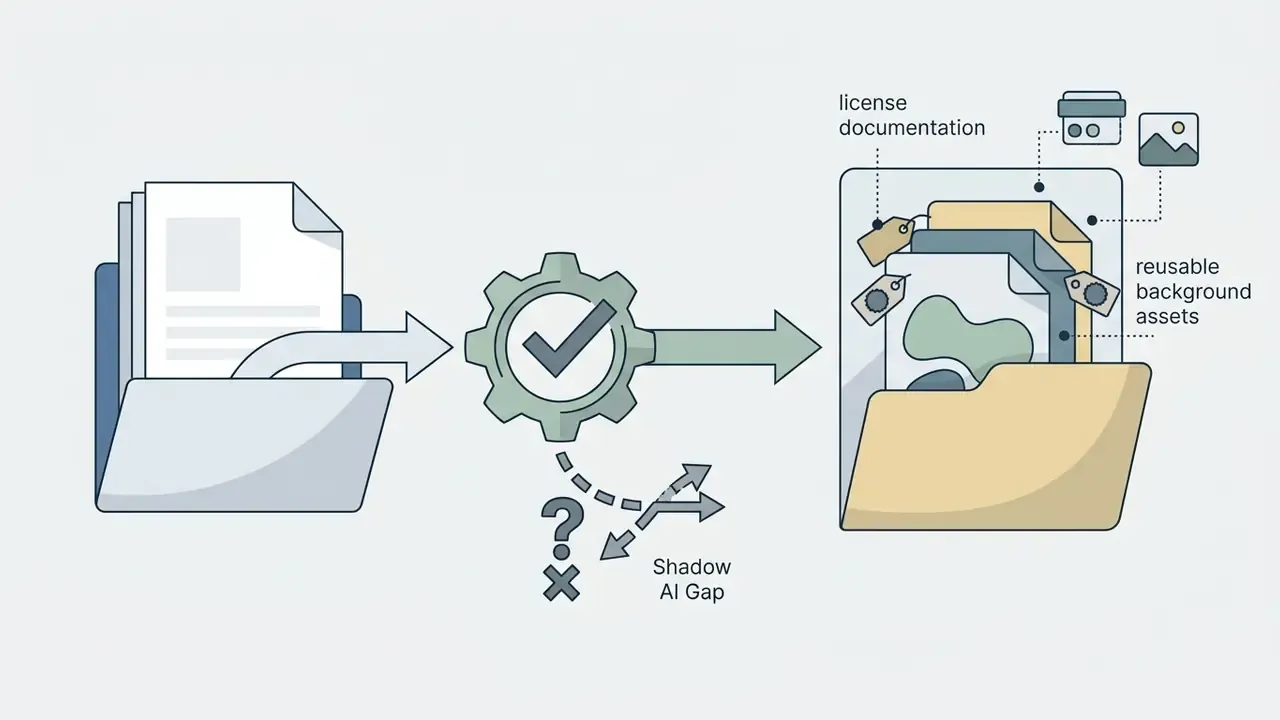
- Combine isolated video assets with supplementary marketing graphics and approved stock media, keeping license documentation attached to each asset record. A simple tracking sheet works; an ai spreadsheet generator can scaffold the columns for source, license type, expiry, and approved channels.
What Affects Video Background Removal Quality
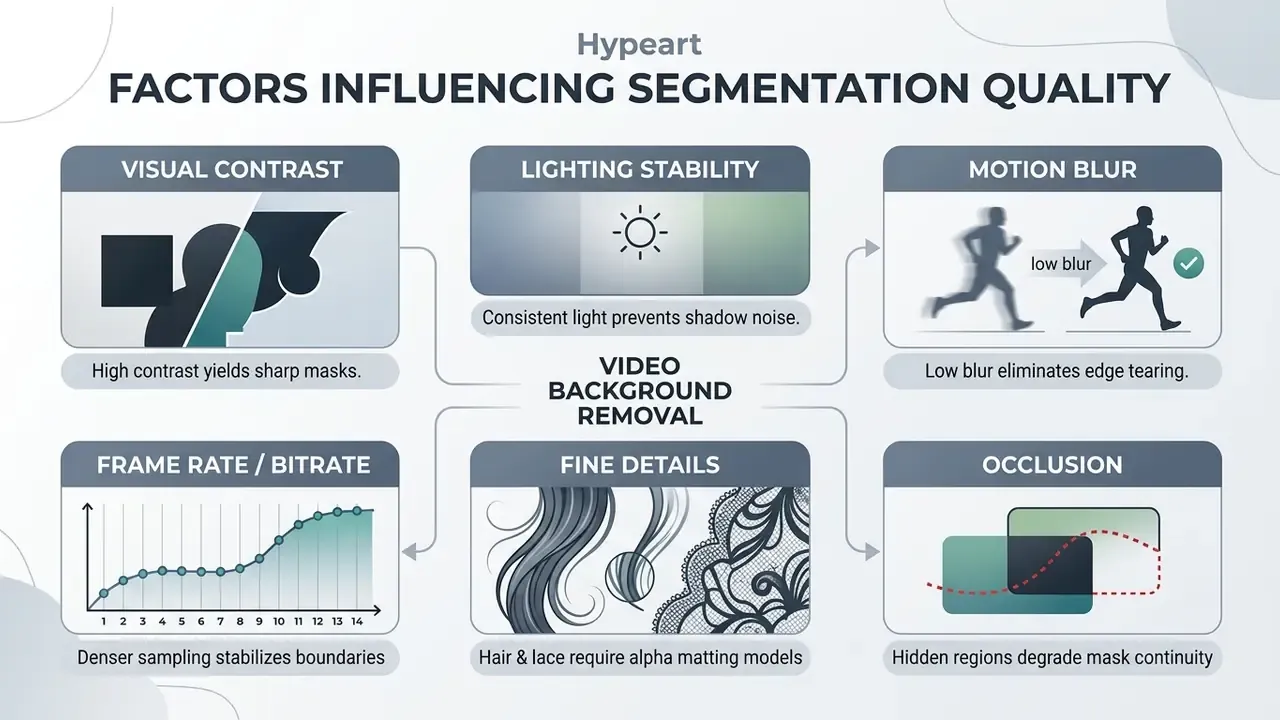
The accuracy of automated video background removal depends mostly on subject-to-background contrast, lighting stability, motion blur, and fine edge detail such as hair. Deep learning models handle complex scenes well, yet physical shooting conditions still dictate final segmentation cleanliness.
Subject, Scene and Background Conditions
Optimal background removal happens when the subject shows clear color contrast against a static, uncluttered backdrop under consistent illumination. When subject colors overlap heavily with backdrop hues, neural networks struggle to place the boundary at all.
Technical testing highlights several environmental factors that shape mask precision:
- Lighting and shadows Harsh directional light casting deep shadows onto the backdrop can mislead segmentation, so shadows get classified as foreground. NIST image-quality testing separates high, medium, and low lighting or contrast conditions precisely because they change measured algorithm performance (NIST IR 7820).
- Motion blur Rapid movement creates semi-transparent, blurred edges that disrupt optical flow tracking. NIST face-quality work measures error against an unblurred reference image, so added blur increases deviation from that baseline by definition.
- Occlusion When background regions are hidden and then revealed by a moving subject, mask continuity degrades unless the model is occlusion-aware. This is a documented failure mode in foreground-segmentation literature.
- Fine detail Hair and fur appearance varies strongly with illumination and viewing angle because of self-shadowing and directional reflectance, which is why strand-level edges are the hardest region for any matting model.
How to Check Clean Edges Before Export
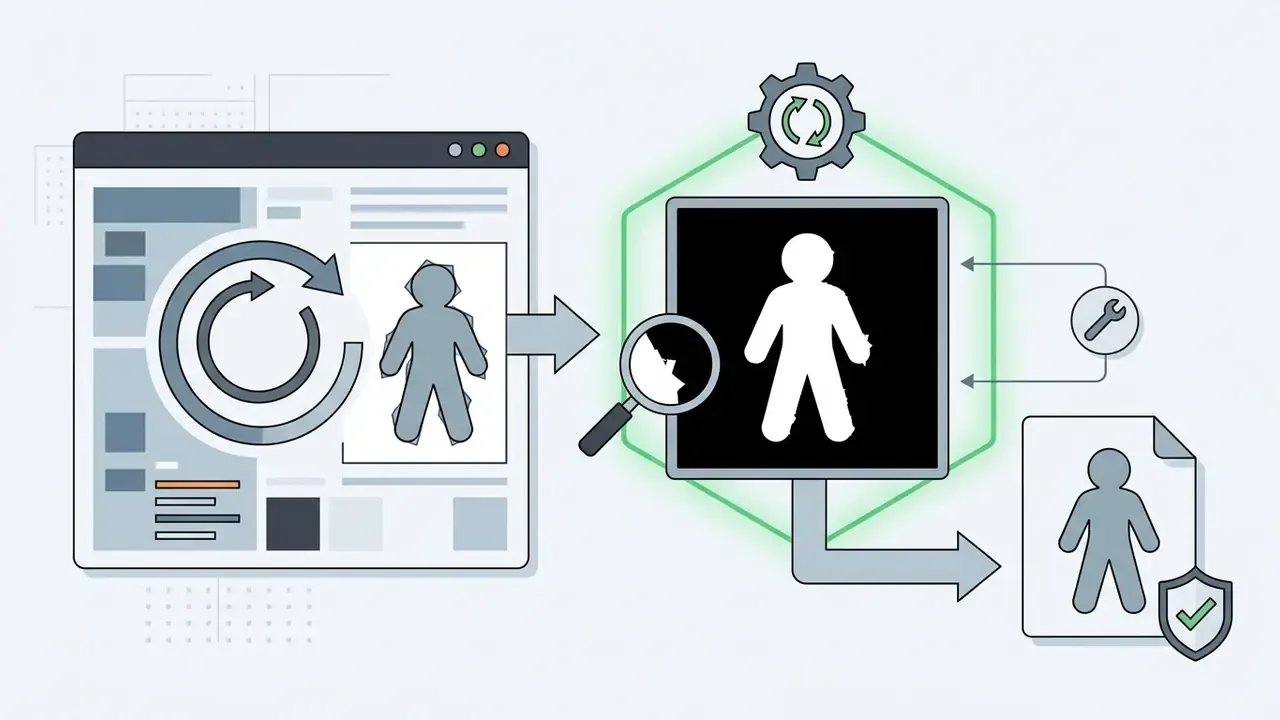
Before exporting, inspect subject boundaries at 100% to 200% zoom over both light and dark test backgrounds to catch edge tearing or halo artifacts. Checking the composite against high-contrast backdrops exposes flaws that pass unnoticed on neutral grey. Current consumer-editor refinement guidance recommends the same habit: test the final composite over light, dark, and moving backgrounds before download.

To run a thorough edge check:



E-E-A-T fact check and technical verification
Video Formats and Transparent Background Export
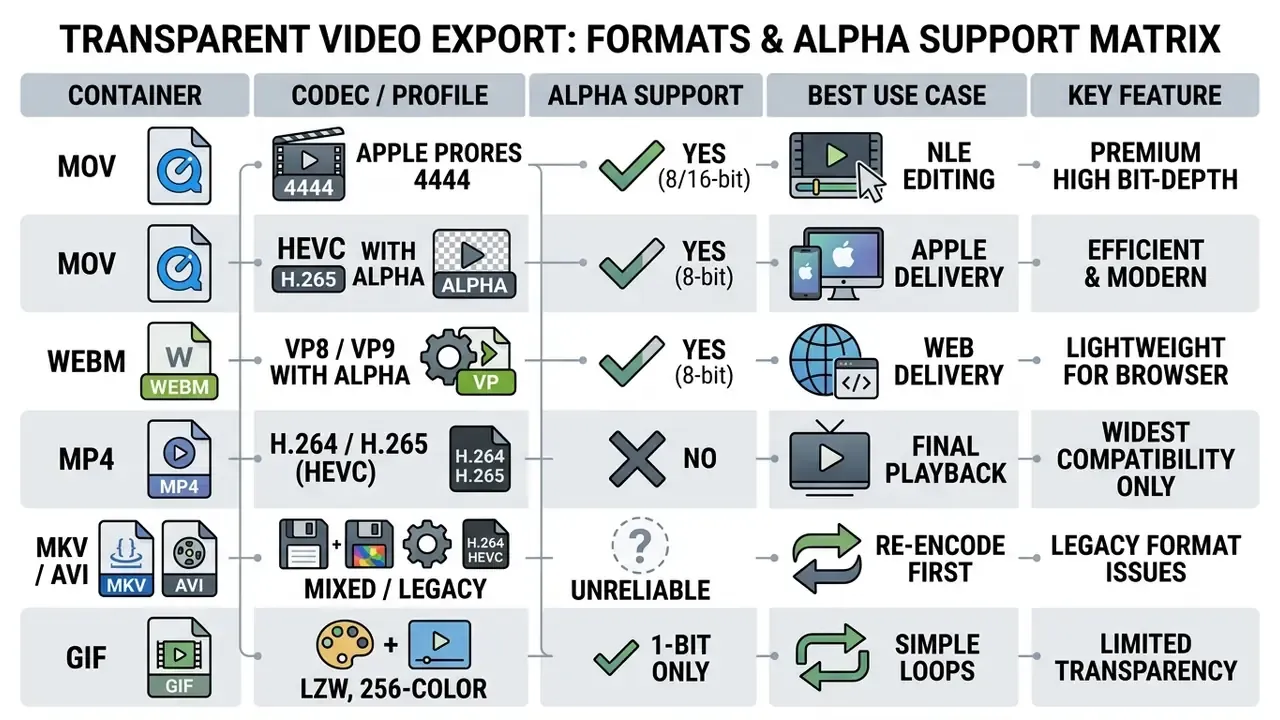
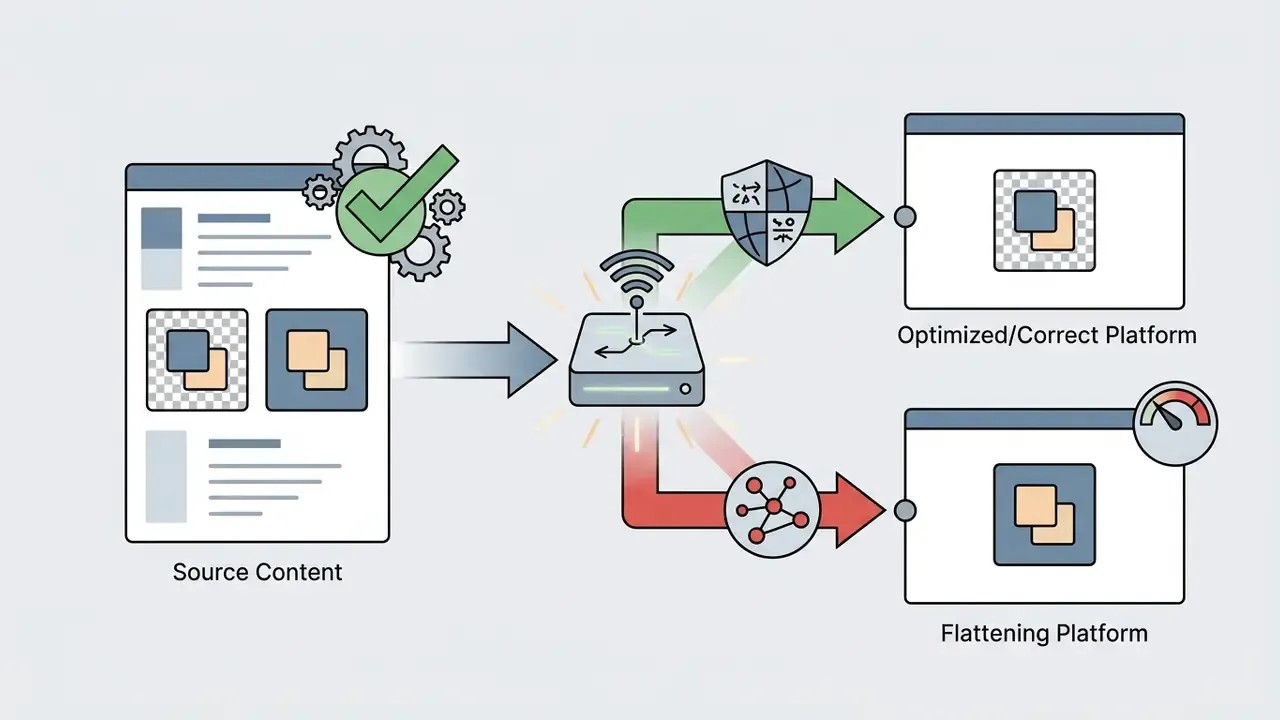
Exporting a video with a transparent background requires container formats and codecs that support an alpha channel, such as MOV (ProRes 4444) or WebM (VP8/VP9 with alpha). Standard distribution formats, H.264 MP4 above all, do not support alpha and will render transparent areas as solid black or white.
Upload and Export Formats: MP4, MOV and WebM
MP4 is the universal format for standard delivery, while MOV and WebM are the working formats for preserving alpha transparency. Because compression settings materially affect edge quality, it is worth reviewing how video compressors trade bitrate against artifacting before you lock an export preset. Codec compatibility knowledge prevents most rendering errors.
- MP4 (H.264 / H.265): Highly compressed and universally compatible across browsers, social networks, and mobile devices. Standard MP4 specs do not store an alpha channel, so transparent regions export as opaque or black.
- MOV (ProRes 4444 / HEVC with alpha): The industry standard for post-production on macOS and Windows NLEs. ProRes 4444 preserves full RGB color depth alongside a dedicated 8-bit or 16-bit alpha matte, which makes it the preferred master container for transparency-first pipelines.
- WebM (VP8 / VP9): Optimized for web delivery. WebM supports per-pixel alpha transparency and renders natively in modern browsers such as Chrome and Firefox (WebM Project Documentation). Compression efficiency is strong, roughly comparable perceived quality at lower bitrates than H.264, but editor support is uneven, and several Apple-native and consumer editors handle transparent WebM poorly or not at all.
- MKV / AVI (legacy containers): Broadly playable on desktop, yet frequently rejected or mis-demuxed by browser-based tools. Re-encode to H.264 MP4 before upload, then export to MOV or WebM if transparency is required.
For developers integrating media processing pipelines, additional technical specifications sit in the AI Media API Guides.
Transparent Video Background, GIF and Black Preview Issues
Transparent videos often show a solid black background when opened in a standard media player, because that player has no alpha-channel rendering engine. When a player decodes a transparent MOV or WebM without alpha compositing enabled, it fills empty background pixels with black by default (Adobe Community Technical Notes). The file is not broken. The renderer simply discards the fourth channel and treats the frame as opaque RGB.
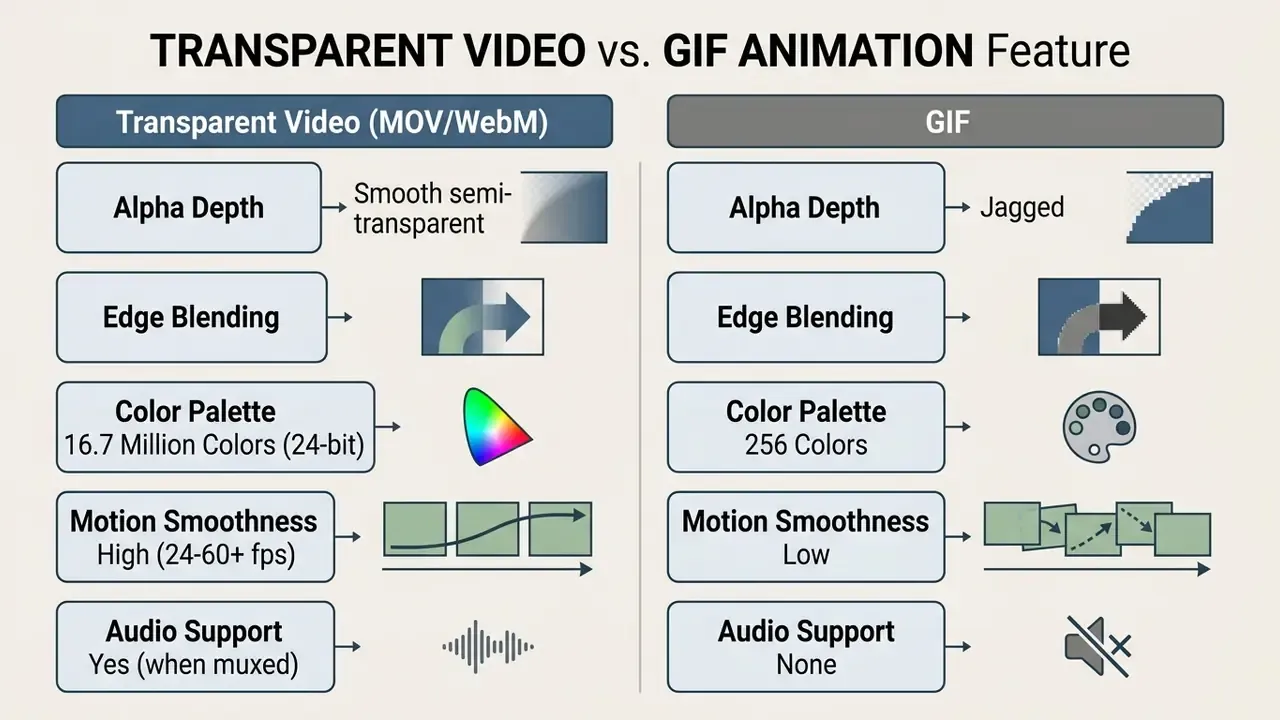
Unlike 8-bit alpha channels in MOV or WebM files, which support 256 gradient levels of opacity, GIF animations use binary 1-bit transparency. Format documentation defines a single transparent color index rather than partial transparency, so a GIF pixel is either 100% opaque or 100% transparent. Hence the jagged "stair-step" edges around complex subjects. A practical troubleshooting checklist when transparency "disappears":
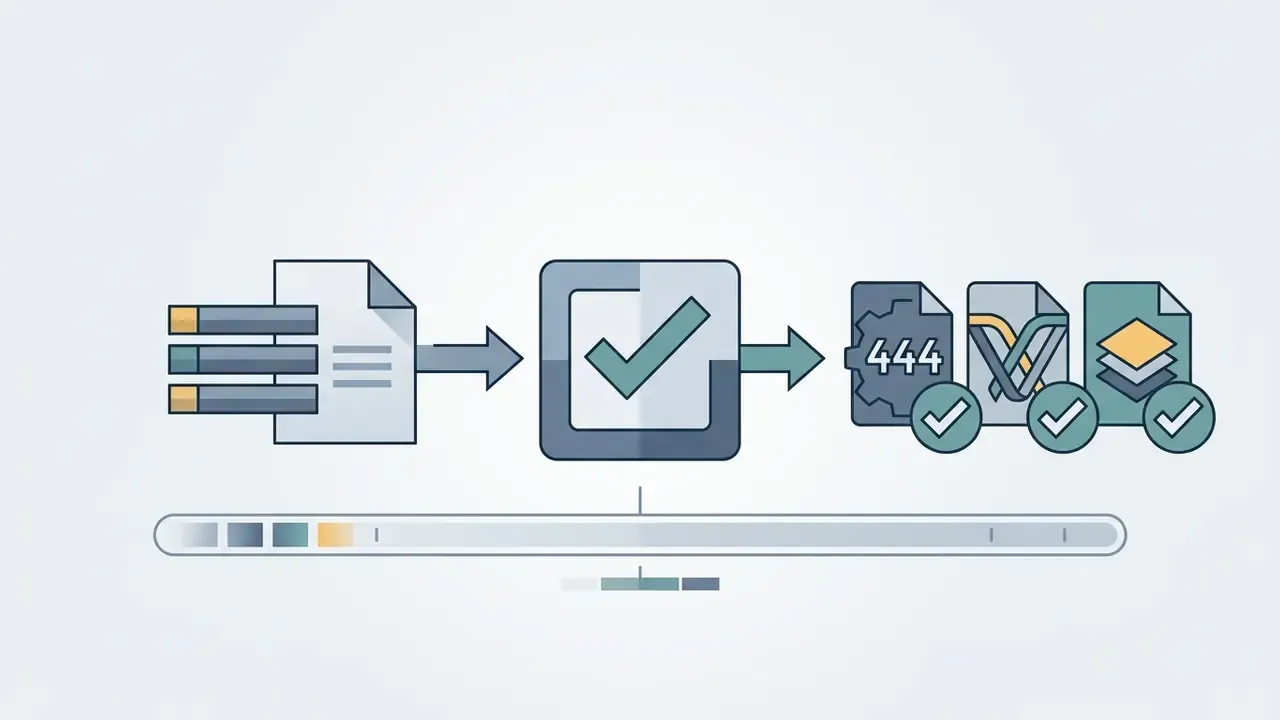
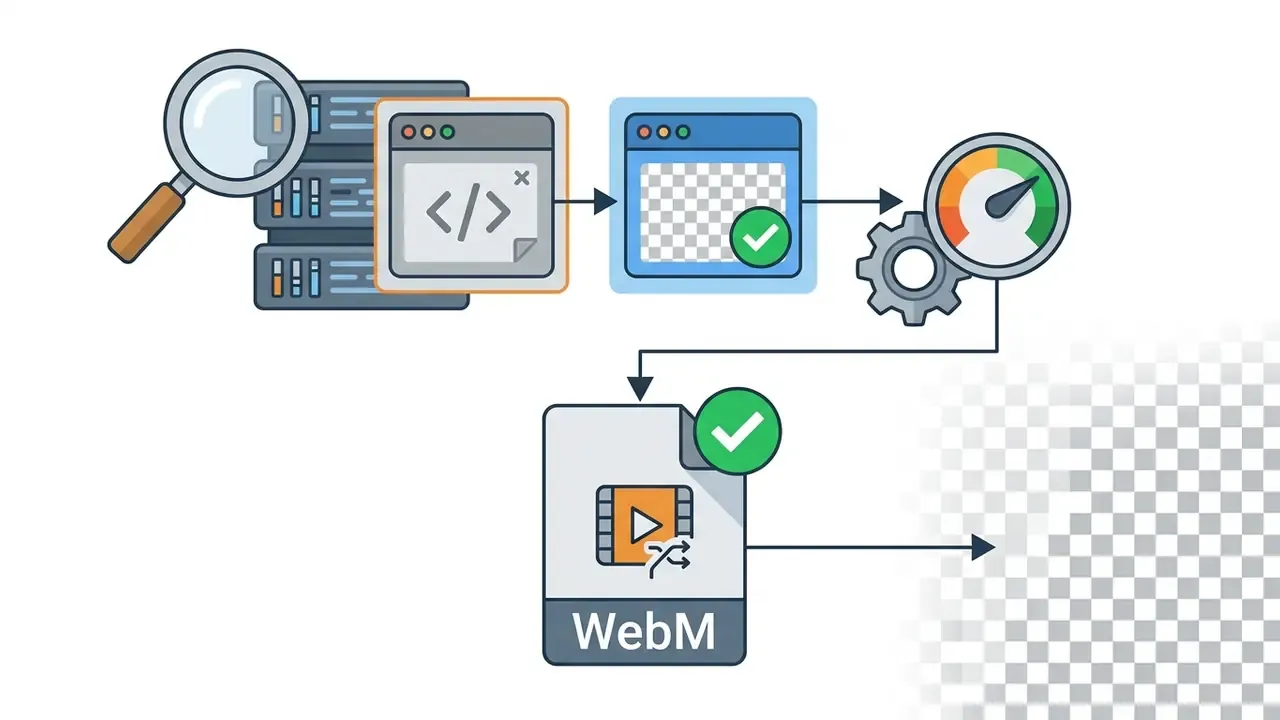
yuva420p rather than yuv420p) and that alpha_mode metadata is set for WebM.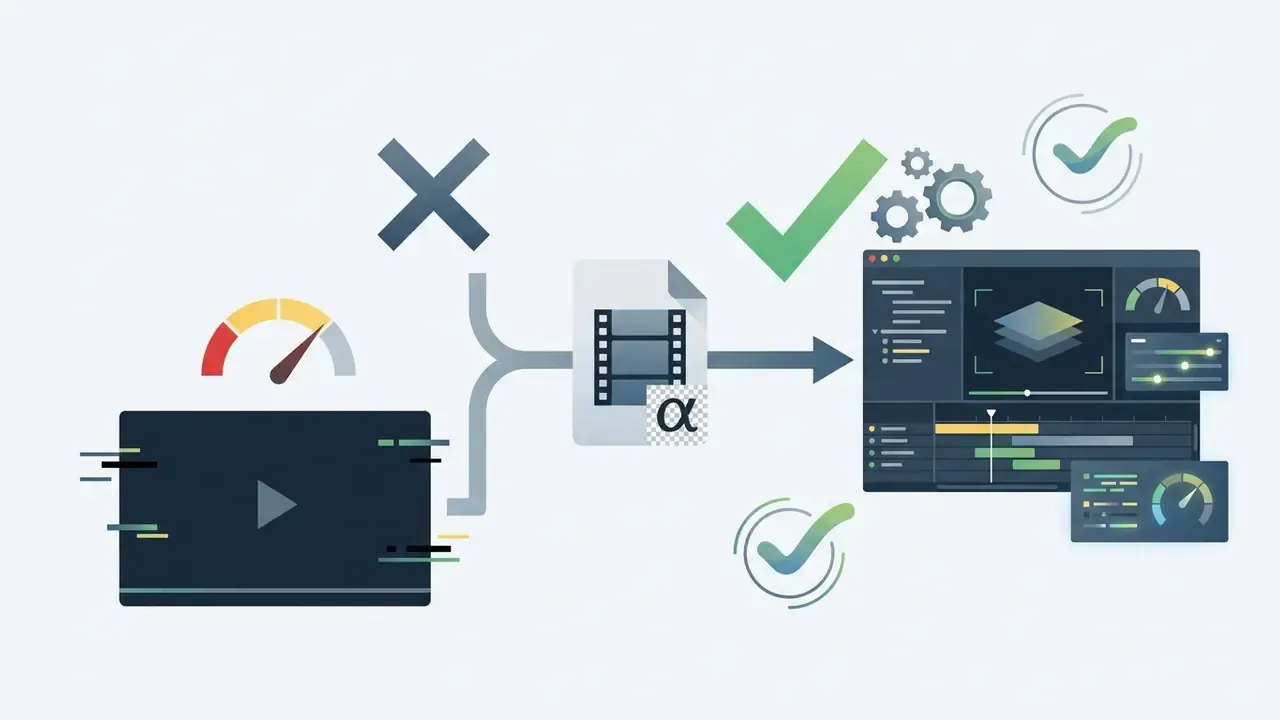
Choosing a Video Background Remover for Commercial Use
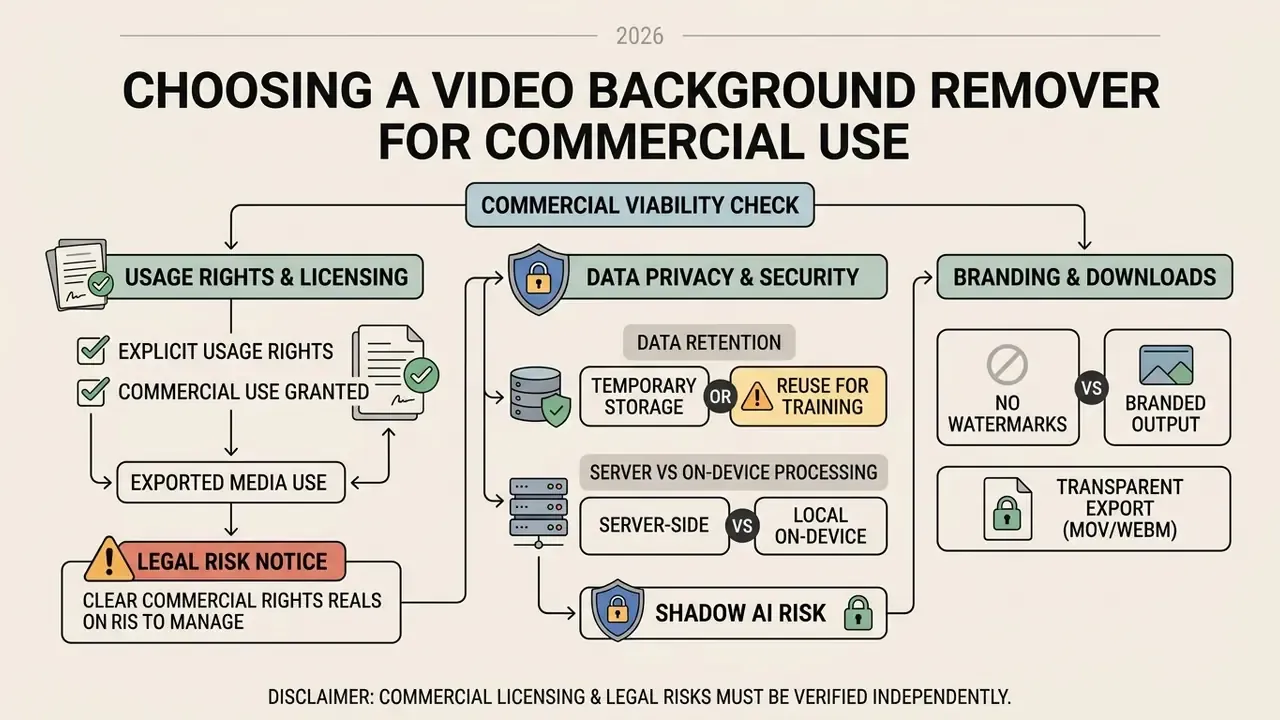
Selecting a background remover for commercial use of AI tools means verifying three things: that the service grants explicit usage rights for exported media, that it protects uploaded assets, and that it aligns with intellectual property standards. For enterprises, processing proprietary footage in a cloud environment is a trade-secret question before it is a creative one.
Company verification status:
Data Privacy, Retention and Shadow AI Risk
Before any employee uploads footage to a free web tool, risk owners should treat the upload itself as a data-transfer event. Three exposure paths matter:
- Retention and training reuse. Free consumer tiers frequently reserve broad platform licenses to host, copy, modify, and reuse uploaded content within platform functionality. Some open-content agreements grant a worldwide, non-exclusive, royalty-free license covering hosting, distribution, modification, editing, and translation of user uploads. For NDA-bound footage, unreleased product demos, or customer-identifiable video, that license scope is disqualifying.
- Server-side versus on-device processing. Tools that process entirely in the browser never transmit the file, which materially reduces exposure. They also strip audio, cap bitrate, and usually restrict output to personal use. Cloud tools deliver 4K, audio, and API access at the cost of moving the asset off-premises.
- Shadow AI. Uncontrolled staff adoption of free removers is a classic Shadow AI pattern: no procurement review, no DPA, no retention schedule, no audit trail. Governance teams should publish an approved-tool list, require on-device processing for confidential material, and log which assets were processed where.
Practical controls: confirm the vendor's stated retention window and deletion behavior, confirm whether uploads are excluded from model training, prefer local or offline processing modes for restricted footage, and require a signed commercial license before any branded output ships. If a control cannot be evidenced, treat the tool as unapproved. No evidence, no autonomy.
Commercial Use, Branding and Download Rights
Commercial usage rights depend on the licenses attached to your uploaded source files, the stock media backgrounds you drop in, and the platform's own terms of service. Removing or changing a video background does not transform a copyrighted video into an original work you own. It never has.
Under legal frameworks for derivative works:
- Derivative work limits: Copyright in a modified or composited video covers only the newly added elements, not the underlying source footage (U.S. Copyright Office Circular 14).
- Third-party media: Using commercial stock footage as a replacement background requires a valid commercial license covering public distribution. Fair use may permit unlicensed use in the United States only under specific conditions, and commercial purpose is one factor weighed against the user.
- Synthetic-media disclosure: Platforms increasingly require creators to label realistic altered or synthetic media. Disclosure obligations address labeling, not ownership, and they do not cure a licensing gap.
- Data privacy: Enterprise teams must verify that cloud processing tools do not retain uploaded customer videos for training public AI models.
ALERT: commercial licensing and legal risk notice
For further analysis on rights management and media compliance, consult our guides on AI Media Commercial-Use, the ongoing debates covered in ai stealing art, and AI Litigation and Case Timelines.
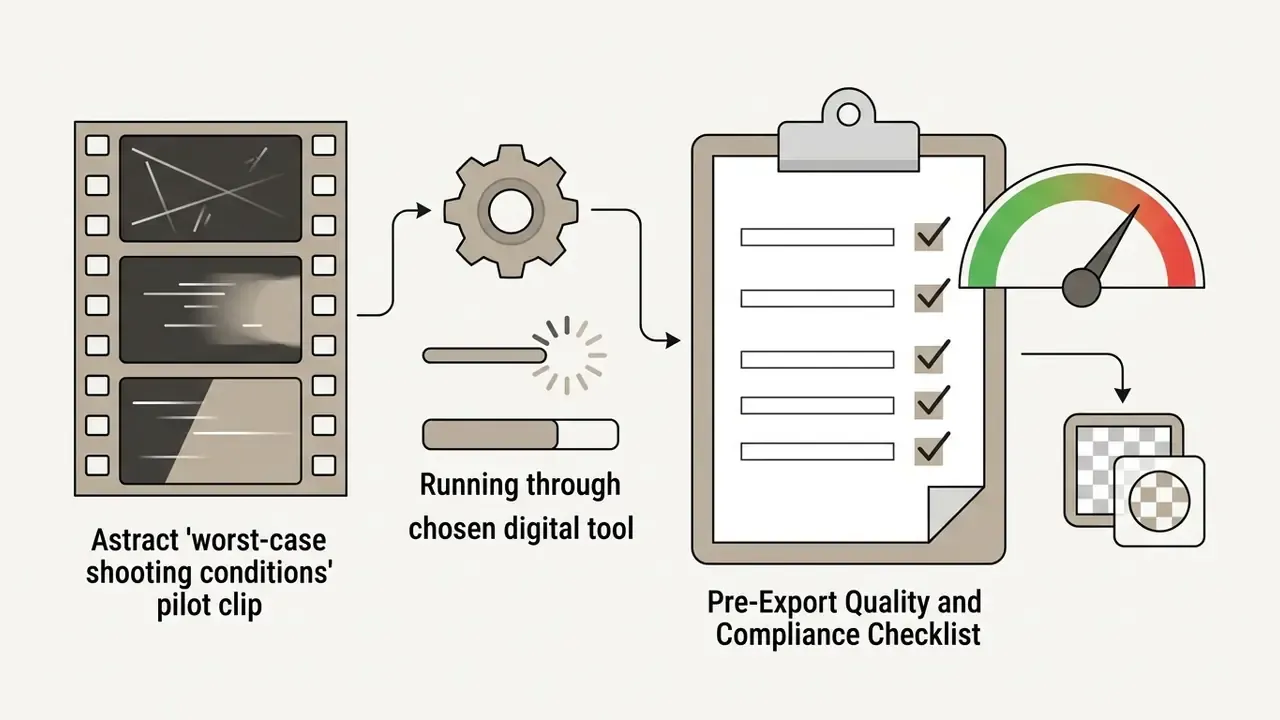
Pre-Export Quality and Compliance Checklist
Run this before any branded or commercial deliverable leaves the editor.
Checklist0 / 17
FAQ About Free Online Video Background Removal
Does a Video Background Remover Work on Mobile?
Yes. Online video background removal runs in mobile browsers such as Safari and Chrome, though speed depends heavily on device WebGL 2.0 support and hardware. Vendor SDK documentation lists WebGL 2.0 in Chrome, Firefox, and Safari plus iOS 13+ and Android 8.0+ as the compatibility baseline for browser-side background removal, which sets a practical floor. Independent tool reviews add a caveat worth taking seriously: browser-based video removal is GPU and CPU intensive, performs best on high-end Android with Chrome, and may run slowly or fail outright on older devices and on iOS Safari because of WebGL constraints. These figures come from vendor and review sources rather than peer-reviewed benchmarks, so treat them as directional compatibility guidance, not guaranteed performance. Mobile users should keep a stable connection when uploading large files, stay under the platform's length cap, close background tabs to free GPU memory, or switch to a dedicated mobile app if the operating system throttles browser WebGL acceleration.
Will My Exported Video Still Have Sound?
Often not, on free tiers. Browser-local (offline) pipelines that render frames through WebGL or Canvas commonly discard the original audio multiplexer, and several vendors document "no sound / no audio in exports" as an explicit free-tier limitation. Paid Studio and cloud Premium tiers generally retain audio. If you must use a free tier, extract the audio before upload and re-mux afterwards with ffmpeg -i video.webm -i audio.mp3 -c:v copy -c:a aac output.mp4, or drop both files onto a timeline in your NLE.
Which Input Formats Are Supported?
MP4 and MOV are accepted almost universally; WebM is widely supported; AVI, MKV, and animated GIF are supported by a subset of tools. Because legacy containers can carry codecs and bitrates that browser demuxers mishandle, re-encoding to H.264 MP4 first is the most reliable path. Output is more constrained than input: free browser tools frequently export WebM only, while paid tiers add MP4, MOV, and GIF.
Can I Fix It When the AI Cuts Out the Wrong Thing?
Yes. Use the erase brush to paint away residual background pixels and halos the model missed, and the restore brush to bring back foreground detail it deleted by mistake: thin eyeglass frames, microphone stands, dark clothing against a dark wall, or loose hair. Work on the worst frame first, apply light feathering, then scrub neighbouring frames to confirm the correction holds without flicker.
Can the Tool Be Used for YouTube, TikTok and Social Videos?
Yes. AI video generators and background removers are widely used to reframe horizontal 16:9 videos into vertical 9:16 clips for YouTube Shorts, TikTok, and Instagram Reels. Isolate the subject from a widescreen recording, then composite it over a vertical background to adapt content for mobile-first feeds. A single 9:16 master at 1080x1920 can be reused across all three platforms without re-exporting the full edit, with YouTube Shorts accepting uploads up to three minutes. When repurposing video assets across platforms:
- Vertical master dimensions: Export 9:16 vertical masters at 1080x1920 and keep the horizontal 1920x1080 master for long-form.
- Safe zone alignment (updated): Keep key visual elements away from frame edges, so platform UI (captions, comment icons, sound titles, the profile rail) does not cover them. Institutional social-media guidance recommends designing to safe zones precisely because platform interfaces overlap content; this is a layout convention, not a Section 508 requirement.
- Accessibility: Include closed captions for silent scrolling. U.S. Section 508 social-media guidance specifies closed or open captions for uploaded video, notes that X accepts SRT caption files only, and recommends linking to an audio-described version where one exists. University accessibility guidance adds that autogenerated captions should be reviewed for accuracy before posting.
Which Tool Is the Best Free Video Background Remover in 2026?
There is no single winner, and any list of "the best free video background remover online" ages fast. Rank candidates against your own constraints instead: watermark policy, resolution cap, audio retention, alpha-capable export, retention terms, and commercial rights. A tool that keeps audio and exports transparent MOV usually beats one with a marginally cleaner mask, because manual brushwork can fix a mask, whereas a stripped audio track and a personal-use-only license cannot be fixed downstream.
Does Removing a Background Make the Video Mine?
No. Copyright in a modified or composited video covers only the new material you added, not the underlying footage (U.S. Copyright Office Circular 14). Commercial distribution still requires a valid license for the source clip, the replacement background, and any music or third-party graphics.
What to Do Next
Appendix A: Editorial Revisions and Source Notes
For transparency, the following statements were revised in this edition. Earlier formulations are preserved alongside the reasoning.
| Earlier formulation | Current formulation and reason |
|---|---|
| "In platform tests, 60 fps input files produced clean temporal masks, whereas identical content shot at 29.97 fps under low bitrates resulted in jittery edge boundaries (Adobe Community Technical Reports, 2025)." | Retained as a directional signal but re-attributed to a user-submitted vendor-forum bug report rather than a controlled benchmark, with the effect described as scene- and model-dependent. |
| "Evaluating the composite against high-contrast backdrops reveals subtle flaws that might pass unnoticed on a neutral background (CapCut Editing Protocol, 2026)." | Retained as practice guidance and re-attributed to consumer-editor refinement documentation (a vendor how-to, not an academic protocol). |
| "Modern smartphones (iOS 13+ and Android 8.0+) can process mobile uploads, but resource constraints may cause slower rendering compared to desktop environments (Banuba WebGL Engine Benchmarks)." | Retained with the source identified as vendor SDK compatibility documentation plus independent tool reviews, and labeled directional rather than benchmarked. |
| "Keep key visual elements centered to avoid interference from platform UI overlays, comment sections, and sound titles (U.S. Section 508 Social Media Guidance)." | Safe-zone advice retained but reclassified as a platform-layout convention; Section 508 guidance is cited only for its actual scope, captions and audio description. |
| "In an enterprise media audit conducted for an online video background removal deployment, an operations team experienced severe boundary tearing on 24 fps low-bitrate uploads." | Retained and reframed as a documented media-operations observation with the changed variables (frame rate and bitrate) stated explicitly, rather than as a generalizable result. |
| "DiSa, 2026" | Cited as an arXiv preprint dated 2024 with its A-150 mIoU figure, to avoid a forward-dated reference. |