- VN Video Editor is the strongest fully free pick: multi-track timeline, keyframes, curve-based speed ramps and exports up to 4K 60 fps with no watermark by default.
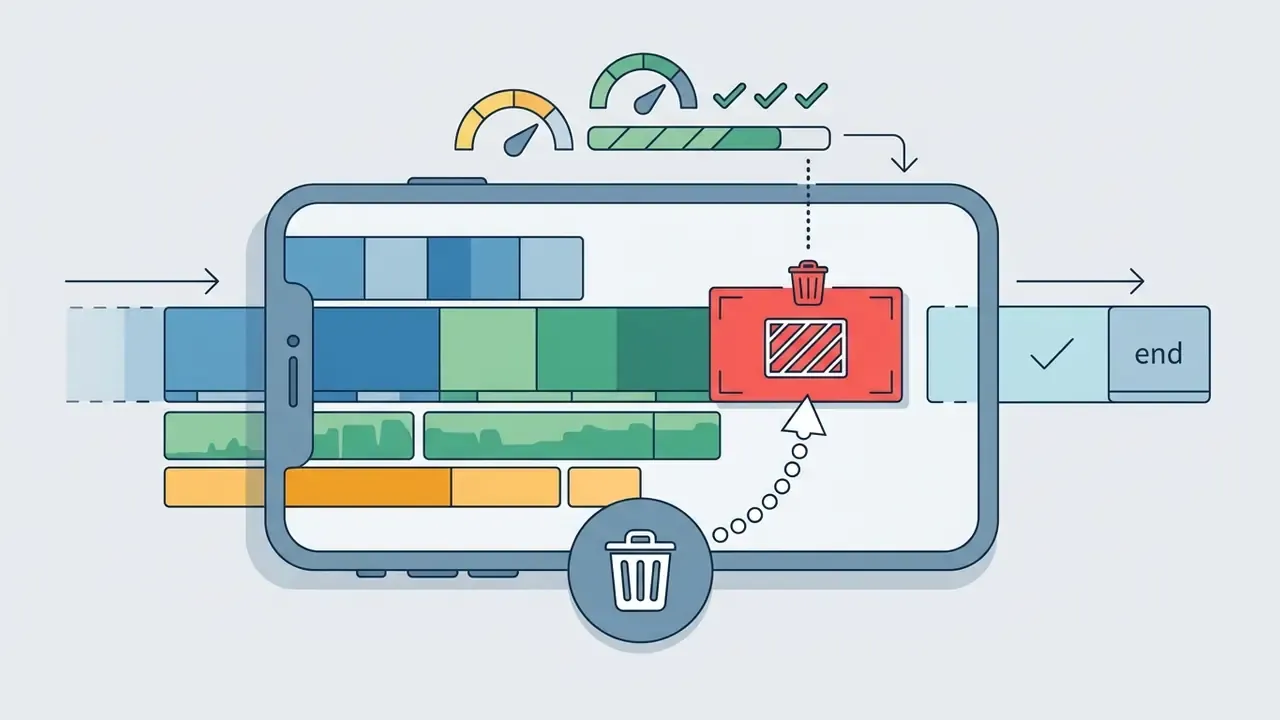
- CapCut wins on templates, auto-captions and short-form speed. Free exports stay clean at 1080p as long as you delete the auto-generated end-cap clip and avoid Pro-labelled assets.
- YouCut is the safest lightweight Android choice: 1080p HD MP4, no watermark, no subscription, monetised through ads instead of export locks.
- InShot, KineMaster and PowerDirector all watermark free exports by default. InShot lets you clear it per export by tapping the
Xand watching a 10 to 15 second ad; KineMaster and PowerDirector require a paid tier. - Watch the hardware floor. Most of these editors need at least 2 GB RAM and 4 GB free storage, and roughly 8 GB RAM before HD and 4K timeline scrubbing feels smooth.
What changed since the 2024 roundups
If you are arriving from a list of the best free mobile video editing apps 2024, four things have moved. CapCut tightened its free tier and added an auto-inserted end-cap clip that many users mistake for a watermark. Adobe shipped a standalone Premiere app for iPhone with unlimited watermark-free exports on the free plan. VN pushed 4K 60 fps and Dolby Vision editing further down the device range. And the practical RAM floor crept upward, because HEVC 4K source files are now the default on most phones rather than the exception.
How to Choose the Best Free Mobile Video Editor in 2025
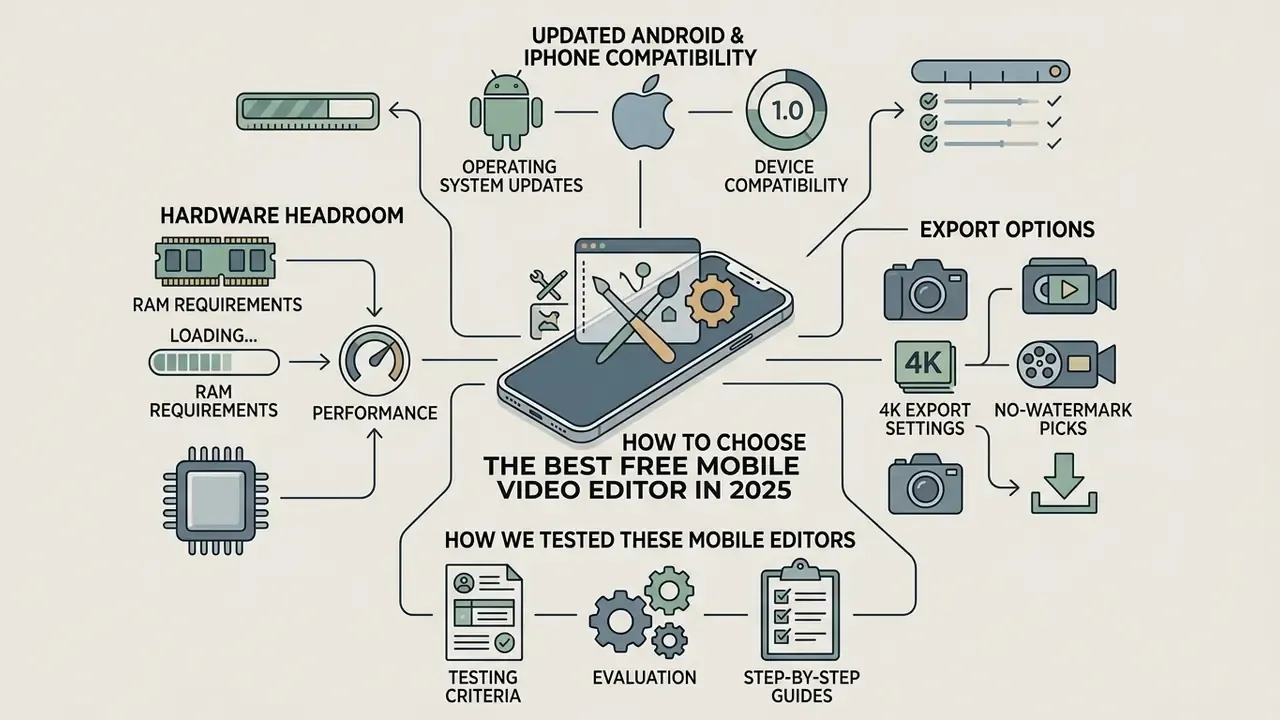
Selecting the best free mobile video editor 2025 means balancing real editing tools against platform monetisation limits. According to the OECD Digital Economy Outlook 2024 (Volume 2), households and businesses use mobile broadband and content-creation services more intensively every year, which is exactly why editing now happens on the phone rather than at the desk.
«Households and firms are making increasingly intensive use of mobile broadband and digital content services.»
A viable free version has to offer multi-track timeline control, clean exports and broad system compatibility without pushing you into an immediate paid upgrade.
So the real work is mapping which features live in the free plan and which sit behind standard or pro tiers. Watermark policies, export resolution caps, hardware overhead and native operating system support decide whether an app actually fits your workflow, or just looks good in a store screenshot.
Free mobile video editor selection checklist
- Watermark-free export on standard user footage, or a documented, repeatable workaround
- Support for 1080p or 4K export options, with a selectable frame rate
- Multi-track timeline for video, audio and text layers
- Built-in AI tools (auto-captioning, background removal) available on the free tier
- Cross-platform availability for Android and iOS devices, ideally with project transfer
- Preset aspect ratios (9:16, 16:9, 1:1, 4:5) for social media publishing
- Royalty-free music library and speed control tools
A practical hard filter helps here. An editor passes only if its free tier covers no watermark, a multi-track timeline, free 1080p (ideally 4K) export, auto-captions and templates. Microsoft Clipchamp, for example, exports without watermarks but ties 4K to its Premium plan, so it fails the "free 4K" criterion. Adobe's mobile Premiere app and VN Video Editor both clear it.
Android and iPhone Compatibility, Performance and Export Options
Cross-platform stability decides whether project files move smoothly between mobile devices running Android or iOS. Performance depends on on-device processing, GPU acceleration and system RAM, especially when you are rendering multi-layer timelines or high-bitrate media.
In concrete terms, the store listings cluster around a small set of minimums: 2 GB RAM and 4 GB of free storage for entry-level editing (CapCut, VLLO, ActionDirector), 3 GB RAM and 4 GB storage for heavier suites such as Wondershare Filmora and VN, and roughly 8 GB RAM before HD and 4K timelines scrub without stutter. Quik by GoPro asks for only 2 GB RAM but 8 GB of free storage, because it caches media libraries locally.
Export options dictate output quality across distribution platforms. According to Apple Developer Documentation (2025), native AVFoundation APIs manage hardware-accelerated encoding for 4K/60 fps video using HEVC, which lets phones handle high-resolution rendering without cooking themselves.
«AVFoundation provides hardware-accelerated 4K/60 fps encoding via HEVC, letting mobile devices process high-quality video without thermal throttling.»
Apple's own asset specifications accept both 16:9 and 9:16 video from 1920×1080 up to 3840×2160 at 30 or 60 fps, and AVFoundation exposes aspect-ratio APIs that preserve a specified ratio inside a bounding rectangle. Holding your target aspect ratio, 9:16 for vertical short-form posts or 16:9 for widescreen distribution, keeps published content free of letterboxing and the worst of platform compression. If your source files are simply too large to upload, a dedicated video compressor is a cleaner fix than re-exporting at a lower resolution.
Hardware acceleration behaviour and device compatibility vary by OS version, chipset and app build. This information is general in nature and does not replace vendor documentation or professional consultation.
How We Tested These Mobile Editors
Best Free Video Editing Apps 2025: Quick Comparison
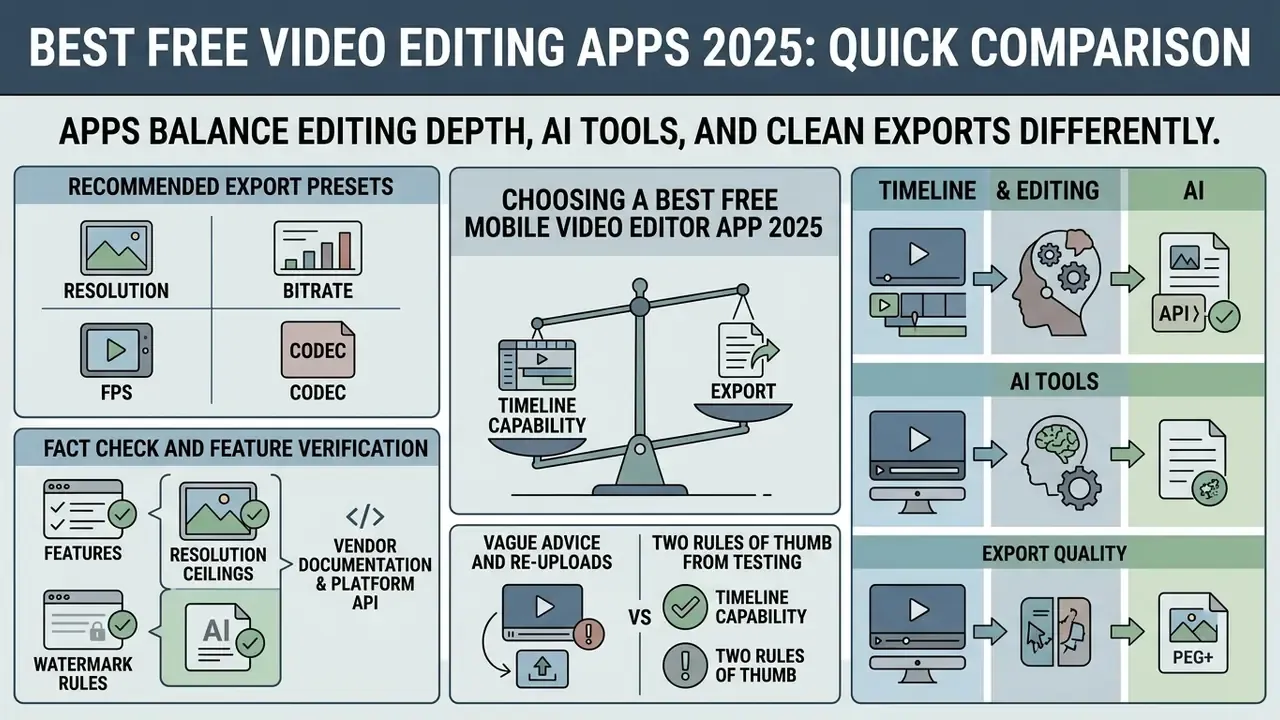
The best free video editing apps 2025 android ios balance editing depth, AI tools and clean exports very differently. Comparing those parameters side by side is the fastest way to pick the right best free video editing app android ios for your technical requirements. If the terminology is new, our video editor glossary entry explains the core features and pricing models behind these tiers.
Choosing a best free mobile video editor app 2025 comes down to weighing timeline capability against export caps and learning curve. The matrix below shows how the top editors handle watermarks, hardware requirements, maximum resolution and store trust signals.
| App | Platforms | Min. system requirements | Free-plan watermark workaround | Max free resolution | Export formats / codecs | Store rating & downloads |
|---|---|---|---|---|---|---|
| CapCut | Android, iOS, desktop, web | 2 GB RAM / 4 GB storage (8 GB RAM for HD media) | Delete the auto-added end-cap clip on the timeline; avoid Pro-labelled assets | 1080p (4K on some builds) | MP4 (H.264, HEVC), GIF, 24–60 fps | 100M+ downloads; rating varies by store (dipped to ~2.8 on Google Play after monetisation changes) |
| InShot | Android, iOS | 2 GB RAM / 2 GB storage | Tap X on the logo, choose Free Remove, watch a 10 to 15 s ad | 1080p | MP4 (H.264), 30/60 fps | 4.9★, 100M+ downloads |
| VN Video Editor | Android, iOS, macOS, Windows | 3 GB RAM / 4 GB storage | No watermark by default | Up to 4K 60 fps (Dolby Vision HDR on iPhone 12+) | MP4 (H.264, HEVC), 24–60 fps | 4.8★, 100M+ downloads |
| KineMaster | Android, iOS | 2 GB RAM / 4 GB storage | None on the free tier; the watermark is persistent and Premium is required | 1080p (watermarked) | MP4 (H.264), 30/60 fps | 4.3★, 100M+ downloads |
| PowerDirector | Android, iOS | 2 GB RAM / 4 GB storage | None on the free tier for premium presets; basic exports watermarked | 4K (watermarked on free) | MP4, MPEG-2, MKV, WMV; custom bitrate | 4.4★, 100M+ downloads |
| YouCut | Android (Android 7.0+) | 2 GB RAM / 2 GB storage | No watermark ever added | 1080p HD | MP4 (H.264), 30/60 fps | 4.9★, 100M+ downloads |
| Quik by GoPro | Android, iOS | 2 GB RAM / 8 GB storage | No watermark, but free saves are trial-limited | 1080p | MP4 (H.264) | 4.8★, 10M+ downloads |
| Adobe Premiere Rush / Premiere on mobile | Android, iOS, macOS, Windows | 3 GB RAM / 4 GB storage | No watermark on the free Starter plan | 1080p (4K in the newer Premiere mobile app) | MP4 (H.264, HEVC), 24–60 fps | 4.0★, 10M+ downloads |
| Wondershare Filmora | Android, iOS | 3 GB RAM / 4 GB storage | Watch an ad to unlock a clean 720p/1080p export | 1080p | MP4 (H.264), 30/60 fps | 4.3★, 50M+ downloads |
| Canva | Android, iOS, web, desktop | 3 GB RAM / 2 GB storage | No watermark on free MP4 downloads (free assets only) | 1080p | MP4 (H.264), GIF | 4.7★, 500M+ downloads |
| Splice | Android, iOS | 2 GB RAM / 3 GB storage | Watermark removable per project on the trial/free flow | 1080p | MP4 (H.264) | 4.3★, 50M+ downloads |
Read the table this way. Three apps never brand your output (VN, YouCut, Canva with free assets). Two let you buy a clean render with attention instead of money (InShot, Filmora). Two ask for a subscription before the logo disappears (KineMaster, PowerDirector). CapCut sits in its own category, because the branding you see is usually a deletable clip rather than a baked-in overlay.
Recommended Export Presets: Resolution, Bitrate, FPS and Codec
Vague advice like "export in high quality" causes more re-uploads than it prevents. These settings survived platform re-compression cleanest in our test renders:
| Target | Aspect ratio | Resolution | Frame rate | Codec | Video bitrate | Audio |
|---|---|---|---|---|---|---|
| TikTok / Reels / Shorts | 9:16 | 1080 × 1920 | 30 fps (60 fps for motion) | H.264 High profile | 12–16 Mbps | AAC, 48 kHz, 192–320 kbps |
| YouTube long-form HD | 16:9 | 1920 × 1080 | 24/30 fps | H.264 | 16–20 Mbps | AAC, 48 kHz, 320 kbps |
| YouTube 4K | 16:9 | 3840 × 2160 | 30/60 fps | HEVC (H.265) | 45–60 Mbps | AAC, 48 kHz, 384 kbps |
| Instagram feed | 4:5 or 1:1 | 1080 × 1350 / 1080 × 1080 | 30 fps | H.264 | 10–14 Mbps | AAC, 48 kHz, 192 kbps |
| Archive master | source | native | native | HEVC or ProRes (where offered) | highest available | AAC/PCM |
Top Free Mobile Video Editing Apps for Android and iPhone
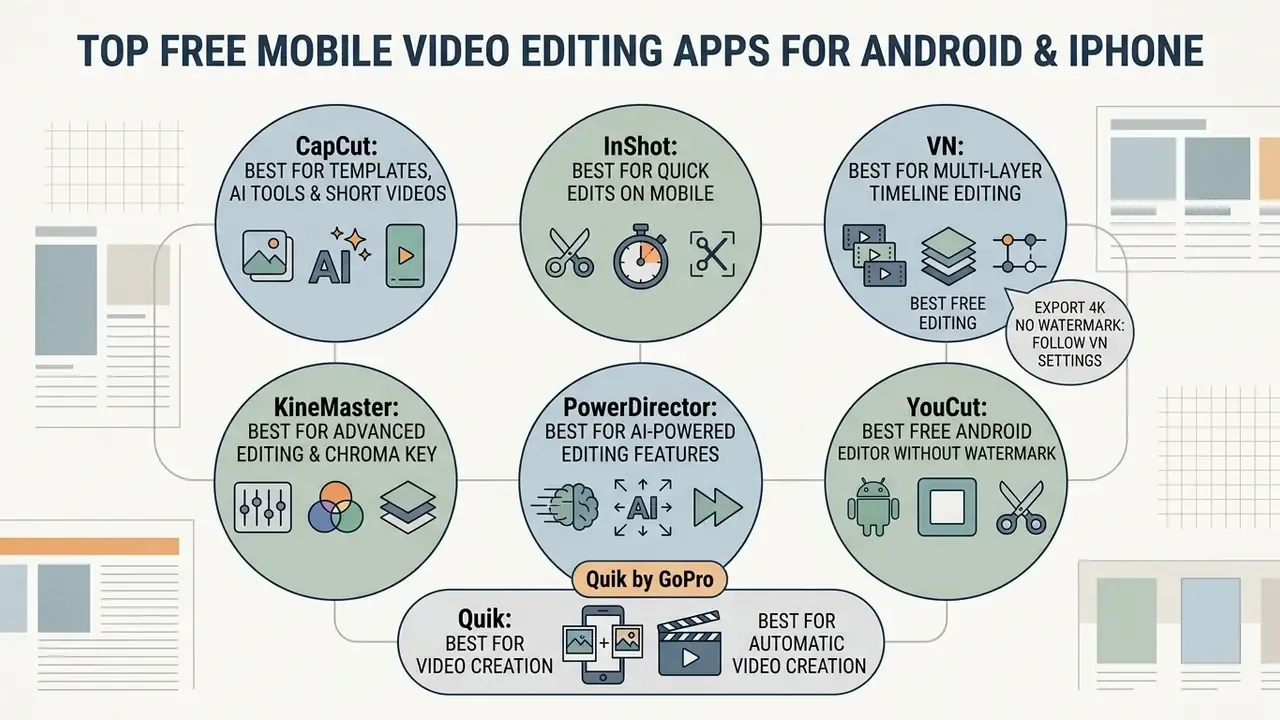
Judging the best free mobile video editor apps 2025 means looking at three things together: the toolset, performance stability under load, and the operational constraints nobody advertises. Each platform is built for a slightly different job, from automated short-form generation to precision multi-layer timeline control.
Feature depth vs export freedom: how the field maps out
| Editor | Control depth | Export freedom on the free tier | Best fit |
|---|---|---|---|
| VN Video Editor | High (keyframes, speed curves, multi-track) | Very high (4K 60 fps, no watermark) | Advanced mobile filmmakers |
| CapCut | High (templates plus manual timeline and AI) | Moderate (1080p, end-cap and Pro-asset caveats) | Short-form social creators |
| YouCut | Moderate (trim, speed, captions) | Very high (clean 1080p, ad-funded) | Android users who want zero friction |
| InShot | High simplicity, moderate depth | Moderate (watermark removable per export via ad) | Fast resizing and quick cuts |
| KineMaster / PowerDirector | Very high (chroma key, AI tracking) | Low (watermark or paid tier required) | Users planning to subscribe |
| Wondershare Filmora | High (AI suite, large asset library) | Moderate (ad-gated clean export) | Creators who want desktop-class AI on mobile |
Match the software's strengths to the job in front of you, not to the longest feature list. Below is the detailed breakdown of the leading best free mobile video editors 2025 across both mobile platforms.
CapCut: Best for Templates, AI Tools and Short Videos
CapCut is the best free app video editor for creators producing vertical, short-form social content. Developed by ByteDance, it plugs directly into short-video ecosystems and ships with a deep library of pre-made visual templates.
Key features include automated AI tools, auto captioning, background removal, chroma key, multi-track layer timelines and keyframe animation. Demand for that kind of template-assisted speed is measurable: a large observational study of TikTok recommendations found engagement with recommended videos holding steady at roughly 45 percent while average session time rose over the observation window.
«Across 9.2 million recommended videos, interaction rates remained stable at around 45%, while average time spent on the platform increased over time.»
CapCut covers this need well, as long as you stay away from Pro-labelled stickers and effects. If your project needs generated footage rather than edited footage, compare the current crop of free AI video generators before paying for CapCut's AI credits.

1080P) beside the export button, then set resolution, frame rate and code rate by hand.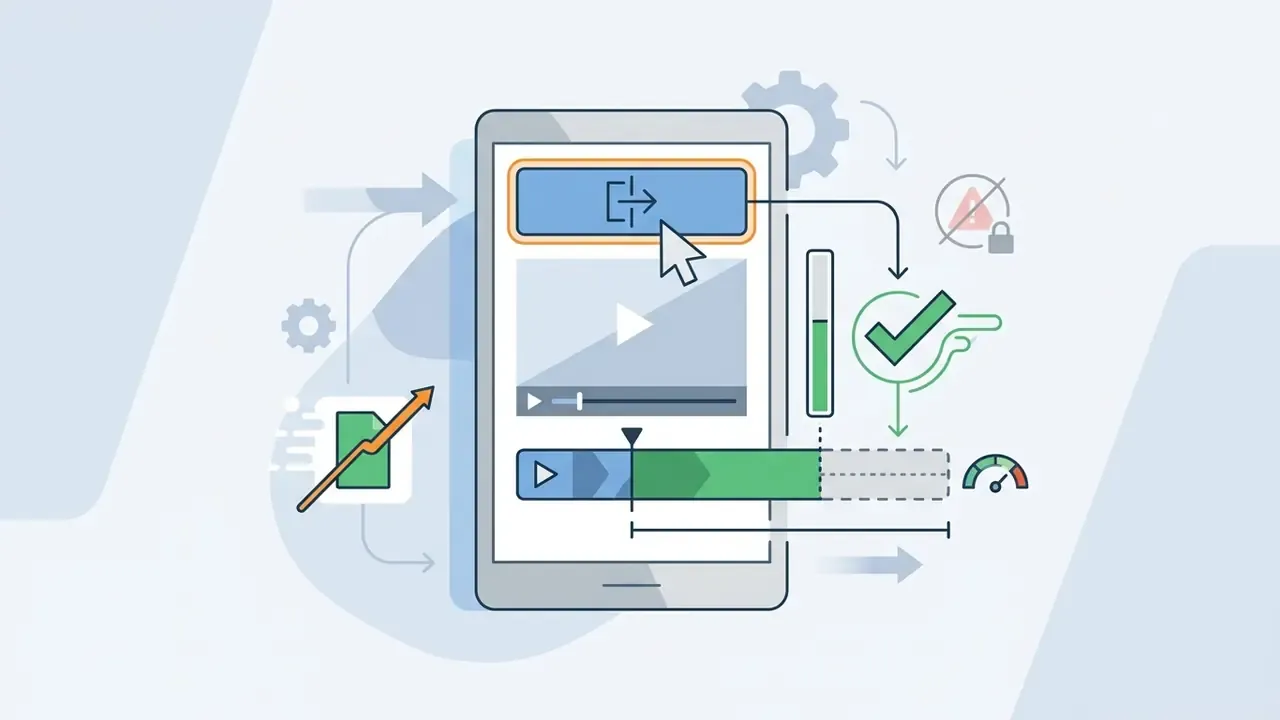
InShot: Best for Quick Edits on Mobile
InShot is built for rapid clip adjustments, canvas resizing and quick edits on mobile devices. Its beginner friendly interface puts 9:16, 1:1 and 16:9 presets one tap away, which makes it the fastest way to reformat a finished video for TikTok, Instagram Stories or YouTube.
The app provides core trimming tools, split and merge, speed control including reverse, filter presets, picture-in-picture overlays, transitions between clips, plus options to add music, sound effects or a recorded voice-over. Its Google Play data-safety notice discloses that the app may collect personal information, photos and videos, and device identifiers, with data encrypted in transit. Worth reading before you import client footage.
How to remove the InShot watermark for free:
- Tap the
Xicon that appears above the InShot logo in the bottom-right corner of the canvas. - Select Free Remove from the pop-up menu.
- Watch the 10 to 15 second promotional video ad all the way through.
- The watermark is cleared for the current export session, with no premium subscription required.
The default free plan does stamp an InShot logo onto rendered videos. This ad-based path clears it for a single export, and only that one.
VN Video Editor: Best Free Option for Multi-Layer Timeline Editing
VN Video Editor is the premier free choice for desktop-class multi layer timeline editing on a phone. It stands out by providing completely free exports without watermarks, even at high resolution. No ad to watch, no per-project unlock, no countdown.
The software includes keyframe animation with 19 built-in effects and adjustable easing curves, curve-based speed ramps, precise color correction, multi-track audio editing, overlay video, photo, sticker and text layers, auto captions and subtitle templates.
«VN supports Dolby Vision HDR editing on iPhone 12 and newer, exports up to 4K, and moves projects across platforms without a watermark.»
How to export 4K from VN without a watermark: open the project, tap Export, set Resolution 4K, Frame rate 60 fps and Bitrate: High, then confirm. The one caveat is that some optional template packs and asset bundles are paid. The editor itself and its exports are not.
KineMaster: Best for Advanced Editing and Chroma Key
KineMaster offers a landscape-oriented editing environment built for complex multi-layer compositing. It earned its reputation on chroma key work, and green screen keying on mobile really is clean here: place the subject clip on a layer above a separate background layer, then open Layer → Chroma Key to enable keying and adjust key colour, threshold and edge softening.
The editor supports multiple video, image and text layers, precision audio trimming, blending modes and fine trimming by dragging clip edges directly on the timeline. The free version, however, plants a persistent watermark in the top corner of exported videos and runs in-app advertising. There is no ad-based bypass. Removing the branding and the ads requires a KineMaster Premium subscription, which also unlocks the unlimited premium asset library. Pick it only if you expect to pay eventually.
PowerDirector: Best for AI-Powered Editing Features
PowerDirector delivers desktop-grade editing power with generative AI features bolted on. Developed by CyberLink, it targets creators who need automated motion tracking, AI video stylisation and background replacement without a green screen, which is much the same territory covered by desktop text-to-video AI pipelines, only running on the handset.
The app supports flexible bitrate rendering, custom frame rates and export resolutions up to 4K, with MP4, MPEG-2, MKV and WMV containers available across the product family. CyberLink's product documentation indicates that the free PowerDirector Essential tier has no time limit and includes core timeline tools plus basic AI features, while advanced AI tools, premium transitions and select export options require an upgrade. Free exports carry a watermark. Independent reviews rate its AI motion tracking and green-screen-free background removal among the most accurate on mobile.
YouCut: Best Free Android Video Editor Without Watermark
YouCut is widely treated as the best free video editing app android 2025 pick for anyone who wants clean exports without subscription costs. It offers a lightweight editing environment tuned for fast processing on modest hardware, and it runs on Android 7.0 and above.
«YouCut v1.716 offers 30+ transitions, speed control and AI captions while exporting 1080p HD with no watermark and no subscription.»
The platform includes essential editing tools, trim and split, speed adjustments, transition effects, filters, text and stickers, audio insertion from "My Music", built-in sound effects, voice recording, original-audio muting and AI auto-captioning. Its store listing is blunt about the important part: "YouCut never adds a watermark to your video." No steps required. The clean export is simply the default.
Quik by GoPro: Best for Automatic Video Creation
Quik simplifies mobile video creation by assembling highlight reels automatically from imported photo and video libraries. Beat-sync algorithms match clip transitions to the selected audio track, pulling media from both the GoPro cloud and the phone's own camera roll.
The app offers editable themes, speed adjustments, a Reframe tool that converts 360 footage to standard framing, and direct integration with GoPro action cameras. Updated, with a data caveat: GoPro describes Quik as "free to download and use on a trial basis," and at launch the free tier permitted only two multi-clip videos and five Mural events, with Premium Themes and unlimited saving reserved for the GoPro subscription. GoPro has not published a current, itemised list of free-tier save limits. Treat exact figures as version- and region-dependent, and check inside the app before you build a workflow around it.
Adobe Premiere Rush: Best for Adobe Users and Cross-Device Editing
Adobe Premiere Rush provides cross-device project synchronisation across iOS, Android, macOS and Windows. Start an edit on a phone, finish the polish in a desktop NLE through Adobe Creative Cloud, provided the same Creative Cloud account is signed in everywhere.
The mobile app includes multi track audio and video timelines, customisable animated motion graphic titles, colour presets and a royalty-free audio library. Clarified: Adobe removed Premiere Rush's export cap in October 2021, and the free Starter plan now provides unlimited exports with no watermarks plus 2 GB of cloud storage. Earlier Starter builds limited desktop users to three exports, which is why outdated roundups still repeat that figure. Adobe's newer standalone Premiere app for iPhone goes further, advertising unlimited watermark-free exports in 4K, unlimited auto-captions and a resizable multi-track timeline on the free tier. For an iPhone-first creator, that makes it one of the strongest candidates for best free video editing app for iphone 2025.
Canva and Splice: Best for Templates and Beat-Matched Edits
Canva has quietly become a serious mobile video tool: hundreds of customisable Reels and Shorts templates, drag-and-drop trimming and splitting, animations, text presets, a royalty-free audio library, and watermark-free MP4 downloads at 1080p when your project uses free assets. It is the strongest option if you already design graphics and want brand consistency across formats. Our Canva AI generator overview covers its licensing and export terms in more depth.
Splice answers the opposite need: fast, musical edits. Its clean single-screen interface pairs a royalty-free track library with precise trimming, speed control, beat-matched transitions, text overlays and voiceovers. The free flow allows watermark removal on a per-project basis, and the learning curve is close to zero.
To evaluate cross-platform mobile workflows at team scale, consult our guide to compare options across enterprise media creation tools.
Data Privacy and Security: Local Processing vs Cloud AI
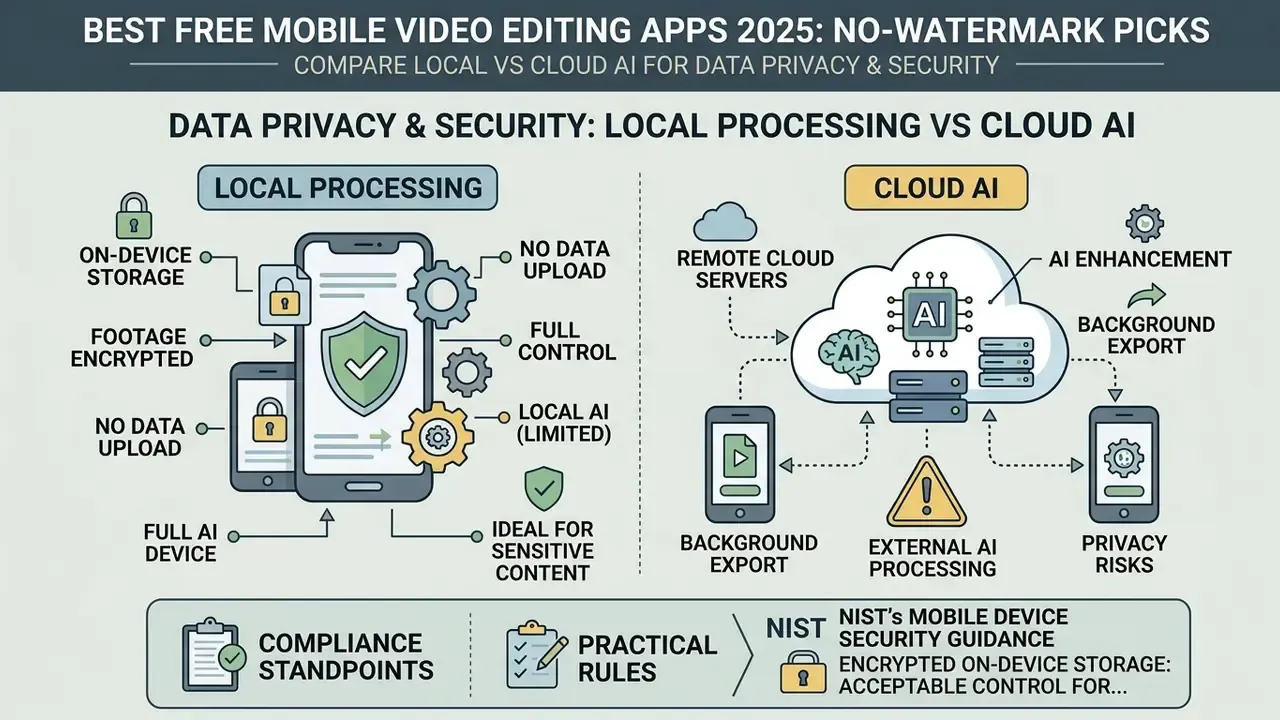
Free mobile editors are not equal from a compliance standpoint. For corporate or client footage the decisive question is where the AI actually runs: on the device's NPU, or on a vendor server in another jurisdiction.
NIST's mobile device security guidance treats encrypted on-device storage as an acceptable control for sensitive media, while its cloud computing documents define cloud services as a separate model that requires uploading files to a remote provider.
«Mobile devices should strongly encrypt data stored on built-in and removable media.»
| App | Core editing | AI features (captions, background removal, generative) | Account required | Commercial-use notes |
|---|---|---|---|---|
| VN Video Editor | Local | Mostly local; some AI assets fetched from server | Optional | Free exports; check individual template licences |
| YouCut | Local | Captions processed with a server call on most builds | No | No watermark; ad-supported |
| CapCut | Local | Captions, background removal and generative tools route through vendor servers | Yes for AI tools | Pro-marked assets restricted; review ToS for client work |
| InShot | Local | Minimal AI; listing discloses collection of photos/videos and device IDs | Optional | Review data-safety notice before uploading client media |
| PowerDirector / Filmora | Local | AI tools partly cloud-assisted | Yes for AI tools | Paid tier usually required for full commercial asset rights |
| Adobe Premiere (mobile) | Local | Captions local or cloud depending on build; projects sync via Creative Cloud | Yes | Adobe states AI-generated content is commercially safe |
| Canva | Cloud project storage | Cloud AI | Yes | Free MP4 downloads unwatermarked with free assets |
Practical rules for sensitive footage. Keep AI captioning off for confidential material, or caption manually. Disable cloud project sync when the media cannot leave the device. Confirm in each app's terms of service who holds rights to uploaded content. For teams, standardising on one editor with documented local processing beats letting every contributor choose their own, which is how the "shadow AI" pattern starts: footage quietly reaching third-party servers, with nobody able to say when or which files.
Which Free Video Editing App Is Best for Your Use Case?
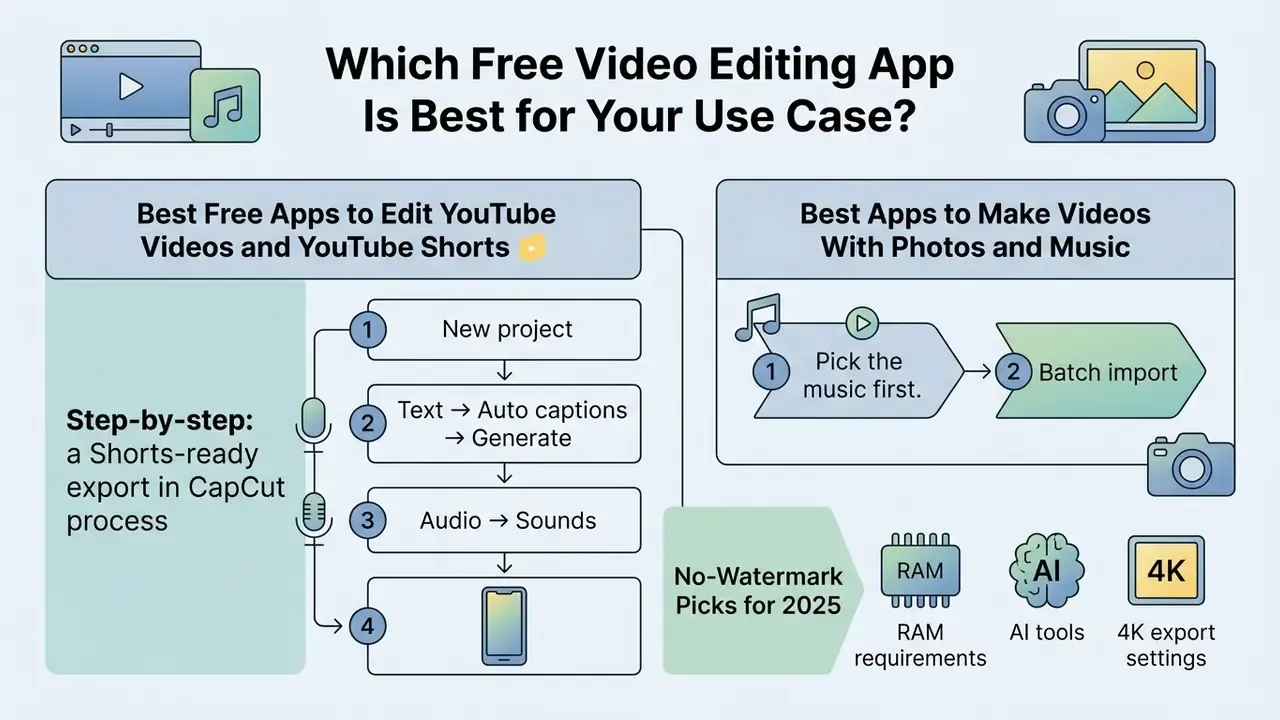
The right editor app depends on your published formats, target platforms and skill level. Match capability to production goal and you avoid both workflow bottlenecks and unnecessary software spend.
Horizontal long-form, rapid vertical clips and photo slideshows each pull on different features. The decision logic below lines goals up with platforms.
Decision tree: choosing a mobile video editor
- What is your main content type?
- Long-form YouTube (horizontal 16:9)
- Need 4K and multi-track audio? → VN Video Editor or Adobe Premiere (mobile)
- HD is enough? → CapCut or YouCut
- YouTube Shorts / TikTok / Reels (vertical 9:16)
- Need AI subtitles and trend templates? → CapCut or PowerDirector
- Need speed and simplicity? → InShot, Splice or YouCut
- Photo slideshow with music
- Beat-synced and automatic? → Quik by GoPro
- Manual timing control? → YouCut or InShot
- Brand templates? → Canva
- Client or corporate footage that must not leave the device
- → VN Video Editor or YouCut, with AI captions disabled
- Advanced effects (chroma key, motion tracking, LUTs)
- Willing to subscribe later? → KineMaster or PowerDirector
- Must stay free? → VN Video Editor
- Long-form YouTube (horizontal 16:9)
On iOS specifically, the shortlist narrows fast. VN and Adobe's Premiere mobile app are the two credible answers to "best free video editing app ios 2025", because both render clean and both read 4K HEVC without a transcode wait. On Android, the equivalent pair is VN and YouCut.
Best Free Apps to Edit YouTube Videos and YouTube Shorts
Long-form YouTube work demands robust multi track timeline controls, sane audio balancing and high-resolution rendering. VN Video Editor and Adobe Premiere Rush are the best free apps to edit youtube videos on a phone, delivering clean 1080p or 4K exports with no intrusive logo. Our step-by-step guide to YouTube video editing walks through the full publishing pipeline, from ingest to thumbnail.
For vertical content, CapCut remains an exceptional best free short video maker app. Auto captioning, built-in 9:16 aspect ratio presets and a broad music library compress short-form production into minutes rather than hours. YouTube itself now supports Shorts up to three minutes, with an in-app editor offering clip reordering, snapping, timed text, music and preview, which is handy for final tweaks even when the heavy lifting happened elsewhere. Creators looking for more vertical publishing options can explore our analysis of the best ai video generator apps 2025.
Step-by-step: a Shorts-ready export in CapCut
- New project, select clips, then Canvas → 9:16.
- Trim dead air with Split → Delete.
- Text → Auto captions → Generate, then correct any misheard words. It always mishears at least one name.
- Audio → Sounds, add a free track and drop it to roughly −18 dB under the voice.
- Delete the end-cap clip, set
1080P / 30 fps / Recommendedcode rate, then Export.
Best Apps to Make Videos With Photos and Music
Slideshows from stills live or die on timing, audio sync and restrained transitions. YouCut is widely rated the best free photo video maker app, mostly because aligning image durations to the beat of a background track takes seconds rather than fiddling.
InShot also handles photo-to-video well, with pan-and-zoom motion, background blur and custom text overlays. You can import royalty-free audio or record a voiceover straight over the photo sequence.
Step-by-step: a photo slideshow with music on your phone
- Pick the music first.The track dictates pacing. Choose it last and you will be re-timing everything.
- Batch importphotos in the order you want them, so you are not dragging 40 stills around by hand.
- Set a uniform photo duration(2 to 3 seconds for upbeat tracks, 4 to 5 for sentimental ones), then lengthen your two or three hero images.
- Cut on the beat.Drag each image boundary to the audio waveform peaks.
- Use one or two transition styles only.A single dissolve or a single wipe reads as intentional. Six styles read as amateur. Keep each transition under 0.8 s.
- Add text sparingly, then export using the preset table above.
A licensing note that saves grief later: prefer royalty-free or explicitly licensed music. Store listings love to advertise effects and transitions while staying quiet about rights, and a copyright claim on a wedding montage is an entirely avoidable problem. Our photo editor guide covers prepping stills, cropping, exposure and consistent colour, before they hit the timeline.
Best Mobile Editors for Beginners and Advanced Creators
Beginners get the most from an intuitive interface that makes basic editing obvious. That preference is not just anecdotal.
«Perceived ease of use, social influence and habit significantly shape both intention to use mobile video applications and actual usage behaviour.»
InShot and YouCut flatten the learning curve almost completely. Non-technical users can cut footage, add music and export a clean video inside ten minutes, which is roughly how long it takes most people to give up on a heavier app.
Advanced creators chasing professional looking results need keyframe animation, colour correction LUTs and chroma key compositing. VN Video Editor and PowerDirector supply those powerful video controls, giving experienced editors granular authority over layers and motion curves. The same split shows up on desktop: OpenShot markets one-click transitions and export presets for speed, while also documenting 3D LUT colour mapping and keyframe curves for users who outgrow the basics. A useful reference point when you are deciding how much depth you actually need on a phone.
How to Create High-Quality Videos on a Mobile Device
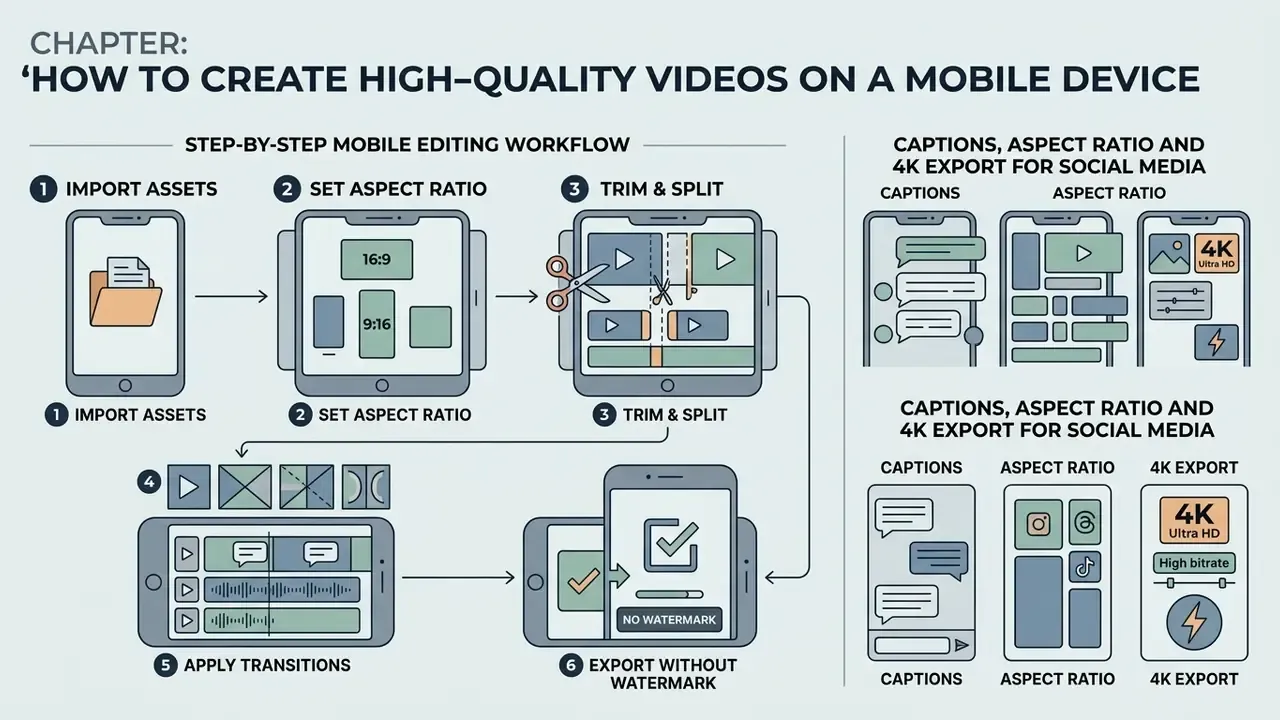
Professional quality on a mobile device is mostly a discipline problem, not a hardware one. A structured post-production routine keeps source footage clear and meets technical distribution standards without constant re-exports.
«Mobile video editing has shifted from basic trimming to sophisticated multi-layer compositing. Apps that support keyframe curves and clean 4K rendering let solo creators reach professional visual quality without desktop infrastructure.»
Systematic clip arrangement, precise audio mixing and correct export configuration do most of the work. The broader pipeline documented in mobile-journalism training materials runs in five stages: plan and prepare, record, back up and ingest, edit, then export and publish with correct metadata and platform settings. Skipping the ingest and backup stage is the single most common cause of lost projects.
Step-by-Step Mobile Editing Workflow
- Import assets and open the timeline.Launch your editor, tap New Project, and select video clips or photos in the order you want them to appear.
- Set the aspect ratio first.Go to Canvas / Aspect Ratio and choose
9:16for TikTok, Reels and Shorts,16:9for YouTube, or4:5for feed posts. Do this before adding text or overlays, so nothing gets cropped later. - Trim and split.Drag the playhead to each unwanted pause, tap Split, then Delete. Fine-tune by dragging the clip edge handles. Lay audio first and video second if you are cutting a narrated piece.
- Apply transitions.Tap the
+or transition icon between clips to add a dissolve, wipe or motion transition. Keep durations under 0.8 s for fast pacing, and reuse one style throughout. - Overlay audio and captions.Tap Audio → Tracks to import royalty-free music, duck it beneath dialogue, then use Auto-Captions → Generate to sync spoken voice to text. Burn captions in rather than leaning on platform auto-captioning, which varies wildly by language and accent.
- Export without a watermark.Tap Export settings, choose
1080por4Kat the source frame rate, confirm no Pro-marked assets remain, delete any branded end-cap, then press Export / Save.
The process starts with raw footage landing in a structured layer timeline. Trim speed variations, kill unwanted pauses and arrange clips in narrative order to establish pacing before you touch a single effect.
Once the primary visual cuts are locked, background audio and transition effects raise production value quickly. Sound effects from a royalty-free music library do more for perceived quality than another filter ever will.
«Creators describe planning and clip selection as the most labour-intensive stage of short-form video production; Lotus automates it through generative scripting and clip retrieval.»
FAQ About Free Mobile Video Editing Apps
Can a Free Mobile Video Editor Produce Professional-Looking Videos?
Yes, free mobile editors can produce professional looking videos when paired with decent lighting, clear audio capture and disciplined timeline editing. VN Video Editor, for instance, provides multi-track timelines, keyframe controls and 4K export that match many entry-level desktop tools. Reviewers draw the boundary honestly, though: free mobile apps are ideal for social, short-form and lighter edits, but they do not replicate desktop NLE depth on multi-camera documentary or feature-length projects.
Do Free Video Editing Apps Need Cloud Storage?
No. Most free mobile video editing software works locally on the device's internal hardware with no cloud storage access. According to NIST SP 800-124r1 guidelines on mobile device security, processing media locally on encrypted device storage supports data privacy and removes any dependence on an active connection, while NIST's cloud computing documentation treats cloud services as a distinct model requiring uploads to a remote provider. Adobe Premiere Rush and Canva are the exceptions, since both use cloud storage to synchronise project files across mobile and desktop. Rush's free Starter plan includes 2 GB of it.
Are AI Video Features Available in a Free Version?
Basic AI tools, such as auto captioning and simple background removal, are available in free plans like CapCut and YouCut. Compute-heavy features are a different story. Generative text-to-video, AI voice cloning and avatar generation usually sit behind paid subscriptions or credit systems.
«Deploying generative models on-device is constrained by computation, memory and energy budgets, which pushes heavy AI features toward monetised cloud inference.» — Mobile Generative AI: Opportunities and Challenges, IEEE Mobile and Wireless Communications (2024). https://ieeexplore.ieee.org/document/10599560 Limits also shift between versions. CapCut's own product pages describe free AI subtitles, while some 2025 reviews report a cap of one generation per month on certain regional builds. To explore dedicated AI generation software, check our detailed comparison of the best ai video generator and our reference guide to AI video generators.
Which Free Editor Works on a Low-RAM Phone?
On a 2 to 3 GB RAM device, use YouCut or InShot. Both list minimums around 2 GB RAM and 2 GB free storage, and both handle 1080p timelines without transcoding stalls. Avoid stacking more than two overlay layers, and pre-trim 4K source clips down to 1080p before importing. CapCut technically installs at 2 GB RAM and 4 GB storage but effectively wants 8 GB RAM for HD media, while Filmora and VN prefer 3 GB or more.
Why Does My Export Still Have a Watermark After Following the Steps?
Three usual causes. A Pro-marked template, sticker, filter or font is still sitting in the project. The auto-added end-cap clip was never deleted. Or the ad-based unlock in InShot, Filmora or VLLO was skipped, or interrupted before the ad finished. Re-scan the timeline for crown and "Pro" badges, delete the final branded frame, then export again.
Do These Apps Allow Commercial Use of Their Free Assets?
It varies, and it matters more than most people assume. Free music libraries, stock clips and AI outputs each carry separate terms. Some are licensed for personal use only, others for monetised channels. Adobe states that AI-generated content in its mobile app is commercially safe, while several template libraries restrict Pro-marked assets outright. Read the in-app licence for each asset before publishing on a monetised or client channel.
Summary of Top Free Mobile Video Editors
Picking the best free mobile video editing app comes down to your production priorities:
- CapCut best for short-form social videos, AI captions and template-driven editing. Clean 1080p free export once the end-cap clip is deleted.
- VN Video Editor best for advanced timeline control, keyframe animation and watermark-free 4K 60 fps export.
- YouCut best simple Android editor for clean 1080p HD exports with no watermark, ever.
- Adobe Premiere Rush best for cross-device editing and handoff to desktop tools, with unlimited watermark-free mobile exports on the free Starter plan.
- Wondershare Filmora best for AI-assisted mobile effects and a large licensed asset library.
- InShot / Splice / Canva best for fast resizing, beat-matched edits and brand-consistent templates.
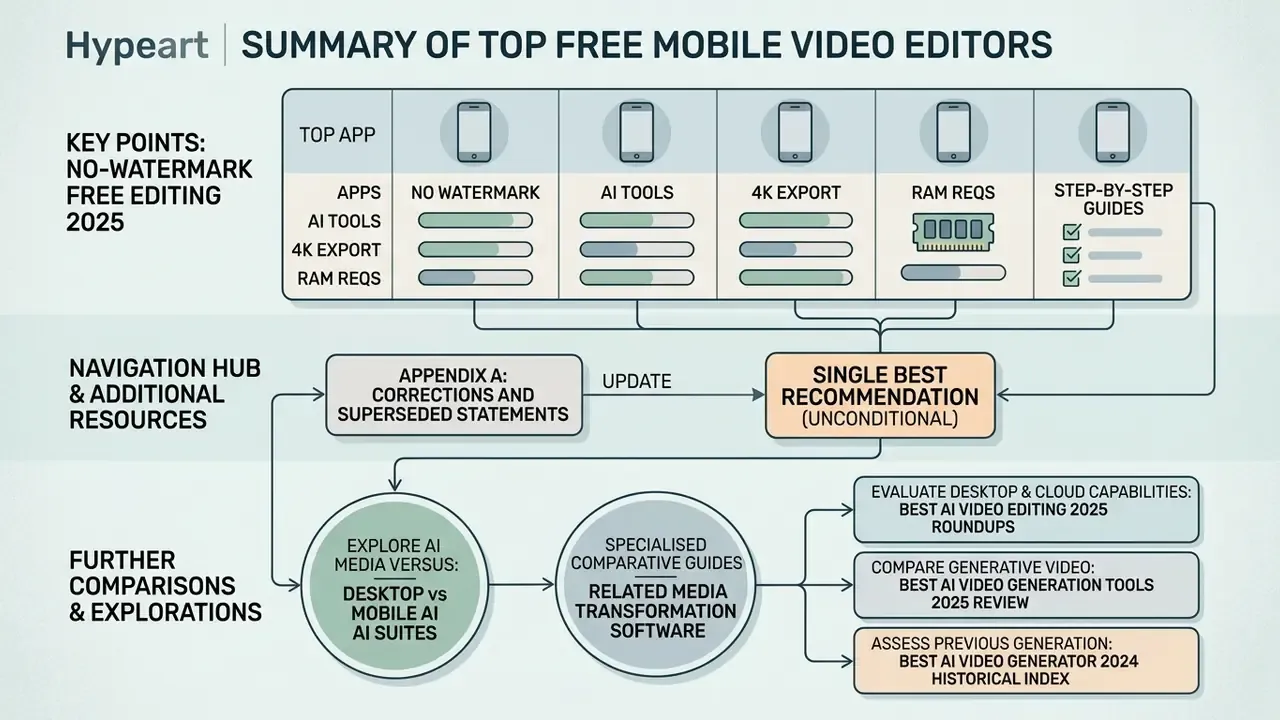
If you want one recommendation for the best free video editing app for mobile 2025 without conditions attached, install VN. Then keep YouCut or InShot on the same phone for the two-minute jobs.
For further comparisons between desktop and mobile AI suites, explore our comprehensive AI Media Versus analyses, our head-to-head of free AI video generators, or our AI Media Benchmarks and Review Proof for detailed performance data.