Executive Summary
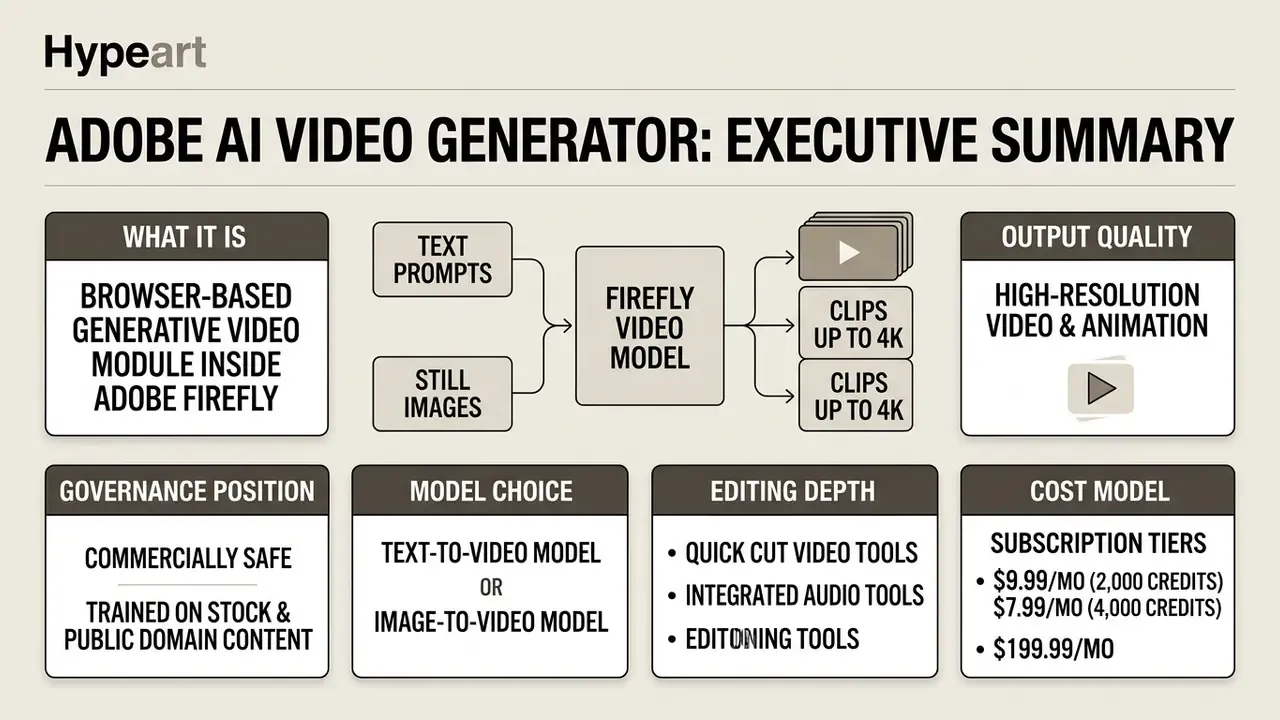
For decision-makers who need the verdict before the detail:
- What it is. The Adobe AI Video Generator is a browser-based generative video module inside the Adobe Firefly workspace. It turns text prompts, single images, first and last keyframes, and reference motion clips into finished video assets.
- Output quality. Clips export as MP4 in resolution tiers of 540p, 720p, 1080p, and up to 4K (native generation in image-to-video mode, or via the
UpscaleQuick Action). Clip length is typically 5 to 8 seconds, with some partner models reaching 15 seconds. - Governance position. Assets generated with the Adobe Firefly Video Model are designated commercially safe: training data is limited to licensed content (Adobe Stock) and public-domain material where copyright has expired. Customer uploads and prompts are not used to train Adobe's foundation models. Qualifying enterprise entitlements add contractual IP indemnification.
- Model choice. One interface exposes the Adobe Firefly Video Model plus partner engines: Runway Gen-4.5, Google Veo 3.1, Kling 3.0 Omni, and Luma AI Ray3. Each carries different licensing terms, and each must be logged separately in a model inventory.
- Editing depth. The Firefly video editor adds a multi-track timeline,
Quick Cutrough assembly,Text-Based Editingby transcript,Prompt-to-Editobject and background changes,Enhance Audio,Generate Soundtrack,Generate Speech, lip-sync dialogue, and basic color sliders, all within a 20 GB per-file and 4-hour project ceiling. - Cost model. Subscription tiers run from $9.99 per month (2,000 generative credits) to $199.99 per month (50,000 credits plus unlimited Firefly Video Model access). Budget roughly 100 to 200 credits per 5-second clip, and plan for iteration overhead when calculating true cost per approved asset.
Who This Guide Is For and How to Read It
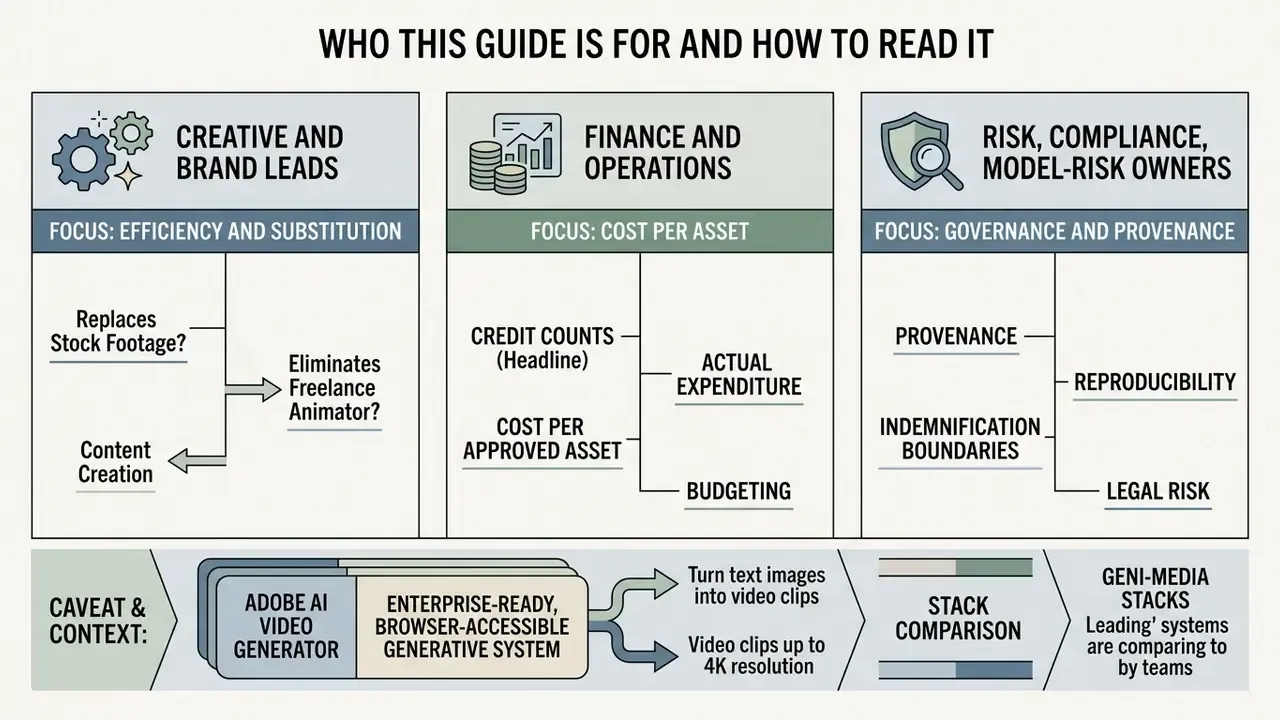
Three reader profiles tend to arrive at this topic with very different questions, and the answers rarely overlap.
- Creative and brand leads want to know whether Firefly replaces stock footage and a freelance animator. Start with the features and step-by-step sections.
- Finance and operations want cost per approved asset, not headline credit counts. Skip to the pricing and TCO model.
- Risk, compliance, and model-risk owners want provenance, reproducibility, and indemnification boundaries. The governance and audit-trail section is written for you.
One honest caveat before the detail. Adobe ships updates to this product frequently, and beta labels move. Every figure here reflects Adobe's published documentation as of January 2026, and anything material to a contract should be re-verified against your own entitlement before it becomes policy.
The Adobe AI Video Generator itself is an enterprise-ready, browser-accessible generative system that creates high-resolution clips up to 4K from structured text prompts, still images, and reference motion assets. Integrated directly into the Adobe Firefly web workspace, it lets creative teams, financial marketers, and video editors generate B-roll, test concepts, and perform multi-track timeline editing inside a single environment.
To see how these capabilities fit alongside broader generative media stacks, teams often compare the leading AI video generators before committing production budget to one vendor.
What Is the Adobe AI Video Generator and How Adobe Firefly Works
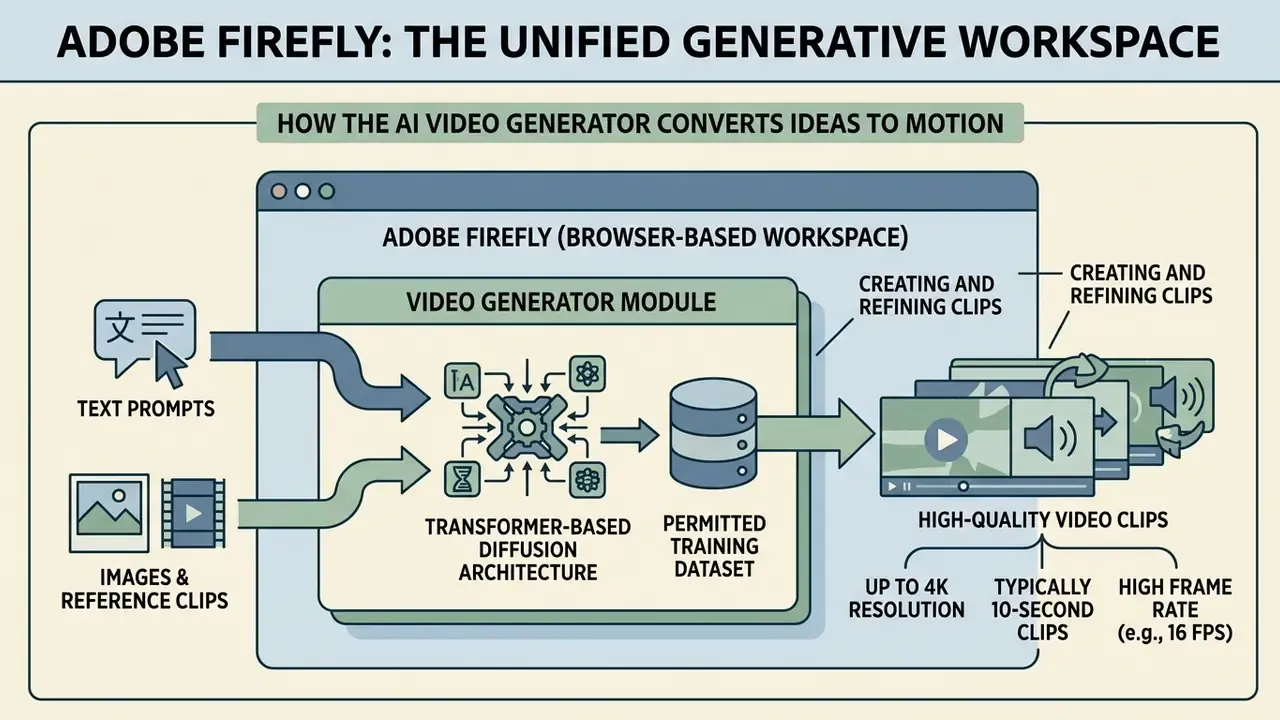
In two sentences: Firefly is a unified generative workspace, and the video generator is the module inside it that converts language and images into motion. Everything, from model selection through generation, refinement, timeline assembly, and export, happens in one browser session.
Adobe Firefly functions as a unified, browser-based creative workspace that integrates generative artificial intelligence across image, vector, audio, and video modalities. The adobe ai video generator operates within this ecosystem as a specialized video generation module (firefly video), converting textual requirements and visual keyframes into production-ready generated video assets.
"The next evolution of creative AI is here for all your ideas, with image, video, audio, and vector tools."
By anchoring generative algorithms to a strictly permissioned training dataset, Adobe offers an environment where ai video generation aligns with corporate governance and intellectual property standards. That is the whole pitch, and for regulated buyers it is the only part that survives legal review.
The underlying adobe ai video generation framework uses a transformer-based diffusion architecture that synthesizes scene dynamics, lighting conditions, and temporal continuity across frames. Rather than functioning as an isolated sandbox, the tool connects directly to Creative Cloud repositories, so teams can generate short clips and immediately move them into downstream post-production workflows.
Text-to-Video and Image-to-Video Generation in Firefly
Text-to-video and image-to-video are the two primary operational modes in the Adobe Firefly video generation workspace. In text-to-video mode, the user enters a detailed descriptive prompt, minimum 8 words, defining subject motion, camera behavior, and environmental attributes. The prompt field in the Firefly web app enforces a 1,024-character maximum. Older Adobe Help Center documentation cited limits up to 1,800 characters for certain modules, so treat 1,024 as the practical production ceiling. The model converts those linguistic tokens into continuous temporal sequences, outputting an ai generated video at 540p, 720p, 1080p, or native or upscaled 4K (Adobe Help Center, 2026).
Teams benchmarking alternative engines can review the wider landscape of text-to-video AI tools before standardizing on a single generator.
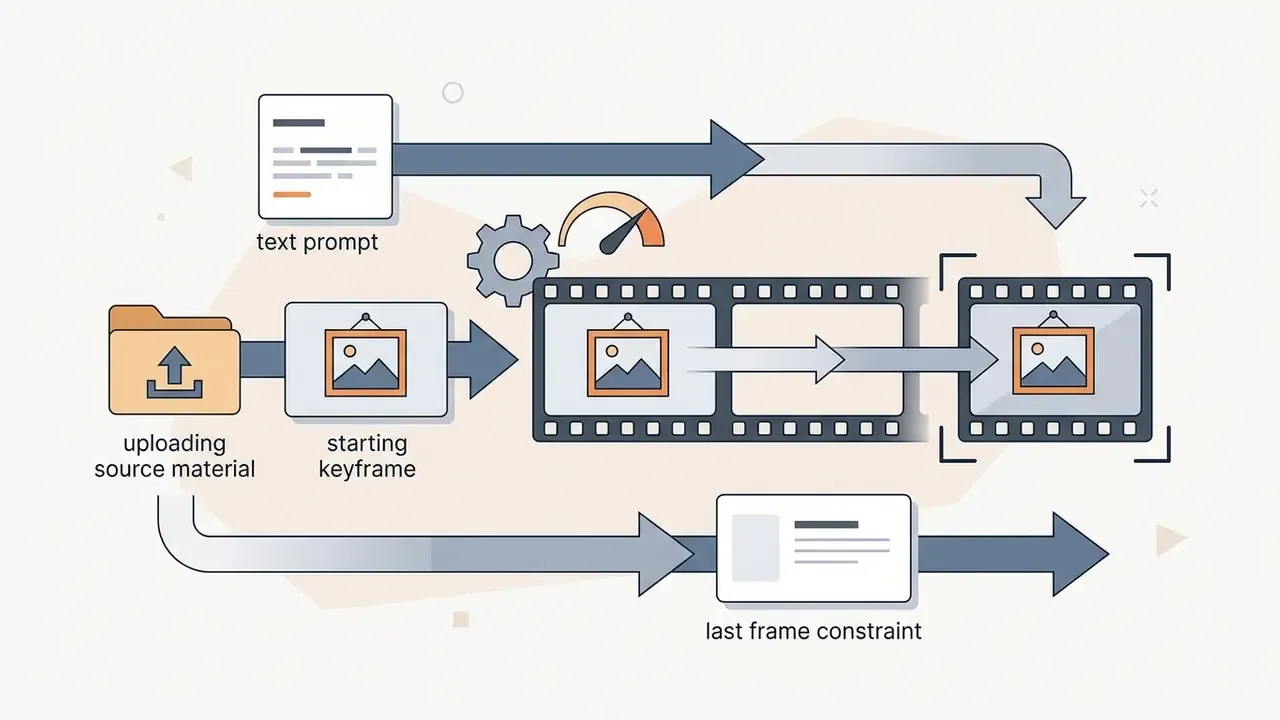
In image-to-video mode, users upload a single starting keyframe (JPG, PNG, WEBP, or HEIC) or both first and last frames to establish visual boundary conditions. The system preserves the input image's composition, character identities, and color palette while predicting motion pathways from a secondary text description. This dual-conditioning mechanism limits visual drift, which lets marketing teams animate static concept art or product photography without breaking brand alignment. That is the core value of image-to-video generation.
One operational rule trips up almost every new user: when a reference image sits in the first-frame slot, style presets and composition reference options become unavailable. Style selection unlocks only after the reference image is removed from the prompt box. So decide early whether a shot is style-driven or reference-driven. Otherwise you burn credits learning it the expensive way.
Firefly as a Single Workspace for Creating and Refining Clips
The Adobe Firefly web app acts as a centralized workspace where creators assemble, review, and refine individual video fragments without toggling between separate applications. The interface provides immediate playback previews, side-by-side history comparison thumbnails, and direct access to generative parameter adjustments.
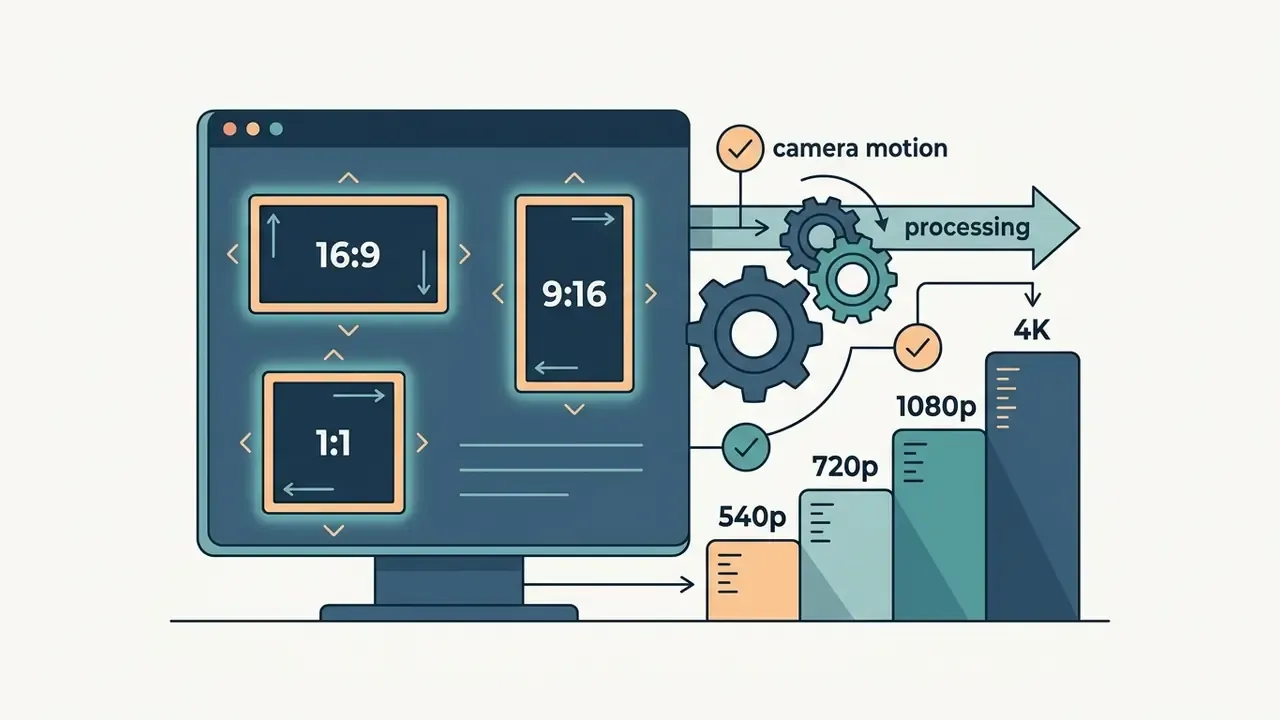
Inside this workspace, users adjust generation seeds, change aspect ratios (16:9, 9:16, 1:1), and switch between base AI models. Once a generated video fragment exists, it lives in the persistent Generation History, from which it can be pushed to the integrated multi-track timeline or exported as MP4. Teams that also manage large static asset libraries frequently pair this workflow with a dedicated online photo editor for stills, keeping motion and static production in adjacent, comparably governed environments.
Adobe Firefly AI Video Generator Features
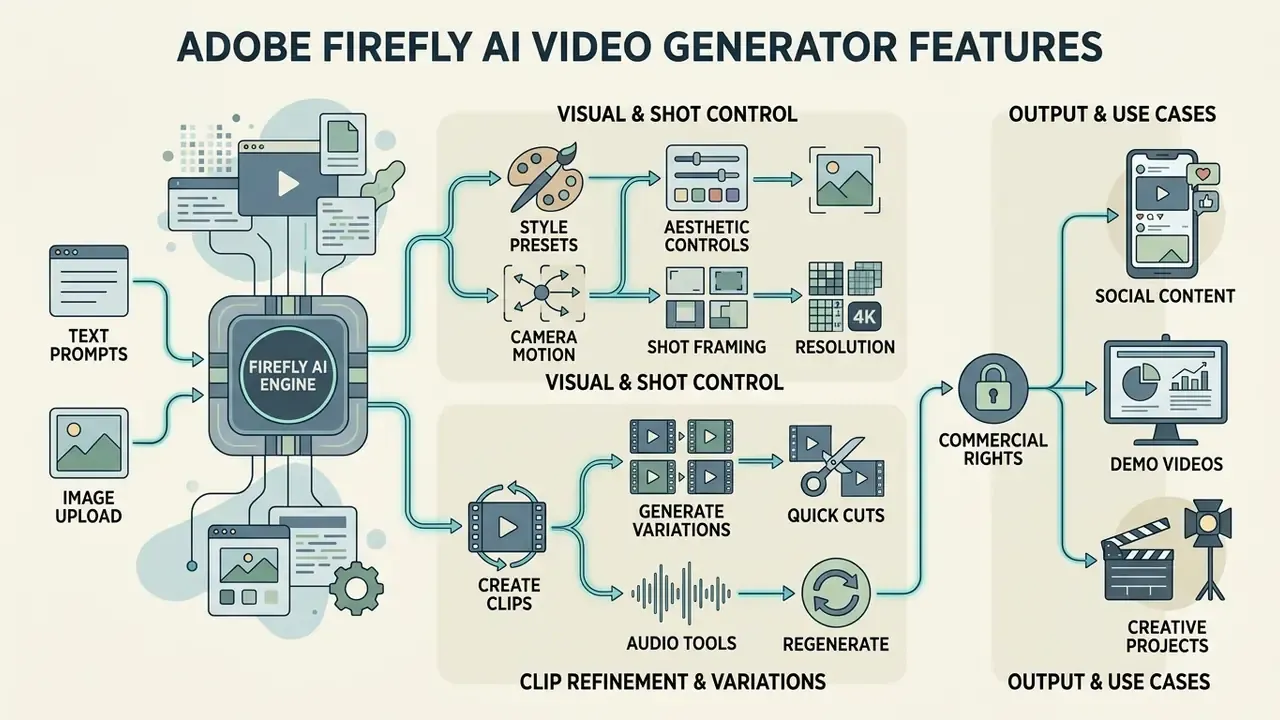
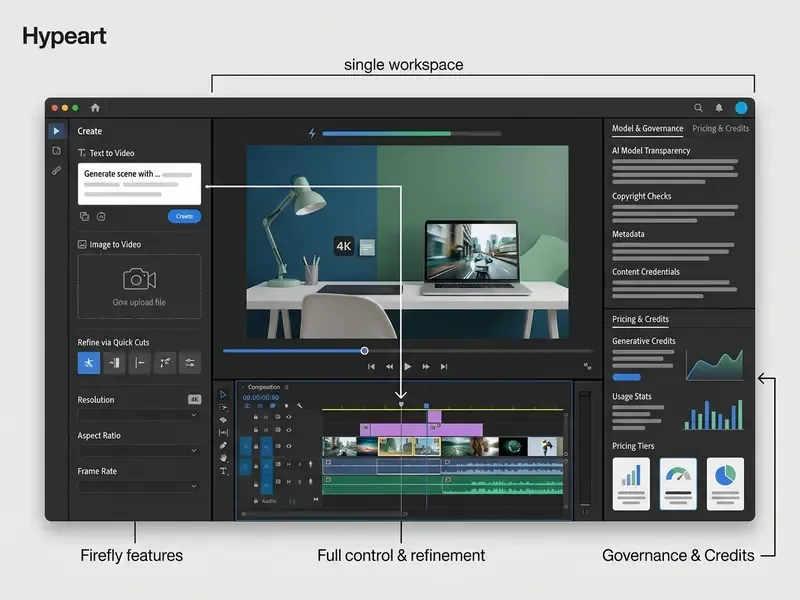
In two sentences: Firefly exposes deterministic controls for camera movement, shot framing, aesthetic style, and resolution instead of leaving output to chance. That parameterization is what makes generated footage usable in a brand-controlled production pipeline.
The adobe firefly ai video generator features cover extensive parameterization designed to give operators precise control over cinematic aesthetics, spatial movement, and temporal consistency. Unlike open-loop generative systems that yield unpredictable visual drift, the adobe firefly video generation capabilities enable deterministic camera positioning, structured motion controls, and repeatable style presets. The same logic applies to the adobe firefly ai text to video features available in the prompt-only mode.
Adobe has publicly described the Firefly Video Model as combining a novel transformer architecture with a redesigned VAE and improved scene-dynamics learning, and states that this foundation improved text-to-visual alignment and realistic camera motion (Adobe, Firefly Video Model general availability announcement, 2025). Updated: because Adobe has not published a peer-reviewed paper quantifying that gain, the independent research record is the more defensible citation for the underlying model class:
These structural features let creative teams produce studio-grade footage while keeping tight control over production parameters.
Style, Camera Motion, and Visual Output Control
Camera motion and visual styling in Adobe Firefly can be configured through explicit UI selectors or embedded text controls. Users apply movement parameters such as smooth pan (left or right), tilt (up or down), zoom in and out, static tripod placement, or handheld shake. Motion can also be extracted from an uploaded reference clip, letting Firefly inherit pans, zooms, tilts, and motion paths from existing footage. These controls are what make generated clips behave like real camera rigs during commercial production.
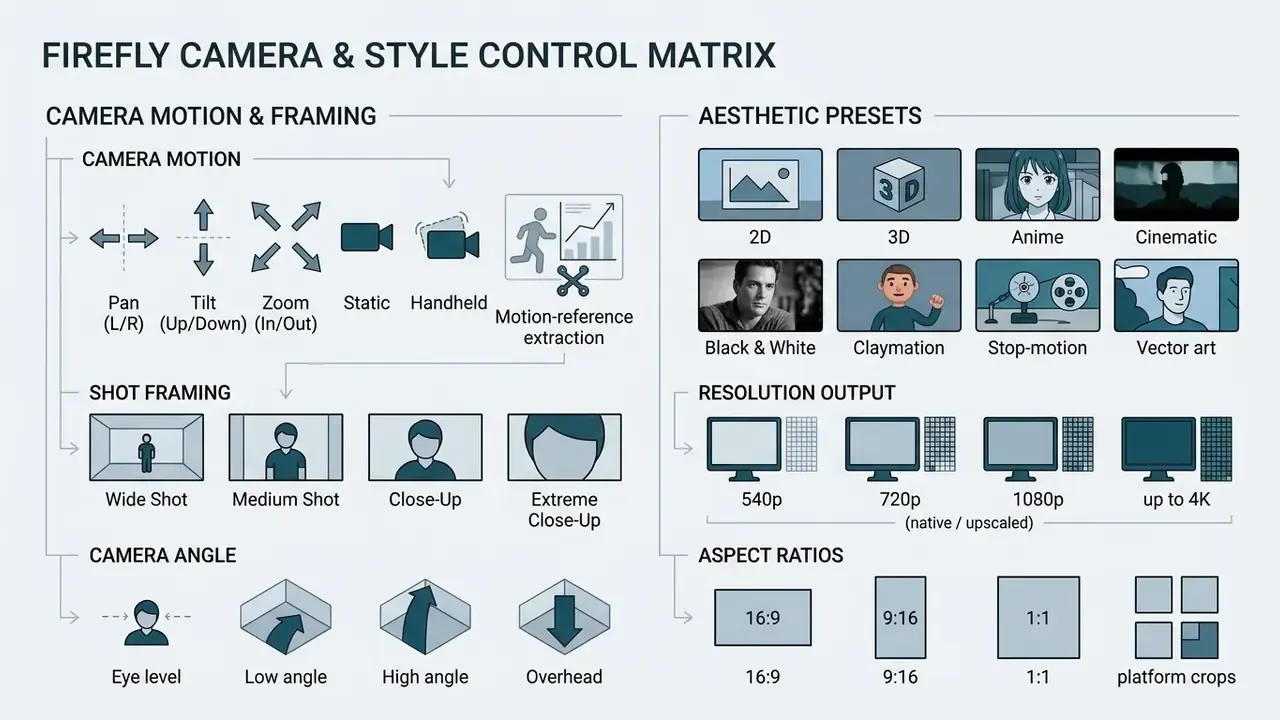
Style presets enforce specific aesthetic genres across generated sequences: Cinematic, 2D Animation, 3D Render, Anime, Claymation, Stop-motion, Black and White. Combined with granular shot framing (wide, medium, close-up), these parameters remove most of the randomness and produce assets suitable for professional storyboards and commercials.
Variations, Refinement, and Regeneration of Clips
Iterative refinement in Firefly is governed by seed controls, prompt revision loops, and variation generation. When a user produces an initial output, Firefly attaches a unique seed number to the render job. Keeping that seed while modifying specific adjectives in the prompt changes secondary elements, such as lighting temperature or background props, without disturbing the character trajectory or camera motion. Removing the seed forces the model to start over, which is the right move when a concept must be genuinely re-explored rather than nudged.
If a generated scene needs partial modification, prompt-to-edit workflows request targeted scene updates. The system references prior frame states, so editors can refine lighting, swap background elements, or extend camera paths without restarting generation from zero (Adobe Help Center, 2026).
"Targeted model tuning preserved character identity and background consistency across shot changes without degrading text alignment."
How to Create Adobe AI Text to Video: The Step-by-Step Process
In two sentences: The generation pipeline has six stages, from workspace entry to MP4 export. Following it in order minimizes wasted credits and produces repeatable, documentable output.
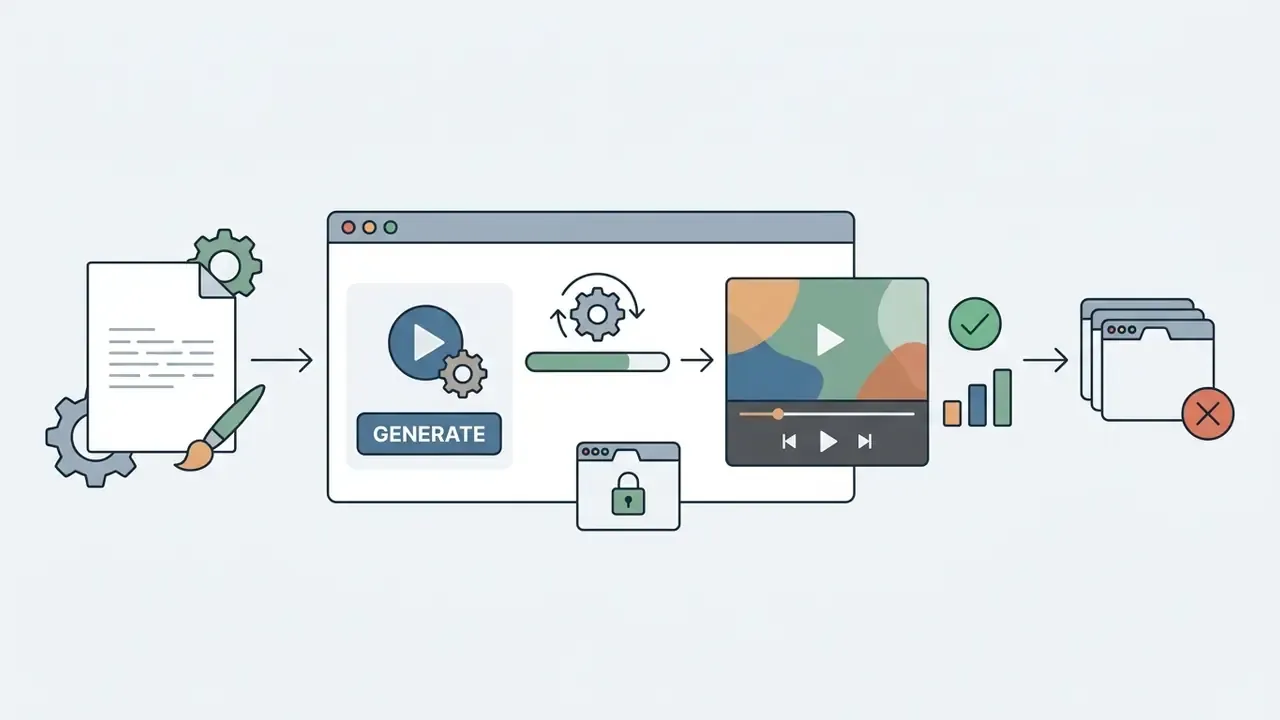
Generating an adobe ai text to video clip involves a structured, sequential workflow designed for visual fidelity and credit efficiency. The adobe text to video ai pipeline converts structured text inputs into rendered MP4 files through six stages.
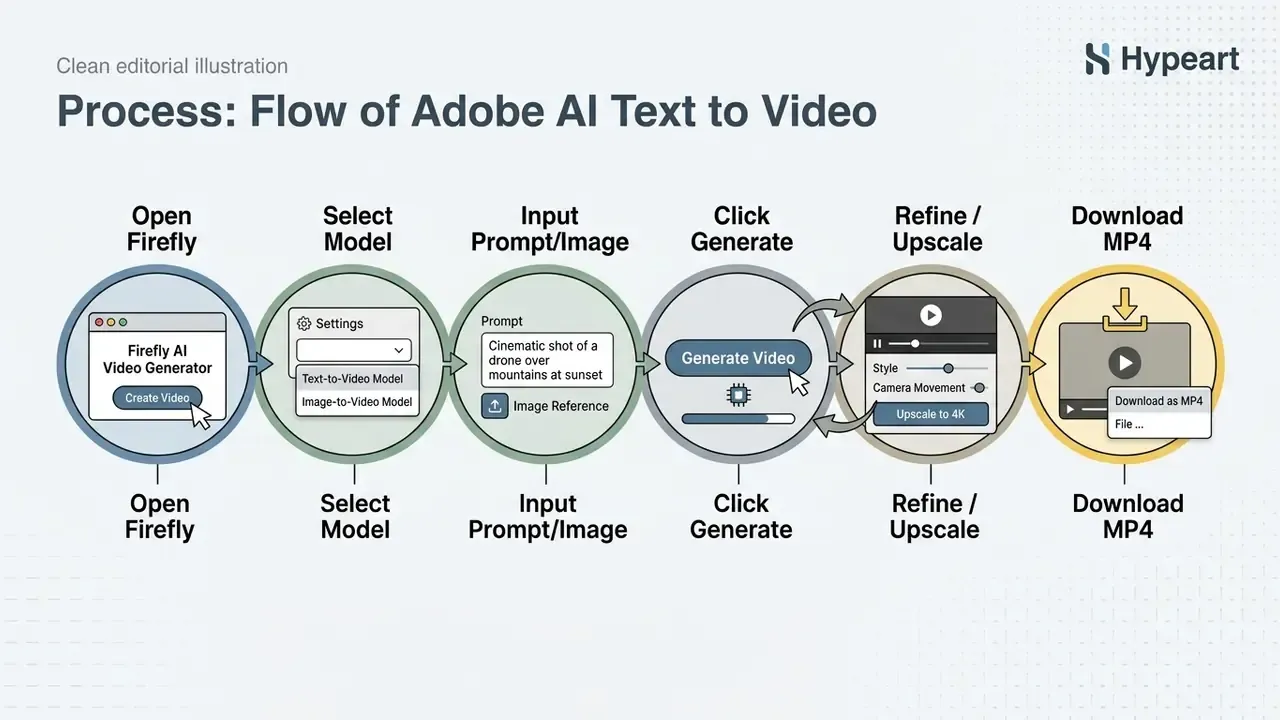
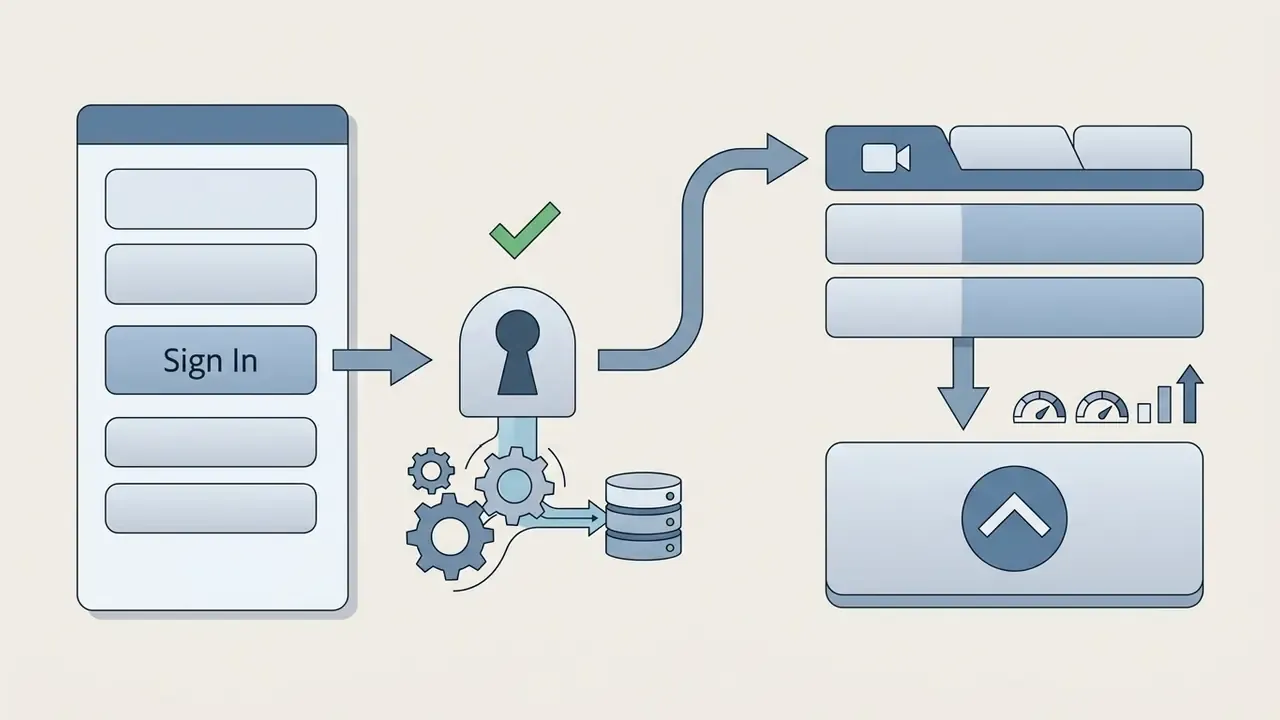

Upscale if needed, then click "Download" to save the MP4.How to Write a Prompt for AI-Generated Video
Writing effective prompts for the adobe firefly video generator text to video workflow requires explicit language that removes algorithmic ambiguity. Prompts must be at least 8 words long and must fit the prompt field's character ceiling (Adobe Help Center, 2026).
A reliable formula follows this syntax:
[Shot Type & Camera Angle] + [Subject Description] + [Action & Movement] + [Environment & Lighting] + [Aesthetic Style & Color Grade]
"Adobe recommends a prompt structure of shot type + character + action + location + aesthetic, detailing lighting, color grade, and camera motion to reduce ambiguity."
- Weak prompt: "A car driving fast on a road at night."
- Effective prompt: "Cinematic low-angle tracking shot of a sleek black electric sports car accelerating along a wet coastal highway at dusk, warm sunset reflections on metallic paint, shallow depth of field, 4k photorealistic, moody atmospheric lighting."
By specifying camera behavior ("low-angle tracking shot"), environment ("wet coastal highway at dusk"), and lighting quality ("warm sunset reflections"), the generator receives clear constraints and returns cleaner output. Motion cues such as zoom in, move left, tilt up, static, and handheld can be embedded in the prompt text even when the UI selectors are already set. Redundancy helps here.
How to Use an Image as the Basis for Video
The image-to-video workflow uses an existing static asset as the foundational starting frame. The operator uploads a high-resolution JPG or PNG (1080p or higher, sharp and well lit) into the First Frame control block.
Once the image loads, the user enters a text prompt describing motion trajectories and environmental activity. The system locks the visual identity of objects, facial features, and background elements from the reference photo, then applies the movement commands from the text field. An optional Last Frame image forces the model to interpolate motion between two explicit visual states. And remember, style presets stay greyed out while a reference image occupies the frame slot.
A financial services firm needed twelve static infographics turned into animated snippets for a digital campaign. The media team uploaded the designs as starting keyframes, applied subtle pan controls, and wrote targeted motion prompts. Result: twelve brand-aligned, 5-second clips inside two hours, with external animation costs avoided and graphic standards preserved. Illustrative composite example, not an audited client engagement.
How to Review the Result, Refine the Clip, Upscale to 4K, and Download
On completion, the preview canvas shows the rendered sequence alongside technical metadata: prompt text, model version, and generation seed. Operators should validate visual continuity, checking that subject movement looks natural, that text and logos have not warped, and that no unintended trademarks appear in frame.
If the clip needs adjustment, click "Generate Variations" or change camera movement parameters in the side panel without clearing the prompt.
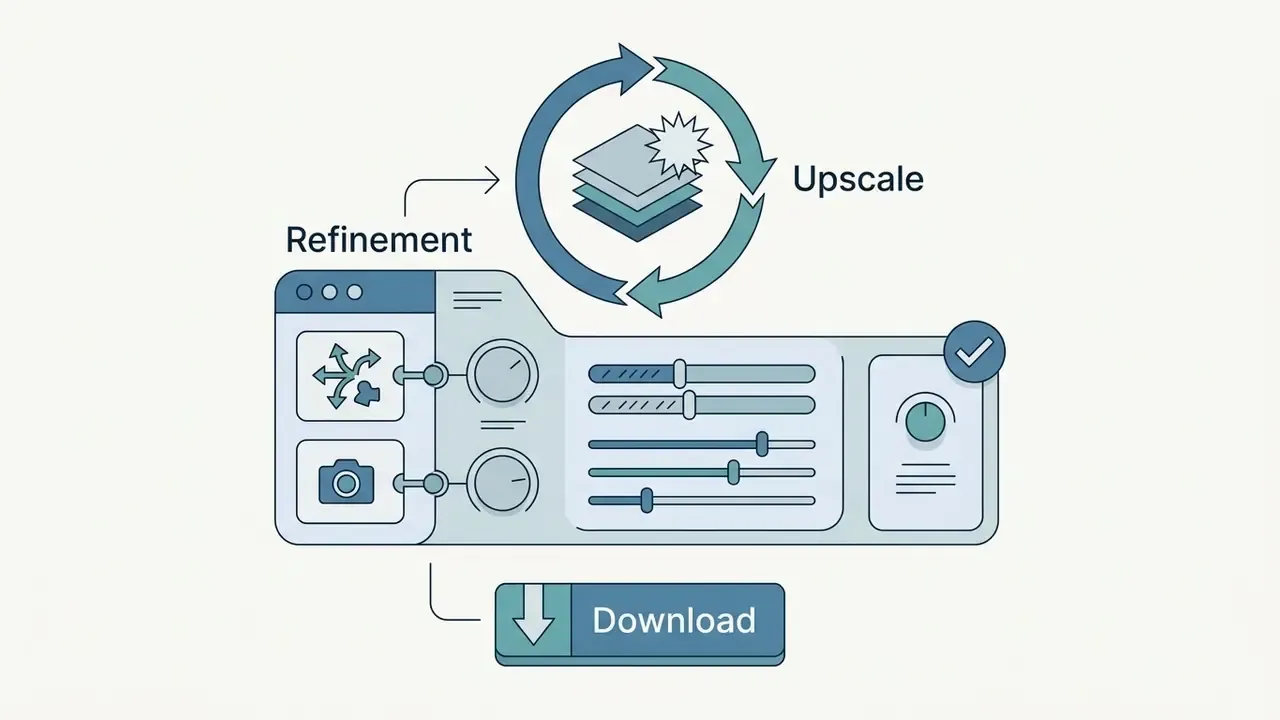
To raise a finished clip to 4K: select the completed generation in the Edit tab, open Quick Actions in the left panel, and click Upscale. Firefly recalculates frame detail while preserving the original motion cadence, then returns the upscaled asset to Generation History for download or timeline use.
When output meets project standards, "Download" saves a standard MP4 container encoded with H.264 video and AAC audio (Adobe Help Center, 2026). Export settings can be changed to reproduce the same clip in additional aspect ratios for other platforms. Teams delivering to bandwidth-constrained channels typically pass final exports through a video compressor first.
Adobe Firefly AI Video Editor: Assembly and Post-Production
In two sentences: The Firefly editor turns isolated generations into finished stories on a layered timeline inside the browser. It combines conventional trimming and titling with AI automation such as Quick Cut, transcript-based editing, and prompt-driven frame changes.
The adobe firefly ai video editor extends Firefly beyond isolated clip generation into a multi-track, browser-based post-production environment. Built to bridge generative media and classic non-linear editing, it lets creators sequence multiple AI-generated segments, trim live-action footage, overlay titles, and synchronize audio on one timeline. Teams comparing this environment with conventional web and desktop video editors should weigh browser convenience against finishing depth.
While desktop applications like Premiere Pro handle heavy finishing, the Firefly video editor gives you an accessible web interface for rapid assembly and storytelling.
Timeline Assembly: Trimming, Ordering, and New Clips
The core of the Firefly video editing interface is a layered timeline supporting multiple video, audio, text, and graphic tracks. Users drag generated clips from the cloud history panel onto the primary video track, arrange scenes sequentially, and stack additional shots on upper tracks for cutaways, overlays, and titles.
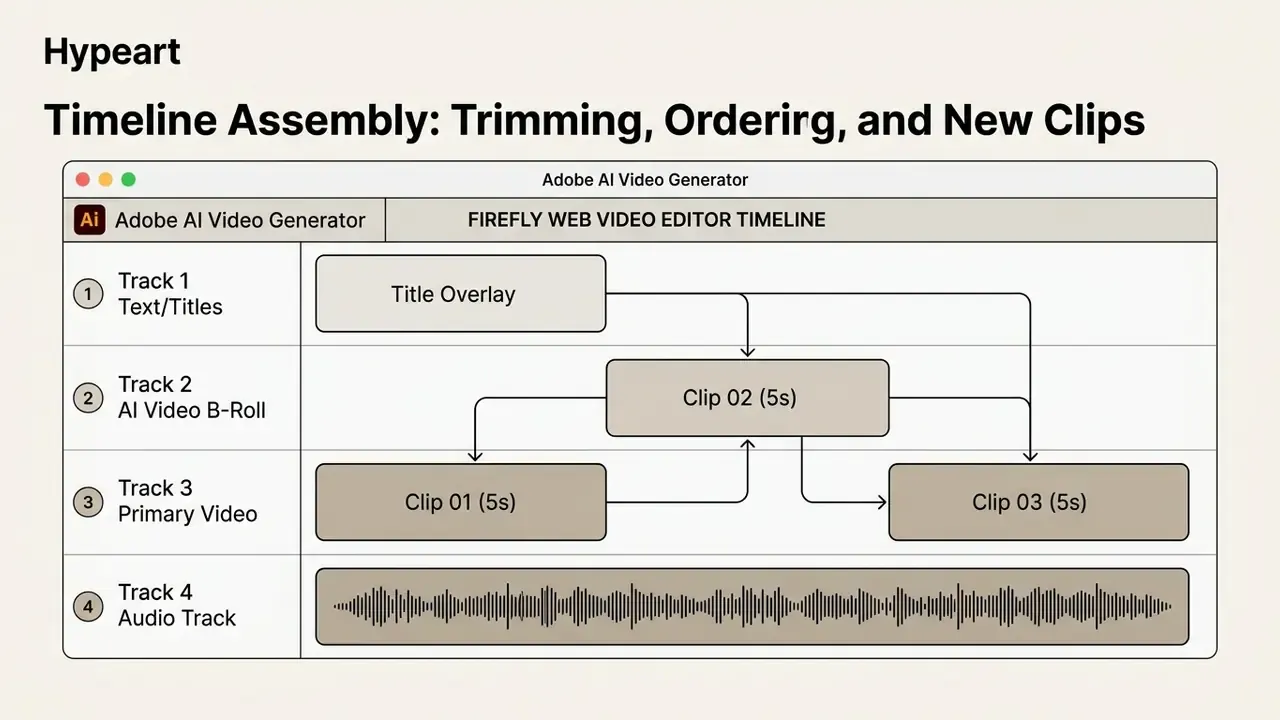
Editing controls include precise trims (dragging clip edges, or pressing W to trim end-to-playhead) and a Split tool for cutting at specific timestamps. Built-in scene detection can analyze uploaded files and split them into logical cuts automatically. Editors can also generate new AI clips directly from the timeline, through the Generate Media panel, to fill narrative gaps or extend shot durations (Adobe Help Center, 2026).
"In a user study with 75 participants, videos produced with controlled shot transitions scored higher on identity consistency, background consistency, and overall quality."
Smart Editing: Quick Cut, Transcript Editing, and Prompt-to-Edit
Three automation layers separate the Firefly editor from a conventional browser timeline:
- Quick Cut analyzes uploaded source footage, detects shot changes and semantic blocks, and assembles a first-draft cut on the timeline in one click. Editors then refine pacing instead of building from zero.
- Text-Based Editing (transcript editing) is built for interviews, podcasts, and talking-head content. Firefly transcribes speech and displays the text; deleting a word or sentence removes the corresponding video segment automatically.
- Prompt-to-Edit sits inside the
Generate Videomodule'sEdittab and changes the content of an existing clip with plain language: add or remove objects, replace backgrounds, adjust lighting, no manual masking or rotoscoping.
Together with Upscale, these Quick Actions cover most light-touch revisions that would otherwise require a round trip into desktop software.
Text, Audio, Color, and Effects in the AI Video Editor
The editor bundles automated audio synthesis, graphic text layers, and non-destructive visual adjustments:
- Text and titles. A dedicated Text panel supplies customizable title templates, lower-thirds, and callout graphics. Typography, font weight, color fill, and position can be adjusted on the preview canvas, with fine control in Properties.
- Advanced audio and speech synthesis:
- Enhance Audio clarifies dialogue in one click, suppressing background noise, correcting frequency balance, and rebalancing levels across speech, music, and ambience.
- Generate Soundtrack analyzes the visual sequence and cutting rhythm, then produces an original music bed matched to emotional tone and shot changes.
- Generate Speech and Text-to-Sound-Effects converts scripts into natural narration across supported languages with adjustable emotion, pacing, and emphasis, and synthesizes discrete sound effects from text or voice input. Teams standardizing narration across campaigns often audition options in a dedicated AI voice generator before locking a brand voice.
- Native dialogue and lip-sync. With the integrated Kling 3.0 Omni and Google Veo 3.1 models, character speech can be generated from a script with lip movements synchronized to the audio track.
- Track properties cover volume, fade transitions, and ducking, so beats land on cuts.
- Color adjustments. Manual sliders control Exposure, Contrast, Saturation, and Color Temperature per clip, plus one-click
Lookspresets, keeping color uniform across AI-generated and live-action assets.
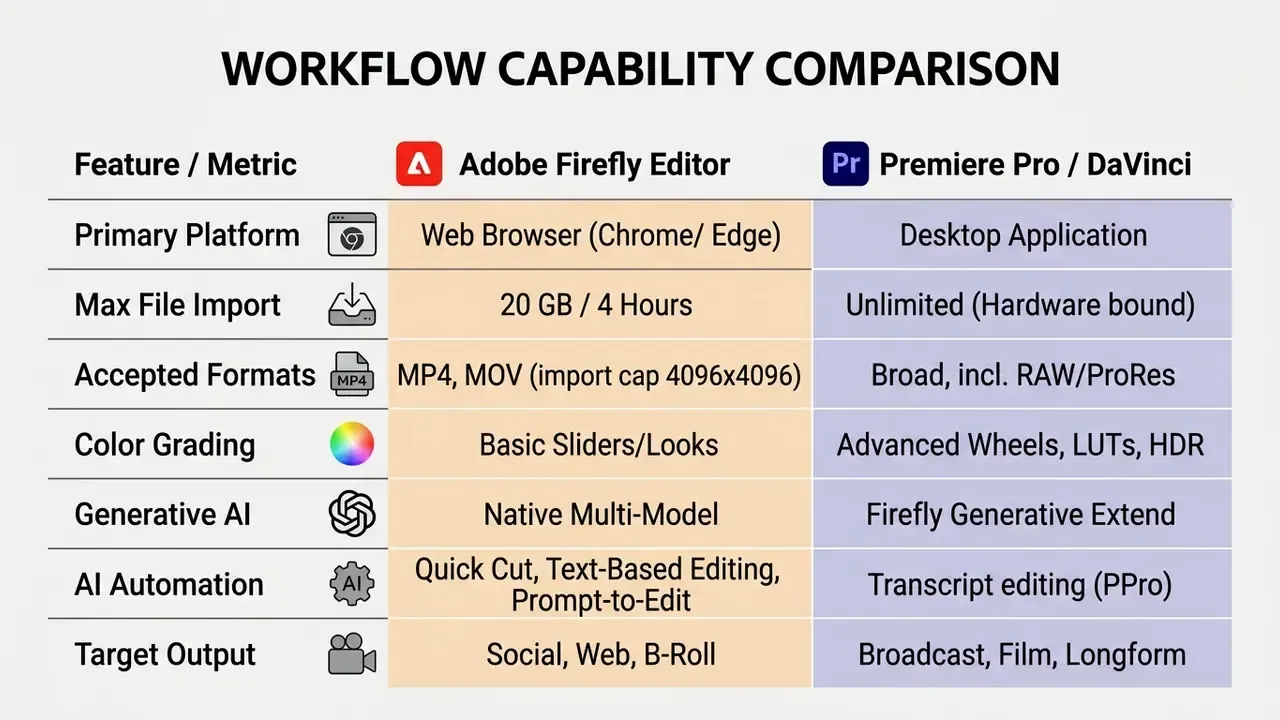
When Firefly Works as a Video Editor and When You Need Another Workflow
The browser-based Firefly editor is optimized for fast web assembly, social content, and promotional storytelling. It runs entirely inside modern desktop browsers (Chrome and Edge), so there is no local installation, and no separate adobe firefly ai video editor download to manage through IT (Adobe Help Center, 2026). Teams weighing browser convenience against installed alternatives can review the field of free video editing software for offline finishing needs.
AI Models in Firefly and Choosing the Tool for Video Generation
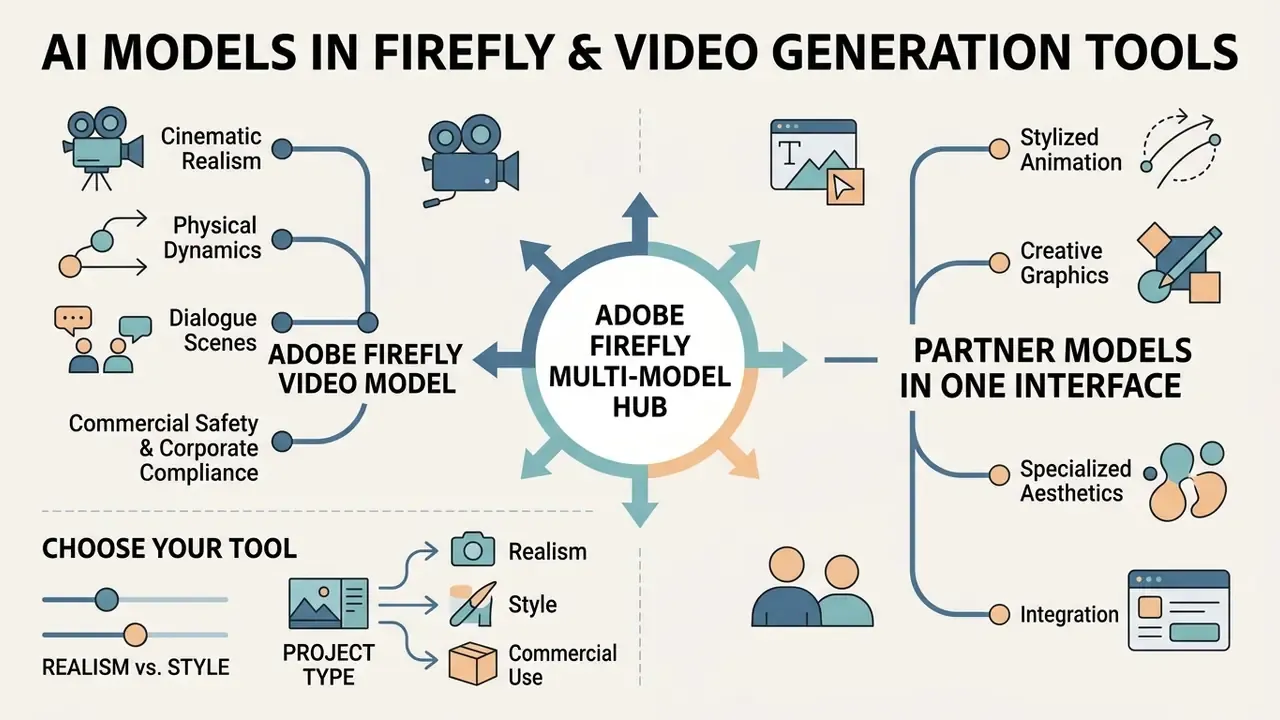
In two sentences: Firefly is a multi-model hub, not a single-engine product. Model selection determines visual character, generation speed, and, critically for regulated industries, the licensing regime attached to the output.
Adobe Firefly provides access to a multi-model generative architecture, housing Adobe's proprietary model and integrated third-party engines within one interface. That strategy lets users pick a model by visual style, photorealism, processing speed, and legal safety requirements.
"Firefly's Model dropdown surfaces engines including Gemini Omni Flash, Kling 3.0 Omni, Runway Gen-4.5, and Veo 3.1; selecting a partner model prompts confirmation that a third-party tool will be used."
| Model Name | Developer / Origin | Supported Inputs | Primary Strengths & Output Characteristics | Commercial Licensing Status |
|---|---|---|---|---|
| Adobe Firefly Video Model | Adobe Proprietary | Text Prompt, First/Last Frame Images, Reference Video | High camera control, IP-safe training on Adobe Stock, stable B-roll | Commercially Safe (Eligible for Enterprise IP Indemnification) |
| Runway Gen-4.5 | Runway (Partner) | Text Prompt, Image Upload | High visual realism, realistic weight and momentum in object physics, cinematic motion direction | Commercially usable under applicable partner licensing terms |
| Google Veo 3.1 | Google (Partner) | Text Prompt, Image Upload | Photorealistic rendering, high prompt adherence, native synchronized audio and dialogue | Commercially usable under applicable partner licensing terms |
| Kling 3.0 Omni | Kuaishou (Partner) | Text Prompt, Image Upload | Multi-shot production-ready output, complex character movement, native dialogue with lip-sync | Commercially usable under applicable partner licensing terms |
| Luma AI Ray3 | Luma Labs (Partner) | Text Prompt, Image Upload | Fluid photorealistic motion, smooth camera movement, subject and geometry continuity across frames | Commercially usable under applicable partner licensing terms |
Readers evaluating one engine in depth can review the implementation details and API economics of the Google Veo AI video generator.
Adobe Firefly Video Model and Partner Models in One Interface
The Model dropdown inside the Firefly video workspace lets creators toggle between the adobe firefly video generator engine and external partner models without changing prompt structure or project setup (Adobe, 2026).
When a non-Adobe model is selected (Runway Gen-4.5, Google Veo 3.1, Luma AI Ray3), the interface notifies the user that generation will execute through a third-party partner model. That transparency matters: enterprises enforcing strict data governance can restrict generation to Adobe's IP-cleared model when compliance policy requires it. In practice, codify model permissions in writing. For example: "partner models permitted for internal concepting only; external campaign assets must originate from the Adobe Firefly Video Model."
How to Choose a Model for Realism, Style, and Project Type
Choosing the right adobe video ai generator engine depends on visual requirements and risk appetite:
- Commercial safety and corporate compliance.Choose the Adobe Firefly Video Model. Trained on licensed Adobe Stock assets and copyright-expired public-domain media, it is Adobe's designated commercially safe option and the only engine eligible for Adobe's IP indemnification entitlements (Adobe, 2026).
- Cinematic realism and physical dynamics.Select Runway Gen-4.5, Google Veo 3.1, or Luma AI Ray3. These excel at fluid splashes, fabric movement, detailed facial lighting, and smooth camera trajectories.
- Dialogue-driven scenes.Select Kling 3.0 Omni or Veo 3.1 when characters must speak on camera, since both support native audio with lip-sync.
- Stylized animation and creative graphics.Use Firefly's own presets (2D, 3D, Anime, Claymation, Stop-motion, Vector art) for consistent non-photoreal rendering across a series.
Teams evaluating API integrations across video synthesis providers can compare options on pricing structures, then cross-check them against the current field of free AI video generators before locking a vendor.
Commercial Safety, Governance, and Auditability of AI-Generated Video
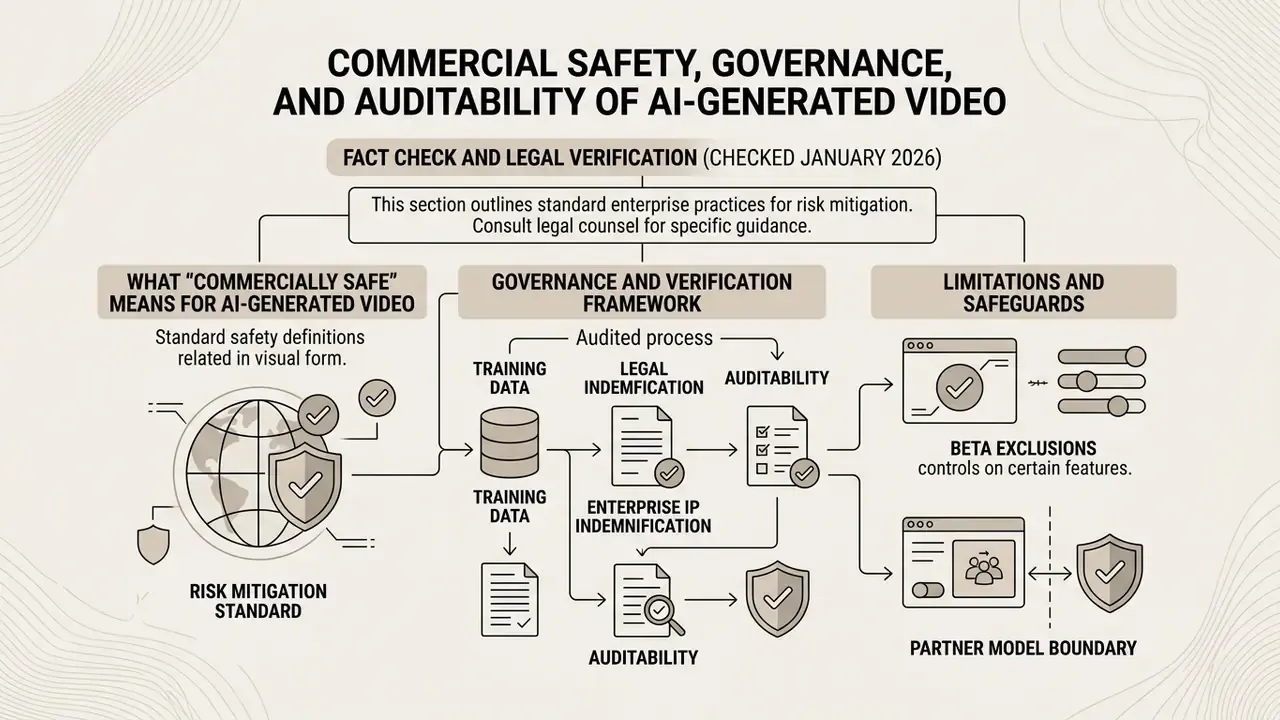
In two sentences: Firefly's commercial-safety claim rests on training-data provenance plus contractual indemnification on qualifying plans. For regulated buyers, the deciding factor is whether generation events can be reconstructed and evidenced after the fact.
Adobe's "commercially safe" designation states that assets generated with the official Adobe Firefly Video Model are cleared for enterprise marketing, commercial broadcasting, and monetization.
What "Commercially Safe" Means for AI-Generated Video
Adobe explicitly warrants that the Adobe Firefly Video Model was trained strictly on permissioned content.
"We train our models only on content we have permission or rights to use, so they don't generate copyright-infringing material."
Fact check and legal verification (checked January 2026):
- Training data. Adobe states that the Adobe Firefly Video Model was trained on properly licensed content, including Adobe Stock, and on public-domain content where copyright has expired (Adobe Legal Terms, 2025).
- Enterprise IP indemnification. Qualifying enterprise entitlements include contractual IP indemnification against third-party copyright infringement claims arising from Firefly output, subject to defined caps. Adobe's Generative AI Product Specific Terms cap liability for indemnified Firefly outputs at US$10,000 per output or infringement claim (Adobe Generative AI Product Specific Terms, 2025).
- Beta exclusions. Outputs from beta features may be commercially usable unless the interface states otherwise, but eligible-teams and enterprise beta outputs are not indemnified (Adobe Help Center, Generative Credits FAQ, 2026).
- Partner model boundary. Commercial eligibility depends on the model used. Partner models carry their own third-party licensing terms and fall outside Adobe's commercially safe designation.
- Data privacy. Customer media uploads and prompts are not used to train Adobe's foundation models, which preserves corporate confidentiality (Adobe Help Center, 2026).
- Access restriction. Video generation is unavailable for K-12 user accounts.
For creators mapping legal parameters across adjacent generative tools, the framework for commercial use of AI generators adds regulatory context on rights clearance and attribution, and the wider AI Media Commercial-Use section covers plan-level entitlements. Where disputes over training data are already in court, view the guide to active generative AI litigation before you set internal policy.
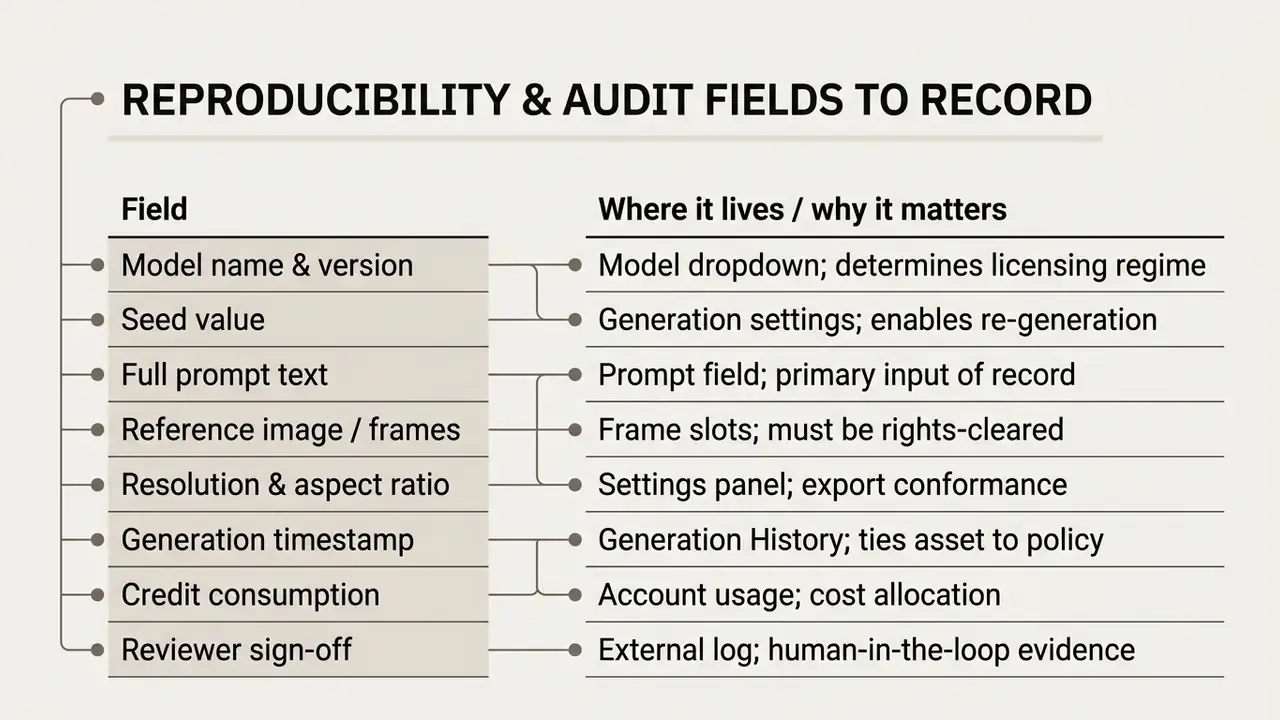
Audit Trail, Reproducibility, and Model Risk Checklist
Model risk and internal audit functions usually require that every published generative asset be reconstructable. Firefly exposes enough metadata to make that feasible, but only if the operator captures it at generation time. After export, half of it is gone.
Pricing, Free Trial, and Commercial Use of Adobe Firefly Video
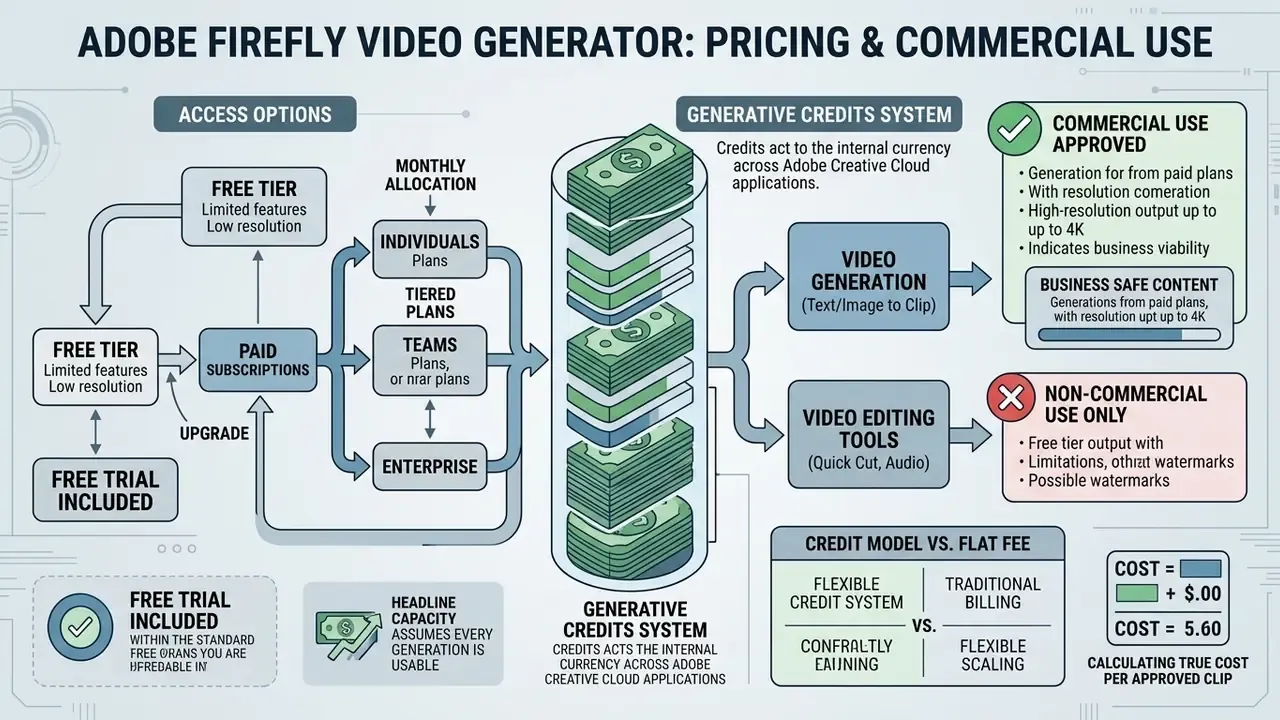
In two sentences: Firefly monetizes through subscription tiers that bundle monthly generative credits. Cost planning must account for iteration, because credits are consumed by every attempt, not only by approved clips.
Adobe operates a subscription-and-credits model for Firefly video generation. Access is tiered monthly, with each tier providing a set allocation of Generative Credits used to process rendering requests.
To see how these credit structures compare with general software billing, view the guide covering subscription models across media tools.
| Subscription Tier | Monthly Cost (USD) | Generative Credit Allocation | Estimated Video Capacity (5-Second Clips) | Key Usage Rights & Access |
|---|---|---|---|---|
| Free Plan | $0.00 / month | Limited daily allocation, resets daily | Variable small quota | Standard features, Firefly Video Model plus select partner models |
| Firefly Standard | $9.99 / month | 2,000 credits / month | Up to 20 clips (5-second @ 100-200 credits each) | Full feature access, commercially safe outputs |
| Firefly Pro | $19.99 / month | 4,000 credits / month | Up to 40 clips (5-second @ 100-200 credits each) | Priority processing, commercially safe outputs |
| Firefly Pro Plus | $49.99 / month | 10,000 credits / month | Up to 100 clips (5-second @ 100-200 credits each) | Higher volume generation, partner model access |
| Firefly Premium | $199.99 / month | 50,000 credits / month | Up to 500 clips plus unlimited Firefly Video Model access | Enterprise production volume, priority rendering |
Generative Credits and Adobe Firefly AI Video Generator Free Trial Terms
Generative Credits are the internal currency for AI processing across Adobe Creative Cloud applications. Credits reset every billing cycle, are allotted per user, do not roll over, and cannot be pooled across seats (Adobe Legal Product Descriptions, 2026).
"2,000 credits per month generate up to 20 five-second videos or translate six minutes of audio; 50,000 credits generate up to 500 videos."
An adobe firefly ai video generator free trial is available through Adobe's standard free tier, which provides a daily allotment of generations that resets each day, or through 7-day trials of Creative Cloud Pro plans. Standard image generations consume 1 credit each, but premium video burns credits far faster, typically 100 to 200 credits per 5-second clip depending on resolution and model (Adobe Help Center, 2026). Add-on credit packs (2,000 credits for $9.99, with 7,000, 10,000, and 50,000 bundles also offered) cover overruns. For a wider view of no-cost options, see the overview of free AI video generators.
Anyone still searching for "adobe firefly video generator 2025" pricing should note that tier names, credit ceilings, and partner-model access have all shifted since then, so verify against the live Adobe plans page rather than cached comparisons.
Calculating True Cost per Approved Clip
Headline capacity assumes every generation is usable. It never is. Generative video requires iteration, so finance teams should model an acceptance ratio rather than a raw clip count.
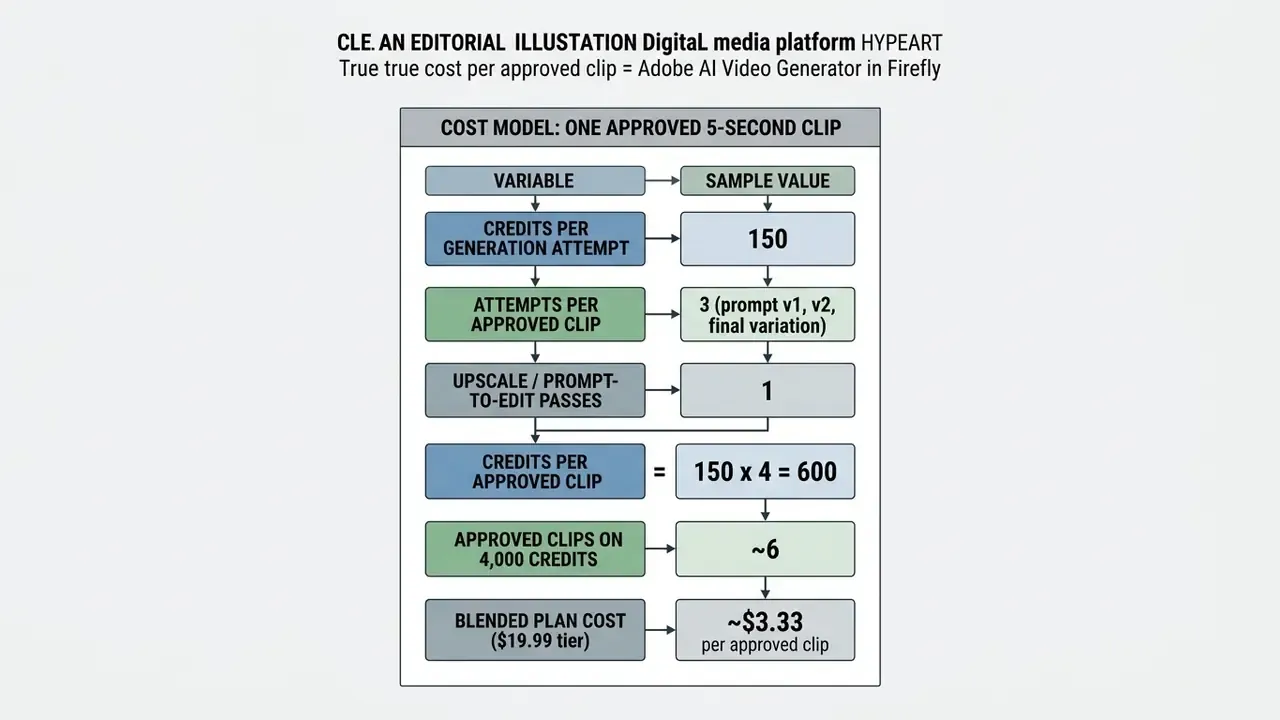
For a 12-clip campaign at a 1:3 acceptance ratio, budget roughly 7,200 credits. Which means the $49.99 Pro Plus tier, not the $9.99 Standard tier, is the realistic entry point for recurring production. Organizations running continuous social calendars should model the $199.99 Premium tier against per-clip agency rates, since unlimited Firefly Video Model access removes iteration anxiety from the creative process. Teams sizing credit demand across several workflows at once can explore the hub of media calculators.
One more line item that most ROI decks omit: the cost of the controls themselves. Metadata capture, human review, and legal sign-off add real hours per asset. Include them, or your risk-adjusted return is fiction.
FAQ: Common Questions About the Adobe Firefly Video Generator
Where Do You Open the Adobe Firefly AI Video Generator, and Is a Download Required?
The Adobe Firefly AI Video Generator is an online, browser-based application reachable through the official adobe firefly ai video generator link at firefly.adobe.com. No local installation, executable download, or specialized hardware is needed, because rendering runs on Adobe's cloud infrastructure (Adobe Help Center, 2026). So searches for an adobe firefly ai video generator download will not find an installer; there isn't one. Readers surveying comparable install-free options can review the broader category of AI video generators. System requirements are modest:
- Operating system: Windows 10 or later, or macOS 12 or later.
- Supported browsers: Google Chrome or Microsoft Edge for the video editor; Chrome or Safari for text-to-video and image-to-video generation.
- Hardware and network: 8 GB RAM, high-speed broadband, JavaScript enabled. Users needing technical support or troubleshooting for web media workflows can check the AI Media Support and Troubleshooting portal.
What Does the Beta Status of the Adobe Firefly Video Editor Mean?
The "beta" label on the adobe firefly beta video editor indicates active feature updates, performance work, and interface changes driven by user feedback. During beta, core capabilities such as text-to-video, image-to-video, multi-track timeline editing, and speech synthesis are fully operational and approved for commercial project use unless the interface says otherwise (Adobe Help Center, 2026). Note the governance nuance: commercial usability and indemnification are separate questions, and beta outputs on eligible-teams and enterprise plans are not indemnified. Documented beta constraints include a 20 GB file size limit for imported media, a maximum project duration of 4 hours, a 4096×4096 import ceiling, no thumbnail generation above 3840 px, no preserved animation for GIF and WEBP imports, incomplete support for transparent-background generated video, and timeline editing limited to desktop Chrome and Edge.
How Long Are the Adobe AI Videos Generated in Firefly?
Clip length depends on the model. Most models generate up to 8 seconds, and some partner models reach 15 seconds. All adobe ai videos download as MP4 in resolutions up to 4K, with aspect ratios for any distribution platform. Longer narratives are built by sequencing multiple generations on the editor timeline, not by requesting one long generation.
What File Formats and Sizes Does the Editor Accept?
The Firefly editor accepts MP4 and MOV imports, with a 20 GB per-file ceiling and a 4-hour maximum project duration. The prompt-based upload flow on Adobe's public tools is tighter, for example JPG and PNG images under 50 MB, and short video uploads of 5 to 20 seconds under 200 MB, so confirm the limits shown in the specific module you are using.
Can I Generate New Clips Without Leaving the Editor?
Yes, two ways. Generate in the Generate Video module and collect the result from Generation History, or open the Generate Media panel inside the editor, enter a prompt, set duration and aspect ratio, then drag the new clip onto the timeline.
Can AI-Generated Videos Be Used Commercially?
Videos made with the Adobe Firefly Video Model are intended for commercial use, because the model trains on licensed content such as Adobe Stock and on public-domain material where copyright has expired. Commercial eligibility for partner-model output follows that partner's licensing terms, which is precisely why model provenance has to be logged per asset rather than per campaign.
Is Firefly an Adobe AI Video Maker Suitable for Regulated Communications?
As an adobe ai video maker, Firefly clears the technical bar for regulated marketing: provenance is documented, prompts and uploads stay out of model training, and enterprise plans add indemnification. The remaining constraint is procedural. Without recorded seeds, model versions, and reviewer sign-off, you have an asset you cannot reproduce, and that is a finding waiting to happen.
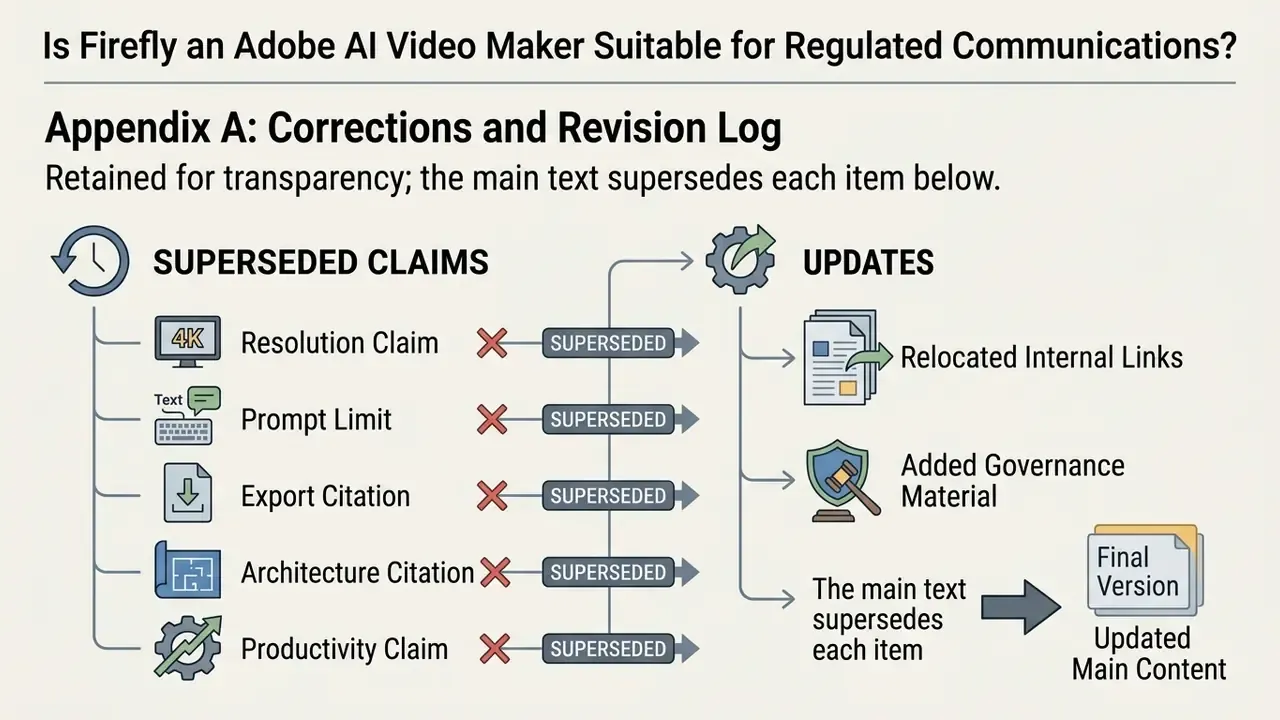
Appendix A: Corrections and Revision Log
Additional Related Resources
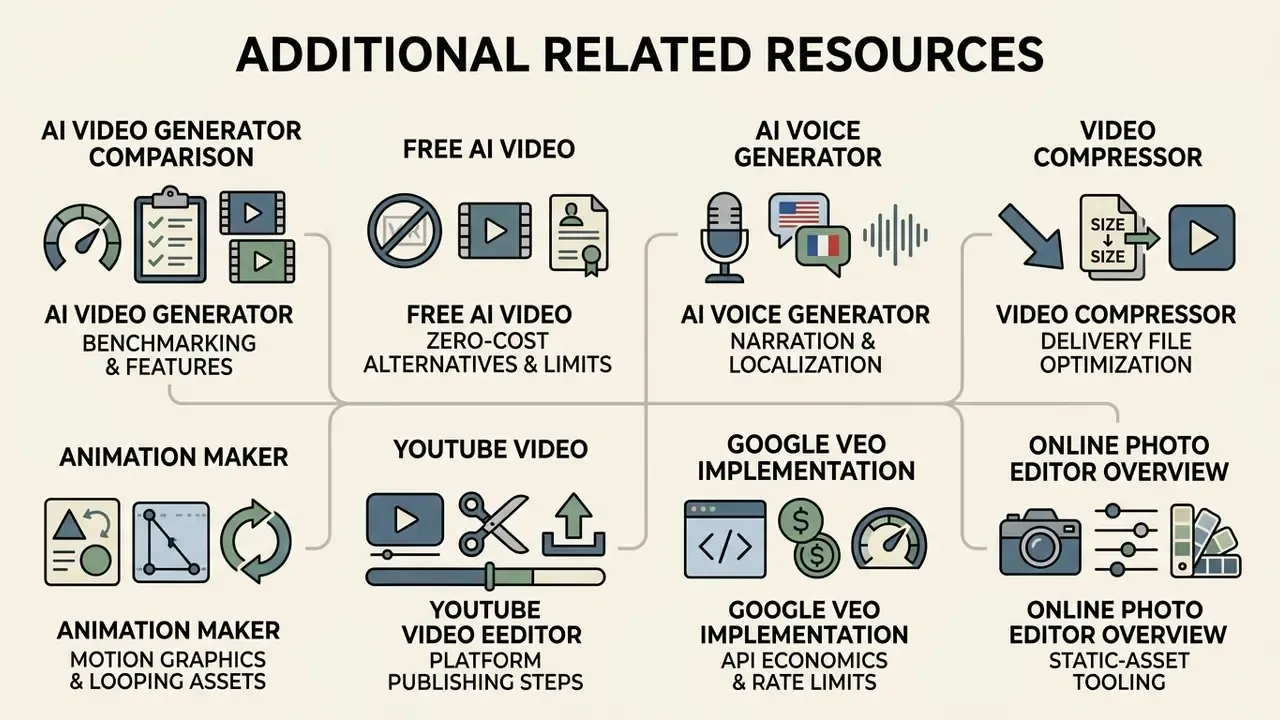
For professionals managing specialized generative media workflows, these guides go deeper on individual decisions. Start by browsing the glossary to compare options across categories.
- Benchmark motion-generation engines across vendors with the best AI video generator comparison.
- Evaluate zero-cost alternatives and their watermark, duration, and licensing limits in the free AI video generator breakdown.
- Plan narration and localization with the AI voice generator guide covering voice quality, language coverage, and commercial licensing.
- Optimize delivery file sizes without visible quality loss using the video compressor reference.
- Build template-driven motion graphics and looping brand assets with the animation maker guide.
- Review platform-specific publishing steps in the YouTube video editor workflow guide.
- Study API-level economics and rate limits in the Google Veo implementation guide.
- Compare static-asset tooling that sits alongside video production in the online photo editor overview, or dig into desktop options in the photo editor software and photo editor mac guides.
- Handle routine retouching and export sizing with the photo editor to remove blemishes and photo size editor references.
- Understand the hiring market around production teams in the photo editor jobs overview.
- Analyze automated portrait generation capabilities in the AI headshot generator guide.
Next step, kept deliberately low-risk: run one bounded pilot. Pick a single campaign, restrict generation to the Adobe Firefly Video Model, log the eight audit fields listed above for every asset, and measure cost per approved clip against your current production baseline. Then decide.