Modern digital workflows demand rapid transformation of static collateral into engaging video formats. An online slideshow video maker is a free, fast, browser-based media compilation engine that merges static images, video clips, text overlays, and audio tracks into a unified, timed video file. No installation, no timeline experience, and no desktop rendering farm are required. A laptop, a phone, or a Chromebook with a browser is enough.
Organizations and independent creators use a video slideshow for very different jobs: quarterly business recaps and client presentations on one side, wedding montages, birthday tributes, travel reels, and classroom study aids on the other. This guide covers both, from the first upload to the final export, including the licensing, watermark, and data-privacy checks that most tutorials skip.
Executive Summary
- What it is A browser-based editor that sequences photos, video clips, presentation slides, music, and voiceover into a single MP4 or WebM file.
- How long it takes 5 to 15 minutes with a template; under 60 seconds with an AI generator; 30 to 120 minutes for a frame-accurate manual edit.
- Core pacing rules 2.5 to 4 seconds per photo, up to 8 to 10 seconds for complex charts, embedded video clips under 20 seconds, text overlays visible for 3 to 5 seconds.
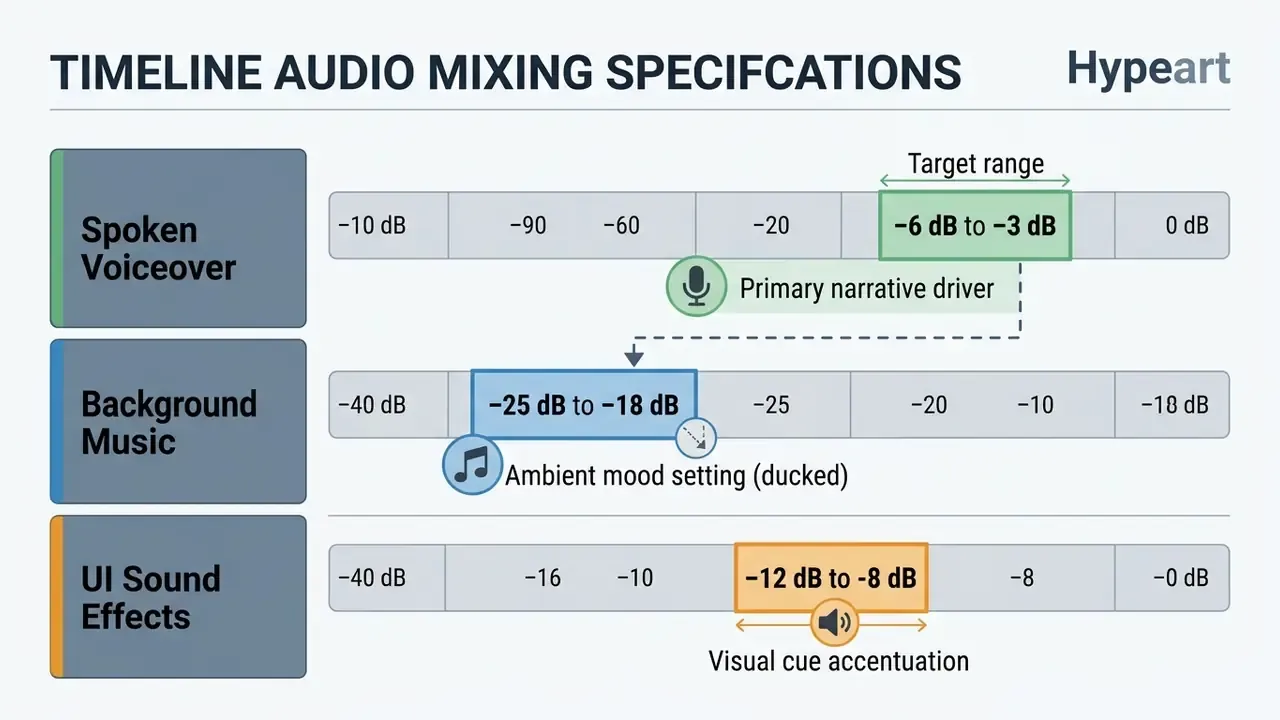
- Audio balance Voiceover at minus 6 dB to minus 3 dB, background music ducked to minus 25 dB to minus 18 dB (roughly 20 to 30% of master volume).
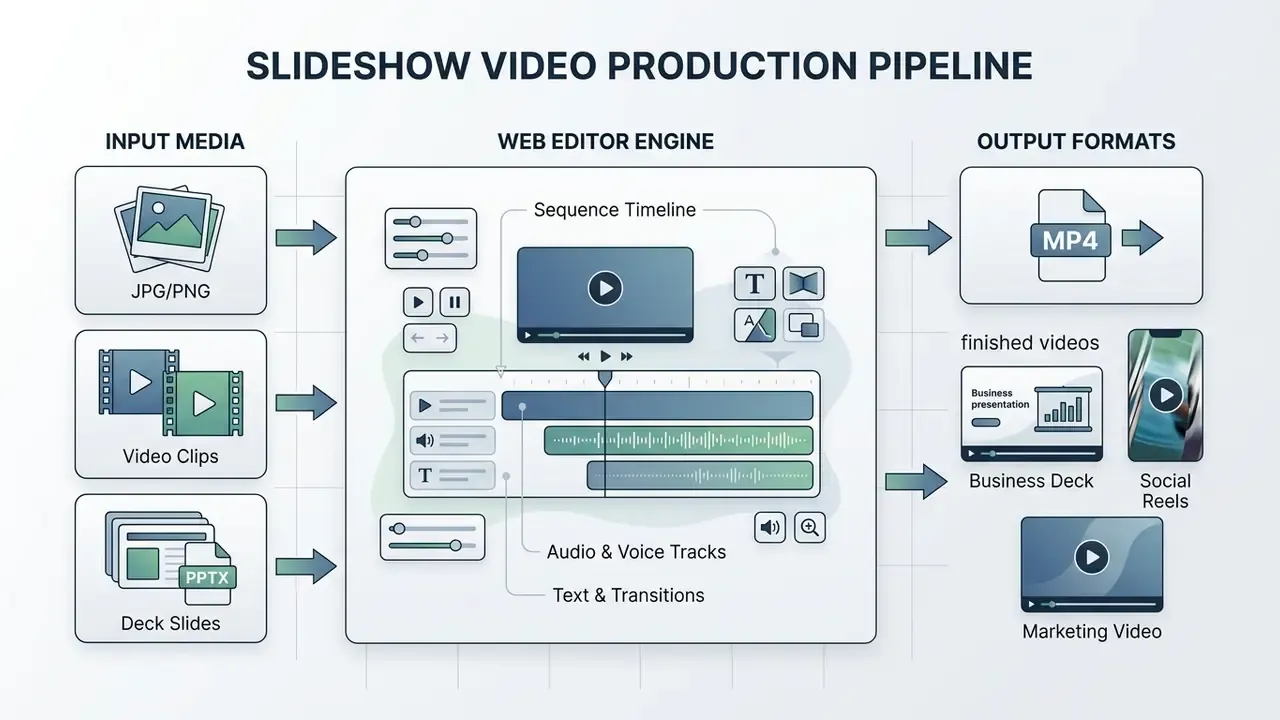
- Formats in JPEG, PNG, WebP, HEIC, SVG, GIF, TIFF, MP4, MOV, AVI, MKV, WEBM, PDF, PPTX, plus MP3/WAV/AAC/M4A audio. Formats out: MP4 (H.264/AAC) or WebM at 720p, 1080p, or 4K.
- Free-tier reality Expect a watermark, 720p export caps, 3 to 5 exports per month, and personal-use-only stock licenses on most zero-cost plans.
- Two risks to control before publishing stock-media licensing (commercial synchronization rights) and data confidentiality (what happens to internal slides uploaded to a public cloud editor).
- Best for social reels, event and family montages, school projects, product teasers, asynchronous internal briefings, and PPTX-to-video conversion.
Three Decisions to Settle Before You Open an Editor
Most failed slideshow projects fail early, not at export. Three questions decide the whole workflow, and answering them takes about five minutes.
- What is the job?A 45-second product teaser, a six-minute onboarding briefing, and a ten-minute wedding montage require different tools. Duration, aspect ratio, and caption load follow from the job, not from the template gallery.
- Who owns the media?Customer photos, employee submissions, stock comps, and licensed music each carry different rights. If you cannot name the source of a frame, treat it as unlicensed.
- How sensitive is the source file?A public marketing deck and an unreleased pricing model belong in different environments. Free consumer editors are fine for the first, and rarely acceptable for the second.
Simple. Not always comfortable, but simple.
What Is a Slideshow Video Maker and What Can You Create?
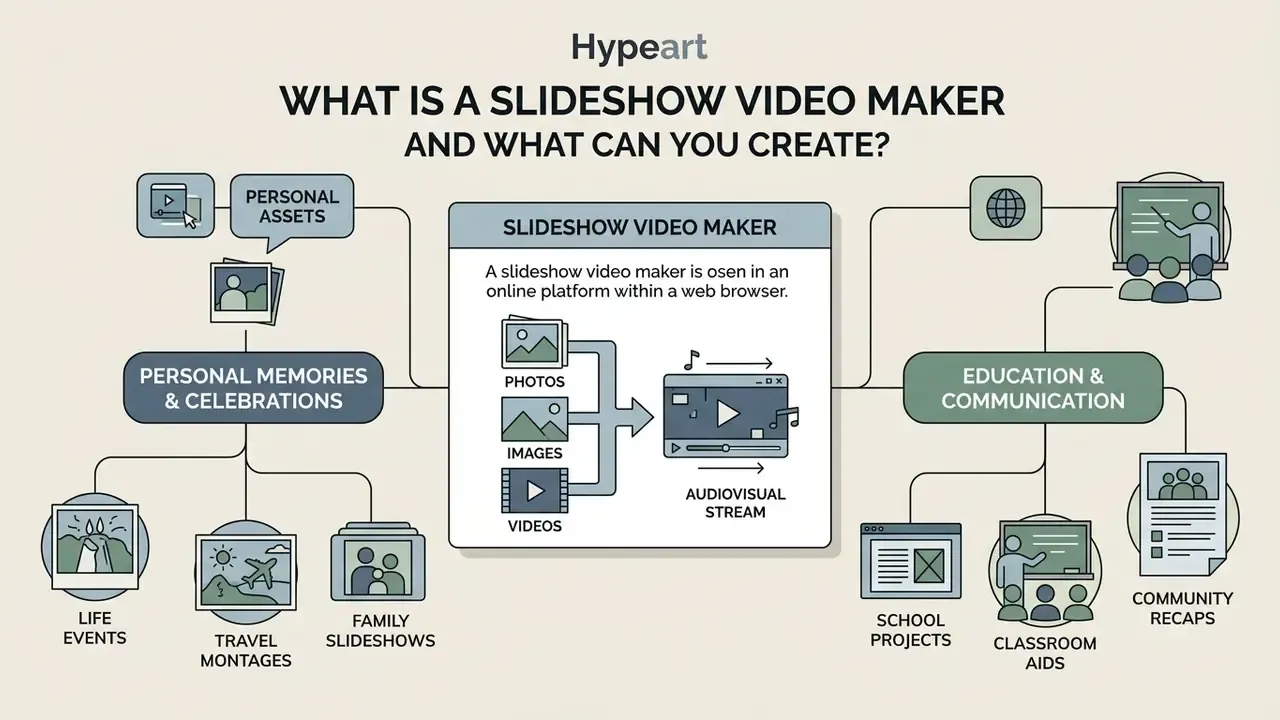
A slideshow video maker is a software platform, typically operating directly within a web browser, designed to sequence digital assets into an automated audiovisual stream. Users leverage a slideshow maker to convert static media into playable MP4 or WebM files without requiring complex desktop non-linear editing (NLE) software. NLE simply means an editor where clips can be re-arranged freely rather than recorded in order. Modern web-based video production tools ingest raw assets, apply uniform timing rules, render visual transitions, and synchronize background audio tracks.
The primary operational purpose of an online video maker is to lower the technical barrier for producing structured motion media. Research on e-learning effectiveness confirms that animated video formats with synchronized audio outperform static slide viewing on user experience metrics. In a quasi-experiment with roughly 400 students at a national public university in Japan, learners who used the video version of the material spent less time on it and reported significantly higher satisfaction than the static-slides group, while test performance differences were smaller.
«Students in the video condition spent less time and reported significantly higher satisfaction than the static-slide group.»
Whether you are compiling a corporate performance recap, a product marketing teaser, or a graduation tribute for your family, a browser-based slideshow creator provides an efficient production architecture for structured narrative delivery.
Turn Photos, Images, and Videos into a Dynamic Slideshow
A multi-format image to video slideshow maker enables users to combine heterogeneous digital media formats into a cohesive video timeline. Modern web applications ingest static raster images (JPEG, PNG, WebP, or HEIC) alongside dynamic video clips (MP4 or MOV containers). When assembling raw visual assets, creators frequently refine their source imagery beforehand using an ai photo editor, a general-purpose online photo editor, or specialized tools catalogued in the AI Media Glossary.
In practice, converting separate visual assets into a dynamic sequence requires normalizing frame rates, aspect ratios, and color spaces across all input media. Web editors achieve this by applying uniform canvas dimensions, such as standard 16:9 widescreen or 9:16 vertical orientation, and placing visual elements on a standardized timeline. Browser support matters here: MP4 containers with H.264 video and AAC audio are the most universally decodable combination, while MOV playback is not guaranteed on every browser.
When dynamic motion is required for still portraiture or product shots, creators often process assets through an ai photo animator prior to final timeline assembly, or evaluate dedicated image-to-video AI tools for camera-move simulation. The completed slideshow made from these combined sources maintains consistent visual pacing across every frame transition.
Licensing hygiene starts at this stage, not at export. When source imagery arrives from customers, employees, or community submissions, ownership is rarely documented.
«47% of creators whose content was used by brands reported that it was used without their permission.»
From Personal Memories to Educational Slideshows
Beyond corporate communications, browser-based slideshow generators power personal storytelling and classroom instruction. These are the highest-volume real-world use cases, and they need no editing background at all. This is also where a free movie slideshow maker earns its keep, since nobody buys a license for one birthday video.
- Life events and celebrations Compile wedding photo albums, anniversary montages, retirement tributes, and birthday recap videos with a background song and soft crossfade transitions. A slideshow set to music is a common gift format for saying "thank you," "congratulations," or "I love you."
- Travel montages Combine high-resolution vacation imagery (JPEG/HEIC) with short smartphone video clips (MOV/MP4) into shareable travel reels in 9:16 for Reels and Shorts or 1:1 for feed posts.
- Family and memorial slideshows Sequence scanned prints and archival photographs chronologically, adding date captions and a single continuous audio bed so the video plays unattended at an event.
- Education and classroom aids Teachers and students create quick video study guides, historical timelines, list videos, and interactive classroom quizzes by sequencing visual slides with recorded voiceovers. Simplifying classroom rules or lab safety guidelines into a 60-second animated slideshow is faster than rewriting a handout.
- School projects and submissions Students convert research decks into narrated slideshow videos that can be uploaded to a learning management system, satisfying assignment length limits without live presenting.
- Community and club recaps Sports teams, choirs, and volunteer groups build season recaps from crowd-sourced phone photos, then share a single link rather than a shared album.
For legacy scans and degraded family photographs, running images through restoration or upscaling tools before assembly noticeably improves perceived output quality. The adjacent-tool section below explains where those steps belong in the pipeline.
Slideshow Videos for Presentations, Social Content, and Business
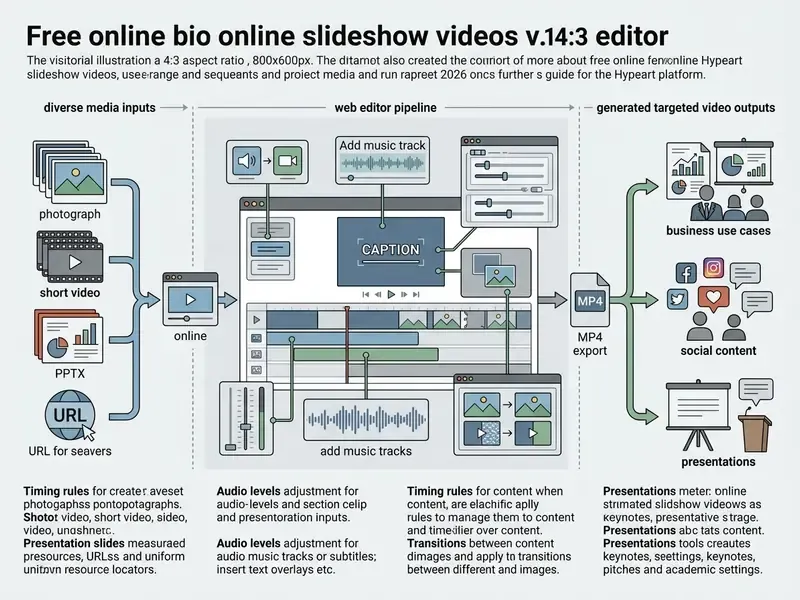
Organizations deploy slideshow videos across three primary operational domains: executive presentations, multi-channel digital marketing, and internal corporate communications. In business environments, transforming static deck files into automated video recordings allows global teams to consume asynchronous briefings without scheduling live meetings. Marketers utilize short-form video slideshows on social platforms like TikTok, Instagram Reels, and YouTube Shorts to increase brand reach through fast-paced, sound-optional visual storytelling. Recruiters post event recap slideshows to LinkedIn; realtors publish property listing walkthroughs; e-commerce teams cycle product photography into 15-second promos.
Short-form structure is well documented: capture attention in the first 0 to 3 seconds with a hook, use seconds 4 to 15 for the setup, and place the call to action near the end. On-screen text is mandatory rather than optional, because a large share of the audience watches with sound off.
Teams building a recurring social cadence should benchmark platforms against a shortlist of leading AI video generators before standardizing on one editor.
How to Create a Slideshow Video Online
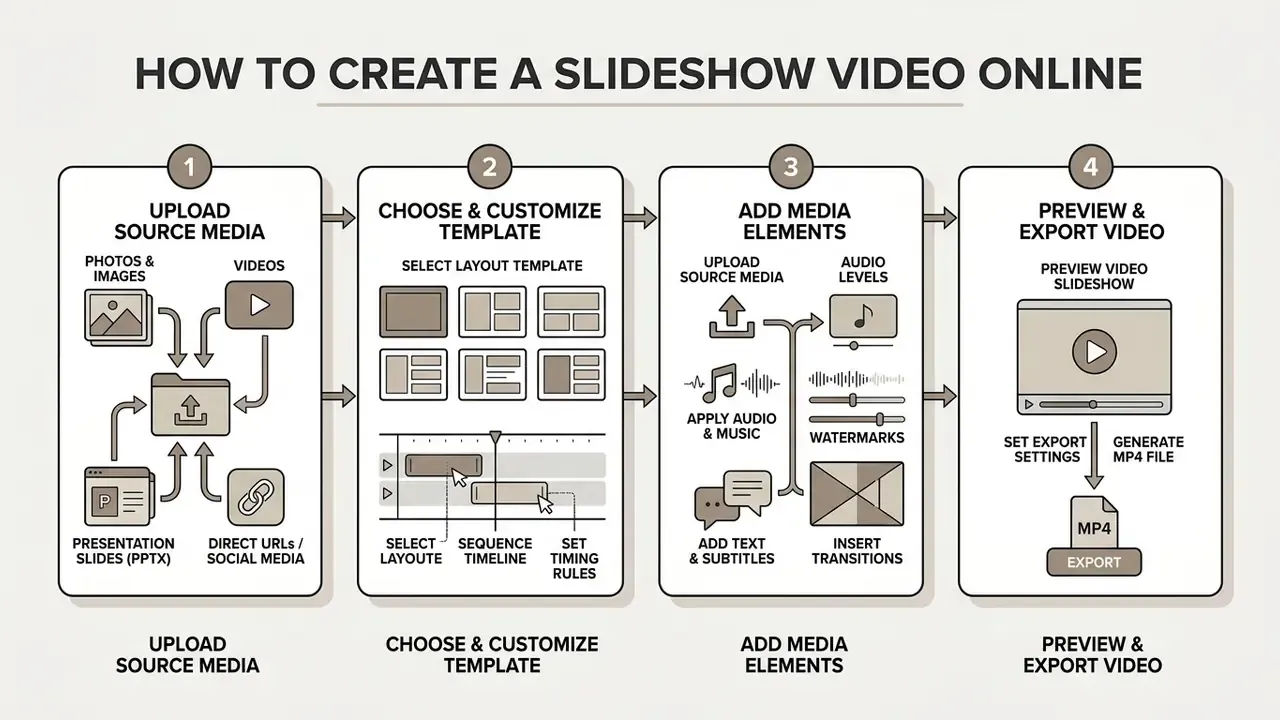
To create slideshow video online assets efficiently, creators follow a systematic four-step assembly protocol. Operating within a browser interface eliminates local rendering overhead while providing real-time canvas previews. By maintaining a structured production workflow, users ensure that raw source material transitions smoothly into a fully synchronized final video asset. The same five steps answer both "how to make a photo slideshow video" and "how to make a photo and video slideshow" with mixed media.
Upload Photos, Images, Videos, or Presentation Slides
The initial step in browser-based production is uploading source media files directly into the platform's asset bin. Most modern web editors support direct drag-and-drop ingestion for standard image formats (JPEG, PNG, SVG) and common video container formats (MP4, MOV). Many advanced platforms also accept direct document imports, allowing users to convert PDF or PPTX slides into individual video frames automatically.
Direct URL and social media ingestion. In addition to local file ingestion, modern web editors allow users to import cloud media directly via URL. Creators can paste direct links from public repositories, YouTube videos, Instagram posts, X/Twitter posts, or TikTok clips to stream source assets into the editing timeline without manual interim downloads. The same applies to cloud drives: connecting Google Drive, Dropbox, OneDrive, or Box lets teams pull approved brand assets without leaving the browser. One practical caution. Importing third-party social clips does not transfer any usage rights, so treat every URL import as unlicensed until proven otherwise.
Modern browser engines enforce file size constraints, typically limiting individual raster uploads to 50 MB, video clips to 1 GB, and raster images to roughly 250 million pixels, to preserve local browser memory and maintain smooth timeline performance. Static WebP is usually supported while animated WebP is not; SVG imports are often restricted to a narrow width range and a few megabytes. If a .ppt or .pptx import fails, exporting the deck to PDF first is the reliable fallback. Organizers must verify that all uploaded assets match the target rendering resolution prior to sequence assembly, and that oversized source video is pre-compressed. A video compressor reduces upload failures on slow connections without visible quality loss at 1080p.
Choose a Template and Customize the Video Slideshow
Selecting an appropriate video template establishes the underlying layout grid, typography hierarchy, and motion aesthetics of the project. Templates provide structured visual frameworks tailored to specific platform specifications, such as 9:16 vertical aspect ratios for mobile social channels or 16:9 widescreen ratios for executive conference rooms. Choose by task first ("TikTok video," "wedding slideshow," "quarterly review"), then by visual style. Once a template is loaded, creators customize background colors, font selections, graphic framing, and layer stacking orders.
Systematic template customization ensures that automated motion graphics align with corporate brand guidelines. Editors adjust placeholder durations, reorder media thumbnails along the sequential track, replace template media with their own assets, and modify individual visual layers to suit the message. Enterprise brand-control features go further: administrators can lock approved fonts, hex palettes, and logo placement, restrict which image sources users may draw from, and publish locked master templates so operations teams can swap content without breaking brand compliance.
Add Music, Text, and Transitions Before Exporting
The final assembly stage involves layering audio elements, text captions, and motion transitions across the sequence. Background audio tracks should be balanced carefully to prevent masking voiceover recordings. This is also the stage that answers the classic question of how to make a video presentation with pictures and music without the narration disappearing under the soundtrack.
«Background music on the secondary track should sit at roughly 20 to 30% volume, and text overlays should hold for 3 to 5 seconds.»
In decibel terms, that translates to maintaining secondary background music between minus 25 dB and minus 18 dB when accompanying spoken narration, with the music ducked 6 to 3 dB below the voice track wherever narration is present.
Text overlays must remain concise, with on-screen visual titles restricted to 3 to 5 second display windows to preserve viewer legibility. Subtle transitions, such as cross-dissolves or direct cuts, should be selected over complex 3D visual wipes to maintain professional presentation standards. After refining scene timings, creators preview the project in real time to verify audio-visual synchronization before initiating final rendering and file download. Accessibility guidance also recommends avoiding autoplay and giving viewers pause, rewind, and volume control wherever the video is embedded.
- Upload source media
- Ingest JPEG, PNG, MP4, MOV, or presentation deck files into the web editor bin, from your device, a cloud drive, or a direct URL.
- Select layout template
- Choose a structural design template matching target aspect ratios (16:9, 9:16, or 1:1).
- Sequence timeline
- Arrange photo thumbnails and video clips in chronological narrative order.
- Apply audio and text
- Overlay background music, voiceover tracks, and legible title captions.
- Set slide timings
- Adjust individual frame durations and apply subtle cross-dissolve transitions.
- Preview and export
- Conduct a full playback check, then render and export the finalized MP4 file.
Storyboarding and Converting PowerPoint (PPTX) Decks
Converting static PowerPoint or Google Slides presentations into continuous motion video requires a structured storyboarding framework, not just a file conversion. A storyboard, even a one-page list of frames, captions, and audio cues, makes it possible to see whether images, clips, and text actually flow together before you spend time on the timeline. If the slideshow is set to music, storyboarding is also where you match visual beats to the rhythm and mood of the track.
- Pacing optimizationLimit static presentation slides to 3 to 5 seconds of display time. If a slide contains complex visual charts, extend frame duration to 8 to 10 seconds. Anything held past roughly 15 seconds reads as a stall unless it is a dense graphic that genuinely needs narration.
- Clip length rulesKeep embedded dynamic video clips under 20 seconds to prevent narrative drag, and keep the whole video tight, since attention to lecture-style video drops measurably beyond the 6-minute mark.
- Native PPTX importUpload raw
.pptxor.pdffiles directly to the web timeline. The editor automatically rasterizes slides into chronological image frames, preserving embedded typography and graphic positioning. If import fails, save the deck as PDF and retry. - Native PowerPoint export as an alternativeIn Microsoft PowerPoint,
File > Export > Create a Videorenders an MP4 that preserves slide animations, recorded narration, and slide timings. Quality presets typically range from Ultra HD 4K and Full HD 1080p down to HD 720p and Standard 480p; keep "Use Recorded Timings and Narrations" enabled when narration exists. On Mac, chooseFile > Export, select a video format, then pick the quality preset. - Storyboard-to-timeline handoffBuild the frame order in the storyboard, then rebuild it in the editor with text, color, and font adjustments. This sequence avoids re-cutting the timeline three times.
Editing Features for a Professional Video Slideshow
Transforming a basic sequence of images into a commercial-grade visual asset requires specialized post-production editing tools. Modern web-based video application interfaces incorporate timeline management features historically restricted to desktop NLE software, and a practical overview of those capabilities is catalogued in our guide to video-editing tools and workflows. Mastering these features allows non-professional creators to produce polished, brand-compliant video collateral.
Add Text, Music, Audio, and Voice Elements
Multimodal communication relies heavily on the synchronized integration of textual and auditory channels. A comprehensive free slideshow video maker with music provides multi-track audio timelines that allow independent control of background tracks, sound effects, and spoken narration. When human voice talent is unavailable, creators frequently integrate automated Text-to-Speech (TTS) engines to synthesize clean, studio-quality voiceovers directly from written scripts. Capability, language coverage, and licensing terms differ widely between AI voice generators.
«Audio optimization and transcript-based editing are among the most-used AI editing features, applied by nearly 40% of professional video producers.»
Text layers serve as vital narrative anchors, particularly for mobile viewers consuming video content with audio muted. Editors should apply high-contrast typography, structural background cards, and consistent font styling across all title overlays. For complex commercial productions, developers can reference the AI Media API Guides to automate dynamic text and voiceover rendering via programmatic workflows, or review a concrete Google Veo implementation guide for API-level generation economics.
Advanced Overlays: Picture-in-Picture, Webcam, and Auto-Subtitles
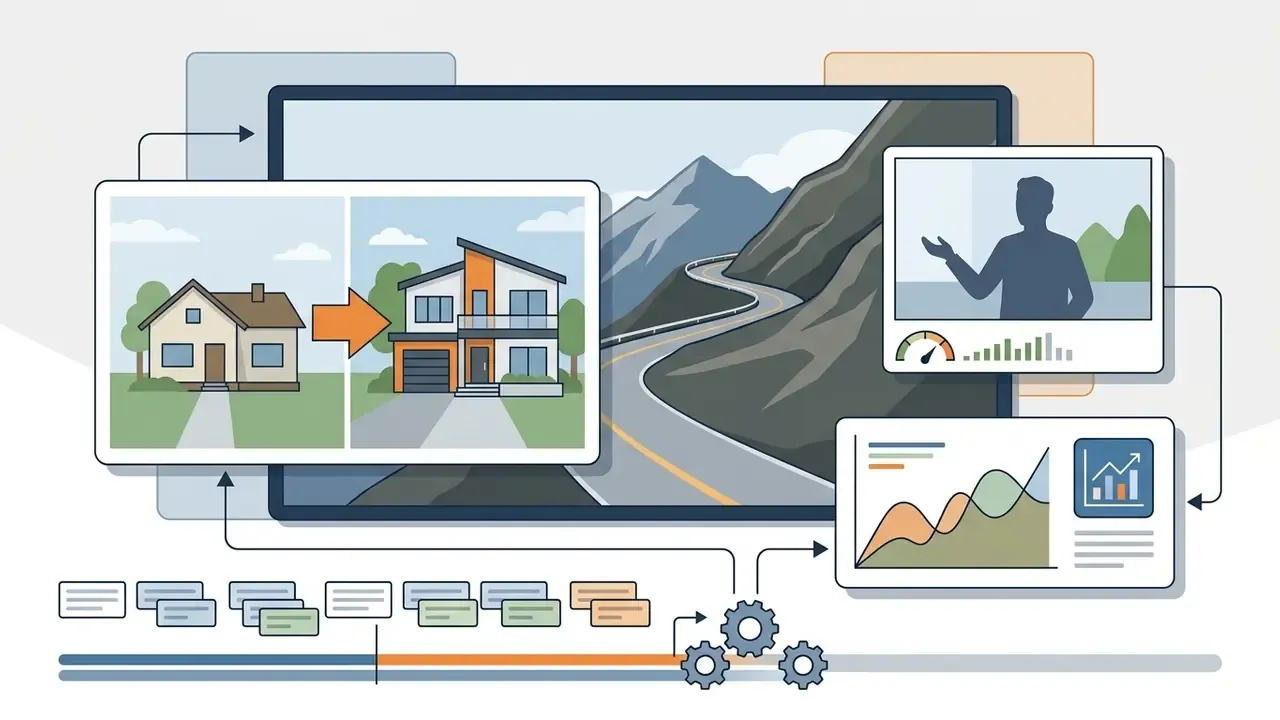
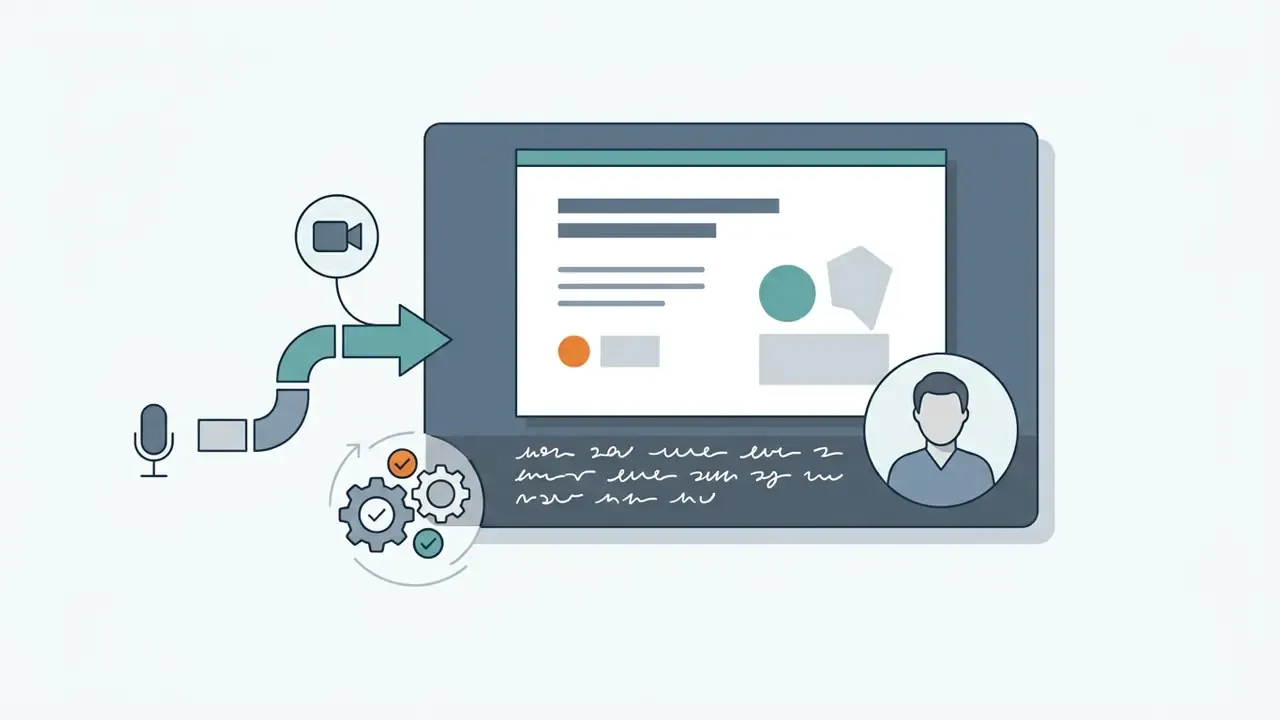
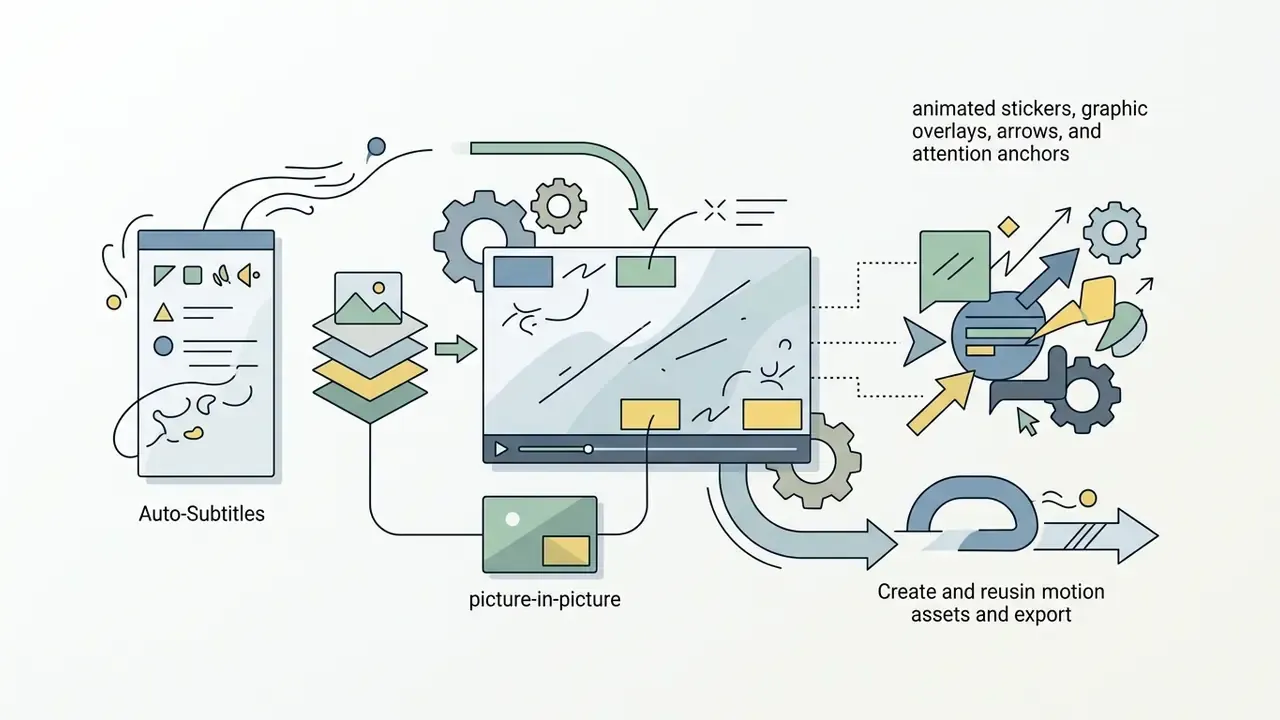
Professional storytelling often requires displaying multiple visual sources simultaneously rather than one full-frame image at a time.

Edit Timing, Transitions, Effects, and Video Format
Precision control over individual frame timing is essential for maintaining audience engagement. Slide display durations typically range from 2.5 to 4.0 seconds for standard photographic content, whereas complex diagrams or detailed data tables may require up to 10 seconds of display time. To adjust structural video dimensions without quality loss, creators often consult specialized utilities detailed in the AI Media Comparison Matrices to evaluate platform reframing capabilities, including crop, trim, resize, and speed controls.
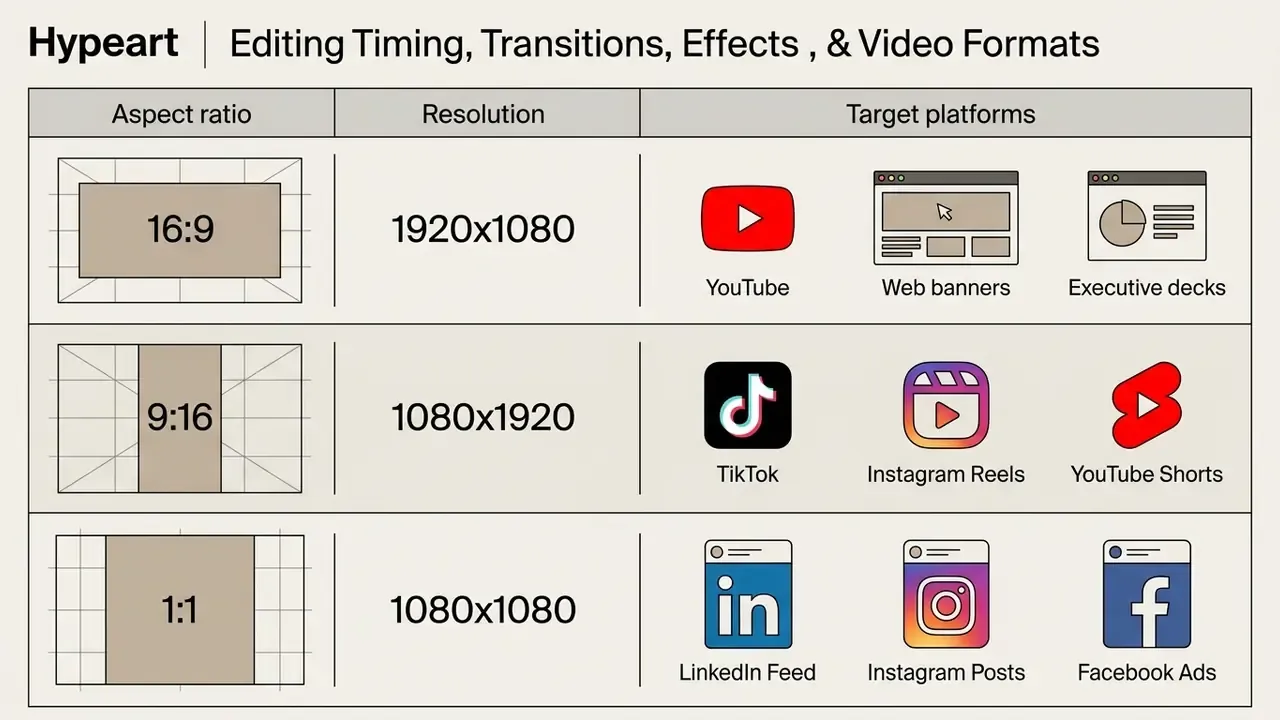
Format adaptation requires reframing visual content across multiple aspect ratio standards. According to international broadcasting guidelines (ITU-R BT.1379), critical visual elements and text captions must remain within defined safe areas during format conversion to prevent truncation on mobile screens. The recommendation frames content for a 14:9 protected area during transitions between 4:3 and 16:9 and keeps captions inside that safe zone. Applying standard straight cuts or soft dissolves preserves visual continuity, while aggressive spatial transitions (3D flips, wipes, swirls) should be avoided in professional business presentations. Creators optimizing the same master for a channel should also review platform-specific YouTube video editing workflows before locking export settings.
Templates, Stock Media, and AI Tools for Faster Creation
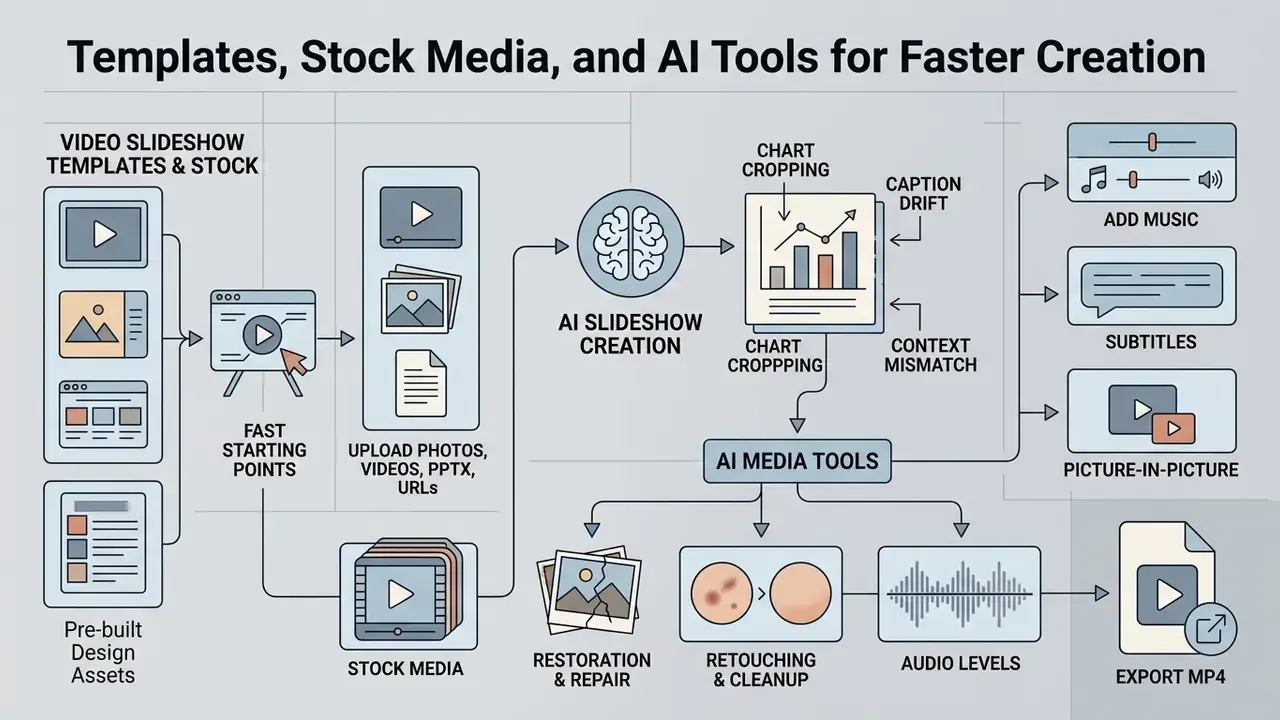
Scale and velocity in modern content creation depend heavily on pre-built design assets and automated production algorithms. Web-based video creation platforms aggregate vast asset libraries and machine-learning models to streamline repetitive assembly tasks. Leveraging these automated frameworks allows enterprise marketing and communications teams, and equally a parent assembling a graduation video on a Sunday, to accelerate deployment cycles significantly.
Start with Video Slideshow Templates and Stock Content
Pre-designed video templates provide fully articulated timeline structures complete with placeholder media, motion graphics, and pre-timed audio markers. According to Adobe workflow efficiency benchmarks measured across 147 tasks, template-based motion graphics workflows ran more than three times faster on average than building equivalent sequences from scratch, with the widest single measurement reaching 454% faster; a separate comparison showed one sequence taking almost two minutes manually versus 26 seconds with a shared library. These are vendor workflow benchmarks from a specific toolset rather than an independent audit, so treat the headline percentage as directional evidence for template ROI rather than a universal constant.
Built-in stock libraries compound the effect. In-app media panels typically expose pre-licensed stock video, images, GIFs, stickers, backgrounds, music, and sound effects, plus curated template categories: lower thirds, titles and overlays, transitions, backgrounds, infographics, intros and outros, and social-media formats. Utilizing pre-licensed stock asset libraries eliminates the operational overhead of organizing external photo shoots or purchasing individual media licenses.
In corporate environments, creative leads lock specific brand controls, such as approved color palettes, approved font families, and corporate logo watermarks, within master templates. Operations teams then swap source images and update text fields without risking brand non-compliance.
When AI Slideshow Creation Is Useful
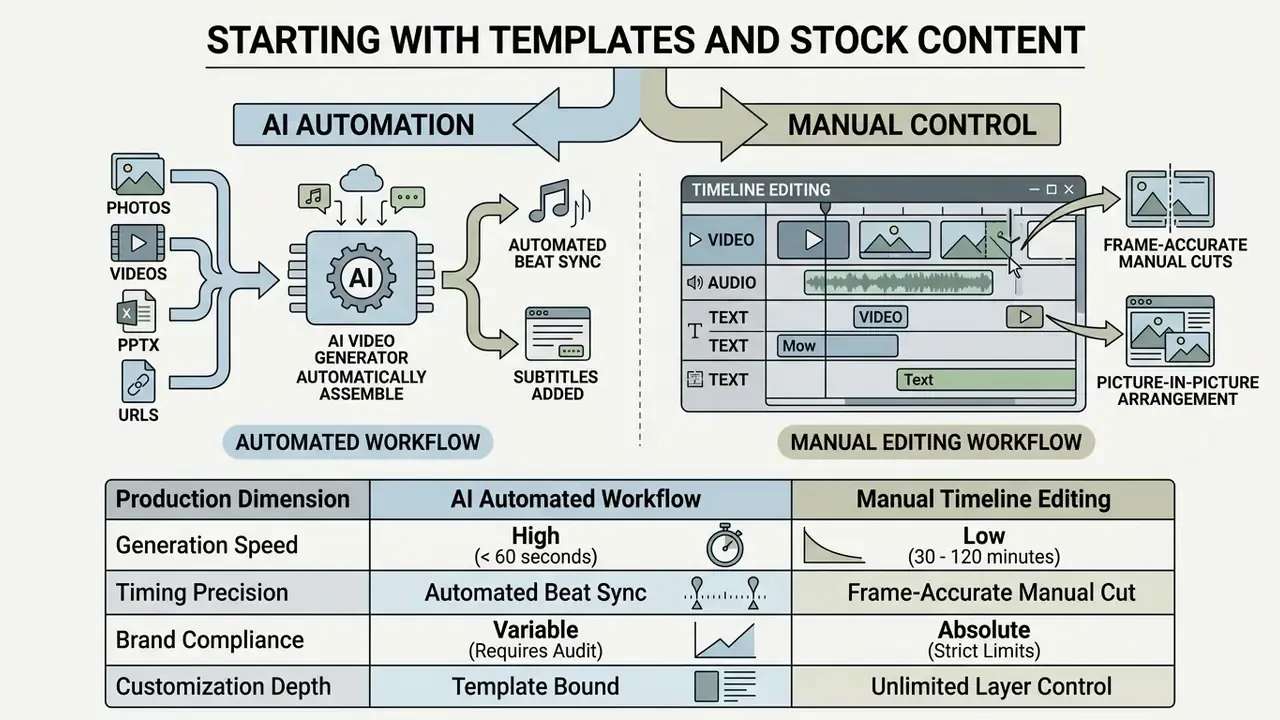
Despite rapid processing speeds, AI-generated slideshows require human oversight prior to commercial deployment. Automated asset selection models may occasionally introduce contextually irrelevant stock imagery or generate misaligned text captions. Three failure modes matter most in regulated and finance-adjacent content:
- Chart cropping
- automated reframing from 16:9 to 9:16 can cut axis labels, legends, or footnote disclaimers off a financial chart, producing a visually clean but factually incomplete slide.
- Caption drift
- AI-generated on-screen text summarizing a figure may round, restate, or invent a number that never appeared in the source deck.
- Context mismatch
- beat-synced stock B-roll can attach an upbeat visual to a loss-making quarter, creating a tone problem that no legal review anticipated.
Integrating Adjacent AI Media Tools
Slideshow assembly rarely happens in isolation. It is cleaner to run image-level work before ingestion than to fight it on the timeline, so group these steps as a pre-processing stage.
- Restoration and repair. For scanned prints, faded archives, and low-resolution legacy graphics, run source scans through ai photo restoration online free utilities before file ingestion.
- Retouching and cleanup. Background removal, exposure correction, and object removal are handled faster in a dedicated ai photo editor app or a free photo editor than inside a video timeline.
- Stylization. Where a creative brief calls for a consistent illustrated look across a mixed photo set, stylized conversion tools such as an ai photo to ghibli style converter online or an ai photo to anime converter standardize visual themes. This is a creative-campaign and personal-project option; brand-controlled corporate decks normally exclude it.
- Motion synthesis. Animating stills into short parallax or camera-move clips before assembly adds perceived production value without a shoot.
Doing this work upfront means the timeline stays a sequencing tool, and the pre-processing stage stays auditable.
Free Slideshow Video Maker: Watermarks, Exports, Privacy, and Plan Limits
Evaluating a free video slideshow maker requires analyzing backend licensing agreements, platform feature caps, and rendering constraints. While many platforms market free online video slideshow maker utilities, unpaid tiers routinely restrict operational capabilities to incentivize commercial software upgrades. Understanding these functional boundaries prevents unexpected friction during final file export.
What "Free" Usually Includes in an Online Slideshow Maker
Freemium business models provide access to basic timeline editing, standard template libraries, and web-resolution rendering engines. However, platforms impose operational restrictions on zero-cost accounts to manage cloud compute expenses. Users navigating a free slideshow video maker online frequently encounter export resolution caps, file duration limits, export-count quotas, per-file size ceilings, and restricted access to premium stock audio tracks. Real-world 2026 examples of the pattern include AI credit allowances of roughly 400 credits at signup (about ten presentations), caps of 10 cards per prompt, 12 presentations per year on some AI plans, and export quotas that rise from 10 to 25 to unlimited as accounts move from anonymous to registered-free to paid.
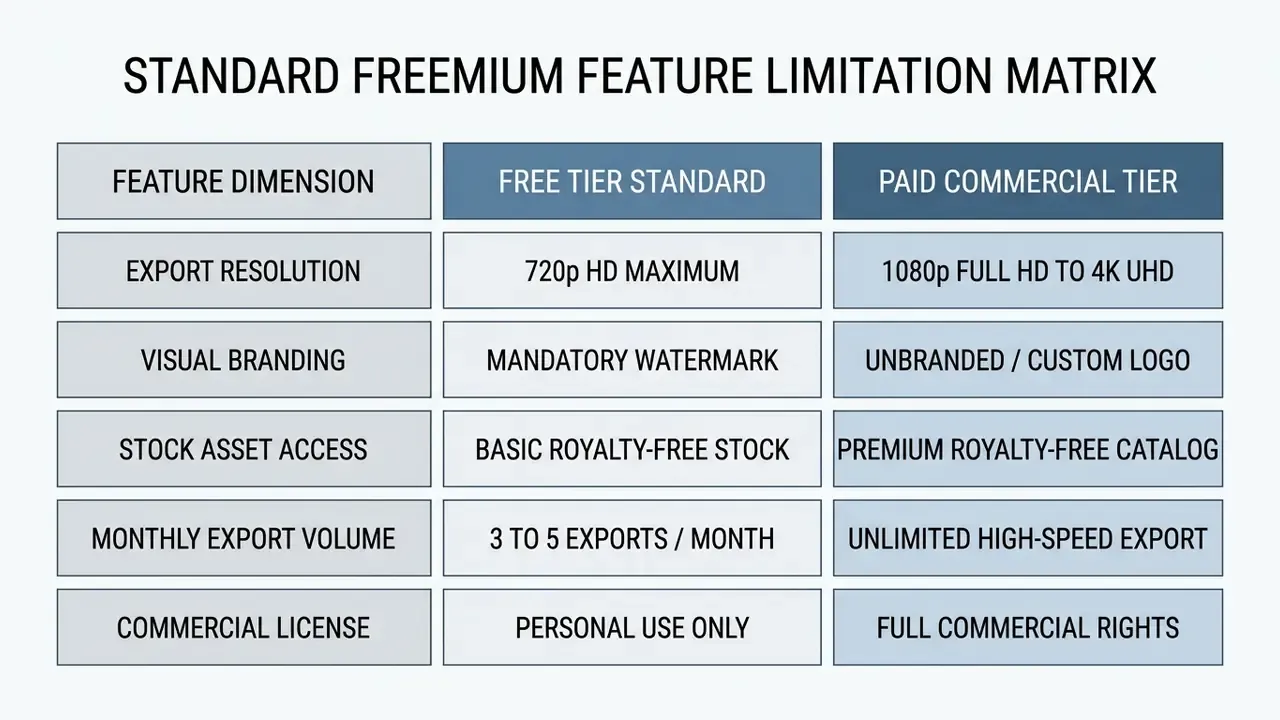
Watermark policy is genuinely inconsistent across vendors rather than universal. Some tools that market themselves as a free slideshow video creator state plainly that no watermark is added and downloads are unlimited, others add a small watermark on every free export while still permitting 4K resolution, and a few keep branding on exported PPTX or PDF files until upgrade. Verify the current policy on the vendor's own pricing page before committing a deadline-bound project. Organizations planning recurring production workflows should evaluate long-term costs using the structured guides in the AI Media Pricing Guides, and compare capability ceilings across free AI video generators and other free AI video generator options. Relying on a free slideshow movie maker for enterprise communications often introduces operational risks around visual output quality and asset licensing compliance.
Data Privacy and Confidentiality When Uploading Corporate Slides
Before any licensing question arises, there is a prior one: what happens to the file itself? A browser-based slideshow maker is, by definition, a third-party cloud processor. Uploading an internal quarterly deck, a client pitch, an unreleased product roadmap, or a customer-data screenshot into a free consumer editor moves confidential material outside the organizational perimeter, often into a jurisdiction, retention window, and model-training policy nobody on the team has read.
This is the most common shadow-IT pattern in corporate video production: a communications colleague needs a video by Friday, finds a free tool in a search result, and uploads the deck. Governance frameworks for organizational AI use (ISO/IEC 38507:2022) place responsibility for exactly this class of decision with the governing body, not with the individual user.
Pre-upload confidentiality checklist
| Check | What to verify | Why it matters |
|---|---|---|
| Data classification | Is the deck public, internal, confidential, or restricted? | Restricted and client-identifiable material should never enter a consumer free tier. |
| Model-training clause | Does the ToS permit the vendor to train models on uploaded content? | Opt-out is often available only on paid or enterprise plans. |
| Retention and deletion | How long are uploads and renders stored, and is hard delete available? | Determines residual exposure after the project ends. |
| Hosting jurisdiction | Where are files processed and stored (EU, US, other)? | Drives GDPR and cross-border transfer obligations. |
| Encryption | TLS in transit and encryption at rest, with documented key handling? | Baseline expectation for any business-grade vendor. |
| Access model | Are share links public-by-default or permissioned? | Public preview links have leaked unreleased material. |
| Certification | SOC 2 Type II, ISO/IEC 27001, GDPR DPA availability? | Evidence, not marketing copy; request the certificate. |
| Sanitization | Have PII, customer names, and internal metrics been redacted first? | The cheapest control is not uploading the sensitive part. |
Practical mitigations for regulated environments: flatten sensitive decks to image frames with numbers redacted before upload; use a synthetic or anonymized dataset for the visual mock-up and add real figures only in an on-premise final pass; route all business video production through one procured, contracted vendor rather than ad-hoc free tools; and maintain an approved-tools list so teams do not have to guess. If a question comes up mid-project, vendor and deployment documentation is collected in AI Media Support.
How to Check Watermark and Commercial-Use Terms Before Export
Operating a free video slideshow maker no watermark platform requires verifying that the platform's terms of service explicitly grant royalty-free commercial usage rights. Many platforms permit zero-cost editing but embed a prominent graphic watermark on exported video files unless the account upgrades to a paid plan. Furthermore, using stock audio or image assets under non-commercial freemium licenses in monetized advertising can lead to copyright infringement claims.
Stock-library mechanics are worth understanding precisely. On major stock platforms, an unlicensed asset is delivered as a comp, meaning a watermarked preview or a low-fidelity audio preview, and the watermark is removed only once the asset is licensed, at which point the file arrives at the highest available resolution. Licensed music tracks are issued with a license validation code that must be submitted to resolve platform copyright claims, and music synchronized to picture in widely distributed projects may require an extended audio license rather than the standard one. Assets marked "editorial use only" are excluded from commercial slideshows entirely. In some editors, the license type of an imported asset can be confirmed via the source-information panel on the asset itself.
«By MASV's 2024 count, 47% of creators whose work was used by brands say it was used without permission, a direct risk profile for slideshows built from user-submitted media.»
| Platform Tier | Watermark Status | Max Export Quality | Stock Media Rights | Commercial Usage Approval |
|---|---|---|---|---|
| Freemium Basic | Mandatory Logo | 720p HD | Non-Commercial Only | Prohibited / Restricted |
| Creator Plus | Watermark Removed | 1080p Full HD | Standard Commercial | Approved (Single User) |
| Enterprise Pro | Watermark Removed | 4K UHD | Full Commercial Extended | Approved (Multi-Seat Team) |
Read the table as a decision grid rather than a price list. The freemium row is suitable for drafts, internal previews, and personal projects; the creator row clears most single-owner commercial publishing; the enterprise row is what you need when several people touch the same brand assets and someone will eventually ask for proof of license.
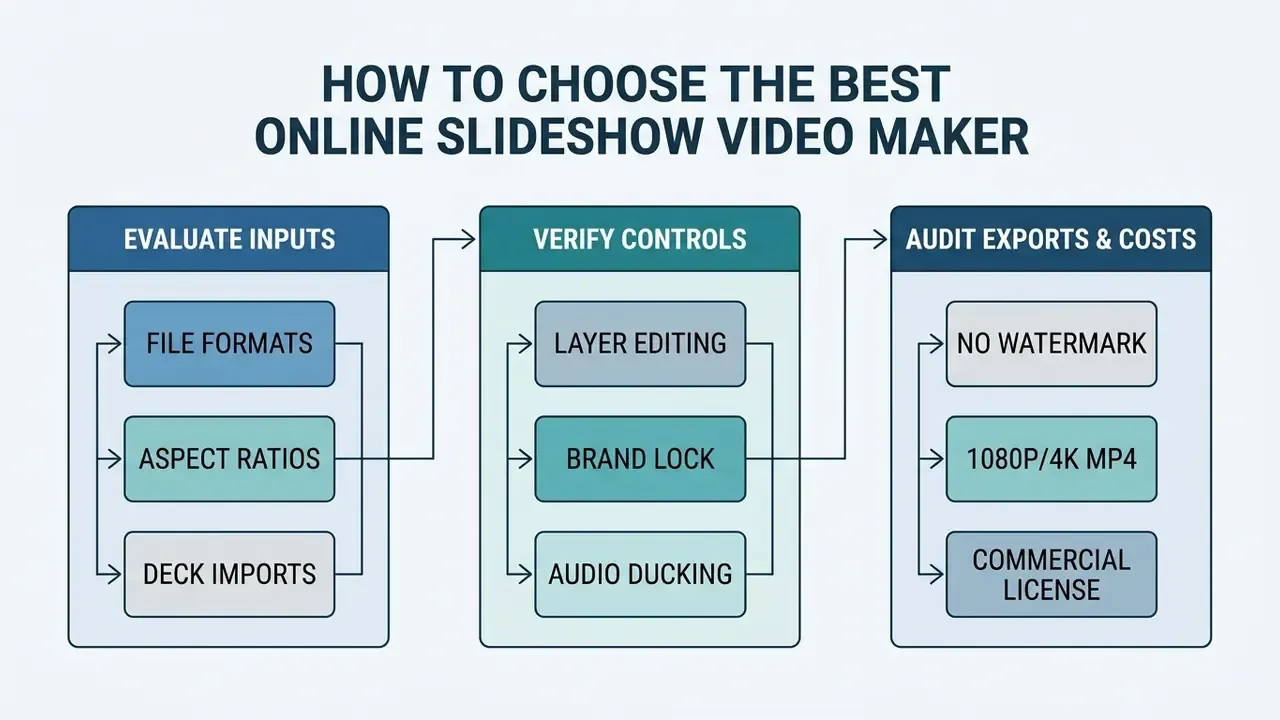
How to Choose the Best Online Slideshow Video Maker
Selecting the best online slideshow video maker requires matching technical software capabilities against organizational distribution requirements. Decision-makers must evaluate media ingestion flexibility, editing precision, template scalability, and export compatibility. Clear technical selection criteria prevent software lock-in and keep production spending predictable, whether you are buying seats for a team or simply picking an online slideshow video creator for a single campaign.
A structured scoring frame helps here. DIYAI evaluates AI video platforms across nine weighted metrics, including video quality (24%), prompt accuracy (20%), character consistency (16%), editing flexibility (12%), and commercial licensing (4%). That is a reasonable starting rubric even for non-AI editors: weight output quality and editing control highest, and treat licensing clarity as a pass or fail gate rather than a scored nicety.
Choose by Media Formats, Editing Control, and Templates
The initial selection filter focuses on raw media format compatibility and timeline editing flexibility. The platform must support seamless drag-and-drop ingestion of all standard corporate asset types, including high-resolution JPEGs, transparent PNGs, dynamic MP4 video clips, and vector SVGs. When managing large image repositories, production teams often pre-process source photography in a dedicated photo tool before timeline integration, which keeps the video editor focused on sequencing.
Editing controls must provide precise timeline manipulation, including multi-track audio layering, custom slide transition selection, PiP overlay positioning, and explicit text box positioning. Advanced enterprise platforms offer brand management hubs that allow administrators to lock custom fonts, corporate hex colors, and standard intro or outro stingers across all team templates, typically with limits such as a handful of brand profiles and a small number of asset locations per template. Evaluating software options using the structured tools available in the AI Media Calculators helps quantify production efficiency gains across different editing solutions.
Choose by Export, Sharing, AI, and Business Requirements
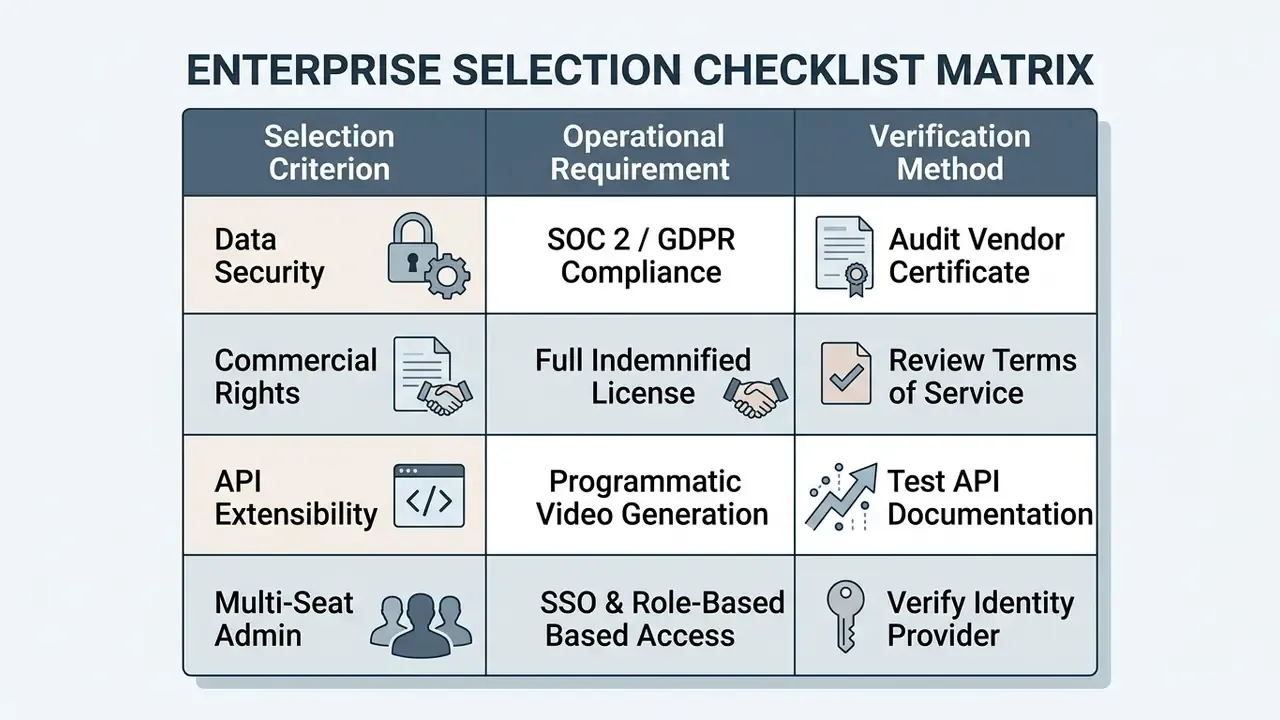
The secondary selection filter addresses output versatility, cloud collaboration tools, and enterprise security compliance. For corporate environments, the editor must support high-bitrate MP4 rendering at minimum 1080p resolution, with optional 4K export capabilities for large presentation displays. Direct integration with cloud storage repositories (Google Drive, OneDrive, or Box) simplifies team asset sharing and centralizes file management. Where documents are part of the pipeline, editable PPTX plus PDF output, with PDF 2.0 (ISO 32000-2:2020) conformance for exchange or PDF/A-4 for archival preservation, separates business-grade tools from consumer ones.
«86% of professional video producers use AI tools in production; only 14% have never applied them.»
Tool Categories and Their Business Models
Rather than a single ranking, it helps to recognize four recurring product categories, because pricing behavior follows the category.
| Category | Typical examples | Business model | Best fit |
|---|---|---|---|
| Single-purpose online slideshow tools | Clideo-style utilities | Per-file limits, watermark or export quota on free tier, low monthly subscription | One-off personal montages, quick photo-to-MP4 conversion |
| Full browser editors | Kapwing-, Clipchamp-, VEED-style platforms | Freemium with resolution or watermark caps, seat-based paid tiers, premium stock behind upgrade | Recurring social content, subtitles, PiP, team review |
| Design suites with video modules | Canva-, Adobe Express-style suites | Brand-kit and template-led subscriptions, generous free tier, AI credits metered | Brand-controlled marketing output at scale |
| AI-first generators and hosting platforms | Vimeo Create-, Synthesia-, prompt-to-video engines | Credit-based or plan-based AI generation, enterprise SSO and SLA tiers, API pricing | Prompt- or deck-to-video drafts, multilingual narration, embedded distribution |
Two practical procurement notes. First, credit-metered AI pricing punishes bursty production, so if your output is concentrated around quarterly launches, model the cost at peak month rather than average month. Second, the features you will actually be audited on (watermark removal, commercial stock rights, SSO, retention controls) sit on different tiers at different vendors, so build the requirement list first and price it second.
To explore enterprise-grade implementation patterns and commercial deployment guidelines, operations leaders can review frameworks hosted on the AI Media Commercial-Use Hub. Choosing a vendor that meets both creative editing and technical compliance standards keeps integration into existing content pipelines uneventful, which is the whole point.
FAQ About Slideshow Video Makers
How Many Photos and Videos Do You Need for a Slideshow?
The optimal number of photo and video assets depends directly on target video duration and desired visual pacing. For standard marketing slideshows, displaying each photo for 2.5 to 3.5 seconds maintains viewer interest without causing visual fatigue. Consequently, a 60-second social media video typically requires approximately 15 to 24 individual visual assets, and a three-minute event recap needs roughly 50 to 70. There is no validated formula that converts duration into an exact asset count, but three measured reference points help. Attention to lecture-style video drops significantly beyond six minutes, which caps sensible total runtime for informational slideshows. A slide held longer than about 15 seconds reads as too long unless it is a complex graphic requiring explanation. And memory research indicates that scene recall is poor below roughly 500 ms of exposure while pictures viewed for one second or more are remembered well, meaning very fast beat-synced cuts look energetic but transfer little information.
«Attention to lecture video decreased significantly for videos longer than 6 minutes; viewers preferred videos showing both slides and instructor over slides alone.» Educational media attention study (2025).
What Is the Difference Between a Slideshow and a Video Presentation?
A video slideshow is a continuous, time-based audiovisual stream that merges still photos, short video clips, background music, and text overlays into a self-running video file such as an MP4. It prioritizes uninterrupted playback and visual continuity, so it plays unattended at an event or in a social feed. In contrast, a video presentation is a slide-deck-driven narrative, often recorded directly from software like Microsoft PowerPoint or Google Slides, that prioritizes structured bullet points, synchronized speaker video narration, and presenter-led timing transitions designed to explain complex topics. A live slideshow can be advanced manually and adapted to the room; a video presentation fixes timing, transitions, and narration into a shareable asset that behaves identically for every viewer.
Can You Turn a Presentation into a Slideshow Video?
Yes. Static presentation decks such as PPTX or PDF files can be converted directly into playable slideshow videos. Users can upload deck files into a web-based video editor, which automatically converts individual slides into image frames placed on a timeline. Alternatively, applications like Microsoft PowerPoint support native video export via File > Export > Create a Video, allowing creators to preserve embedded slide animations, recorded voiceover narration, and slide timing settings in an exported MP4 file, with quality presets from 480p up to Ultra HD 4K. PDF-to-video conversion is handled by third-party document-to-video tools that ingest the PDF and return an editable draft.
What Audio and Video File Formats Are Supported?
Web-based slideshow makers support input visual formats including JPEG/JPG, PNG, WEBP (static), HEIC/HEIF, SVG, GIF, TIFF, MP4, MOV, AVI, MKV, MPEG, and WEBM. Supported background audio containers include MP3, WAV, AAC, and M4A files. Document inputs commonly include PDF and PPTX. Final rendered outputs are standardized to MP4 (H.264 video with AAC audio) or WebM containers for universal media player compatibility; some tools additionally export GIF, PDF, or a ZIP archive of JPG frames. Typical ceilings are 50 MB per image, 1 GB per video clip, and around 250 million pixels for raster images, though free tiers often impose stricter per-file caps such as 100 MB.
Can I Add Pictures and Video Clips into the Same Slideshow?
Yes. Modern web editors automatically normalize different input resolutions, frame rates, and media types, combining still JPEGs with motion MP4s onto a unified visual timeline with automated canvas reframing. Mixed-media slideshows are the norm rather than the exception: still photos hold on screen for a set duration while video clips play at their native frame rate, and the editor renders both into one continuous file. Keep video clips under 20 seconds and stills at 3 to 5 seconds so the rhythm stays consistent across media types.
Can I Put Two Images Side by Side or Use Picture-in-Picture?
Yes. Overlaying images, videos, and graphics inside a single frame produces either a picture-in-picture effect (a smaller inset over a full-frame background) or a side-by-side split screen (two sources scaled to half the canvas). Practically, you add both assets as separate timeline layers, resize and reposition the upper layer, and align their in and out points so they appear simultaneously. Webcam recording can be layered the same way to place a presenter bubble over the slides.
How Do I Add Subtitles to a Slideshow Video?
Use the editor's automatic subtitle or caption generator, which transcribes the voiceover track and creates time-synchronized caption blocks, then proofread proper nouns, product names, and figures. Captions serve two purposes: comprehension for the large share of social viewers watching muted, and accessibility, since captions must be synchronized to the corresponding audio and a transcript should accompany the video where visual content carries meaning. Where the audio contains no narration and the story is purely visual, on-screen text cards fulfil the same role.
How Do I Change the Timing and Transitions Between Slides?
Most editors expose two controls: a per-clip duration field and a bulk "apply to all" duration setting for uniform photo timing. Set 2.5 to 4 seconds for standard photos, 8 to 10 seconds for charts, and adjust individually where narration needs more room. For transitions, crossfade (dissolve) is the safest default for photo-to-photo movement, hard cuts suit fast-paced social edits, and 3D flips, wipes, and swirls should be avoided in professional contexts. If the slideshow is music-driven, place cuts on beat markers rather than at fixed intervals.
Is a Free Slideshow Video Maker Enough for Business Use?
For internal, non-confidential, non-monetized content, often yes. For anything published commercially, three constraints usually force an upgrade: the watermark, the 720p export cap, and the personal-use-only status of free-tier stock media. Add the data-classification question if the source material is internal. A reasonable rule of thumb: draft on the free tier, publish from a licensed one.
Where Does a Free Photo Slideshow Video Maker Online Fall Short?
Three places, predictably. Batch work suffers first, because export quotas and per-file size caps make a free photo slideshow video maker online awkward once you produce more than a few videos per month. Collaboration is second: shared review links, role-based access, and version history usually sit on paid tiers. Evidence is third, and it matters most for regulated teams, since free plans rarely provide a data processing agreement, a retention setting, or an exportable audit trail you can hand to internal audit. If any of those three matter, price the paid tier and move on.
Additional Operational Resources
- Access platform integration technical documentation: AI Media API Guides
- Review enterprise software deployment support: AI Media Support
- Compare leading video generation platforms: AI Media Comparison Matrices
- Model recurring production spend: AI Media Pricing Guides
- Consult comprehensive industry terminology definitions: AI Media Glossary