Last updated: April 2026. All credit allocations, model specifications, and licensing terms below were checked against official Canva pricing, Help Center, and AI Product Terms documentation.
Key takeaways for decision-makers: Canva bundles four distinct video AI modules (Create a Video Clip on Google Veo 3, Magic Media video on Runway, Magic Video auto-edit, and Magic Switch resize). Google Veo 3 is not available on the Free plan. Free accounts receive only 5 lifetime Magic Media generations (4-second, silent, watermarked). Paid plans permit commercial use, but no plan grants exclusive copyright over AI output. If budget approval is your gating factor, read the pricing section first.
How to read this guide
The order here is deliberate, not alphabetical. Pricing and plan access come first, because the single biggest planning error in Canva AI video is assuming a free account can reach Veo 3. It cannot. After that: what the four modules actually are, what they can produce, the hands-on workflow, licensing and watermark rules, the governance and data-handling questions procurement will ask, the hard technical ceilings, and finally a fit assessment against dedicated model platforms. A corrections log sits at the end for version traceability. If you are pricing a campaign, the credit-burn math in the first two sections is the part worth printing.
Canva AI Video Generator: Free Plan, Pro, and Cost Per Generation
Understanding the financial structure of Canva's AI ecosystem means reading three things together: monthly credit allocations, per-tool usage caps, and subscription tiers. This section appears before the hands-on workflow on purpose. Whether your plan can even reach Google Veo 3 determines which production pipeline you can realistically build.
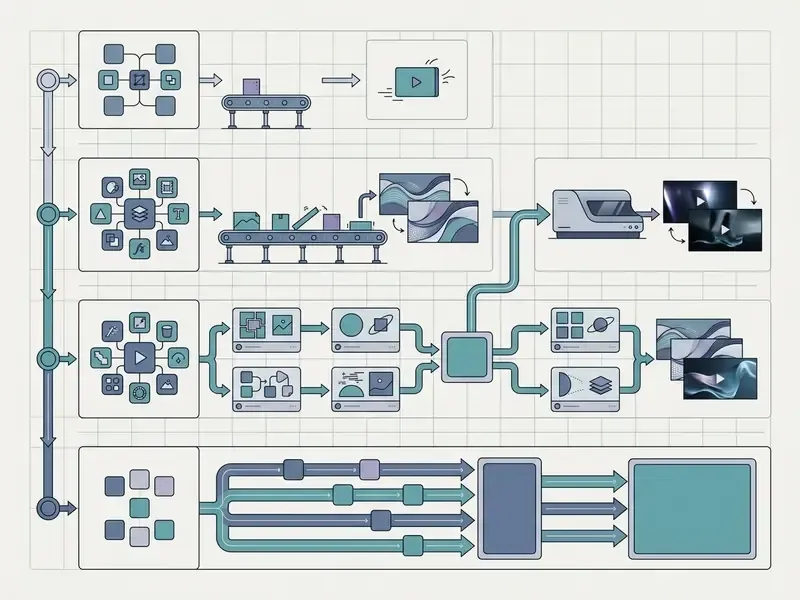
What You Get in Canva AI Video Editor Free
The Canva AI video generator free plan gives you full access to the core editing timeline, standard trimming tools, free templates, and un-watermarked exports of free elements. The generative side is another story. On the free tier, canva ai video generator free capability is tightly rationed.
Free Plan Limitations (Canva Free), updated:
The free tier provides no access whatsoever to the Google Veo 3 model ("Create a Video Clip"). Free accounts are allocated exactly 5 generations for the entire lifetime of the account (5 lifetime credits), and those generations route only to the older Magic Media model (4-second silent clips with an embedded watermark). There is no monthly reset and no monthly top-up of video credits on Free. General design generation is capped at 50 total lifetime credits, and Dream Lab image generation is limited.
This is the single most misreported figure in third-party Canva coverage. Once a free user burns those five Magic Media generations, no further AI video can be produced inside Canva without upgrading. Add the lifetime image-generation cap, and Canva Free reads as a "try it a few times" evaluation tier rather than a production tier. Magic Video auto-edit assembly does remain available on Free, subject to an hourly usage limit that resets every hour, but it arranges footage you already own instead of synthesizing new pixels.
A small practical detail worth knowing before your team starts testing: five generations disappear fast. One clumsy prompt, one filtered prompt, one clip with a warped hand, and you are down to two.
Users looking for zero-cost generation alternatives can review our analysis of the best free AI video generators and the wider category of free AI video generators.
What Canva Pro Adds for AI Video Generation
Canva Pro is listed at roughly $12.99 to $15.00 per month on monthly billing, or approximately $119.99 per year on annual billing. Prices vary by region, currency, and active promotion, so verify current figures on canva.com/pricing before procurement; Canva rotates regional price points and promotional bundles. On a like-for-like comparison, annual billing saves roughly 23% against twelve monthly payments ($119.99 vs. $155.88).
Upgrading unlocks recurring monthly credit pools plus advanced editing utility:
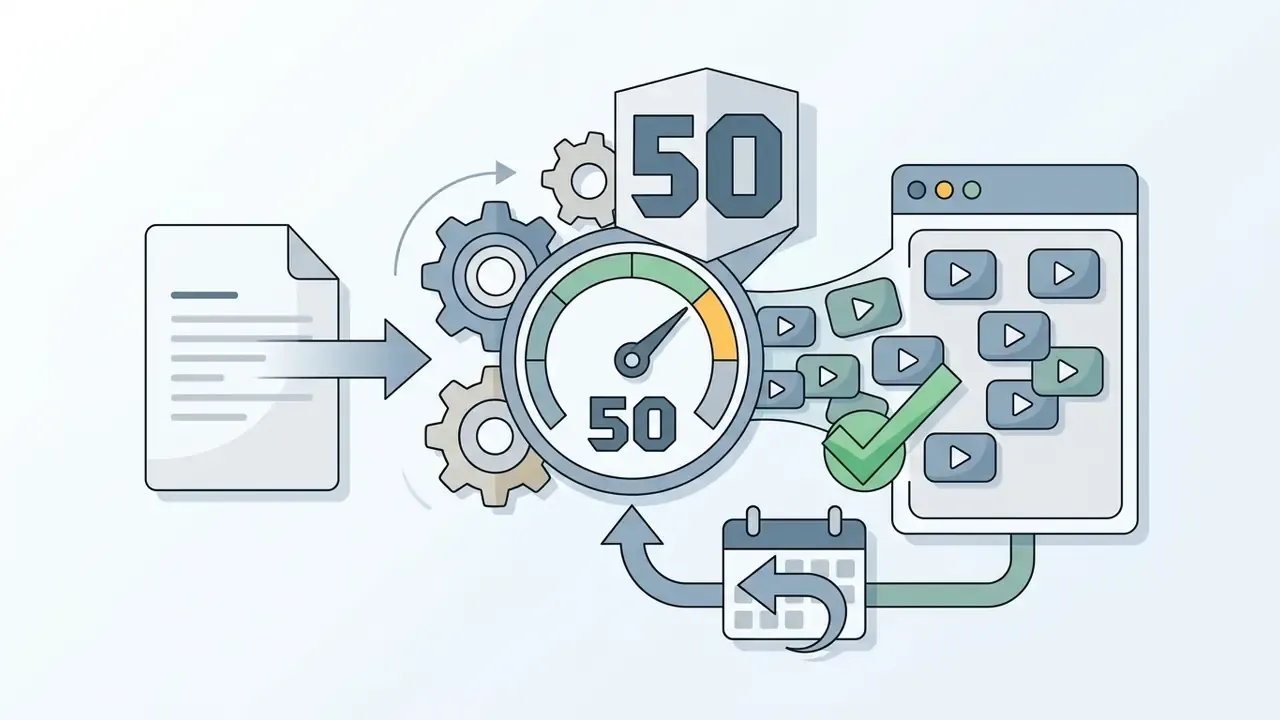
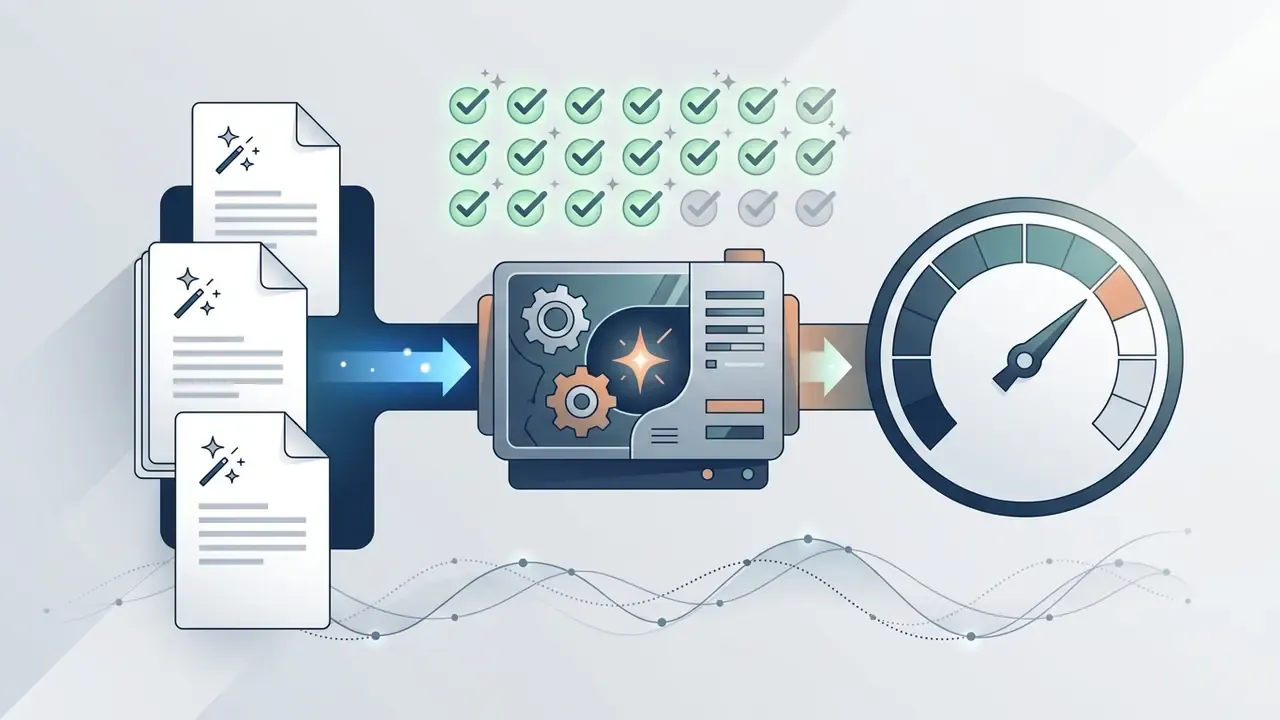
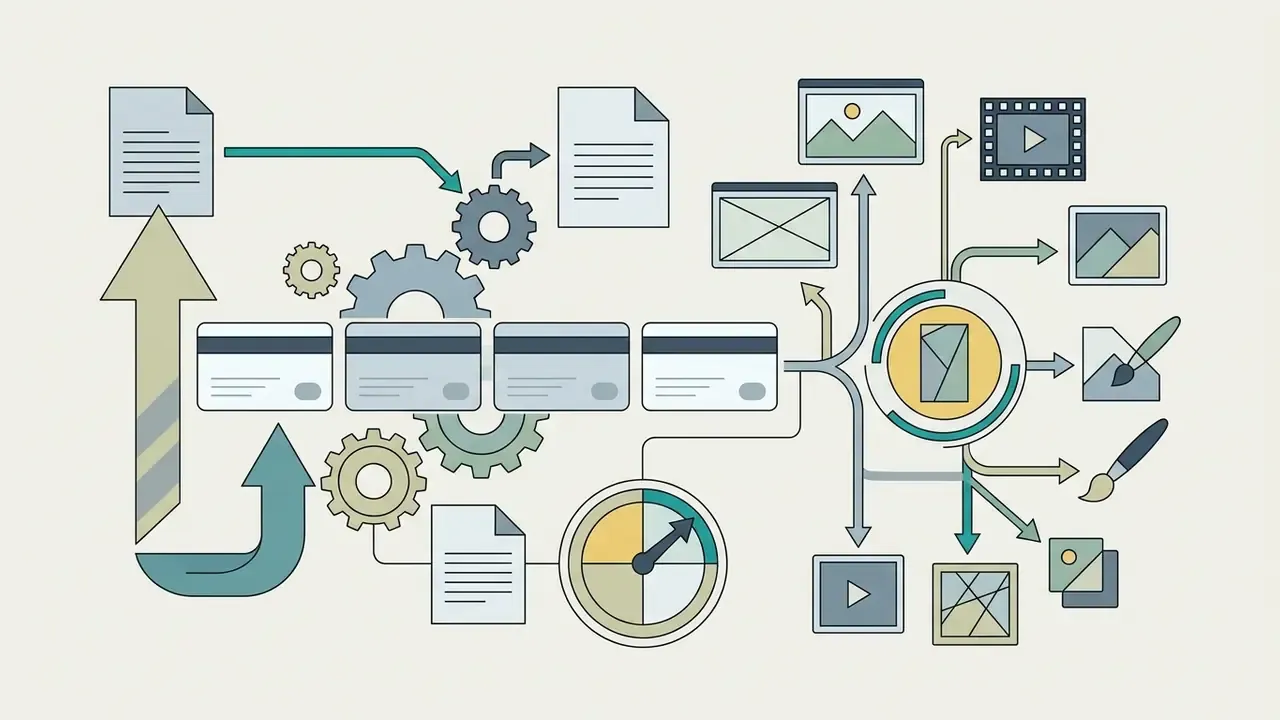
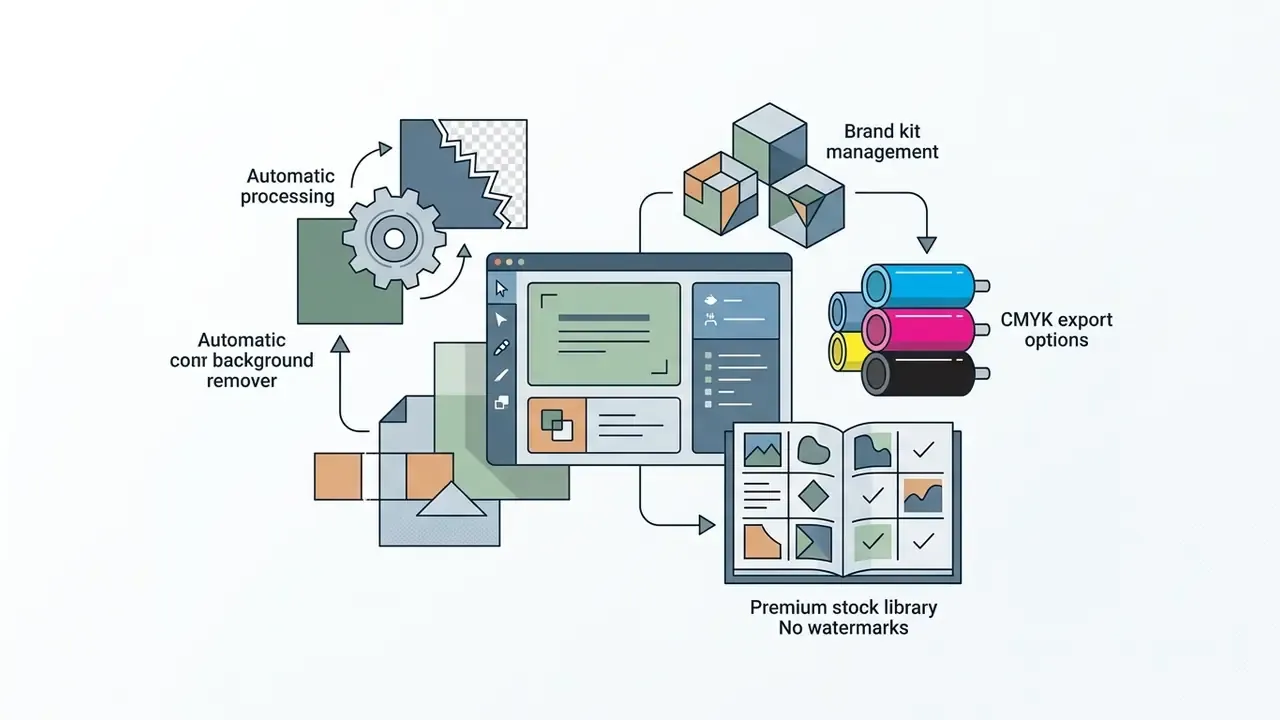
"Pro users receive 50 credits per month for Magic Media text-to-video, 500 credits for Dream Lab, and 500 Magic Write operations; pools reset at midnight UTC on the last day of the billing period."
Here is the structural detail most reviews miss: credits are shared across every AI tool. Every Magic Edit, Magic Expand, Magic Write run, and Magic Media call draws from the same monthly pool as your Veo 3 clips. A heavy video user can drain a month's allocation in one long working session. Not theoretical. That is the normal outcome of a single afternoon of iteration.
How Credits and Limits Affect the Cost of One Clip
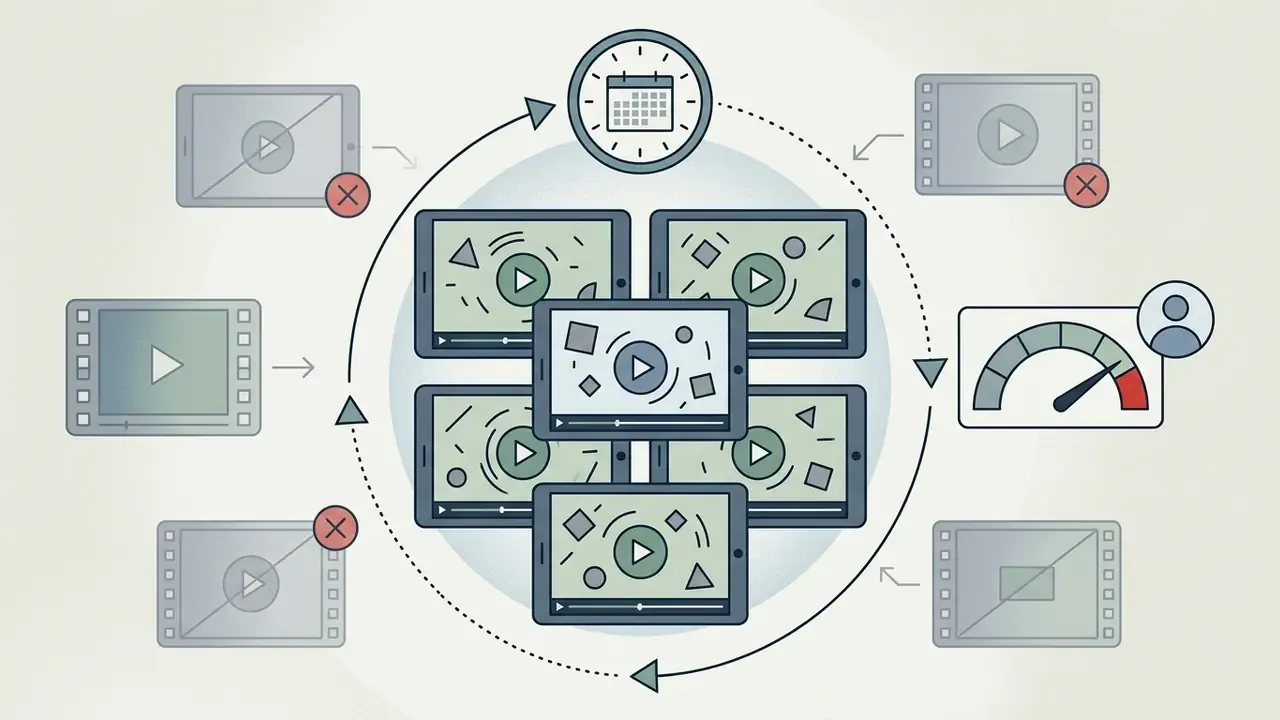
Calculating the operational cost per video requires the deduction rules, not the sticker price. Each video generation attempt consumes one dedicated tool credit upon initiation, whether or not you keep the rendered clip. A failed render, a motion glitch, an artifacted frame, a cancelled preview: each still costs one credit, with no refund mechanism.
"Credits do not carry over to the next month and reset on the billing date; maximum efficiency comes from using the full quota."
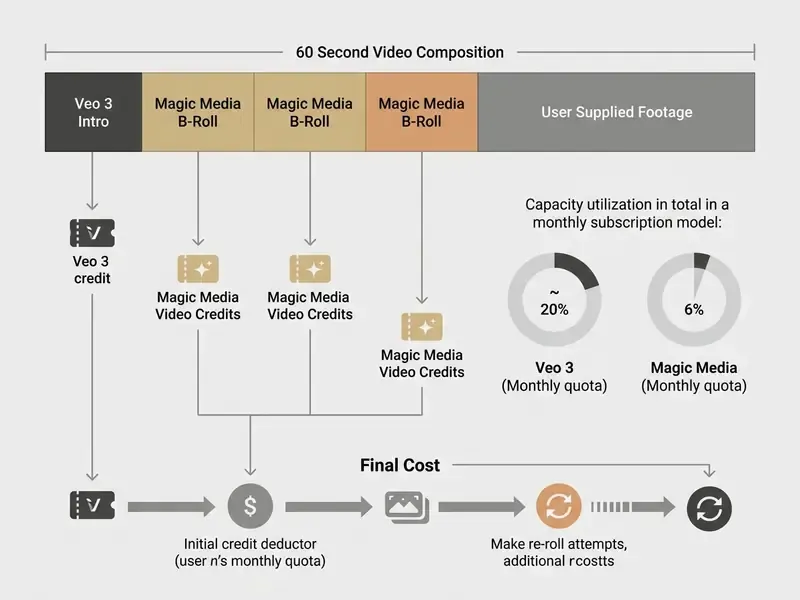
If the monthly AI credit allowance on Pro runs out before renewal, new clip generation through Veo 3 and Magic Media is blocked. Canva sells additional credit packs inside the platform, and an optional AI add-on is offered for heavy months. Again, and this matters for budgeting: any unsuccessful generation (motion glitch, image artifacts, filtered prompt) still deducts one credit with no reversal. Iterative prompting is the primary hidden cost driver in Canva AI video generator cost planning.
Because unused credits do not roll over, cost efficiency peaks when production schedules fully consume the monthly quota. For benchmarking against pay-as-you-go alternatives, note that dedicated model platforms price by the second rather than per generation:
"Gen-4.5 Text to Video and Image to Video costs 12 credits per second."
At that rate, a 5-second Runway clip consumes 60 credits and a 10-second clip 120 credits. On a $99/month, 500-credit tier, that maps to roughly $11.88 and $23.76 per finished clip. So Canva's flat-quota model is substantially cheaper per clip within quota, and substantially less flexible beyond it. Teams planning dedicated media infrastructure can examine our AI Media Pricing Guides and our comparison of AI video generators to weigh subscriptions against generative APIs, and model credit burn with the AI Media Calculators.
Canva Plan Comparison Table (Free vs Pro vs Teams vs Enterprise)
| Comparison Metric | Canva Free Plan | Canva Pro Subscription | Canva Teams | Canva Enterprise |
|---|---|---|---|---|
| Google Veo 3 Video Clips | Not available | 5 videos per month | 5 videos per month per seat | Custom / higher pool |
| Magic Media Text-to-Video | 5 total lifetime credits | 50 credits per month | 50 credits per month per seat | Custom allocation |
| Magic Video Auto-Edit | Included (hourly reset limit) | Included | Included | Included |
| Magic Switch (Resize AI) | Not available | Included | Included | Included |
| Dream Lab Image Generation | 20 credits per month | 500 credits per month | 500 credits per month | Custom |
| General AI Design Credits | 50 total lifetime credits | 150 credits per month | 150 per month per person | Custom pooled |
| Magic Write Allocation | 50 total credits | 500 credits per month | 500 per month per person | Custom |
| Stock Library Access | Limited free stock elements | Full premium library (100M+ assets) | Full premium library | Full premium library |
| Background Remover | Not available | Unlimited timeline usage | Unlimited | Unlimited |
| Watermark Constraints | Watermarks on premium stock assets | No watermarks on Pro licensed assets | No watermarks | No watermarks |
| Export Formats & Quality | Standard MP4 / GIF | High-bitrate MP4, CMYK, custom sizing | Same as Pro | Same as Pro + brand controls |
| Admin Governance | None | Individual account only | Team folders, shared Brand Kit, role permissions | SSO/SAML, centralized brand controls, admin approval workflows, dedicated support |
| Indicative Price (2026) | $0 | ~$12.99 to $15.00/mo or ~$119.99/yr | From ~$14.99/mo (first 5 seats) | Custom quote |
E-E-A-T data currency verification:
What Canva AI Video Generator Is and Which AI Tools Canva Includes
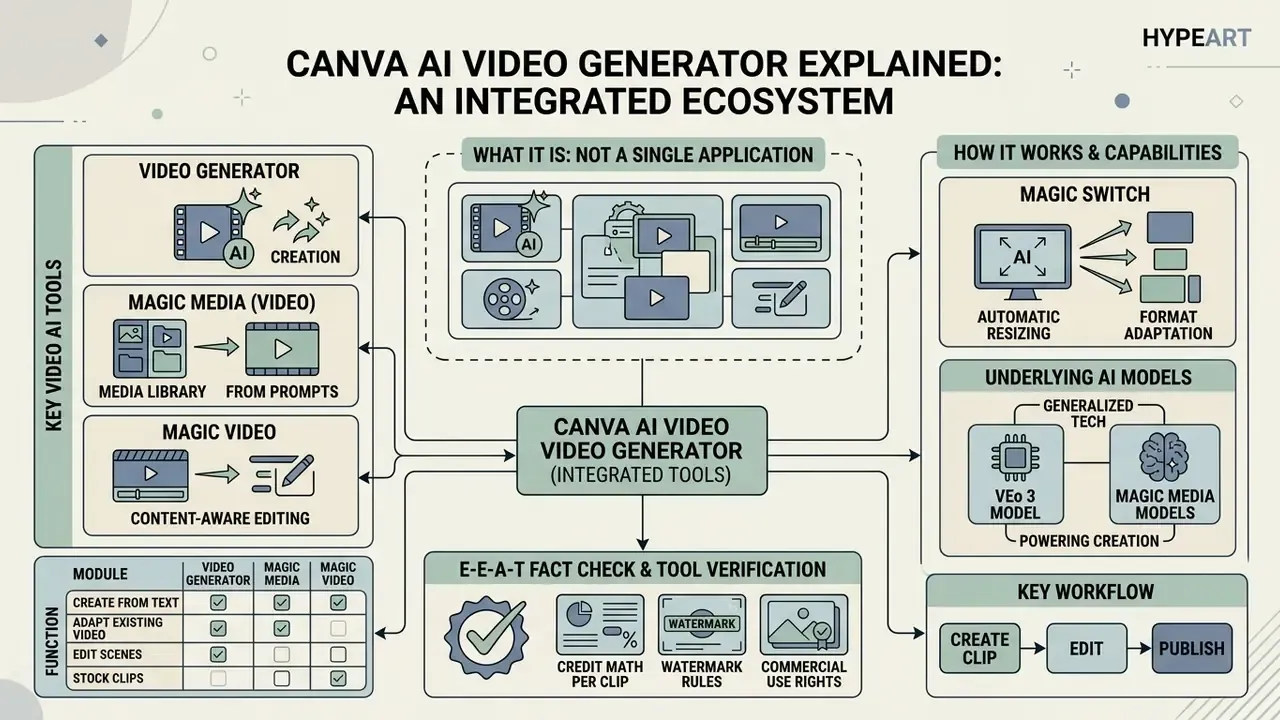
Canva AI Video Generator is not one isolated application. It is an ecosystem of generative models and editing assistants hosted inside the Canva video editor. Sitting within the broader Magic Studio suite, these tools span text-to-video prompt engines, automated timeline sequencing, and neural speech synthesis. Treating "Canva AI video" as a single product is precisely how reviewers end up wrong on pricing and limits. There are four functionally distinct modules. Two generate new footage; two only rearrange or reformat media you already have.
Video Generator, Magic Media, and Magic Video: What's the Difference
Magic Media is Canva's primary generative clip engine. Magic Video is an automated assembly assistant inside the wider free ai video editor category.
"Magic Studio brings together more than 40 AI tools in a single editor, including video, image, text, and voice generation."
Magic Media turns natural-language prompts or static input images into short synthetic clips, the same functional category covered in our reference on text-to-video AI tools. Every Magic Media video is four seconds long, silent, and carries a standard origin watermark in the bottom right corner, regardless of plan tier.
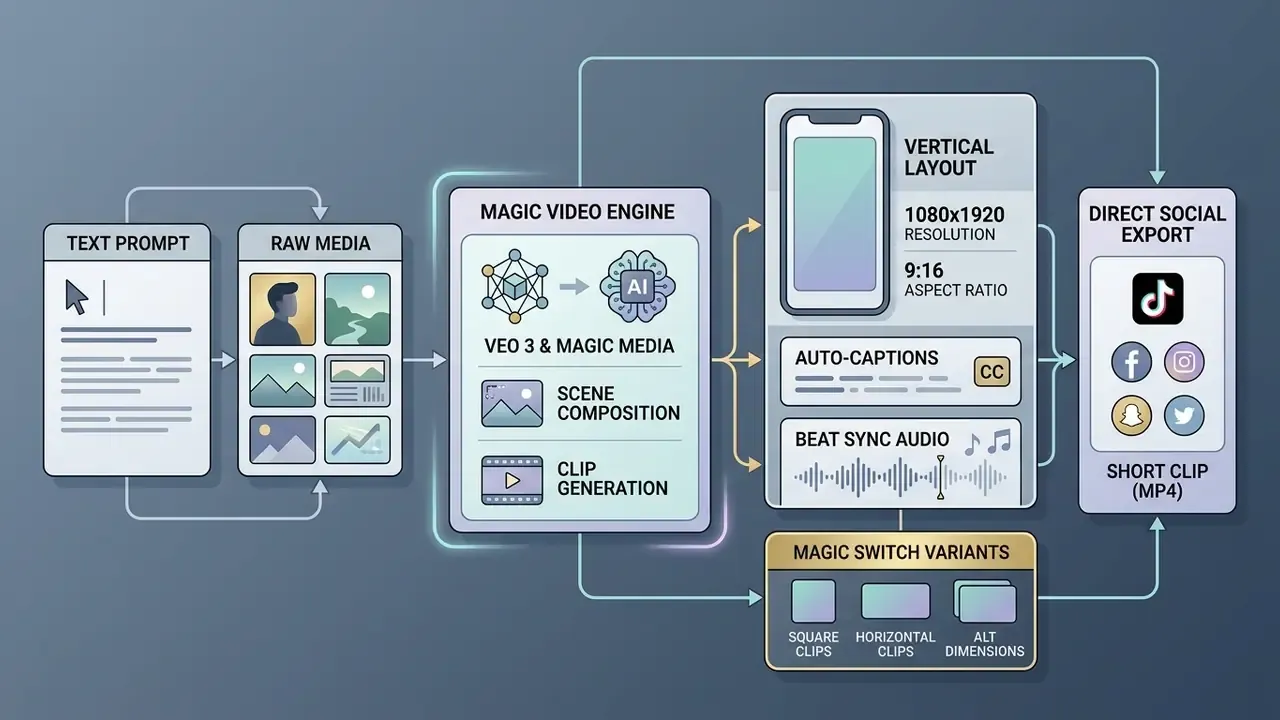
Magic Video works differently. It takes between one and ten user-uploaded clips or photographs and automatically trims, styles, and sequences them into a 60-second multi-scene vertical video, a workflow adjacent to the class of image-to-video AI generators. Instead of synthesizing pixels from scratch, it applies dynamic social templates, beat-synchronized audio transitions, and visual filters to media you supply.
Canva AI video creation extends further through Magic Design for Video, which accepts three to ten photos or clips plus a descriptive prompt and returns automated captions and social-ready layouts. Operators managing large asset libraries often use the AI Media Glossary to standardize terminology across automated media pipelines.
Magic Switch: Automatic Resizing and Video Format Adaptation
Magic Switch does not generate footage from text. It is an AI layout-adaptation tool, and it is the fourth component of Canva's video AI stack that most reviews skip entirely. It converts a finished horizontal project (16:9) into vertical TikTok or Reels format (9:16) or a square 1:1 format in one click. The AI keeps the primary subject inside the safe frame, re-composes text overlays and captions to the new proportions, and re-flows scene layouts without manual re-editing of every cut.
For teams producing one master asset and distributing it across five placements, Magic Switch is often the highest-return AI feature in the whole suite. It saves editing hours rather than generation credits. Paid plans only.
Feature Separation Matrix: Which Module Does What
| Module | What It Actually Does | Underlying Model | Output Spec | Plan Required |
|---|---|---|---|---|
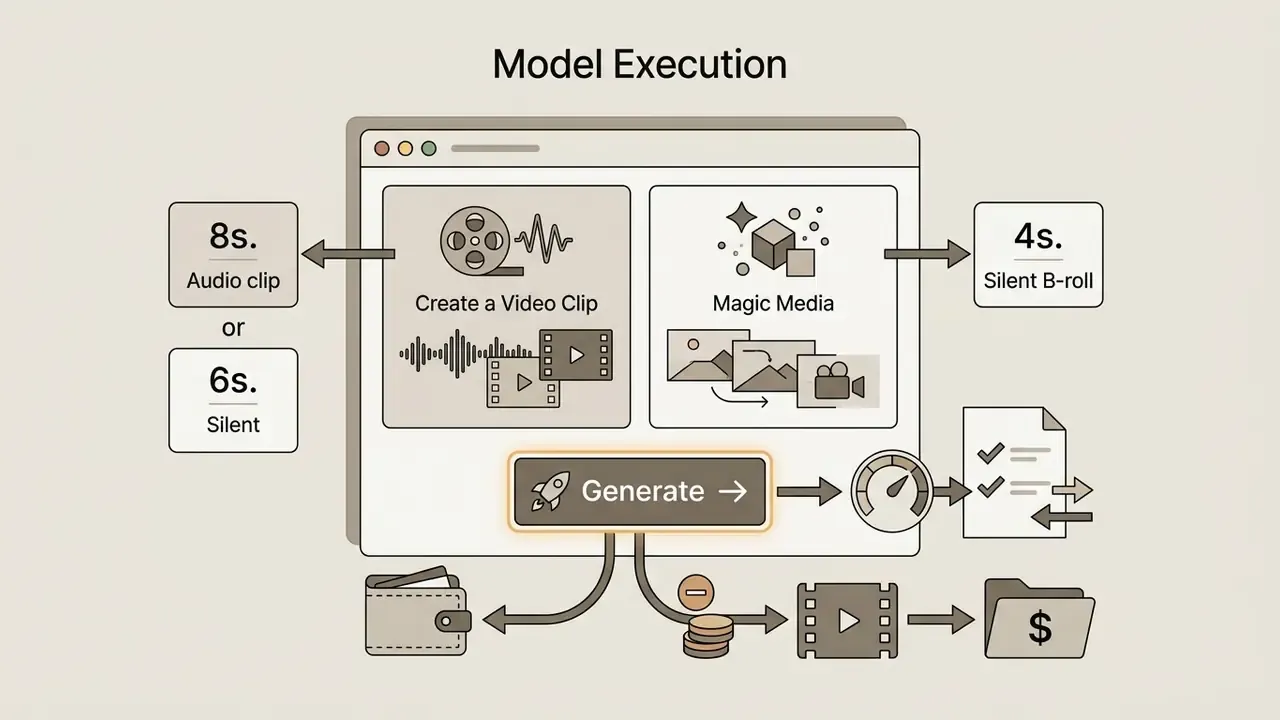
| Create a Video Clip (Canva AI) | Generates a new synthetic clip from text or image | Google Veo 3 | 8s with audio, or 6s without audio, 16:9 | Pro, Teams, Enterprise, Nonprofit |
| Magic Media video | Legacy text-to-video / image-to-video generation | Runway | 4s, silent, watermarked | Free (5 lifetime), Pro (credit pool) |
| Magic Video | Auto-edits footage and photos you upload | Template + music AI (not a generator) | Up to 60s, short-form vertical | All plans, including Free |
| Magic Switch | Resizes and reformats existing designs and videos | Layout AI (not a generator) | Preserves source, new aspect ratio | Paid plans |
Two of these are true generators. One is an auto-editor arranging footage you already own. One does not generate video at all. When a tutorial promises "free AI video with Canva," it is almost always describing Magic Video auto-edit rather than Veo 3 generation, and the output differs dramatically.
Which AI Models Canva Uses for Video Generation
Canva integrates third-party generative architecture into its canvas, mainly Google's Veo 3 model and Runway ML infrastructure. The headline "Create a Video Clip" feature runs on Google Veo 3.
"Create a Video Clip, powered by Google Veo 3, produces 16:9 clips up to 8 seconds with synchronized sound, including dialogue and sound effects."
The output specification has two modes: 8 seconds with synchronized native audio (dialogue, sound design, and music generated by the model itself), or 6 seconds without audio, both at 16:9. Text-to-video and image-to-video workflows are both supported, with direct handoff into the Canva video editor for Brand Kit application, music, captions, and social-format export.
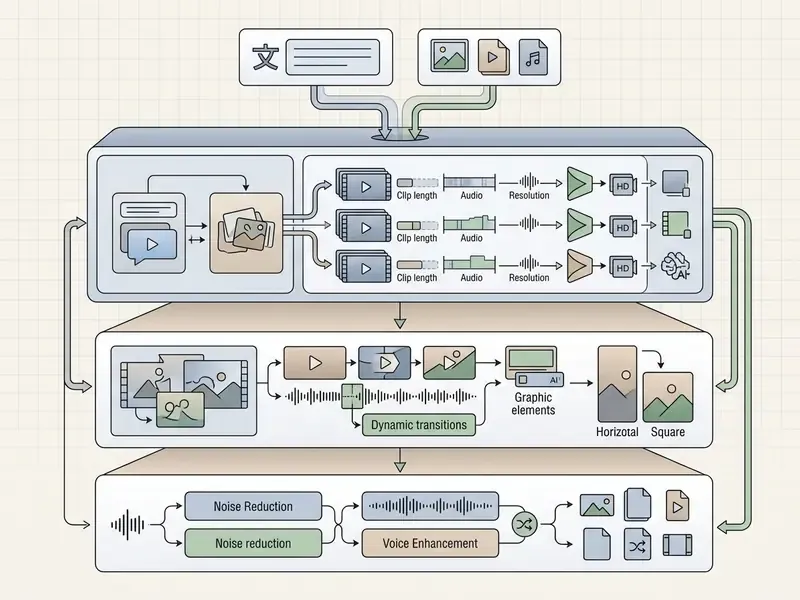
For Magic Media text-to-video and image-to-video operations, Canva leans on Runway generative video models under the hood.
"Canva describes Magic Media as a tool 'powered by Runway' that lets you turn AI images into video for any project."
Enterprise teams analyzing developer economics can evaluate model integration costs through the Google Veo AI Video Generator implementation guide, comparing raw API performance against embedded SaaS. One constraint to note early: users cannot select model hyper-parameters. Canva abstracts execution behind simplified prompt interfaces and credit metering.
E-E-A-T fact check and tool verification:
Canva AI Video Capabilities
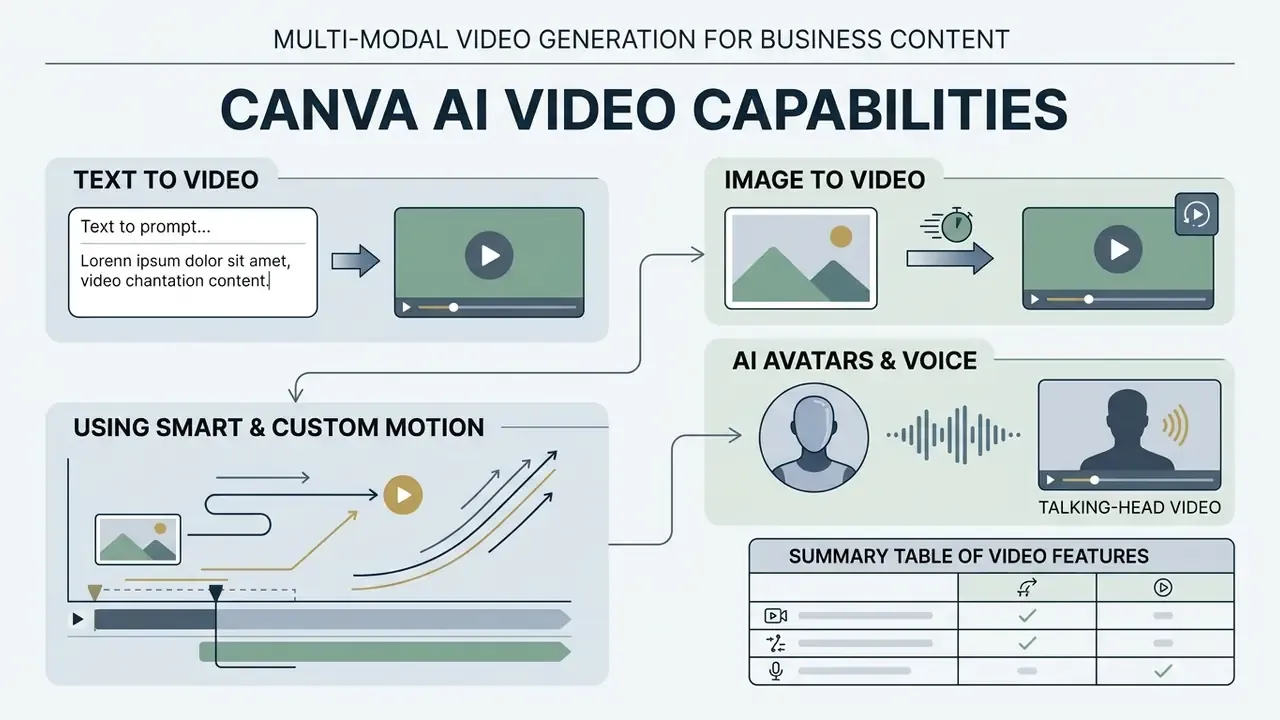
Canva AI provides multi-modal video generation aimed at accelerating visual content for marketing, internal communications, and social platforms. Coverage spans text-to-video scene creation, static image animation, neural voiceovers, audio cleanup, and asset library integration.
Canva AI Text to Video: Creating a Clip from a Text Prompt
Canva AI text to video lets creators turn descriptive scripts into rendered scenes without a camera, the same category surveyed in our overview of AI video generators. Using the canva ai text to video feature inside Magic Media, you describe visual elements, lighting, camera perspective, and atmosphere in English prompts.
Output fidelity depends directly on prompt structure.
"Canva's documentation states it plainly: the more detail you provide, the better the result."
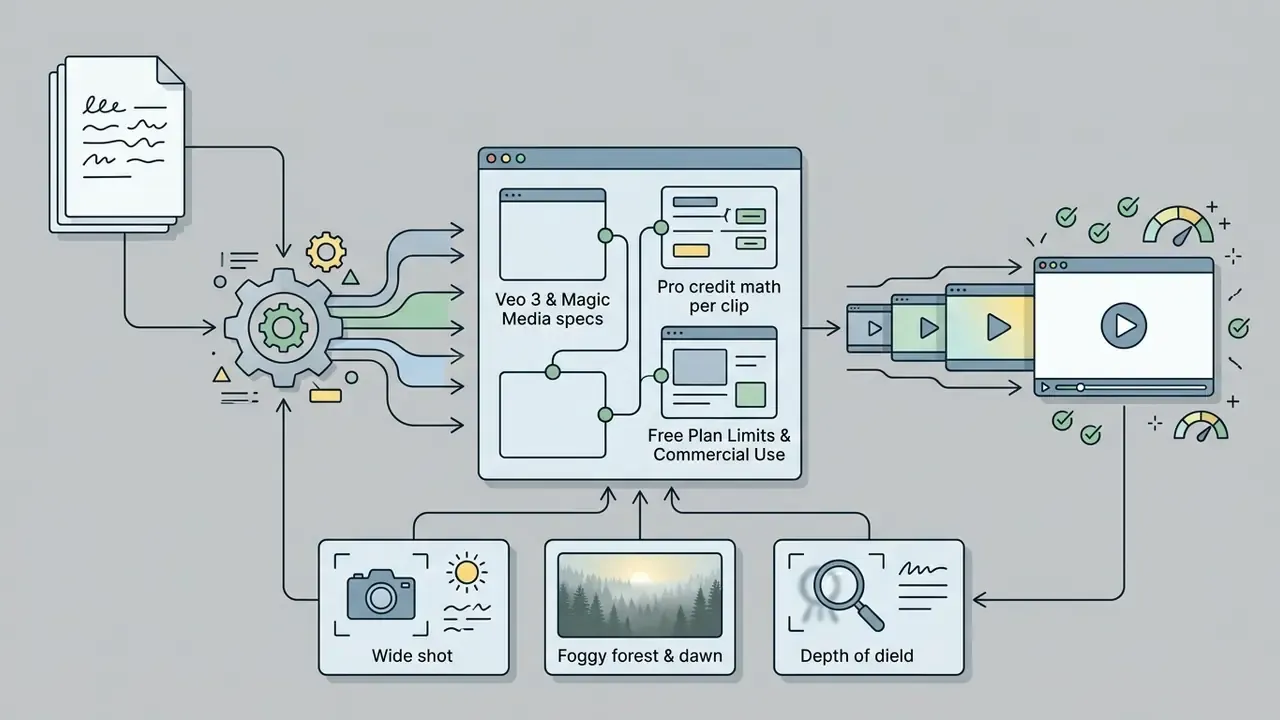
Descriptors that specify camera movement ("slow pan," "aerial tracking shot," "macro lens") produce more predictable motion than short summaries. Canva's guidance recommends action words and camera direction, because wording is the only lever affecting generated movement. For more cinematic needs, the canva ai text to video generator powered by Veo 3 renders 8-second clips with integrated audio cues, which works well for intros and scene transitions. One video is generated per prompt: there is no batch variant generation, and prompts blocked by content filters can still consume a credit.
Generating Video from an Image and Using Motion
The image-to-video workflow converts static images, vector designs, or synthetic image outputs into motion clips; see our reference on image-to-video AI tools for the wider tool class. You upload a baseline photographic asset or generate one via Dream Lab, then apply animation controls inside Magic Media or the Animate panel.
Motion control parameters fall into Smart motion and Custom motion:
- Smart Motionautomatically analyzes image elements and applies contextual camera panning, focal zooming, or subtle background shifting.
- Custom Motionlets you describe the desired movement trajectory in natural language.
Because frame-by-frame trajectory masking and keyframe control are unavailable, motion generation relies on algorithmic interpolation.
"Canva does not expose numerical camera parameters or motion curves; control happens solely through text descriptions."
In practice, image-to-video motion in Canva reads as camera movement (pans, zooms, parallax drift) rather than new subject action. Continuity across separate generations is not guaranteed either, since multi-reference character consistency is not supported. Creators converting static graphics into motion assets often consult our guide on free ai video generator from images to benchmark motion continuity.
AI Avatars, Voice, and Talking-Head Video
Canva supports talking-head and presenter workflows through text-to-speech integrations and avatar apps in its App Marketplace. The integrated AI voice generator panel converts scripts of up to 1,000 characters into natural-sounding speech across more than 40 languages and regional accents.
"Canva's voice generator supports accents including English (Australia), French (Canada), and Chinese (Mandarin), making it usable for global content."
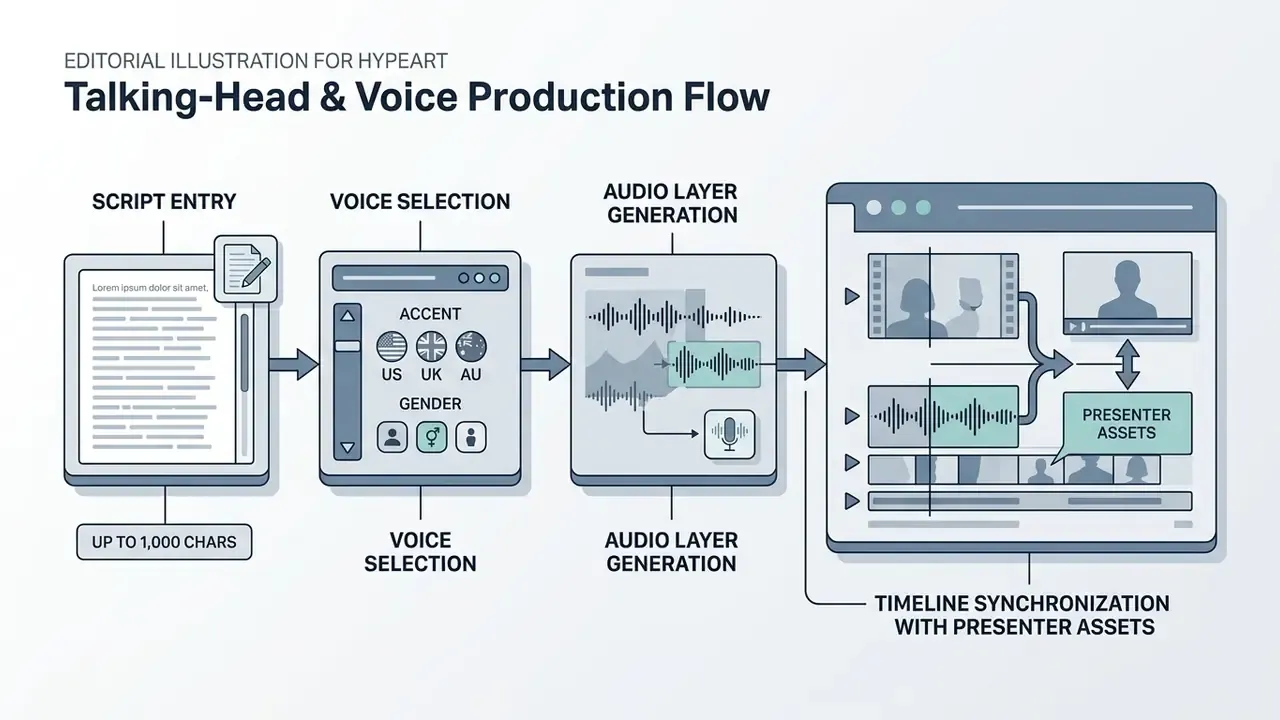
For presenter-led training videos or promotional spots, creators combine synthetic voice tracks with presenter photo assets or third-party avatar extensions (HeyGen, D-ID apps integrated inside Canva). Accuracy note: photorealistic lip-sync articulation comes from those marketplace extensions, not from a documented native Canva feature. Official documentation describes presenter narration and avatar generation from a photo, but does not specify a native frame-level lip-sync engine. Canva AI Video's own talking-head output uses Veo 3-generated faces and voices; it cannot take your recorded audio and sync it to a persistent avatar identity across multiple separate clips. Teams needing that capability route into HeyGen, D-ID, or DeepReel through the marketplace, each with separate pricing and credits. Adjacent audio experiments live elsewhere too: our free ai song generator online index covers soundtrack generation for the same social edits.
Summary Table of Canva AI Video Features
| Feature | Primary Input | Output Format & Specs | Audio Capabilities | Watermark Status | Primary Use Case |
|---|---|---|---|---|---|
| Magic Media (Text-to-Video) | Detailed text prompt | 4-second clip, fixed aspect ratio | Silent (no native audio) | Yes (bottom-right mark) | Short motion inserts, visual B-roll |
| Magic Media (Image-to-Video) | Static image + text motion prompt | 4-second animated clip | Silent | Yes (bottom-right mark) | Product photo animation, hero banners |
| Create a Video Clip (Veo 3) | Text script or descriptive scene | 8-second clip with audio OR 6-second clip without audio (16:9) | Synced audio, SFX and music (8s mode) | No default watermark | Cinematic intros, standalone scenes |
| Magic Video | 1 to 10 uploaded clips/photos | Up to 60-second vertical video | Auto-selected background audio | Depends on asset licenses | Rapid social media assembly |
| Magic Design for Video | 3 to 10 photos/clips + text concept | Multi-format social clip | Beat Sync and auto-captions | Depends on asset licenses | Reels, Shorts, TikTok creation |
| Magic Switch | Existing finished video/design | Reformatted 9:16, 1:1, or 16:9 | Preserves source audio | Inherits source status | Multi-placement distribution |
| AI Voice Generator | Text script (max 1,000 chars) | High-fidelity audio track | 40+ languages and accents | None | Voiceovers for ads and tutorials |
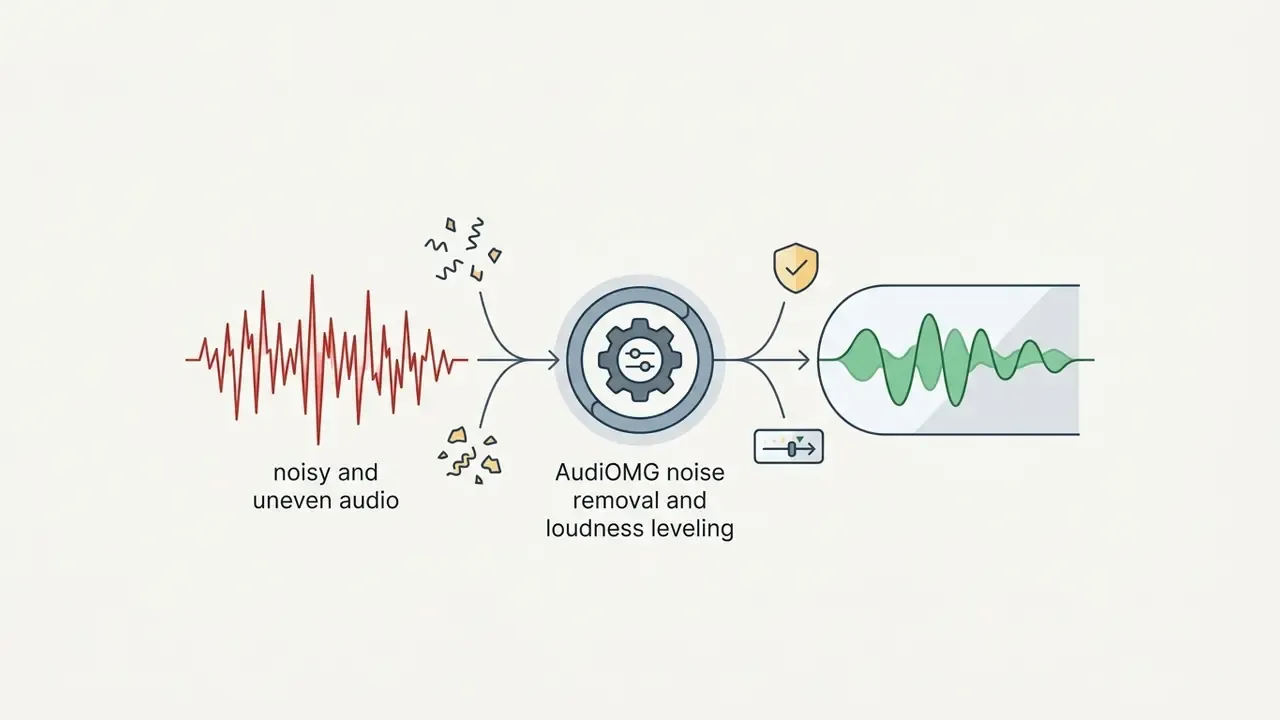
| AudiOMG Audio Suite | Uploaded or generated audio | Cleaned, leveled, beat-matched track | Noise removal, voice enhance, Beat Sync | None | Post-production audio finishing |
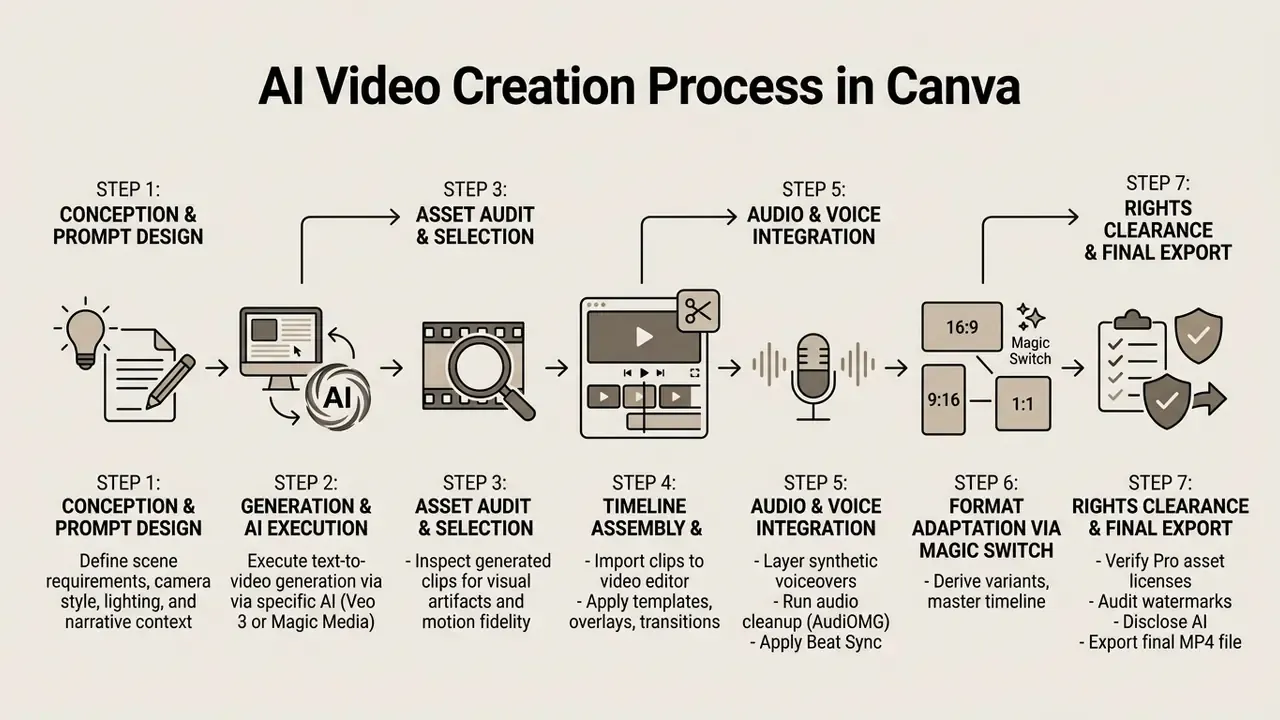
How to Create AI Video in Canva: Step-by-Step Workflow
Producing a finished commercial video with Canva AI requires a structured pipeline: prompt entry, multi-track editing, then rights verification. Confirm your plan tier and credit balance first, since the Veo 3 steps below are unavailable on Free accounts.
Preparing the Prompt and Generating the First Clip
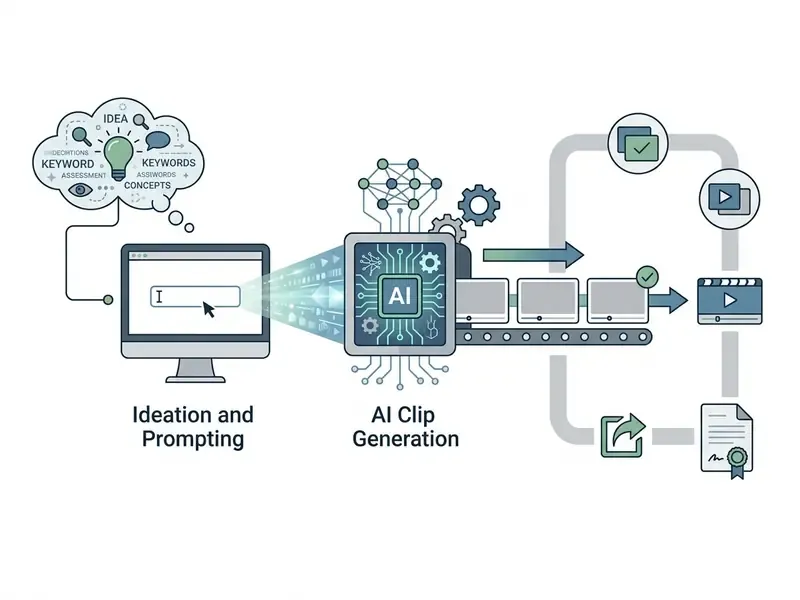
Start by opening Canva AI from the main dashboard and choosing the video generation entry point.
For benchmark comparisons on prompt fidelity across tools, see our review of Canva AI Generator capabilities.

Editing Generated Clips in the Canva Video Editor
Once individual clips are approved, click Use in Canva Editor to import them onto the project timeline. What you get is a conventional multi-layer timeline comparable to standalone video editors, with AI assistance layered on top.
Two platform-level constraints are easy to hit: uploaded source videos generally must be under 10 minutes for several AI editing features, and some tools are restricted to specific canvas dimensions. Creators publishing across external channels frequently lean on the YouTube video editor workflow guide to structure multi-track assets efficiently.
Creating a Short Clip for TikTok and Social Media
The canva ai tiktok video generator workflow compresses vertical video production for TikTok, Instagram Reels, and YouTube Shorts. Teams evaluating cost-free alternatives can compare against our roundup of the best free video editing software.
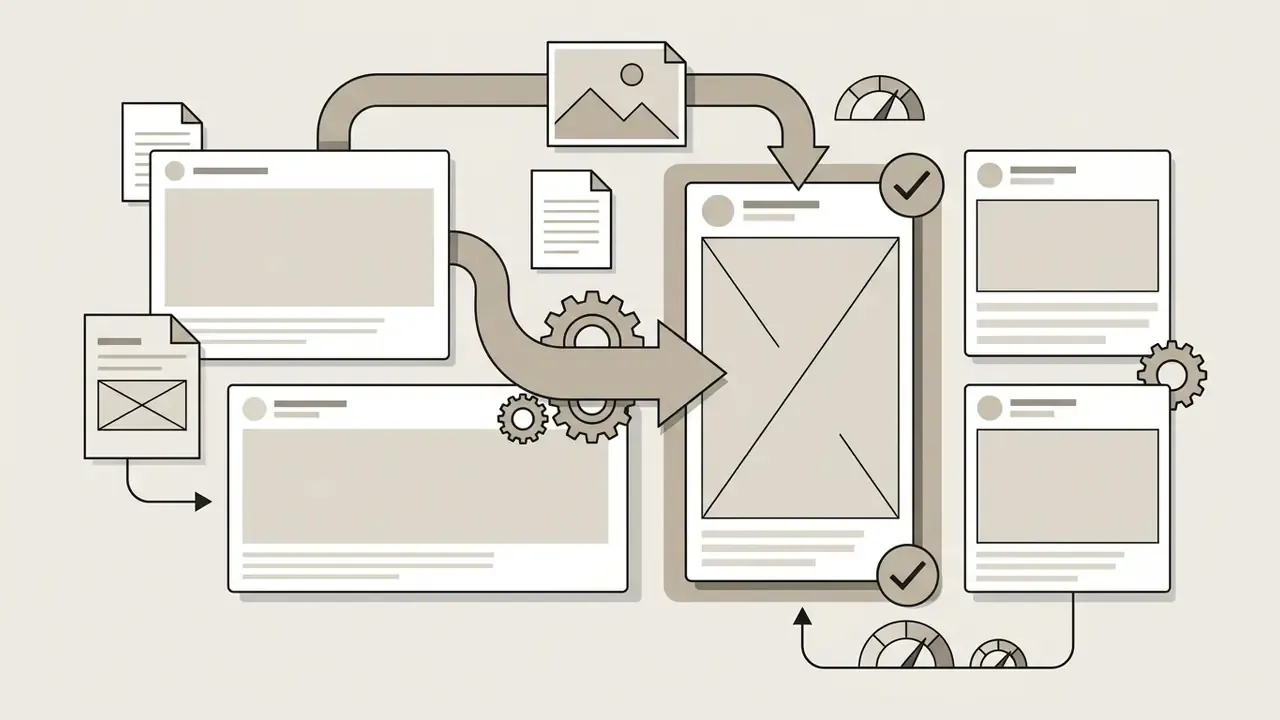
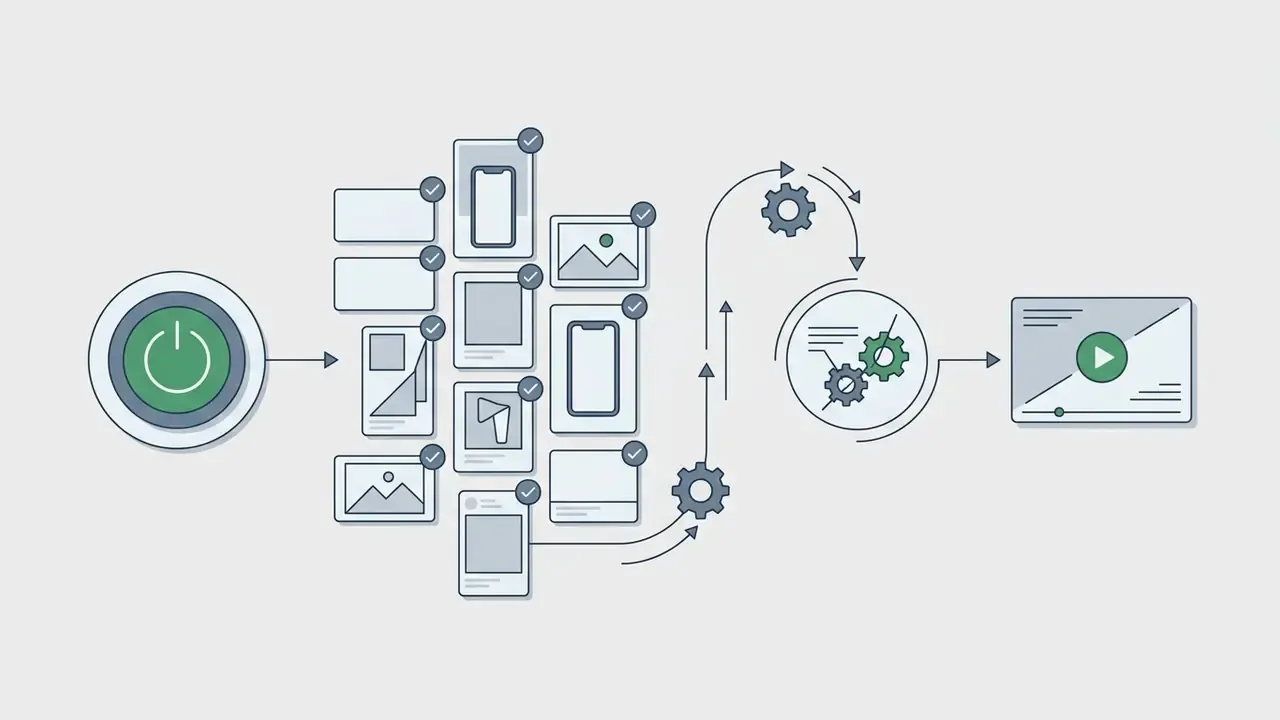
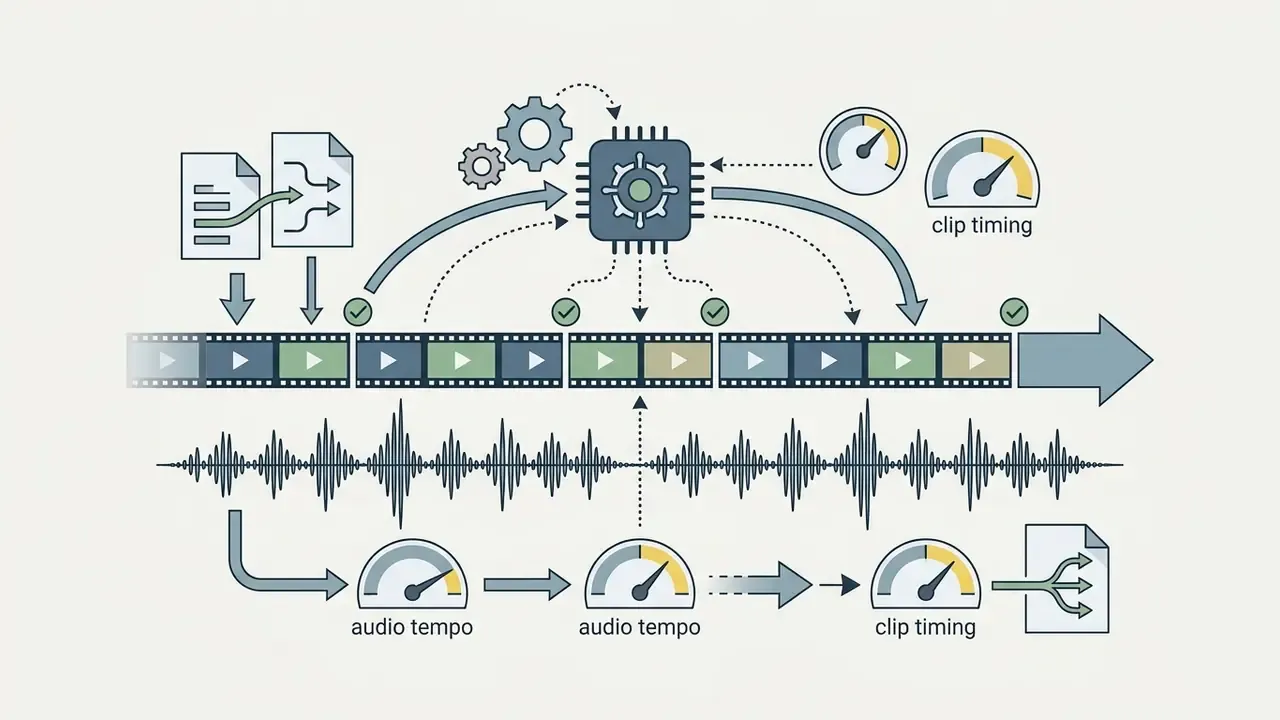
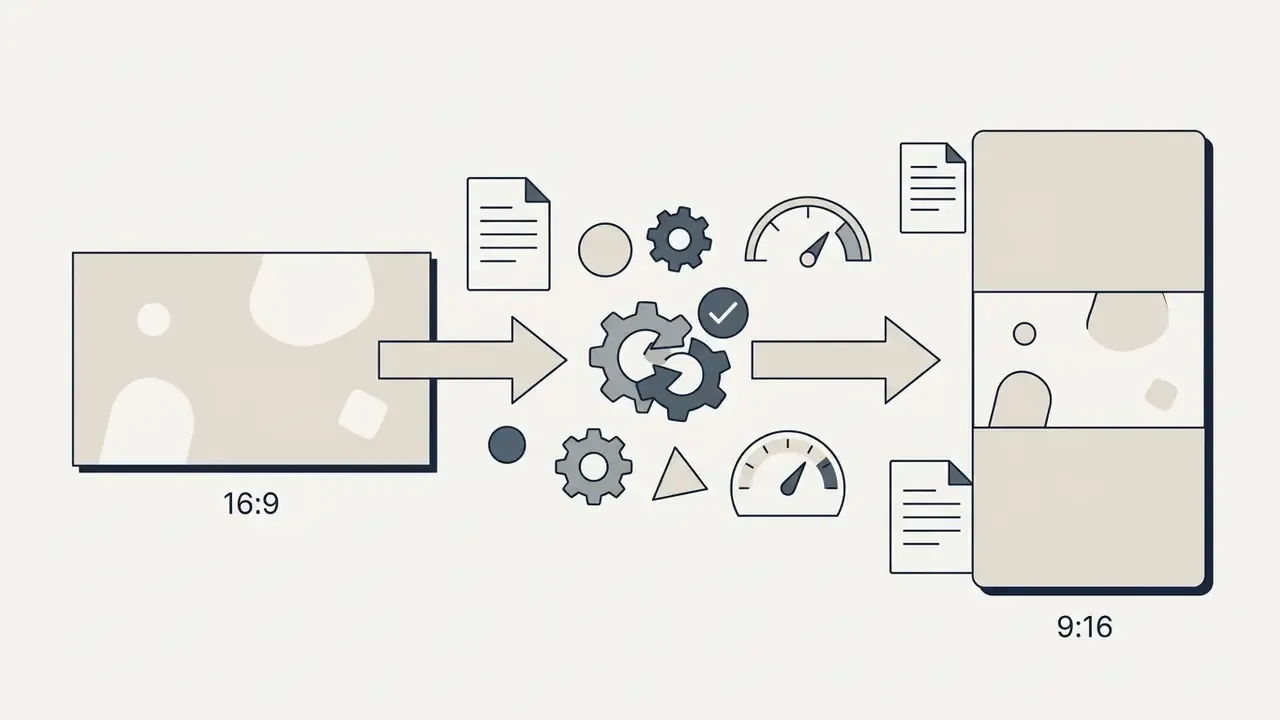
AI Video Creation Process Diagram
Watermarks, Licensing, and Commercial Use of Canva AI Video
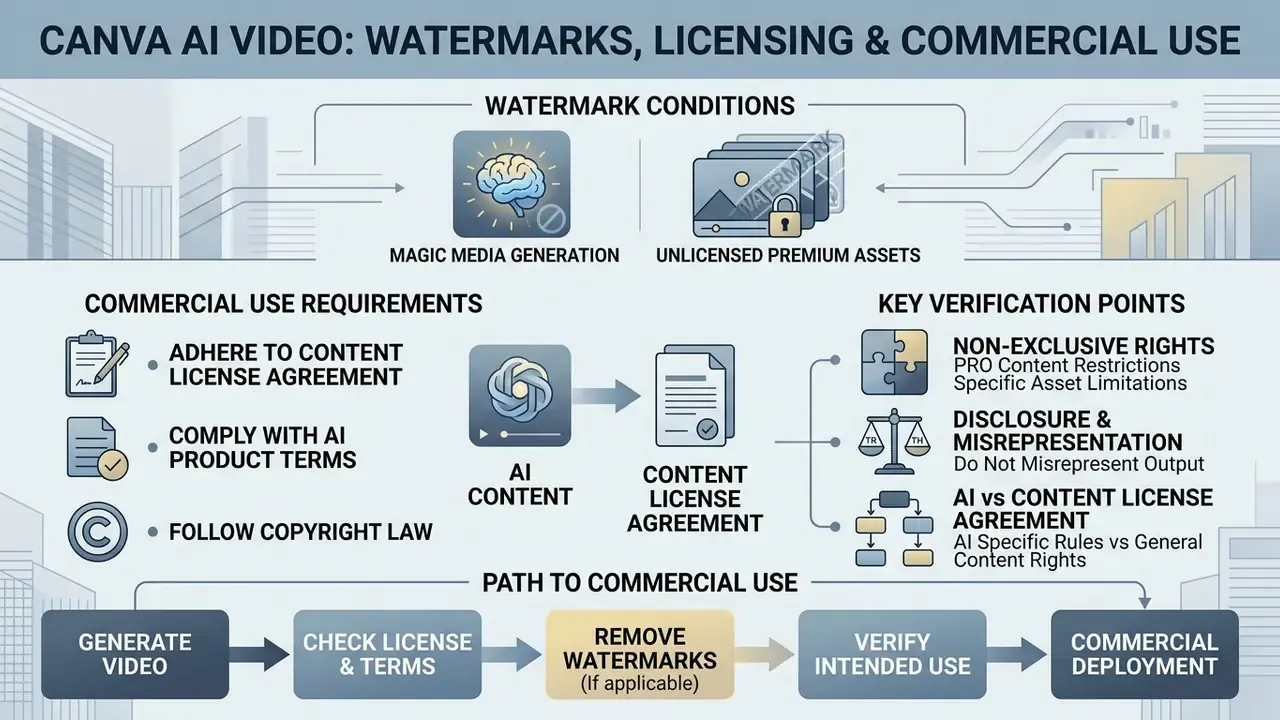
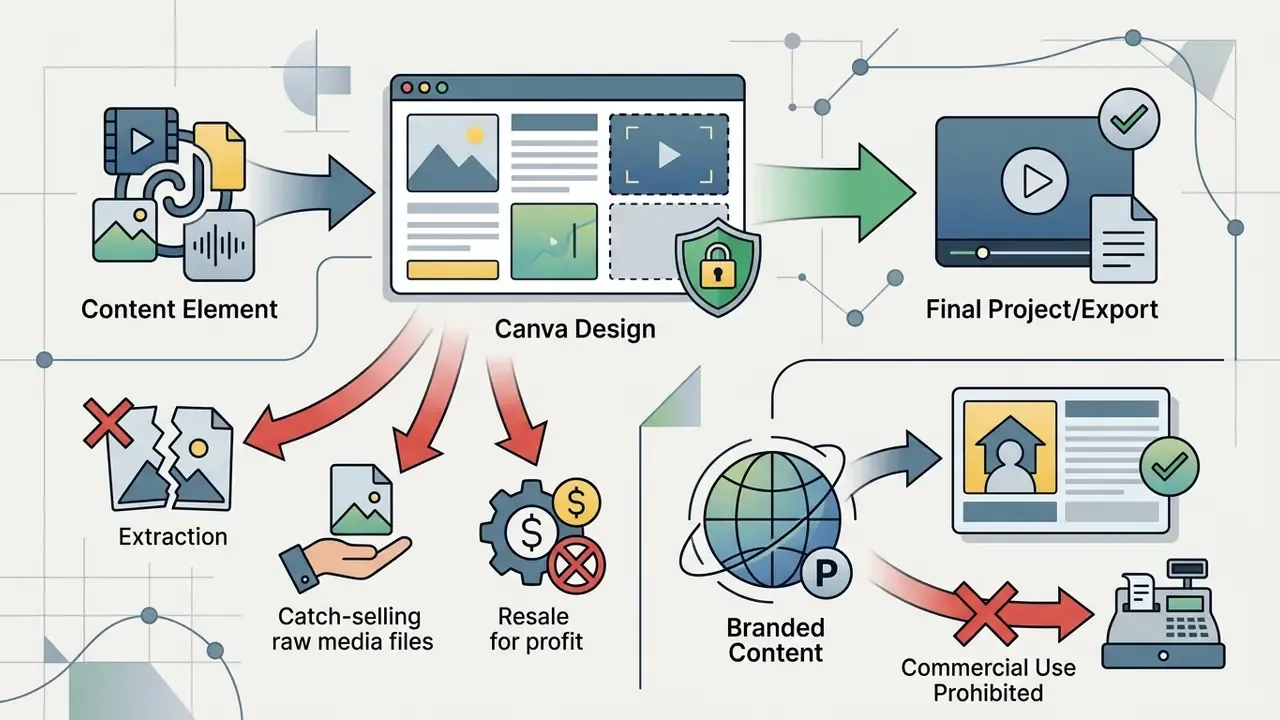
Commercial deployment of Canva AI videos requires strict adherence to Canva's Content License Agreement, AI Product Terms, and applicable copyright law.
When a Watermark Can Appear on Your Video
Watermarks appear on exported Canva videos under two distinct conditions:
- Magic Media video generation: every clip generated via Magic Media text-to-video or image-to-video carries a non-removable origin watermark in the bottom right corner. The mark is embedded during generation whether the account is Free or Pro.
"Canva's documentation confirms that every generated video is 4 seconds long and has a watermark in the bottom right corner, regardless of plan."
- Unlicensed premium assets: if a Free user drops premium stock videos, graphics, or audio into a timeline without buying individual item licenses, a Canva grid watermark is applied over those assets on export.
Removing asset grid watermarks officially requires either upgrading to Canva Pro or clicking Remove Watermark to purchase individual item licenses before final rendering; purchased items then appear in the Purchased folder. There is no official path to remove the Magic Media origin watermark. Clips produced through Veo 3's "Create a Video Clip" carry no default watermark, which is the practical reason paid teams should treat Magic Media video as a legacy feature.
What to Verify Before Commercial Use of Generated Videos
Canva permits AI-generated content in commercial projects: marketing campaigns, client work, advertising, and digital products.
"Canva's Content License Agreement, updated June 2024, grants a perpetual non-exclusive license to use AI content in advertising, video, social media, and educational projects."
Several legal conditions still govern that use:

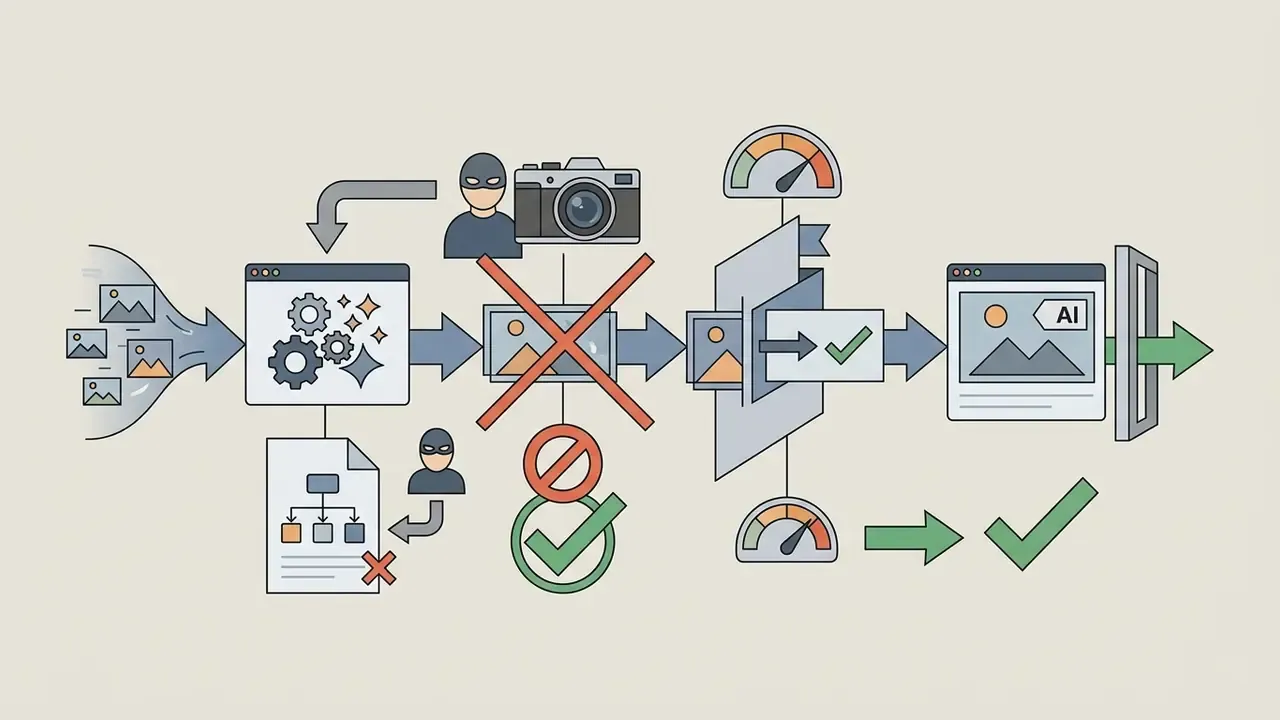
"Canva's AI Product Terms prohibit generating medical advice, political content, spam, and content that misleads audiences about the human origin of the material."
- AI content vs. Content License Agreement: Canva's Help Center states that AI-generated images are not covered by the standard Content License Agreement and may be used for any lawful purpose, including sale, provided the AI Product Terms are respected. That is a contractual permission, not a grant of statutory copyright.
For broader compliance structures, review our AI Media Commercial-Use Hub resources and our dedicated breakdown of Canva AI Generator commercial use.
E-E-A-T legal and compliance alert:
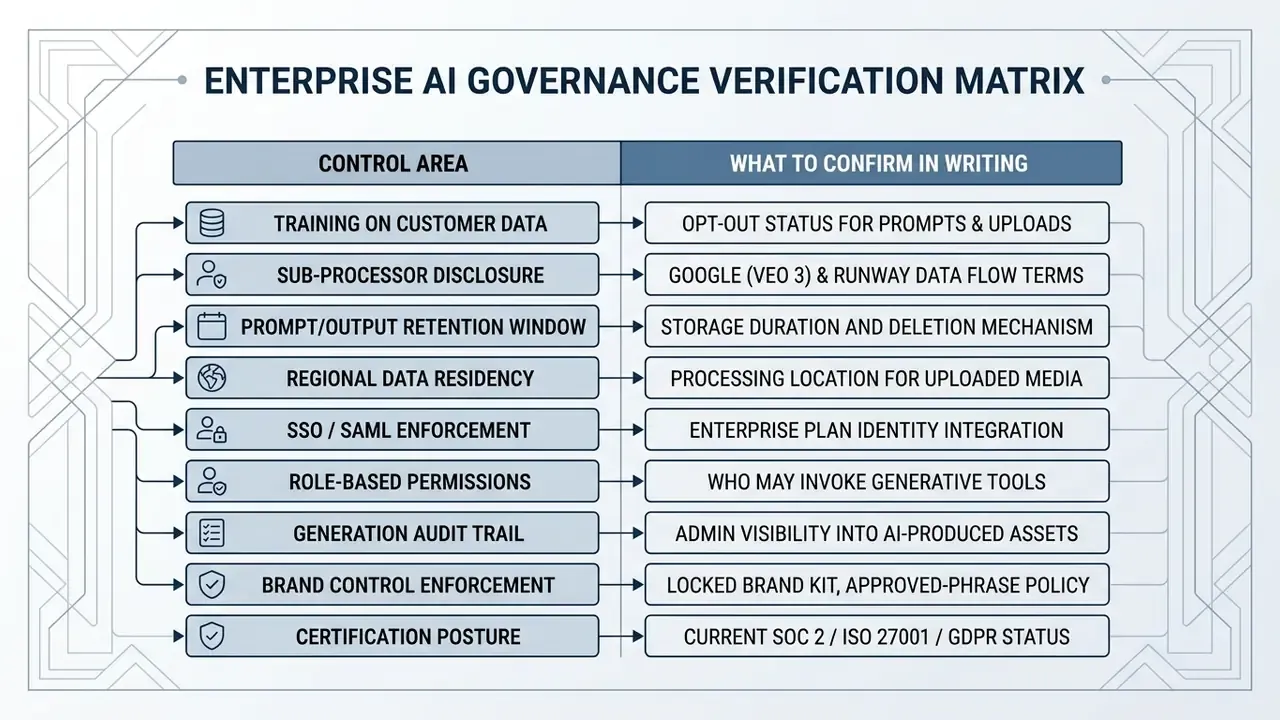
Data Privacy, Security, and AI Training Policy
For regulated industries and enterprise risk functions, the operative question is not clip length. It is whether prompts, uploaded footage, and brand assets are retained, and whether they train third-party models.
What to verify before approving Canva AI for internal use:
Canva AI Video Generator Limitations: Clip Length, Control, and Generation Volume
Canva offers an unusually friendly production environment. It also has hard technical boundaries that rule it out for high-end cinematic work and large-scale programmatic video.
Clip Length, Camera, and Motion Control
Generative video tools inside Canva operate under rigid duration caps:
- Magic Media hard-capped at 4 seconds per output scene, silent.
- Google Veo 3 up to 8 seconds with audio, or 6 seconds without audio, per clip, at 16:9.
- Magic Video assembly auto-edits media up to 60 seconds maximum.
"Magic Media is fixed at 4 seconds, Veo 3 reaches up to 8 seconds, and Magic Video handles up to 60 seconds; these caps define the granularity of AI assistance in Canva."
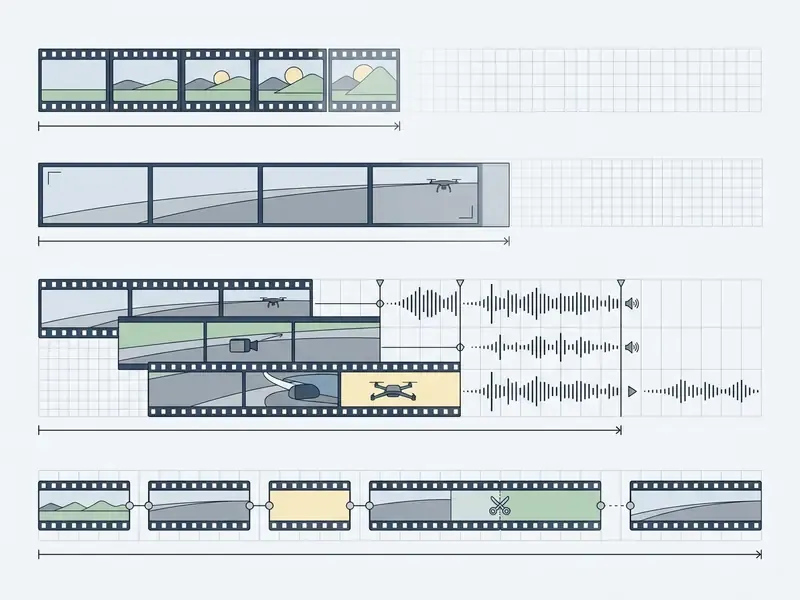
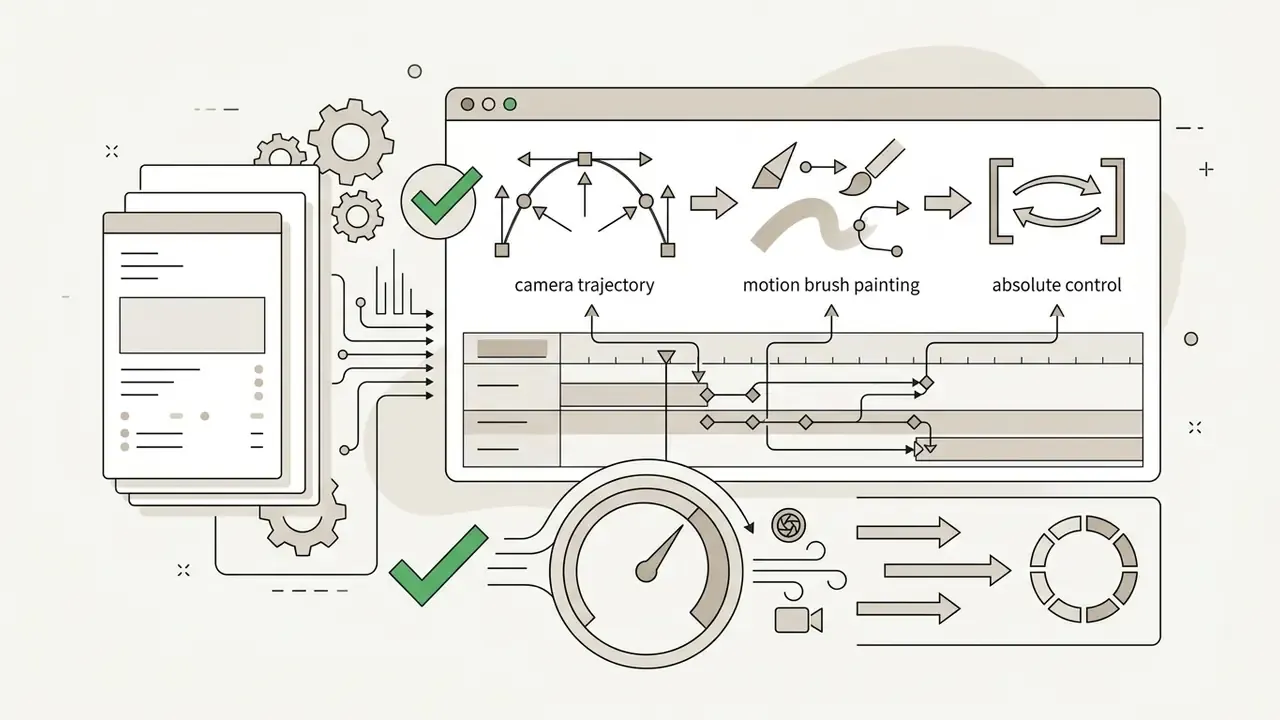
Precision camera control is limited. You cannot define numerical camera coordinates, lens focal lengths, keyframe motion curves, or trajectory paths. Motion behavior is inferred entirely through natural-language prompting: Canva exposes neither Runway's motion brush, nor Kling's start-and-end-frame keyframing, nor per-model motion strength sliders. Reference-image upload and manual sound control are also unavailable inside the AI clip workflow. For projects needing heavy frame modification, creators often evaluate the specialized tools detailed in our guide to AI outpainting tools.
The Model Lock Problem: No Alternative Neural Networks
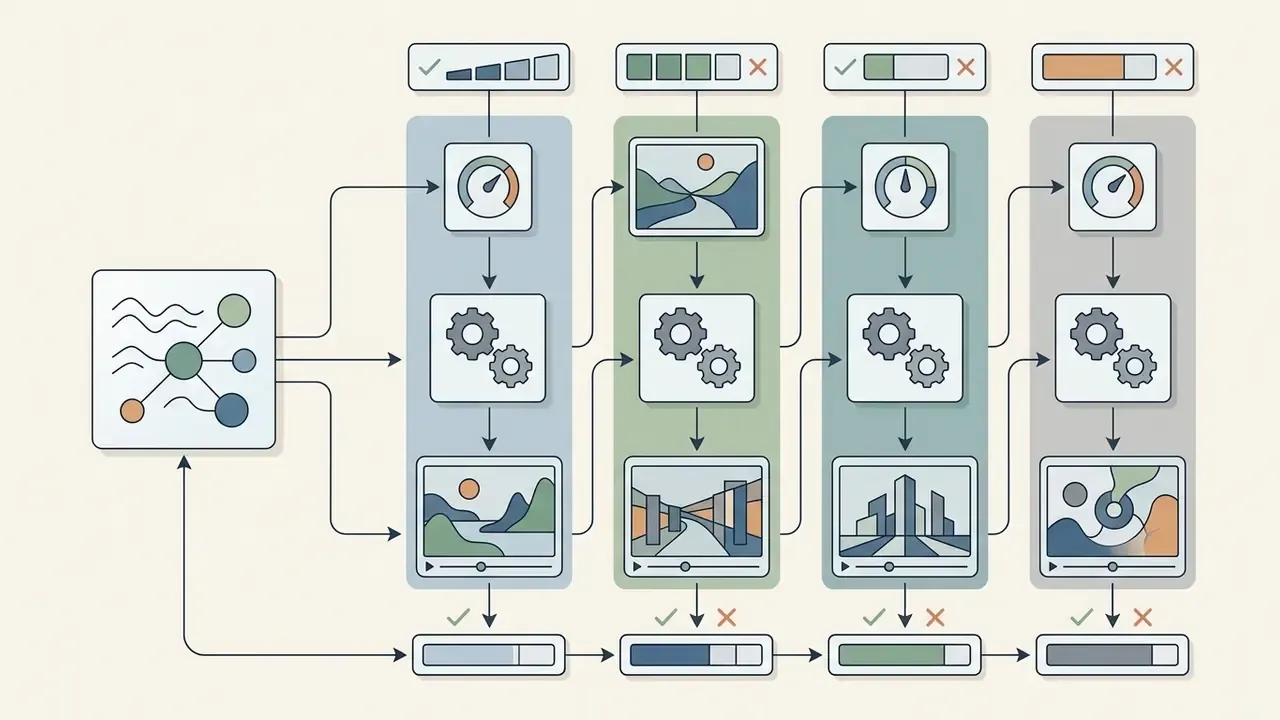
Unlike multi-model platforms, Canva binds one model to one task (Veo 3 for audio clips, Runway for Magic Media). You cannot switch the generator to a third-party model, say Kling 2.1 or Sora, when Veo 3 fails a specific prompt: complex motion dynamics, atypical camera angles, non-English dialogue lip-sync, stylized animation. The only in-platform correction is regenerating with the same algorithm after editing the prompt, which costs another credit each time.
Operationally that difference is sharp. On a multi-model workspace, a failed prompt is a model-switch decision costing seconds. Inside Canva, a failed prompt is a re-roll costing one of five monthly Veo 3 credits. Directors who need a specific camera path, or a specific model's motion signature, hit Canva's ceiling quickly.
When Credit Limits Obstruct Testing and High-Volume Generation
High-volume marketing operations, multi-variant A/B creative testing, or automated personalized video generation, run into subscription credit ceilings fast.
"The Pro plan includes 50 Magic Media videos and 5 Veo 3 clips per month, 55 generations in total; 20 variants at 3 clips each would require 60 generations, which exceeds the quota."
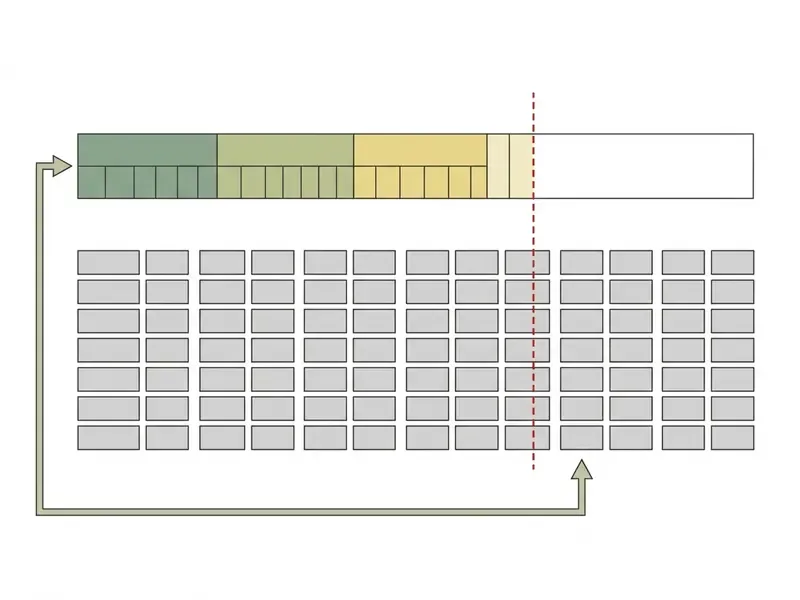
Since attempts deduct credits immediately, regardless of whether the clip is kept, iterative prompting eats monthly allowances quickly. And because the pool is shared with Magic Edit, Magic Expand, Magic Write, and Dream Lab, non-video AI activity quietly reduces available video capacity. Teams scaling programmatic pipelines can reference our developer documentation for the AI Media API to architect dedicated processing infrastructure.
When Canva AI Video Is the Best Choice, and When You Need Other Tools
Choosing between Canva AI Video Generator and specialized standalone generators comes down to project scope, control requirements, and editing context.
Who Canva AI Video Maker Suits
Canva AI Video Generator fits best for:
- Solo marketers and social media specialists who need fast, template-driven vertical videos for TikTok, Reels, and Shorts without switching between apps. Canva positions its Business tier explicitly for "individuals, marketers, and small teams," pairing AI features with brand tools and marketing insights. Practitioners weighing zero-cost options can also review our directory of free AI video generators, and the adjacent free ai selfie generator index for still-image assets.
- Small business owners who want to turn existing static product photos into dynamic promotional posts with automated music and voiceover, keeping campaign briefs, editable brand assets, and social posts in one workflow.
- Corporate content teams aiming to hold brand consistency through centralized Brand Kits, shared templates, and collaborative cloud editing. Evidence note: Canva documents Brand Kit, team folders, and role permissions as Teams and Enterprise features, but no independently published enterprise Brand Kit case studies with measured outcomes were available at the time of writing. This recommendation reflects documented feature availability, not benchmarked results.
Users hunting more specialized visual content tools can explore our guide on AI headshot generators and corporate portrait workflows, or the audio side through the free ai singing voice generator online index and the free ai song maker guide.
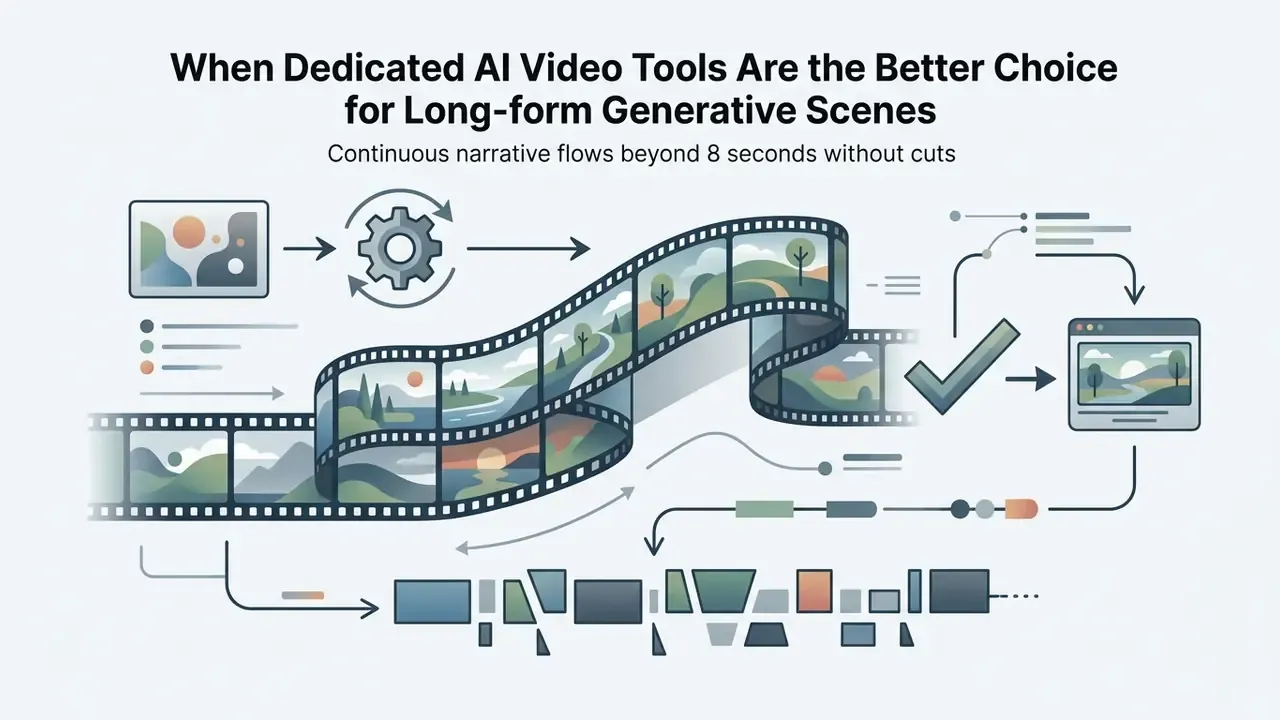
When Dedicated AI Video Tools Are the Better Choice
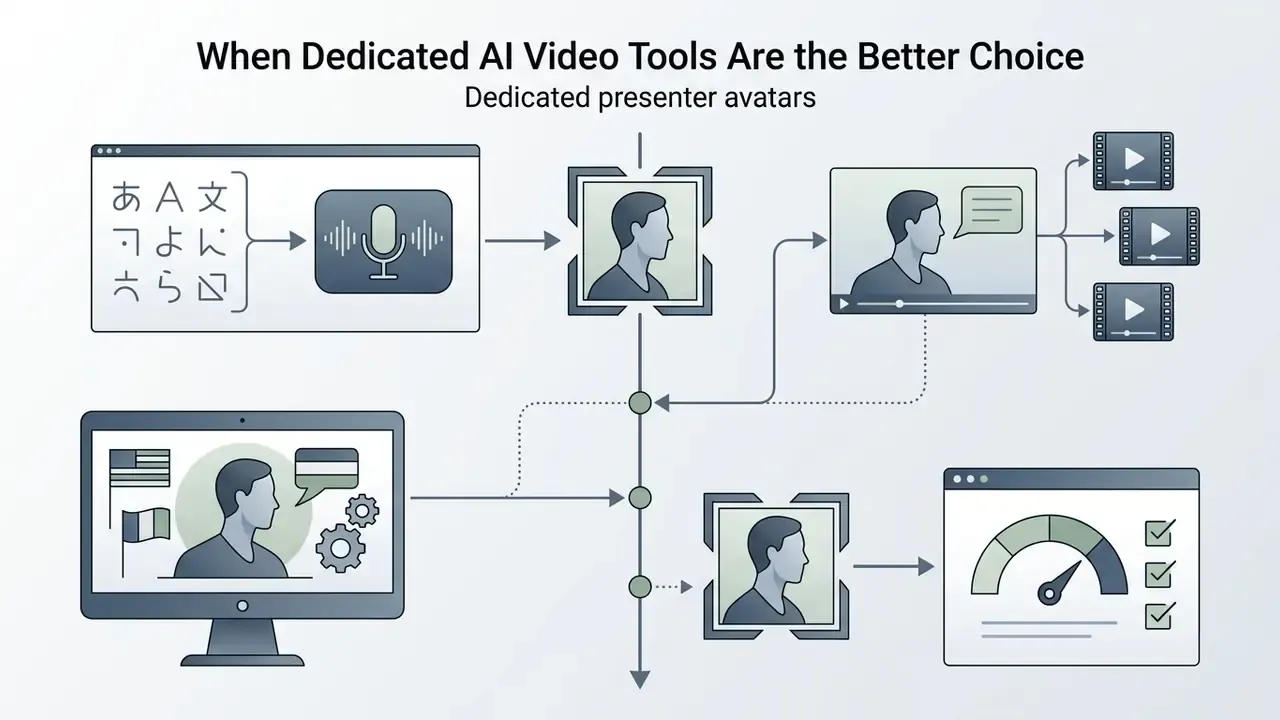
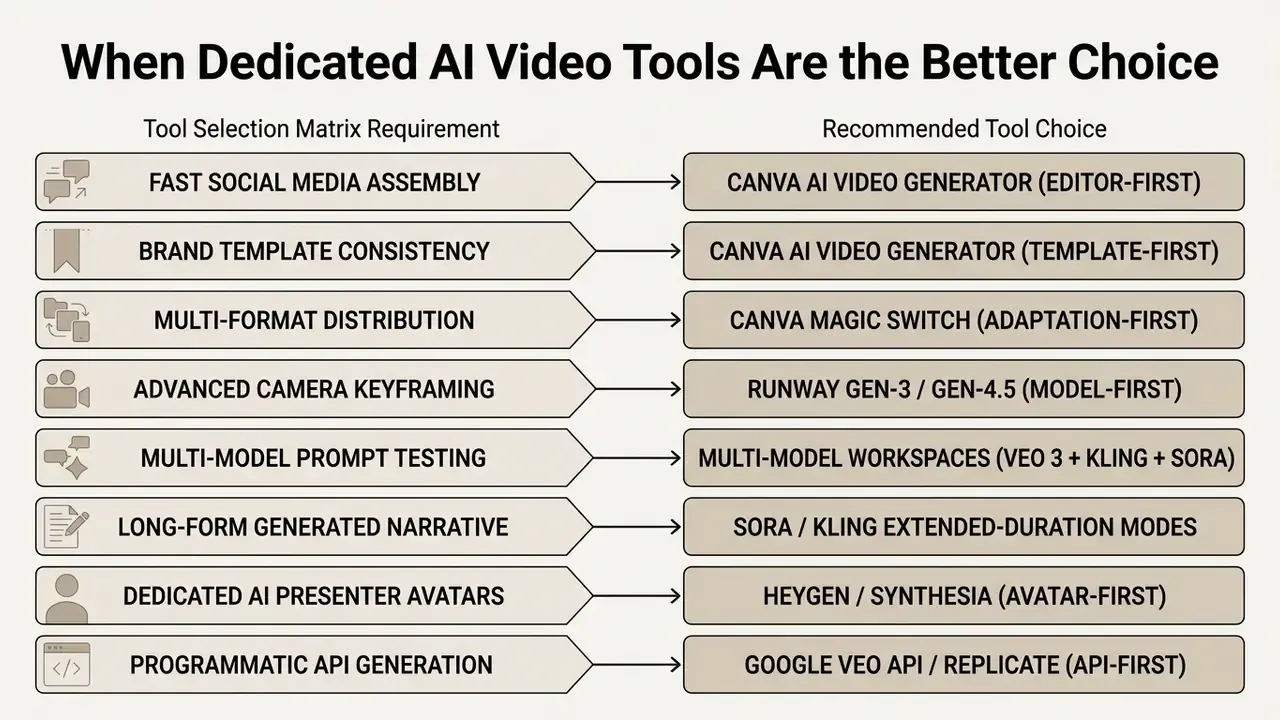
Dedicated platforms (Runway, Sora, HeyGen, Pika) are preferable when the following apply. For a full head-to-head, see our comparison of the best AI video generators:
Positioning Comparison: Canva vs Dedicated Generators
| Dimension | Canva AI Video | Dedicated model platforms (Runway, Sora, Kling) | Avatar platforms (HeyGen, Synthesia) |
|---|---|---|---|
| Core paradigm | Editor-first; AI as a feature | Model-first; generation is the product | Avatar-first; script-to-presenter |
| Model choice | Locked (Veo 3 / Runway) | Multi-model switching | Avatar/voice library selection |
| Max single clip | 8s (audio) / 6s (silent) | Extended durations available | Script-length narration |
| Motion control | Prompt text only | Motion brush, keyframes, strength sliders | Gesture/expression presets |
| Pricing unit | Flat monthly credit pool shared across all AI tools | Per-second or per-generation credits | Per-minute of rendered video |
| Design/brand layer | Native, deep (Brand Kit, templates) | Minimal | Template-limited |
| Best-fit job | Getting an AI clip into a branded social template fast | Maximizing generation quality and control | Presenter-led training, sales, localization |
Decision-makers assessing enterprise implementations can also review our analytical framework on AI Litigation and legal risk in generative model governance, plus the broader AI Media Comparison portal.
FAQ: Edge Cases and Frequently Asked Questions
Can I access Google Veo 3 on the Canva Free plan?
No. Veo 3's "Create a Video Clip" is restricted to Pro, Teams, Enterprise, and Canva Nonprofit accounts. Free accounts receive 5 lifetime Magic Media generations only (4 seconds, silent, watermarked).
Do the 5 free video generations reset monthly?
No. They are a lifetime allocation for the account, not a monthly quota. Once exhausted, upgrading is the only route to further AI video generation inside Canva.
Can I buy extra Veo 3 credits without changing plans?
Canva sells additional credit packs inside the platform and offers an optional AI add-on for heavy months, so extra capacity can usually be purchased on top of an existing paid plan. Availability varies by region and plan type, so check your billing panel; Canva has at times stated that extra video credits are not purchasable on specific surfaces.
What happens if a generation fails or produces artifacts?
The credit is still consumed. Credits are deducted the moment generation begins, not when you accept the output, and there is no refund for glitched, filtered, or discarded renders. Budget roughly 1.5 to 2 attempts per usable clip when planning quotas.
Do unused credits roll over to next month?
No. Pools reset at midnight UTC on the last day of the billing cycle and do not carry over. Credits are also not transferable between different AI tools.
Can my client or agency own exclusive rights to a Canva AI clip?
No. Canva grants broad, non-exclusive commercial usage rights. Identical prompts can produce near-identical assets for other users, and purely AI-generated output generally cannot be registered for exclusive copyright in the United States. When a freelancer delivers a Canva-built video, the transferable element is the human-authored arrangement, script, and edit, not the AI-generated footage itself.
Can I remove the Magic Media watermark?
No. The bottom-right origin watermark on Magic Media clips is embedded at generation on every plan. If you need a watermark-free generated clip, use "Create a Video Clip" (Veo 3) on a paid plan instead.
Can I switch to Kling or Sora inside Canva if Veo 3 fails my prompt?
No. Canva enforces model lock. The only in-platform remedy is re-prompting the same model, which consumes another credit.
Can Veo 3 output be used directly for TikTok?
Not without reframing. Veo 3 renders 16:9, so use Magic Switch or manual repositioning to derive a 9:16 vertical version.
Are prompts and uploads used to train Google or Runway models?
Canva publishes AI Product Terms and an AI Sharing and Publication Policy, but does not publish a per-model training opt-out matrix in its help center. Enterprise buyers should obtain written confirmation of training exclusion and retention windows before processing confidential material.
Appendix A: Superseded Statements and Corrections Log
Retained for transparency and version traceability. The statements below appeared in earlier versions of this analysis and have been corrected in the main text above.
| Superseded statement | Status | Corrected position |
|---|---|---|
| "Free accounts receive a lifetime allocation of 5 total credits for Magic Media text-to-video generation and 5 videos per month for Google Veo 3 clip creation." | Contradictory / unsupported | Free has no Veo 3 access; 5 lifetime Magic Media generations only, with no monthly reset. |
| "Free Plan: 5 Veo 3 Video Clips" (allocation diagram) | Incorrect | Diagram updated to "NO Veo 3 Access". |
| "Google Veo 3 Video Clips, Free plan: 5 videos per month" (plan table row) | Incorrect | Table row updated to "Not available". |
| "Create a Video Clip (Veo 3): up to 8-second clip (16:9)" | Needs refinement | 8 seconds with audio, or 6 seconds without audio, at 16:9. |
| "Real-time lip-sync alignment and photorealistic articulation are handled at the app extension layer" | Unsupported as a native feature | Reframed: lip-sync realism comes from third-party marketplace apps (HeyGen, D-ID, DeepReel); Canva documentation does not describe a native frame-level lip-sync engine. |
| "approximately $12.99 to $15.00/month or $119.99/year" (no region or check date) | Needs qualification | Range retained but qualified by region, currency, promotion, and verification date; readers directed to canva.com/pricing. |
| Implied assumption that discarded or failed renders do not consume credits | Unsupported | Credits are deducted at generation initiation regardless of output quality or retention. |
| Ecosystem described as three video tools (Magic Media, Magic Video, Magic Design) | Incomplete | Fourth module Magic Switch added, plus the AudiOMG audio finishing layer. |