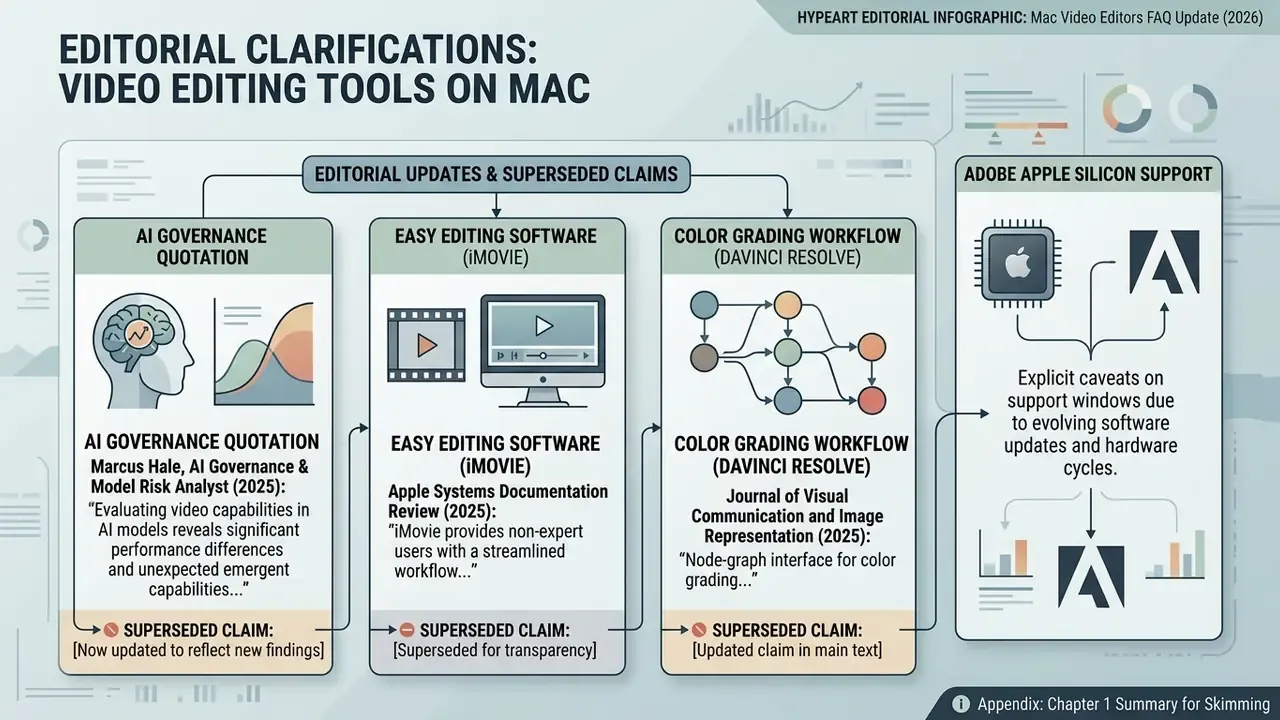
Selecting a mac video editor means weighing four things at once: performance efficiency, Apple Silicon optimization, control depth, and licensing cost. macOS already ships with native pre-installed applications for basic trimming. Beyond that, the wider ecosystem adds professional NLE (non-linear editing) suites capable of 8K timeline playback, multi-track audio mixing, and node-based color grading.
«Node graphs improve process transparency and non-destructive revision speeds during complex grading; timeline architecture directly determines revision cost.»
«Optimizing video post-production on macOS requires aligning codec decoding demands with Apple Silicon's Media Engine. Choosing software that natively addresses Metal API acceleration prevents timeline dropped frames and reduces export overhead by up to 60%.» - Elena Rostova, Lead Post-Production Engineer at TechMedia Labs
Choosing an apple mac video editor ultimately depends on one question. Does the workflow demand rapid template-driven social clips on an entry-level MacBook Air, or complex multi-camera post-production on a MacBook Pro, Mac Studio, or Mac Pro? Those are two different budgets and two different learning curves.
Quick Verdict: the thirty-second answer
If you only have half a minute, here is the short answer by scenario:
- Already own a Mac and need simple cuts use iMovie (free, pre-installed, 4K export, no watermark).
- Fastest trimming without re-encoding QuickTime Player for handles-based trims, Avidemux for lossless stream-copy cuts.
- Best free professional suite DaVinci Resolve (Free), with node-based color, Fairlight audio, Fusion VFX, and 4K UHD 60 fps export with no watermark.
- Best Apple-optimized paid NLE Final Cut Pro, $299.99 one-time, with a full-featured 90-day free trial and unusually good efficiency on passively cooled MacBook Air models.
- Best for cross-platform teams and agencies Adobe Premiere Pro ($22.99/mo), natively optimized for Apple Silicon.
- Best for Reels, Shorts, and TikTok CapCut (auto-captions, auto-reframe), with Canva and Adobe Express for template-first branded clips.
- Best for 3D, animation, and hybrid VFX pipelines Blender (free, Metal GPU rendering).
- Best budget paid editors Wondershare Filmora, Cyberlink PowerDirector 365, Movavi Video Editor.
Hardware shortcut: 8 GB unified memory covers 1080p and light 4K; 16 GB gives comfortable multi-layer 4K and Fusion work; 32 GB and above is for 8K RAW, heavy VFX, and Blender rendering.
How the shortlist was assembled
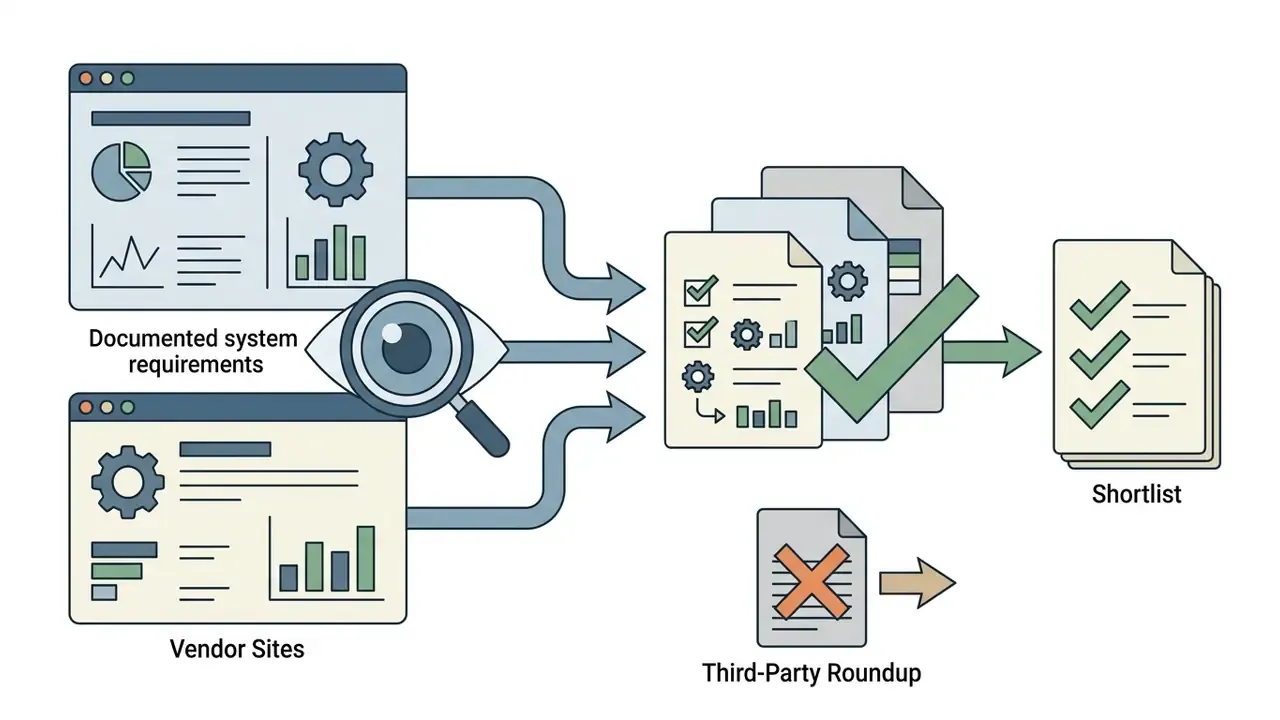
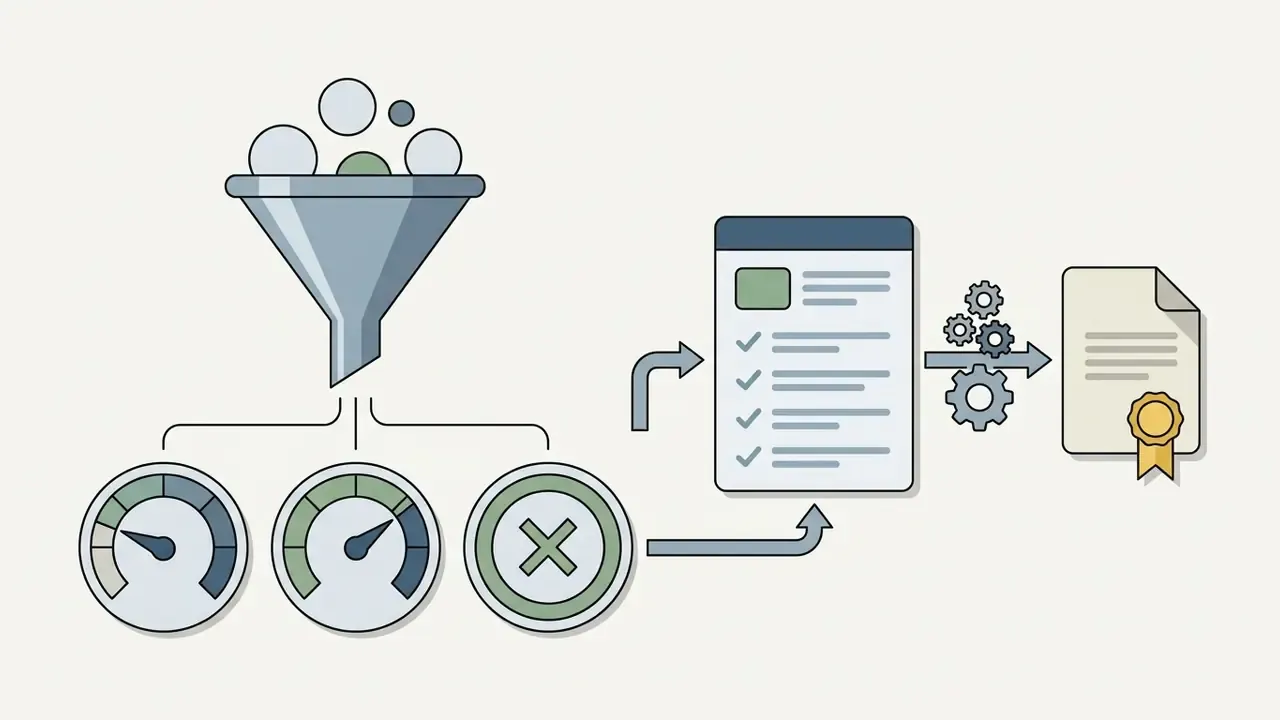
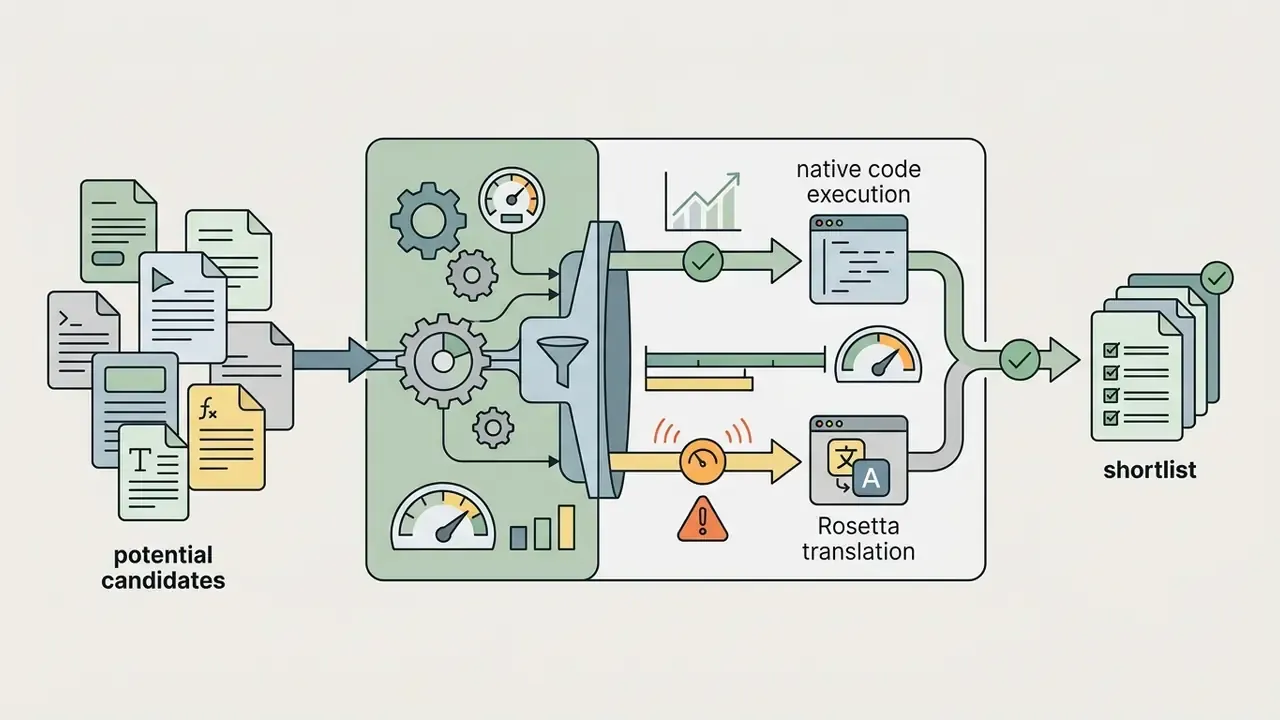
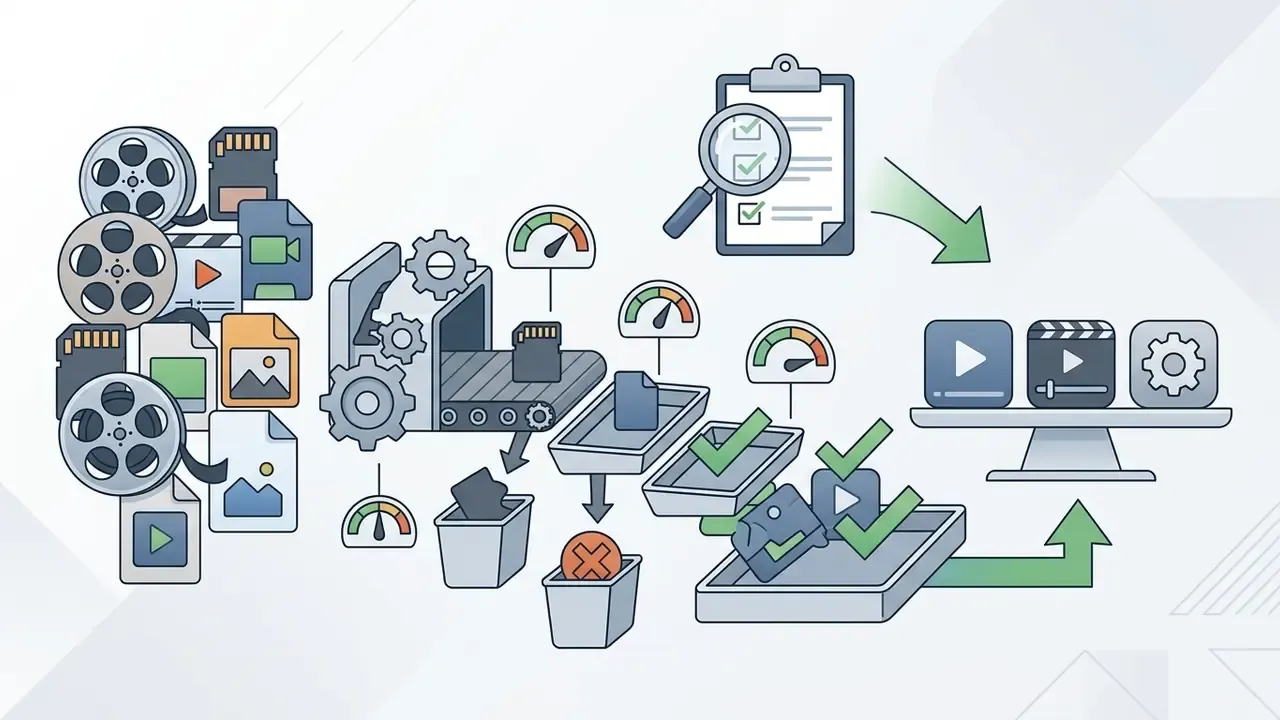
Popularity alone is a poor selection criterion, so every application below was checked against the same six practical filters:
Anything that failed filter one was dropped. Pricing and requirements were re-verified in January 2026 and are restated in the fact-check section further down. For a wider view of tooling categories beyond editors, our AI Media Comparison Matrices collect the same style of side-by-side breakdowns.
Does Mac have a built-in video editor?
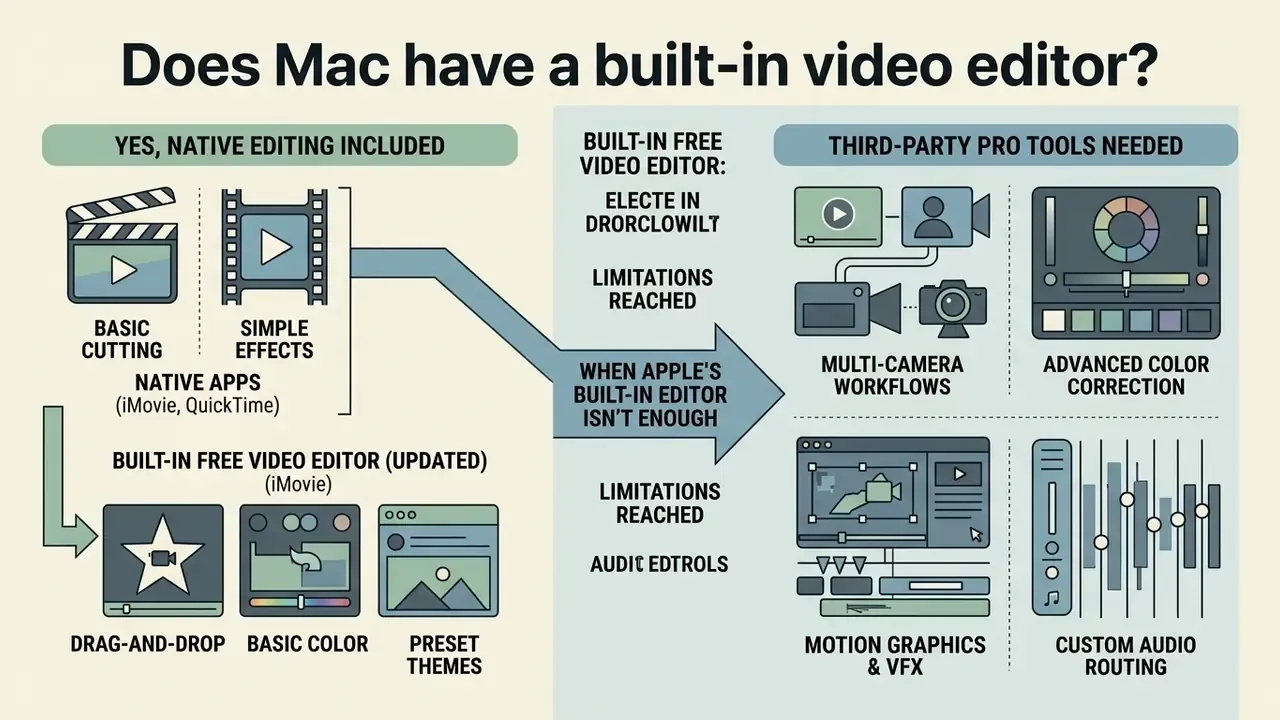
Yes. macOS includes native video editing functionality out of the box through iMovie and QuickTime Player, which removes the immediate need for third-party software on basic media tasks. Users asking does mac have a built in video editor or is there a video editor on mac can perform simple cuts, trimming, clip rotation, and light timeline arrangements using these pre-installed Apple tools (Apple Support, 2026).
«Limited control over editing functions and poor material overview reduce satisfaction and efficiency for novice editors.»
Figure 1. Native macOS video processing pipeline: capture → QuickTime Player (trim, rotate, flip) → Photos library ingest → iMovie timeline assembly → share/export. This is the zero-install path: no subscription, no third-party codecs, no cloud upload.
For anyone evaluating whether mac os video editor features meet baseline operational needs, the native tools handle quick edits without installation or subscription costs. QuickTime Player lets you drag the yellow handles to trim clip boundaries, and rotate or flip video orientation left, right, horizontally, or vertically (Apple Support, 2025). Three shortcuts worth memorizing: ⌘T opens the trim bar, ⌘S saves the trimmed movie, and Shift-Command-5 opens the Screenshot toolbar for screen recording. Multi-track timeline editing, advanced color management, and plugin support are a different story. Those require dedicated applications.
iMovie as the built-in free video editor for Mac
iMovie is the primary pre-installed macos video editor for beginners, with a drag-and-drop interface for viewing, editing, and sharing movies. It natively supports exports up to 4K and handles Apple ProRes formats (ProRes covers all frame sizes from SD through 5K), which makes it a dependable easy video editor for mac for entry-level projects (Apple Support, 2026). Apple's supported-camera list for iMovie on Mac spans H.264, H.265, ProRes, and ProRes RAW sources.
The application uses a clean three-pane workspace: media browser, preview window, and track-based timeline. According to Human-Computer Interaction (HCI) research on home video editing systems, novice editors complete more tasks when editing functions are constrained to discoverable, reversible operations (ACM Digital Library, 2023). iMovie applies those principles through pre-built title generators, storyboard templates, Hollywood-style trailer structures, and automatic audio matching.
When Apple's built-in editor isn't enough
iMovie runs out of room when projects need multi-camera synchronization, advanced color grading, complex motion graphics, or third-party plugin integration. Its color toolset is deliberately narrow: Auto, Match Color, White Balance, Skin Tone Balance, plus sliders for shadows, brightness, contrast, highlights, saturation, and temperature (Apple Support, 2026). Technical workflows outgrow that architecture fast. iMovie also cannot open Apple Motion projects; Motion output must be exported as a movie file first.
Moving up to advanced mac video editor software becomes necessary under four operational conditions:
In enterprise media environments where automated asset transformation is expected, teams often pair desktop NLEs with dedicated YouTube publishing workflows to streamline delivery and cut manual export steps.
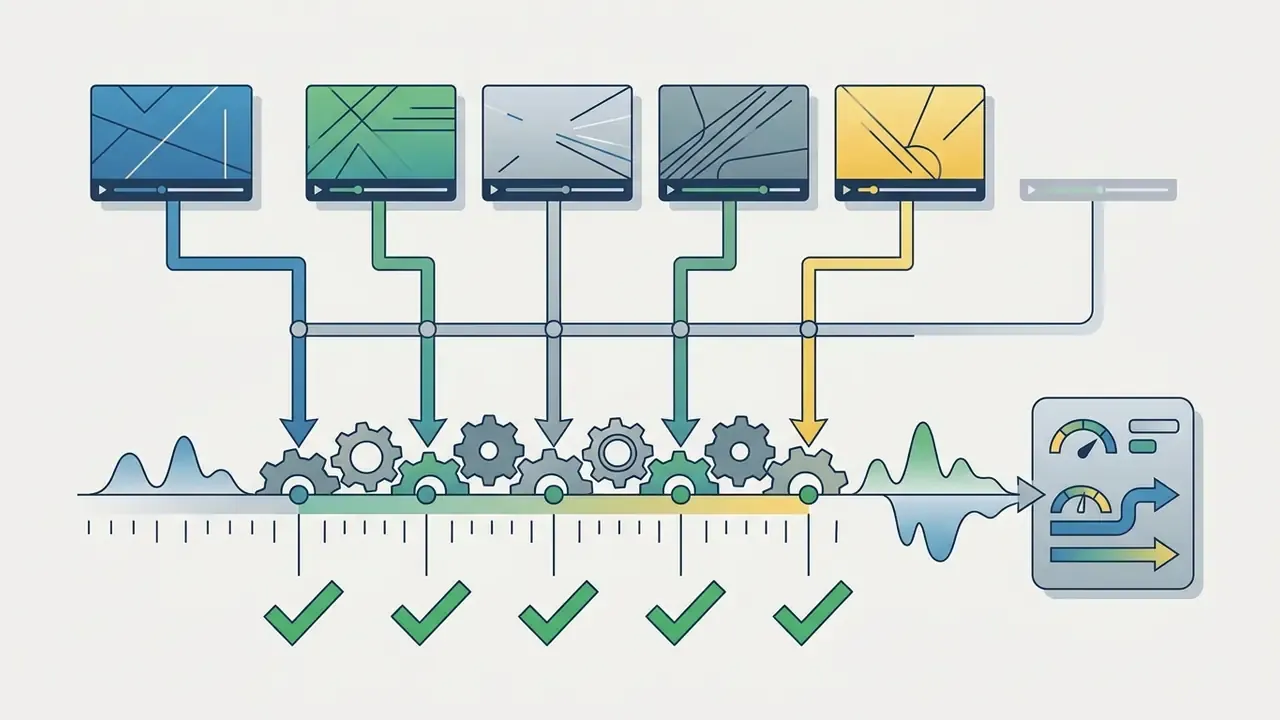
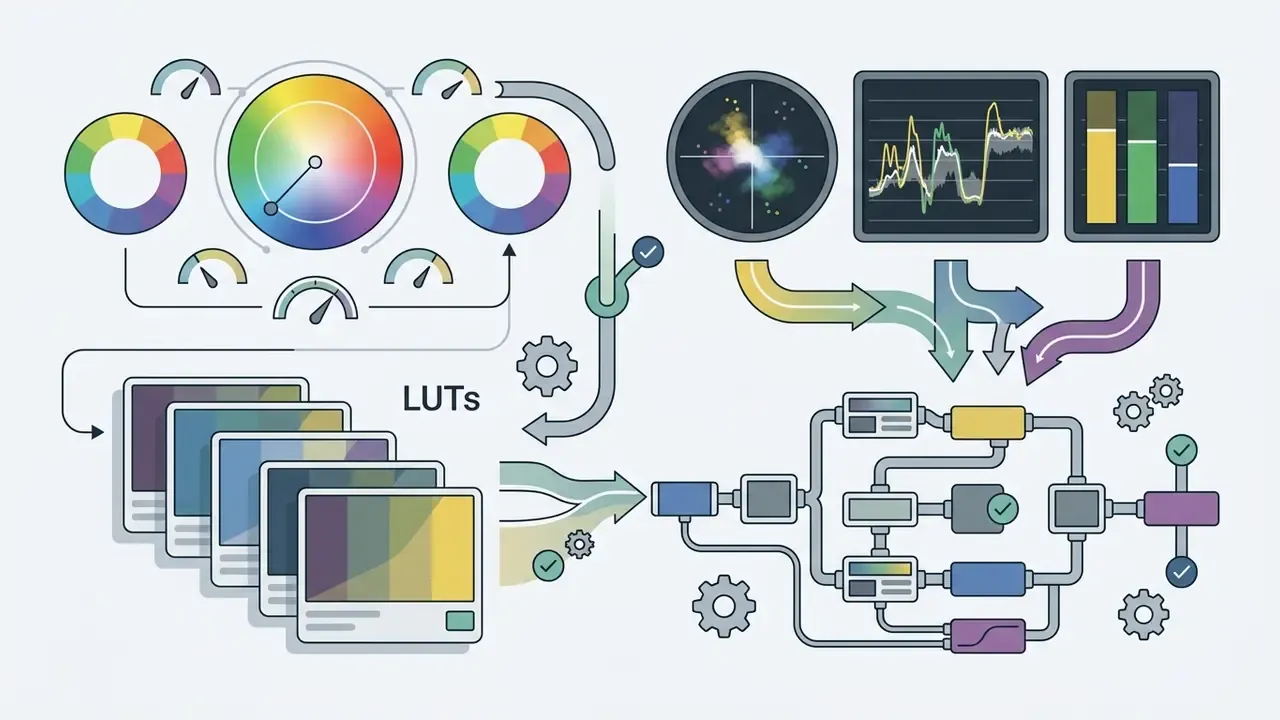
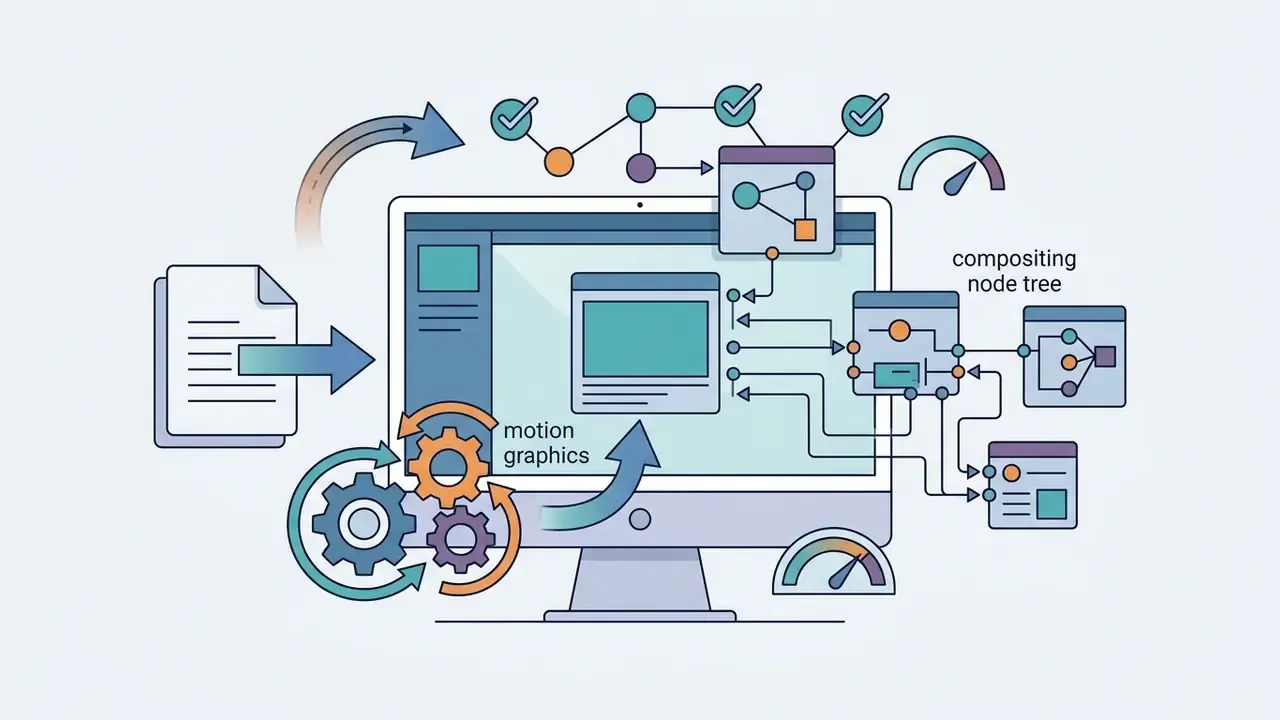
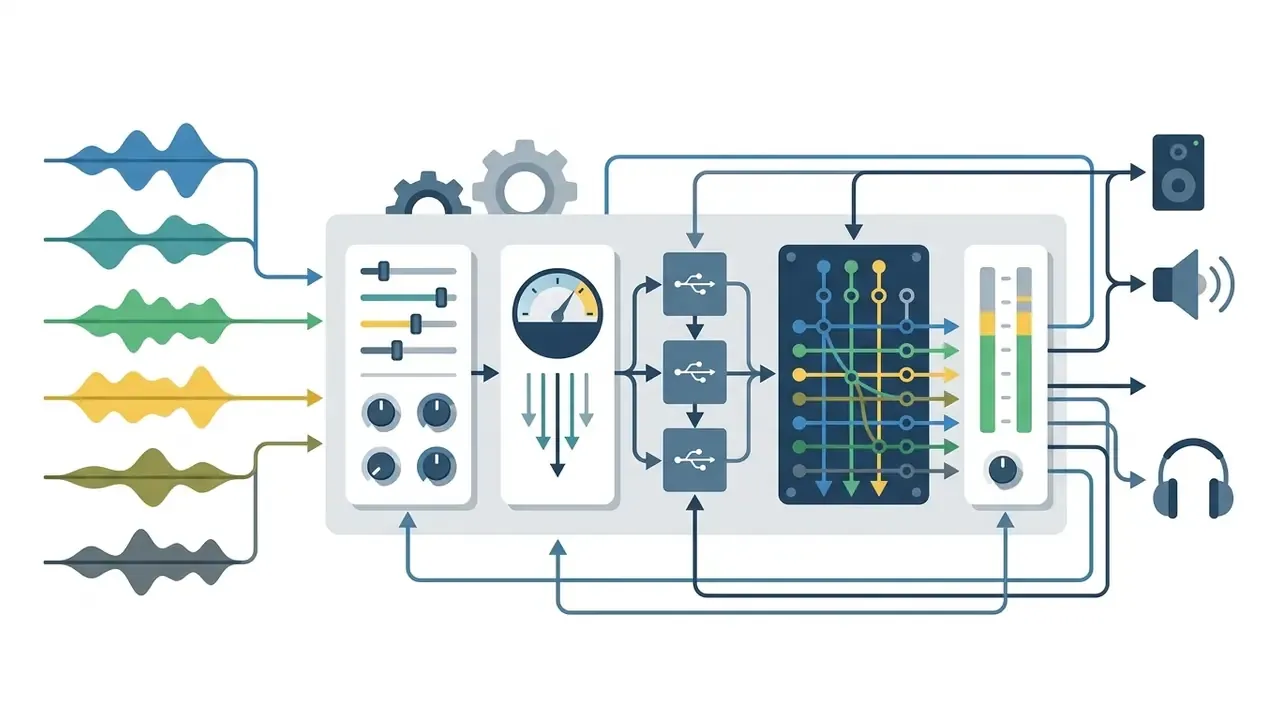
Best video editor apps for Mac: full comparison
Picking the best video editor app for macbook comes down to expertise, project complexity, hardware specification, and budget preference. The macOS ecosystem spans lightweight free utilities, open-source editors, freemium social tools, and both perpetual and subscription professional suites.
Comparing mac video editors properly means looking at Apple Silicon (M1/M2/M3/M4) hardware acceleration, memory allocation thresholds, and timeline rendering performance across different MacBook models. A benchmark from a desktop Mac Studio tells you very little about a fanless Air.
«On Apple Silicon systems, Premiere Pro runs natively with average performance gains of roughly 80% over comparable previous-generation Intel configurations.»
Table 1. Comparative analysis of macOS video editors (2026).
| Video editor | Licensing model | User level | Key features | Optimal use case | Recommended Mac / caveats |
|---|---|---|---|---|---|
| iMovie | Free (built-in) | Beginner | Drag-and-drop timeline, 4K ProRes support, basic titles, trailer templates | Personal vlogs, school projects, quick edits | MacBook Air (all models); 4 GB RAM minimum |
| Final Cut Pro | $299.99 one-time (or $12.99/mo Apple Creator Studio), 90-day free trial | Professional | Magnetic Timeline, Object Tracker, Magnetic Mask, Smart Conform, 8K HDR | Commercial video, broadcast, long-form YouTube | MacBook Pro / Mac Studio; runs efficiently on Air too |
| DaVinci Resolve | Free / $295 Studio one-time | Intermediate to Pro | Node-based color grading, Fusion VFX, Fairlight audio, multi-user collaboration | Cinematic color correction, post-production, VFX | MacBook Pro (16 GB+ RAM); 16 GB required for Fusion |
| Adobe Premiere Pro | $22.99/mo subscription (7-day trial) | Intermediate to Pro | Multi-camera source sequences, Lumetri color management, Auto-Reframe, Creative Cloud sync | Cross-platform team collaboration, agency editing | Apple Silicon required for v27+; M1 Pro-class recommended |
| CapCut | Free / Pro ≈ $19.99/mo | Beginner to Intermediate | Auto captions, AI background removal, auto-reframe, social templates | Short-form social content (Reels, TikTok, Shorts) | MacBook Air / MacBook Pro; cloud AI processing |
| Wondershare Filmora | $49.99/yr or $79.99 perpetual | Beginner to Intermediate | Preset effect library, AI smart masking, motion tracking, stock assets | Marketing clips, quick branded videos, tutorials | MacBook 2018+, 8 GB RAM minimum, 16 GB for 4K |
| Cyberlink PowerDirector 365 | ≈ $54.99/yr subscription | Intermediate | Nested editing, AI motion tracking, Title Designer, Audio Designer, screen recorder | YouTube tutorials and screen-capture content | Feature-dense UI; subscription only; free tier watermarks |
| Movavi Video Editor | Free 7-day trial / paid license | Beginner to Intermediate | AI auto-subtitles with translation, chroma key, motion tracking, background removal | Vlogs, social media content, family projects | Watermark after trial; Mac license sold separately |
| Lightworks | Free / ≈ $13.99/mo | Intermediate to Pro | Broadcast source-record trimming, multi-track timeline, GPU acceleration, multicam | Indie filmmaking, documentary and narrative editing | Strict 720p export cap on the free tier; dated UI |
| HitFilm Express | Free (paid add-on packs) | Beginner to Intermediate | 500+ effects and presets, 2D/3D compositing, built-in clipper | VFX-driven shorts, gaming edits, sci-fi compositing | Registration required; frequent upsells |
| Avidemux | Free and open-source | Beginner | Direct stream copy (no re-encoding), basic cutting, filters, CLI scripting | Lossless trimming, fast transcoding, batch automation | No multi-track timeline; utilitarian interface |
| VideoProc Vlogger / Converter | Free tier / paid license | Beginner | Hardware-accelerated transcoding, compression up to 90%, screen recording, basic cuts | Codec conversion, file-size reduction, quick screencasts | Not a full NLE; limited effects depth |
| Canva Video Editor | Free / ≈ $119/yr Pro | Beginner | Drag-and-drop templates, brand kits, Smart trim, stock asset library, subtitles | Social promos, quick branded presentations | Browser-based; no precise keyframing; 10-min clip limits on some tools |
| Adobe Express | Free / paid premium tier | Beginner | Template library, AI subtitle generation and styling, quick resize | Polished branded social clips | Browser-based; premium assets may add watermarks |
| Shotcut | Free and open-source | Intermediate | FFmpeg format support (4K, ProRes, DNxHD), 3-way color correction, 5.1 audio | Open-source cross-platform editing without subscriptions | macOS 10.14+, 4 GB RAM; 16 GB+ recommended for 4K |
| OpenShot | Free and open-source | Beginner to Intermediate | Unlimited tracks, keyframe animation, 3D animated titles | Simple multi-layer projects without licensing costs | Can stutter with heavy effects or large files |
| Blender VSE | Free and open-source | Advanced | 3D pipeline integration, node compositing, sequence editing, camera reconstruction | 3D animation editing, hybrid VFX pipelines | MacBook Pro / Studio; 8 GB minimum, 32 GB recommended |
| Clipchamp / Kapwing (browser) | Free tiers / paid upgrades | Beginner | No-install editing, auto-captions, quick resizing | Lightweight web edits on any Mac | Chrome/Edge only for Clipchamp; browser RAM caps |
For creators thinking about asset optimization before editing, our guide to source video compression shows how reducing file overhead prevents storage bottlenecks during multi-track playback.
Best free video editing software for Mac
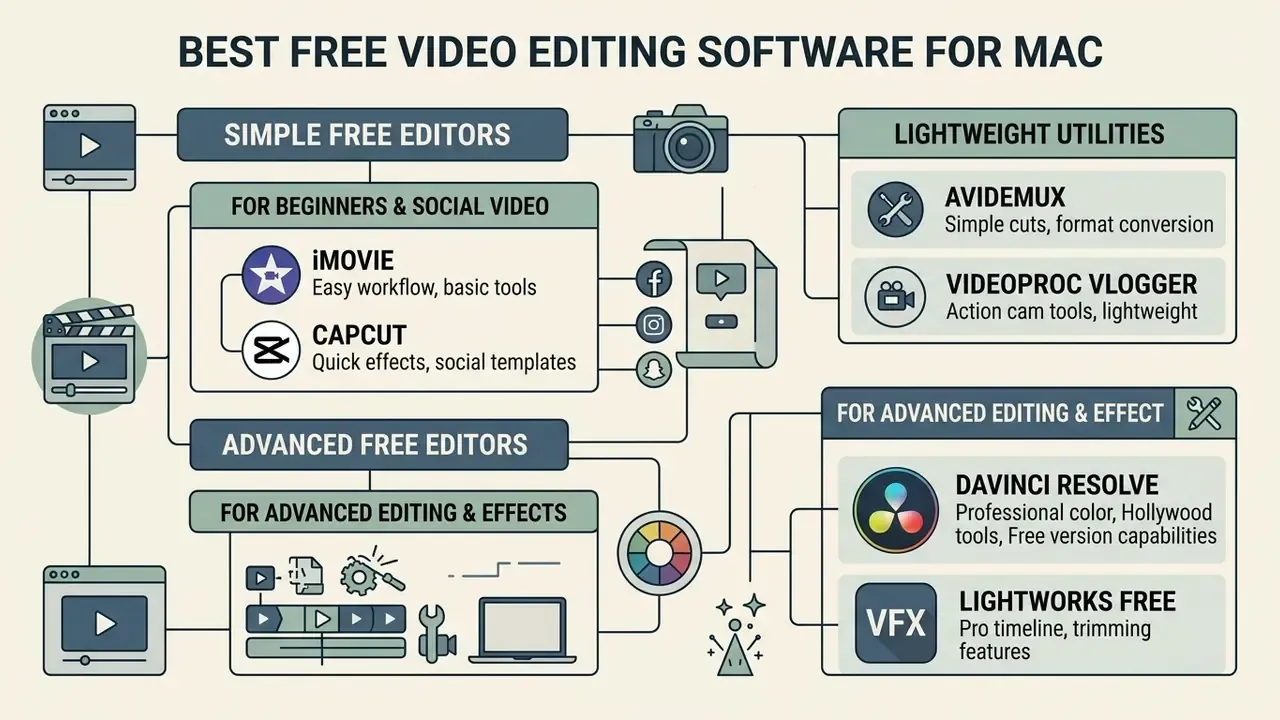
Finding the best free video editing software mac 2024, and the 2026 refresh of that list, depends on whether the project needs simple clip trimming or advanced color and VFX processing. Free options on macOS fall into three practical categories: open-source projects with no watermarks or paywalls (Shotcut, OpenShot, Blender, Avidemux, Kdenlive), free proprietary tools (iMovie, DaVinci Resolve Free), and freemium commercial editors that gate advanced features behind paid tiers (CapCut, Canva, Adobe Express, Movavi, Filmora, Lightworks).
Figure 2. The free Mac editor spectrum. Plot learning curve on the X-axis and hardware demand on the Y-axis: iMovie and CapCut sit in the low-effort, low-demand quadrant; Shotcut and OpenShot occupy the middle; DaVinci Resolve and Blender land in the high-effort, high-demand quadrant.
Our comparison of free video editors by features and limits expands this matrix across platforms and export ceilings. When evaluating free video editing software mac 2024 and 2026 releases, weigh the hardware trade-off honestly: lightweight applications run fine on baseline hardware, while professional-grade free suites want serious unified memory and GPU resources.
«The free version of DaVinci Resolve supports export up to Ultra HD 3840×2160 at 60 fps without watermarks, but requires substantial GPU resources.»
Free editors for advanced editing and effects
Advanced creators who need multi-layer compositing, color correction, and 3D integration without spending money have real choices: DaVinci Resolve (Free), Shotcut, OpenShot, Lightworks, HitFilm Express, and Blender.
DaVinci Resolve (Free) delivers commercial-grade timeline editing, Fairlight audio post-production, and node-based color grading up to Ultra HD 3840×2160 at 60 fps with no watermarks (Blackmagic Design, 2026). Research comparing node-based and track-based visual effect workflows indicates that node graphs measurably improve process transparency and non-destructive revision speed during complex grading (Media Technology Research, 2025).
OpenShot and Shotcut both provide cross-platform, open-source timeline environments. OpenShot offers a lightweight track interface with unlimited layers, 3D animated titles, and an approachable keyframe system. Shotcut leans on FFmpeg libraries to ingest a broad range of native codecs (4K, ProRes, DNxHD) without pre-transcoding, and adds three-way color correction plus 5.1 surround support.
Lightworks Free deserves a separate note. It delivers genuinely broadcast-grade trimming, multicam editing, titling, and GPU-accelerated playback, yet rendering is capped at 720p for both YouTube and Vimeo delivery, and H.264/MP4 export is reserved for paid tiers. Treat it as an extended trial of a professional toolset rather than a finishing tool. HitFilm Express takes the opposite trade: over 500 effects and presets with 2D/3D compositing at no cost, paid for in registration friction and constant upsell prompts.
Lightweight utilities: Avidemux and VideoProc
Not every task needs a timeline. Two utilities cover the "fix it and move on" jobs that full NLEs handle inefficiently:
- Avidemux is best kept for simple work: cutting a video down to size, applying audio or video filters, and transcoding. Because it can copy the source stream directly instead of re-encoding, cuts are effectively lossless and finish in seconds. A built-in script editor automates repetitive batch jobs, and feature parity holds across the macOS, Windows, and Linux builds.
- VideoProc is a hardware-accelerated converter and light editor with fast processing, screen recording, and compression that can cut file size by up to 90% before archiving or upload.
Both pair well with a primary editor. Use Avidemux or VideoProc for ingest, trimming, and codec normalization, then bring conformed media into Final Cut Pro, Resolve, or Premiere Pro.
Table 2. Pros, cons, and export limits of free Mac video editors.
| Free editor | Key strengths | Functional limitations | Watermark policy | Max export resolution |
|---|---|---|---|---|
| iMovie | Zero learning curve, native Apple Silicon optimization, 4 GB RAM footprint | No multicam, limited color controls, 2 video tracks, no auto-captions | No watermark | 4K UHD (3840×2160) |
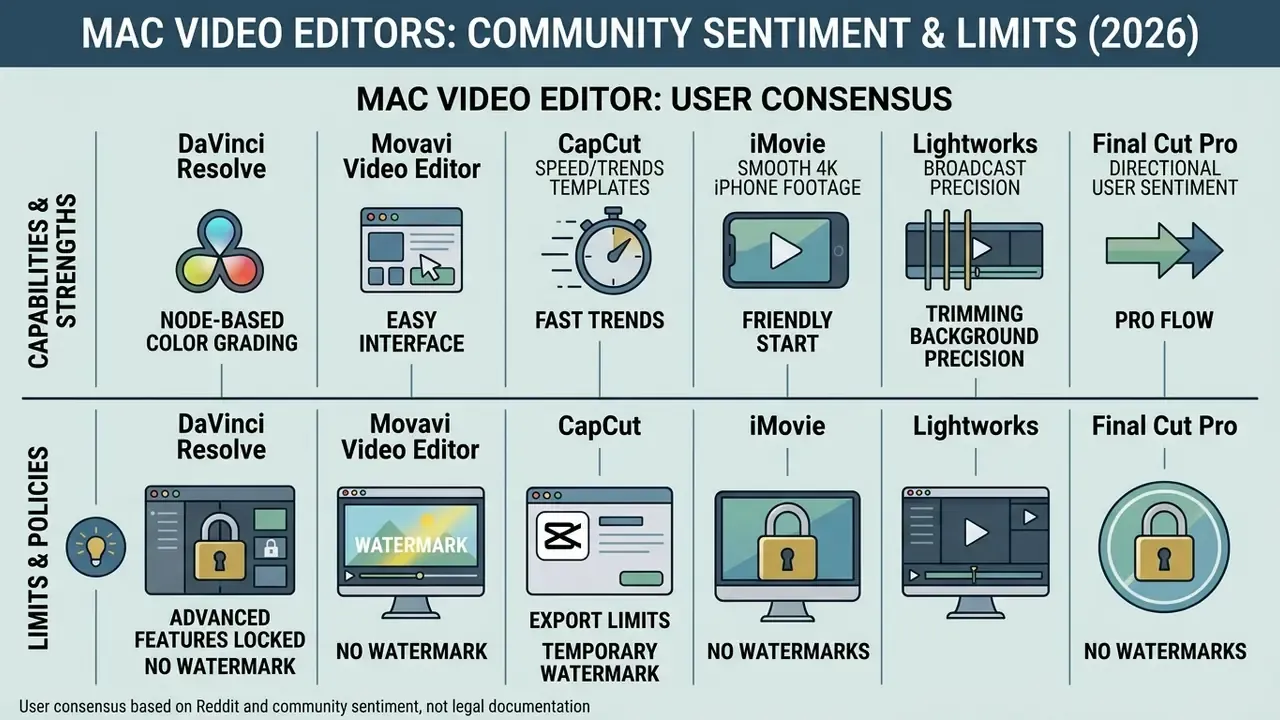
| DaVinci Resolve (Free) | Professional node grading, Fairlight audio suite, Fusion VFX, multi-user collaboration | High GPU and RAM demands, Studio FX locked (Magic Mask, spatial noise reduction), 3 GB+ download | No watermark except on locked Studio FX previews | 4K UHD at up to 60 fps |
| CapCut (Free tier) | AI auto-captions, trending effects, speed curves, auto-reframe | Pro templates and some AI exports gated; cloud processing | Watermark-free base exports; watermark on Pro assets | 1080p (4K requires Pro) |
| Lightworks (Free) | Broadcast trimming, multicam, GPU acceleration, strong community | Hard export ceiling, dated interface, limited built-in effects | No watermark | 720p only |
| Shotcut | Open-source, low memory footprint, extensive filter library, wide codec support | Non-intuitive keyframe interface, no AI features | No watermark | Uncapped (4K and beyond) |
| OpenShot | Unlimited multi-track timeline, 3D titles, open-source extensibility | Slower rendering pipeline, occasional instability on heavy projects | No watermark | 4K UHD |
| Avidemux | Lossless stream-copy cuts, scripting, broad format support | No multi-track timeline, minimal effects | No watermark | Source-limited (no re-encode) |
| Blender VSE | Full 3D and compositing pipeline, camera reconstruction, real-time viewport | Complex interface for video-only tasks; steep learning curve | No watermark | Effectively uncapped |
| Movavi / Filmora (free trial) | AI subtitles, motion tracking, one-click background removal | Trial-limited (7 days for Movavi); paid upgrade required for clean output | Large centered brand watermark on trial exports | 4K (paid) |
What real users say (Reddit and community sentiment)
Paid video editing software for Mac: when paying makes sense
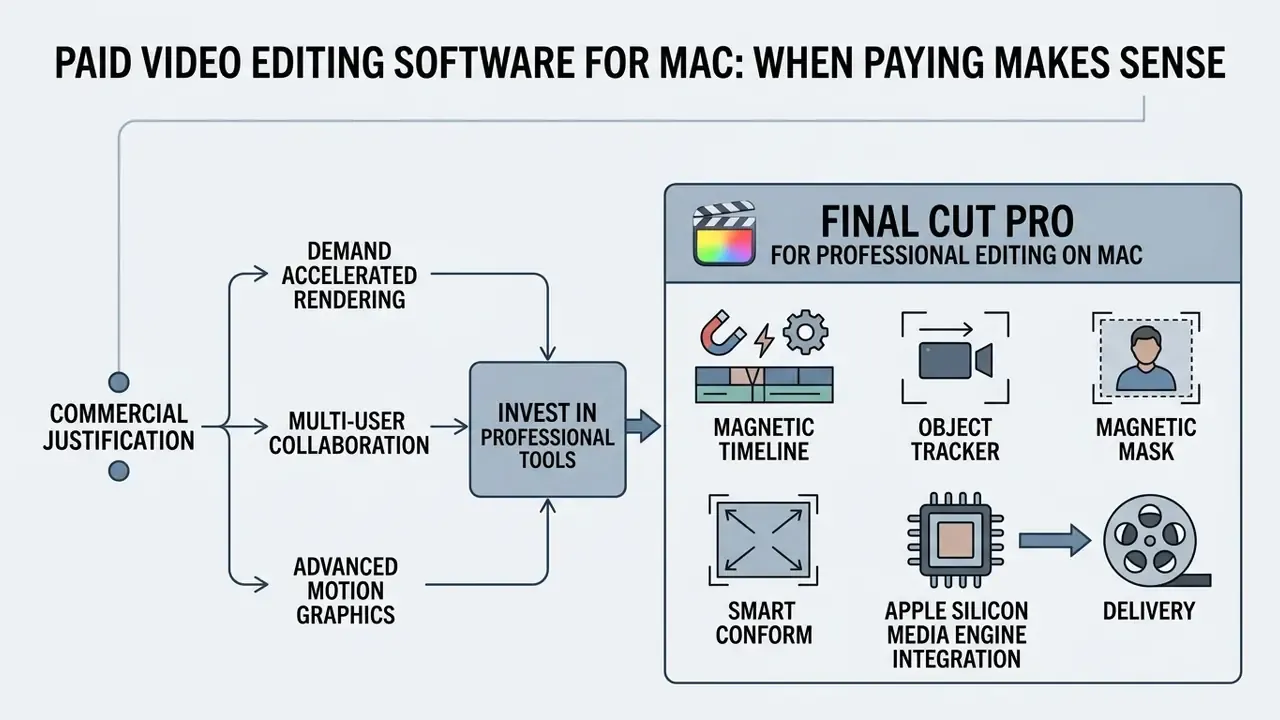
Investing in paid mac video editor software is commercially justified when schedules demand accelerated rendering, multi-user collaboration, advanced motion graphics, or specialized camera format support such as ProRes RAW, REDCODE RAW, Canon Cinema RAW Light, XAVC, XF-AVC, and MXF.
Paid applications also distribute CPU and GPU threads more efficiently across Apple Silicon media engines, which cuts export times for high-resolution commercial deliverables (Apple Developer Documentation, 2026).
«Accelerated ProRes encoding on M-series Max and Ultra chips runs up to 10× faster than on comparable legacy Intel systems.»
Final Cut Pro for professional editing on Mac
Final Cut Pro is Apple's flagship NLE, engineered specifically for macOS and Apple Silicon. It sells as a one-time $299.99 purchase on the Mac App Store, or comes bundled with Motion, Compressor, and Pixelmator Pro in the Apple Creator Studio subscription at $12.99/month (or $129/year). Both routes deliver hardware-accelerated playback and background rendering (Apple Support, 2026).
Core architectural features include:
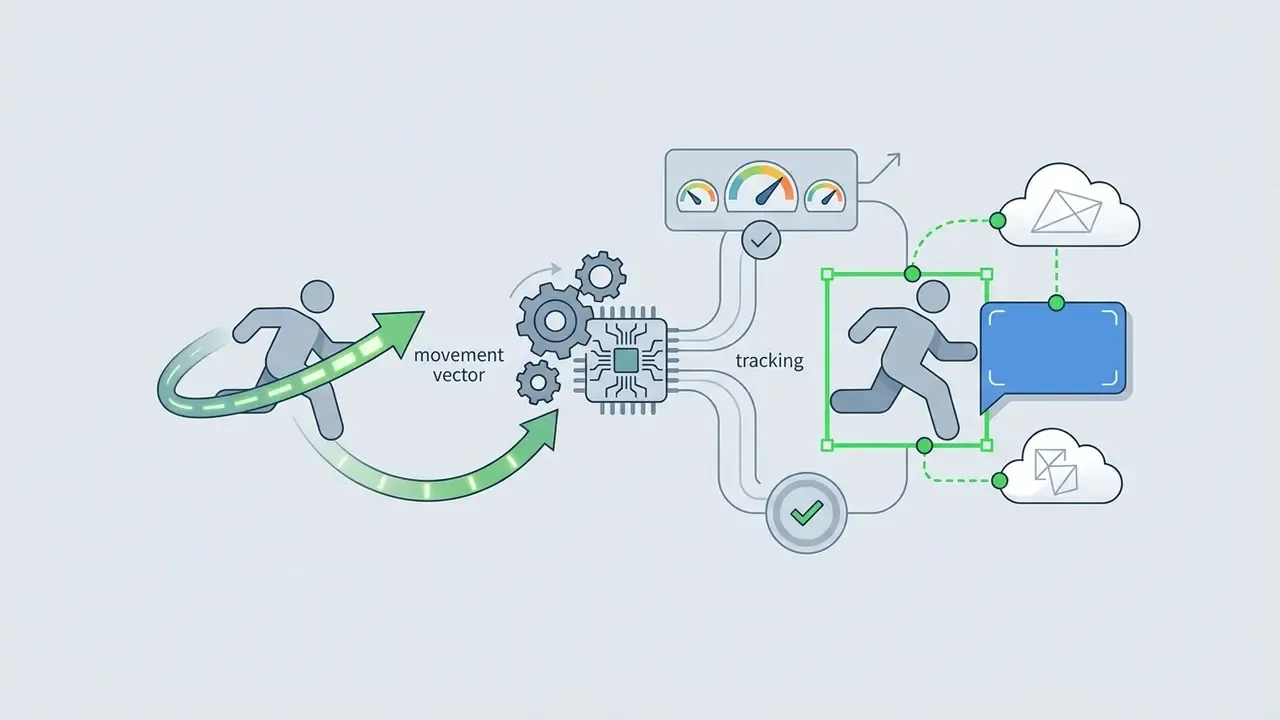
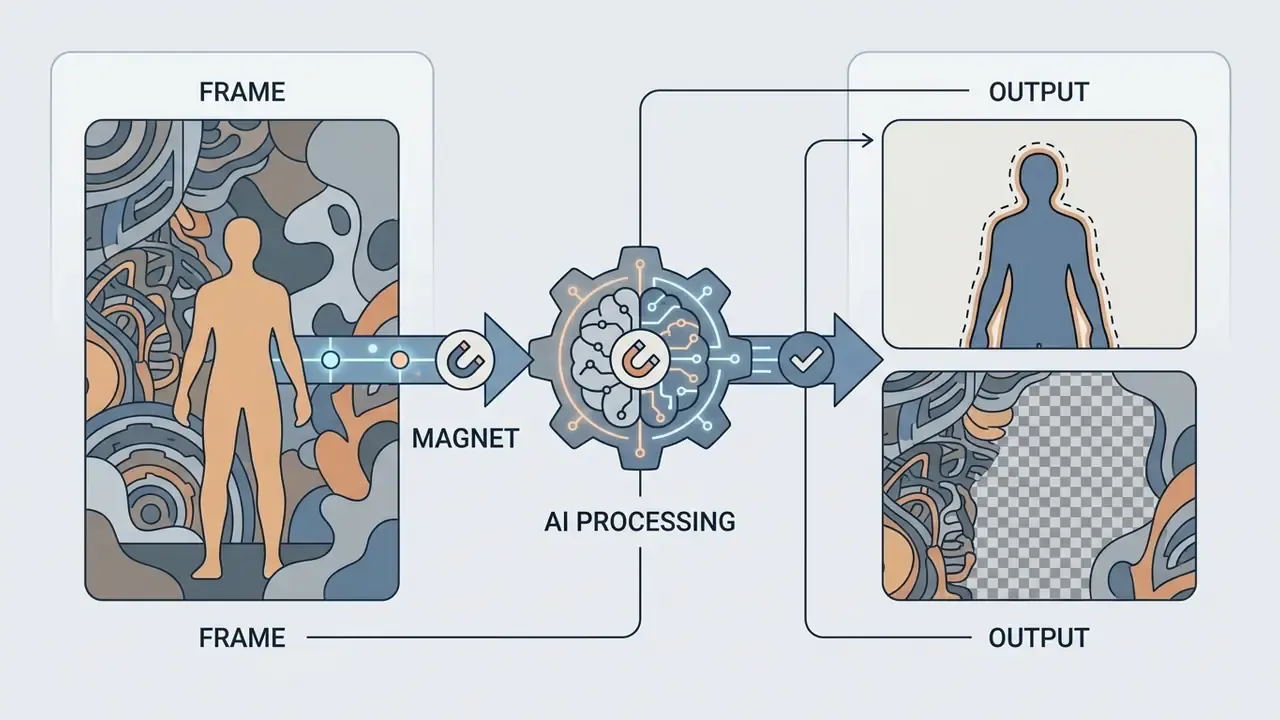
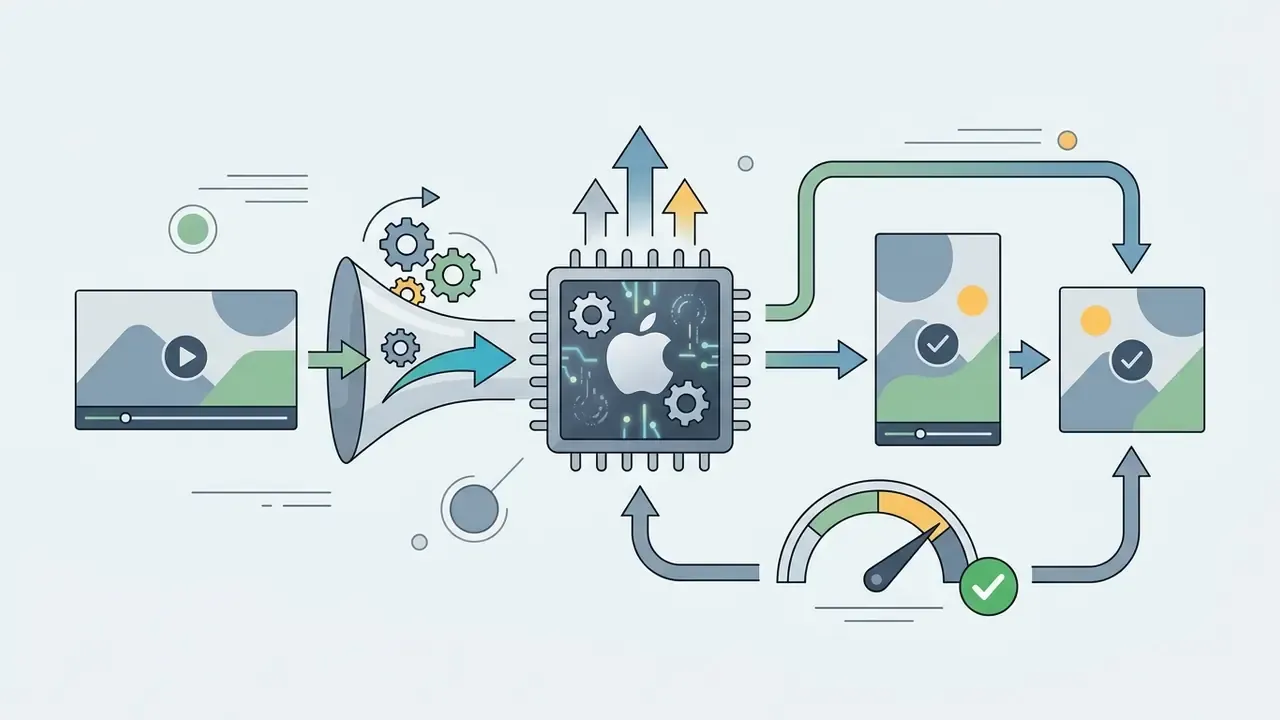
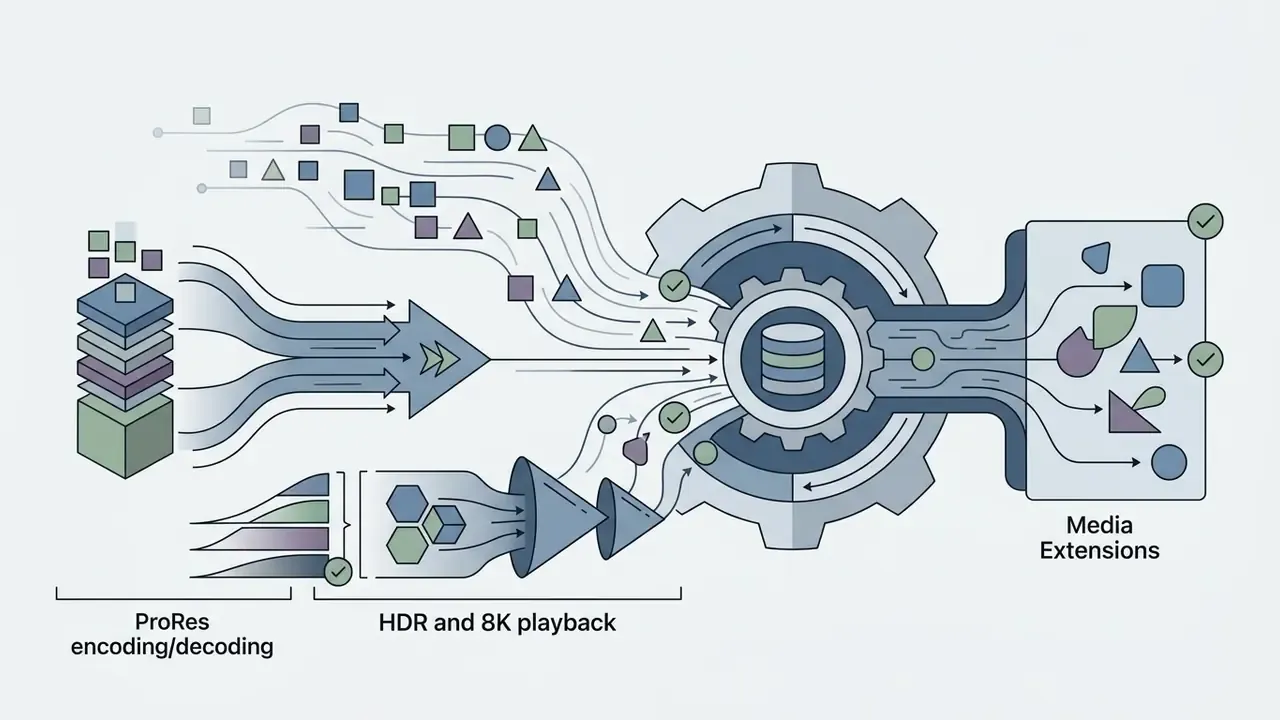
To evaluate asset preparation for commercial design projects before video assembly, review our guide to preparing photo assets for video editing. Thumbnail and lower-third artwork often runs through an ai photo editor first, and archival material sometimes needs ai photo restoration before it can survive a 4K timeline.
Adobe Premiere Pro, Premiere Elements, and Filmora
For non-professional users who want structured guidance, Adobe Premiere Elements 2026 offers a one-time 3-year term license ($149.99, 7-day trial, 64-bit only) with step-by-step Guided Edits, a clean UI, and respectable performance even on older or lower-specced Macs. The trade-offs are no multicam, no VR support, and slower rendering.
Wondershare Filmora uses a hybrid pricing model ($49.99/year subscription or $79.99 perpetual), combining pre-built effect packs with an accessible timeline. Its Effects and Plugins tier adds NewBlue FX, Boris FX, and AI Portrait tools. Note three things: Mac licenses are sold separately from Windows licenses, the minimum requirement is a 2018-or-newer Mac with 8 GB RAM (16 GB for HD and 4K), and free-version exports carry a watermark.
Cyberlink PowerDirector 365 and Movavi Video Editor
Two mid-market options fill the gap between iMovie and the full professional suites:
- Cyberlink PowerDirector 365 (around $54.99/year) arrived on macOS after years as a Windows-only product. Its strengths are breadth and speed: a large template and title library via Title Designer, an Audio Designer with denoising and pitch shifting, AI motion tracking, nested editing, multicam, and a built-in screen recorder. That combination suits tutorial and walkthrough channels well. Drawbacks: subscription-only licensing, a confusing tier structure, and an interface dense enough to overwhelm a complete beginner.
- Movavi Video Editor targets creators who want AI convenience without a learning curve: automatic subtitles with English translation, one-click background removal without a green screen, motion tracking, frame-precise cuts, 4K hardware-accelerated export, and a bundled royalty-free music library. The free trial lasts 7 days and applies a watermark afterwards, and the effects library is noticeably thinner than Resolve's.
Fact check: pricing, trials, and compatibility
Data privacy, compliance, and corporate risk for cloud and AI editors
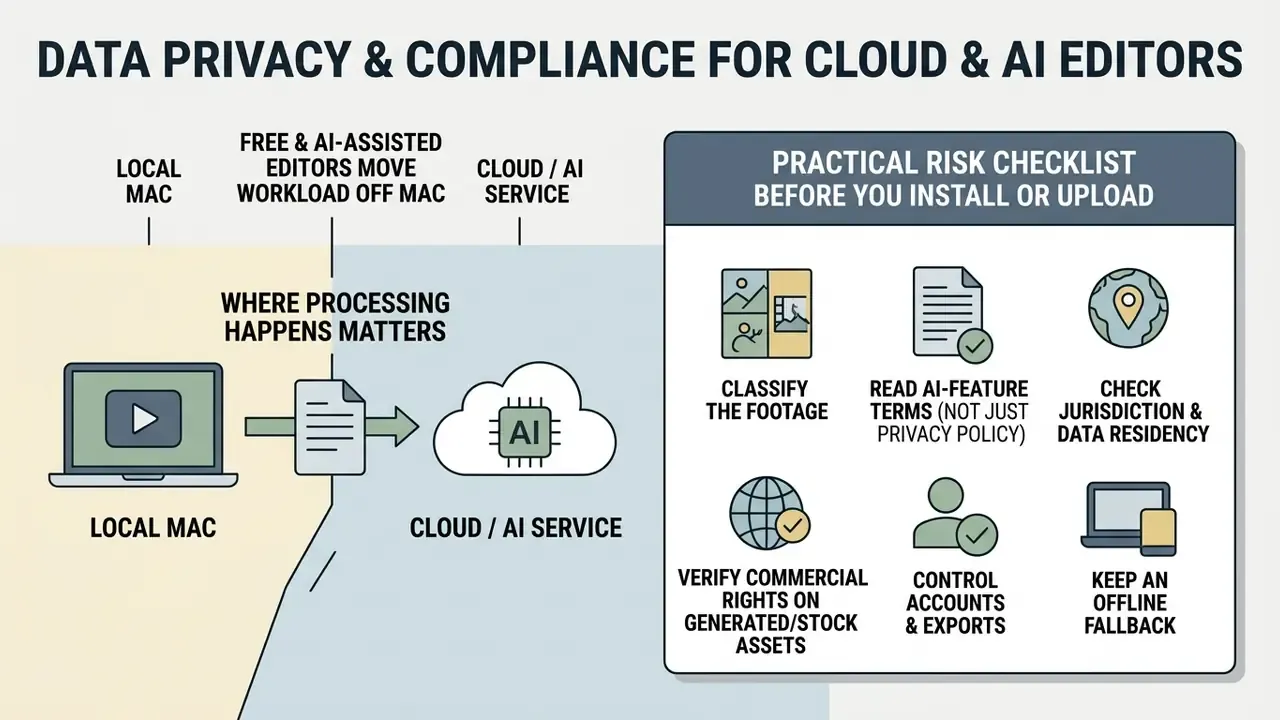
Free and AI-assisted editors move part of the workload off your Mac. Sometimes they move the media itself. For agencies, in-house teams, and anyone handling unreleased or confidential footage, that changes the risk profile entirely.
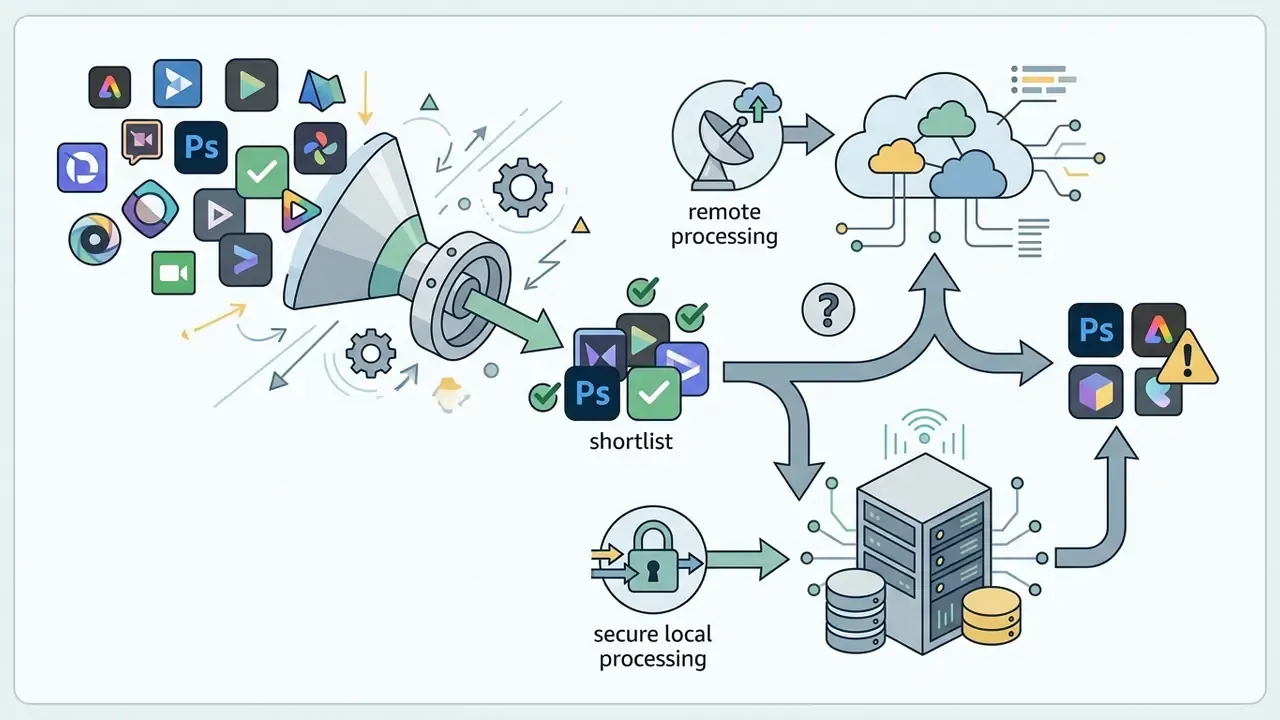
Where processing happens matters. Native applications (iMovie, Final Cut Pro, DaVinci Resolve, Shotcut, Blender, Avidemux) process media locally: nothing leaves the machine unless you export it. Browser-based editors (Clipchamp, Kapwing, Canva, Adobe Express, and similar AI workspaces) upload source media to vendor infrastructure before editing begins. Hybrid apps such as CapCut and Movavi run locally but route specific AI features (auto-captions, background removal, translation, upscaling) through cloud services.
Practical risk checklist before you install or upload:
- Classify the footage. Unreleased product shots, client NDA material, medical or HR recordings, and anything showing identifiable minors should stay in local-only pipelines.
- Read the AI-feature terms, not just the privacy policy. Auto-caption and generative features often carry separate clauses on retention and model training. Ask specifically whether uploads may be retained to improve services.
- Check jurisdiction and data residency. Consumer tools with overseas processing can conflict with internal policy or client contracts even when technically compliant.
- Verify commercial rights on generated and stock assets. Templates, stock music, AI-generated b-roll, and premium elements each carry their own license. Our research on Canva AI Generator commercial use documents how usage rights and attribution requirements differ between free and Pro tiers, and the wider AI Media Commercial-Use Hub collects the same analysis across vendors.
- Control accounts and exports. Prefer tools that support SSO or managed team accounts, avoid personal logins for client work, and disable auto-sync of project folders to consumer cloud drives.
- Keep an offline fallback. Bandwidth-dependent editors fail badly on location. A local NLE plus a local transcoder (Avidemux, VideoProc, Compressor) protects deadlines when connectivity refuses to cooperate.
- Track the legal weather. Training-data and output-ownership disputes are still moving; our AI Litigation and Case Timelines tracker is a reasonable way to see which claims are unresolved before you standardize on a generative feature.
For sensitive commercial footage, the low-risk default stack is simple: ingest and trim locally, edit in Final Cut Pro or DaVinci Resolve, and reserve cloud AI tools for non-confidential social cuts.
This section is general information on operational risk, not legal advice. Consult qualified counsel or your compliance team for licensing and data-protection decisions specific to your jurisdiction and contracts.
Which Mac video editor to choose for YouTube, social media, and commercial content
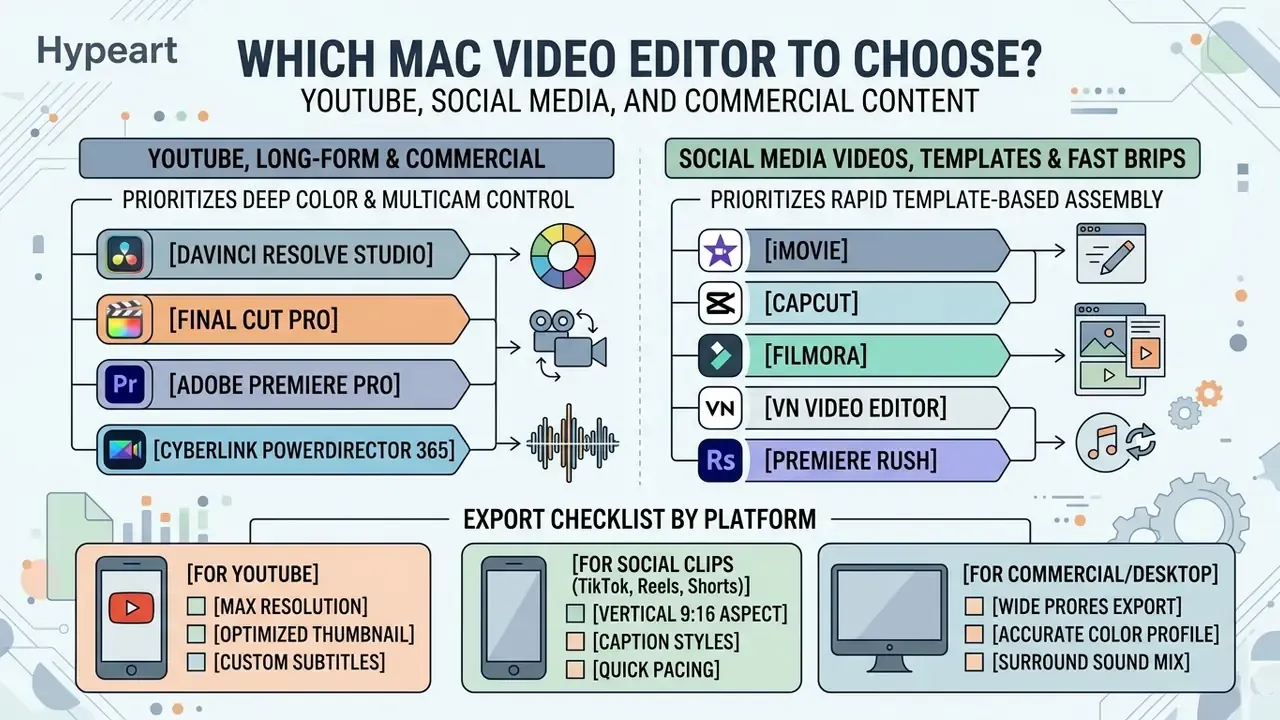
Choosing the best app to edit youtube videos on a macbook hinges on whether the specification prioritizes deep color and multicam control, or rapid template-based assembly for TikTok, YouTube Shorts, and Instagram Reels.
Figure 3. Content pipeline split. Long-form and commercial work routes to Final Cut Pro, DaVinci Resolve Studio, or Premiere Pro. Short-form vertical work routes to CapCut, Canva, or Adobe Express. Hybrid creators run both, exporting a master timeline once and reframing derivatives from it.
Teams that supplement filmed footage with synthetic b-roll should also read our overview of AI video generators for social platforms to understand quality ceilings and licensing before committing assets to a paid campaign. Stylized inserts are a separate question again: the ai photo to anime converter online free and ai photo to Ghibli-style guides both document where output quality breaks down at broadcast resolutions.
Apps for YouTube videos and long-form content
Long-form YouTube production needs applications that can manage multi-gigabyte media libraries, multi-channel audio, precise color correction, and custom chapter markers.
The primary professional choices for long-form content:
- DaVinci Resolve Studio
- unmatched for multi-channel audio mastering via Fairlight, cinema-grade grading with scopes and node trees, and Fusion compositing for animated intros.
- Final Cut Pro
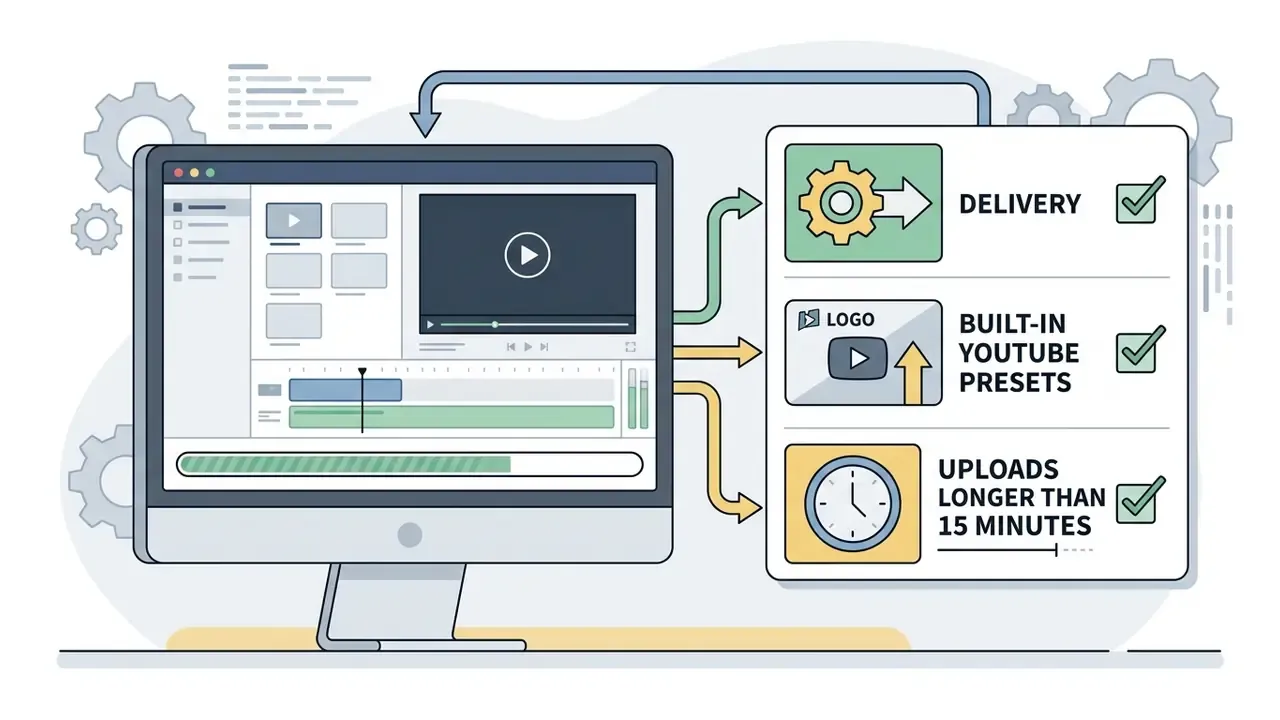
- optimized for rapid timeline navigation, multicam angle viewing with per-angle audio inspection, fast render exports, and direct YouTube publishing, including uploads longer than 15 minutes (Apple Support, 2026).
- Adobe Premiere Pro
- ideal for creators running multi-camera studio setups with external audio recorders, thanks to multi-camera source sequences, managed color pipelines, and dynamic Motion Graphics Templates.
- Cyberlink PowerDirector 365
- a pragmatic middle option for tutorial channels that need screen recording, nested edits, and titles in one subscription.
Export checklist by platform
| Destination | Resolution / aspect | Codec and container | Target bitrate | Audio |
|---|---|---|---|---|
| YouTube long-form | 3840×2160 or 1920×1080, 16:9 | H.264 or HEVC in MP4 | 35–45 Mbps (4K), 8–12 Mbps (1080p) | AAC-LC 384 kbps, 48 kHz stereo |
| YouTube Shorts | 1080×1920, 9:16 | H.264 in MP4 | 10–16 Mbps | AAC 256 kbps |
| Instagram Reels / TikTok | 1080×1920, 9:16 | H.264 High profile in MP4 | 8–12 Mbps | AAC 128–256 kbps |
| Client master / archive | Source resolution | Apple ProRes 422 HQ in MOV | Codec-determined | 24-bit PCM |
| Web embed / email | 1280×720 | HEVC in MP4 (or compressed H.264) | 3–5 Mbps | AAC 128 kbps |
Deliver a ProRes master first, then transcode platform variants from that master in Compressor, VideoProc, or a dedicated compressor. Re-exporting from the timeline for every platform multiplies render time without improving quality.
How to choose a video editor for MacBook Air, MacBook Pro, and other Macs
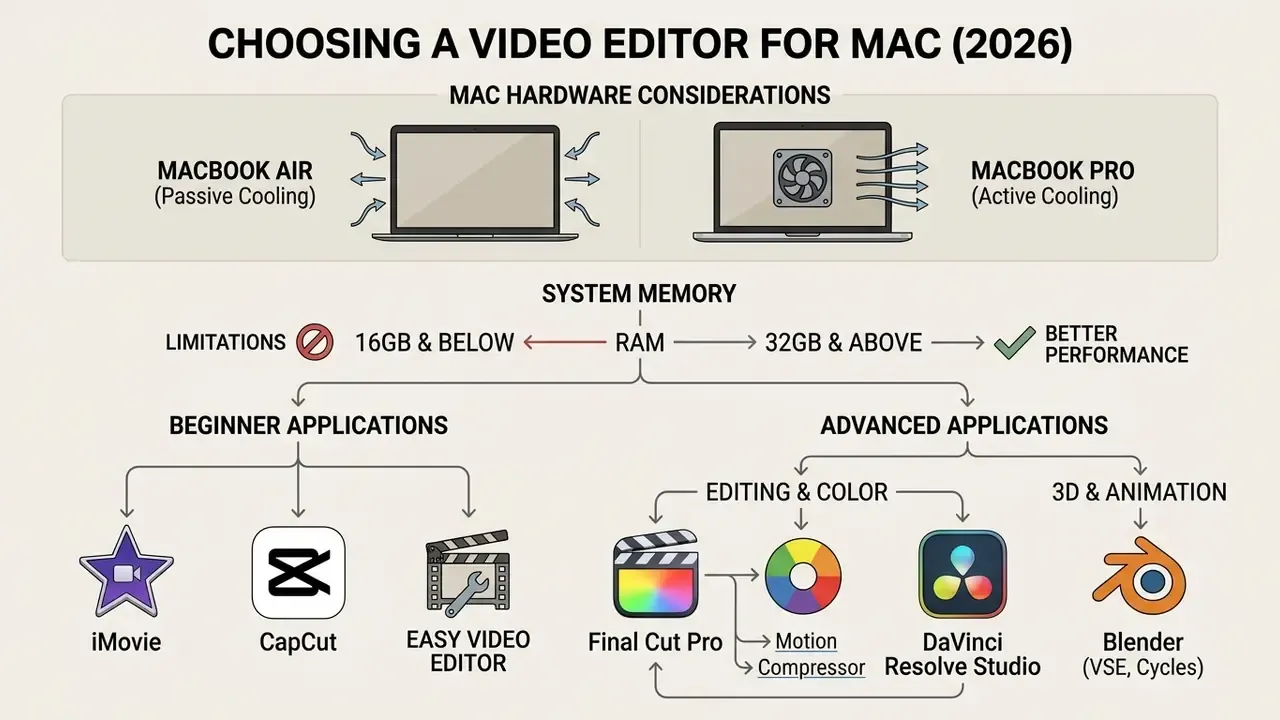
Choosing apps to edit videos on macbook air rather than for a high-spec MacBook Pro means matching software resource consumption to hardware capability: unified memory, active cooling, and media engine cores.
Figure 4. Decision tree for Mac video editor selection
The same logic, written out as a sequence:
- Step 1. User level? Beginner, or intermediate to professional.
- Step 2a. Beginner on a budget → free tools on MacBook Air → iMovie, CapCut, or Canva.
- Step 2b. Beginner willing to pay → Premiere Elements, Filmora, or Movavi.
- Step 3. Intermediate or pro → what content type?
- Step 3a. Short-form social → CapCut Pro, Canva Pro, or Adobe Express.
- Step 3b. Lossless trim and transcode only → Avidemux or VideoProc.
- Step 3c. Long-form or commercial → what hardware?
- Step 4a. MacBook Air with passive cooling → Final Cut Pro, for efficient background rendering.
- Step 4b. MacBook Pro or Mac Studio → DaVinci Resolve Studio or Premiere Pro.
- Step 5. Heavy 3D or VFX on top of that → Blender plus Resolve Fusion, 32 GB and above.
Condensed into four recommendations:
Hardware guidelines for Apple Silicon Macs set these operating baselines:
- 8 GB unified memory: suitable for 1080p editing in iMovie and CapCut, plus lightweight 4K cuts in Final Cut Pro. This is the documented minimum for both Final Cut Pro and Premiere Pro.
- 16 GB unified memory: the recommended threshold for multi-layer 4K timeline editing in Premiere Pro and DaVinci Resolve (Adobe Technical Requirements, 2026; Apple Support, 2026).
- Beginner, low budgetiMovie or CapCut for lightweight editing on MacBook Air.
- Beginner, paid and guidedFilmora, Movavi, or Premiere Elements.
- Intermediate, short-form contentCapCut Pro or Canva.
- Professional, long-form YouTube and commercialFinal Cut Pro for energy-efficient rendering on MacBook Air and Pro, or DaVinci Resolve Studio and Premiere Pro on actively cooled MacBook Pro models with 16 GB or more.
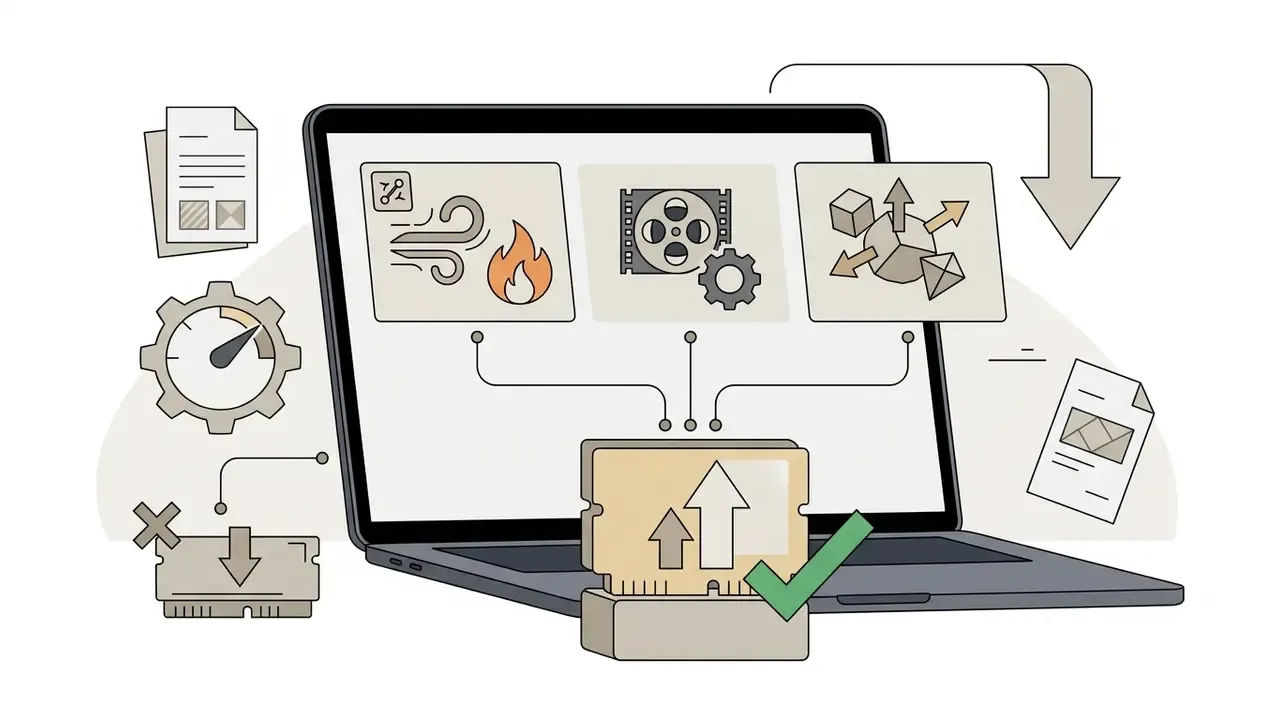
«Node-based grading and Fusion compositing in DaVinci Resolve are GPU-intensive; at least 16 GB of unified memory is recommended for parallel node processing.»

Easy video editor for beginners
For anyone hunting an easy video editor for mac that runs quietly without draining the battery, iMovie, CapCut, Filmora, and Movavi are the sensible shortlist.
iMovie needs only 4 GB of RAM and 4.6 GB of disk space, which makes it the lightest of the good video editing apps for macbook air (Apple App Store Specifications, 2026). CapCut ships pre-configured layout presets that remove technical setup for new editors, while Filmora requires a 2018-or-newer Mac with 8 GB RAM, and 16 GB for HD and 4K work.
Creators preparing still assets before video placement can consult our overview of free photo editors for asset preparation, or the mobile-first ai photo editor app comparison if most of the source material starts on a phone.
Editors for advanced editing, 3D, and animation
High-end post-production on MacBook Pro and Mac Studio hardware calls for applications tuned to Metal API graphics acceleration and multi-core Apple Silicon GPUs. Our broader guide to professional video editing tools maps feature sets and pricing models across the category.
- DaVinci Resolve Studio uses Metal GPU acceleration and unified memory for real-time noise reduction, spatial audio mixing, and optical flow retiming. Current builds require macOS 15 or later.
- Blender VSE and Cycles supports Metal GPU rendering on Apple Silicon (macOS 12.2 or later, macOS 12.3 for AMD Metal), which allows integrated 3D animation rendering alongside timeline sequence editing (Blender Requirements, 2026).
- Final Cut Pro plus Motion and Compressor Apple's pro bundle pairs behavior-driven vector motion graphics with multi-threaded export encoding, and Compressor accepts projects sent straight from Final Cut Pro and Motion.
For animation pipelines where graphic elements are generated before NLE assembly, creators often follow the workflows in our animation maker tools overview.
Pre-purchase checklist
Before you pay for any Mac video editor, confirm all seven:
- Does my chip generation and macOS version meet the vendor's current minimum requirements?
- Is my unified memory at or above the recommended figure, not just the minimum?
- Does the free tier or trial export at the resolution my deliverables require, without a watermark?
- Does the app read my camera's codec natively, or will I need a transcode step?
- Is the license perpetual, term-limited, or subscription, and what happens to my projects if I stop paying?
- Do AI features process locally or in the cloud, and does that satisfy my client's confidentiality terms?
- Is there an export preset, or a Smart Conform equivalent, for every platform I publish to?
FAQ: video editing software for Mac
Is an online video editor suitable for editing video on a Mac?
Browser-based video editors such as Clipchamp, Kapwing, and Runway work well enough for basic cuts, quick text additions, and lightweight social clips on Mac without installing anything (Clipchamp Support, 2026). Runway supports Chrome, Firefox, Safari, and Edge; Clipchamp requires Edge or Chrome on macOS; Kapwing recommends Chromium-based browsers. That browser dependency is itself the main limitation for Mac users, alongside three technical constraints:
- Browser memory caps: browsers limit per-tab RAM allocation, which can slow or crash multi-track 4K timeline projects, a limitation Kapwing documents explicitly (Kapwing Technical Documentation, 2025).
- Bandwidth dependencies: high-bitrate camera footage needs lengthy uploads before editing can start, and offline editing is effectively impossible.
- Hardware acceleration constraints: browser editors lack direct low-level access to Apple Silicon Media Engines, so long-form renders finish slower than in native applications.
For professional workflows or sensitive commercial footage, native desktop applications such as iMovie, Final Cut Pro, or DaVinci Resolve give better security, performance, and stability. Note: independent head-to-head benchmarks of browser versus native render times on identical Apple Silicon hardware remain scarce, so treat vendor performance claims as directional.
What tools do I need for screen recording, motion graphics, and animation?
Building instructional tutorials, software walkthroughs, or motion graphic explainers on Mac means pairing a capture tool with a graphics tool:
- Built-in screen recording: press
Shift-Command-5for the Screenshot toolbar, or use QuickTime Player's New Screen Recording (Apple Support, 2026). Free, local, and sufficient for single-source captures. - Advanced screencasting: ScreenFlow (Telestream) records screen, camera, and microphone at the same time and includes its own editor. OBS Studio adds multi-channel audio capture, scene switching, and custom canvas layouts at no cost.
- Fast utility capture: VideoProc and Cyberlink PowerDirector 365 include built-in recorders that hand footage straight to their editors, which is useful when the goal is a same-day tutorial rather than a polished production.
- Motion graphics and VFX: Apple Motion provides behavior-driven animation templates that publish directly into Final Cut Pro. Adobe After Effects remains the industry standard for advanced 2D and 3D compositing, kinetic typography, and effects pipelines (Adobe, 2026).
«Screen-capture tool selection is driven primarily by license cost and integration with the downstream editing workflow.» - MIT Educational Video System Study, MIT (2011, foundational reference). https://dspace.mit.edu/
Can I edit multicam footage for free on a Mac?
Yes. DaVinci Resolve Free and Lightworks Free both support multicam synchronization. Resolve is the stronger pick, because its free tier exports at 4K UHD while Lightworks caps free exports at 720p. iMovie does not support multicam at all.
Is 8 GB of unified memory enough for video editing?
For 1080p projects in iMovie, CapCut, or Filmora, yes. It is also the documented minimum for both Final Cut Pro and Premiere Pro, and Resolve will launch on it. But 8 GB becomes the bottleneck the moment you stack multiple 4K streams, add Fusion nodes, or keep a browser open beside the NLE. 16 GB is the realistic threshold for professional 4K work.
How can I try professional software without paying?
Final Cut Pro offers a 90-day full-featured trial, Premiere Pro and Premiere Elements offer 7-day trials, and DaVinci Resolve Free is permanently free with no watermark and no time limit. Sequencing those trials, Resolve first and Final Cut Pro's 90 days second, lets you evaluate both major Mac pipelines before spending anything.
Which editor should a team of editors standardize on?
Cross-platform teams with Windows and Mac seats usually standardize on Premiere Pro, for project interchange and Creative Cloud administration. All-Mac teams get better performance per dollar from Final Cut Pro (perpetual licenses, no recurring cost) or DaVinci Resolve Studio, whose collaboration features support multiple users on one project database and whose $295 key activates two machines.
Appendix: editorial corrections and superseded claims