Why should a risk or compliance leader care about a consumer-grade video tool at all? Because internal video is now everywhere: policy updates, KYC refresher training, fraud-awareness clips, quarterly close walkthroughs. Someone will edit that footage somewhere. The only real question is whether the editing happens inside your tenant boundary or in a consumer app nobody approved.
Clipchamp Video Editor is Microsoft's default consumer and enterprise web-based video editing platform, engineered for rapid, template-driven video creation directly inside modern web browsers and Windows 10/11. Founded in Brisbane, Australia in 2013 by Alexander Dreiling, Dave Hewitt, Tobias Raub, and Soeren Balko, the product began life as a browser-native media compression and conversion utility before evolving into a full non-linear editing (NLE) workspace. Microsoft acquired the company on September 7, 2021, and from March 2022 began bundling it into Windows 11, replacing legacy utility tools such as Windows Movie Maker and the Photos app Video Editor with a lightweight, cloud-connected multitrack workspace.
What Is Clipchamp Video Editor and Who Owns the Platform
Clipchamp Video Editor is a web-native video creation app owned and operated by Microsoft Corporation, built to simplify desktop video assembly without heavy local installs. The software positions itself as a quick and easy video editor: somewhere between a simple media viewer and a high-end non-linear editing platform such as Adobe Premiere Pro or DaVinci Resolve.
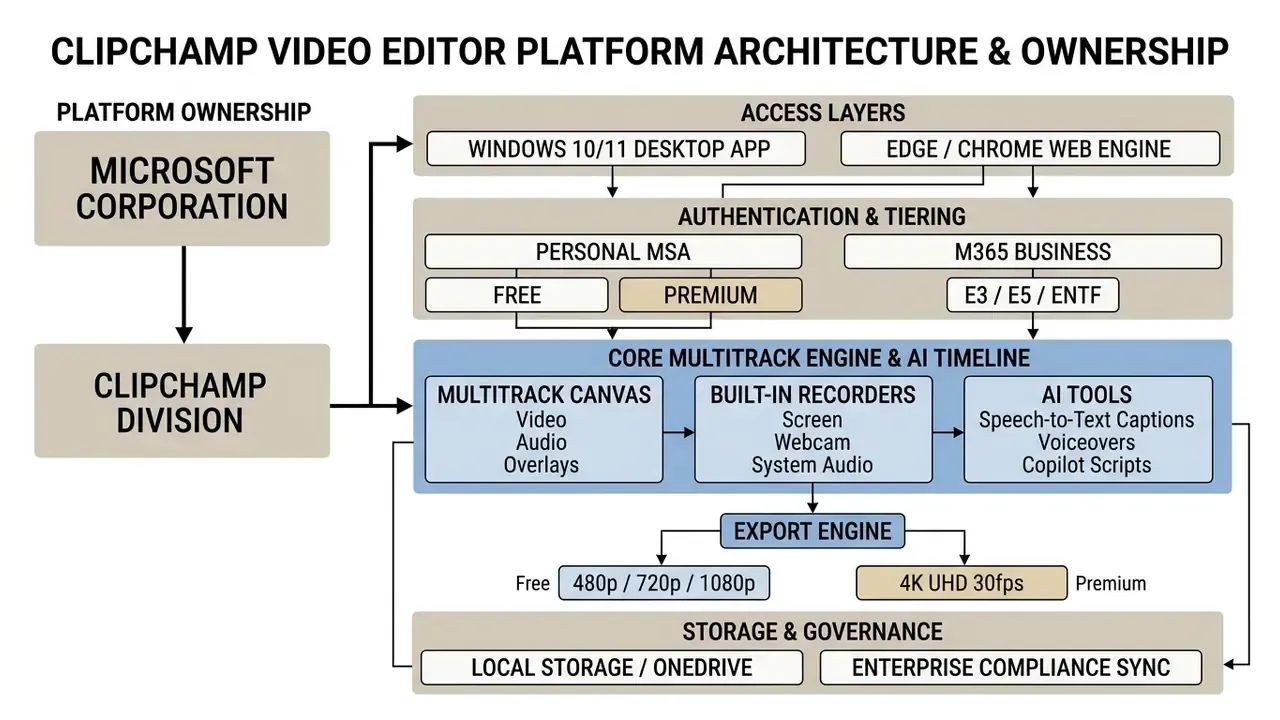
Clipchamp as Microsoft's Video Editor for Browser and Windows
Clipchamp functions as an integrated Windows desktop app on Windows 11 and Windows 10, and it also runs inside Chromium-based browsers such as Microsoft Edge and Google Chrome via app.clipchamp.com. After the September 7, 2021 acquisition, Microsoft folded Clipchamp into the Microsoft 365 ecosystem, so users sign in with either a personal Microsoft account or corporate Entra ID (formerly Azure AD) credentials.
«Clipchamp comes pre-installed on Windows 11 and is available in the browser: you can open it by typing "Clipchamp" into the taskbar search box.»
On Windows 10 the editor installs from the Microsoft Store, while macOS and Linux users reach an identical workspace through 64-bit Edge or Chrome. For smooth performance during 1080p or 4K timeline editing, Microsoft recommends a 64-bit computer with at least 8 GB of RAM (16 GB or more for high-resolution video making), a recent GPU, and enough free disk space for temporary cache files (Microsoft Support Hardware Guidelines, 2026). Anyone searching phonetic variants such as chipmunk video editor, climpchamp video editor, or clip champ video editor will land on the same unified Microsoft application. Yes, the misspellings are that common.
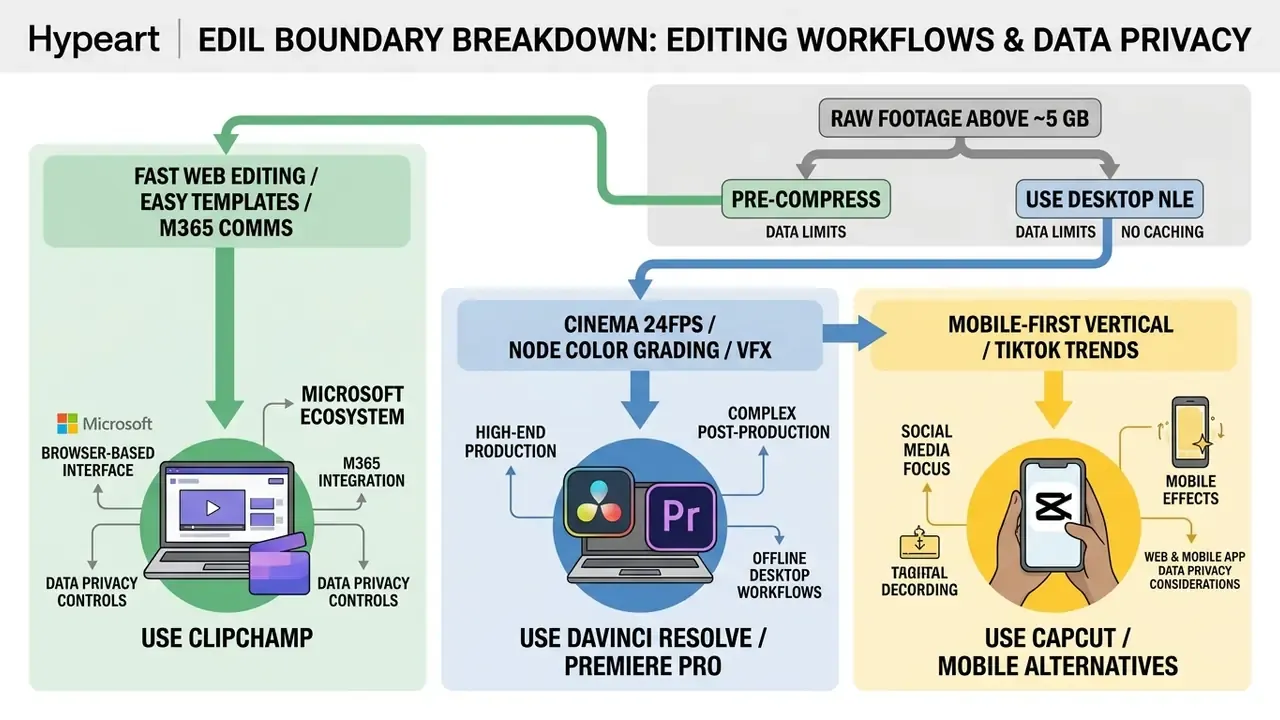
Hardware bottlenecks and browser cache constraints. Clipchamp deliberately offloads rendering from the CPU to the GPU. In practice, Task Manager shows Clipchamp holding a large slice of RAM inside Chromium processes while CPU utilisation often stays under 15%, which leaves processor headroom for browsing or a Teams call during export. The trade-off is memory pressure. Because much of the project data is staged through the browser storage cache, projects containing more than roughly 5 GB of raw 4K media can trigger severe timeline sluggishness, dropped preview frames, or an outright tab crash. For heavier media pools: pre-compress footage, proxy-edit at lower resolution, or move the job to a dedicated desktop NLE. Independent review platforms consistently rank sluggishness and crashes on large projects as the single most common Clipchamp complaint.
Data Privacy, AI Training, and Shadow AI Controls in Microsoft 365
For a regulated organisation, the decisive question is not the feature list. It is where the pixels and the prompts physically go.
- Local processing by default. Clipchamp renders and previews media through the Chromium engine on the local device. Raw footage is not uploaded to an external third-party media cloud simply to start editing; assets leave the endpoint only when a user deliberately imports from or exports to OneDrive, SharePoint, Microsoft Stream, or a social channel.
- Tenant boundary and identity. In work and school tenants, Clipchamp authenticates through Entra ID, and projects are stored as
.clipchampfiles inside OneDrive or SharePoint. They inherit the tenant's retention, eDiscovery, sensitivity-label, and conditional-access posture instead of sitting in a consumer silo. - AI features and prompt handling. The AI layer (autocaptions, text-to-speech, Copilot-assisted summaries and scripts) runs on Microsoft Azure AI Speech and Microsoft 365 services. Governance teams should confirm the current commitments for their specific SKU in the Microsoft Trust Center and the Clipchamp service description before approving use with confidential, PII, or client-privileged footage. Commitments differ between personal Microsoft accounts and commercial tenants, and that difference is where most policy gaps hide.
- Shadow AI containment. The realistic risk inside a bank or fintech is not Clipchamp itself. It is staff drifting to consumer editors to avoid friction. Because Clipchamp is licensed inside Microsoft 365 E3/E5, Business Standard, and Business Premium, IT can offer a sanctioned, identity-bound alternative first, then restrict unsanctioned tools at the network or endpoint layer.
- Administrative levers. Availability of Clipchamp for work accounts, premium stock access, brand-kit scope (single user, group, or whole organisation), project cloud backup, and export destinations are all governed through Microsoft 365 licensing and admin configuration. Where corporate policy forbids publishing to consumer social platforms, block those destinations at the tenant or proxy layer and standardise on Stream or SharePoint sharing.
This section is informational and is not legal, compliance, or security advice. Verify the current data-handling commitments for your licence tier in official Microsoft documentation and the Microsoft Trust Center before deployment.
Which Users Clipchamp Video Maker Suits Best
Clipchamp is built primarily for beginners, corporate communicators, digital marketers, educators, and social media content creators who need fast video production without a steep learning curve. Microsoft states plainly that the product is "designed to make video creation easy for everyone, even for those with no prior editing experience." Its drag-and-drop timeline lets non-professionals turn raw camera footage, screen captures, and slides into presentable promotional clips for YouTube, LinkedIn, and TikTok. Readers weighing budget options can benchmark it against other free video editing software before committing to a paid stack, or browse the full set of compare guides.
Inside corporate environments, finance, HR, and compliance teams use the platform for localized training material, onboarding modules, and internal policy updates, with finished videos published through Microsoft Stream or SharePoint rather than public channels. One small pattern worth noting: compliance teams tend to adopt it for caption generation first and only later for full edits. For asset creation beyond video, teams can review the broader category of video editing tools and the AI Media Glossary for standardized industry terminology.
Clipchamp Interface and Core Video Editing Capabilities
The Clipchamp user interface is organised around a 4-zone workspace that separates media management, timeline editing, visual preview, and asset customisation. The media navigation panel sits on the left, the primary video preview stage in the centre-top, property configuration controls on the right, and the multitrack editing timeline runs across the bottom edge. The Export button is anchored top-right, where you would expect it.
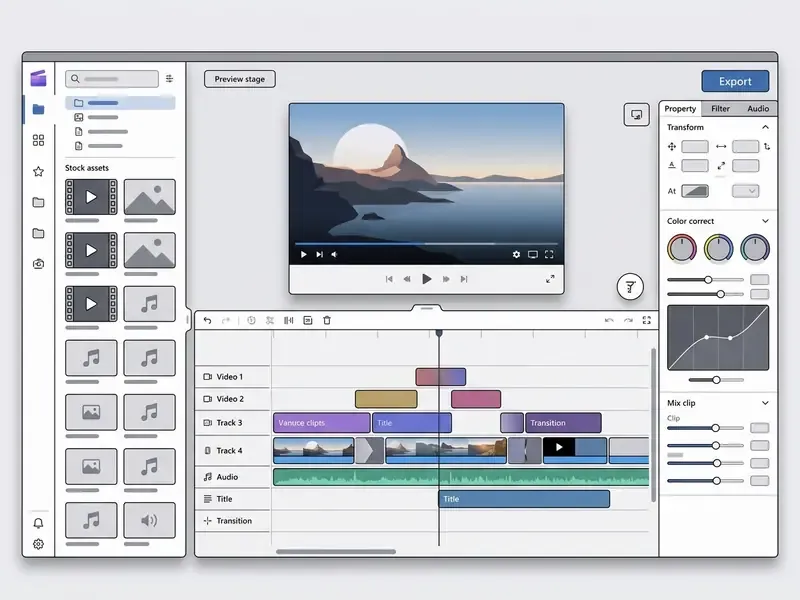
Timeline, Clips, and Basic Editing
Editing in Clipchamp centres on a multitrack timeline where video files, audio tracks, text overlays, and graphics are arranged chronologically. You split long clips by positioning the playhead and clicking the scissor icon (or pressing S), trim ends by dragging clip handles, and delete unwanted sections with the delete key or the trash icon.
«Clipchamp combines media import, a multitrack timeline, stock assets and recording tools in an interface built for short, uncomplicated projects.»
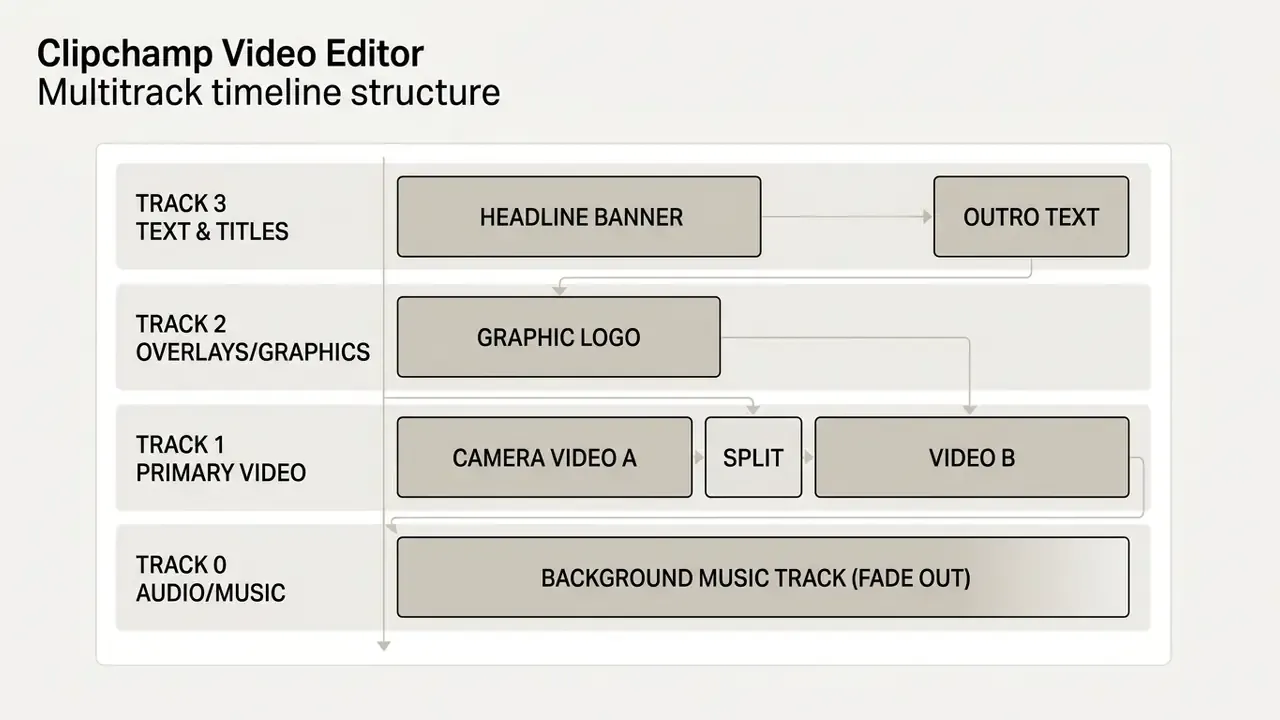
Dropping two assets side by side joins them into one longer sequence automatically. Dragging an asset into the gap between two existing tracks spawns a brand-new track, marked by a green line with a plus sign. When building instructional or governance content, managing several audio and video tracks lets creators layer picture-in-picture (PiP) commentary over a screen recording, or sit a spoken narration on top of a quiet music bed.
Smart UX utilities most reviews miss:
- Silent gap detection before export. Clipchamp scans the multitrack timeline for empty visual spaces and unaligned audio segments, then warns you before rendering. Clicking the trash icon on a flagged gap ripple-deletes the empty interval across the timeline. That one feature prevents the classic "black frame in the middle of the AML training video" re-edit cycle.
- Direct mobile import via QR code. Inside the Your media tab, the phone import option generates a dynamic QR code. Scanning it with an iOS or Android device opens an instant upload portal that pushes phone recordings straight into the desktop project media pool. No cloud-drive middle step, no cable.
- Media filtering. Once dozens of assets pile up, the media panel can be filtered by type (video, image, audio), which speeds up assembly on longer corporate projects more than you would guess.
When evaluating alternative workflows, teams can compare performance against traditional raster tools described in our guide to photo editor solutions, or against automated production stacks covered in our overview of AI video generators.
Text, Transitions, Filters, and Effects
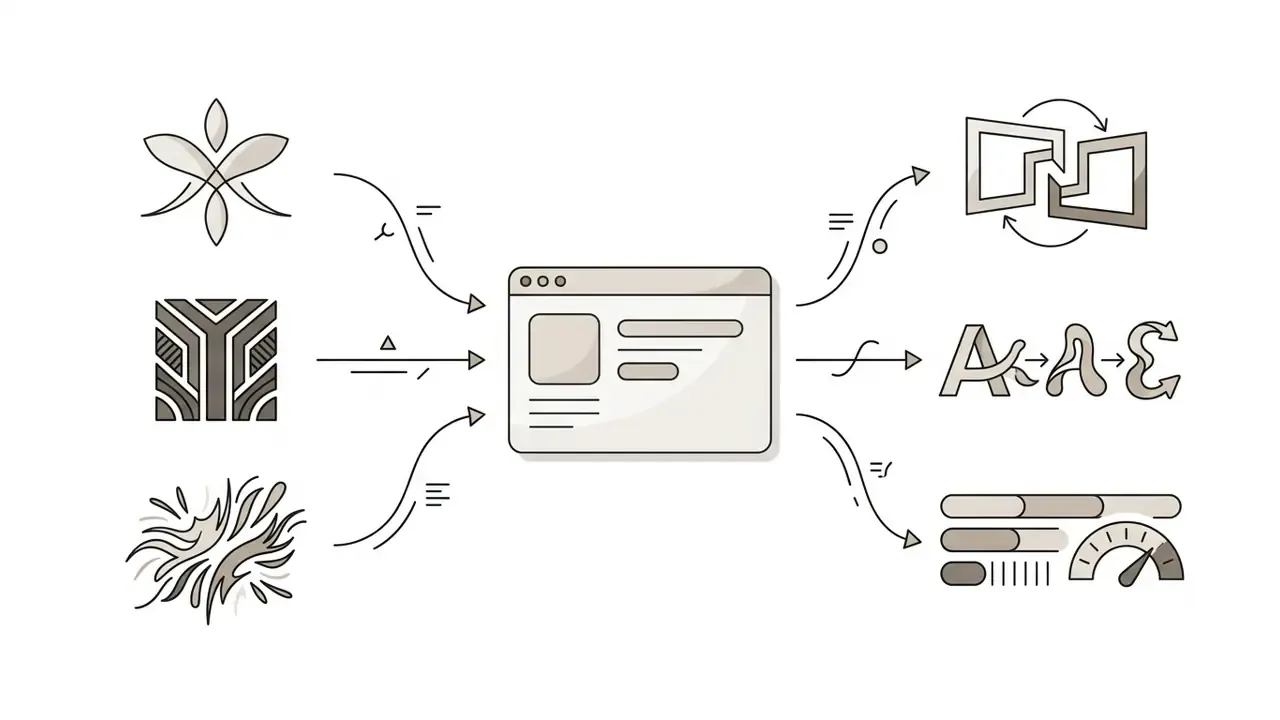
Clipchamp ships a catalogue of animated text styles, visual transitions, colour filters, and graphic overlays that lift production value without manual keyframing. Animated text presets include typewriter effects, fade in and out, smooth slide, smooth scale, bouncing captions, and bold lower-thirds, each configurable for font, colour, alignment, and scale in the text property panel.
Transitions such as cross-fades, wipes, zooms, and glitch effects drag directly between adjacent timeline clips to hold narrative flow. Colour correction covers brightness, contrast, exposure, and saturation, plus stylistic treatments like sepia, film grain, VHS overlay, and cold tones. Overlays differ from filters: they layer on top without altering the underlying asset. One documented gap, and it is a genuinely irritating one, is that elements cannot be rotated to an exact numeric degree. Verified user reviews raise it repeatedly.
Music, Audio, and Screen or Webcam Recording
The audio and recording tools cover sound editing alongside integrated capture. The internal recording module, found in the Record & create tab, records screen, webcam, or both at once. You can capture the full screen, a single application window, or a browser tab, with optional system audio sharing and microphone input routed straight into the media panel. Recording sessions are capped per take, so long webinars are best captured in segments rather than one heroic three-hour run.
Timeline audio controls include track splitting, volume attenuation, fade-in and fade-out sliders, silence removal, and automated noise suppression. For podcasts or spoken narratives, exporting audio only produces an M4A stream. Teams evaluating synthetic narration can also explore an ai voice generator to produce voiceovers for import into a Clipchamp timeline project.
Templates, Stock Content, and AI Tools in Clipchamp
Clipchamp accelerates production with a large library of pre-built video templates, royalty-free stock media, and automated AI capabilities. Together they let creators produce polished videos without sourcing external assets or designing layouts from scratch.
Ready-Made Templates for YouTube, TikTok, and Business Content
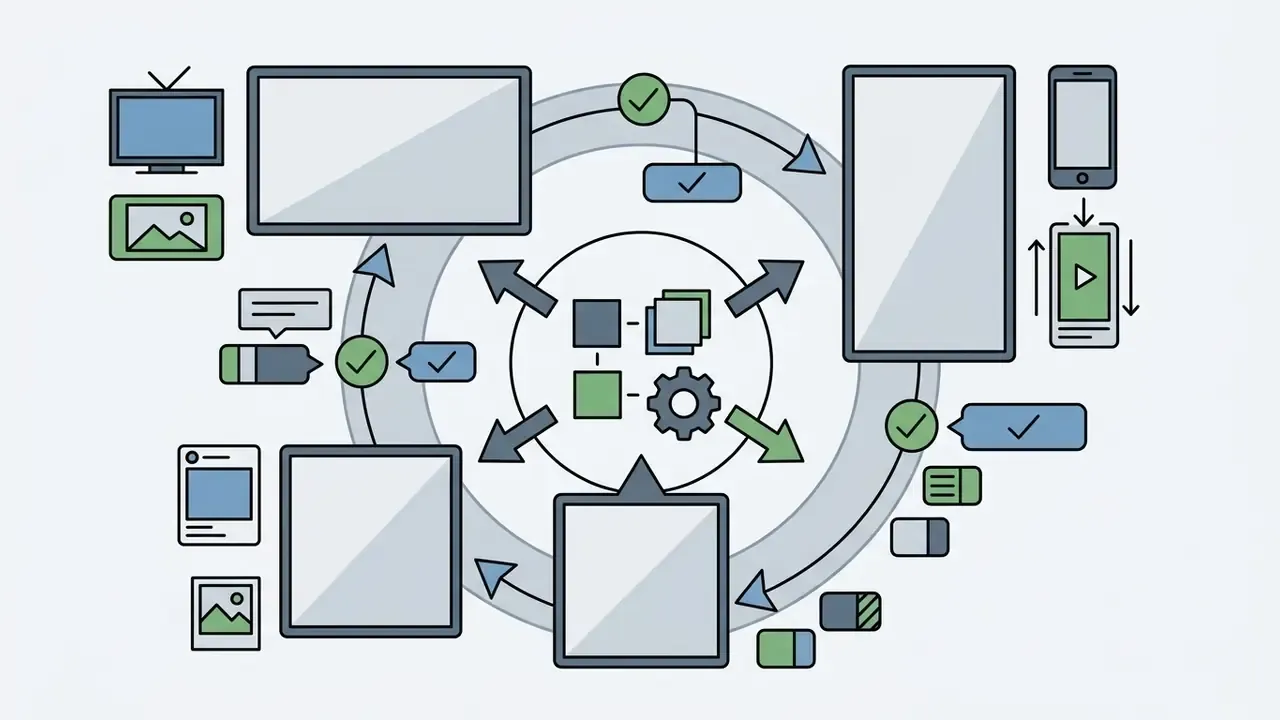
The template library holds hundreds of pre-formatted layouts built for specific aspect ratios: 16:9 widescreen for YouTube and corporate presentations, 9:16 vertical for TikTok, Instagram Reels, and YouTube Shorts, and 1:1 square for social feeds. Business presentation templates include placeholders for company announcements, product demonstrations, HR onboarding, and training modules. Beyond full-video templates, partial templates cover intros, outros, and social-handle overlays that can be dropped into an existing edit.
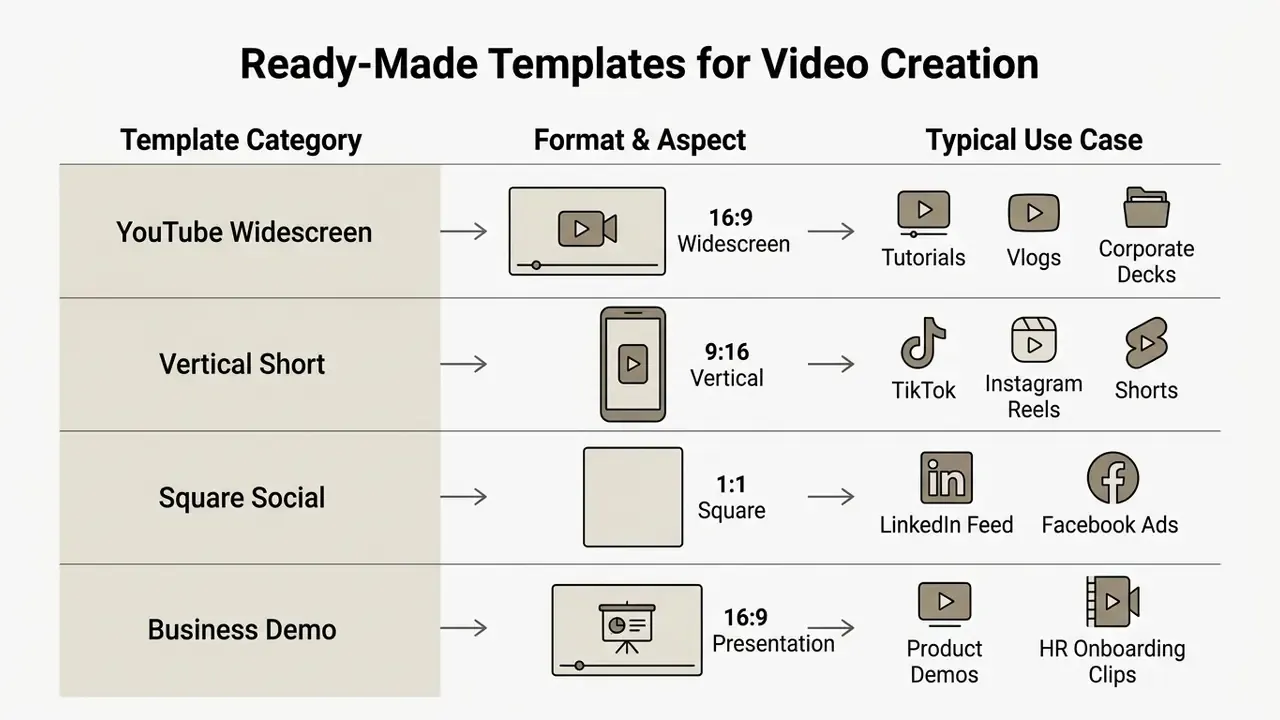
The honest caveat: the library skews corporate and educational rather than social-native, and it does not refresh weekly against platform trends. When managing brand consistency across video channels, teams often pair templates with custom marks produced via an ai logo generator, and packaging or product teams sometimes add assets from an ai label generator for on-screen product detail.
Stock Video, Music, and Graphics for Your Project
Clipchamp integrates direct access to a royalty-free stock media library: stock video clips, background images, backgrounds, sound effects, music beds, and GIPHY sticker overlays.
«Clipchamp's content library contains more than 1 million stock videos, images, backgrounds and music tracks.»
Assets open from the Content Library tab (Visuals for video, images, graphics and backgrounds; Audio for music and sound effects) and drag straight onto the timeline. Free accounts can pick from thousands of standard stock assets, while Premium and qualifying Microsoft 365 subscribers unlock the full premium royalty-free library supplied by partners such as Storyblocks (Clipchamp Stock Terms, 2026). Premium assets carry a diamond badge, and a project containing one cannot be exported until the account is upgraded or the asset is swapped out. Better to notice that at minute three than at minute forty.
If the brief extends to high-volume image asset creation alongside video, creators can consult our analysis of the canva ai generator or review options in the microsoft ai image generator guide. Teams building campaign pages around the video can also look at an ai landing page workflow, and communications teams often pair video announcements with an ai letter generator for the written version.
AI Features for Creating and Editing Video
AI-assisted features in Clipchamp include automated speech-to-text autocaptions, text-to-speech voice generation, Copilot script assistance, silence removal, image background removal, and AI-driven auto-composition. The autocaption generator analyses spoken audio across more than 80 languages, producing synchronised transcriptions and customisable subtitles on the timeline, with an option to download raw SRT files.
«Clipchamp includes AI text-to-speech, Copilot summaries, smart editing and autocaptions, all available to create polished videos fast.»
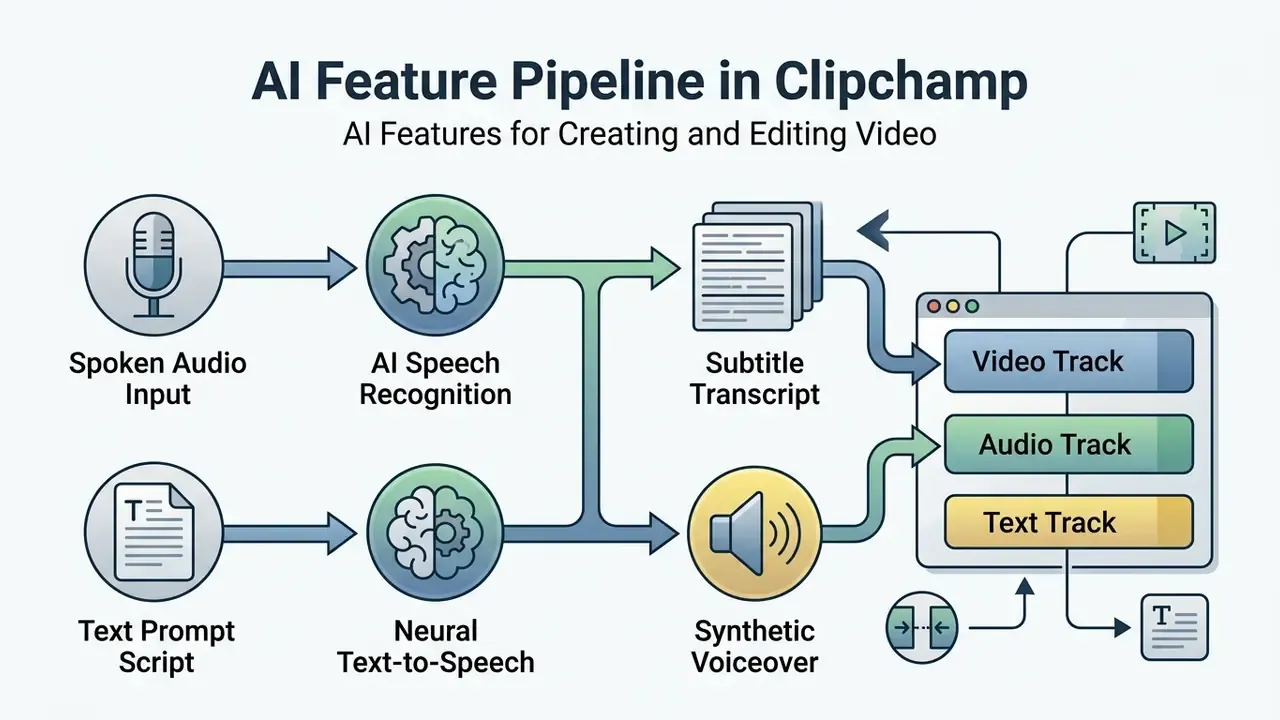
The text-to-speech generator converts written prompts into natural-sounding voiceovers. Clipchamp's own feature documentation states that the engine, powered by Azure AI Speech, offers subtitles in over 80 languages and more than 400 voice options with adjustable tone, emotion, and pace (Clipchamp Video Editor features, 2026). Exact voice counts shift with Azure model updates, so verify current availability in-product before scripting a large localisation batch.
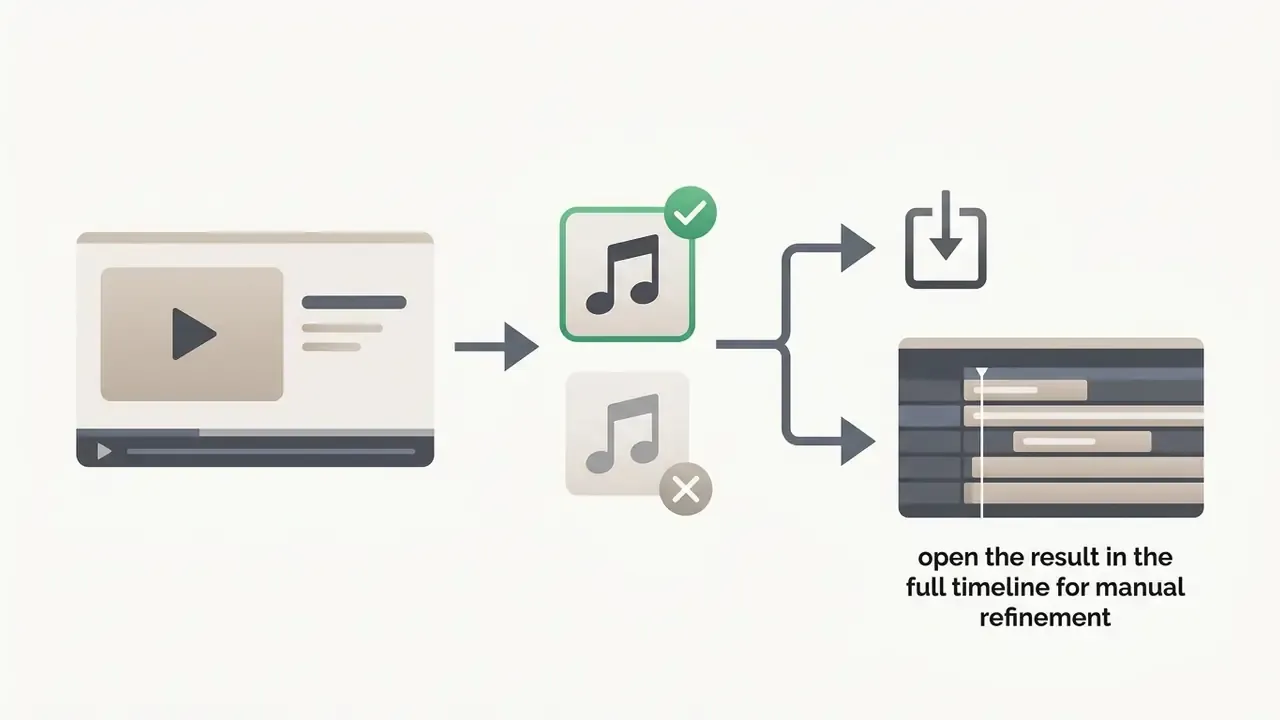
AI Auto-Compose wizard: step-by-step flow. On the Clipchamp home screen, the "Create a video with AI" button opens a guided wizard that is genuinely useful for batch content:
A caution for regulated content: an auto-composed cut is a draft, not an approved artefact. Anything that carries a disclosure, a rate, or a policy statement needs a human reviewer named in the workflow.
For teams interested in lip-sync or avatar workflows, our review of an ai lip sync generator and our overview of text-to-video AI give technical insight into specialised generation engines that complement, rather than replace, a timeline editor. Recruiting and internal-comms teams also frequently ask about a ai linkedin photo generator free for presenter stills.

How to Create and Export a Video in Clipchamp
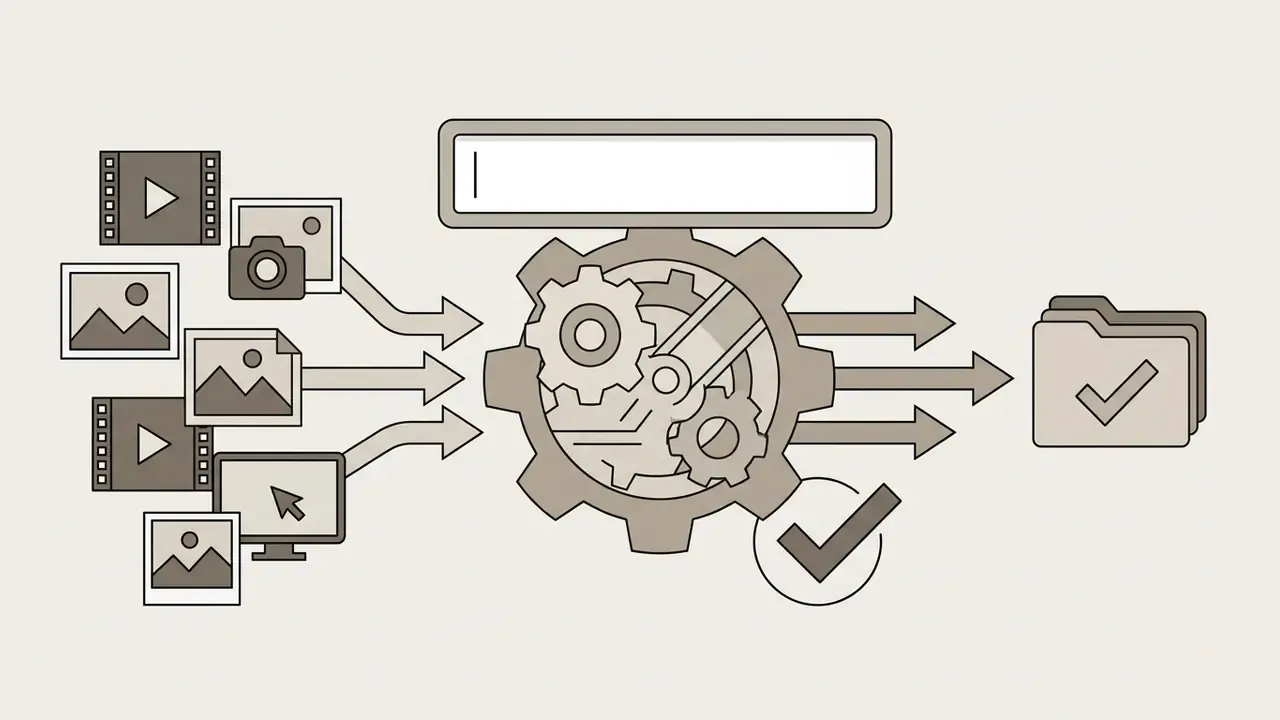
Creating and publishing a project follows a 5-step workflow, from initialisation to final cloud or local MP4 export.
- Initialise a new video project. Open Clipchamp via the Windows app or Edge browser, sign in with your Microsoft or Entra ID account, and click "Create a new video" to launch a blank timeline workspace, or "Create a video with AI" to start from the auto-compose wizard.
- Import local and cloud media files. Click "Import media" inside the Media tab to upload video clips, audio tracks, and images from your local drive, OneDrive, Google Drive, Dropbox, or directly from a phone using the QR-code upload portal.
- Assemble and edit clips on the timeline. Drag imported assets down to the multitrack timeline. Use the Split tool (S key) to isolate fragments, adjust clip order, apply transitions, and overlay titles or subtitles.
- Preview project playback. Play the draft in the central stage window to verify audio balance, visual alignment, text timing, and filter accuracy, and clear any gaps Clipchamp flags before the final render.
- Select export resolution and save. Click the top-right "Export" button, choose your target resolution (480p, 720p, 1080p HD, or 4K UHD), wait for processing, then save the MP4 locally or push it directly to YouTube, OneDrive, SharePoint, TikTok, or Pinterest.
- Markup rulesOrdered list with clear textual descriptions.
Starting a New Project and Adding Media Files
To start, launch Clipchamp from the Windows Start menu or open app.clipchamp.com. Click Create a new video on the dashboard. The home screen also lists recent projects, so resuming yesterday's edit takes one click. Media files are added by clicking Import media in the upper left corner or by dragging files into the upload dropzone.
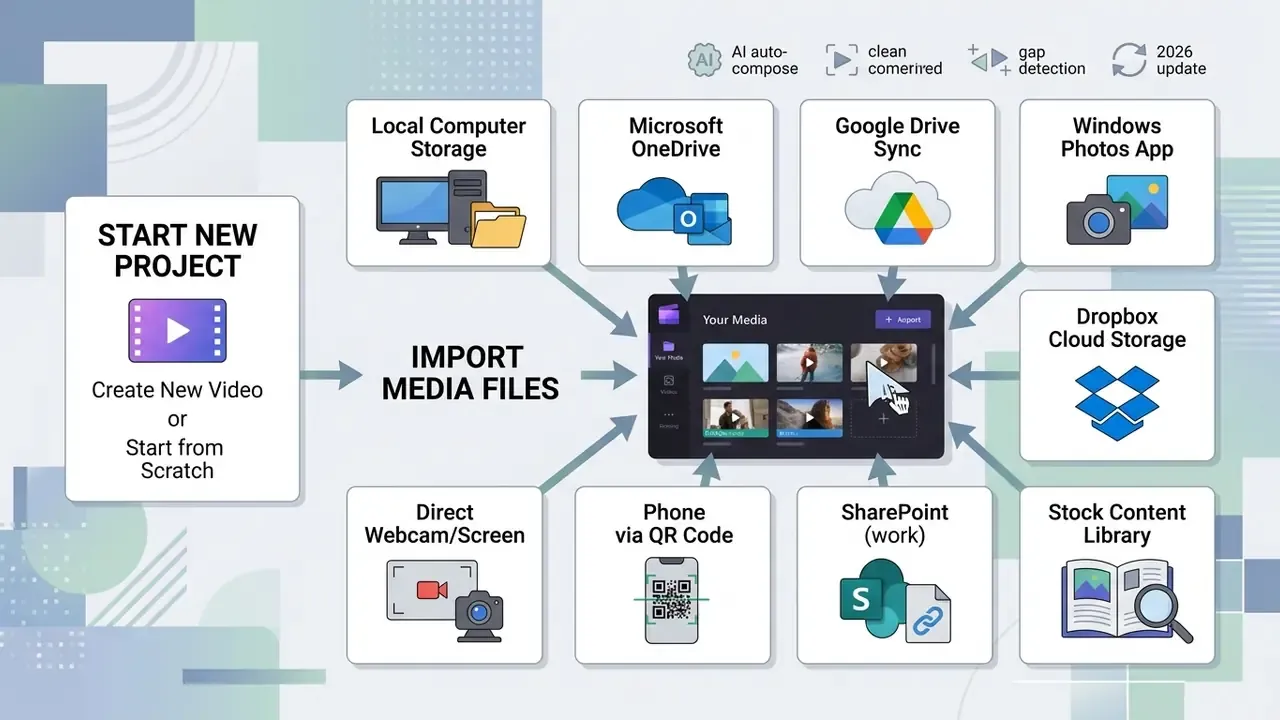
Clipchamp supports a wide range of video formats (MP4, MOV, WEBM, AVI), audio files (MP3, WAV, M4A), and image types (JPG, PNG, GIF). Importing media does not automatically place it on the timeline, which gives you full control over sequencing. Projects autosave continuously, and in work tenants they persist as .clipchamp files in OneDrive or SharePoint, so closing the browser does not cost you progress.
Editing Clips on the Timeline
Once assets sit in the Media tab, drag them onto the timeline tracks to build the scene sequence. Position the playhead over any clip and use the floating toolbar to crop canvas boundaries, fill, rotate, flip, enable picture-in-picture, adjust colour temperature, control volume, or change playback speed (0.1x up to 16x).
To insert visual effects or apply keying, select the clip, open the right-hand Property Panel, and toggle green-screen controls or colour filters. Buttons above the timeline duplicate, trim, and delete clips, while right-clicking an asset offers Remove. For workflows that compress high-resolution assets before timeline placement, which is the single most effective fix for the 5 GB cache ceiling, see our evaluation of video compressor utilities.
How to Export the Finished Video
When assembly is complete, click the bright Export button in the top-right corner. Select the output quality: 480p for drafts, 720p for social drafts, 1080p for standard HD, or 4K UHD (3840x2160) for high-end rendering.
«1080p is the maximum free resolution and the recommended setting for streaming platforms such as YouTube and Vimeo; 4K is available only to Premium and Microsoft 365 subscribers.»
Export File Specifications:
* Video Format: MPEG-4 (.mp4) container
* Frame Rate: Fixed 30 frames per second (fps)
* Audio Codec: AAC stereo audio track
* Audio-Only Export: MPEG-4 (.m4a) file format
* GIF Export: Supported for video clips under 15 seconds
* Pre-Export Check: Automatic detection of empty visual gaps on the timeline
After rendering, the MP4 downloads to your browser's default folder, with secondary buttons for direct publication to connected YouTube, TikTok, Pinterest, LinkedIn, or OneDrive and SharePoint destinations. Creators optimising for YouTube channels can review our specialised guide on youtube video editor workflows.
Clipchamp Pricing: What Is Free and What Premium Plans Add
Clipchamp runs a freemium model: a functional free plan for personal Microsoft accounts alongside a paid Clipchamp Premium subscription. Clipchamp capabilities are also bundled into consumer Microsoft 365 Personal and Family plans, and into commercial licences including Microsoft 365 E3/E5, Business Standard, and Business Premium (Microsoft Clipchamp Service Description, 2026).
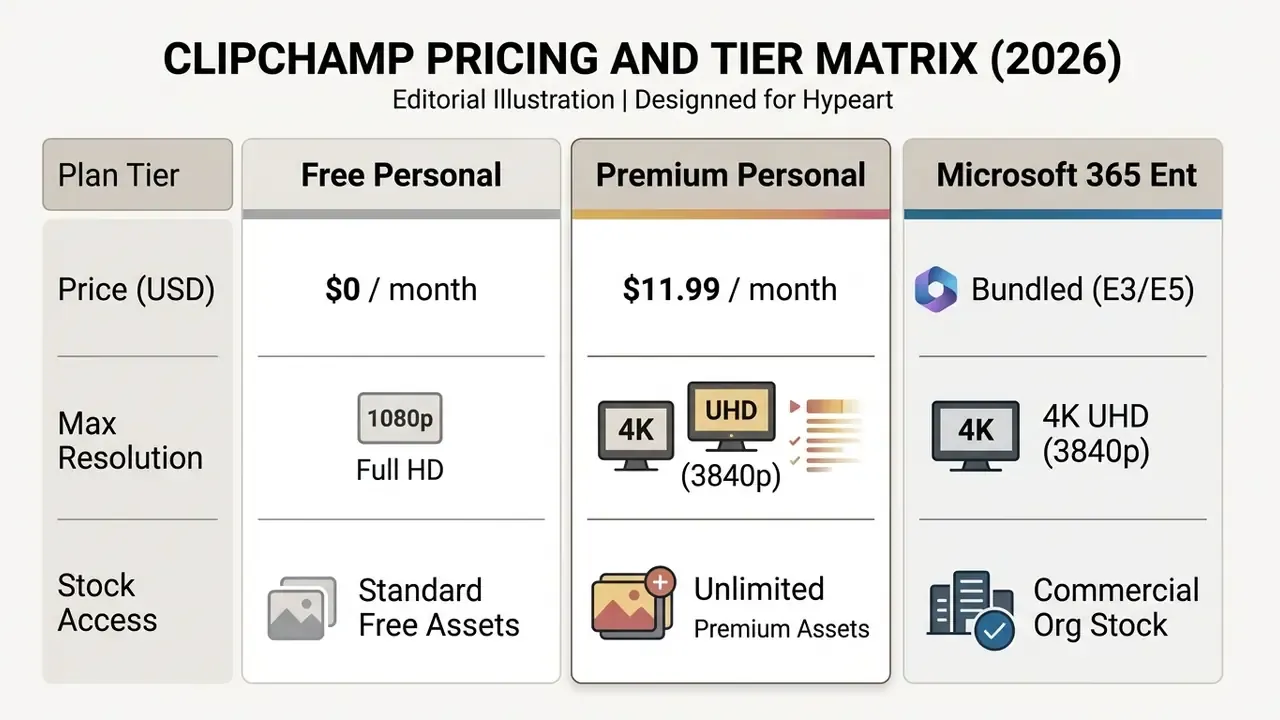
Clipchamp Subscription Plan Comparison (Verified 2026)
| Feature / Parameter | Clipchamp Free Plan | Clipchamp Premium Plan | Microsoft 365 Business (E3/E5) |
|---|---|---|---|
| Monthly cost (USD) | $0.00 / month | $11.99 / month ($119.99/yr) | Included in M365 Business licence |
| Maximum export resolution | 1080p HD (1920x1080) | 4K UHD (3840x2160) at 70 Mbps | 4K UHD (3840x2160) at 70 Mbps |
| Export watermark | None (watermark-free) | None (watermark-free) | None (watermark-free) |
| Stock media access | Free audio/video stock | Unlimited premium stock library | Enterprise stock library and assets |
| Brand kit management | Not included | Single brand kit (logos/fonts) | Shared enterprise brand kits |
| Cloud backup and storage | Local / personal OneDrive | Enhanced project cloud backup | Integrated business OneDrive / Stream |
| AI captions and text-to-speech | Included | Included | Included |
Pricing information is general in nature. Plan prices and feature composition change over time; confirm current terms on official Microsoft pages before purchasing. For multi-tool budget modelling, our AI Media Calculators help estimate blended production cost per finished minute.
Market sentiment overview. Across verified software review platforms (Software Advice, SelectHub), Clipchamp holds an average rating of roughly 4.3 / 5, with about 85% of reviewers recommending it, across 128+ aggregated reviews. Sub-scores skew toward ease of use (about 4.5) over functionality (about 4.1). Reviewers praise the zero-cost watermark-free 1080p export, the breadth of templates, and the fact that the free tier is "not punishing". Recurring critiques target sluggishness on long projects, slow export times, the missing exact-degree rotation control, and the absence of a manual 60 fps export toggle.
What the Free Version of Clipchamp Can Do
The free plan is unusually generous compared with competing browser tools. It permits unlimited, watermark-free exports up to 1080p, access to standard editing tools (trim, split, crop, rotate, resize, speed), screen and webcam recording, text-to-speech, autocaptions, silence removal, and standard royalty-free stock media.
«Clipchamp's free plan is genuinely free: unlimited projects and exports up to 1080p with no watermark, all the basic tools, autocaptions and screen recording.»
What the free tier excludes: brand kits, premium templates and filters, premium stock assets, and automatic project cloud backup. For an individual creator producing basic social clips, the free version covers everything essential without constant upgrade nagging. Budget-conscious creators can also compare it with other free video editing software and explore our guide to free photo editor options for still-image work.
Can Clipchamp Be Used for Commercial Content?
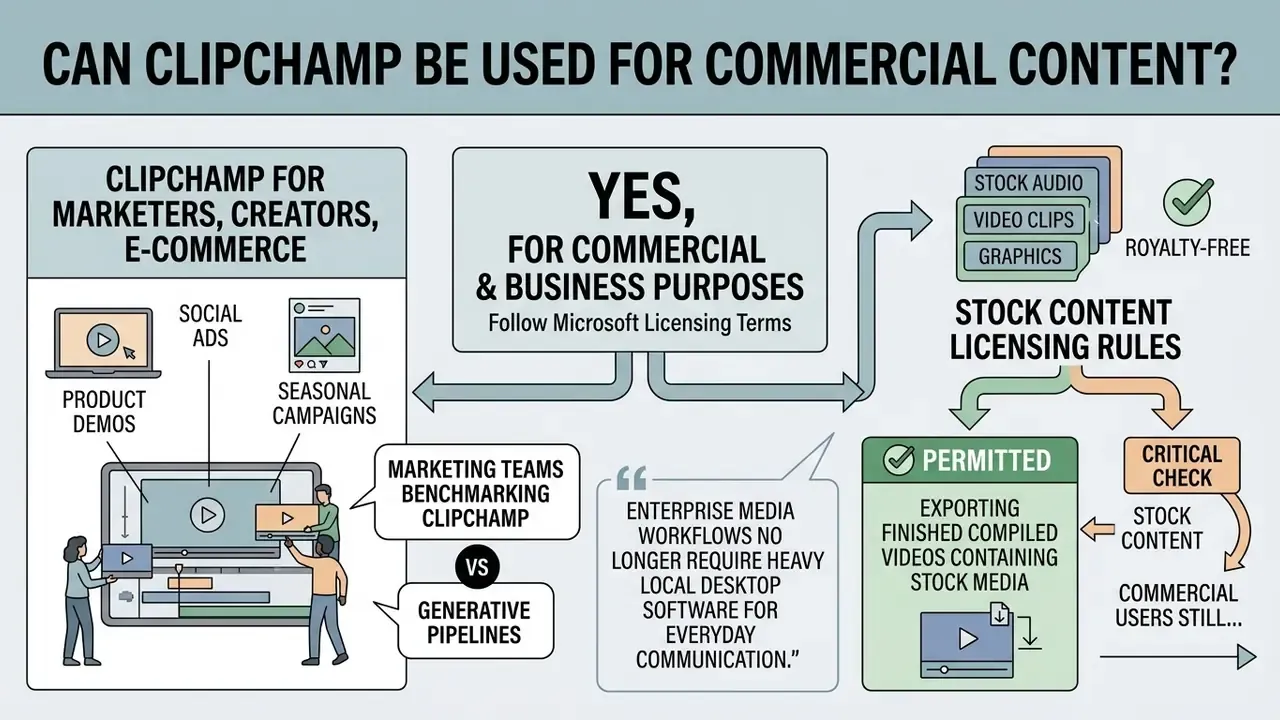
Yes. Videos created in Clipchamp can be used for commercial and business purposes, provided the creator follows Microsoft's licensing terms for stock assets and account types. Videos exported from commercial Microsoft 365 tenants (Business Standard, Business Premium, E3, E5) carry full corporate usage rights, and Microsoft has stated that videos made with Clipchamp for work are copyright-free and royalty-free (Microsoft Support Commercial Terms, 2026).
Clipchamp for Marketers, Creators, and E-Commerce
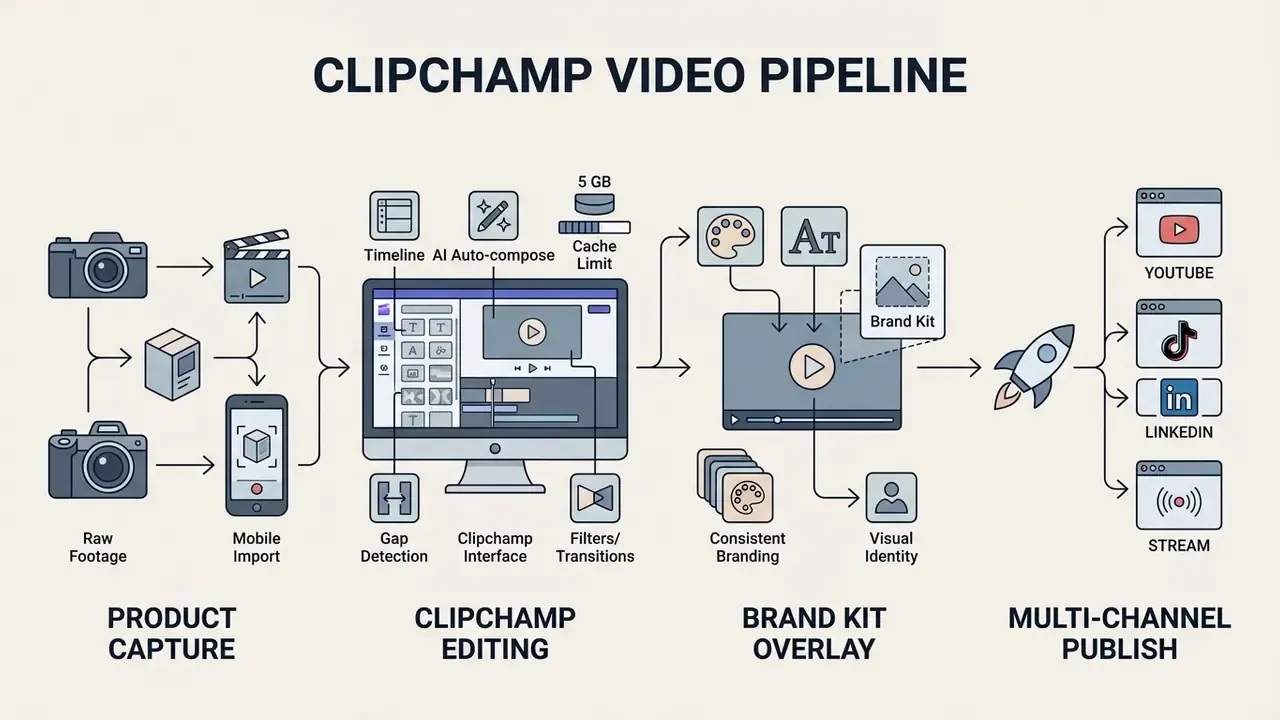
Marketers and e-commerce managers use Clipchamp to assemble product demos, social ads, seasonal campaigns, and internal announcements. A typical e-commerce pattern: show the product pain point, highlight features over a branded overlay, convert the same demo into a short GIF for newsletters and landing pages, then re-cut it at 9:16 for paid social. Built-in sharing integrations allow one-click publishing to YouTube, TikTok, Pinterest, and corporate LinkedIn accounts, which shortens delivery cycles noticeably.
Marketing teams benchmarking Clipchamp against generative pipelines can review our comparison of the best AI video generators, while usage rights across commercial visual tools are catalogued inside the AI Media Commercial-Use Hub. Engineering teams wiring publication into an existing content system will want the api documentation.
What to Check Before Using Stock Content in Commercial Video
Clipchamp stock audio, video clips, and graphics are designated royalty-free, but commercial users still face specific constraints. Stock assets embedded in exported videos can be published commercially. Raw stock files may not be extracted, resold, redistributed independently, or edited in an external NLE.
«Clipchamp's stock videos, music and sound effects are designated royalty-free, with exact licensing conditions defined by Microsoft's documentation.»
Stock Licensing Rules Summary:
* Permitted: Exporting finished compiled videos containing stock media for commercial monetization.
* Prohibited: Downloading raw stock audio/video files for standalone distribution or reselling.
* Prohibited: Re-using Clipchamp stock files inside third-party editors.
* Entity Coverage: The Storyblocks Individual License covers the individual account holder, not
  the company or the client. Business/entity coverage requires a Clipchamp Enterprise / M365
  Business tier or an appropriate Business License.
A second area gets overlooked far too often: the legal status of AI-generated assets. Synthetic voiceovers from text-to-speech and machine-generated captions are usable in business content under Microsoft's terms. Regulated industries should still document that a synthetic voice was used, keep a human review step for caption accuracy in customer-facing or disclosure material, and retain the source script for audit purposes. One line in the file, and the audit conversation gets much shorter.
This information is general in nature and does not replace advice from a qualified lawyer on media licensing, synthetic-voice disclosure, or intellectual-property matters.
Legal teams tracking broader intellectual property questions in synthetic media can follow active precedents in our AI Litigation and Case Timelines overview.
Clipchamp vs Alternatives: When to Choose a Different Video Editor
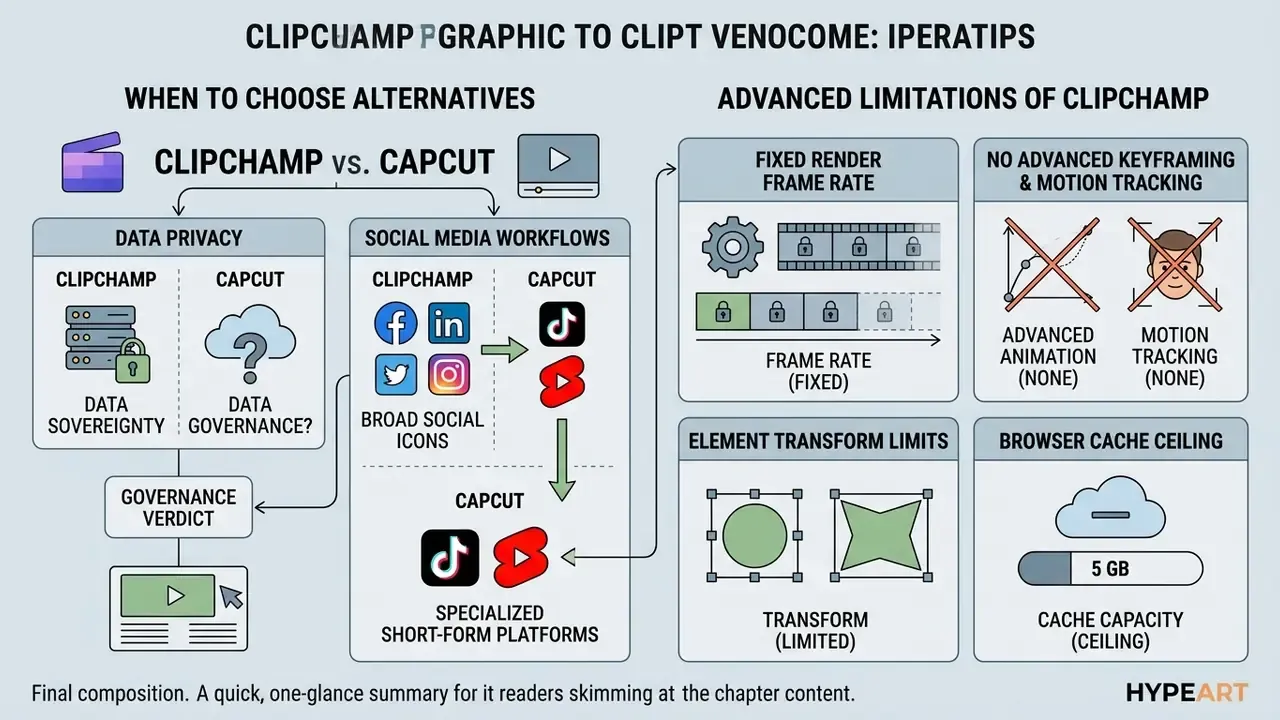
Clipchamp excels at rapid, browser-based editing. Professional post-production teams will find its simplified framework limiting for complex visual effects, node-based colour grading, or high-frame-rate mastering.
«Clipchamp is an accessible editor for short, uncomplicated projects; it suits Microsoft 365 users best, but has reliability limits and fixed export rules.»
Comparative Analysis: Clipchamp vs Professional NLE Alternatives
| Evaluation metric | Microsoft Clipchamp | Adobe Premiere Pro | Wondershare Filmora | DaVinci Resolve |
|---|---|---|---|---|
| Target audience | Beginners, business, creators | Professional editors, film | Prosumers, social creators | Colourists, post-production |
| Deployment mode | Web browser / Windows desktop | Heavy desktop install | Desktop / mobile app | Heavy desktop workstation |
| Baseline hardware | 8 GB RAM (16 GB advised) | 8 GB min, 32 GB+ for 4K | 8 GB min, 16 GB for 4K | Modern GPU, 16 GB+ advised |
| Maximum resolution | 4K UHD (3840x2160) | 8K+ / custom resolutions | 4K UHD | 8K+ / uncompressed master |
| Frame rate control | Fixed 30 fps output | Full variable (24, 60, 120+) | Variable (24, 30, 60 fps) | Full cinema control |
| Colour grading depth | Basic filters and brightness | Lumetri Color and scopes | LUTs and primary wheels | Industry-standard node colour |
| Learning curve | Very low (minutes) | High (weeks to months) | Low to moderate | Very high (pro training) |
Read the table as a routing decision, not a ranking. Clipchamp wins on time-to-first-export and licence economics inside Microsoft 365. Premiere Pro and Resolve win the moment a project needs variable frame rates, keyframed motion, or graded masters. Filmora sits in between for prosumer social output. Readers exploring generative alternatives with zero-cost entry points can also review our comparison of free AI video generators.
Clipchamp's Limitations for Advanced Editing and Mobile Work
FAQ: Clipchamp for IT, Security, and Procurement Teams
Is Clipchamp free, and is the free version really watermark-free?
Yes. Using your own media on any plan produces no watermark. The only export block occurs when premium stock assets sit in a project on a non-qualifying plan. Remove the asset or upgrade to export.
Where are project files and temporary media stored?
Editing happens locally in the browser rendering cache. In work and school tenants, saved projects live as .clipchamp files in OneDrive or SharePoint, inheriting tenant retention and access controls. Exports download locally unless a cloud or social destination is selected.
Can we prevent staff from publishing corporate video to TikTok or personal YouTube?
Export destinations are user-facing integrations. Where policy prohibits consumer publishing, restrict those destinations at the tenant, proxy, or endpoint layer and standardise internal distribution on Microsoft Stream or SharePoint. Confirm the current administrative options for your SKU in the Microsoft 365 admin centre.
Do Clipchamp AI features train public models on our footage or prompts?
The AI layer runs on Microsoft Azure AI Speech and Microsoft 365 services. Data-handling commitments differ between personal Microsoft accounts and commercial tenants, so validate the current wording for your licence in official Microsoft documentation and the Microsoft Trust Center before approving use with confidential material.
Which Microsoft 365 licences already include Clipchamp?
Clipchamp Standard is included with Microsoft 365 E3/E5, Business Standard, Business Premium, and equivalent Office 365 plans. Microsoft 365 Personal, Family, and Premium subscribers receive premium consumer features. Check entitlements before buying a standalone Premium subscription.
Is it suitable for 4K corporate video?
4K UHD export at up to 70 Mbps is available on Premium and qualifying business plans. A 4K project does approach the browser cache ceiling quickly, though. For heavy 4K work, proxy or pre-compress the source media first.
Is Clipchamp good for beginners?
Yes, and this is its strongest claim. The interface is deliberately simple, projects autosave continuously, and Microsoft publishes step-by-step tutorials for every core feature. A first-time editor can produce a presentable video in well under an hour.
Pre-Deployment Security Checklist for Corporate Rollout
- Confirm Clipchamp entitlement in your Microsoft 365 licence (E3/E5, Business Standard or Premium) rather than purchasing standalone Premium.
- Verify that Clipchamp access is bound to Entra ID with conditional access and MFA enforced.
- Define where projects may be stored (approved OneDrive or SharePoint locations) and apply sensitivity labels to those libraries.
- Document approved and prohibited export destinations; restrict consumer social publishing where policy requires it.
- Classify footage. State explicitly which media categories (customer PII, unreleased product, privileged legal material) may never be processed in any consumer editor.
- Review AI-feature data-handling commitments for your tenant in the Microsoft Trust Center and record the decision in your AI inventory and model-risk register.
- Add a human review step for autocaption accuracy and synthetic-voice usage in any customer-facing or regulatory-disclosure video.
- Retain scripts and asset provenance for stock and AI-generated material; confirm that entity-level stock licensing, not individual, covers the organisation and its clients.
- Set an internal 5 GB raw-media guideline with a pre-compression step to avoid crash-related rework.
- Publish a one-page internal "use Clipchamp instead of X" note to contain shadow AI drift toward unsanctioned tools.
A safe next step for a governance team: run one pilot team for 30 days, log every export destination used, and compare that log against the policy you just wrote. The gap between the two is your real control finding.