Converting video content into short, looping animations means balancing three things at once: file portability, visual fidelity, and frame-level control. An online gif maker from video pushes uploaded media or supported web links through a browser-side or cloud encoder and returns a lightweight, shareable clip. No desktop suite, no render farm, no license key.
The catch is that "quick and free" hides a lot of decisions. Palette, frame rate, retention window, license scope. This guide walks through all of them.
Executive summary
- Baseline specs that work everywhere: 10 to 15 FPS, 480 to 720 px on the long edge, 2 to 5 seconds of runtime. That envelope keeps most exports between 1 MB and 5 MB, which clears messenger, email, and CMS thresholds at the same time.
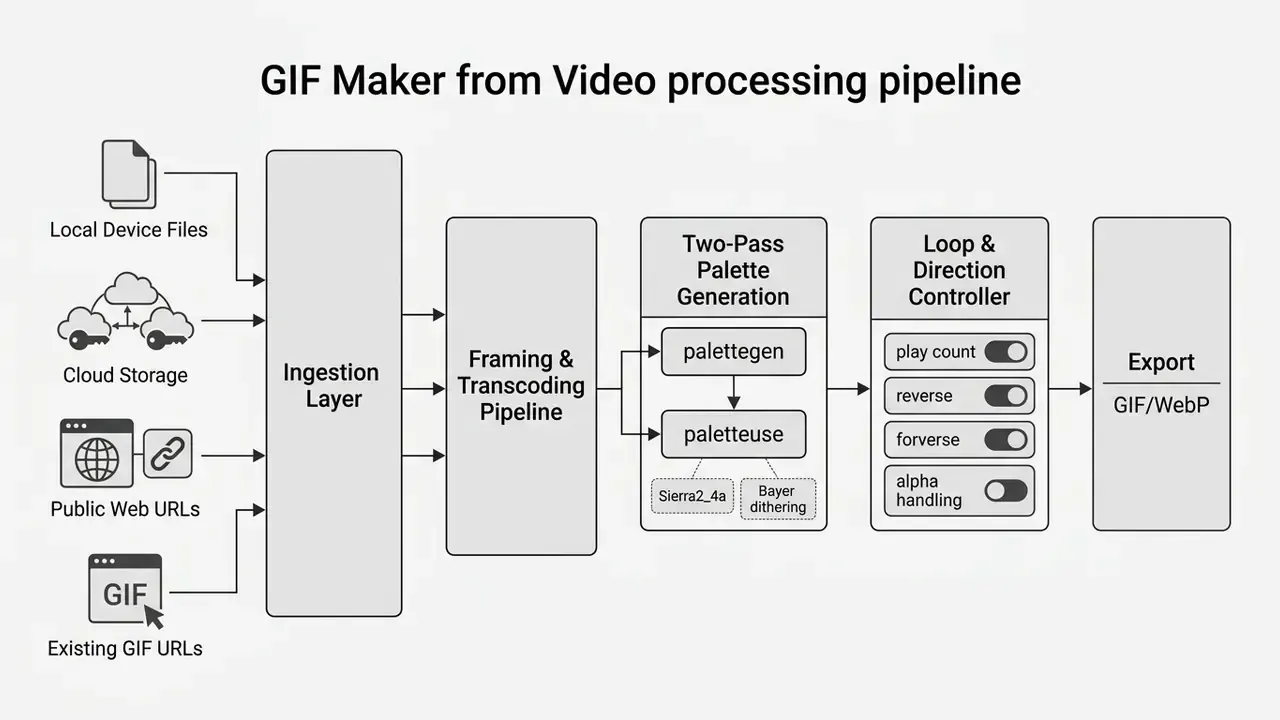
- Quality is decided by the palette, not the resolution: single-pass converters bake in visible color banding. Two-pass encoding (
palettegenthenpaletteuse) with Sierra2_4a dithering for photographic footage, or Bayer dithering for screencasts, is the single highest-leverage quality setting you can touch. - Format choice is a bandwidth decision: animated WebP typically cuts weight by 30 to 64% versus GIF at equivalent fidelity, yet legacy GIF still accounts for roughly 15 to 16% of all web images because of universal client support. Ship WebP where supported, keep a GIF fallback for email clients and older apps.
- Governance is non-negotiable: free tiers are frequently personal-use only, watermark removal is usually tied to paid plans, and YouTube API policies prohibit downloading or caching source video. Confirm licensing, retention windows (often 1 to 24 hours; some vendors state a fixed 8 hours), and data-handling terms before uploading corporate footage.
- Automation has a floor and a ceiling: AI clip selection reliably compresses manual scrubbing time, but ranking models are trained on aggregate human preference. A human-in-the-loop review step stays mandatory for brand-facing assets.
Who this guide is for, and what to decide first
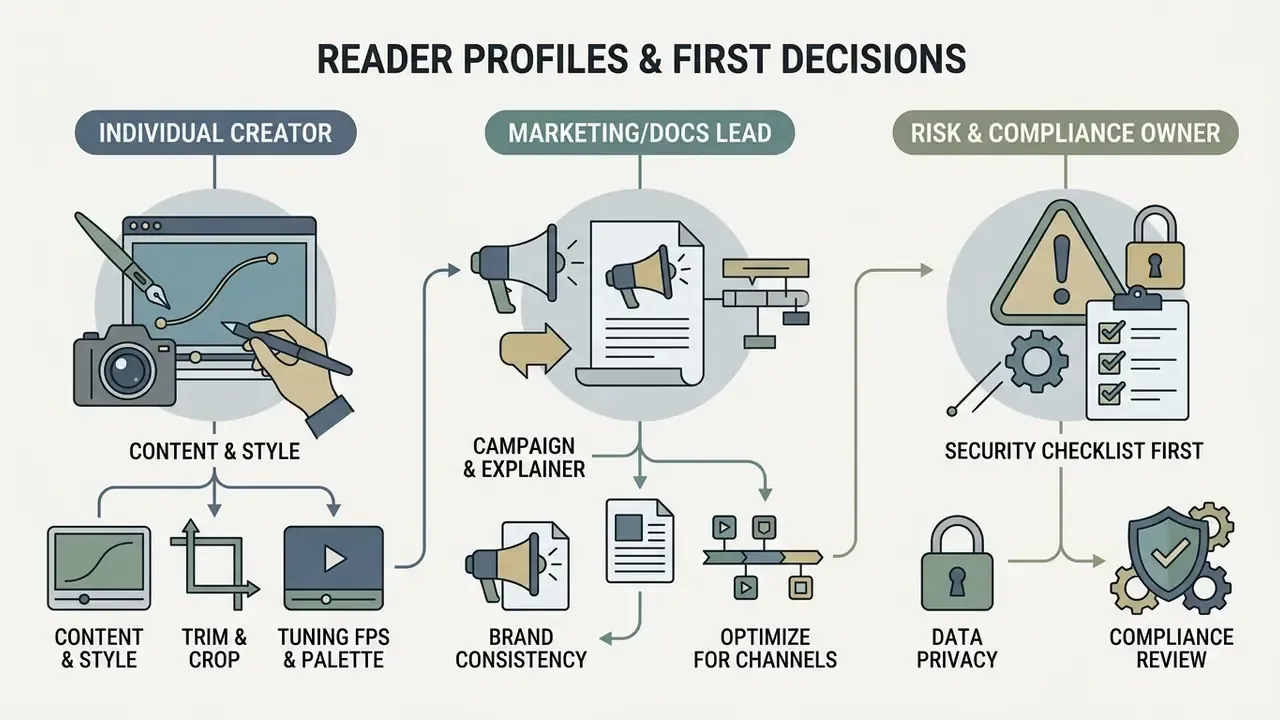
Three reader profiles keep showing up in support tickets around video-to-GIF work, and each faces a different first decision.
- The individual creator. Wants a reaction loop or a product teaser in under two minutes. First decision: which free tool exports without a watermark, since that single detail governs whether the asset is publishable at all.
- The marketing or documentation lead. Needs dozens of consistent loops across a help center or a launch page. First decision: preset discipline. Lock one resolution, one frame rate, and one dithering profile, then reuse them, otherwise the asset library drifts.
- The risk, compliance, or IT owner. Cares less about pixels and more about where the file went. First decision: whether staff may upload footage to a multi-tenant service at all, and if so, under which retention and no-training clauses.
If you belong to the third group, read the security checklist before the settings tables. The order matters more than it looks.
How to create a GIF from a video online
To create gif from video online, a user uploads a source file, selects a specific frame range, configures quality and frame-rate parameters, and runs the encode. Modern web tools finish this conversion in seconds by pushing video frames through browser-side scripts or cloud rendering pipelines to convert video to animated gif format.
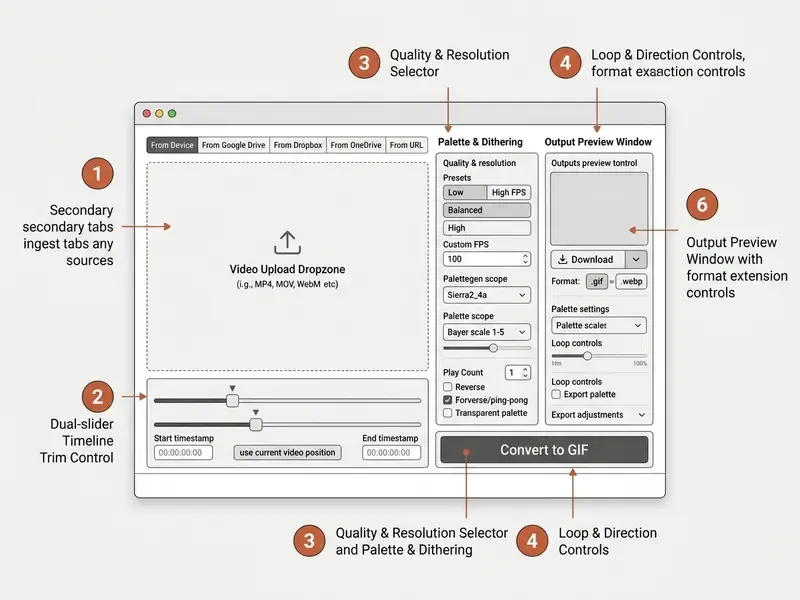
Upload a video file and select a clip
Start by dragging the file into the processing interface, or pick it from a local directory. When you upload your video, supported source formats typically include MP4, MOV, AVI, and WebM; broader converters also accept WMV, FLV, MKV, MPG, 3GP, OGV, M4V, and ASF containers. If the clip still needs cutting, color correction, or audio work first, run it through dedicated video-editing tools, then bring the trimmed export into the GIF encoder.
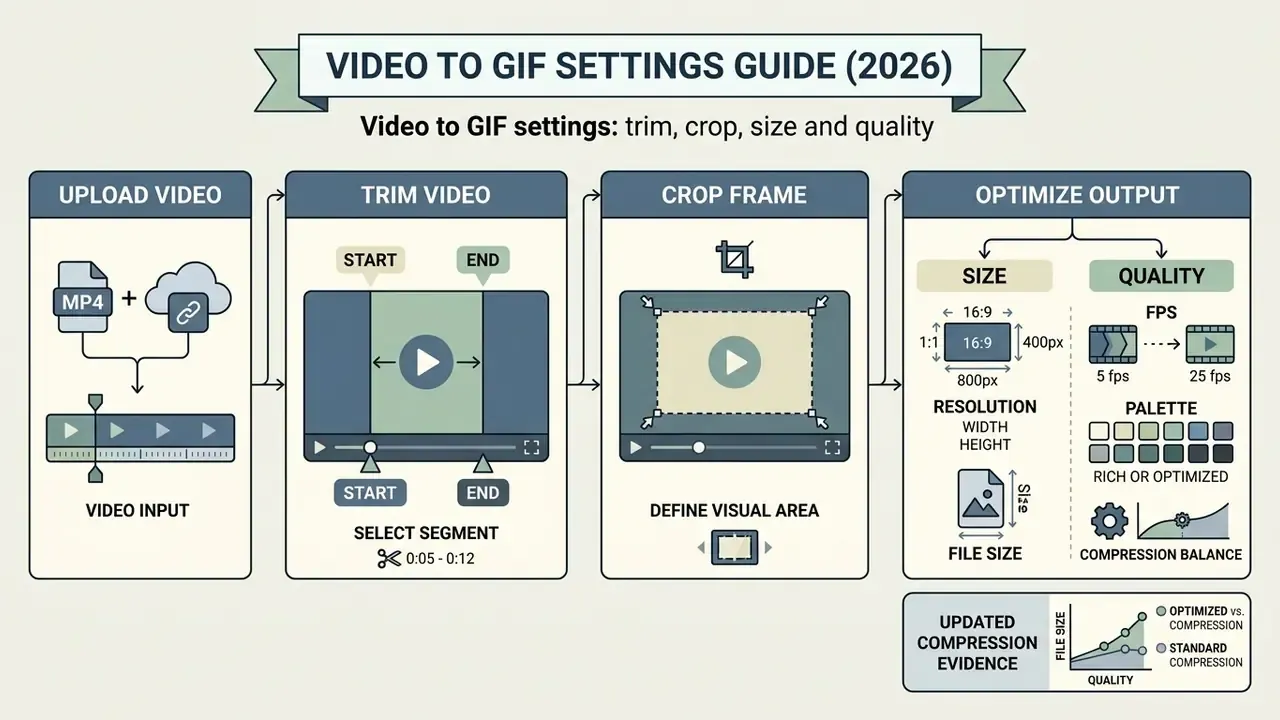
Once the video file is loaded, use the timeline markers to isolate the target clip. Precise trimming is not cosmetic. Duration directly dictates final file weight and how smooth the motion feels.
"Users pursue 'the perfect one', a GIF whose tone matches intent; imprecise trimming distorts meaning by stripping reaction context."
Setting exact start and stop timestamps ensures that only the necessary seconds become frames. Limit a clip to 2 to 5 seconds and you isolate the core action while avoiding pointless rendering overhead. You can select specific frame sequences to strip unwanted intro or outro footage before the conversion phase begins.
Platform limits differ more than you would expect. Some quick-action tools cap input length at 1 minute, others allow up to 2 minutes, while GIF-hosting platforms accept clips of 15 to 30 seconds and 100 MB. Pausing playback and clicking a "use current video position" control is the fastest way to lock frame-accurate in and out points, instead of typing approximate timecodes and guessing.
Frame-rate ceilings often govern the maximum selectable duration. A common rule enforced by converters is a sliding cap: roughly 60 seconds at 5 FPS, 30 seconds at 10 FPS, and progressively shorter windows as frame rate climbs. Total frame count, not clip length alone, drives encode time and output weight.
Convert and download your animated GIF
After the clip boundaries are set, clicking convert tells the engine to transcode the video frames into an indexed color palette. When rendering finishes, the tool produces a downloadable .gif file plus controls to review playback speed and looping.
If the output blows past your size threshold or shows visible artifacts, adjust resolution or frame rate and continue editing. Feeding a pre-compressed source into the encoder is usually faster than re-rendering the same master five times. Dedicated video compressors cut bitrate and resolution upstream so the palette pass has fewer redundant pixels to index. Downloading the completed free gif places the standalone animation on the local device, ready for a web page, a pitch deck, or a chat thread.
Export dialogs in professional tooling follow the same logic: optimization options first, frame sequence preview second, final write to disk last. Editors that queue operations lazily replay every transformation per decoded frame at render time, which is why adding overlays or crops late in the workflow does not degrade the underlying frames. Slightly counterintuitive, but useful to know.
AI video GIF generator: when automatic GIF creation is useful
https://openaccess.thecvf.com
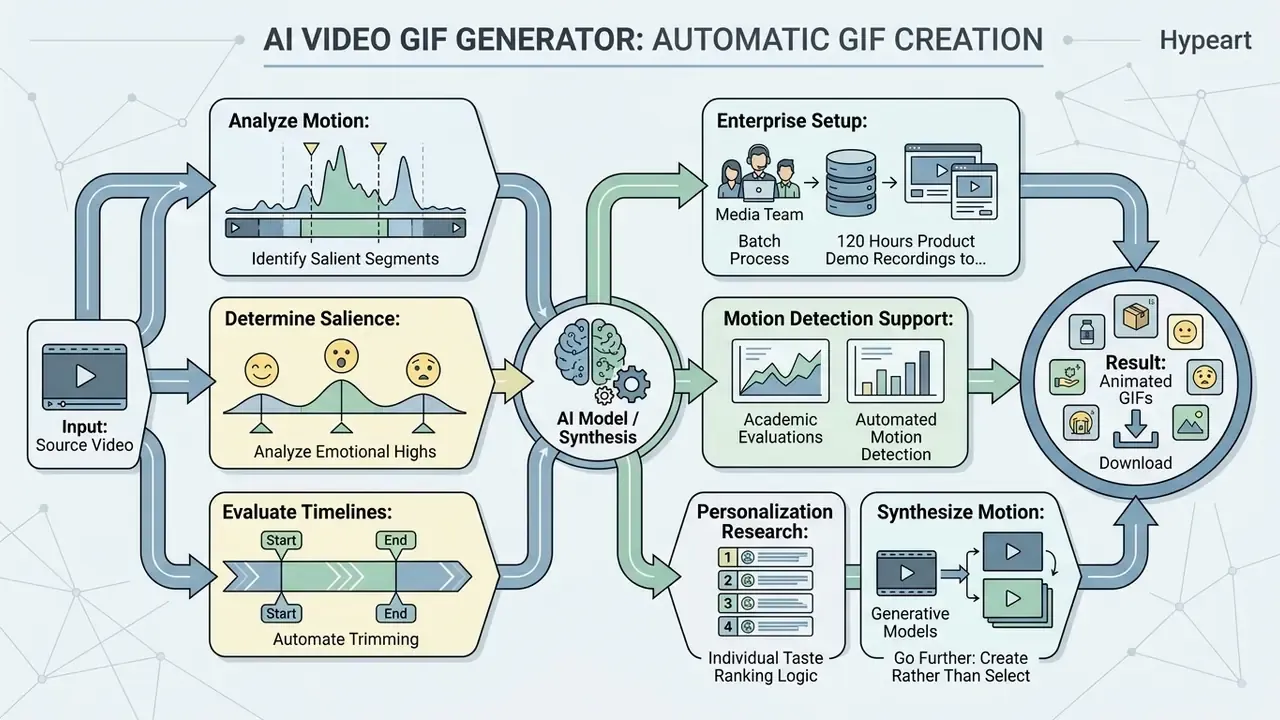
"The Video2GIF dataset comprises over 120,000 user-generated GIFs paired with more than 80,000 source videos totalling 7,379 hours of footage."
"Pix2Gif was trained on 100,000 caption-paired animated GIFs and uses optical-flow magnitudes between 2 and 20 to steer motion synthesis."
Modern tools build on these principles to offer rapid automated clipping. Two residual risks deserve budget lines rather than optimism. Ranking models optimize for aggregate human preference, so they can surface off-brand or out-of-context frames. And every automated batch still needs a human approval gate before publication. Factor that review time, plus the cost of re-running rejected segments, into any ROI calculation for automated clipping at scale. A gif creator video pipeline without a reviewer is not a pipeline, it is a liability.
Create GIFs from uploads, cloud storage, YouTube and social video links
Web-based converters generate animated graphics from local device uploads, authenticated cloud storage, and public video URLs. Platforms ingest raw video streams, transcode the selected segment, and return standardized animations that behave the same across desktop and mobile.
Support for direct ingest from cloud storage keeps expanding: Google Drive, Dropbox, and Microsoft OneDrive, alongside plain remote URLs. By passing authenticated OAuth tokens or direct share links, cloud rendering engines stream raw video containers, commonly up to 1 GB per file, server to server. That bypasses the upstream bandwidth limits that throttle mobile uploads. For governance teams this cuts both ways: cloud ingest avoids re-downloading masters to endpoints, but it also extends the data path across an additional third-party service whose retention terms must be reviewed on its own merits.
YouTube video to GIF from a URL
Convert Facebook video and uploaded media to GIF
Processing social content demands ingestion that tolerates mixed resolutions and container formats. Users who want to convert facebook video to gif online can upload a downloaded clip directly, or paste a source URL into a URL-based gif converter that fetches the stream and re-encodes it with adjustable quality and file-size settings.
Local media files remain the most reliable input, because encoding parameters do not depend on remote fetch speeds or tokenized URLs that expire mid-request. A high-quality local MP4 or MOV gives clean source frames and avoids compression artifacts that would otherwise poison the indexed palette. General-purpose converters advertise support for hundreds or thousands of format pairs across video, audio, image, and document categories, whereas platform-specific URL tools are deliberately narrow. Worth checking that scope difference before you standardize on one vendor.
Existing animations can be reworked too. Pasting a .gif URL into most makers reopens the frame sequence for cropping, re-timing, or overlay work without going back to the original video master. Handy when the master has been archived and nobody remembers where.
Video to GIF settings: trim, crop, size and quality
Export parameters decide whether an animation loads instantly or stalls a page. Resolution, frame rate (FPS), and frame boundaries together set the trade-off between visual clarity and file size. This is the core of video to gif tuning.
| Preset / Quality Tier | Frame Rate (FPS) | Target Resolution (Width) | Duration Range | Average File Size | Dithering | Recommended Primary Use Case |
|---|---|---|---|---|---|---|
| Low / Chat Small | 5 to 10 FPS | 320 px to 480 px | 1 to 3 seconds | 0.5 MB to 1.5 MB | Bayer (scale 1-3) | Messaging apps (Telegram, WhatsApp), Slack/Discord free tiers, quick chat reactions |
| Balanced / Web Standard | 12 to 15 FPS | 480 px to 640 px | 2 to 5 seconds | 2.0 MB to 5.0 MB | Bayer (scale 3-5) | Inline blog articles, documentation, email newsletters (keep under 5 MB) |
| High Quality / Presentation | 20 to 25 FPS | 720 px to 960 px | 3 to 6 seconds | 6.0 MB to 12.0 MB | Sierra2_4a | High-res slide decks, desktop landing pages, marketing banners |
| Animated WebP (Alternative) | 15 to 30 FPS | 720 px to 1080 px | 2 to 8 seconds | 1.0 MB to 3.5 MB | Native (24-bit, no palette limit) | Modern web frameworks, performance-critical web UI embeds |
Read the table as a decision grid, not a ranking. The "Low" row is not worse work, it is the only row that survives a free Slack workspace.
How to trim and crop a video before conversion
Trimming removes unnecessary temporal frames from the head and tail of a clip. Cropping refines the spatial framing to cut background distractions. A tight crop reduces total pixel count per frame, which lowers the data burden during color indexing.
Take UI demonstrations. Cropping to the active software window preserves focal clarity and shrinks output weight noticeably, sometimes by half. Holding a standard aspect ratio, 1:1 square or 16:9 widescreen, keeps presentation consistent across responsive layout containers. When the source needs multi-track assembly or color work first, our comparison of free video editing software helps identify a pre-processing tool that exports a clean, already-trimmed master.
At the command level these operations map to explicit parameters: -ss sets the seek or start point, -to or -t defines end time or duration, crop=out_w:out_h:x:y fixes the visible rectangle by output size and offsets, and -aspect or a scale filter forces the final display ratio before encoding. Which explains why web interfaces expose exactly those four controls. They are wrappers around the same encoder flags.
Advanced makers also bind animated text captions and vector overlays to specific keyframes. With motion-tracking behaviour, text boxes and sticker layers follow target objects across the canvas: drag the time marker to a new position, reposition the overlay, and the encoder interpolates the movement between markers. Per-textbox font control, drawing and scribble layers, rotation, and flip (vertical or horizontal) complete the overlay toolkit. For container formats that support audio-enabled looping, such as MP4 or WebP loops, you can toggle embedded audio and set a default muted state, commonly offered as Sound Disabled, Enabled (tap to play), or Enabled & Autoplay.
How to choose GIF quality and file size
The right balance depends on how frame rates and color palettes interact. Higher frame rates give fluid motion but multiply rendered frames, and file weight climbs fast. Vendor documentation agrees on the direction of the trade-off: raising the quality setting increases GIF file size, lowering it reduces size, and published optimization examples show 24 FPS output running roughly 1.6 times larger than lower-FPS exports of identical content, with 15 FPS described as near-smooth for short clips.
Frame rate also affects distribution, not just bytes.
"Higher frame rates raise the likelihood of a GIF being reshared by roughly 17%; more frames and higher motion energy also correlate with virality."
Updated compression evidence. Format efficiency, not resolution alone, sets the floor for file size.
"WebP averages 0.0019 MB per image, while VVC achieves the best quality-to-size ratio at higher computational cost."
Legacy indexed formats such as GIF therefore need far more bytes per frame than modern intra-frame web formats. Dropping frame rate from 30 FPS to 12 or 15 FPS cuts file mass by roughly 50% while keeping motion continuity acceptable. Where supported, exporting to animated webp reduces footprint by 30% to 60% compared with a traditional GIF at identical visual fidelity.
"Animated WebP averages 64% smaller than an equivalent GIF in Google's internal tests; complex photographic content saves 60 to 70%."
"A study of 435 million images found GIF still represents about 15.5 to 16% of all web images despite WebP's technical advantages." Image Formats of the Web, PageSpeedMatters (2026). https://pagespeedmatters.com/
That persistence is exactly why GIF stays a required output target. Universal decoding in email clients, chat apps, and older CMS platforms outweighs byte efficiency in plenty of distribution contexts. Content type matters as much as the numbers: GIF handles screen recordings, cartoons, and flat-color motion graphics efficiently, while real-world footage with gradients and motion blur produces both worse quality and larger files under an 8-bit palette.
Two-pass palette optimization and dithering algorithms
Standard single-pass converters apply a fixed color map to every frame. Result: dull tones and visible banding across complex gradients. Professional web encoders instead run a two-pass FFmpeg workflow.
The practical outcome is a GIF whose color richness approaches the source video, at a comparable or smaller byte count than a naive single-pass export. Three more palette controls are worth knowing:
- Disable dithering. Smallest files, but banding returns. Acceptable for flat graphics, poor for skin tones and skies.
- Single global color palette. Computes one palette for the whole animation instead of per-frame palettes. Reduces inter-frame flashing and flicker, sometimes improves perceived quality, and takes slightly longer to render.
- Lossy GIF compression tiers. Layered on top of palette mapping, these trade fine detail for aggressive size reduction. Step up gradually and inspect gradients after each increment.
- Pass 1, palette generation (
palettegen)the engine scans all video frames inside the selected trim window and builds a custom 256-color palette tailored to that clip's spectrum rather than to a generic web-safe table. - Pass 2, palette application (
paletteuse)the renderer maps each frame's pixels against that palette using a dithering algorithm. For photographic content and continuous gradients, Sierra2_4a error-diffusion dithering prevents harsh color stepping. For graphics, UI screencasts, and flat-color motion, Bayer dithering (scale 1-5) keeps edges clean and produces noticeably more compact files.
Browser-side implementations of this pipeline, meaning FFmpeg compiled to WebAssembly, keep the whole two-pass process on the user's device. Server upload disappears entirely, and the only real ceiling becomes how much memory the browser can allocate. That architecture is the strongest available answer to confidentiality concerns, because the source video never leaves the endpoint. For regulated teams, it is often the deciding factor.
Advanced frame loop controls: reversing, ping-pong and transparency
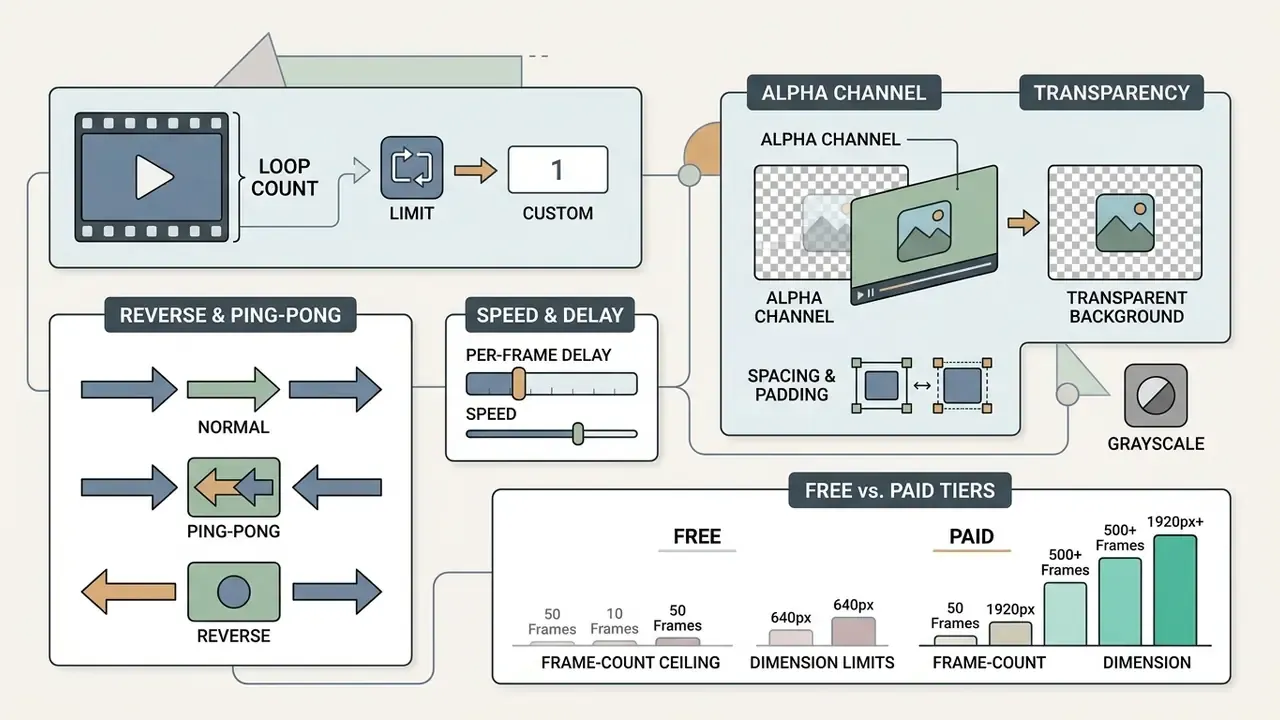
Loop behaviour is a design decision, not a default. Most capable makers expose the following controls.
- Loop count control. Set an explicit repeat value:
0for infinite looping, or a finite integer such as1or3for limited playback cycles. Finite loops suit product explainers where endless motion distracts. Infinite loops suit reactions and micro-animations. - Reverse and Forverse (ping-pong). Play the sequence backwards, or forward then backward in a continuous cycle. Ping-pong playback works well for slow-motion clips and softens the jarring jump at the trim seam of a hard loop.
- Speed and per-frame delay. Global speed percentage re-times the whole animation, while per-frame delay editing lets you hold one key frame longer. Useful for text-heavy or instructional loops.
- Alpha channel transparency. When the source is a WebM or MOV carrying a native RGBA alpha channel, pick a transparent palette preset to preserve background transparency for web UI overlays. Where frames contain transparency, a defined background color fills those pixels, so clearing that background value is what keeps the final GIF genuinely transparent.
- Spacing, padding and grayscale. Optional top and bottom spacing (black, white, or custom) supports caption bars, and grayscale conversion reduces palette pressure for archival or stylistic exports.
Frame-count and dimension ceilings often differ sharply between free and paid tiers. For instance, 160 frames and 360×360 px on a free plan versus 1,600 frames and unrestricted dimensions on a paid one, alongside longer maximum video segment lengths. Check those caps before designing a long, high-FPS loop, otherwise the encoder truncates your best frames without asking.
Free GIF maker from video: pricing, watermarks and commercial use
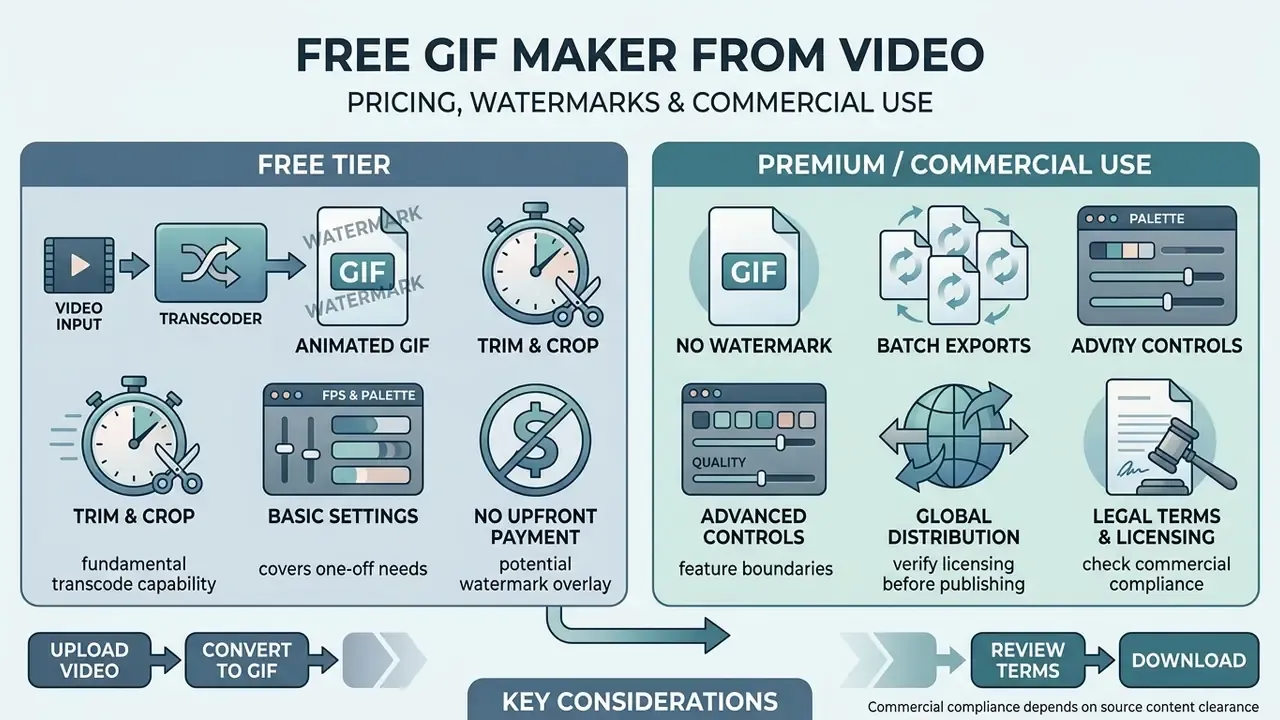
Choosing between free and premium conversion platforms means weighing feature boundaries, output watermarks, and licensing permissions. A free online gif maker from video covers casual work quickly, while paid plans unlock high-resolution exports and commercial usage rights. If the underlying footage still has to be produced, our comparison of free AI video generators covers no-cost sources for the source clip itself.
| Feature Category | Free Online Tier | Premium / Paid Subscription | Enterprise / API Plan |
|---|---|---|---|
| Branding / Watermark | Standard tool watermark applied on export (some tools export clean) | Zero watermarks; clean branding | Custom branding or fully white-labeled output |
| Max File Upload | 50 MB to 100 MB per file | 500 MB to 2 GB per file | Custom batch / unlimited storage options |
| Max Output Resolution | 480p to 720p maximum | 1080p Full HD / original source | 4K / custom spatial dimensions |
| Max Frames per GIF | ~160 frames typical | ~1,600 frames (smoother animation) | Configurable / unlimited |
| Cloud Import Sources | Device + URL | Device, URL, Google Drive, Dropbox, OneDrive | OAuth-integrated storage + S3/GCS buckets |
| Commercial Usage Rights | Personal / non-commercial use only (typically) | Full commercial usage rights granted | Full commercial + legal indemnification |
| Batch Processing | Single file transcode | Multi-file concurrent queue | Automated REST API pipeline integration |
| Security & Compliance | SSL/TLS in transit; public multi-tenant infrastructure | SSL/TLS + documented retention window | SOC 2 Type II / ISO 27001 attestation, GDPR & CCPA DPAs, regional processing, SSO/SCIM |
| Model Training on Customer Data | Often unspecified, assume review required | Usually opt-out available | Contractual "no training on customer content" commitment |
| SLA / Support | Best-effort, community support | Email support, no uptime guarantee | 99.9%+ uptime SLA, named support contact, incident credits |
For creative teams whose brief runs past clip conversion into full motion design, our guide to animation makers compares timeline-based and template-based alternatives with their own licensing models.
What is included in a free video to GIF maker
A free video to gif maker offers fundamental transcode capability with no upfront payment and often no registration. Upload standard video files, set basic trim boundaries, apply a primary crop, download the finished animation. The consistent baseline across no-signup services is simple: file or URL ingest, clip selection, at least one size or frame-rate control, and direct GIF download, frequently with no watermark and no conversion count limit.
These basic services cover one-off needs where advanced palette controls or batch exports would be overkill. Many platforms run a free gif creator from video entirely inside the browser, executing lightweight operations locally via WebAssembly to minimize server load. That architecture also keeps working offline once the encoder has loaded, which surprises people the first time they notice it. Free-tier ceilings do exist: some tools require source video at 480p or higher, cap resolution at 1920×1920, or limit individual frame uploads to 50 MB each. A free video gif maker rarely advertises those numbers on the landing page, so check the FAQ.
Share animated GIFs on social media and messengers
Optimizing files before distribution stops platform compression from wrecking visual quality or causing playback stutter. Networks enforce their own size thresholds and container preferences for looping assets, and they rarely tell you why an upload failed.
GIF size and format for fast sharing
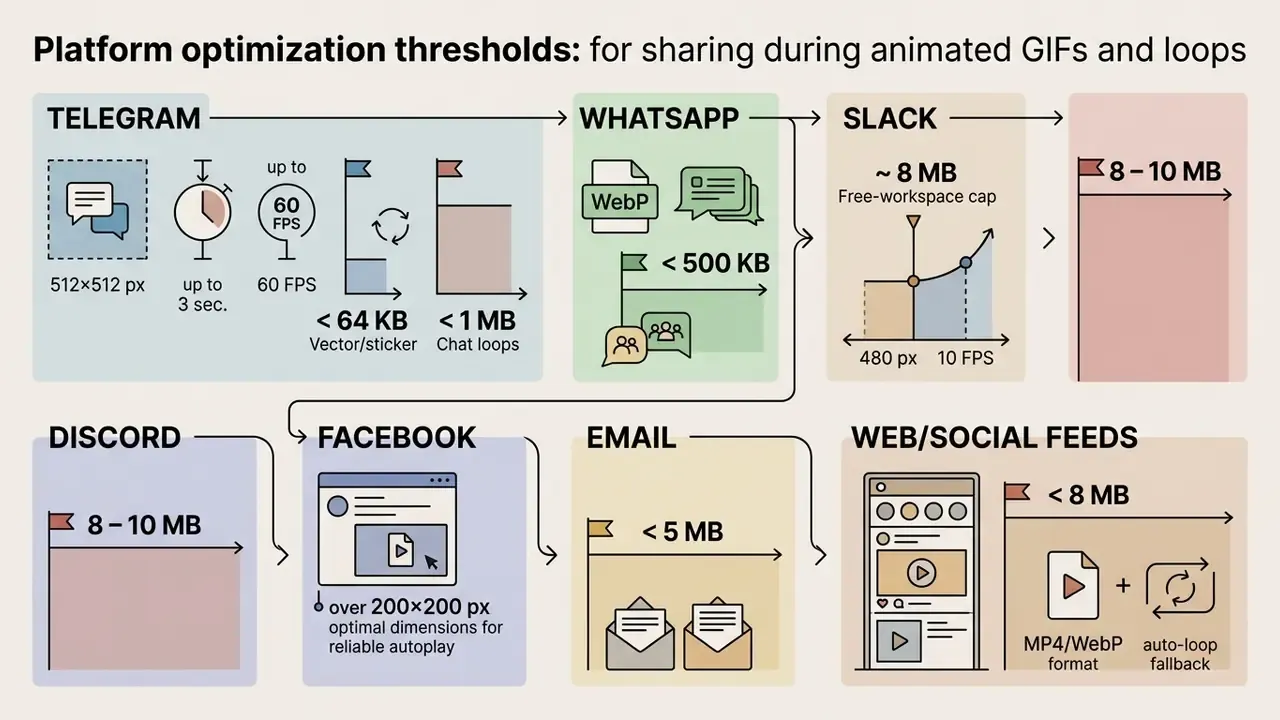
Fast distribution across chat applications means keeping files light. According to official developer documentation from the Telegram Stickers & Media API (2026), custom animated media and stickers require strict canvas dimensions (512×512 pixels), a maximum length of 3 seconds, looping playback at 60 FPS, and file weights under 64 KB for vector animations, with video emoji required to be exactly 100×100 px, or under 1 MB for chat loops. WhatsApp similarly optimizes animated sticker delivery using WebP capped at 500 KB (AWS WhatsApp Media Docs, 2026). Email guidance is stricter than social guidance: keep newsletter GIFs under 5 MB, while many social uploaders accept up to 8 MB.
For general web delivery and social feeds, converting loops into animated WebP delivers real performance gains over GIF. Technical specs published in RFC 9649: WebP Image Format (IETF, 2024) confirm that WebP supports lossy and lossless compression, alpha transparency, and animation alongside 24-bit color depth, producing animations that load substantially faster than 8-bit GIF counterparts in modern browsers. Google's own WebP documentation puts the decode advantage at roughly 0.57 times the total decode time of an equivalent GIF, with less scroll jank.
"Animated WebP is supported by 97% of browsers worldwide as of 2026 and delivers full 24-bit color depth versus GIF's 8-bit palette."
Accessibility is the dimension most GIF workflows skip entirely.
"An analysis of roughly 10,000 apps found animated GIFs in messengers and social platforms almost universally lack alternative text, rendering them inaccessible to blind users."
"Any animation that starts automatically and lasts more than 5 seconds must provide a mechanism to pause, stop, or hide it." Digital Accessibility Guidelines, Arizona State University (2025). https://accessibility.asu.edu/
Troubleshooting platform-specific upload and playback restrictions
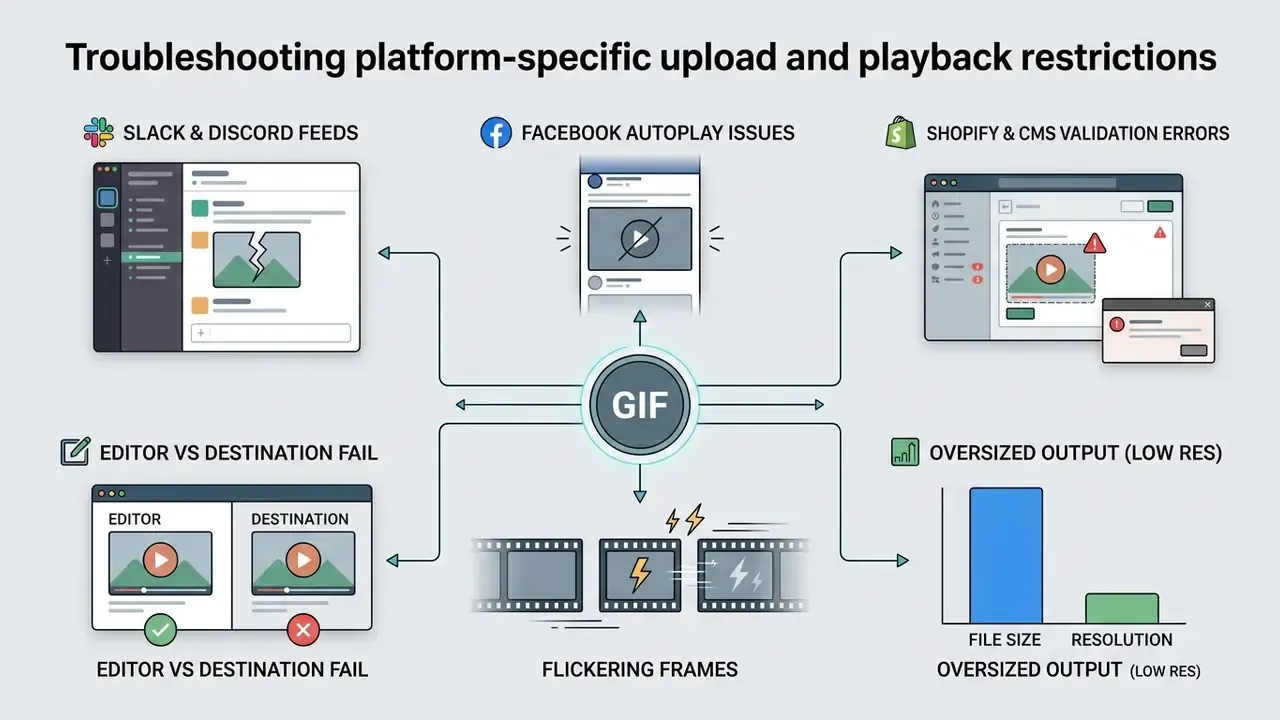
Even a correctly encoded GIF can fail at the destination. These are the recurring failure modes and their fixes.
- Slack and Discord feeds. Both enforce strict size caps: approximately 8 MB for free Slack workspaces, 8 to 10 MB for Discord. Use a 480 px width baseline at 10 to 12 FPS with Bayer dithering, keep duration under 5 seconds, and prefer WebP where the client renders it, to stay comfortably under the ceiling.
- Facebook autoplay issues. Facebook animates GIFs selectively. If loops fail to autoplay in the feed, make sure both width and height exceed 200 px, since micro-canvas animations are frequently suppressed. A known workaround is to click share, dismiss the composer, then click share again. Other networks handle GIFs at their own discretion, outside the converter's control.
- Shopify and other CMS validation errors. Some platforms reject aggressively optimized GIF byte structures and report the file as corrupted. Shopify in particular has a documented bug of this kind. Switch the compression profile from Advanced (lossy) optimization to Basic / lossless palette mapping. File size rises, compatibility returns across a much wider set of programs and uploaders.
- Files that work in the editor but fail elsewhere. The same Basic-optimization switch is the first remedy, because "safer for frame extraction" output writes a more conservative GIF structure that third-party decoders parse reliably.
- Flickering across frames. Enable the single global color palette option. Per-frame palettes are the usual cause of inter-frame flashing.
- Oversized output despite low resolution. Reduce FPS to 8 to 10, shorten the trim window, or switch to WebP. GIF has no inter-frame video compression, so every added frame costs close to full price.
Security checklist before uploading corporate video
Run this list before any employee sends footage to a public converter.
- Classify the footage.Confidential product roadmaps, customer recordings, internal all-hands, and anything under NDA should never reach a free multi-tenant converter.
- Prefer client-side processing.Browser-based encoders using FFmpeg WebAssembly keep the file on the device. Verify the claim by watching for network upload activity during conversion.
- Check the retention window in writing.Look for an explicit deletion period, commonly 8 to 24 hours, rather than "we care about privacy" copy.
- Confirm encryption in transit and at rest.SSL/TLS is table stakes. Secured data centers and documented access controls are the real signal.
- Verify the training clause.Ensure the vendor does not use uploaded content to train models, or that opt-out is contractual rather than a settings toggle someone can flip back.
- Check personal-data exposure.Footage with identifiable faces or voices requires a lawful basis, a DPA, and an appropriate processing region under GDPR and CCPA.
- Validate licensing before publication.Confirm the plan grants commercial rights and that watermark terms permit your intended use.
- Log the asset.Record source, tool, plan tier, and export settings so the animation can be re-derived or withdrawn later.
- Route high-sensitivity work to approved tooling.Where possible, use an enterprise plan with SOC 2 or ISO 27001 attestation, SSO, and an uptime SLA rather than an ad-hoc public tool.
FAQ about converting video to GIF online
Can I create a GIF from video on a phone?
Yes. You can convert video to gif online in mobile web browsers on iOS and Android without installing a native app. Modern mobile browsers support client-side file selection, trimming sliders, and cloud transcoding pipelines. Conversion simply runs slower than on desktop because of processing power.
Mobile browser conversions do hit hardware memory constraints, though. Updated: peer-reviewed work on mobile web browsing under memory pressure documents that browser-local storage quotas vary by browser and can range from roughly 10 MB to 2 GB per second-level domain group, which is why large in-browser encodes fail unpredictably instead of degrading gracefully. Combined with the high CPU and memory cost of GIF decoding relative to H.264, that means anyone processing large 4K uploads on a phone should pick shorter clips, lower input resolutions, or a lower FPS preset to avoid a tab reload halfway through.
Can I save my GIFs online after conversion?
Most free converters run a transient processing model, holding uploaded raw videos and generated files on temporary cloud servers for a limited period before automatic deletion. Updated with vendor evidence: published policies vary enough to check per tool. One major converter states that files are removed after 8 hours and that it does not store user files. A large GIF platform instead retains personal data for as long as the account remains open, or as needed to provide the service. Another tool keeps visitor-created GIFs in the browser only, while storing template-based renders in cloud infrastructure with deletion on request. Some account-based makers deliberately persist every created GIF to a user library so it can be re-shared later. Treat "auto-deleted in N hours" as a vendor-specific commitment, never an industry norm.
To keep your generated files permanently, download the converted GIF to a local device or cloud drive right after processing. Users needing dedicated cloud storage, batch processing APIs, or workflow troubleshooting can consult our AI Media Support and Troubleshooting portal, or model operational asset budgets with our AI Media Calculators.
What is the best quality setting for GIF conversion?
Maximum-quality presets usually combine 720 px width, 15 FPS, and Sierra2_4a dithering under two-pass palette optimization. For everyday use, a balanced preset at 540 px and 12 FPS with Bayer dithering delivers near-identical perceived quality at a materially smaller file size.
What FPS should I use for GIFs?
10 to 12 FPS looks smooth for most content while keeping weight manageable. Use 15 FPS or higher for fast action, and 8 to 10 FPS for simple animations or when file size is the binding constraint. Above 10 FPS is a sensible floor if you want to avoid visible stutter.
Why is my GIF file so large?
GIF lacks inter-frame video compression, so weight scales almost linearly with frame count. Reduce resolution to 480 px or 320 px, lower FPS to 8 to 10, trim to a shorter duration, enable lossy palette compression in measured steps, or export as WebP for roughly 30% savings and often far more at equivalent quality.
What is the difference between GIF and WebP?
Both support animation. WebP delivers substantially smaller files, 24-bit color, alpha transparency, and faster decoding, and it works in all modern browsers. GIF wins on one axis only: universality. Older apps, some email clients, and legacy uploaders still expect it. Ship WebP as primary and GIF as fallback wherever compatibility is uncertain.
How do I make a GIF for Slack or Discord?
Use a small-file preset at 480 px and 10 FPS, keep the clip under 5 seconds, apply Bayer dithering, and confirm the export lands under 8 MB. Use WebP if the client renders it. Otherwise keep GIF with Basic optimization for maximum upload compatibility.
Can I put audio on a GIF?
The GIF container has no audio track. Platforms advertising "GIFs with sound" are serving an MP4 or WebP-based loop behind a GIF-style player, with a viewer-side toggle for muted, tap-to-play, or autoplay audio. Some services restrict this to paid tiers because audio raises server cost.
Which video formats can I upload?
Commonly supported inputs include MP4, MOV, WebM, AVI, WMV, FLV, MKV, MPG/MPEG, 3GP, ASF, OGV, and M4V, with MP4 giving the most reliable in-browser preview. Duration and size ceilings differ by vendor: 1 minute on some quick-action tools, up to 2 minutes on others, 15 to 30 seconds and 100 MB on GIF-hosting platforms, and up to 1 GB per file on cloud-ingest converters.
Can I make a GIF from images instead of video?
Yes. Image-to-GIF modes accept PNG, JPG/JPEG, existing GIFs, and often SVG, WebP, TIFF, and BMP. Upload multiple stills, reorder them by drag-and-drop or alphabetical sort, set a per-frame delay until the pacing feels right, then generate. Useful for slideshows, drawn animations, or reassembling frames pulled out of a video.
Can I convert transparent video to a transparent GIF?
Yes, when the source carries a genuine alpha channel, typically WebM or MOV. Select a transparent palette preset and clear the default background-fill color. Skip that step and transparent pixels get flattened to the fill.
Appendix A: revision notes and superseded formulations
Related guides and workflow resources
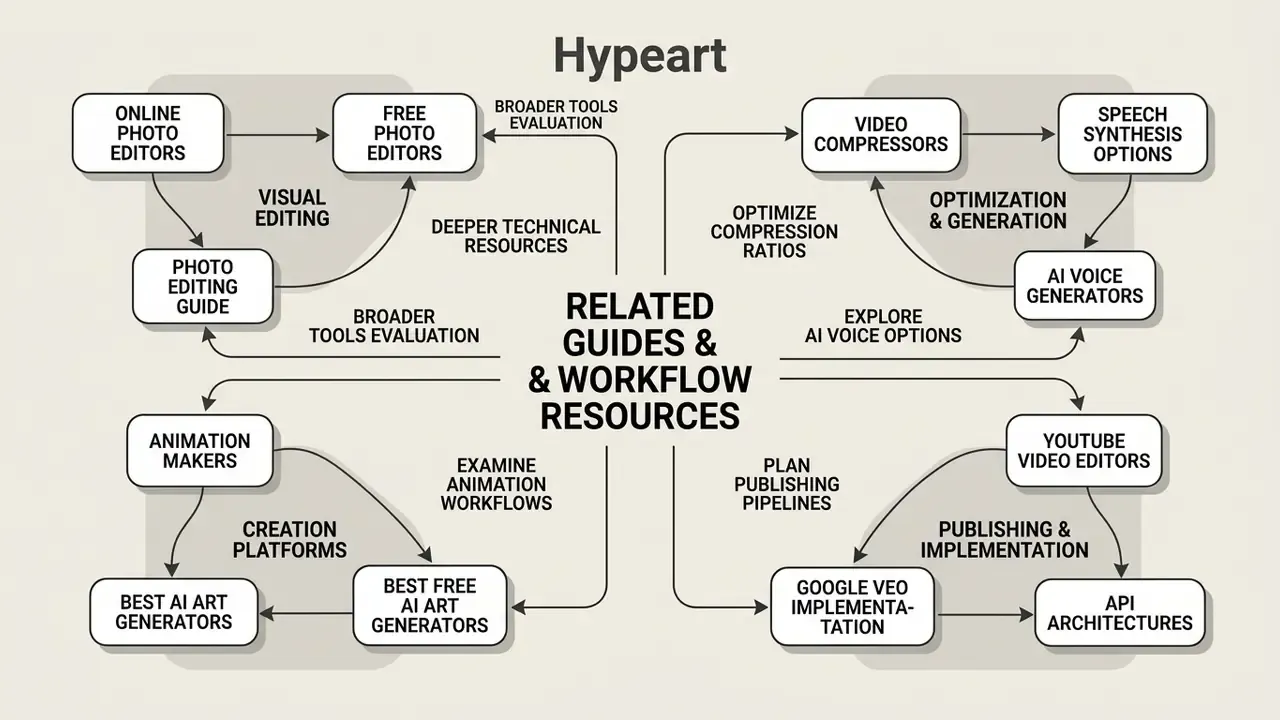
For teams evaluating broader digital content creation tools, these related technical resources go deeper.
- Review comprehensive editing solutions in our Guide to online photo editors.
- Optimize compression ratios using our Guide to video compressors.
- Explore speech synthesis options in our Guide to AI voice generators.
- Understand platform limitations in our Guide to free photo editors.
- Examine animation workflows in our Guide to animation makers.
- Plan publishing pipelines with our Guide to YouTube video editors.
- Review advanced API architectures in our Google Veo implementation guide.
- Compare visual art creation platforms in our reviews of best AI art generators, best free AI art generators, and best free AI video generators.
- Assess portrait workflows in our Guide to AI headshot generators.
- Evaluate outpainting and canvas-expansion options in our comparison of AI image expansion tools.
- Analyze legal developments in digital media through our AI Litigation and Case Timelines tracking page.
Additional adjacent references include our overviews of Microsoft AI image generation terms and Google AI image generation usage rights.
Footer / Hub Navigation