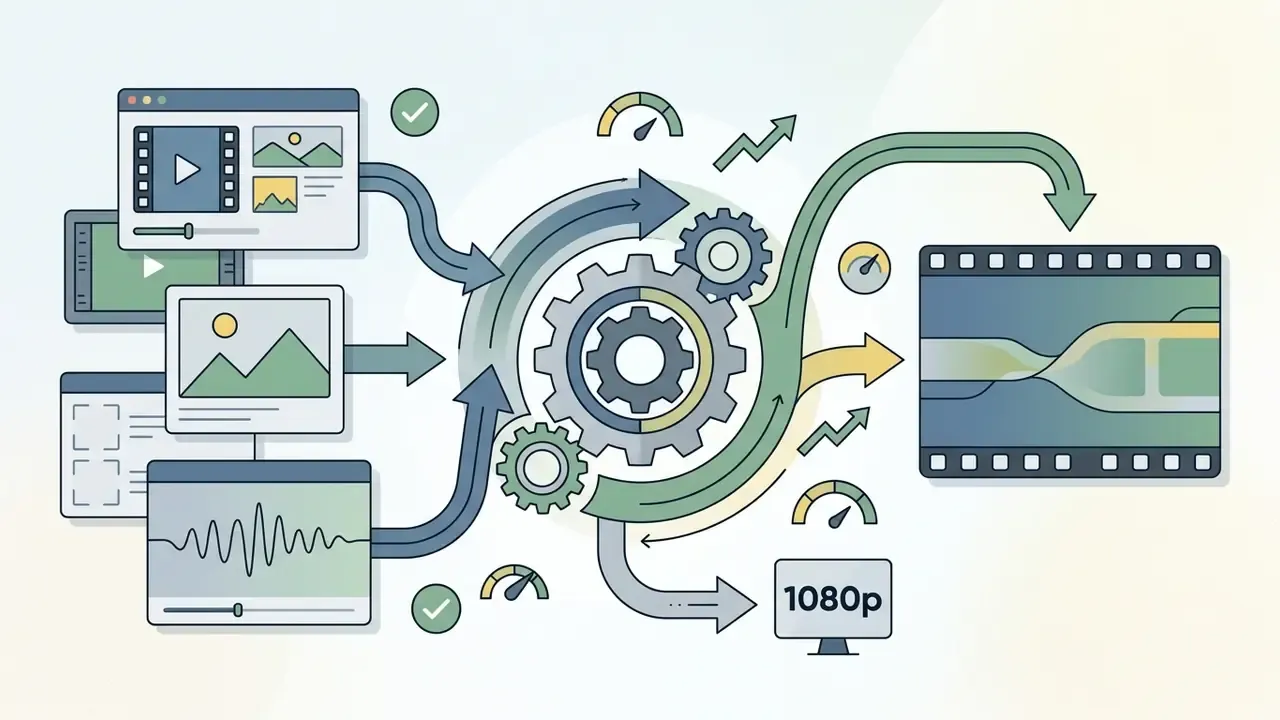
Combine multiple video clips, photos and audio tracks into one seamless file directly in your web browser. No watermarks on standard exports, no installers, no account. Whether you are assembling clips for TikTok, editing a YouTube tutorial or merging family footage, a free online video merger processes your media either on your own device or through a high-speed cloud pipeline.
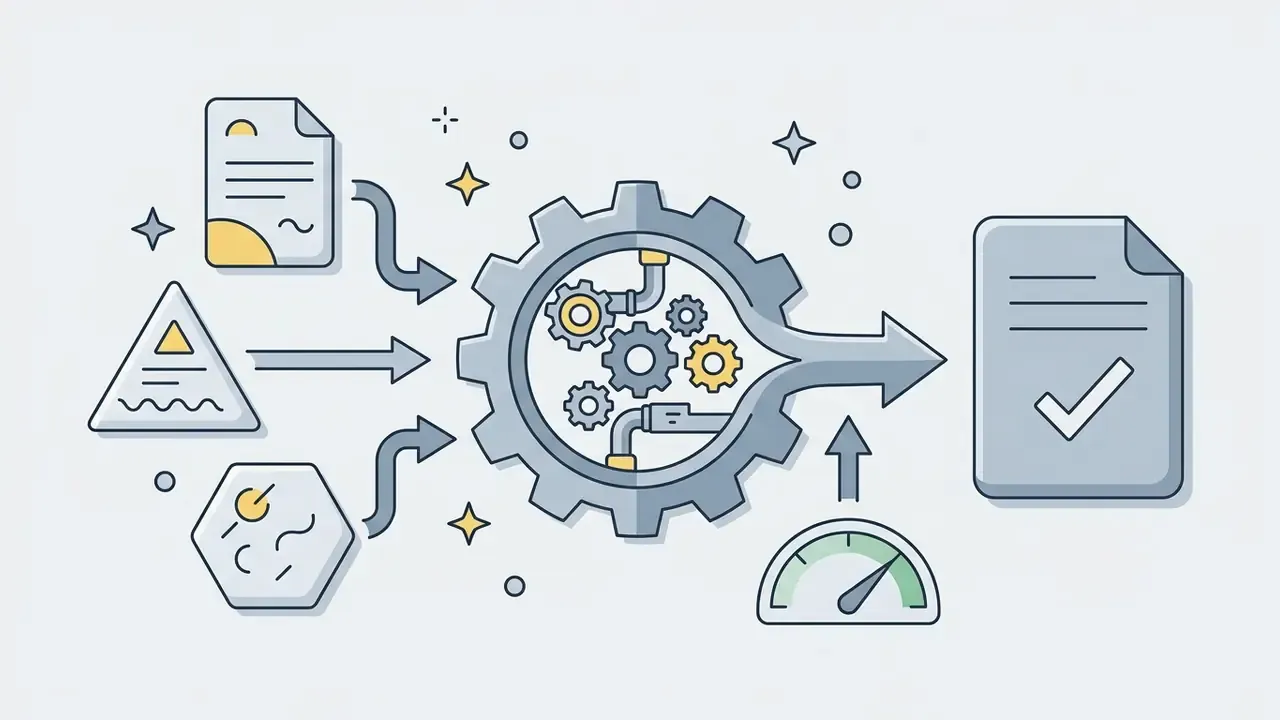
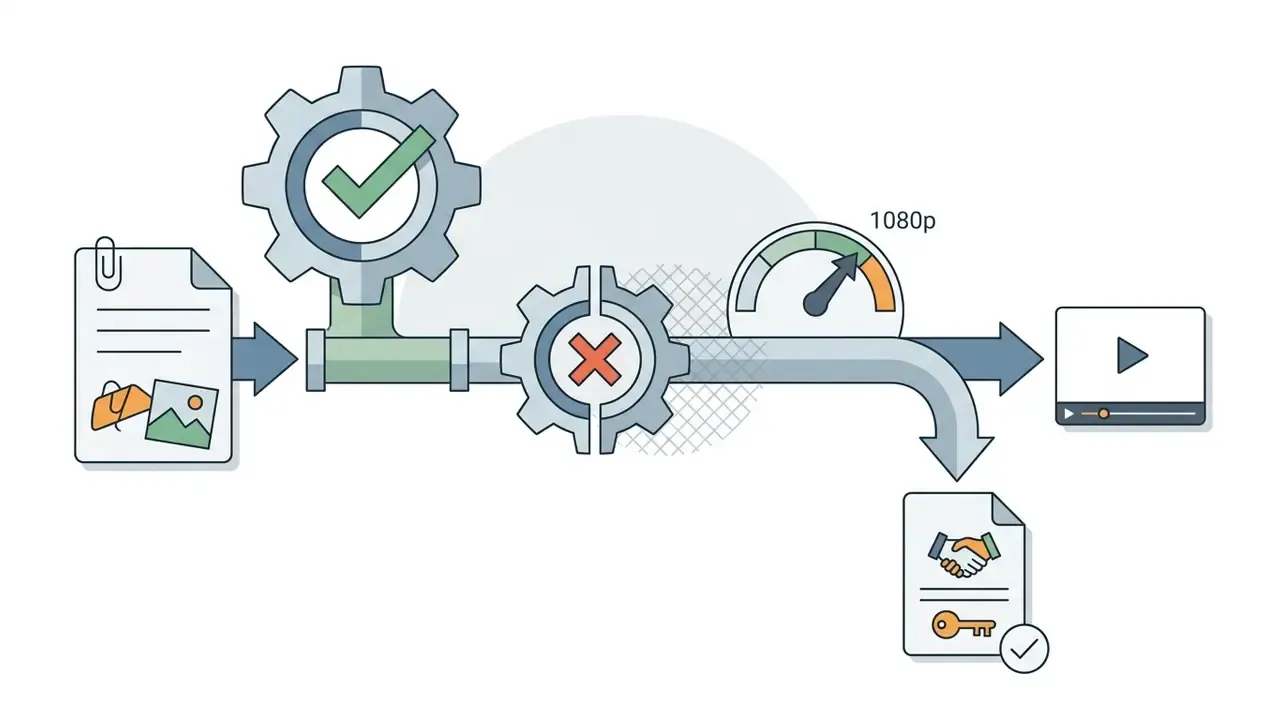
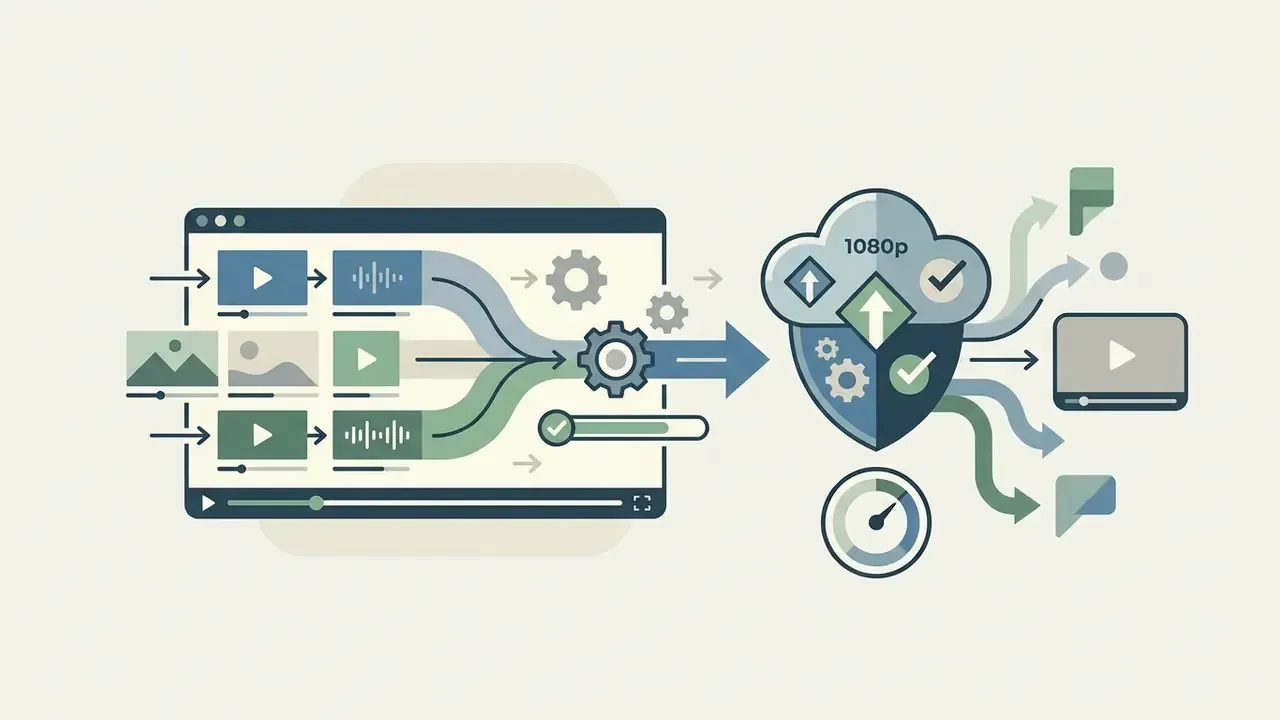
Two paths, one result: a single downloadable video.
The 60-second version
- Three steps add your clips, drag them into the order you want, press Export and download one file.
- Best universal export MP4 container, H.264/AVC video, AAC audio, 1080p (1920×1080) at 30 fps. It plays everywhere: mobile, desktop, TV, and every social platform.
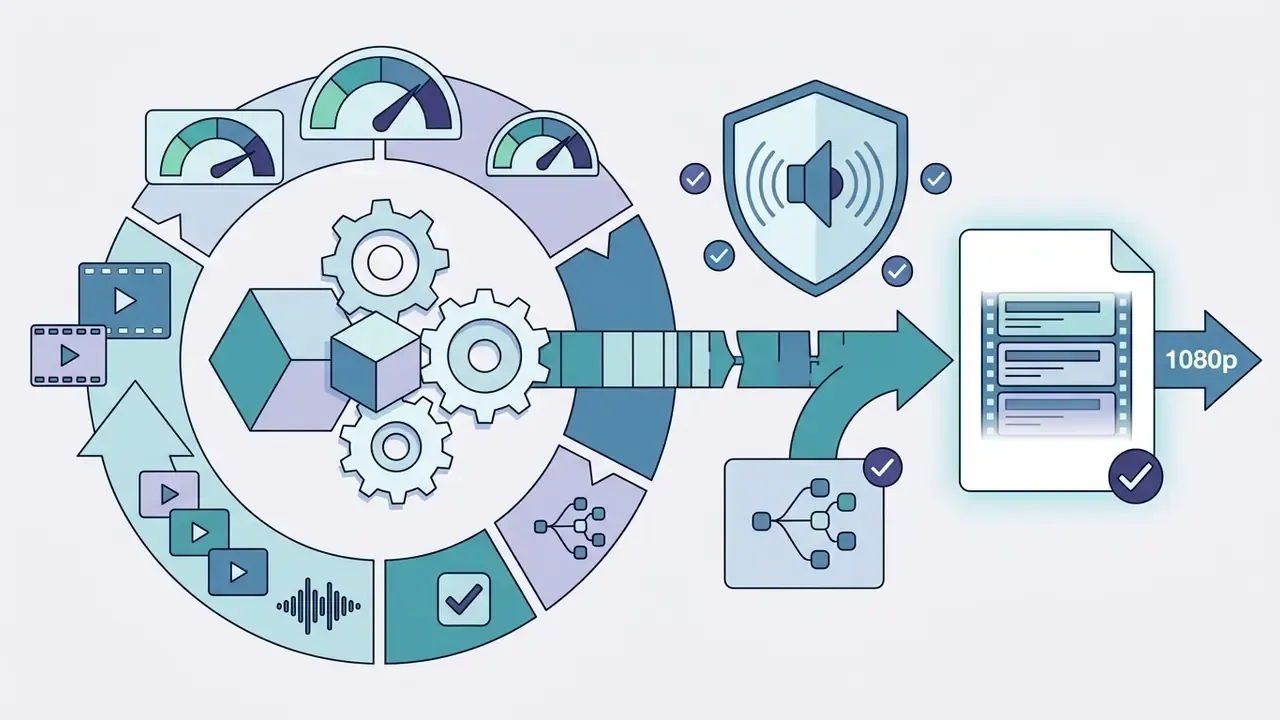
- Best loudness target normalize all clips to a single -16 LUFS integrated loudness, so no scene jumps in volume after the previous one.
- Watermarks free, watermark-free merging is realistic when you use only your own footage. Watermarks and paywalls show up when you add premium stock media or Pro-only effects.
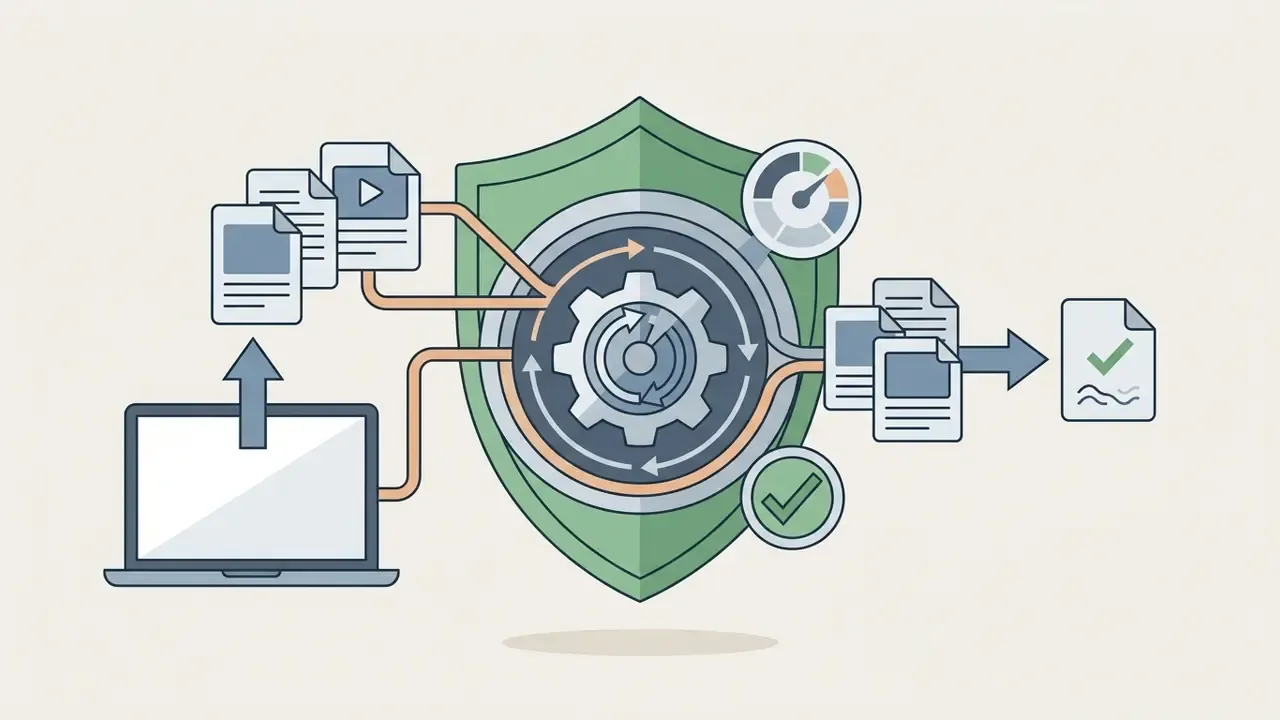
- Privacy client-side (WebAssembly) merging keeps files in your browser's memory; cloud rendering uploads over TLS and purges temporary files automatically.
What this guide covers
Online video tools have grown up. What used to be a single-purpose browser utility is now a real processing environment. Content teams and small studios increasingly rely on cloud-based and client-side web editors to assemble, trim and render media without installing a heavy desktop suite. Running those workflows well takes some understanding of browser performance limits, container compatibility, codec normalization and data-privacy controls. This guide covers each of them in plain language first, then in engineering detail.
What an online video merger can do
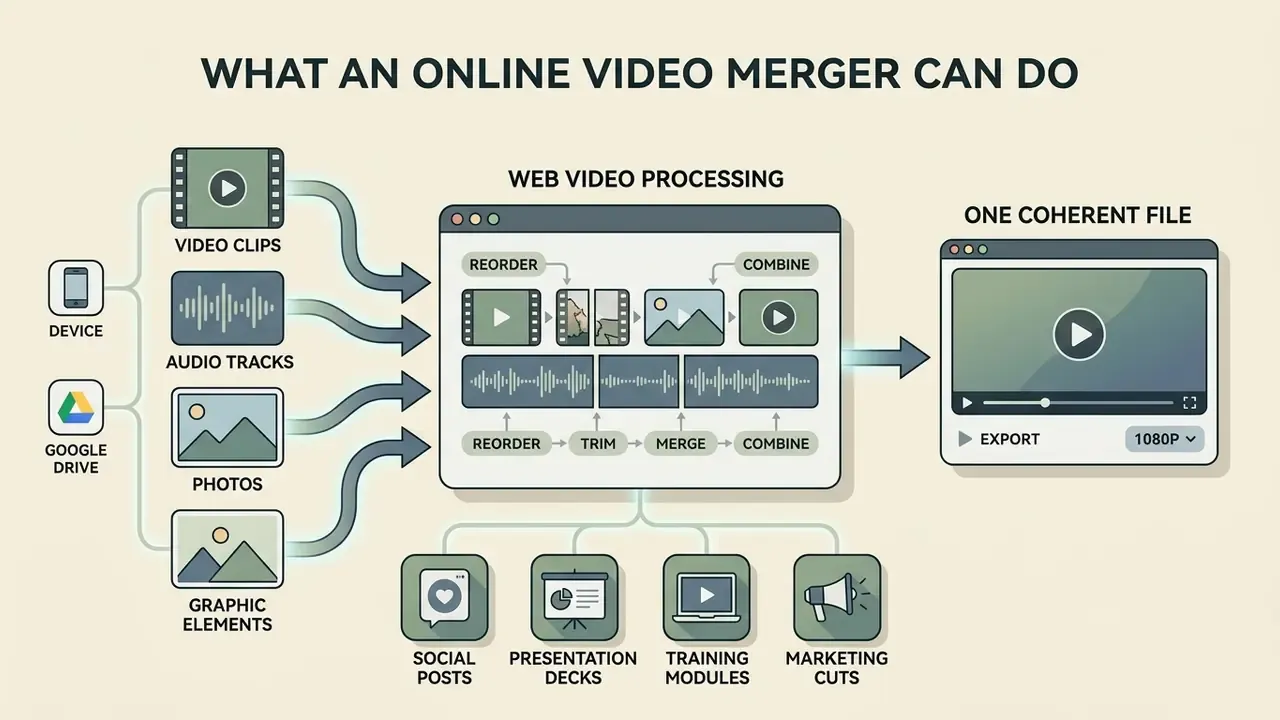
An online video merger lets you combine video clips, audio tracks, photos and graphic elements into one coherent file inside a web browser. Modern web combiners handle file ingestion, sequencing, timeline trimming, audio synchronization and final re-encoding, all without local software. In practice, that means you can compile video online from a phone recording, a screen capture and a stock clip in a single sitting.
Web video processing architecture, side by side
| Aspect | Client-side (WebAssembly / WebCodecs) | Cloud server rendering |
|---|---|---|
| Privacy | Files never leave system memory | Temporary server retention, automatically purged |
| Speed | Zero upload delay for local clips | Accelerated hardware, better for long timelines |
| Power | Bound by system RAM and browser canvas limits | Handles heavy 4K H.265 and ProRes multi-track edits |
| Compatibility | Depends on codecs the browser exposes | Converts legacy formats (AVI, WMV) without fuss |
Browser-based editors run on one of those two models. Client-side tools lean on WebAssembly (WASM) and the WebCodecs API to demux, edit and re-encode media inside the user's local memory sandbox. According to W3C specifications, WebCodecs provides low-level access to browser encoding and decoding pipelines and supports asynchronous frame processing.
«ffmpeg.wasm is a pure WebAssembly/JavaScript port of FFmpeg: it enables video and audio record, convert and stream right inside browsers.»
That matters practically. A WebAssembly FFmpeg build performs demuxing, file I/O, software codec fallbacks and filtering entirely on the user's device, which removes any backend dependency for a standard merge. WebCodecs itself is deliberately codec-agnostic: the specification does not require any particular codec, so real-world support depends on what each browser exposes. The 2026 W3C HEVC registration, for example, defines the hev1. and hvc1. codec strings for H.265 signaling. For heavier workloads or legacy containers, cloud pipelines accept uploaded video files, process them on backend servers and hand back a rendered output file for download.
Teams use these tools to build social posts, presentation decks, training modules and short marketing cuts. By folding in basic editing functions, cutting unwanted scenes, adjusting aspect ratios, adding a music bed, a combine video maker removes a whole round-trip from the production day. If you want a broader map of what browser editors include, compare feature sets in our overview of video-editing tools and the roundup of free AI video generators. For adjacent creative utilities, an animation maker or the AI Media Commercial-Use Hub helps align browser capabilities with organization-wide governance standards.
How to merge videos online step by step
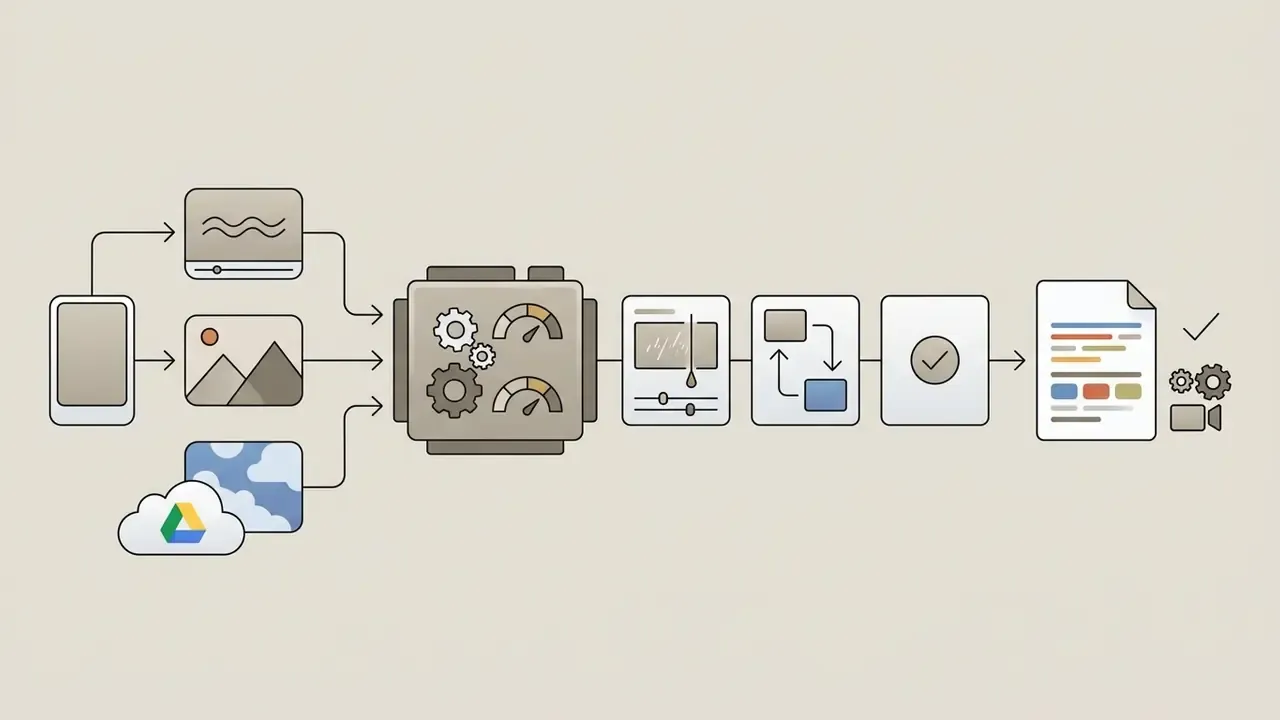
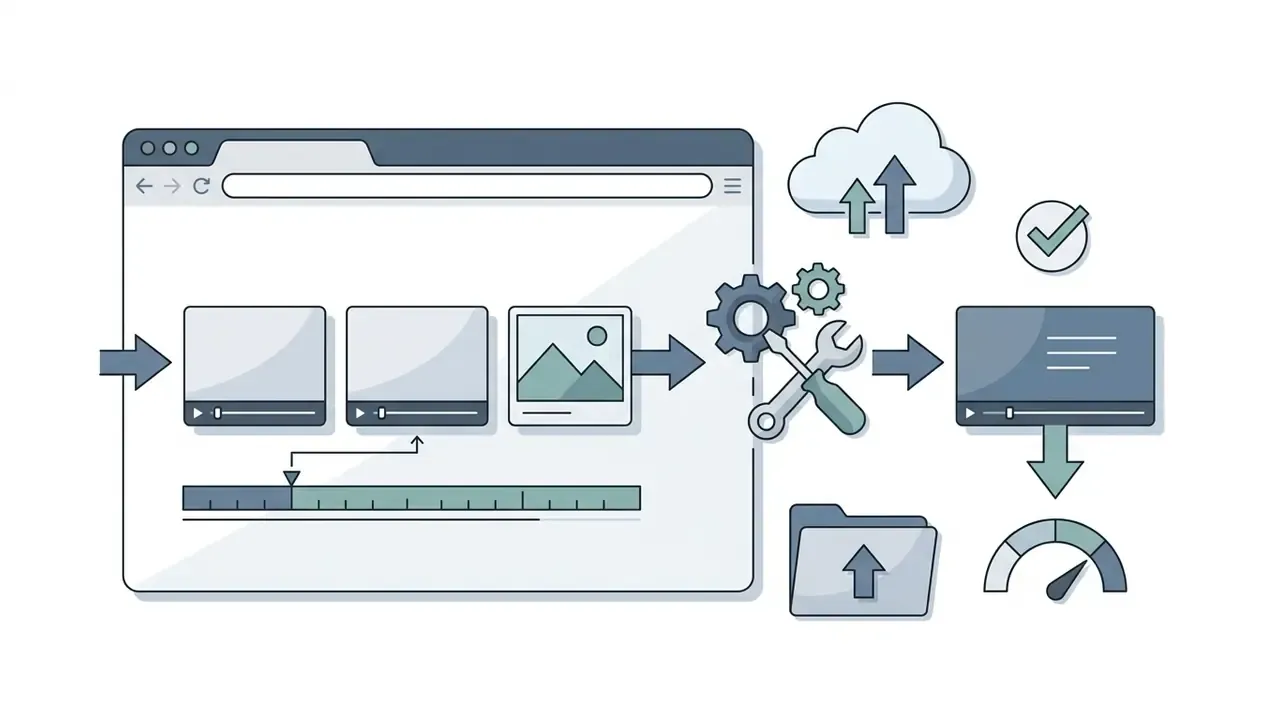
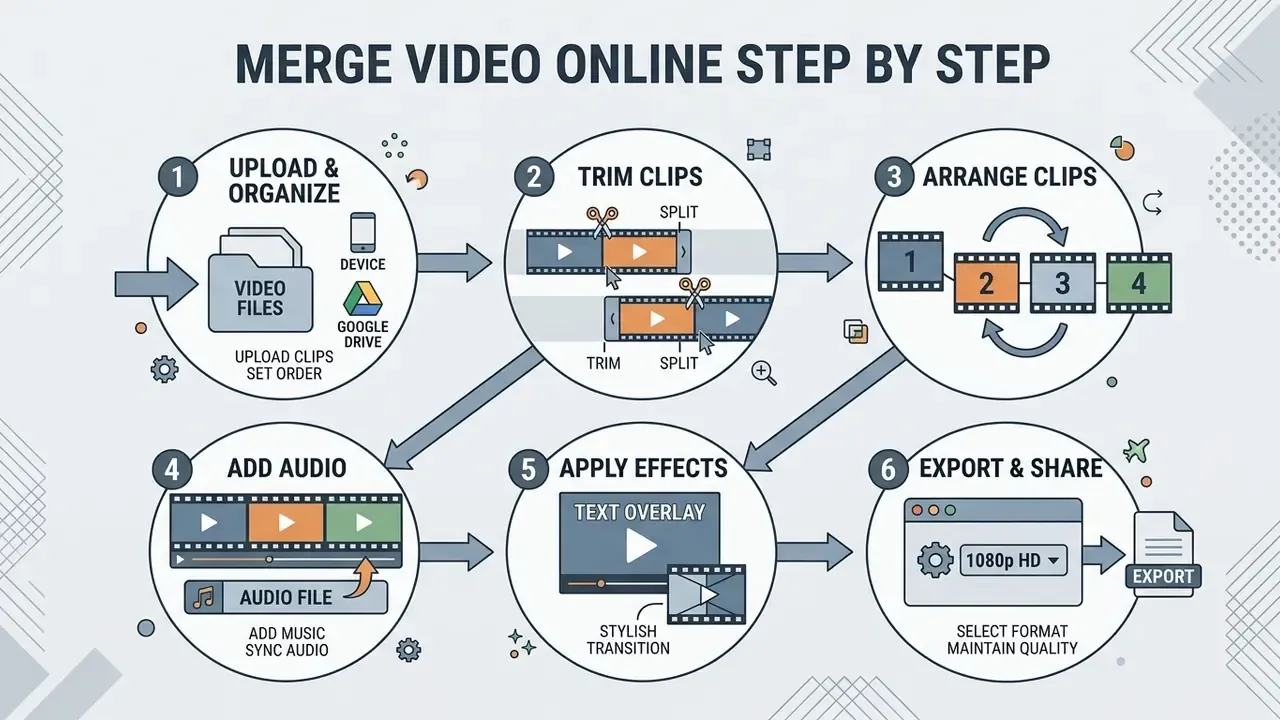
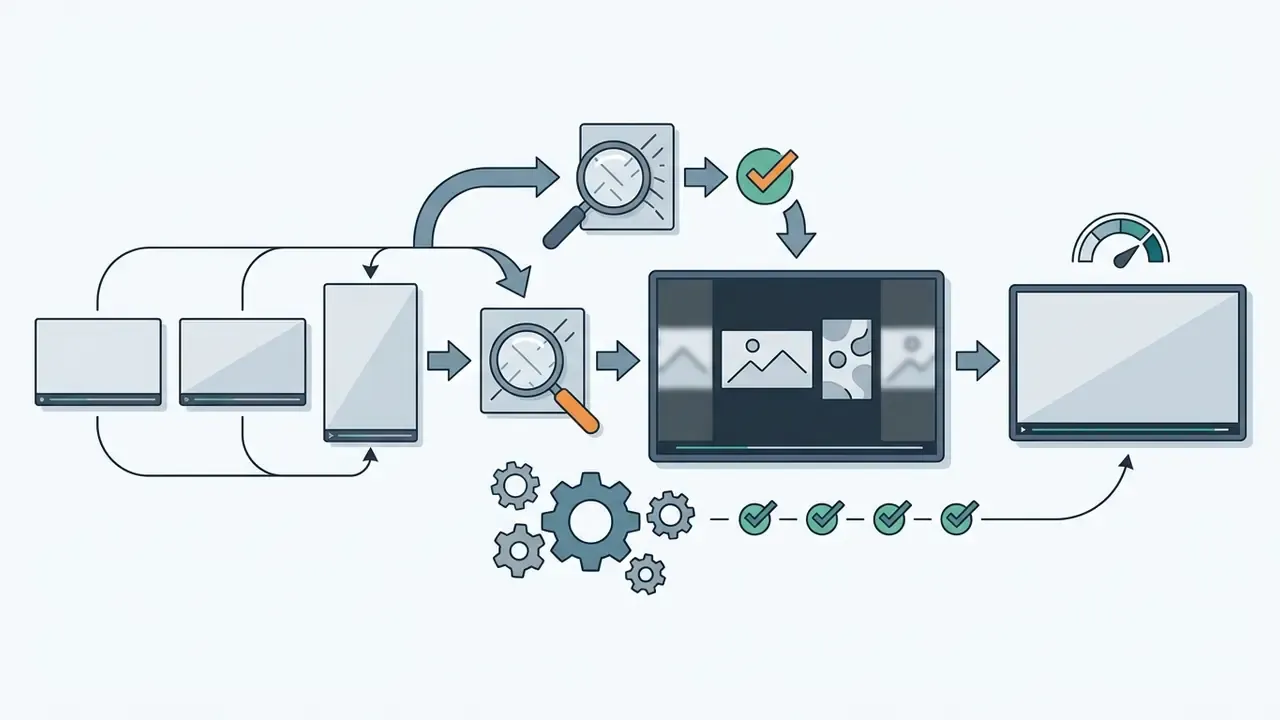
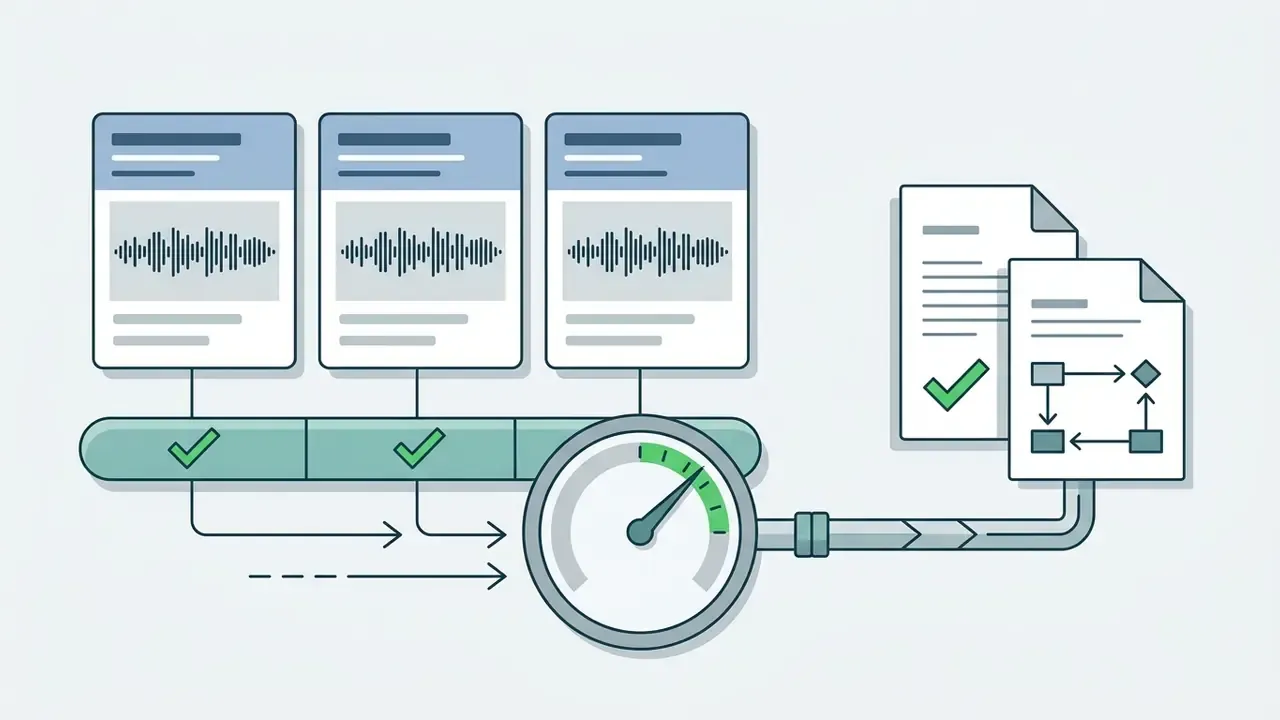
Merging videos online follows a five-step pipeline: upload media, arrange timeline order, trim clips, layer audio, export the rendered file. Keeping that sequence prevents processing errors, aspect-ratio distortion and quality loss you did not ask for.
Process flow: in-browser video merging pipeline
Interface micro-copy cheat sheet
- Add / Open file imports a new clip, photo or audio file.
- Drag to reorder holds a clip block and slides it into a new timeline slot.
- Split (scissors) cuts one clip into two at the playhead.
- Trim (edge handles) shortens a clip from its start or end without re-cutting.
- Transform / Fit removes black bars when clips have different frame sizes.
- Export / Save renders the timeline into one downloadable file.
- Upload video files.Press Open file or drag media into the workspace, then press Add for every additional clip.
- Arrange clip sequence.Drag clip blocks left or right on the timeline until the playback order is correct.
- Trim and edit.Pull the clip edges inward to cut dead air, or park the playhead and press Split (the scissors icon) to divide a clip.
- Integrate audio.Press Add Audio, upload an MP3 or WAV, then set volume and fade handles.
- Export and download.Open the gear icon next to Save, choose container and resolution, render, then press Download.
Upload video files and choose the clip order
Merging starts with importing source media from local storage, cloud drives or network repositories into the editor. Drag and drop several clips onto the workspace canvas and the editor generates thumbnails plus waveform previews. Batch import is standard in most modern editors: Adobe Firefly's video editor, for instance, adds multiple selected files to the timeline in exactly the order you selected them.
Once loaded, clips need to sit horizontally along the primary video track. Drag-and-drop mechanics let you adjust playback order before rendering. One detail trips people up constantly: stacked tracks play simultaneously, not sequentially. Anything meant to play one after another belongs on the same row. When you consolidate multi-source footage, checking sequence alignment early saves a re-export later. To edit 2 videos together this is usually the only step that matters; to edit multiple videos into one, it is where most mistakes hide.
Direct cloud import: Google Drive and Dropbox
Trim and edit clips before merging
Trimming removes unnecessary intro frames, dead air or scenes you never want to see again. Online editors provide timeline handles and playhead splitting tools (Trim and Split) to set precise in and out points, which is exactly the workflow behind the phrase "cut and join video online".
How Split and Trim differ
- Trim drag the left or right edge of a clip inward. You shorten it without creating a new block.
- Split position the playhead and cut. Now you have two independent blocks to reorder or delete.
- Ripple delete remove a middle block and close the gap automatically, so no black frames remain.
Technically, trimming happens either by stream copying or by full re-encoding. Stream-copy trimming (-c copy) is almost instant because it repackages container metadata without decoding frames. The catch: it can only land on keyframe boundaries, and it needs matching codec, resolution, frame rate, time base and audio layout across inputs. Frame-accurate cuts at non-keyframe positions require a real re-encode, and that is where browser processing pays for its convenience.
«ffmpeg.wasm runs FFmpeg inside a single-threaded browser sandbox; the same encode measured 128.8 s (core v0.12.3) and 60.4 s (core-mt) against 5.2 s for native FFmpeg.»
Practical takeaway: if your clips already share codec and resolution, prefer the merger's stream-copy path. Most projects then finish in under a minute, whatever the total runtime. Mix formats and you should expect a genuine encode, so plan for cloud rendering on long 4K timelines. I have watched a laptop fan spin up for eleven minutes on a 4K sequence that a stream copy would have finished before the coffee cooled.
Add music or merge video with audio
A music bed or a replacement voiceover changes how a merged sequence reads. Browser mergers let you mute native camera audio, upload external MP3 or WAV files via Add Audio, and adjust relative gain, length and fades. This is the whole promise behind "audio and video merger online" queries: combine video with audio online, then export once.
Three ways to handle sound when merging
- Overlaykeep original clip audio and add a music bed underneath at -18 to -24 dB relative gain.
- Replacemute all source tracks and lay one narration or music track across the full timeline.
- Mix and synckeep dialogue, duck the music under speech, align cuts to the beat.
Audio-video synchronization needs strict temporal alignment. W3C Synchronized Accessibility User Requirements (SAUR) specify that lip-sync drift should stay within a window of 45 milliseconds behind to 100 milliseconds ahead of the video frames to avoid perceptual distraction; EN 301 549 sets a 100 ms maximum audio-video difference. NIST describes two field methods for verifying alignment: sharing a common clock with time-stamps across both streams, or matching an acoustic clap in the audio with a flash frame in the video, then offsetting audio delay until the two coincide.
«Canva's Beat Sync automatically matches your edit points to the rhythm of the music track.»
Advanced online tools add automated waveform alignment and beat matching to lock cuts to a background track. Creators working on niche projects can complement footage with synthetic narration, see the AI voice generator guide, plan sequences with AI video generators during scripting, or write a scratch hook with an ai lyrics generator before licensing the real track. For remix-style social edits, an ai mashup maker can prototype the tempo pairing you eventually want.
Export and download the merged video
Export turns the timeline assembly into one downloadable media file. You choose target parameters: container format, resolution, compression bitrate. Open the gear icon beside Save. MP4 suits the web, MKV suits offline archives, MOV suits Apple-native workflows.
During export, the browser or cloud server encodes frames and multiplexes audio streams into the final container. When encoding finishes, a secure download link or a direct file-transfer prompt delivers the compiled output. Render time scales with frame size, effect complexity and total duration. Adobe notes that rendering a composition "can take a few seconds or many hours" depending on those factors, while enabling existing preview files or hardware-accelerated H.264/HEVC encoding shortens the job considerably. Teams sizing output requirements and storage bandwidth can use the AI Media Calculators to estimate file sizes before batch processing.
Exporting merged videos for social platforms
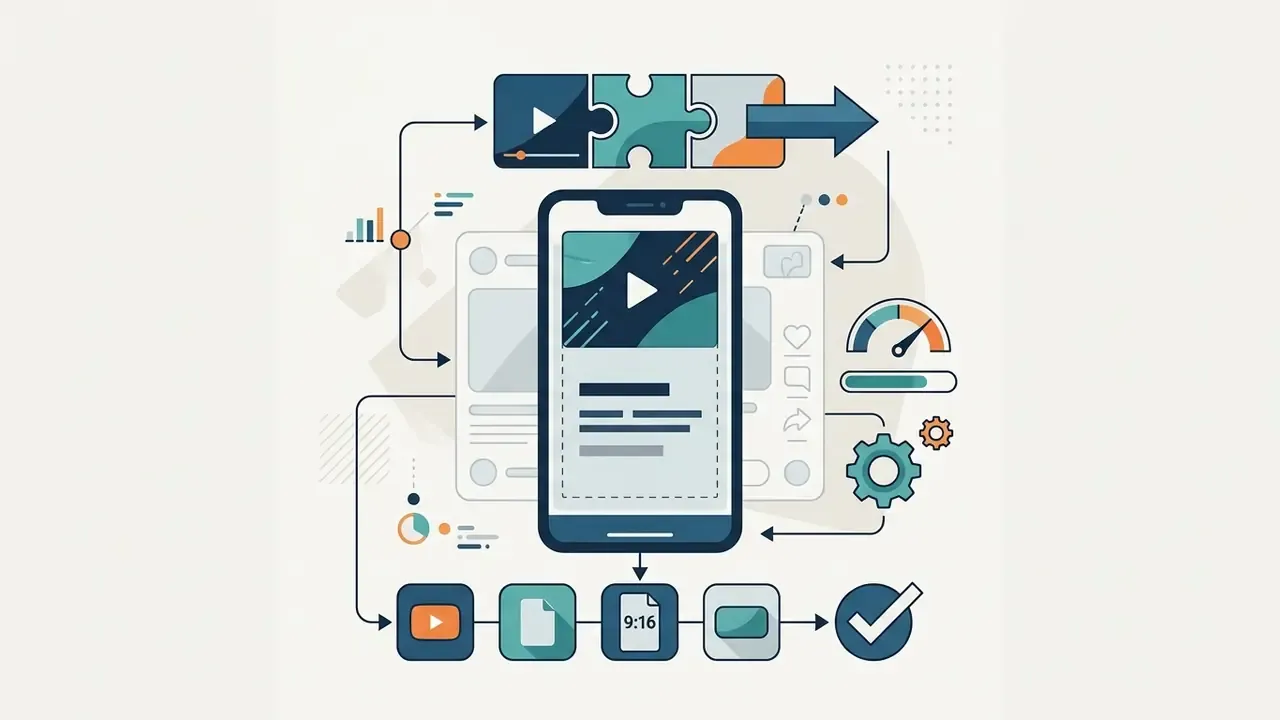
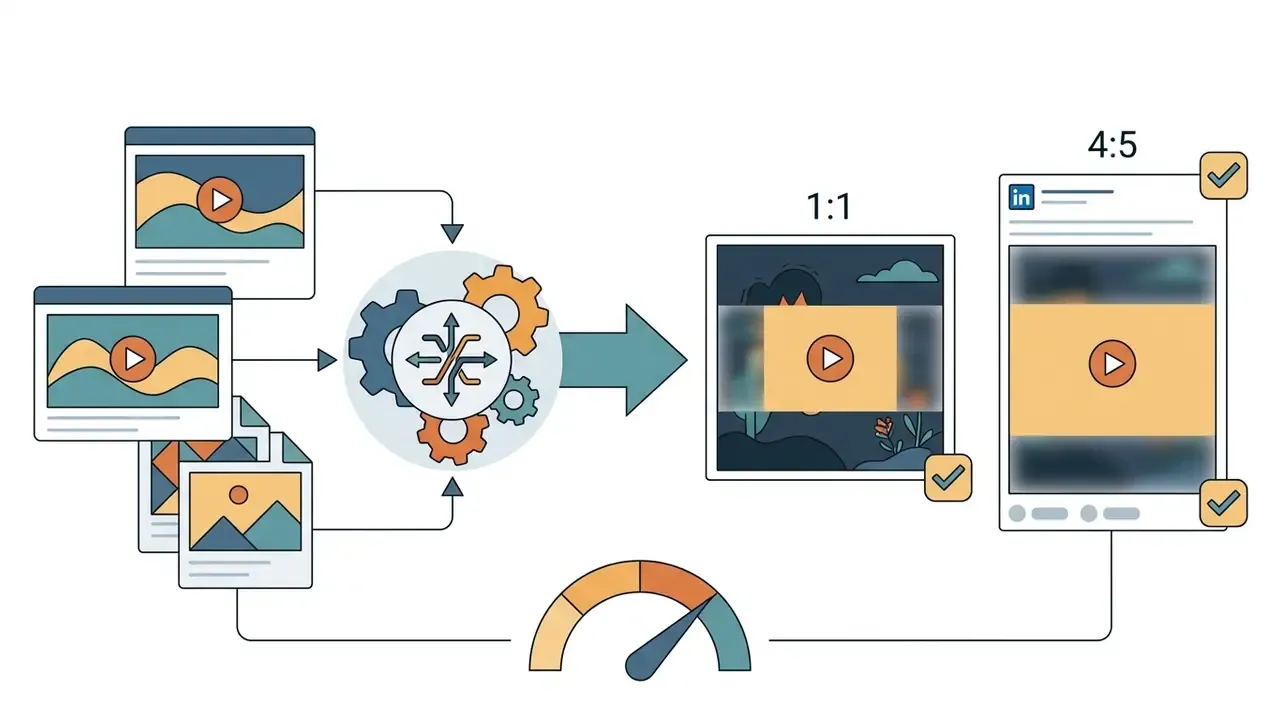
When you merge video online for publishing, the right aspect ratio and encoding target prevent platform auto-cropping and compression mush:
Upload security and online video file handling
Uploading media to a web application raises data-security, storage and intellectual-property questions. Since that is the first thing most people ask before dragging in confidential footage, it belongs here, ahead of the deeper format and quality chapters.
Secure file-handling checklist
- Transport TLS-encrypted HTTPS for every upload and download.
- At rest encryption of temporary storage buckets, with per-user key material where offered.
- Validation randomized filenames plus MIME and binary-signature inspection.
- Retention a published automatic deletion window, not a vague "as long as necessary".
- Delivery time-limited signed download URLs rather than permanent public links.
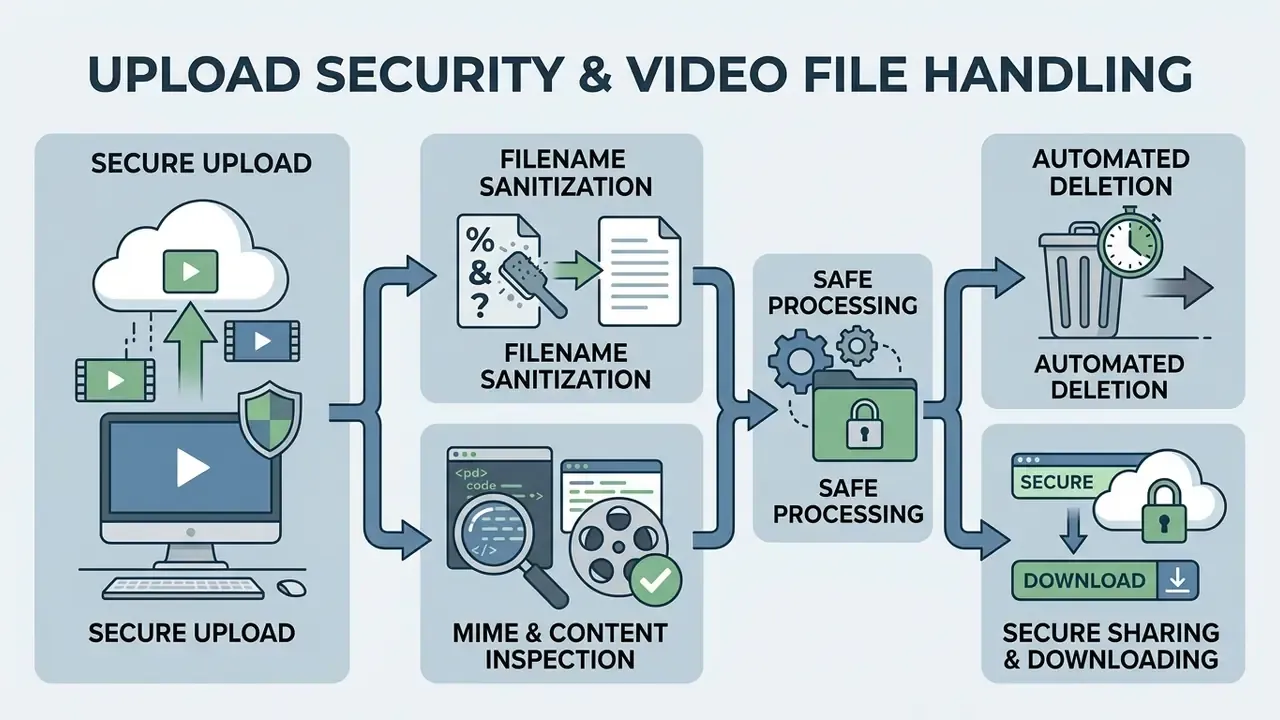
What happens to uploaded video files
When you upload media to a cloud-based editor, files travel over TLS-encrypted HTTPS channels into server storage buckets. Backend services then process, re-encode and temporarily store that media to build preview timelines. Vendor disclosure varies wildly. Some publish encryption at rest with per-user key pairs and TLS in transit; others say only that "commercially reasonable" measures apply and keep data "as long as needed". That second phrasing should slow you down.
«The FFmpeg WebAssembly clipper executes entirely inside the browser sandbox: files never leave the user's device, which removes server-side upload attack surface altogether.»
Safe sharing and downloading of the output video
Once rendering completes, platforms issue a download link or a storage pointer to hand the finished media file back to you.
Securing that endpoint means time-limited access. Standard implementations use pre-signed HTTPS URLs, for example Cloudflare Stream signed tokens or AWS S3 pre-signed links. Those URLs embed an explicit access signature and an expiration timestamp, so the link goes dead after a set period, commonly one to four hours. That prevents casual link sharing and permanent public access to proprietary assets. One caveat worth knowing: standard pre-signed URLs stay reusable until they expire. They are time-limited, not genuinely single-use, so short expirations remain the practical control for sensitive deliverables.
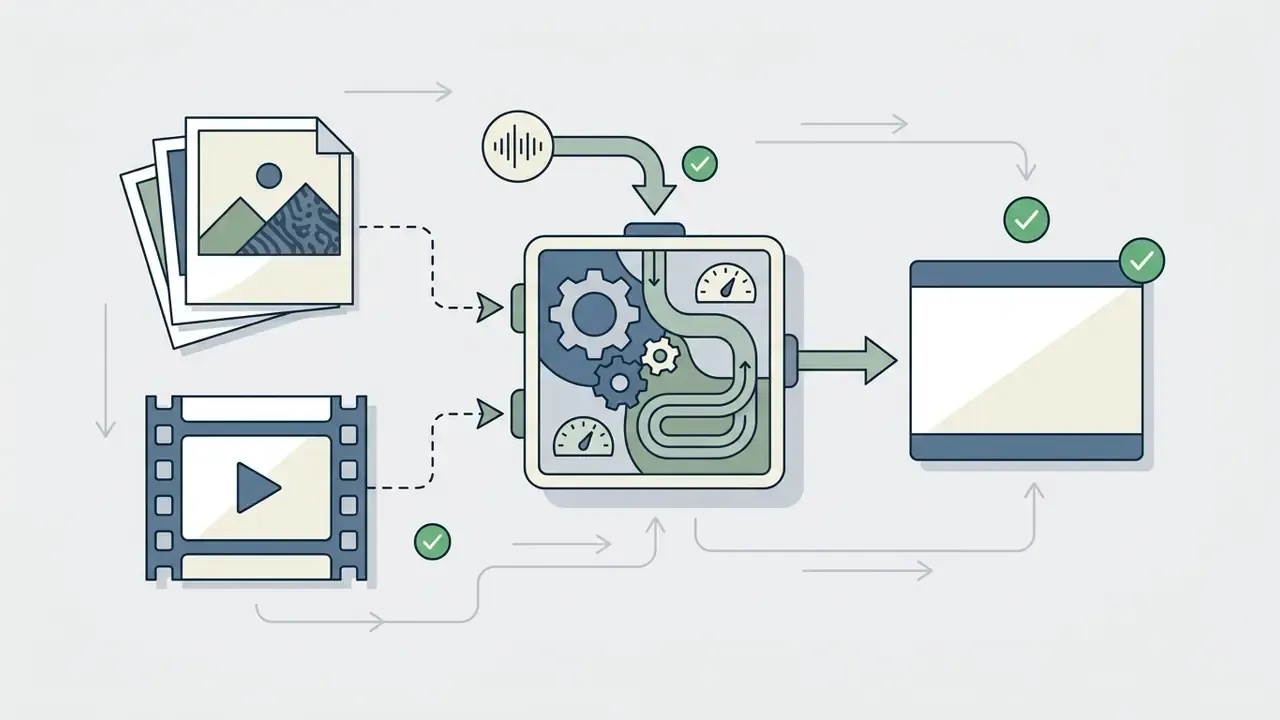
How to combine photos and videos into one clip
Merging static images (JPG, PNG, WebP) with footage lets you build slideshows, intro cards, product showcases and photo montages from a single timeline. Add video to video online, then drop stills between the cuts. Typical use cases: travel montages, before-and-after renovation reels, event recaps, product slideshows for e-commerce listings. If your stills are generated or retouched, our guides to AI photo editors and the best AI art generators cover resolution and licensing before you drop images into a video timeline. Story-driven montages sometimes borrow panels from an ai manga generator or a route graphic from an ai map generator; both work fine as stills, provided you check the license first.
- Image duration control.Unlike clips with fixed lengths, static photos need an assigned duration. Set custom display times, say 3 seconds per photo, before stitching. Most mergers expose a per-image duration field once the file lands on the timeline.
- Aspect-ratio matching.When you mix vertical phone photos (9:16) with horizontal video (16:9), enable Blurred Background Padding to avoid black sidebars.
- Photo-to-video transitions.Gentle crossfades or a slow zoom move (the Ken Burns effect) keep visual continuity between stills and motion.
- Audio bed across stills.One music track under the whole sequence hides the fact that photos carry no native sound, and it keeps pacing consistent.
- Resolution parity.Upscaling a 1024 px photo into a 4K timeline looks soft. Keep source images at least as wide as the export canvas.
Which video formats can you combine online?
Online video mergers accept a wide range of inputs, including MP4, MOV, AVI, WebM and MKV, and convert them into one delivery file. Because native browser support differs by container, editors transcode heterogeneous inputs during assembly rather than refusing them.
Technical compatibility matrix for online video format merging
| Input format | Browser playback support | Transcoding required? | Recommended output | Aspect ratio and handling notes |
|---|---|---|---|---|
| MP4 (H.264 / AAC) | Universal native support | No (stream copy optional) | MP4 (H.264) | Standard baseline; ideal for direct stream assembly without quality loss |
| MOV (ProRes / H.264) | Partial (Safari native) | Yes (transcodes to H.264) | MP4 (H.264) | Needs color-space mapping and stream re-packaging for non-Apple web players |
| AVI (legacy) | Limited or none | Yes (full re-encode) | MP4 (H.264) | Legacy container; accepted as input by cloud pipelines but not offered as an output target |
| WebM (VP9 / AV1 / Opus) | Chrome and Firefox native | Optional | MP4 or WebM | Very efficient for web delivery; transcode to MP4 for universal mobile playback |
| MKV (Matroska) | Limited native support | Yes (transcodes streams) | MP4 (H.264) | Container standardized under RFC 9559 (2024); requires demuxing for browser playback |
| WMV / M4V / HEVC captures | Limited, device-dependent | Yes | MP4 (H.264) | Common in screen recorders and older camcorders; HEVC signals as hev1. or hvc1. where supported |
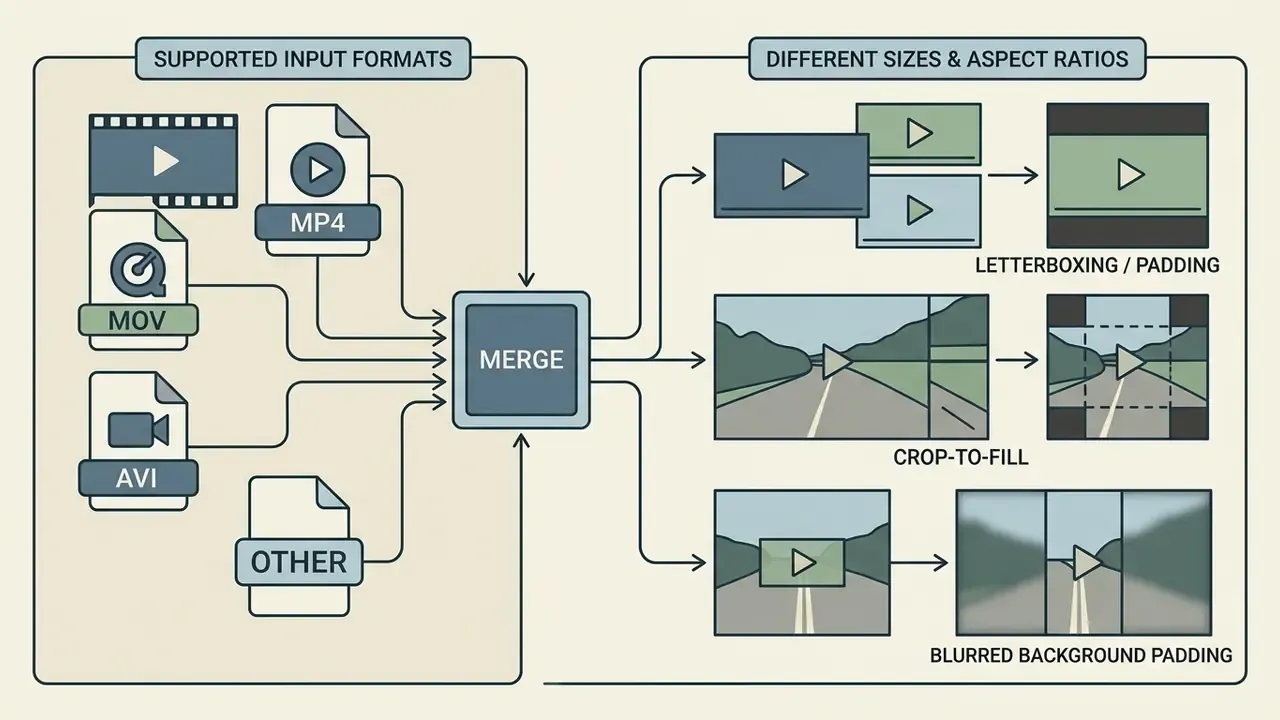
Merge MP4, MOV, AVI and other video files
Combining clips shot on different devices usually means juggling mixed codecs and containers at once. A phone records MOV (H.265), a screen capture tool writes WebM, a cinema camera delivers MOV (ProRes). All three can end up in the same project.
ISO/IEC 14496-14 defines the MP4 container, derived from the ISO Base Media File Format, as the baseline for universal web compatibility. That is why almost every merger ends the job in MP4, whatever went in.
«All common video formats are supported: MP4, MOV, AVI, MKV, WebM. The output is always MP4 for maximum compatibility.»
Enterprise tooling behaves identically. AWS Elemental MediaConvert's container support table lists MP4, MOV, AVI, WebM and Matroska as accepted inputs, yet AVI has no output support, and MOV output is restricted to AVC/H.264 or MPEG-2. Mozilla's MDN compatibility data reinforces the delivery conclusion: MP4 with H.264 video plus AAC audio is still the broadest cross-browser combination, while WebM with AV1 and Opus is efficient but weaker on older Safari builds.
So, to be precise about the vocabulary: heterogeneous sources are not literally "mixed". They are rewrapped or transcoded into one container-supported codec set. If you want to pick an editor by format coverage, compare options in our review of free video editing software.
What to do when clips have different size or aspect ratio
Mixing horizontal (16:9), vertical (9:16) and square (1:1) clips on one timeline looks messy unless spatial framing is normalized. Online tools use three methods:
W3C MediaStream cropping guidance (for example cropAspectRatio=16/9 when normalizing 4:3 sources) and RFC 7742 recommend square-pixel (1:1) display signaling for web outputs unless an explicit aspect-ratio override is declared. Practical order of operations: standardize the canvas first, then place clips. Padding a clip that was already padded produces the "black bar inside a black bar" artifact, and nothing about that looks intentional.
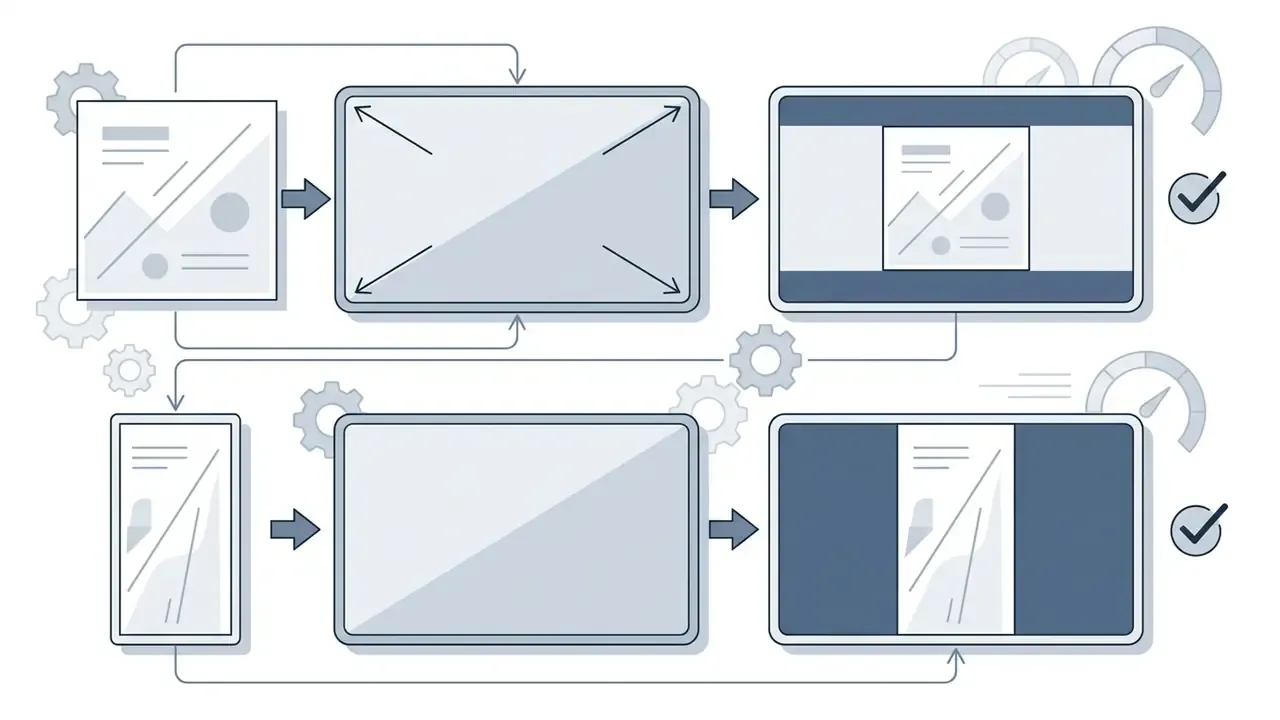
pad mode, where all original content stays visible.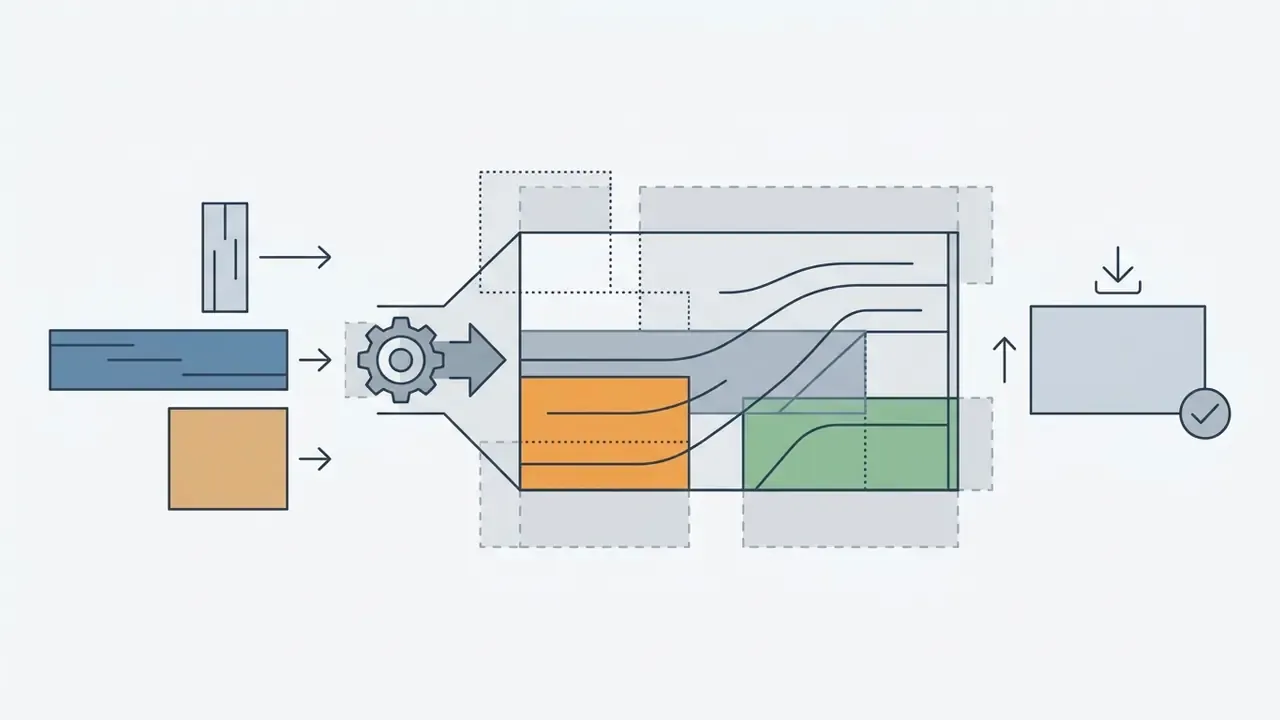
Edit and combine videos in one online editor
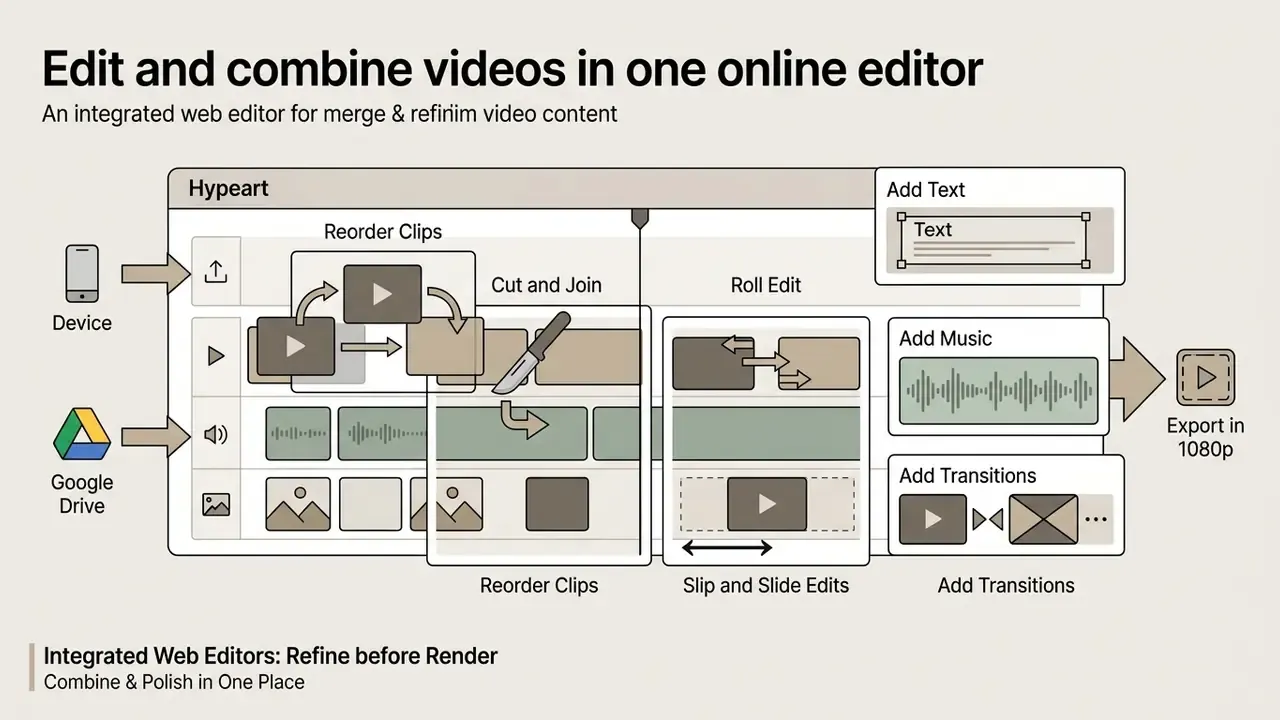
Integrated web editors pair file assembly with non-linear editing tools, so you can refine clips before you commit to a render. Product documentation across mainstream browser editors converges on the same five core functions: trim and cut, crop, text overlays, transitions, and speed control (often six presets plus a slider). That is the working definition of a combine video editor: enough tools to finish, not enough to distract.
Browser editor control panel, what each area does
- Viewer. Live preview of the playhead position, canvas size and safe areas.
- Timeline and tracks. Video row for the sequence, upper rows for text and overlays, lower rows for audio.
- Tool rail. Split, Trim, Crop, Transform, Speed, Add Text, Add Audio, Transitions.
- Export panel. Container, resolution, frame rate, bitrate and the download button.
Reorder, cut and join video clips
Timeline navigation follows standard non-linear editing (NLE) mechanics. Scrub the playhead across the track to find a cut point, then split with a razor command. In Premiere Pro, Alt or Option-clicking with the Razor tool splits only the linked audio or video and leaves the other stream intact.
- Ripple edit. Adjusts a clip's length and shifts downstream media automatically, so no blank gaps survive.
- Roll edit. Moves the edit point between two adjacent clips without changing total project duration.
- Slip and slide edits. Slip changes internal in and out points; slide moves the clip's position while surrounding timeline spacing and the clip's media range hold steady.
These four trim modes are the same primitives Final Cut Pro and DaVinci Resolve expose, which is why muscle memory transfers straight from desktop suites into a browser tab.
Field observation from our own testing desk. Consolidating roughly 40 scattered promotional clips into a unified set of compliance assets ran noticeably faster in a browser workflow than in a desktop round-trip. The gain came mostly from automated timeline trimming, standardized transition presets and instant sharing, which removed the export-then-upload cycle entirely. We are not publishing a percentage, because the only comparable public data point we could verify concerns adoption rather than editing speed:
Add text, music and transitions to a video
Text overlays, lower-thirds and clean transitions are what separate a merged file from a finished one. Editors place text elements on secondary tracks above the video layer for titles and captions.
Visual transitions such as cross dissolves and dip-to-black fades soften the seam between unrelated scenes. Adobe defines Cross Dissolve as fading clip A out while clip B fades in, and Non-Additive Dissolve as blending pixel values for a more neutral result. Final Cut Pro documents equivalent dissolve and fade behavior, with duration and alignment adjustable in the toolbar. Add background music with subtle audio crossfades and the acoustic seams disappear too. An audio dissolve is simply the sound-side equivalent of a video fade, and 200 milliseconds is usually plenty.
Free video merger, watermark and commercial-use choices
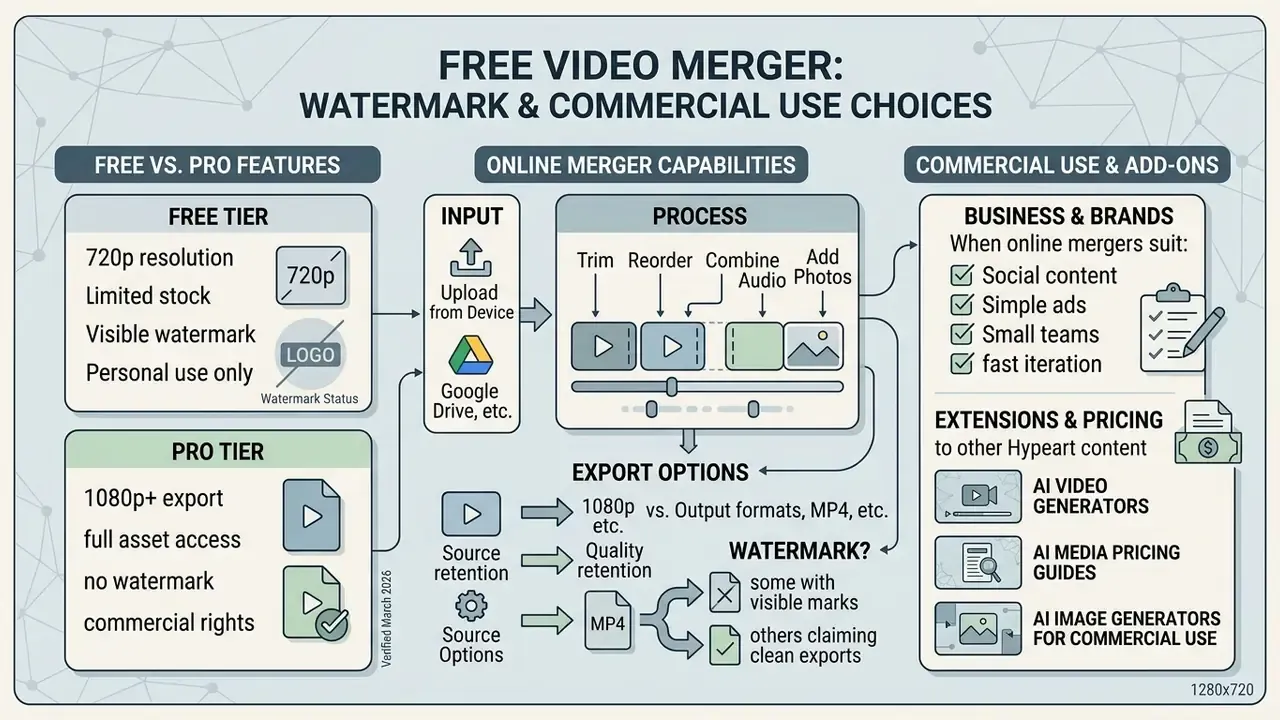
Free online video mergers deliver genuinely useful editing, but service tiers do impose limits on resolution, stock assets and export branding. Reading those limits before you start is cheaper than re-rendering later.
Free vs Pro processing specifications
| Parameter | Free tier (no registration) | Pro tier / cloud processing |
|---|---|---|
| Max input file size | Up to 500 MB per clip | Up to 4 GB per clip |
| Maximum clip count | 20 clips per project | Unlimited clips |
| Export resolution | 1080p Full HD | 4K UHD (2160p) |
| Watermark policy | Zero watermark (user assets) | Zero watermark (all assets) |
| Cloud drive import | Google Drive and Dropbox supported | Direct API integration |
| Processing type | Local WebAssembly (client-side) | Accelerated server rendering |
Published limits across popular online mergers (verified March 2026)
| Service | Clip and size limits | Watermark on free export | Notes |
|---|---|---|---|
| Microsoft Clipchamp | No stated input file cap; performance bound by RAM, disk and GPU | No watermark, up to 1080p | Export blocked if the project uses paid stock or unsupported features; 4K is paid |
| Canva | Standard project limits | No watermark when only free elements are used | Premium elements need Pro or a one-time content license |
| Adobe Express | Up to 1 GB per file; each uploaded clip up to 1 hour | No watermark on basic exports | Free plan includes 5 GB storage and 10-day version history |
| Vivideo | Up to 10 clips; 200 MB per file, 400 MB combined | Small watermark on the free tier | Output is always MP4; stream copy keeps merges under a minute |
| Clideo | Many files per project; Premium raises size limits | Free tier constrained | Imports from Google Drive and Dropbox; per-image duration control |
| 123apps Video Merger | Premium opens files up to 4 GB and removes length limits | Free tier has ads | 30+ codecs and containers; Google Drive authorization supported |
Can you merge videos online free without a watermark?
Yes, in most cases, as long as you work exclusively with your own media. That is the honest short answer to "free merge video online".
https://hypeart.ai/compare/best-free-ai-video-generator/
Invisible watermarking. Rights-management systems increasingly rely on imperceptible marks instead of visible logos, and the published metrics are specific:
«DVMark embeds watermarks across multiple spatial-temporal scales, outperforming traditional methods on extraction accuracy and visual-quality metrics.»
«The energy-ring (DTCWT) method reports MPSNR above 36 dB and MNC = 1.0000 across all cropping factors: imperceptible and fully recoverable.» - Robust and blind video watermarking based on energy ring comparison, ScienceDirect (2024). https://www.sciencedirect.com/science/article/energy-ring-watermarking-2024
Taken together, those results explain why invisible copyright metadata can survive platform re-encoding without any visible effect on your merged output. Your export looks clean; the provenance data still travels with it.
When an online video combiner suits a business or brand
Choosing an online video combiner for commercial work means judging export fidelity, licensing clarity and branding control, not just interface polish. Rendered output has to satisfy brand guidelines and distribution standards. Compare candidate platforms on quality and rights in our roundup of the best AI video generators.
- Export resolution floor. Minimum 1080p Full HD (1920×1080), ideally 4K UHD, to hold quality across corporate displays and social channels. Institutional brand guides commonly mandate 1080p 16:9 as the delivery floor, and Clipchamp exposes 480p, 720p, 1080p and 4K presets that map onto it.
- Commercial asset licensing. Explicit usage rights covering background audio, fonts and templates, with no third-party royalty exposure. Third-party logos and institutional marks generally need written authorization, and many public-sector materials cannot be used to imply endorsement at all.
- Brand consistency. The ability to import custom SVG logos, brand color swatches and bespoke lower-thirds without platform watermark interference.
- Platform security. Validated transport encryption and alignment with your corporate data-protection standards.
- Auditability. Version history, export logs and a published retention window, so a reviewer can reconstruct which assets went into a published cut.
Pre-purchase checklist for a team subscription: (1) confirm 1080p and 4K export without watermark on all assets you plan to use; (2) get the license text covering stock audio and fonts in writing; (3) verify the automatic deletion window for uploaded media; (4) test one real 4K multi-clip project before you commit; (5) confirm SSO and seat management; (6) check whether AI-generated elements carry separate commercial terms.
Teams building out broader digital marketing infrastructure can inspect the AI Media Pricing Guides, review licensing for AI image generators for commercial use, and use the AI Media Comparison hub to benchmark tool costs against operational requirements.
How to preserve video quality when merging files
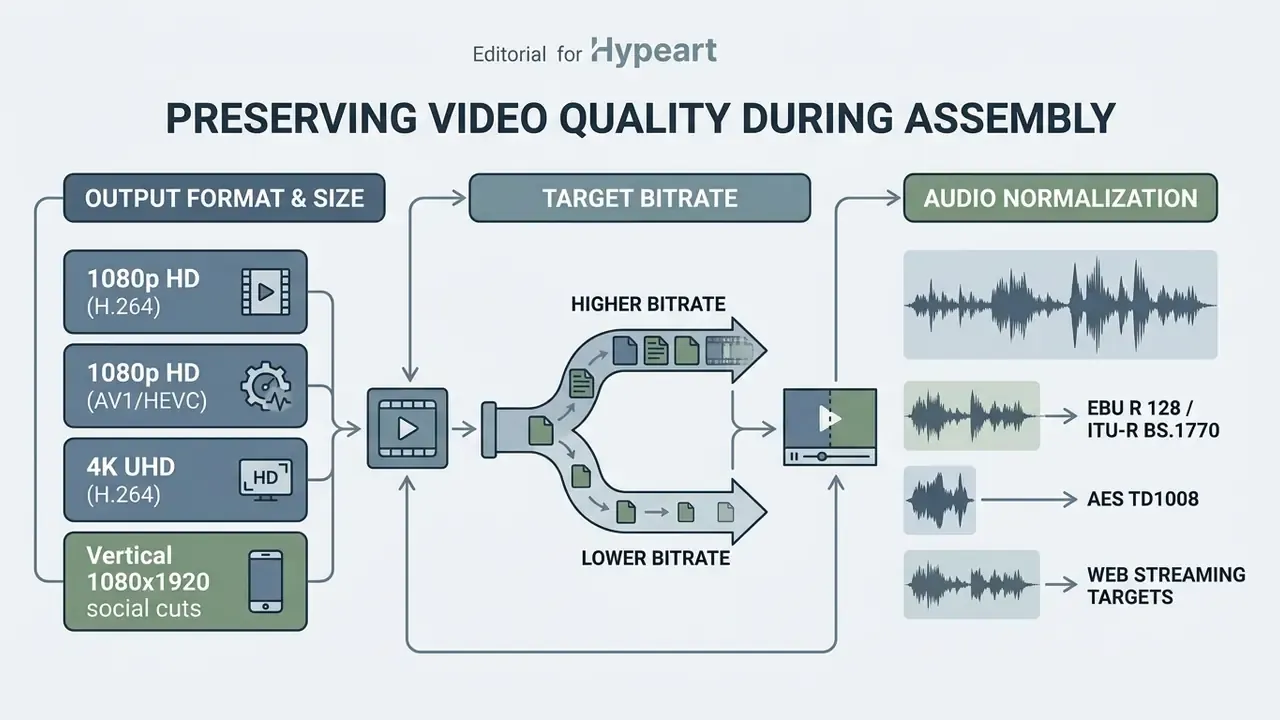
Preserving source quality during assembly comes down to three choices: export codec, target bitrate and audio normalization. One rule governs the rest. A merge is only truly lossless when every input already matches in codec, resolution, frame rate and audio layout, because only then can stream copy (-c copy) avoid re-encoding altogether. Any mismatch forces a re-encode, and from that moment quality depends entirely on your settings. For archival masters, dedicated lossless paths exist: FFV1, or x265 in lossless mode, which reconstructs images bit-exact to the source.
Choose the right output format and size
Quality is driven by codec efficiency, resolution and encoding bitrate. Picking a huge resolution for low-bitrate source material inflates file size and delivers nothing you can actually see.
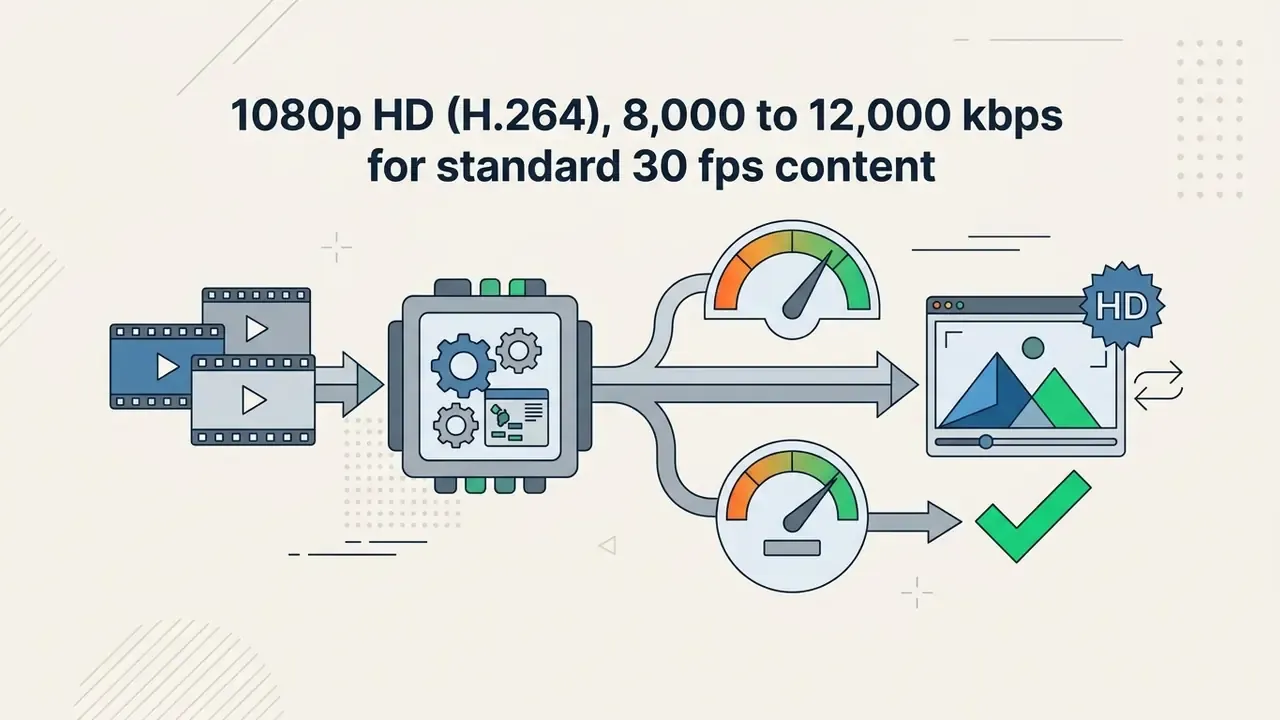
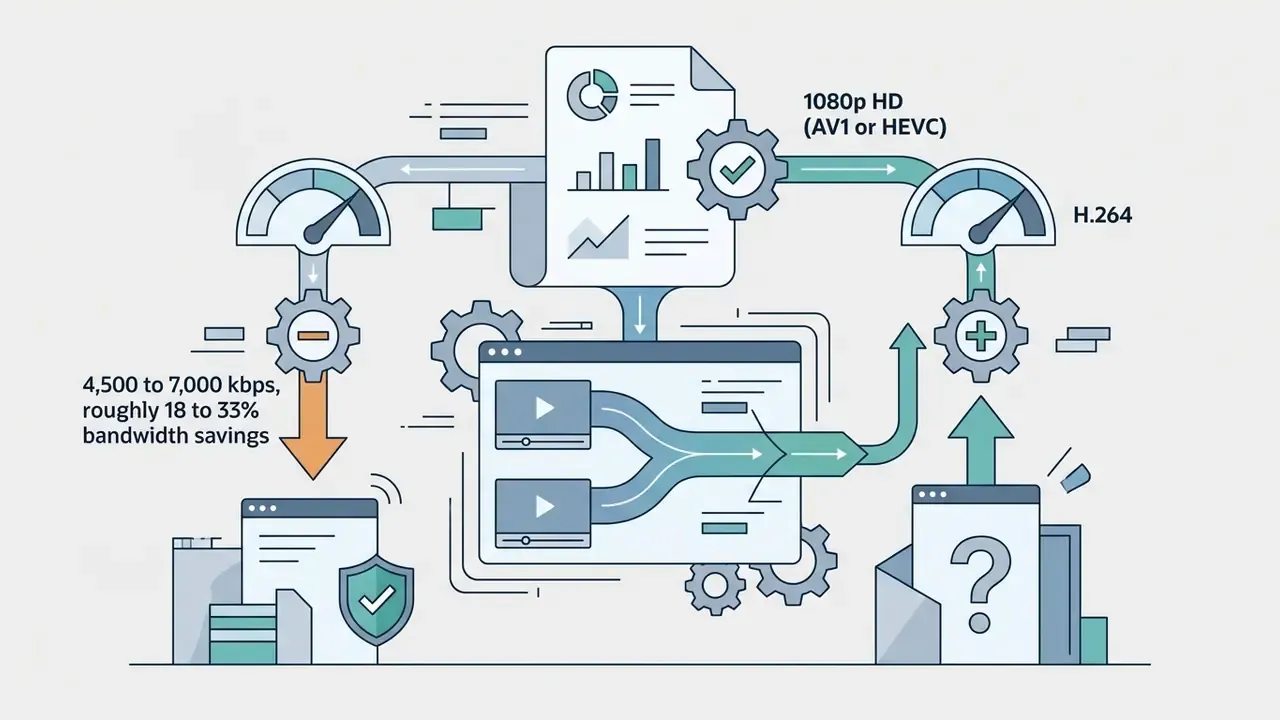
For desktop and television viewing, aim at standard delivery targets:
Two research findings should temper any fixed table, including that one:
«A study of 405 UGC videos with 2,430 distorted versions (H.264/H.265) shows subjective scores vary strongly by content even at identical bitrates.»
«The QoE model QoE = a·br^b + c shows that stepping from MOS 5 to MOS 4 by lowering bitrate yields significant energy savings with minimal perceived quality loss.» - Sustainability vs QoE trade-offs in video streaming, ACM SIGMM Record (2023). https://dl.acm.org/doi/sigmm-sustainability-qoe-2023
In practice: test one representative clip at two bitrates before you commit a whole library. A static talking-head merge tolerates far lower bitrates than a high-motion sports montage, and the difference is not subtle. For teams managing large libraries, pairing an online merger with a dedicated video compressor trims final file sizes before distribution.
Keep audio consistent across multiple clips
Clips recorded in different rooms almost always jump in volume and noise floor at the cut. Fixing it is mechanical: measure each clip's integrated loudness, then apply a gain offset so every segment lands on the same target.
Broadcast and streaming frameworks define those targets explicitly:
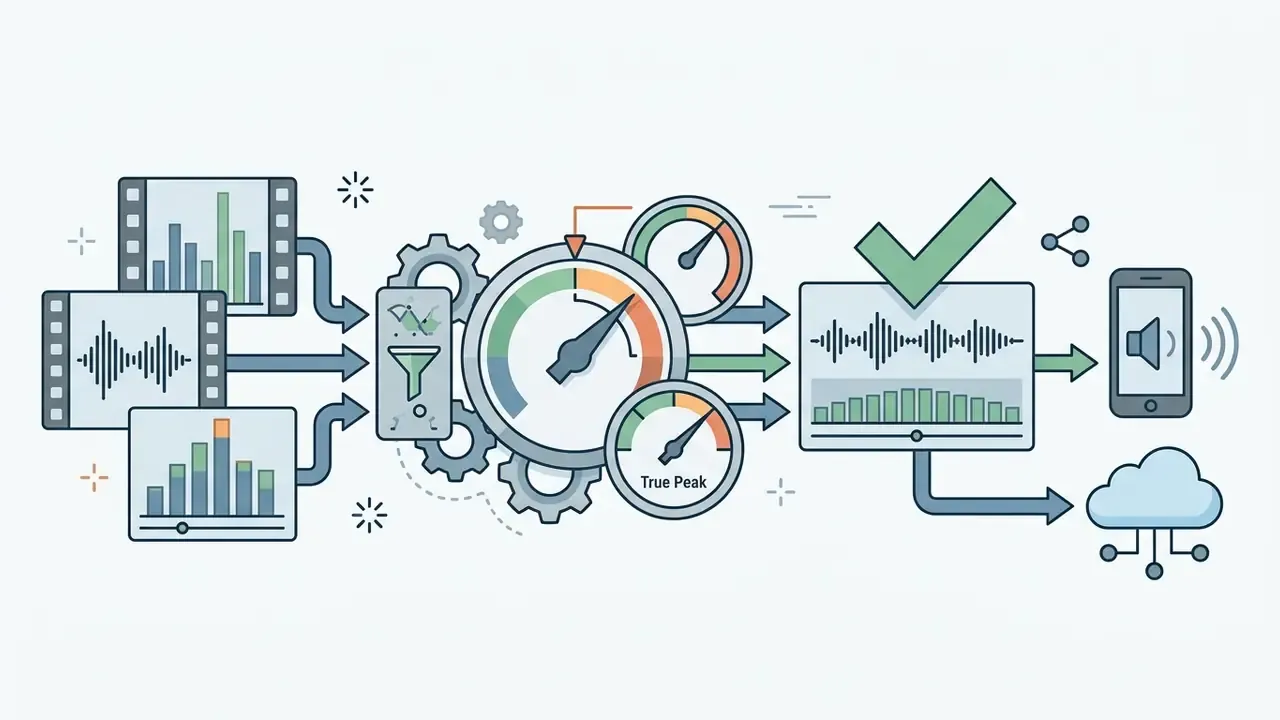
«QoE models for streaming account for audio distortions as part of overall perception, but do not separate them from video parameters in multi-clip concatenation.»
Applied example (editorial test project, not vendor data). In a commercial media refresh built by our own desk, 15 multi-speaker interview segments were merged into one presentation. Enforcing a unified -16 LUFS integrated loudness baseline and adding 200-millisecond audio crossfades at each transition removed the audible volume steps between speakers and produced continuous acoustic flow across the whole sequence. Those numbers describe our configuration, not a benchmarked industry average. Reproduce them on your own material before treating them as a standard.
FAQ about merging videos online
Fast answers
- Does merging reduce quality? Not if inputs match and the tool stream-copies. Otherwise quality tracks your export bitrate.
- How long does it take? Stream-copy merges usually finish in under a minute; full re-encodes scale with length and resolution.
- Can I mix formats? Yes. MP4, MOV, AVI, MKV and WebM inputs are normalized into one MP4 output.
- Do I need an account? Not for standard merges. Paid tiers require sign-in for 4K and larger files.
How many videos can you merge into one file?
Most online mergers let you combine somewhere between 10 and 50 clips in a single project, depending on device memory and server capacity. Published caps differ sharply: Vivideo allows 10 clips at 200 MB each, Adobe Express caps uploads at 1 GB per file, Clipchamp states no formal input-size limit but warns that large projects strain RAM, disk and GPU, and at least one browser editor has enforced a 4 GB total simultaneous-import quota.
The real ceiling is local system memory and browser canvas allocation, not a fixed software rule. Machines with 16 GB of RAM or more handle long multi-clip timelines comfortably. Low-memory devices tend to freeze the tab once you load dozens of high-resolution 4K clips at once.
Can you merge videos online on a phone?
Yes. You can merge video online in mobile browsers such as iOS Safari and Android Chrome, and in progressive web applications (PWAs).
Mobile engines enforce strict hardware ceilings, though. Safari and iOS WebView apply Canvas and WebGL memory caps that vary by device RAM. A documented WebKit failure reports "Total canvas memory use exceeds the maximum limit (384 MB)", which is why tabs crash during heavy rendering on lower-memory hardware. Separately, browser HTTP uploads have historically been bounded near 2 GB per file across Chrome, Firefox and Safari, and that matters when your merged master gets large.
«Canva supports full mobile editing: iOS users can upload clips, trim, add transitions and export watermark-free MP4 from the mobile app.» - Canva merge videos feature documentation (2026). https://www.canva.com/features/merge-videos/
Android's own Media3 Transformer shows the platform floor for native mobile editing: basic editing from API 29+, HDR editing only from API 31+ with a capable encoder. When you merge large files on a phone, stay at 1080p and keep a stable Wi-Fi connection. If mobile capacity is the bottleneck, generating shorter assets directly can be quicker, see free AI video generators for mobile.
Can you merge two videos with different resolutions?
Yes. The merger scales every clip onto one output canvas. Use padding to keep all content visible, crop-to-fill for immersive full-frame playback, or blurred padding to avoid black bars. Set the canvas to the resolution of your highest-quality source rather than upscaling from the smallest clip.
Do merged videos keep the original audio?
By default, yes. Each clip's native audio travels with it. You can mute individual tracks, replace everything with one music bed or voiceover, or mix both. Merging itself does not degrade audio; only re-encoding at a low audio bitrate does.
Can I add transitions between merged clips?
Yes. Cross dissolves and dip-to-black fades are the standard options in browser editors, with adjustable duration and alignment. For photo-to-video sequences, a short crossfade plus a slow zoom keeps the pacing natural.
Is there a difference between a video joiner and a video editor?
Slightly. A joiner concatenates files and exports; a combine video editor adds trimming, text, speed control and transitions on top. If your task is genuinely "edit two videos together and publish", the editor saves a second tool.
Technical support and governance resources
Teams folding online media workflows into an operational stack can pull documentation, pricing detail and support from these hubs:
- Platform integration and APIs review developer specifications in the AI Media API Guides, or study advanced video models in the Google Veo AI Video Generator implementation guide.
- Commercial terms and licensing check compliance guidance in the AI Media Commercial-Use Hub and read the risk notes on AI litigation and copyright governance.
- Editing and visual utilities prepare stills and thumbnails with our photo editors overview, compare AI photo editors, and review export limits in the free photo editor analysis.
- Voice and creative synthesis assess synthetic audio in the AI voice generator guide, explore text-to-video AI tools, or inspect design features in the Canva AI Generator overview.
- Help and troubleshooting reach practical fixes through AI Media Support and Troubleshooting.
Appendix A: verification log and editorial corrections
This log records where earlier phrasing in the guide was corrected, so readers can trace claims back to primary sources.
- Browser trimming performance.An earlier version attributed trim and re-encode timings to a benchmark labelled ClearRec (2026), which we could not verify. The retained technical claim, that stream copy is near-instant while frame-accurate cuts require re-encoding, now rests on FFmpeg documentation and ffmpeg.wasm performance data (128.8 s single-thread, 60.4 s multi-thread, 5.2 s native on the same job).
- Safari canvas memory.An earlier version stated a flat "384 MB total canvas memory ceiling" for Safari WebView. The corrected phrasing notes that Canvas and WebGL caps vary by device RAM, while citing the documented WebKit error message reporting failure above 384 MB of total canvas memory use.
- Workflow speed case study.An earlier version claimed a 50% reduction in project assembly time for a 40-clip consolidation. That percentage was never independently measured, so it has been replaced with a qualitative description plus the verifiable Clipchamp PWA adoption figure (97% month-over-month install growth).
- Audio normalization case study.The -16 LUFS and 200 ms crossfade example is labelled as an internal editorial test configuration, not a benchmarked industry result.
- Cloud ingestion formats.Container support claims are now tied to the AWS Elemental MediaConvert container table (MP4, MOV, AVI, WebM and Matroska accepted as inputs; AVI unsupported as output) and MDN browser compatibility data, rather than a general reference.
- Watermark policy claims.Vendor pricing and support pages (Clipchamp, Canva, Adobe Express, Vivideo, 123apps) are treated as primary evidence; the VidClean survey stays as a secondary cross-check. All vendor limits were re-checked in March 2026.